Global Metadata
Last updated: November 10, 2026
Overview
SpotDraft's new Global Metadata system is designed to create a cleaner, more intuitive, and powerful way to manage your contract data. It moves away from contract-type-specific data fields to a unified, global system.
The core benefit is creating a single source of truth for your data. Instead of having multiple versions of the same field (e.g., "Contract Value," "Deal Value," "Total Value"), you now create one global field and reuse it everywhere. This dramatically improves data consistency, simplifies setup, and makes your reporting more reliable and accurate.
Benefits
One field, used everywhere. Create Contract Value once instead of Deal Value in one contract type and Total Value in another. Every team reports on the same field.
Cleaner repository and reports. Each field is a single column, so filters, views, and exports stay consistent across contract types.
Precise control over what people see. Choose separately whether a field appears in the repository and reports, and on a contract's details page.
Exceptions without duplicates. Set a workspace-wide default, then change the behaviour for only the contract types that need it.
Targeted AI extraction. Turn on Smart Data Capture only for the contract types where a field matters, which keeps extracted data relevant.
Consistent intake forms. Questions linked to a field inherit its type and dropdown options automatically.
How Global Metadata works
Metadata fields
A metadata field is one piece of information you track on every contract where it applies, such as Effective Date, Contract Value, or Governing Law. Each field has:
Field Name: how the field appears across SpotDraft. It can't be changed after saving.
Field Type: the kind of value it holds. It can't be changed after saving.
Metadata Section: the folder it is grouped under, such as Party Information, Commercial Terms, or Key Dates. Sections only organise fields; any contract type can use any field.
Description: what the field captures, in plain words. SpotDraft AI also reads it when extracting values.
Note: Paragraph fields are included in generated reports but do not appear as a repository column.
How values are filled in
A field's value on a contract can come from any of these sources:
Intake form answers. When a question is linked to the field, the requester's answer is saved as the value.
Smart Data Capture. SpotDraft AI reads the contract and extracts the value, including on contracts you upload.
Manual edits. Anyone with edit access can add or correct a value from the contract's details page.
Integrations. Connected systems can send values into the field.
Because every source writes to the same field, the value is consistent wherever it is shown.
Where metadata appears
Repository: as a column you can search, filter, sort, and save in views.
Reports: in one-time and scheduled reports, and in exports.
Contract details page: in the metadata panel of each contract.
Intake forms and templates: as linked questions and template fields.
Visibility and extraction settings
You decide where each field shows up, and whether SpotDraft AI extracts it, with three independent settings:
Setting | What it controls | When you create a field |
|---|---|---|
Show in Repository & Reports | The repository column, filters, reports, and exports | Off |
Show in Contract details | The field in the contract's metadata panel | Off |
Enable smart data capture | Whether SpotDraft AI extracts a value | Off |
Defaults and overrides
The settings on a field are its default and apply to every contract type. An override changes one or more settings for a specific contract type. Contract types without an override follow the default, including contract types you add later.
Overrides let one field serve every contract type, so you never need a separate NDA Payment Terms field.
Create a metadata field
Go to Manage > Metadata Manager and click Create new metadata.
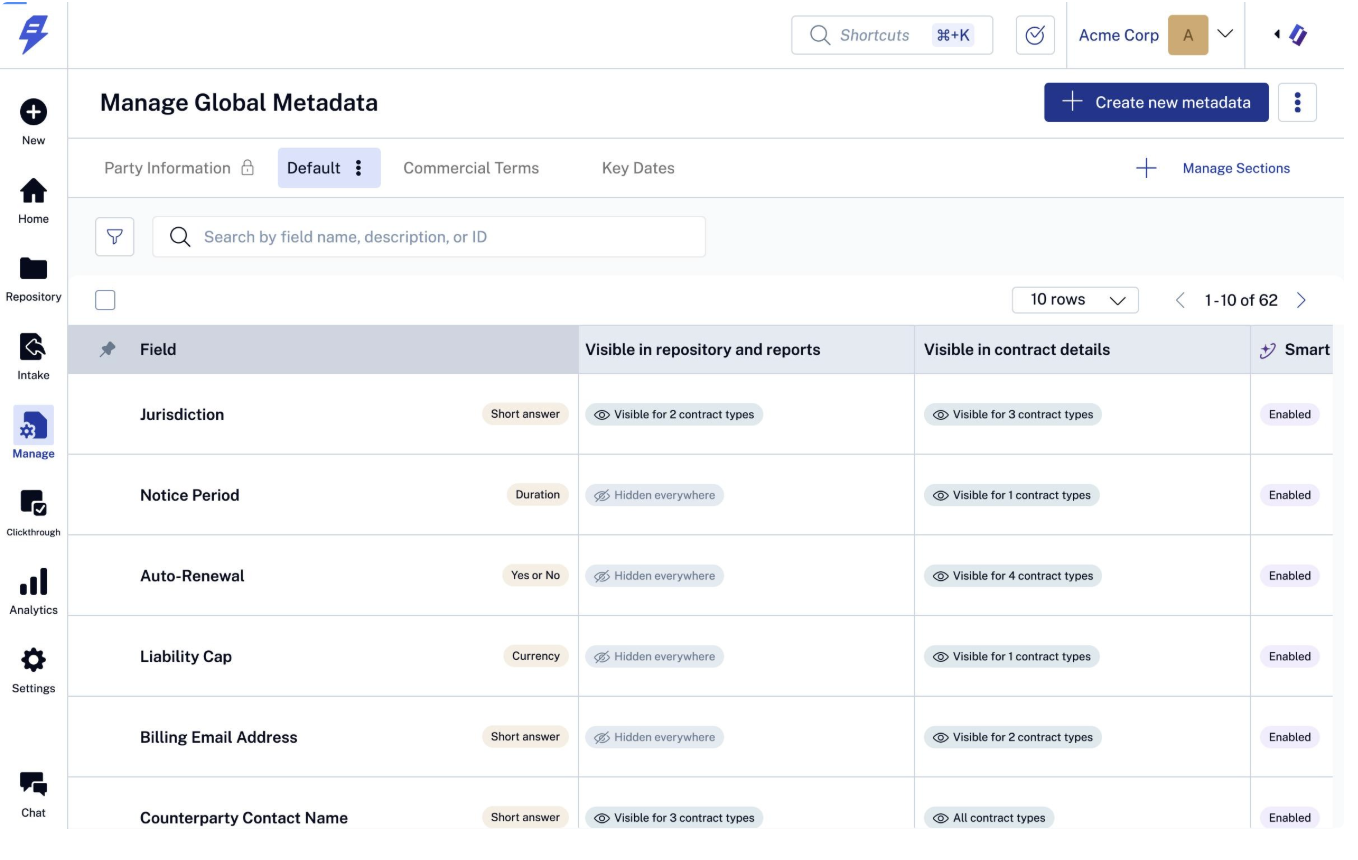
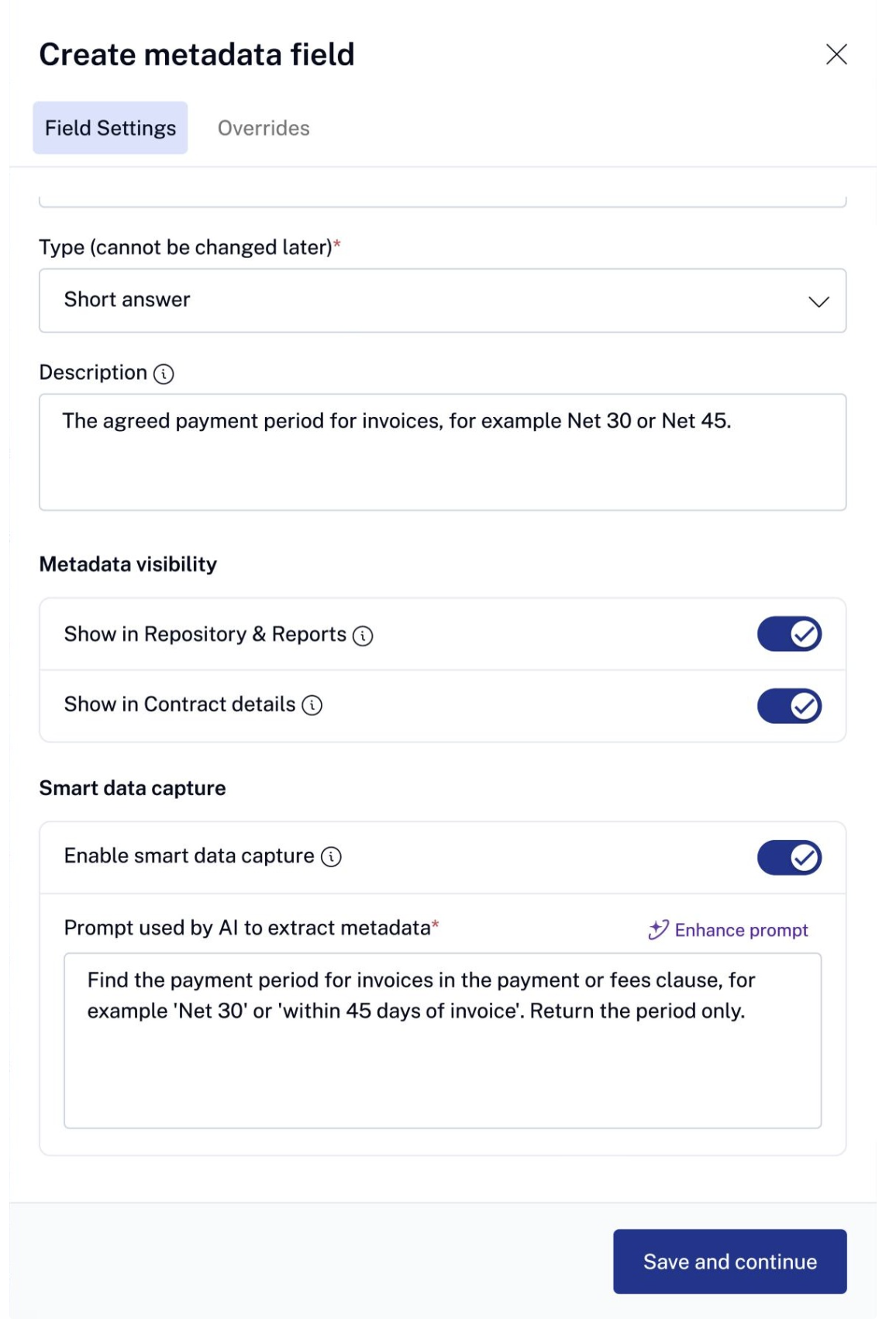
On Field Settings, enter the Name, Metadata Section, Type, and Description.
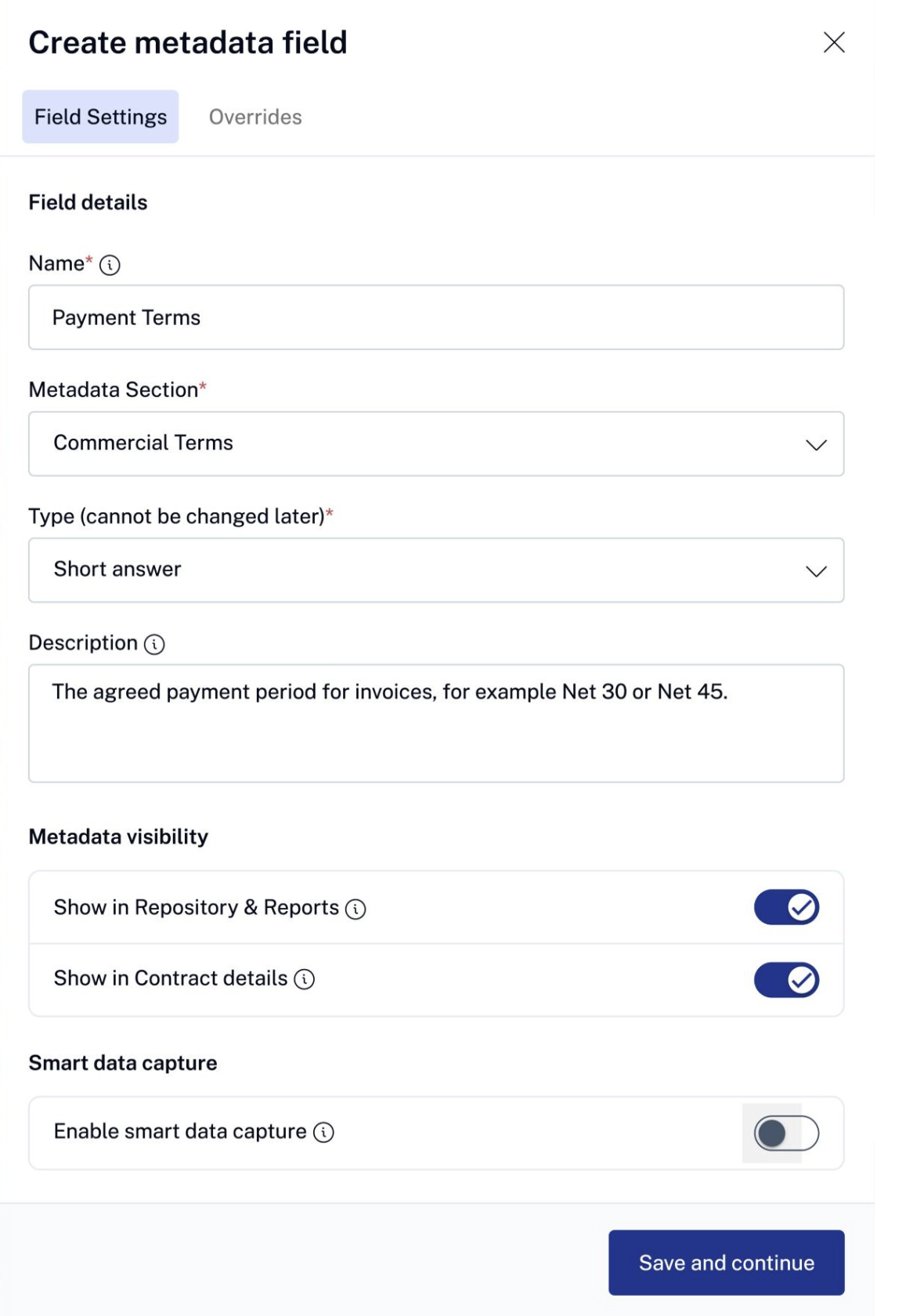
Under Metadata visibility, turn on Show in Repository & Reports and Show in Contract details as needed. These are the field's defaults for every contract type.
Click Save and continue. On Overrides, add any contract-type exceptions (see below), then click Save metadata.
Tip: You can also create a field while adding an intake question: type a name in the Metadata Field dropdown and click Create "<name>".
Add contract-type overrides
The Overrides tab has two parts:
Visibility overrides: pick contract types and tick or clear Repository & reports and Contract details for each one.
Smart data capture overrides: pick contract types that need their own extraction prompt. For each, write a prompt, click Use default prompt to go back to the field's prompt, or choose Skip to not extract for that contract type.
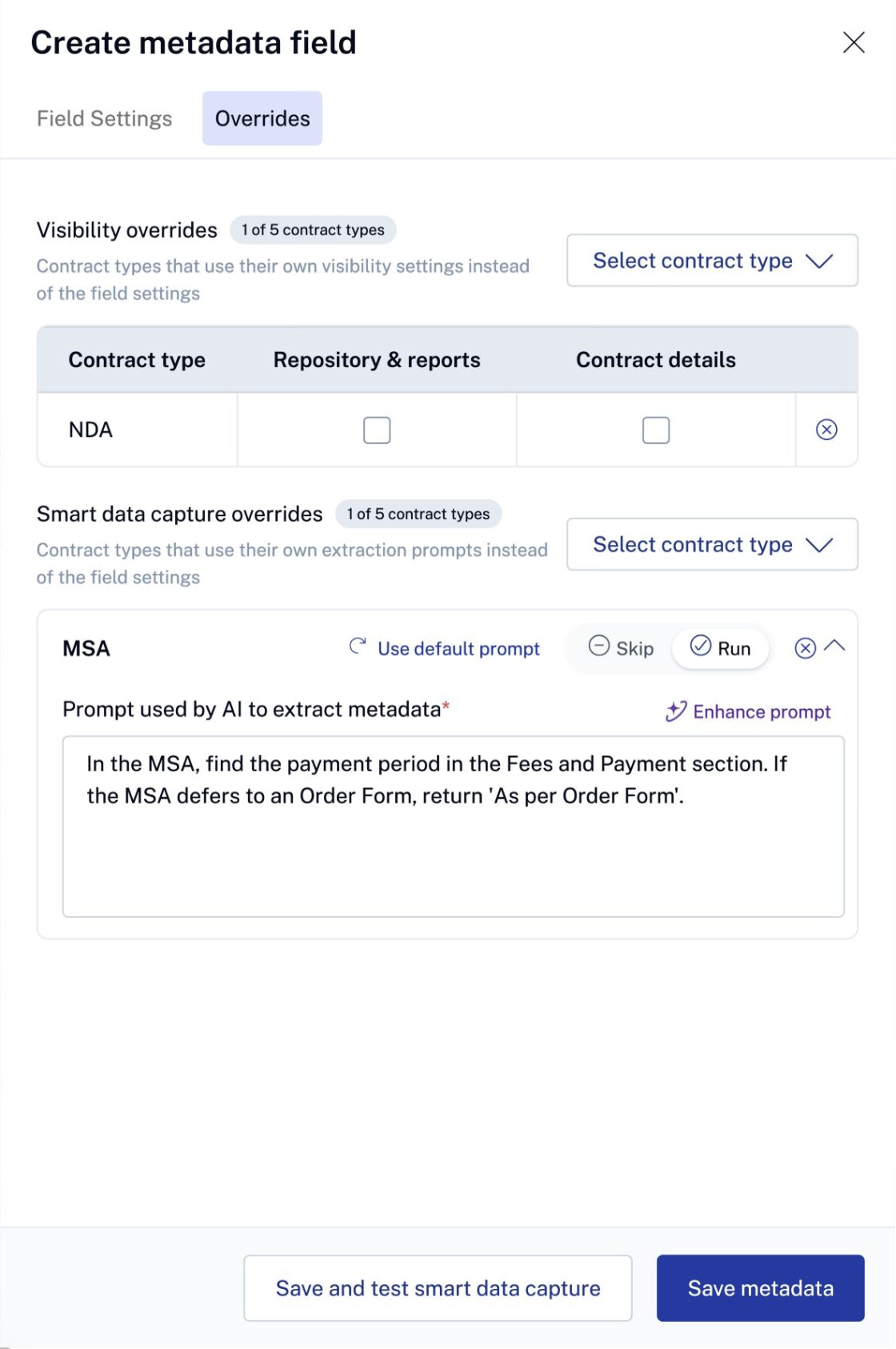
To remove an override, click the remove icon next to the contract type. It then follows the field's defaults again.
Link a field to an intake question
Every questionnaire question saves its answer to a metadata field.
In Settings > Workflow Manager, open the workflow and go to Set up document and questionnaire.
Click Edit Questionnaire, then Add Question.
In Metadata Field, search for and select the field, or click Create "<name>" to make a new one.
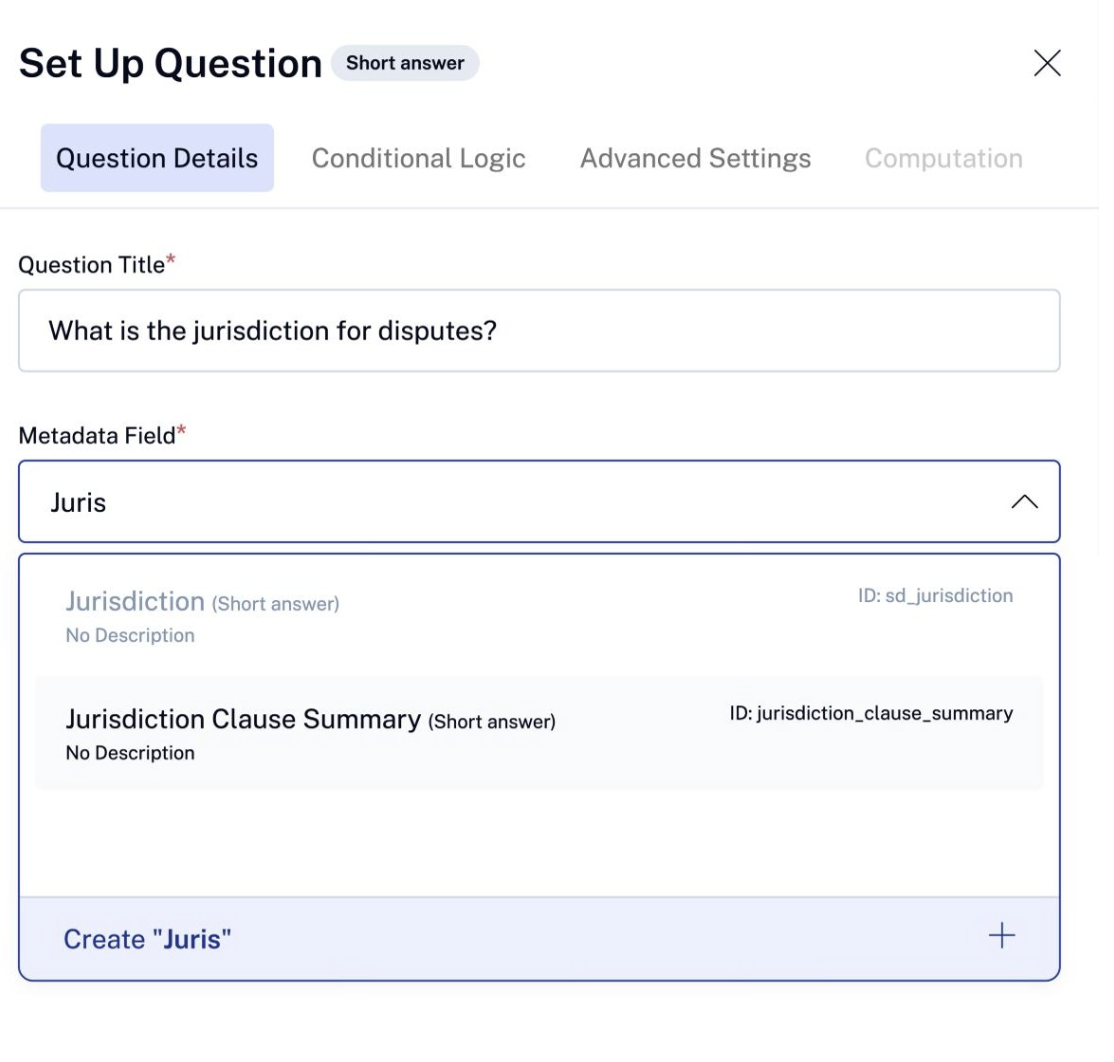
The question takes the field's type and dropdown options. You can hide options for one question without changing the field.
Set up Smart Data Capture
In the field's Field Settings, turn on Enable smart data capture.
In Prompt used by AI to extract metadata, describe what to find and how to return it. Click Generate with AI for a starting prompt, or Enhance prompt to refine yours.
Add contract-type prompts on Overrides where wording differs, then click Save metadata, or Save and test smart data capture to try it on a contract.
Note: Smart Data Capture is not available for Paragraph with formatting, Address, Dynamic Table, File, Image, and Related Contract fields.
FAQs
My workspace already had metadata set up. What happens to my existing fields and values? Your fields, their values on existing contracts, and your Smart Data Capture prompts are kept. Your earlier settings are carried over as each field's default and contract-type overrides, so fields continue to appear where they did before.
Earlier, a single setting controlled whether a field was visible. How was that carried over? That setting has been split into Show in Repository & Reports and Show in Contract details. Both start from your earlier choice, and you can now change each one on its own.
A field used to be linked to specific contract types. Where do I see that now? Those contract types now appear on the field's Overrides tab, with the field shown on their contract details page. All other contract types follow the field's default.
Why is Smart Data Capture turned off for some of my fields? Smart Data Capture runs only for contract types where the field is shown on the contract details page. If a field was hidden there, extraction was turned off for it. Turn on Show in Contract details for the contract types you need, then turn on Enable smart data capture.
Will my intake forms, templates, and integrations keep working? Yes. Questions, template fields, and integrations stay linked to the same metadata fields, so no changes are needed.
Can I change a field's name or type after creating it? No. Field Name and Field Type are fixed once the field is saved. To change either, create a new field.