Troubleshooting Access and Permission Issues in SpotDraft
Last updated: May 12, 2026
If you're experiencing access or permission issues in SpotDraft, such as being unable to view contracts, edit documents, or perform specific actions, the problem is typically related to insufficient access permissions. Here's how to diagnose and resolve common access issues.
Diagnosing Your Access Issue
Before attempting the solutions below, identify the specific type of access problem you're experiencing:
Cannot log in at all vs. blocked from specific actions (viewing contracts, editing documents, using templates, sending for signature)
Error messages or permission prompts — Note the exact message (e.g., “Ask admin for access”) and what action triggered it
Network or location changes — Check if you're connecting from a new network or location that might be outside whitelisted IP addresses
When reporting issues to your administrator or SpotDraft support, include: affected user emails, specific contract types or templates involved, and screenshots of error messages.
Common Access Issues and Solutions
Unable to Log In - Invited State
If a user cannot log in and is in the "invited state" (has not yet accepted the invitation or completed the password setup process), the invitation needs to be resent.
Navigate to Settings → Access Control
Search for the user
Hover over the user entry
Click "Resend"
After resending, the user should log in using the credentials and instructions received in their inbox.
Unable to View Contracts
If you cannot see contracts in your workspace, you need Viewer access to the relevant contract types.
Note: Having Creator access alone does not grant visibility to all contracts of that type. If you have Creator access but can only see contracts you're directly involved in (rather than all contracts of that type), you still need Viewer access to be added separately for full visibility. Creator and Viewer are independent access levels that must both be configured.
Important: Before you can assign Viewer access, Creator access must first be configured for the contract type. If no Creator access is assigned, you will not be able to add Viewers. Ensure that Creator access is granted to at least one team or individual before proceeding with the steps below.
To grant Viewer access:
Navigate to Settings → Access Control → Contract Types
Find and select the relevant contract type
Click the pencil icon to edit
Under the Viewer section, add the user or team
Click Save
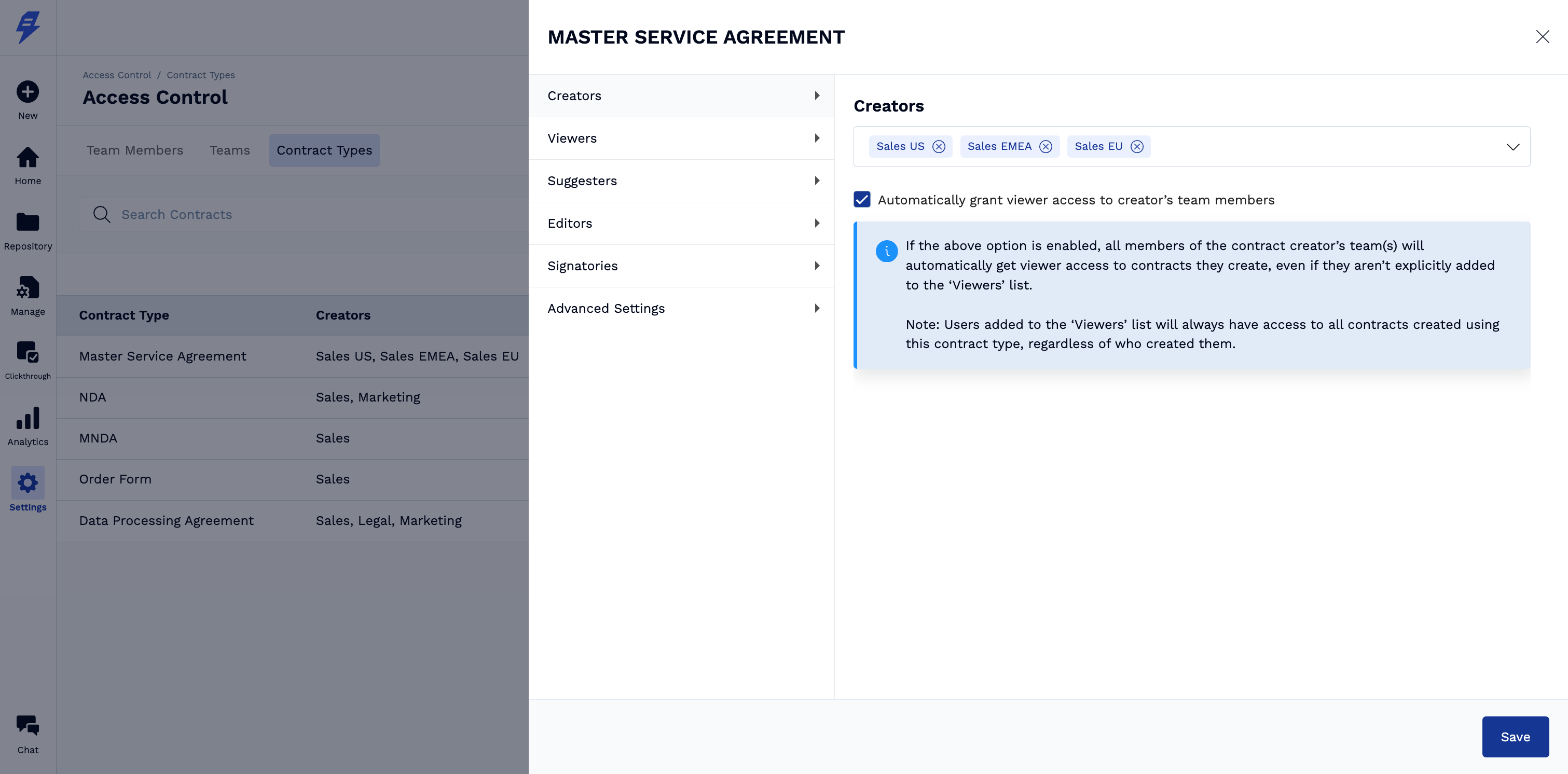
Tip: In the Settings → Access Control → Contract Types, you can enable "Automatically grant viewer access to creator's team members" to automatically give Viewer access to members of the creator's team. However, for cross‑team visibility or if this setting is disabled, you must explicitly add teams or users as Viewers at the contract type level.
Unable to View or Use Templates
If you cannot see templates in the template workflow despite having Viewer access to the contract type, you need Creator access to view and use templates. Similarly, if you cannot see specific workflows when trying to create new contracts or cannot select Contract Types from the dropdown when uploading third‑party contracts, you need Creator access to the relevant contract type.
To grant Creator access:
Navigate to Settings → Access Control → Contract Types
Find and select the relevant contract type
Click the pencil icon to edit
Under the Creators section, add the user or team
Click Save
Note: Viewer access allows you to view contracts once they are created, but Creator access is required to see and use templates in the template workflow, to initiate new contracts from workflows, and to upload third‑party contracts.
Important: Users with Creator access to a contract type can edit metadata fields and intake form responses on any contract of that type, even if they are assigned only a Viewer role on the specific contract. This does not allow them to edit the contract language itself, which requires Editor access.
Note: If a user unable to view a template while creating a Template Contract [From + New → Template Contract], this is most likely because the user does not have Creator access for the specific contract type.
First, navigate to Manage → Workflow Manager and identify the workflow from which you would like to create a contract. Click on Workflow Details → then scroll to the bottom to view the contract type linked to that workflow. Once the associated contract type has been identified:
How to update access
Navigate to Settings → Access Control → search for the required contract type → assign Creator access. If you do not have the necessary permissions to make these changes, please reach out to your admin team to request the required access.
This will ensure that the workflow from which you want to create a contract is visible when you click on + New → Template Contracts.
Cannot Edit Documents or Access OnlyOffice Editor
If editing options are greyed out or you cannot access the document editor, you need Editor access to the contract type.
To grant Editor access:
Go to Settings → Access Control → Contract Types
Select the contract type and click the pencil icon
Under the Editor section, add the user or team
Click Save
Alternatively, you can grant access at the contract level by clicking Manage Access on the specific contract and inviting the user with Editor permissions.
Cannot Send Contracts for Signature
If you're unable to prepare contracts for signing despite having Editor access, check the workflow's signature preparation settings.
To enable signature preparation permissions:
Go to Manage → Contract Types
Open the relevant contract type
Navigate to the Signatories tab
Under Prepare for Signing, ensure the appropriate roles (Editors, Business Users, etc.) are enabled
Click Save
Enabling signature preparation toggles in the contract type settings is only part of the solution. Users must also have one of the following access levels for the specific contract:
Business User (Creator Access) – Must be the Business User assigned to that specific contract
Admin User – Must be part of the Admin team
Editor Access – Must have Editor access to the contract type
If you still cannot send for signature after enabling the toggles:
Reassign yourself as the Business User:
Go to Party Information → Business User on the contract
Add yourself as the Business User
Note: You may need Creator Access to become the Business User. To grant Creator Access, go to Settings → Access Control → Contract Type, find the relevant contract type, click Edit, add your team/yourself as Creator, and click Save
Request Admin team access: Ask your internal Admin team to add you or your team to the Admin team
Request Editor Access: Go to Settings → Access Control → Contract Type, find the relevant contract type and click Edit, add yourself or your team as Editor, and click Save
Cannot Skip or Reassign Approvals
If approval management options appear greyed out, you need specific approval permissions configured in the workflow settings.
To grant approval management access:
Navigate to Workflow Manager by clicking Manage
Select the relevant workflow
Go to the Approvals section
Click the pencil icon to Edit Approval Preference
Under Restrict Actions, configure who can skip or reassign approvals
Select Specific Users and Teams and add the appropriate users
Click Save and Publish Changes
Persistent UI Error Pop-ups
If you're seeing recurring error pop-ups in the interface, this may be due to missing "Manage Contract Types and Workflows" permission.
To resolve UI errors:
Go to Settings → Access Control → Teams
Select the relevant team
Under Permissions, enable Manage Contract Types and Workflows
Click Save
Note: This permission resolves UI errors but doesn't impact your ability to perform contract-related actions based on your existing permissions.
Team-Based Access Control
SpotDraft uses team-based permissions. If a user is part of multiple teams, they inherit the combined permissions from all teams they belong to. When troubleshooting access issues:
Verify the user is assigned to the correct team
Check that the team has the necessary permissions for the contract type
Ensure the contract type is properly configured with the required access levels
Contract Type Level: Applies to all contracts of that type (recommended for ongoing access)
Contract Level: Applies only to a specific contract (use for one‑time access needs)
For persistent access issues, always check and configure permissions at the contract type level first.
Getting Help
If you continue experiencing access issues after following these steps, contact your internal SpotDraft administrator or reach out to SpotDraft support with:
The specific contract link where the issue occurs
The affected user's email address
A description of the action you're trying to perform
Screenshots of any error messages