Setting Up Reminder Configuration for Counterparty Reviews
Last updated: April 27, 2026
To ensure contracts don’t stall while waiting for external feedback, SpotDraft allows you to set automated reminders for counterparty reviews. This ensures that external stakeholders are prompted to complete their review without your legal or business teams having to send manual follow-ups.
How it works
Counterparty review reminders are configured at the workflow level. Once enabled, the system tracks each counterparty POC (Point of Contact) individually. If a counterparty reviewer hasn’t acted on a request within your specified timeframe, SpotDraft sends them a reminder email containing their unique review link.
Note: Counterparty review reminder functionality is only available for Template workflows
Configuring the Reminder Schedule
To set up the automated schedule for a specific workflow:
Navigate to the Workflow Manager and select the workflow you wish to edit.
Go to Additional Options > Reminders.
Locate the Counterparty Review Reminders panel.
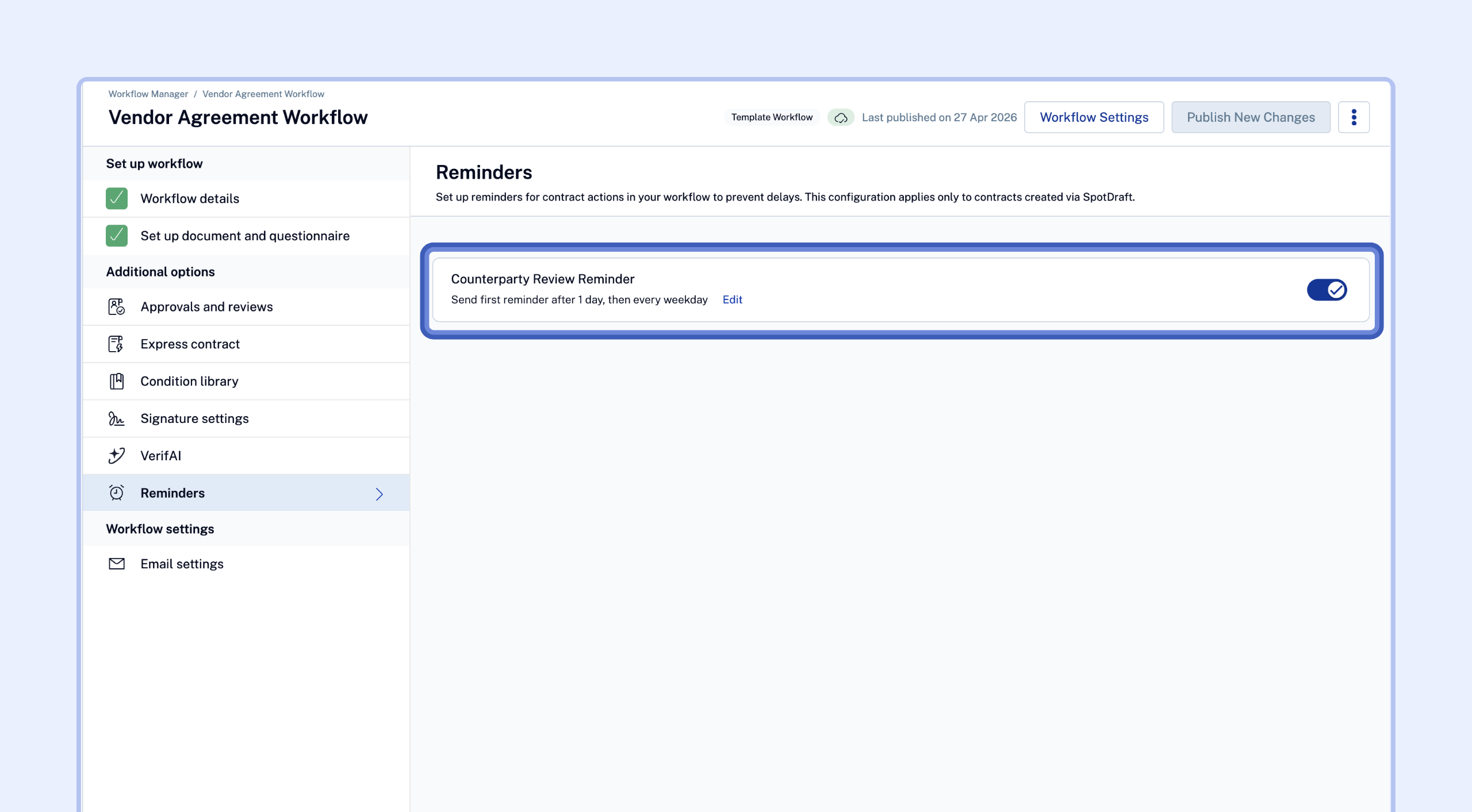
Configure the following settings:
Days before sending first reminder: Set how many days to wait after the initial review request before sending the first reminder (Default: 3 days).
Days between reminders: Set the frequency of subsequent reminders if the review remains pending (Default: 5 days).
Business days only: Toggle this on to skip weekends and only count Monday through Friday.
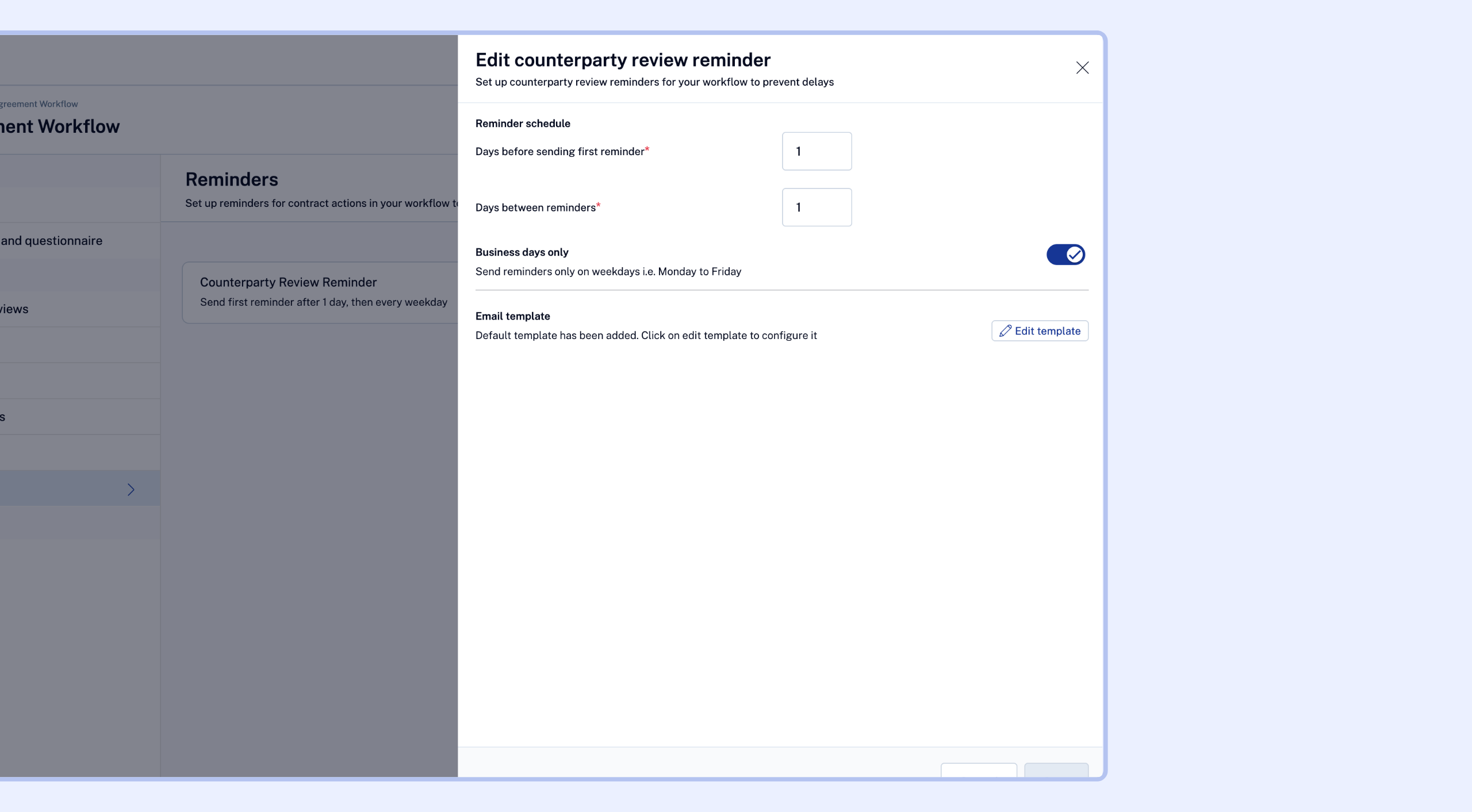
Save your changes and Publish the workflow.
Customizing the Reminder Email Template
You can customize the contents of the reminder email sent to counterparties to match your organization’s tone.
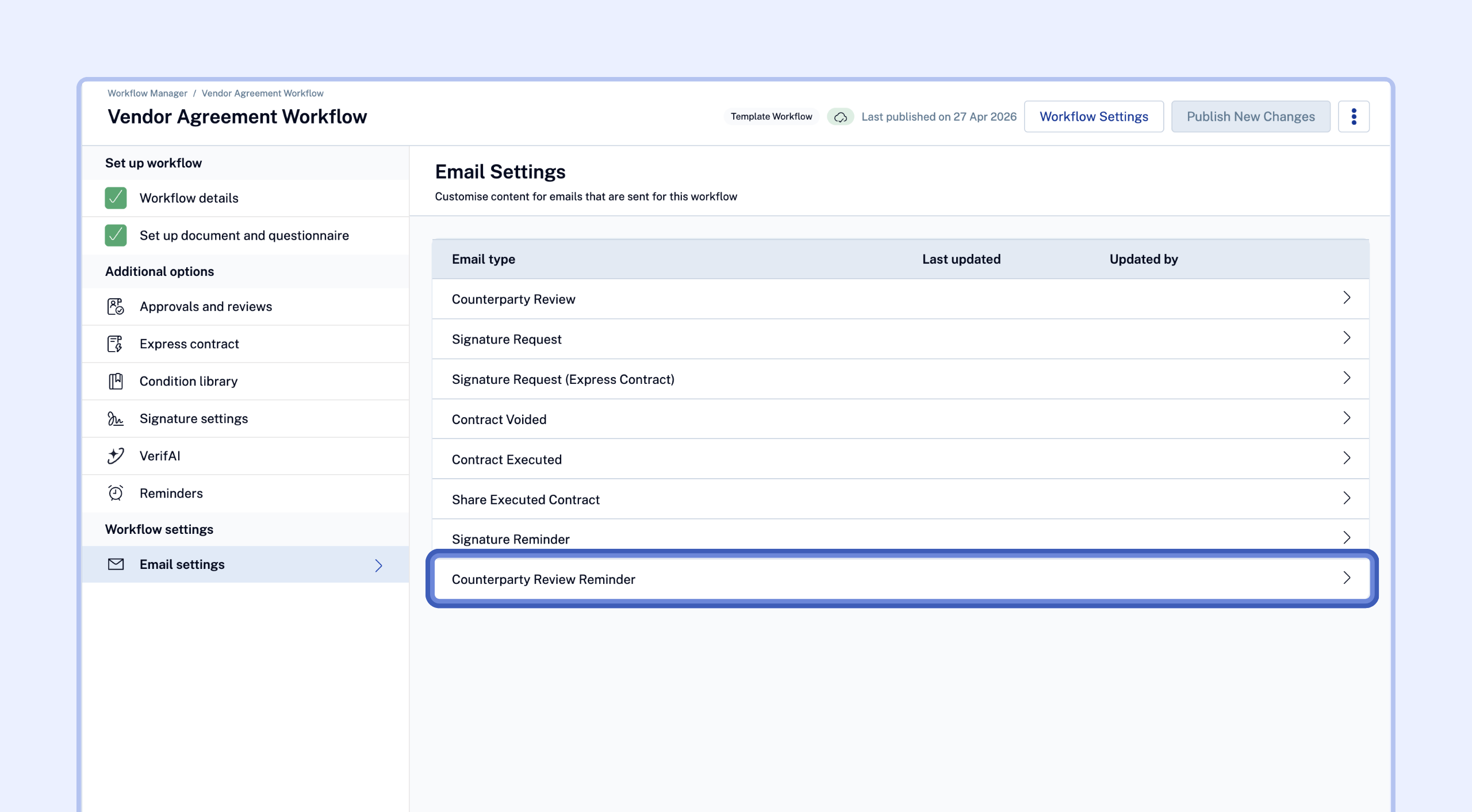
In the Workflow Manager, navigate to the Email Settings tab for a given workflow.
Select the Counterparty Review Reminder email template.
You can use dynamic variables such as [Contract Name], [Requester Name], and [X days] (to show how long the task has been pending) to personalize the message.
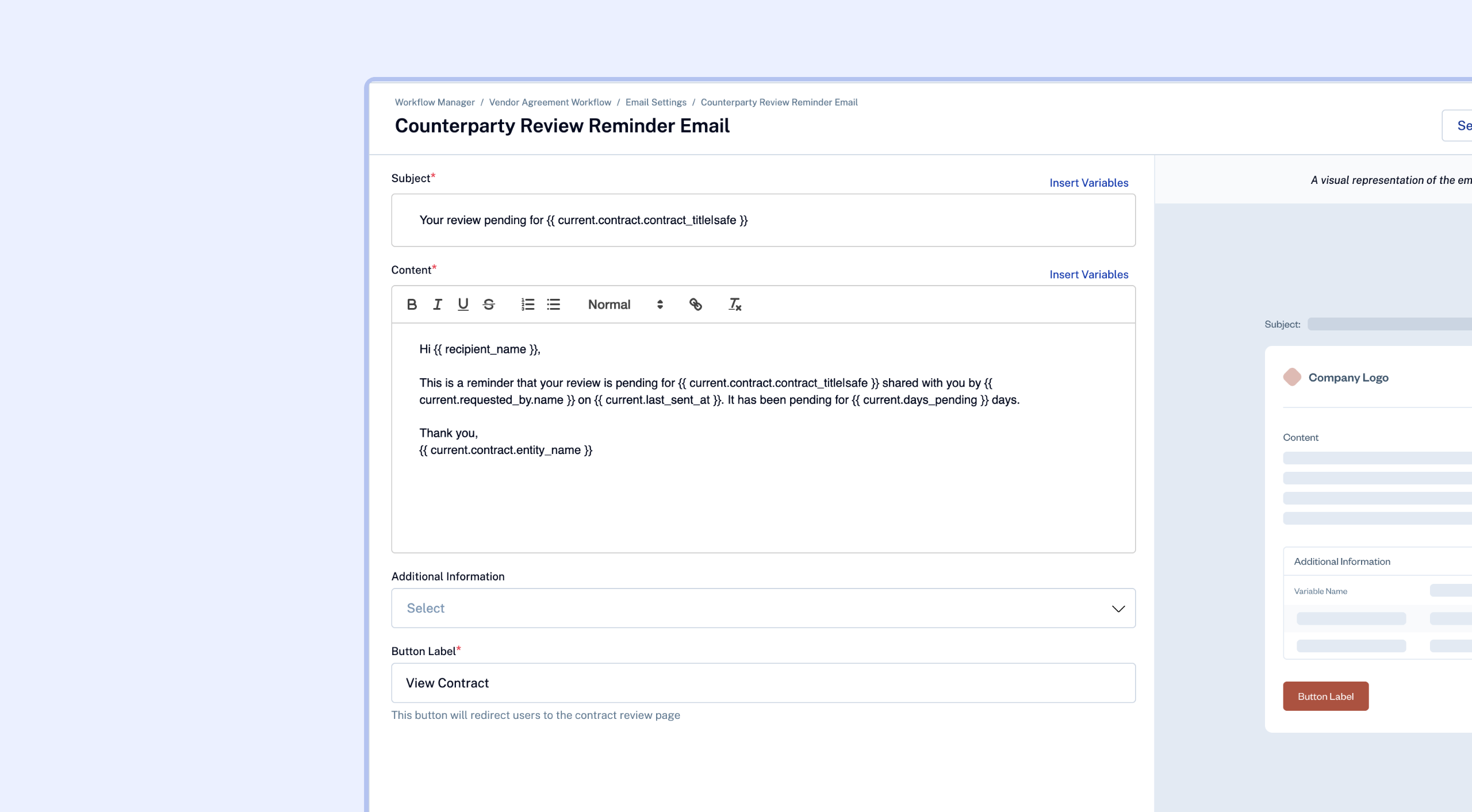
Save the template.
Reminder Logic and Behavior
Independent Countdowns: If a contract has multiple counterparties, each POC has their own independent reminder schedule. A reminder sent to "Counterparty A" will not affect the schedule for "Counterparty B."
When it starts: The countdown begins the moment the review request is sent to the counterparty (Status: Pending).
When it stops: Reminders stop automatically once the counterparty completes their review, or if the review task is skipped or deleted.
Replacing a POC: If you replace a counterparty POC or re-request a review, the countdown resets from scratch for the new recipient.
Paused/Voided Contracts: Reminders are automatically paused if a contract is put on hold, voided, or deleted. They will resume from scratch if the contract is restored or resumed.
Note!: Direct Review Links: Automated reminders do not apply if you only use the "Generate Review Link" button to share a link manually. The system only sends automated reminders for structured counterparty review tasks where a POC is assigned.
Tracking Reminders
At the Contract Level
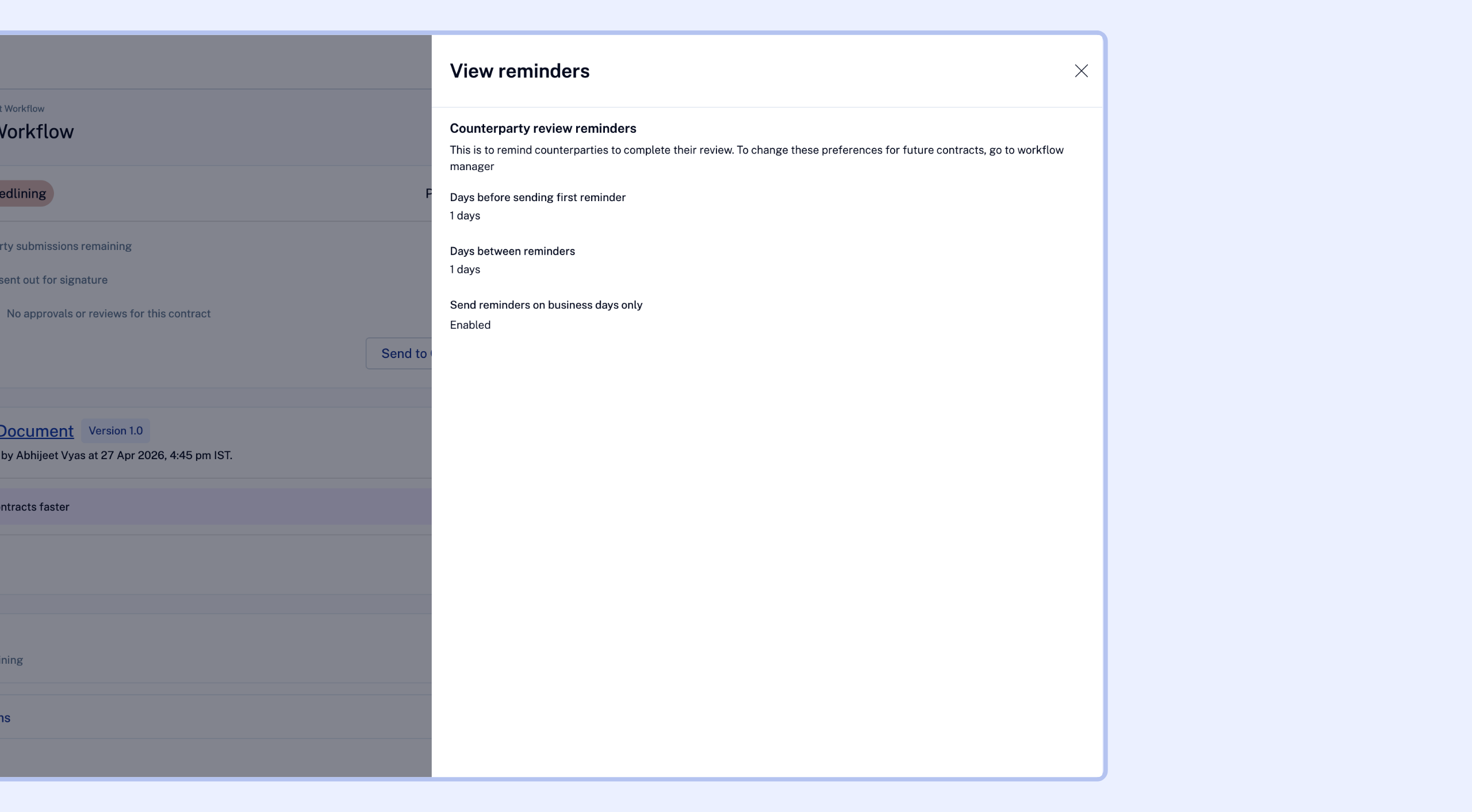
For active contracts, you can view the specific reminder settings by clicking the More Actions (three dots) menu on the Contract Details page. These settings are read-only at the contract level and reflect the configuration inherited from the workflow.
Activity Log
Every automated reminder is logged in the contract’s Activity Log for audit purposes. The log will record:
"SpotDraft sent a counterparty review reminder to [counterparty POC email]"