Managing Legal Requests with the Kanban Board
Last updated: June 23, 2026
Overview
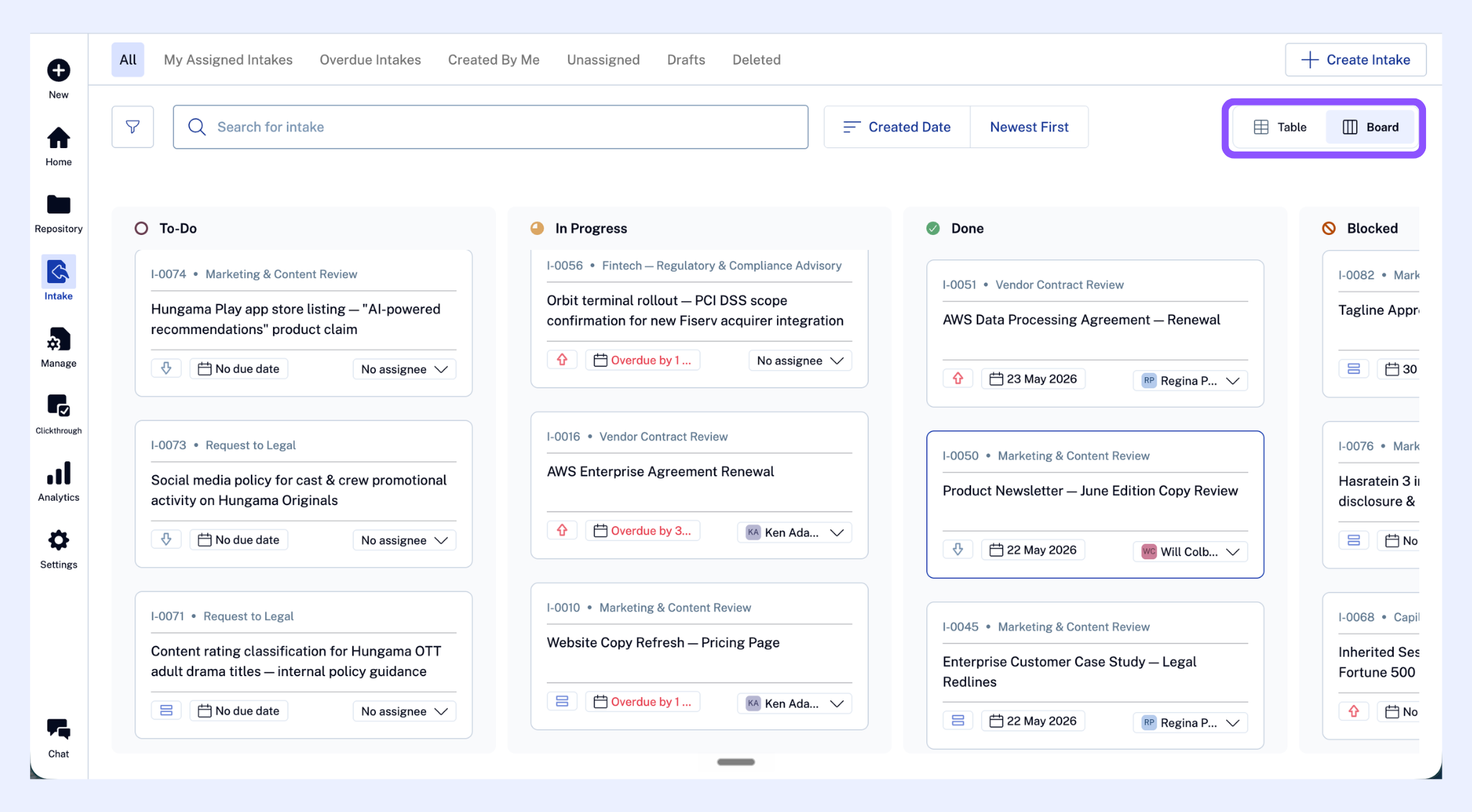
The Kanban Board is where your team manages everything in flight. Each column represents a stage in your workflow. Cards move as work progresses — giving your entire legal team (and leadership) a real-time view of what's open, what's moving, and what's stuck.
Use Case:
Meet Priya. Priya is a Legal Operations Manager at a 500-person e-commerce company in London. On Monday mornings, her team's standup used to involve reading out a shared spreadsheet. Now they open the Kanban board, and the conversation takes three minutes: what's blocked, what's due this week, what just came in.
Accessing the Kanban Board
From the left navigation menu, click Intake. The Kanban view is the default.
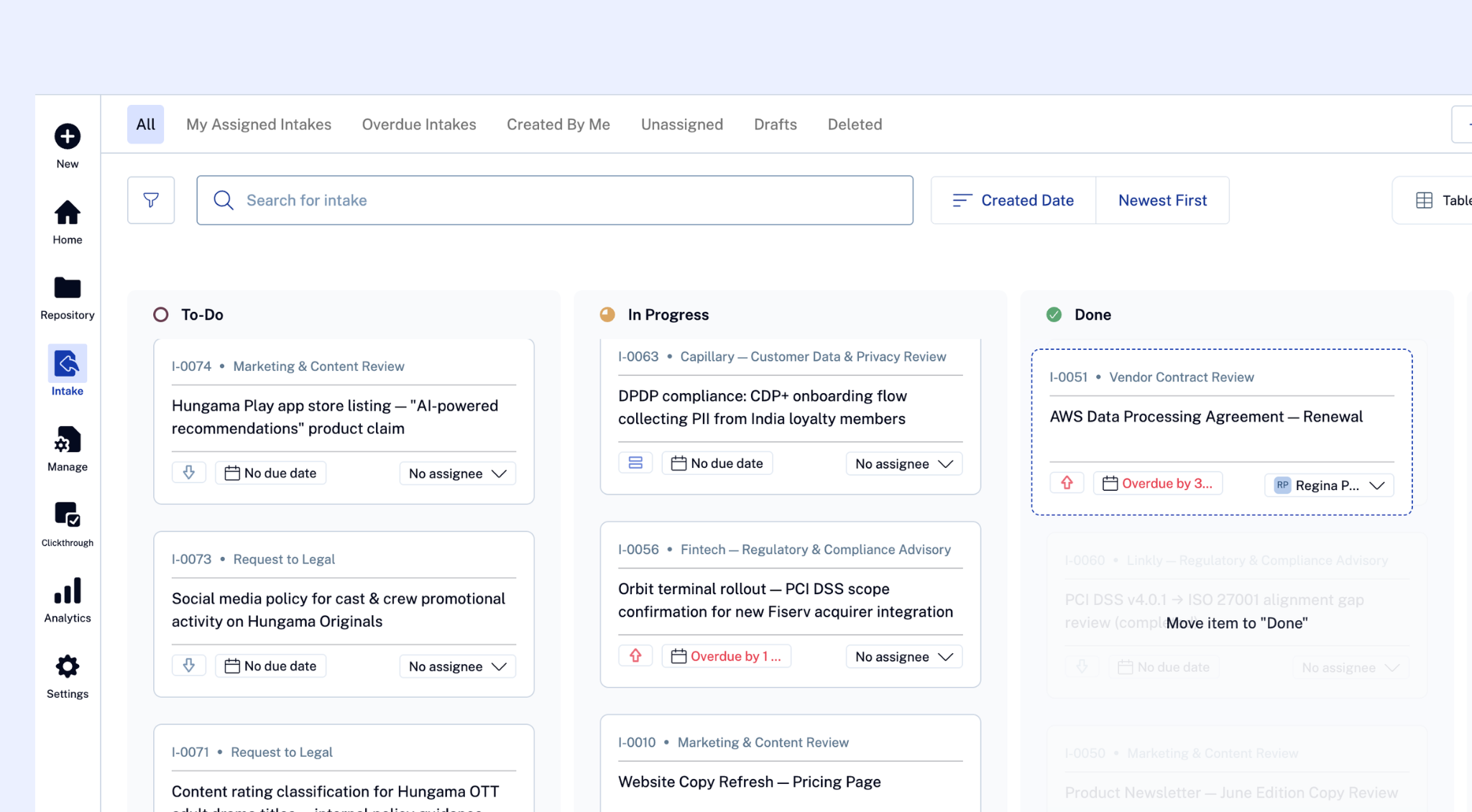
Moving a card
Click and drag a card to move it between columns, or open the card and change the Status field from the dropdown.
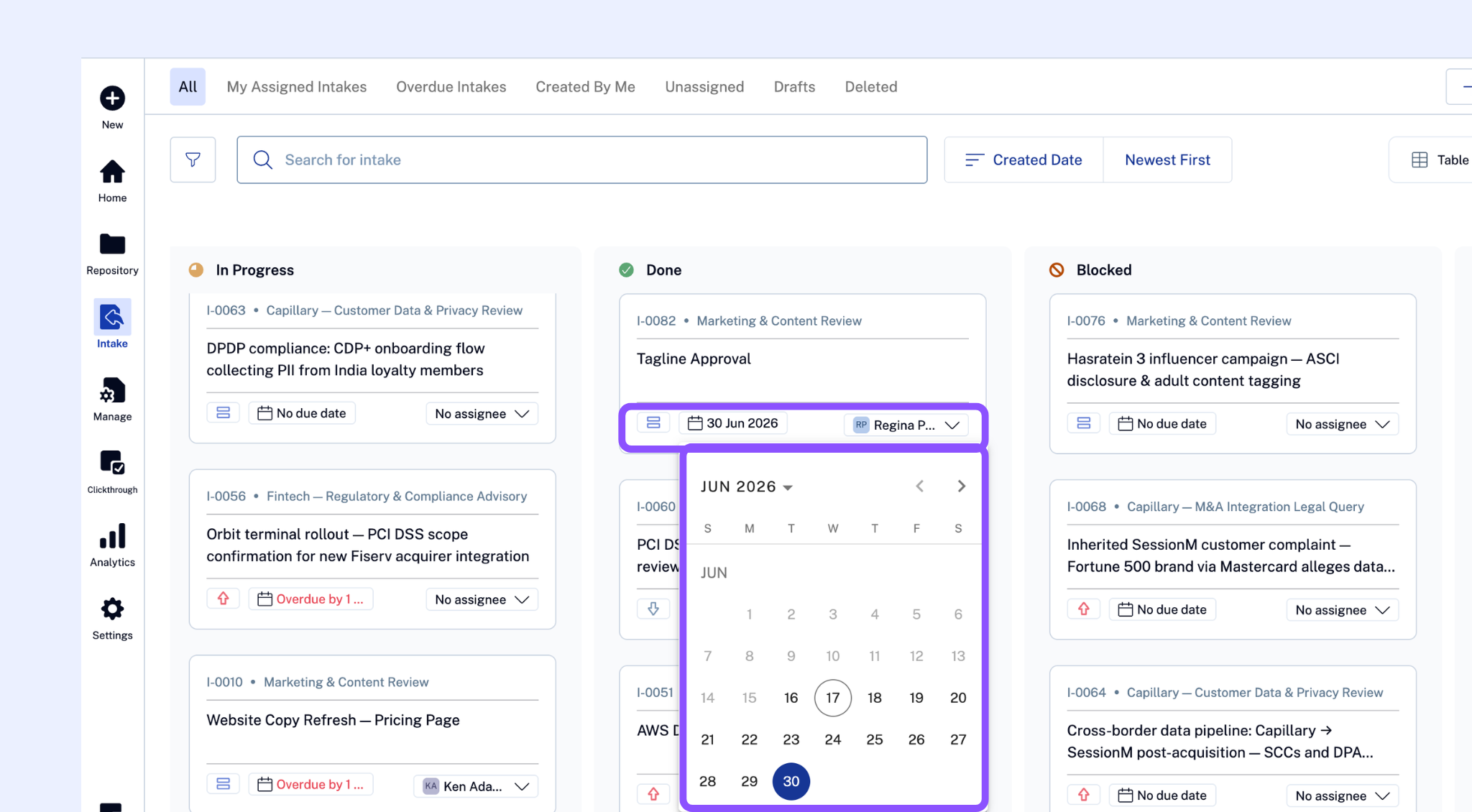
Working with a request card
Interact with any card to act on any of:
Assign the request: Click the Assignee field and select a team member. They'll be notified.
Set or update priority: Use the Priority dropdown to mark the request as Low, Medium, or High.
Set or update due date: Use the Due Date field to choose a date for the request.
Add tasks Use the Tasks section to create internal sub-items — for example, "Review attached DPA" or "Check with compliance team." Assign tasks to specific team members.
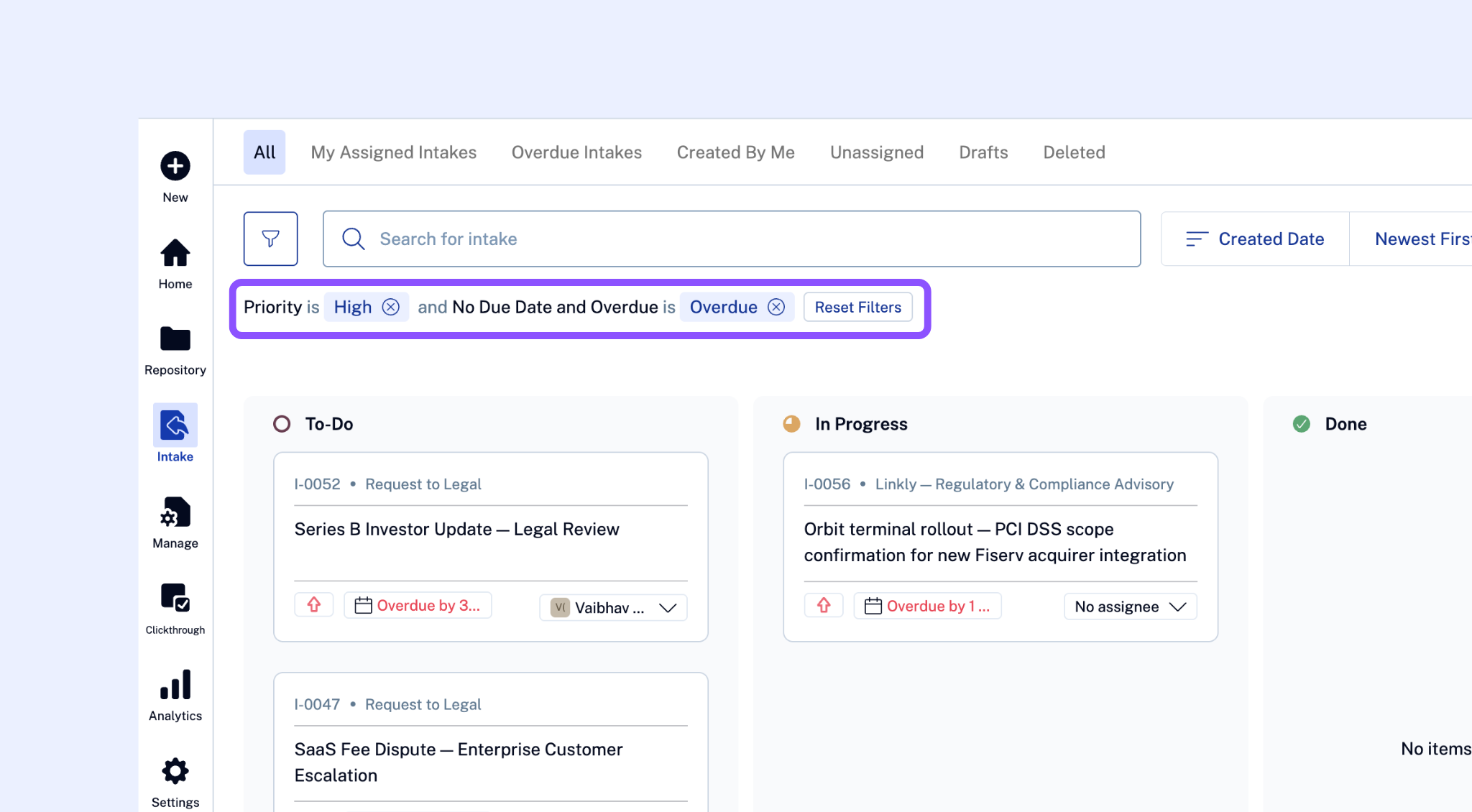
Filtering and sorting the board
Use the filter bar above the Kanban to narrow your view:
Assignee — see only requests assigned to you or a specific team member
Priority — filter by High, Medium, or Low
Workflow type — show only marketing reviews, or only DPA queries, etc.
Due date — surface requests due this week
Switching to list view
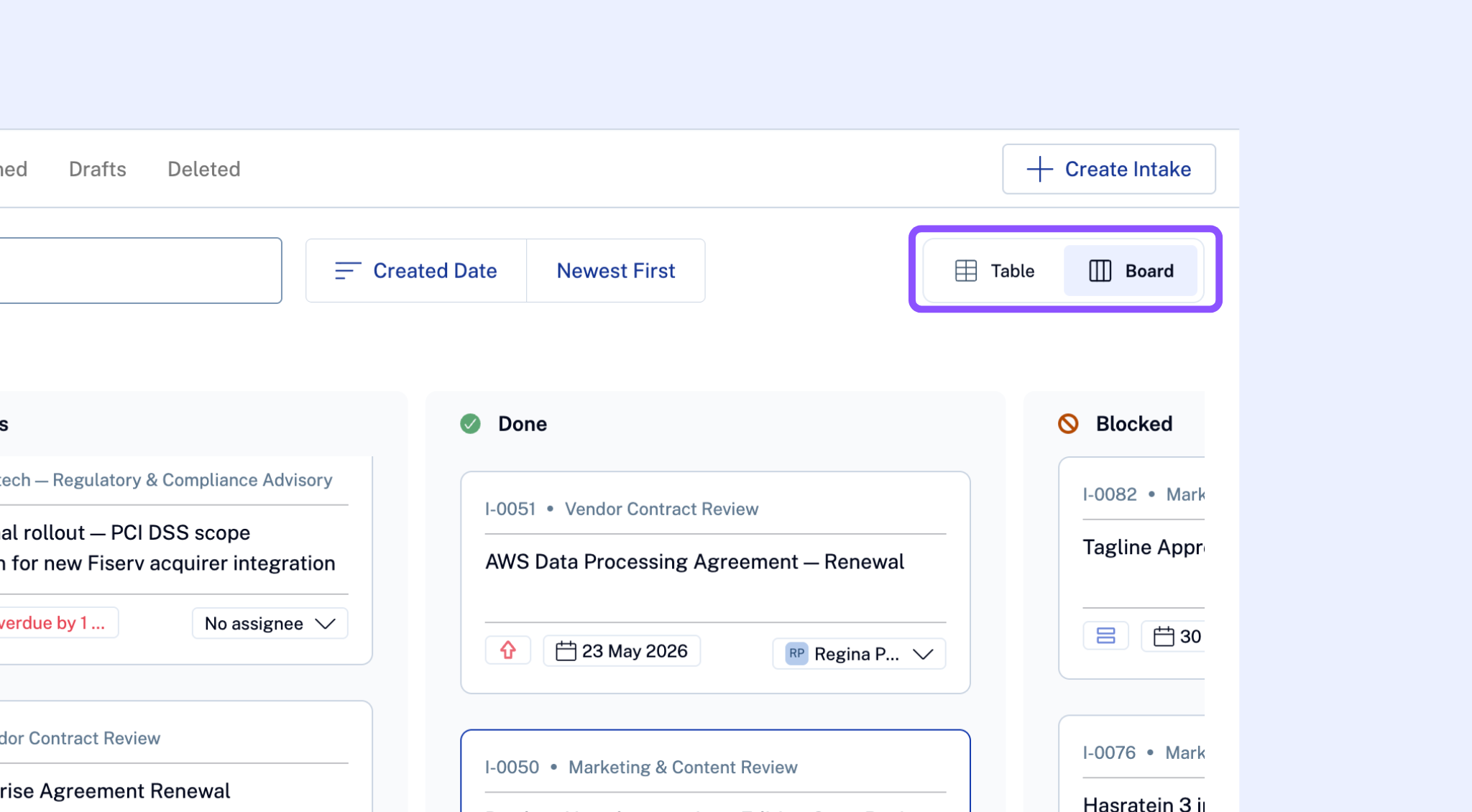
Prefer a list over a board? Toggle between Kanban and list view using the view selector in the top right.
Marking a request as Blocked
If you can't proceed because you're waiting on the requestor or a third party:
Open the request card
Change the status to Blocked
Add a comment explaining what you need
The requestor will be notified. The card will appear in the Blocked column so nothing falls through the cracks.
Best practices
Assign every incoming request. Unassigned requests in "To Do" are the most common source of delays.
Use Blocked liberally. It's more useful to surface blockers than to leave a request sitting silently in "In Progress."
Add tasks for complex requests. Breaking a multi-step review into tasks gives your team visibility and prevents work from getting lost.