Customizing Email Branding
Last updated: January 29, 2026
Admins can customize the appearance of SpotDraft system emails to reflect workspace or entity branding. This includes setting a header logo and button colors.
What You Can Customize
1. Header Logo
Display your workspace or entity logo at the top of every system-generated email.
2. Button Colors
Set the background color of primary call-to-action buttons using hex codes.
How to Set It Up
Note: Only users with necessary admin access can update email branding.
Workspace-level Branding
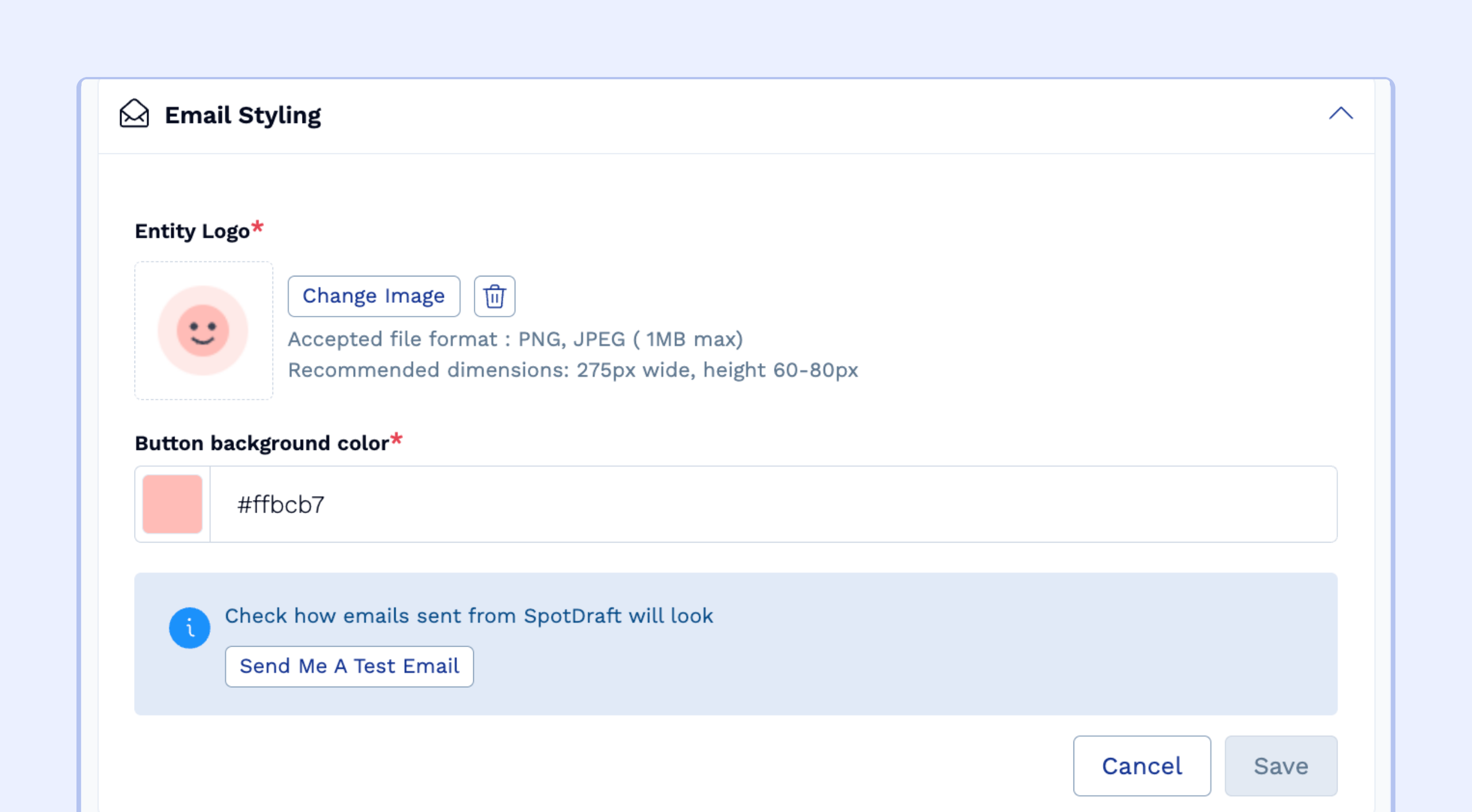
Go to Settings → Workspace Profile → Email Styling
Upload your logo
Set the button color using hex codes
(Optional) Use Send Me A Test Email to preview your changes
Save changes
Entity-level Branding
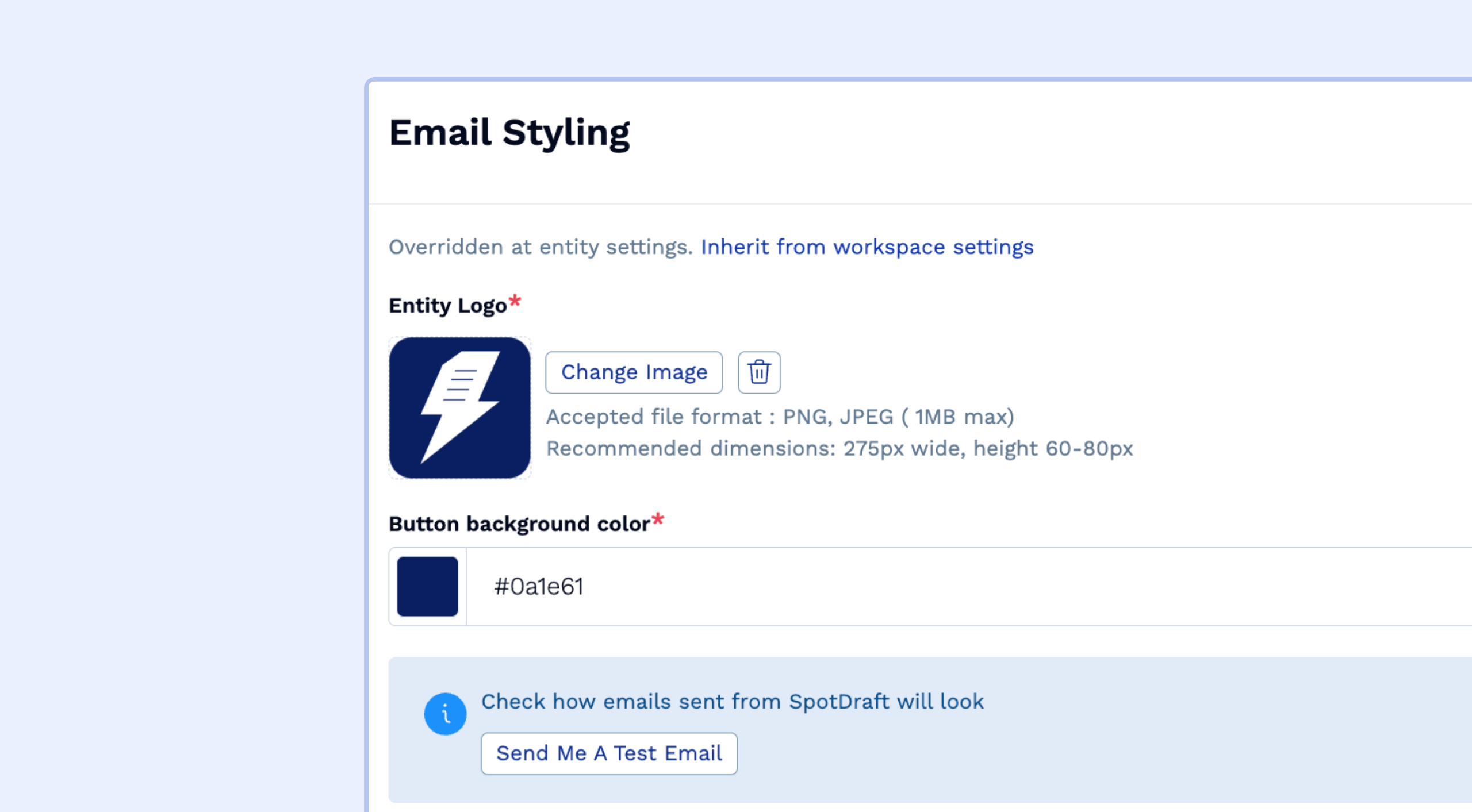
Go to Settings → Entity Settings → Select Legal Entity → Email Styling
Upload your logo
Set the button color using hex codes
Use Send Me A Test Email to confirm styling
Save changes
Entity-level branding overrides workspace branding for emails sent from that legal entity.
Where Branding Appears
Branding updates apply to all system-generated emails, including:
Counterparty emails (e.g. review, signature requests)
Internal emails (e.g. approvals, contract updates)
System emails (e.g. user invites)