'Click to Accept' in SpotDraft
Last updated: August 27, 2026
Accepting Contracts with Click to Accept
Execute standard agreements with a single click. No signature block required.
Index
Introduction
When to Use It
Supported Signing Methods
How to Enable It
What the Counterparty Sees
Declining or Reassigning
What Happens After Acceptance
Good to Know
FAQs
Additional Resources
Introduction 🚀
Click to Accept is a signing method for agreements that don't need the formality of a drawn or typed signature. Instead of finding a signature block, the counterparty reviews the document and accepts it with one click. SpotDraft still records a full audit trail, so the record holds up exactly like a standard e-signed one.
Click to Accept is sent by email to a specific, named counterparty, the same way a signing request is today, just without the signature step.
When to Use It ✨
Click to Accept fits any workflow where the goal is a one-click confirmation rather than a negotiated signature. Common examples:
Sending a notice that only needs acknowledgment, not a signature, such as a policy update or a formal notification
Privacy policy acceptance as a step in vendor onboarding
HR policy change acceptance from employees
If the document has terms to negotiate or needs an identity-verified signature, use e-signature instead.
Supported Signing Methods ✅
Click to Accept only works alongside SpotDraft's own signature service. If a workflow uses Adobe Sign, DocuSign, or Aadhaar, the option won't appear.
How to Enable It 🔧
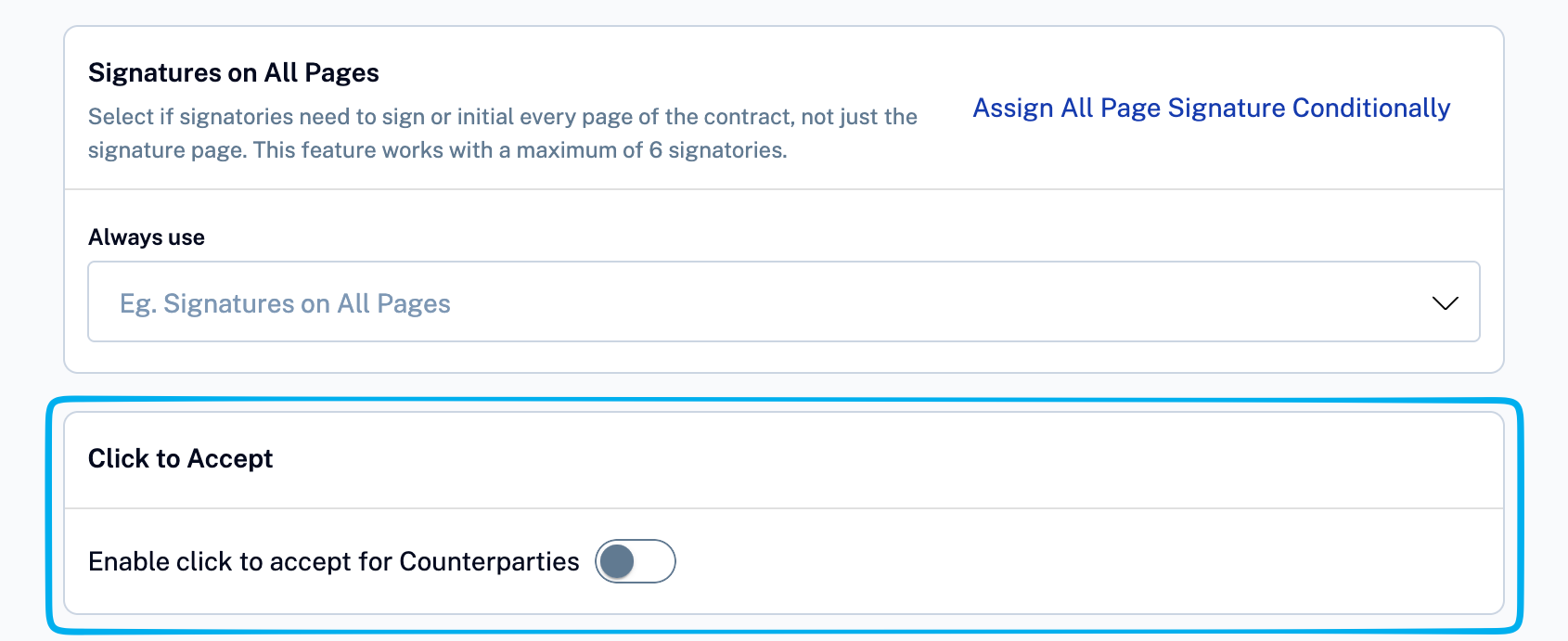
Step 1 — Go to Workflow Settings → Signing Preferences.
Step 2 — Turn on "Enable click-to-accept signing method for counterparties."
💡 Changing this setting only affects new contracts. Anything already sent keeps the signing method it went out with.
What the Counterparty Sees 🖊
The counterparty gets the usual email: "[Company] has sent you a contract to review."
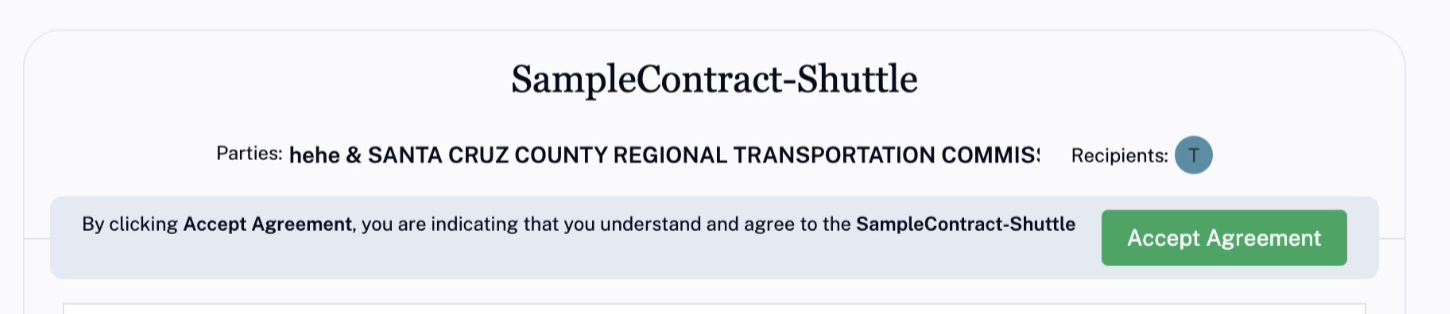
They open the link and land on SpotDraft's counterparty signature portal.
A sticky header stays visible at the top of the page at all times, showing the Accept Agreement button.
They can read the full document inline.
Clicking Accept Agreement completes it immediately. No further action is needed.
Declining or Reassigning ↩
Decline. The counterparty can decline instead of accepting. The sender is notified, and the contract follows SpotDraft's usual lifecycle from there.
Reassign. The counterparty can hand off acceptance to someone else at their organisation, the same way reassignment works on a standard e-sign contract.
What Happens After Acceptance 📋
Once a counterparty accepts, SpotDraft generates a record of the acceptance, including the acceptor's identity, timestamp, and the exact version of the document that was accepted. Both the completed document and this record are delivered automatically to the sender and the counterparty.
Status shows Pending Signature while waiting on the counterparty, the same label used for standard e-sign, and moves to Executed once accepted. Webhooks and downstream integrations treat acceptance the same as signing, so existing integrations don't need any changes.
Good to Know ⚠
Item | Details |
|---|---|
Native Sign only | Click to Accept isn't available on Adobe Sign, DocuSign, or Aadhaar workflows. |
No mid-flight changes | Turning the setting on or off only affects contracts sent after the change. |
Express and Campaigns | Supported for both, so high-volume sends get the same one-click experience. |
Availability | This capability is being rolled out per workspace. If you don't see it yet, contact your Customer Success Manager. |
FAQs 💬
Q: Is a contract accepted this way legally binding?
A: Yes. Click to Accept produces the same category of evidence as a standard e-signature: a documented audit trail, timestamp, and a record tying the acceptance to a specific document version.
Q: Can I use Click to Accept for high-value or heavily negotiated contracts?
A: You can, but it's designed for standard, low-negotiation agreements and notices.
Q: What if the counterparty wants to negotiate the terms first?
A: If counterparty redlining is enabled on the workflow, they can propose edits before the document is sent for acceptance.
Q: Does this change how contracts show up in webhooks or integrations?
A: No. Acceptance is reported through the same signing events your integrations already listen for.
Q: What happens if a counterparty declines?
A: The sender is notified, and the contract follows the same lifecycle as a declined e-signature.
Q: Can multiple counterparties on the same contract use Click to Accept?
A: Yes. When the setting is on for a workflow, every counterparty signatory on that contract becomes an Acceptor.
Q: Does the creator party (my team) also need to use Click to Accept?
A: No. Click to Accept only changes the counterparty's experience. Your team continues to sign, initial, stamp, or Auto-Sign as configured today.
To enable Click to Accept for your workspace, contact your Customer Success Manager or the Implementation team.