Handling Pending Contract Actions
Last updated: January 30, 2026
The "Assigned To" feature in SpotDraft is a powerful way to manage pending actions on your contracts. It lets you quickly identify which contracts are awaiting specific tasks, like drafting, reviewing, signing, or approval.
Understanding SpotDraft User Roles:
Business User: The owner of the contract, responsible for actions and notifications related to it.
Legal User: The person responsible for reviewing the contract.
Assigned To: Indicates the person or team currently responsible for a specific task on the contract.
How to Use the "Assigned To" Feature:
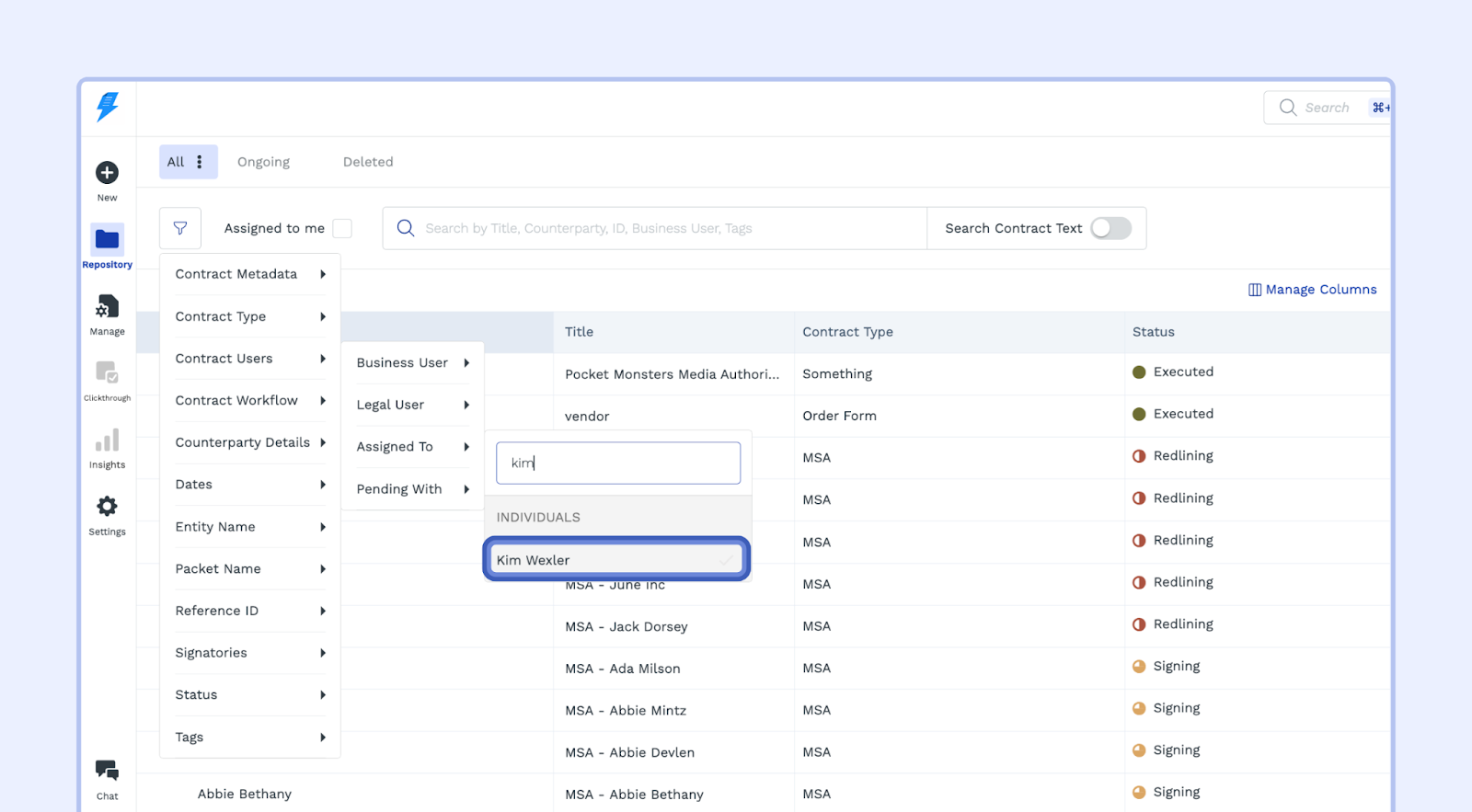
Open the Filters Menu: Click the "Filters" icon next to the search bar in your SpotDraft repository.
Select "Contract Users" Filter: Choose "Contract Users" from the filter dropdown menu.
Select User Type: Select either "Business User", "Legal User", or "Assigned To."
Choose User or Team: From the dropdown menu, select the specific user or team you want to see contracts for.
View Results: The repository will display contracts with pending actions associated with the selected user or team.
Finding Contracts Assigned to You:
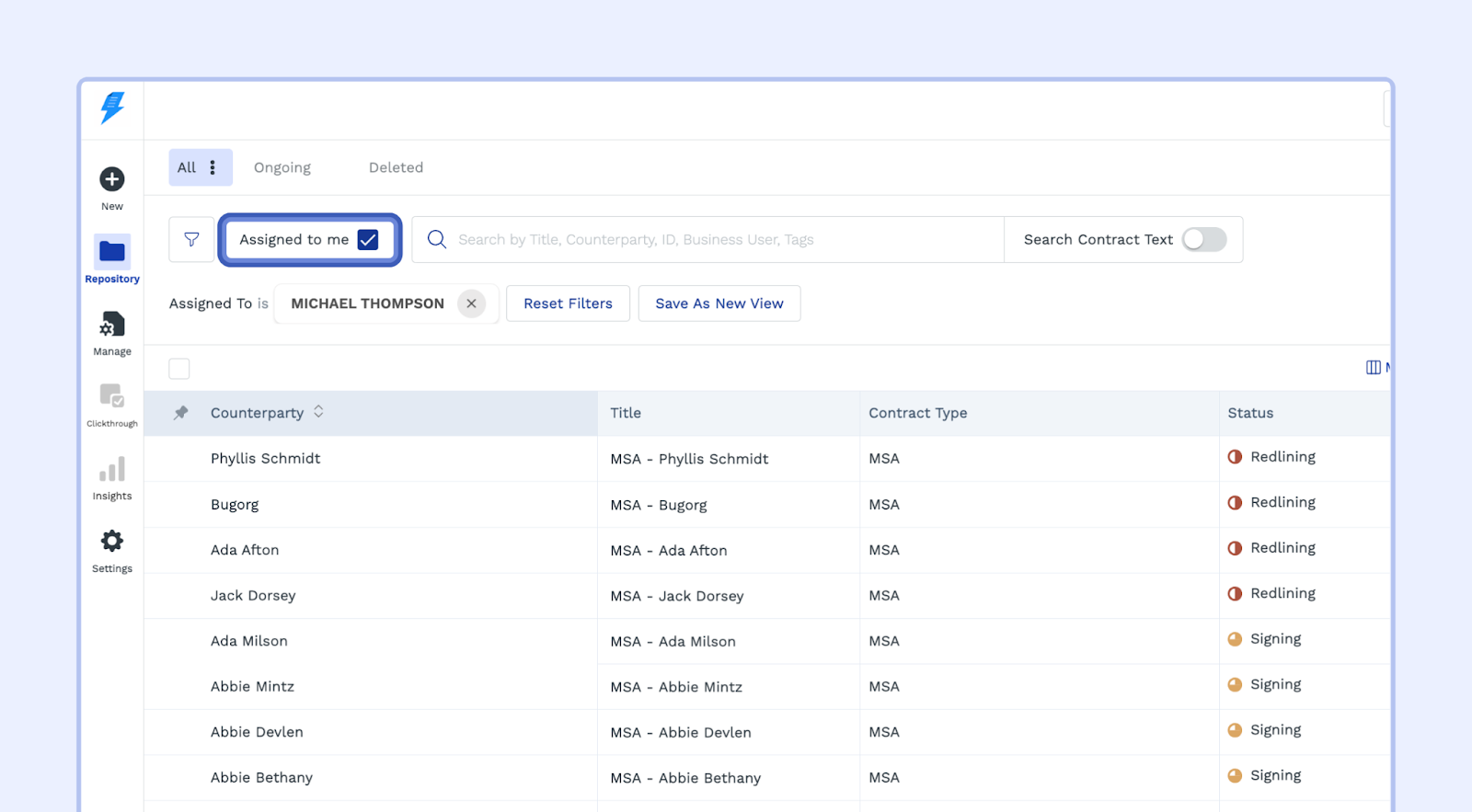
Click "Assigned to Me": In your repository grid view, check the box labeled "Assigned to Me." This will show you all contracts where a pending action is assigned to you.
Taking Action on Pending Tasks:
Click on the Contract: Select the contract you need to work on.
Go to the Contract Status: On the left side of the contract summary page, you'll see the "Contract Status" window.
Take Action: Complete the required action item based on the contract's status. For example:
Drafting: Complete the drafting process.
Review: Approve or make edits.
Signing: Send the contract for e-signature.
Important Tips:
Keep It Up-to-Date: Completing actions on contracts will remove them from the "Assigned To" list.
Clear Visibility: Using "Assigned To" gives you an overview of who is responsible for what tasks, making it easy to track progress and follow up.