Inserting Currency Fields in Your Template Using DraftMate
Last updated: September 2, 2026
Say you're finalising an order form worth $525,000. The number looks straightforward enough until your counterparty's legal team flags that the amount only appears in figures, not in words, and asks you to add it "for enforceability," the way a loan agreement or a cheque would. Now you're scratching your head over how to get the words in there, and wondering whether you need to reach out to SpotDraft support or is there an easier way to do it.
This is exactly what currency fields in DraftMate are built for. Beyond just inserting an amount into your template, DraftMate can spell that amount out in words automatically, in whichever style your contract calls for, and keep it in sync with the number every time the amount changes. This article walks you through setting one up.
Step 1: Open DraftMate
Open your template document in MS Word and launch the DraftMate plugin.
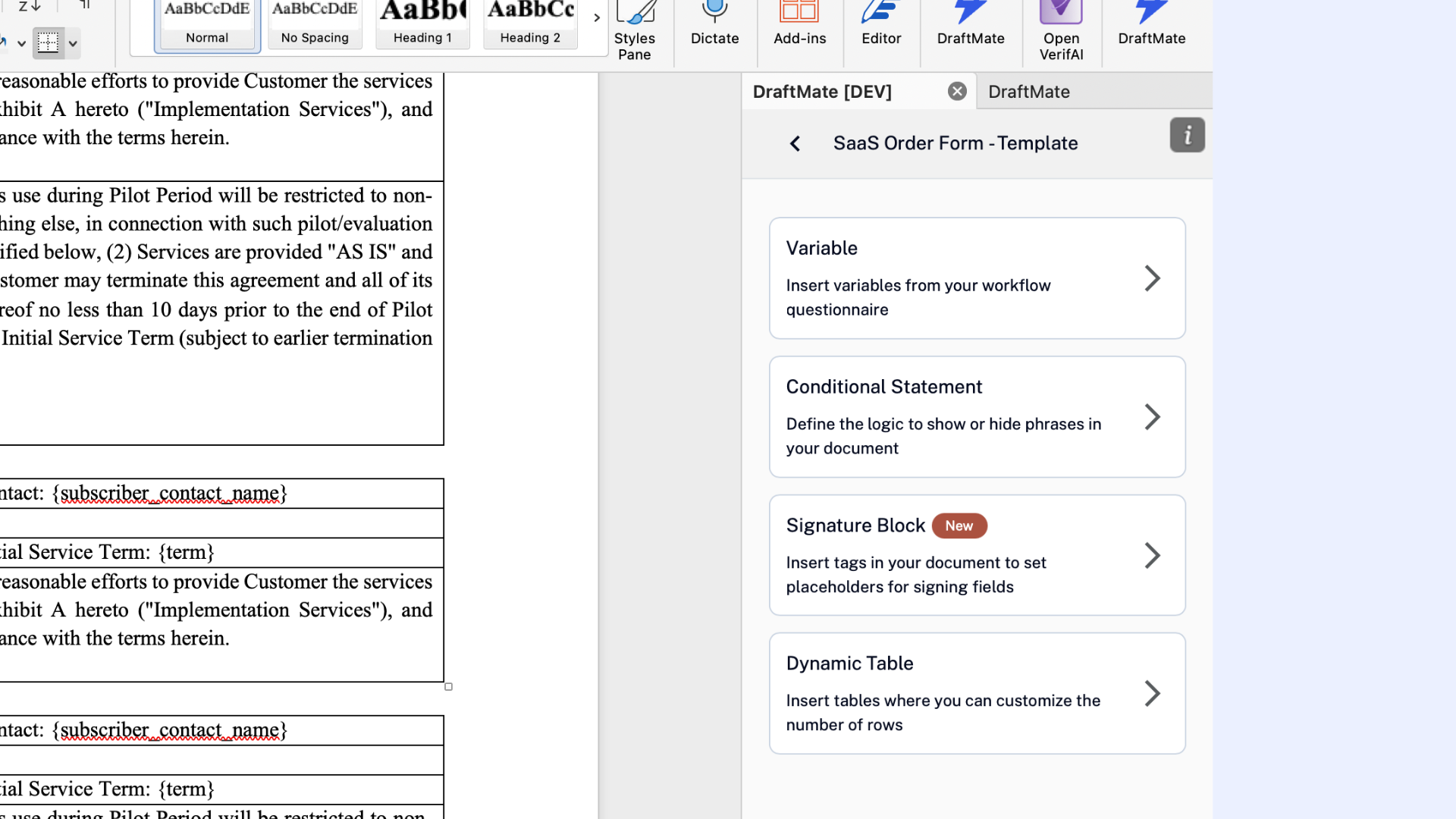
Step 2: Select your currency field
Click on the currency variable in your template that you want to configure. For example, the Service Fees field in a SaaS Order Form.
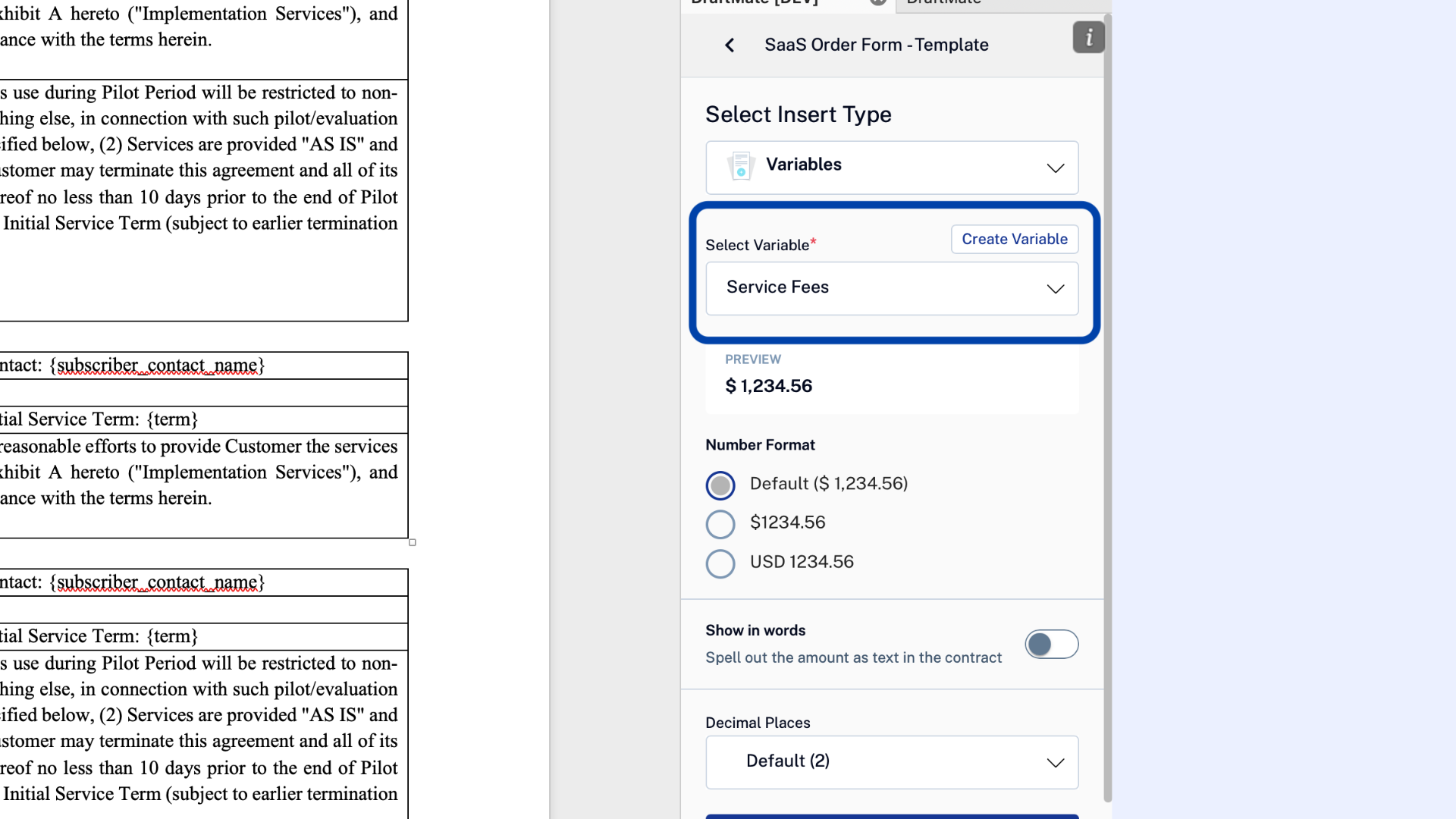
Step 3: Turn on 'Show in Words' (optional)
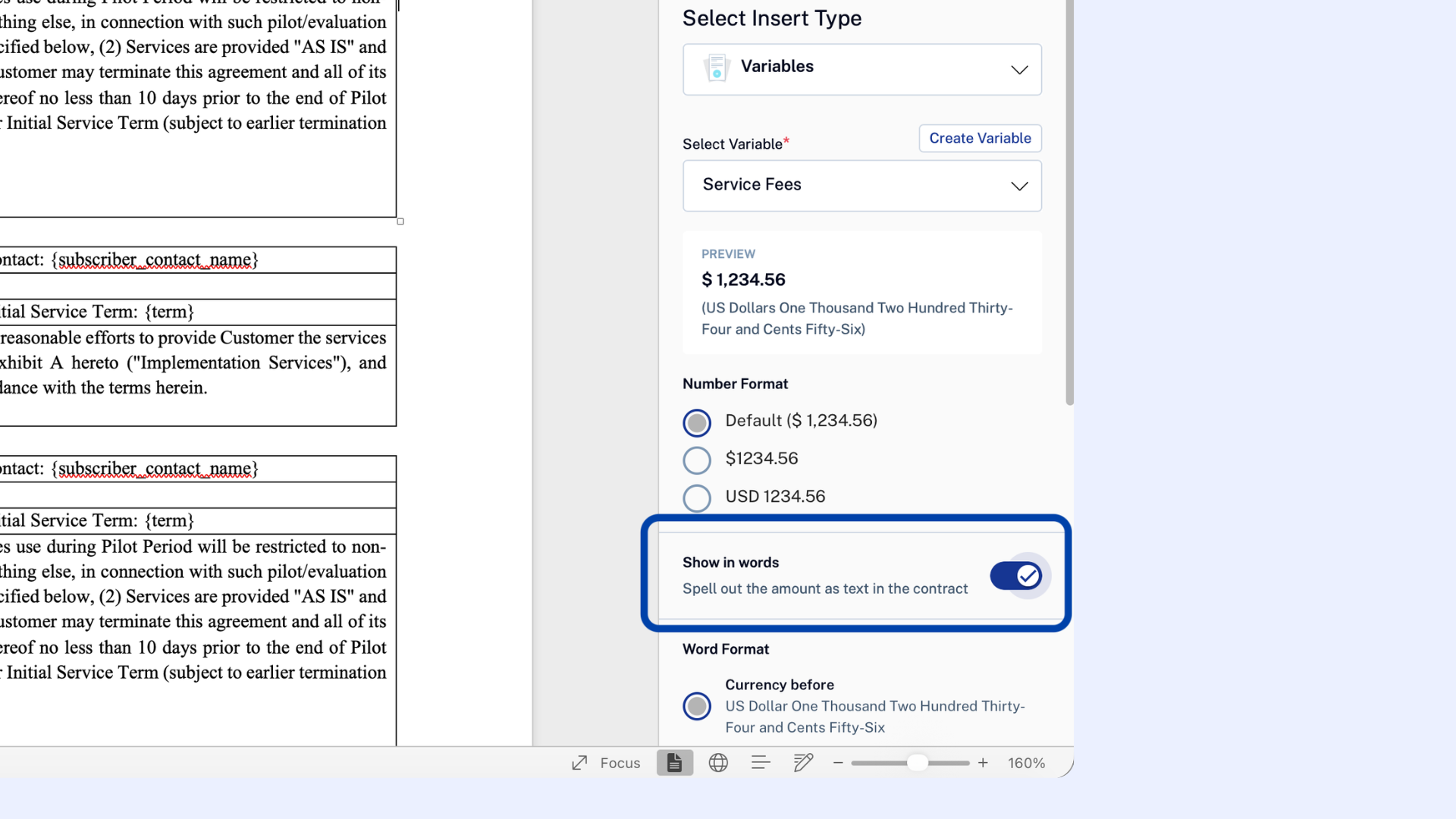
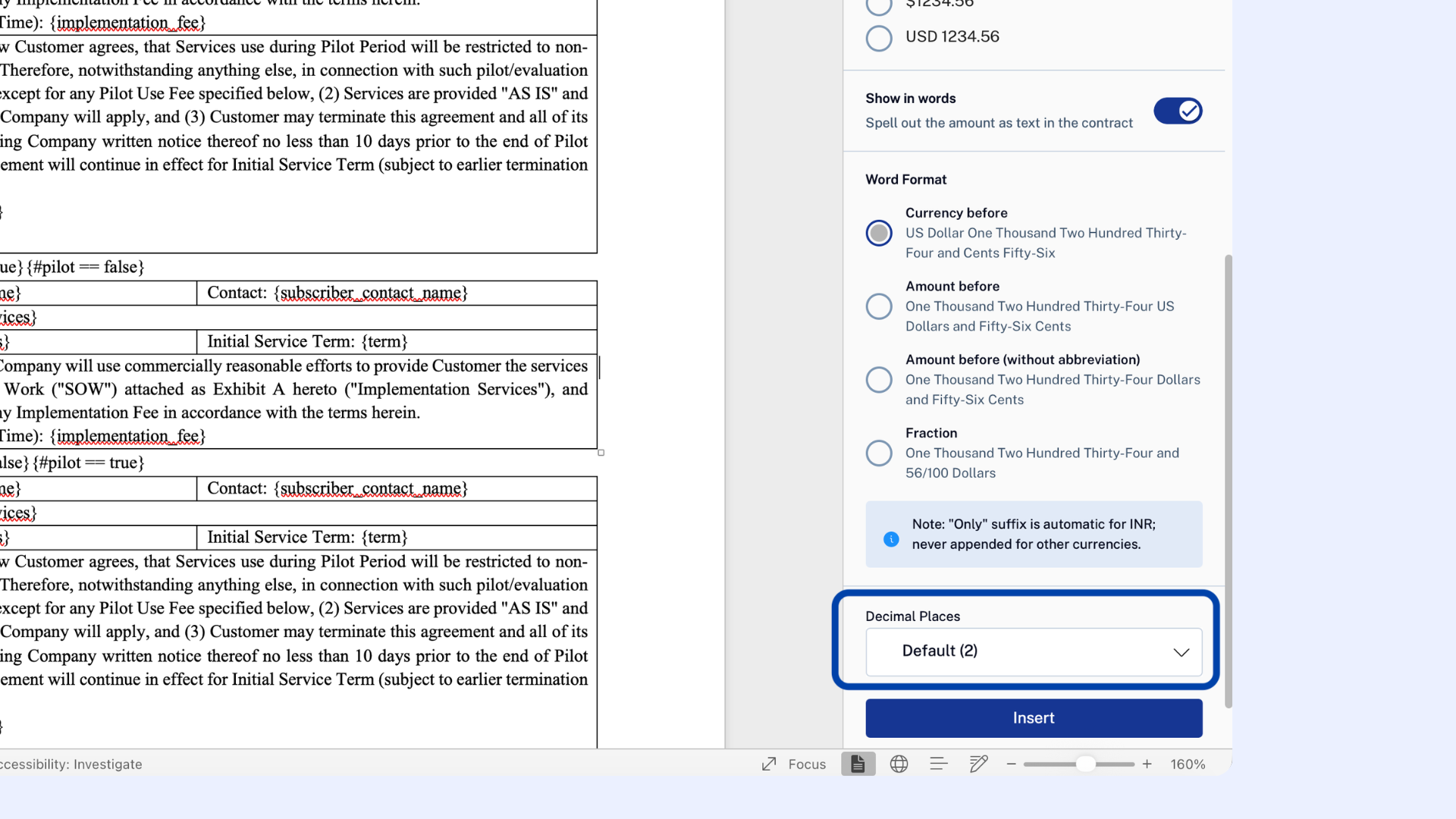
For currency-type fields, DraftMate shows a 'Show in Words' toggle. Turn it on to reveal the format options for spelling out the amount.
This matters most in contracts where the amount needs to be unambiguous even if the numeral is misread, mistyped, or altered - loan agreements, promissory notes, lease deposits, and payment clauses in high-value MSAs are the usual suspects. If your template is something lower-stakes, like an internal purchase order, you may not need this at all. Its an optional field.
Step 4: Choose a format
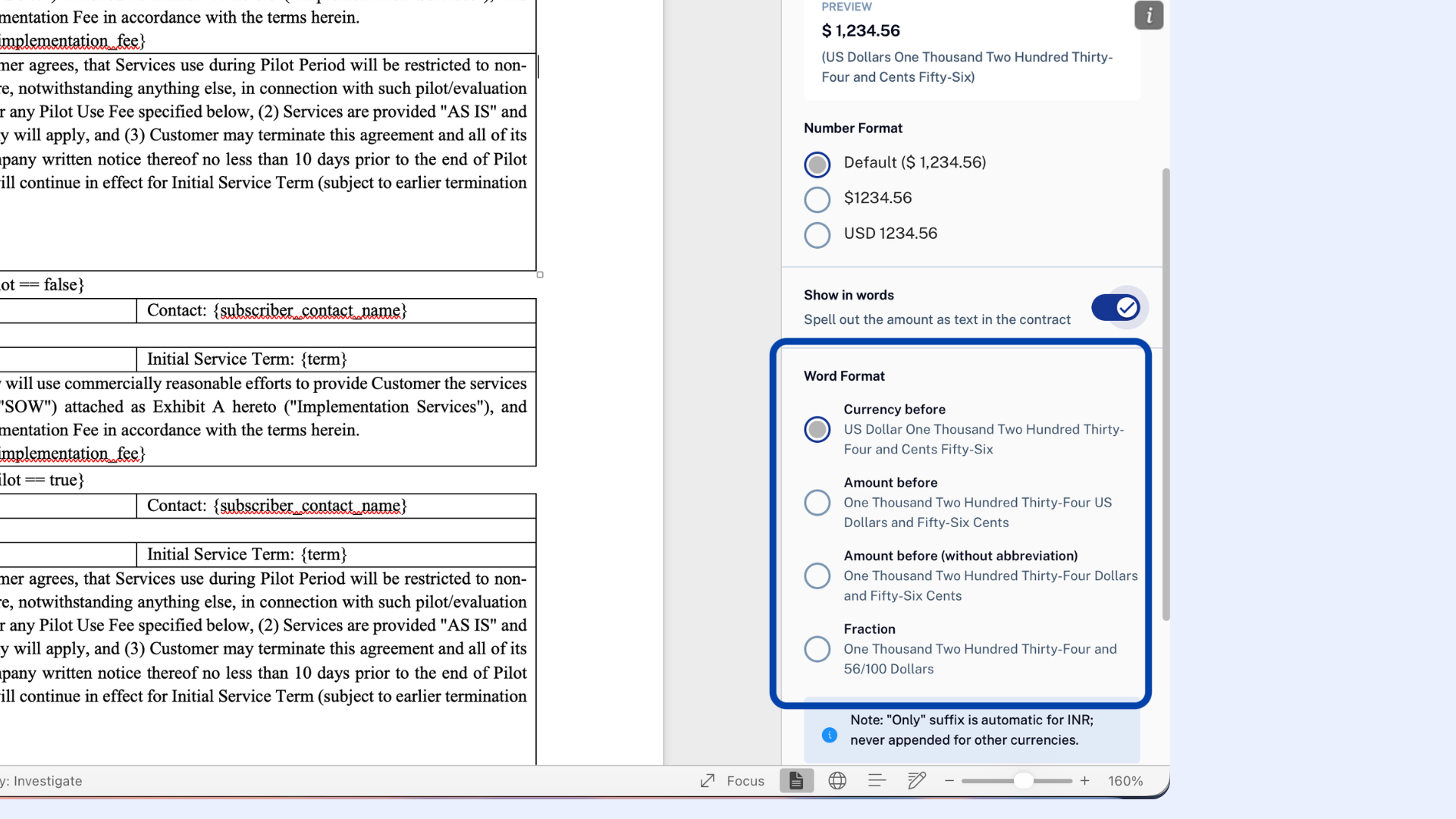
Different contracts call for different conventions. DraftMate gives you four:
Currency Before : leads with the currency name spelled out first. For example - "US Dollars One Thousand Two Hundred Thirty-Four and
Cents Fifty-Six"
Amount Before : leads with the amount, followed by the currency name. For example -"One Thousand Two Hundred Thirty-Four US Dollars and
Fifty-Six Cents"
Amount Before (without abbreviation) : gives a simpler, less formal reading. For example - "One Thousand Two Hundred Thirty-Four Dollars and
Fifty-Six Cents"
Fraction : writes the sub-unit portion as a fraction. For example - "One Thousand Two Hundred Thirty-Four and 56/100 Dollars".
Note : The denominator in Fraction matches the decimal precision you set in Step 5, at 2 decimal places you'll see "…/100," at 1 decimal place you'll see "…/10," and so on.
Step 5: Set the decimal precision
Decimal precision controls how many digits show up after the decimal point; both in the number itself, and (if you turned on the words format) in the spelled-out cents or sub-unit portion.
Setting a decimal precision rounds the number off to that many digits - it doesn't round up or round down. For example, at 2 decimal places, $12.346 rounds off to $12.35; at 1 decimal place, the same amount rounds off to $12.4. A procurement contract quoted in whole Japanese Yen might use 0 decimal places, while a financial agreement tracking amounts to the cent would use 2.
At 0 decimal places, the words won't include a cents or sub-unit portion at all.
At any precision above 0, the words always include that portion, even if it works out to zero, e.g. "and Zero Cents."
The words always match the number shown next to them, down to the same rounding.
Important Note: Currencies don't all split into sub-units the same way 1 US Dollar is 100 Cents, but 1 Kuwaiti Dinar is 1,000 Fils. DraftMate accounts for each currency's own sub-unit scale rather than assuming every currency works like dollars and cents.