Configure reminders for a single contract
Last updated: October 7, 2026
Overview
Reminders are set up once in the Workflow Manager, and every contract created from that workflow follows the same schedule. Contract level reminders let you change that schedule for a single contract.
With contract level reminders, you can:
Change when the first reminder is sent and how often it repeats
Skip weekends for this contract only
Turn Signature, Approval, and Counterparty review reminders on or off, each on its own
See the next reminder date for each reminder type
Only the settings you change are overridden. Everything else keeps following the workflow.
Before you start
The feature must be turned on for your workspace. If you do not see View reminders in More Actions, ask your SpotDraft admin or contact help@spotdraft.com.
To change settings, you need access to the contract and Editor permission for the contract type.
A reminder type appears in the drawer only when that specific reminder type feature flag is enabled for your workspace.
You can turn a reminder on for a contract even if the workflow had it switched off.
Open the Reminders drawer
Open the contract.
Click More Actions.
Select View reminders.
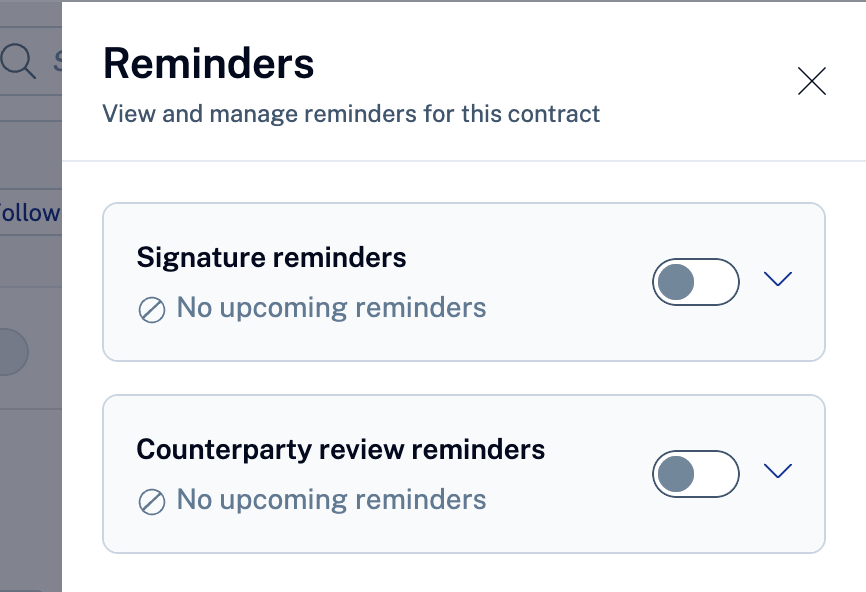
Turn a reminder type on or off.
Use the toggle on the card. The change applies right away. You do not need to select Save.
While a reminder type is off, SpotDraft sends no reminders of that type for this contract. The card's settings are greyed out.
When you turn it back on, SpotDraft counts the repeat interval from the day you turn it on.
Turning off one reminder type does not affect the others. Pausing Signature reminders leaves Approval and Counterparty review reminders running.
Change the reminder timing
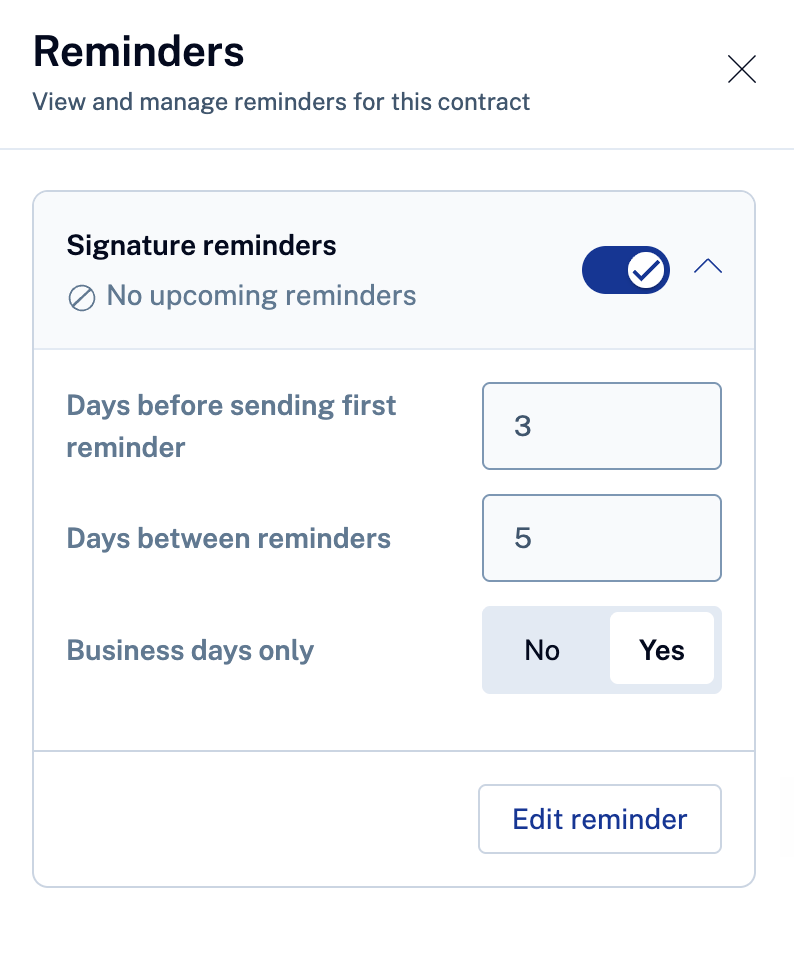
In the Reminders drawer, expand the card you want to change.
Select Edit reminder.
Update the settings:
Setting | What it does |
|---|---|
Days before sending first reminder | How long to wait before the first reminder |
Days between reminders | How long to wait between reminders after the first one |
Business days only | When set to Yes, reminders are not sent on weekends |
Select Save. You see Reminder settings saved. Select Cancel to leave without saving.
You can edit one card at a time.
The first reminder timing locks after the first reminder is sent. The field shows Cannot edit. First reminder has already been sent. You can still change Days between reminders and Business days only.
How the next reminder date is set
Before any reminder has been sent: The date is counted from the day the contract was sent for that step, plus the new first reminder timing.
After a reminder has been sent, and you change the repeat interval: If the last reminder date plus the new interval is still ahead, that is the next date. If that date has already passed, SpotDraft counts the new interval from the day you save.
When you turn a reminder back on: SpotDraft counts the interval from the day you turn it on.
With Business days only set to Yes: A reminder that lands on a Saturday or Sunday is sent on the next Monday. Weekends still count toward the interval.
Examples. A contract is sent for signature on Jan 1. The first reminder is set for 3 days, and the repeat is every 5 days. The first reminder goes out on Jan 4.
What you do | Next reminder |
|---|---|
On Jan 5, you change the repeat to every 7 days | Jan 11 (Jan 4 plus 7 days is still ahead) |
On Jan 8, you change the repeat to every 3 days | Jan 11 (Jan 4 plus 3 days has passed, so SpotDraft counts from Jan 8) |
On Jan 9, you change the repeat to every 4 days | Jan 13 (Jan 8 has passed, so SpotDraft counts from Jan 9) |
You turn reminders off on Jan 8 and back on on Jan 15 | Jan 20 (5 days from Jan 15) |
Before the first reminder is sent: A contract is sent for signature on Jan 1, with the first reminder set for 3 days (Jan 4). On Jan 3, you change the first reminder to 4 days. The first reminder now goes out on Jan 5.
What happens at each stage of the contract
Stage | What you see |
|---|---|
Draft or in redlining | You can open the drawer and set the timing. The next reminder date appears once the contract is sent. |
Approval and review | All reminder cards that apply are available. |
Signing | Approval and Counterparty review reminder cards are no longer shown. The Signature card stays. |
On hold | Reminders pause automatically. |
Fully signed, voided, or archived | Reminders stop and settings cannot be changed. |
Contracts signed with Adobe Sign or DocuSign
Adobe Sign and DocuSign send their own signature reminders, so the Signature reminders card is not shown for these contracts at contract level.
Tracking changes in the Activity Log
Every change is recorded in the contract's Activity Log, so you can see who changed what and when.
Signatory replacement
If you replace a signatory, the new signatory follows this contract's reminder schedule. The first reminder is counted from the day of the replacement.
Frequently Asked Questions
I can see the reminders but I cannot edit them. Why?
You need Editor permission for the contract type, in addition to access to the contract. The settings are also locked once a contract is fully signed, voided, or archived.
Why is the first reminder field greyed out?
The first reminder has already been sent, so its timing cannot change. You can still change how often reminders repeat.
Need help? Contact help@spotdraft.com