Editing and Collaborating on Contracts on OnlyOffice
Last updated: May 12, 2026
SpotDraft's integration with OnlyOffice provides a powerful online editor for your contracts. This guide explains how to use OnlyOffice to edit contracts and save your changes as new versions.
Who is this guide for?This guide is for SpotDraft users who edit contracts, such as editors and suggesters.
Getting Started as an Editor:
Open a Contract in SpotDraft:
Locate the Contract Record for the contract you wish to edit.
Click the "Edit" button at the top of the Contract Record and select "Edit with OnlyOffice" from the menu.
The contract will open in the OnlyOffice editor.
Troubleshooting:
If you encounter an error when trying to open the contract in OnlyOffice: Refresh the page and try again. This should resolve the issue and allow you to proceed with editing.
If you encounter an error when trying to save the document as a new version: First, try accessing the contract in an Incognito window or using a different browser to check if the document can be saved successfully.
If the issue persists, it may be caused by a previously initiated save request that did not complete successfully and remained in an in‑progress state in the background, blocking subsequent save attempts.
Workaround: Uploading a new version of the document works as an alternative, as it follows a separate processing flow unaffected by the incomplete save request.
Resolution: Contact support to clear the stuck save request from the backend. When contacting support, provide: (1) the specific contract link where the issue is occurring, (2) whether the issue affects all users or only a specific user, and (3) whether the issue occurs across all contracts or only specific ones.
Note: Only users with Editor access can accept or reject tracked changes in the document. If you have Suggester access, you can only make edits in track changes mode and add comments, but cannot accept or reject changes made by others.
Adding Comments:
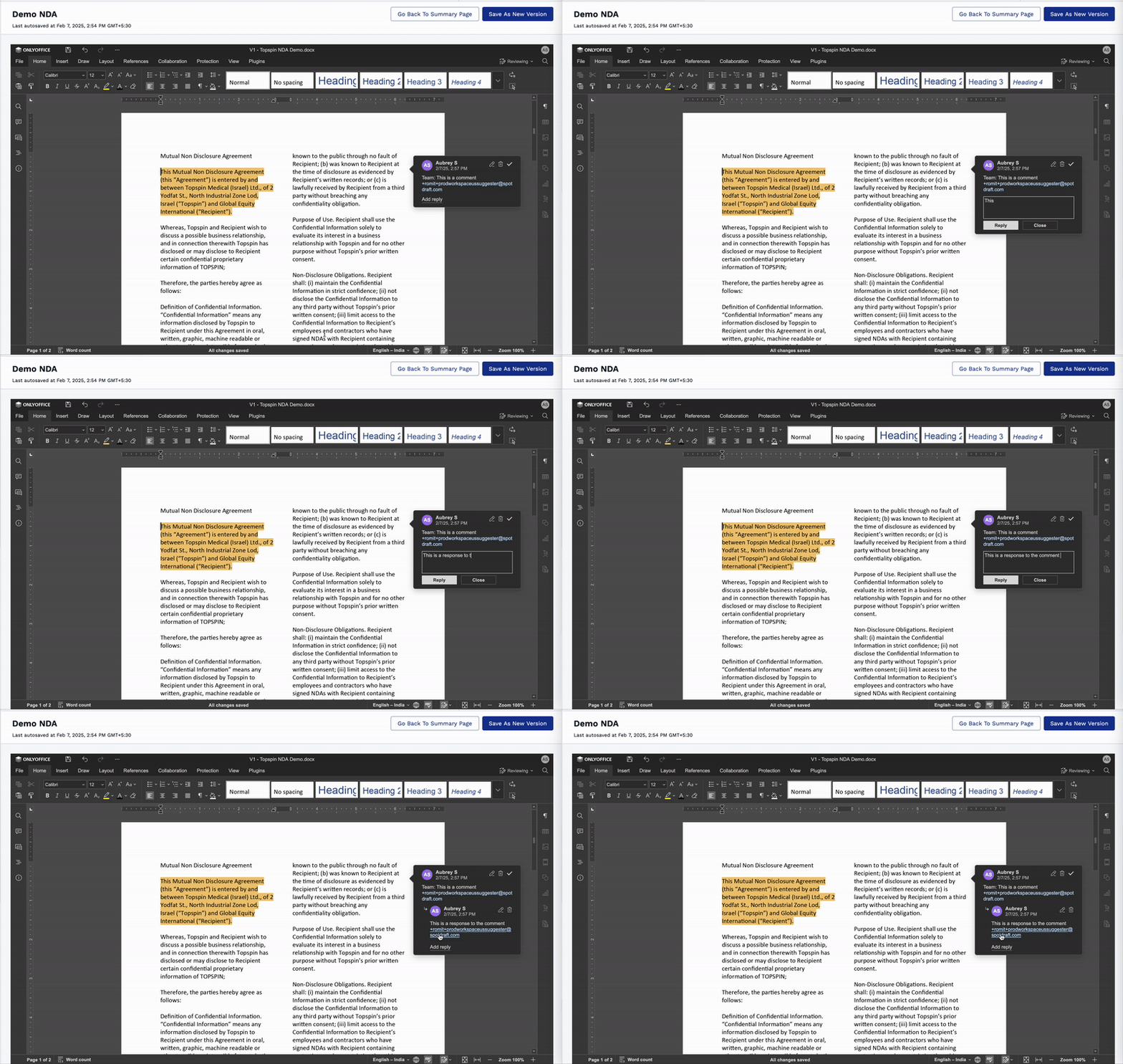
Highlight the text: Select the part of the contract you want to comment on.
Click "Add Comment": Click the "Add Comment" option by right clicking on the highlighted text.
Enter your comment: Type your comment in the box that appears.
@Mention users: Use the "@" symbol to mention specific SpotDraft users to notify them directly.
Categorize the comment: Choose whether the comment is for "Team" (internal collaboration) by affixing Team: or "External" (to be shared with the counterparty).Reply to comments: