Getting Started with the Repository
Last updated: April 8, 2026
The SpotDraft repository is your one-stop shop for managing contracts. It's a powerful tool for organizing, accessing, and collaborating on contracts, all in one central location.
What you'll find in the repository:
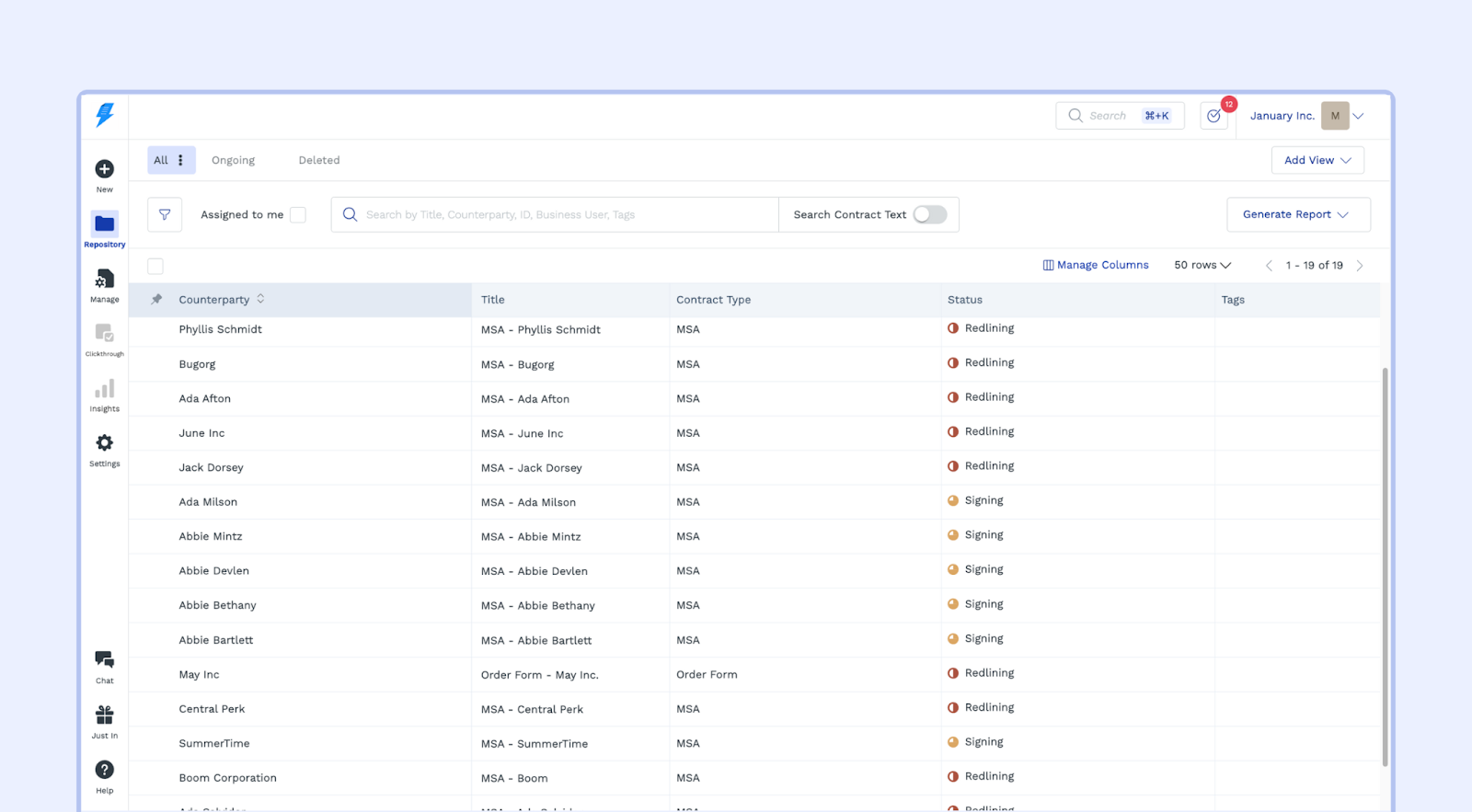
Your Contracts, at Your Fingertips: The repository is the default view when you open SpotDraft. It's designed to give you a quick overview of your contracts.
Powerful Search & Filters: Easily find the contracts you need using the search bar. You can also apply filters to narrow down your results by contract type, counterparty, and other facets..
Personalized System Views (Following): The repository includes a dedicated Following view. This view automatically aggregates every contract where you are an active participant - whether you are the designated Business User, the Legal User, or a Follower (assigned a task or @mentioned). This ensures your most relevant contracts are always one click away, regardless of who created them.
Customizable Views: Tailor your repository to your needs with custom views. Group important contracts, track progress, and create a view that works for you.
Manage Contract Information: Customize the columns displayed to view the data that matters most.
Here's how to use the SpotDraft repository to its full potential:
1. Filters:
Refine your searches by applying filters based on specific attributes like:
Contract type: Filter by specific contract types (e.g., NDAs, Service Agreements, Sales Contracts).
Counterparty: Filter contracts by a particular company or individual.
Other criteria: Explore various filters to narrow down your search, including date ranges, status, and more.
2. Search & Advanced Search:
Simple Search: Utilize the search bar to find contracts by keywords in the contract title, content, or related information.
Advanced Search: Access advanced search options to refine your searches even further using Boolean operators, specific fields, and more.
3. Custom Views:
Create customized views that highlight the information most relevant to you. For example, you might create a view for:
Pending Tasks: Showcase contracts with assigned tasks for quick oversight.
High-Risk Contracts: Display contracts identified as having potential legal risks.
Contracts by Department: Categorize contracts based on the department responsible for them.
4. Manage Columns:
Customize the columns displayed in your repository view to showcase the information most important to you. Add, remove, or reorder columns to tailor your experience.
5. Contracts Assigned to You:
Stay organized by accessing a dedicated view that displays all contracts assigned to you, making it easy to track your pending tasks and responsibilities.
6. Adding Contract Tags:
Categorize contracts using relevant tags for easy identification and filtering. For example, use tags like:
Contract Type: NDA, Service Agreement, etc.
Status: Draft, Under Review, Approved, Signed, etc.
Department: Legal, Sales, Procurement, etc.
7. Bulk Actions:
Save time and effort by performing multiple actions on contracts simultaneously:
Download Contracts: Select multiple contracts and download them in various formats.
Generate Reports: Create reports based on specific criteria like contract type, status, or date range.
Assign Business Users: Assign business users to multiple contracts in the repository.
More Actions: Explore various bulk actions, such as assigning tasks, editing metadata, and more.
8. Generating Contract Reports:
Generate comprehensive reports in Excel format to analyze contract data effectively:
One-Time Reports: Receive summaries of contracts highlighting essential metrics.
Recurring Reports: Set up automatic delivery of reports at regular intervals.
9. Tasks & Reminders:
Create and assign tasks within your contracts.
Set reminders to ensure timely actions.
10. Smart Data Capture:
Utilize SpotDraft's AI-powered smart data capture to quickly extract metadata from contracts, such as:
Parties: Names and contact information.
Dates: Start and end dates, deadlines, etc.
Key Clauses: Identify and highlight critical contract clauses.
Other Data: Extract various other relevant data points based on your needs.
12. Adding Related Documents:
Store and link related documents directly to your contracts, such as:
Letters: Supporting correspondence, amendments, or addendums.
Other Documents: Any other relevant files, such as presentations, reports, or agreements.
13. Quick Access:
Use the keyboard shortcut Command + K (Mac) or Control + K (Windows) to access various actions, such as:
Searching for contracts
Creating new contracts
Navigating to different sections of the repository.