Generating Computation Formulas with AI
Last updated: November 17, 2026
Picture updating an order form where a product's base price depends on the customer's region — say, $20 for North America, $15 for EMEA, and $12.50 for APAC. Writing that logic by hand means finding the right conditional functions and getting the syntax exactly right for each region. With Generate with AI, you can describe the pricing rule in plain English instead, and let SpotDraft build, test, and explain the formula for you.
Use Case
Meet Rachel, who owns the order form templates for a company that sells into North America, EMEA, and APAC at different base prices. Whenever a new product or region launches, someone has to update the pricing formula, and she used to route that request to the one admin who knew the Computation Builder's syntax well enough to do it. Now she describes the pricing rule in plain English and gets back a formula that's already been tested, with an explanation she can check without learning the syntax herself.
Note: SpotDraft uses AI to build and test your formula. AI can make mistakes, so review it carefully before saving.
Step 1: Open the Computation Builder
In your workflow's questionnaire or in Computation Library, open or add a Computation field to bring up the Create Computation panel. Inside, you'll find the formula editor where you can write a formula yourself, or click Generate with AI to have SpotDraft write one for you.
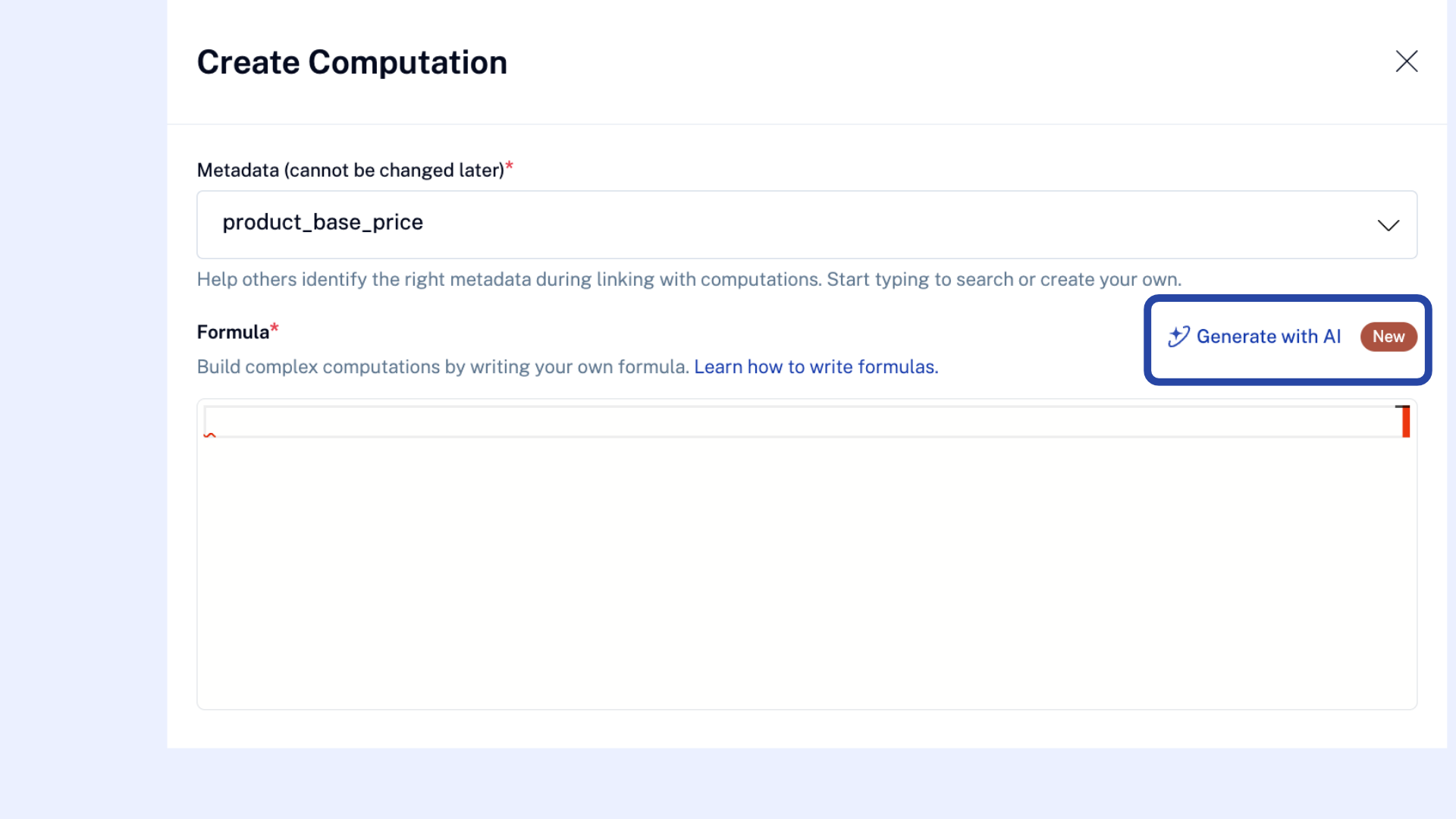
Step 2: Describe the calculation you need
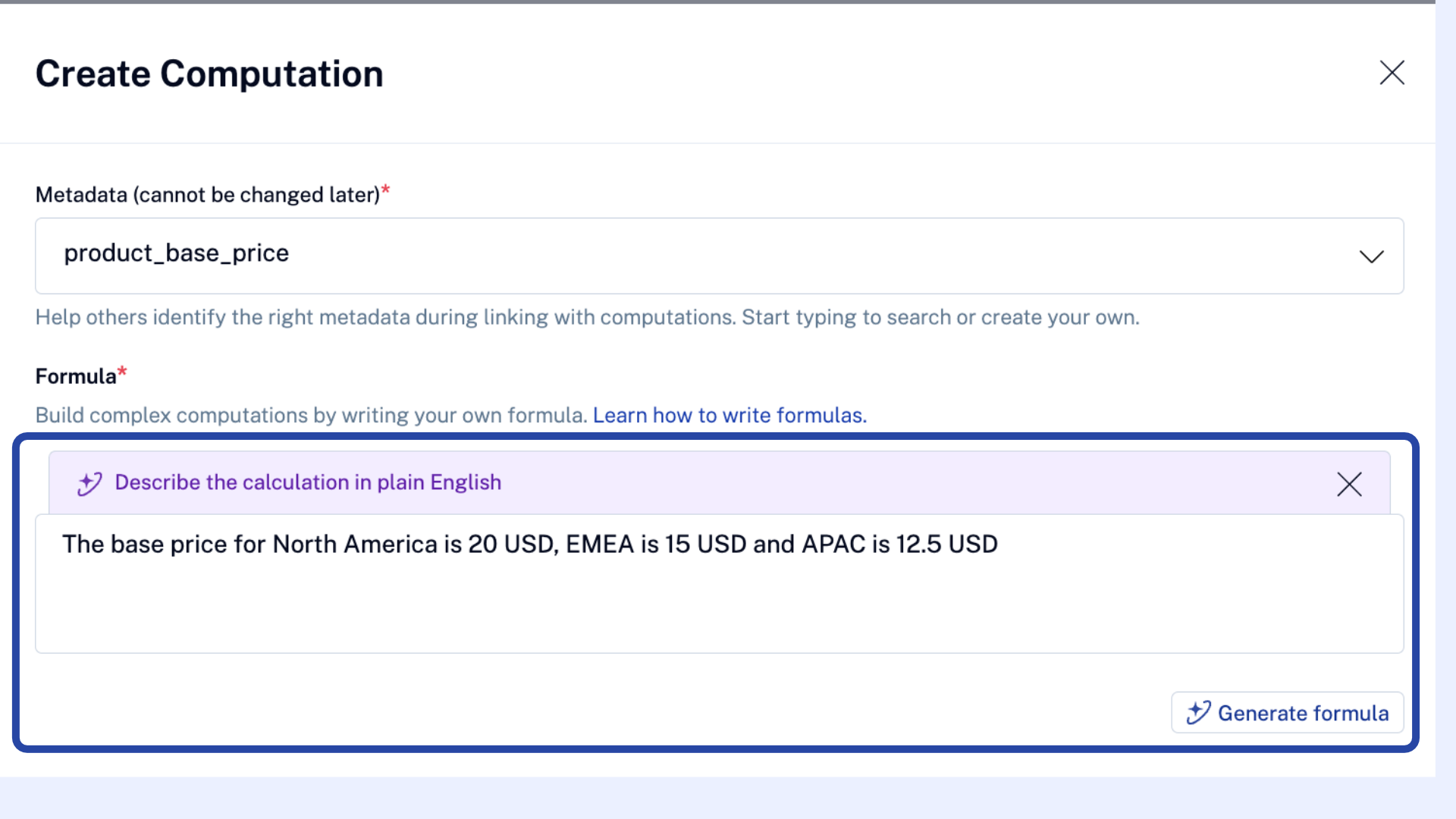
In the box that appears, describe what you want the formula to do using everyday language. Rachel, for example, types: "The base price for North America is 20 USD, EMEA is 15 USD and APAC is 12.5 USD".
The more specific you are about the fields, values, and conditions involved, the closer the first result will be to what you need.
Step 3: Let SpotDraft test the formula before you see it
Once you submit your description, SpotDraft writes a formula and checks it against sample values before showing it to you. A test cases preview displays the sample inputs it used and the result they produced, so you can see the formula working before deciding whether to keep it.
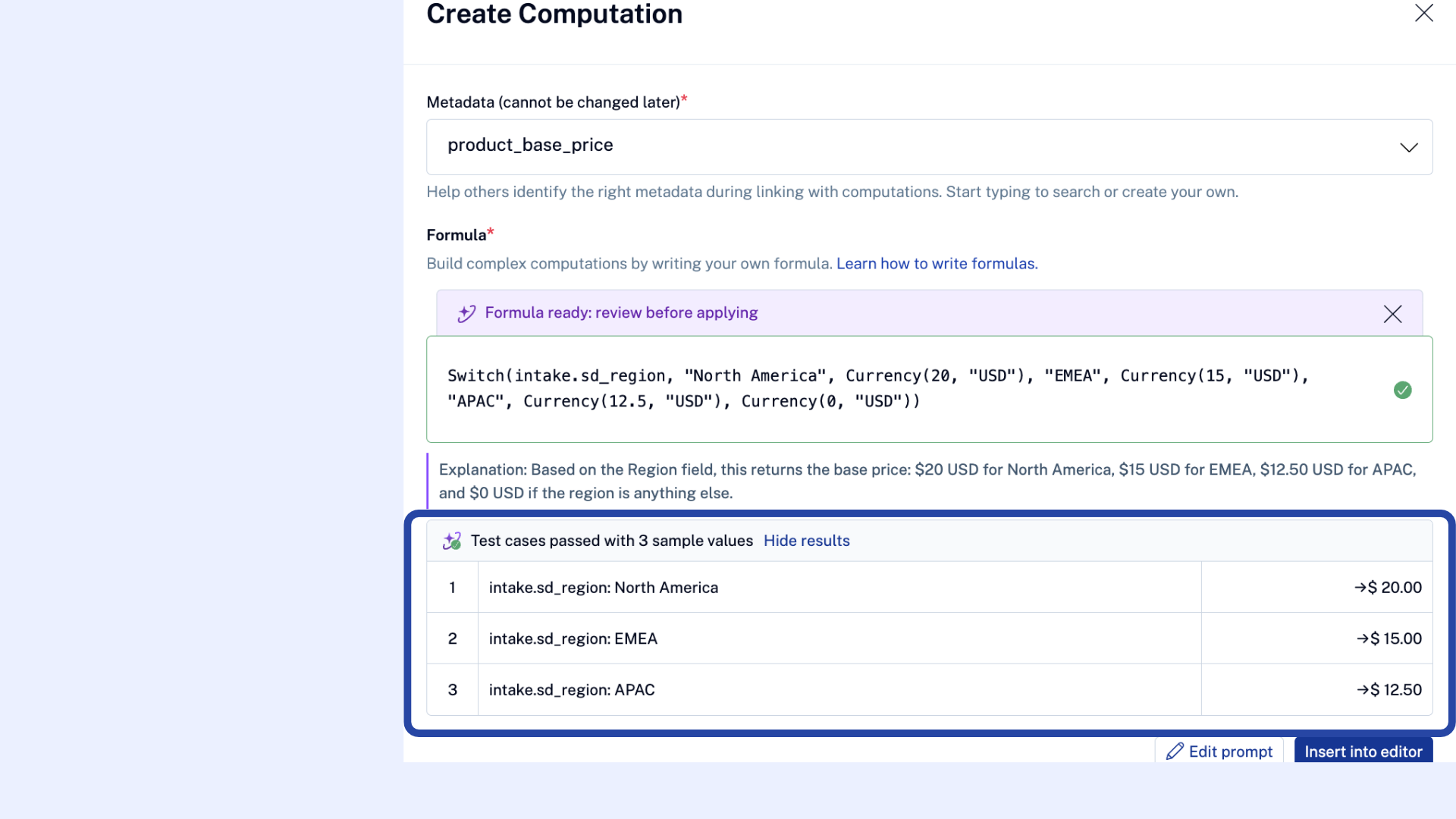
Note: The test preview uses sample values, not your actual contract data.
Step 4: Read the explanation
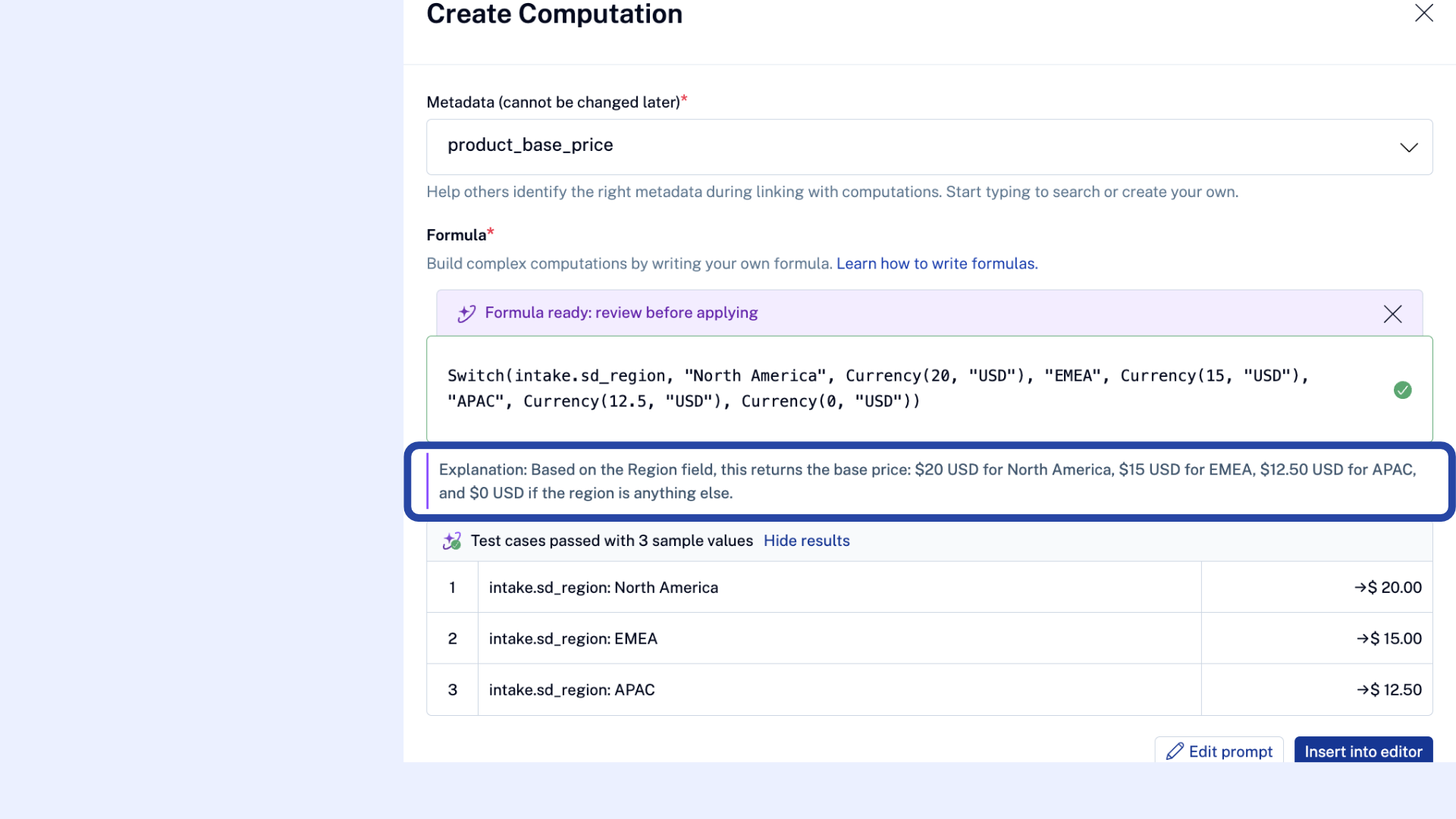
Every generated formula comes with a short explanation underneath it, written in plain language. Use it to understand what the formula is doing without reading the formula syntax yourself, and to confirm it matches what you actually asked for.
Step 5: Adjust or regenerate if needed
If the result isn't quite right, describe the change you want in the prompt by clicking on Edit Prompt and SpotDraft will revise the formula.
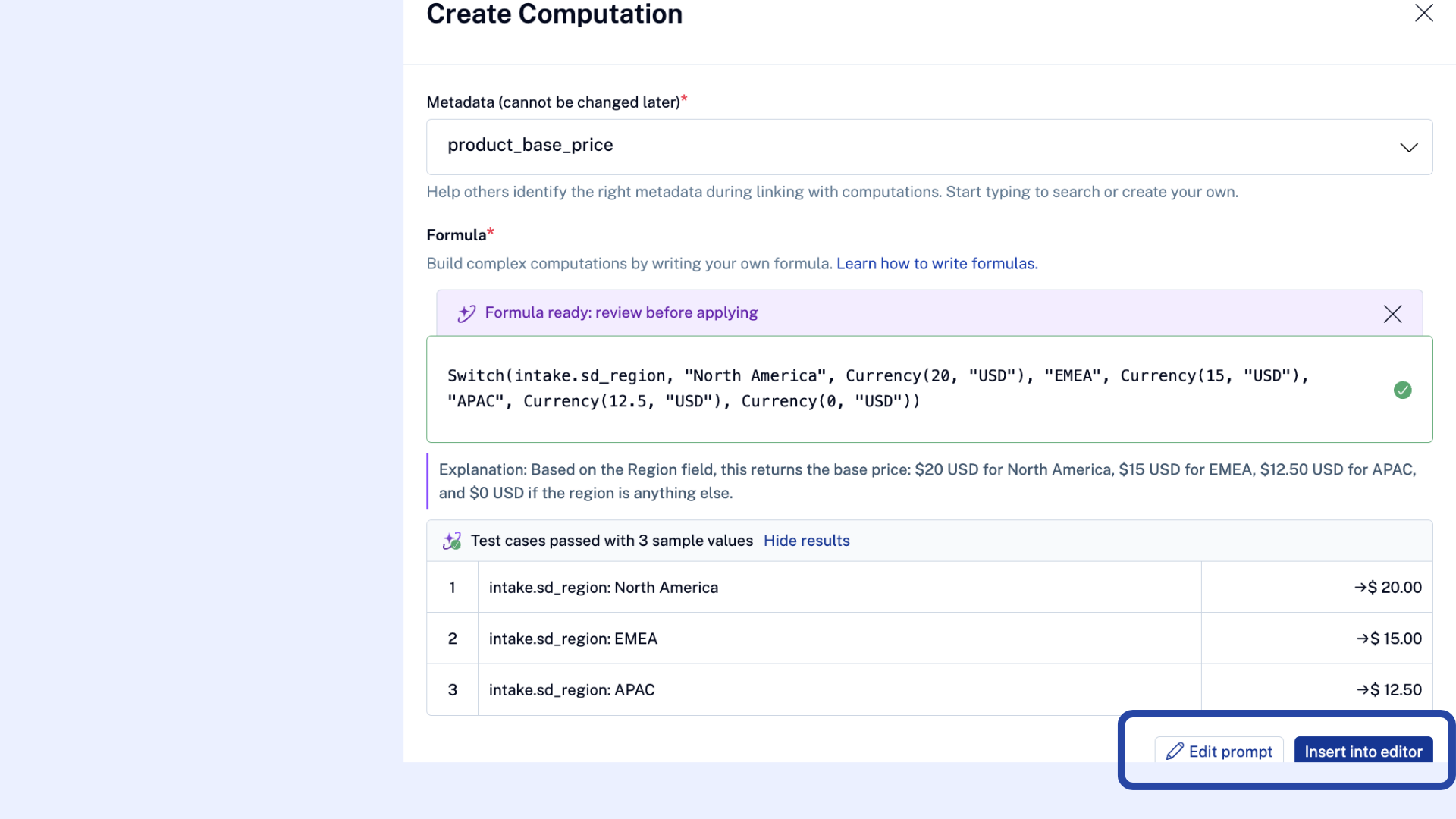
Step 6: Insert the formula and save
Generating a formula doesn't save it automatically. Once you're happy with the result, click Insert into editor to add it to the formula editor, then save the computation as you normally would.
Note: If the AI can't generate a working formula, it tells you why, so you know whether to rephrase your prompt or write the formula yourself in the editor.
Use cases to try
Region-based pricing is just one example - the same approach works for other formula requests, like:
Use case | Use this when... | Try describing it as |
|---|---|---|
Late payment fees | A contract charges extra for late payment | "Add a 5% late fee if payment is received more than 30 days after the due date" |
Tiered or volume discounts | The discount depends on order size or contract value | "If the contract value is above $100,000, apply a 2% discount, otherwise apply none" |
Usage-based charges | Pricing depends on usage above a plan limit | "Multiply the hourly rate by hours worked, then add a 10% service charge" |
These are starting points — you can adjust thresholds, or add details, and SpotDraft will fold it into the formula.
That's it! What used to mean hunting for the right function and checking your output by hand is now a plain-English description and a quick review. Next time a counterparty pushes back on a calculation or a new deal type needs a one-off formula, you can get one that's already tested and explained in the time it takes to describe it.
Don't see the Generate with AI option in your computation? Reach out to your CSM or SpotDraft support to get it enabled.