Managing Computations in the Computation Library
Last updated: November 17, 2026
The Computation Library holds every computation you build for a workflow. Build a formula once, then use it anywhere that workflow needs it, its templates, its questionnaires, or another computation, without writing the same logic twice.
Use Case
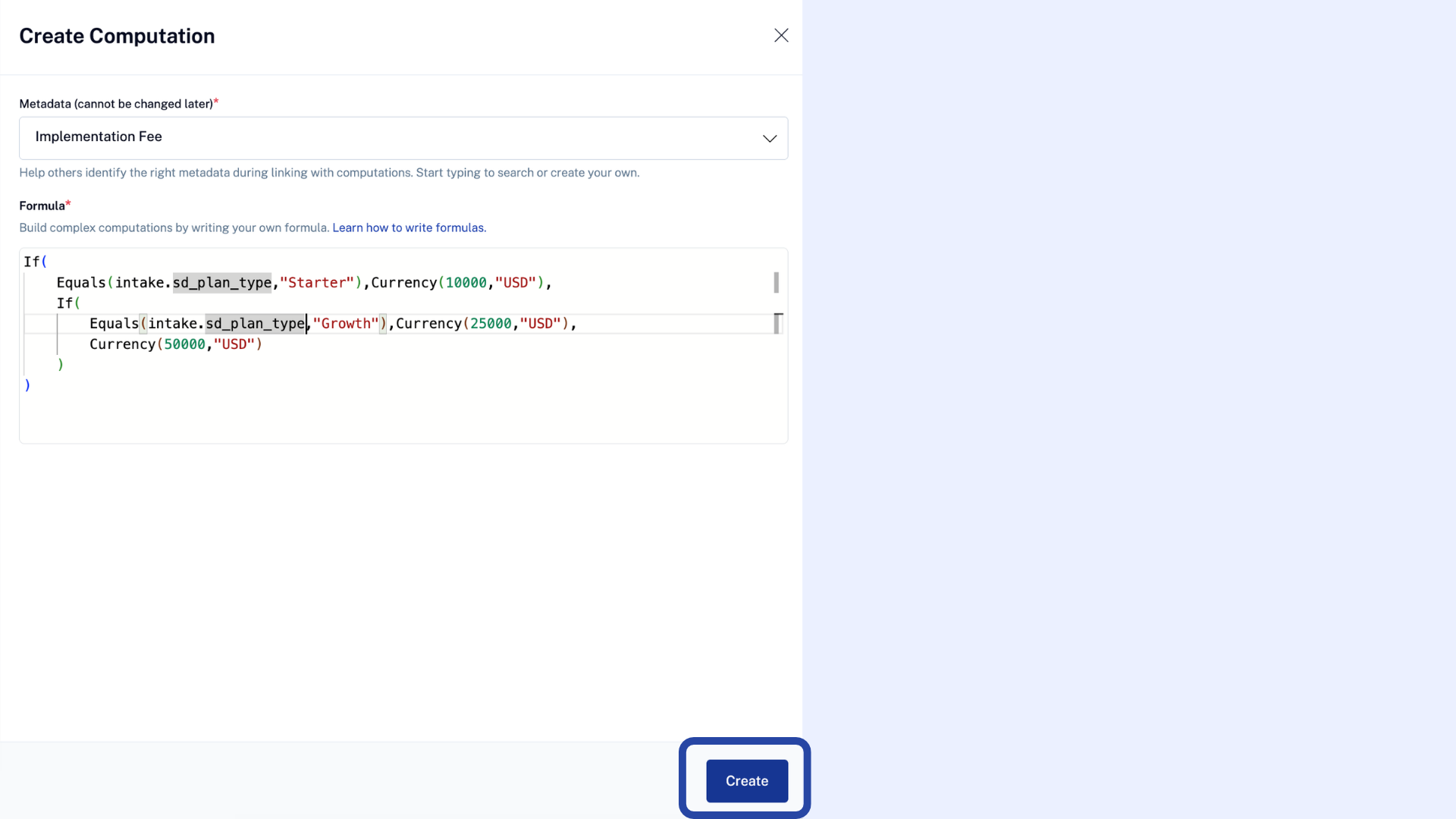
Meet Tony, who manages the Order Form and SOW templates for a software company that charges a one-time implementation fee based on the customer's plan: $10,000 for Starter, $25,000 for Growth, and $50,000 for every other plan. Every time a deal closes, that fee needs to show up correctly on the contract without anyone doing the math by hand. Tony built this once as a computation in the Computation Library, linked to an Implementation Fee field, and now every Order Form that goes out calculates it automatically.
What is the Computation Library?
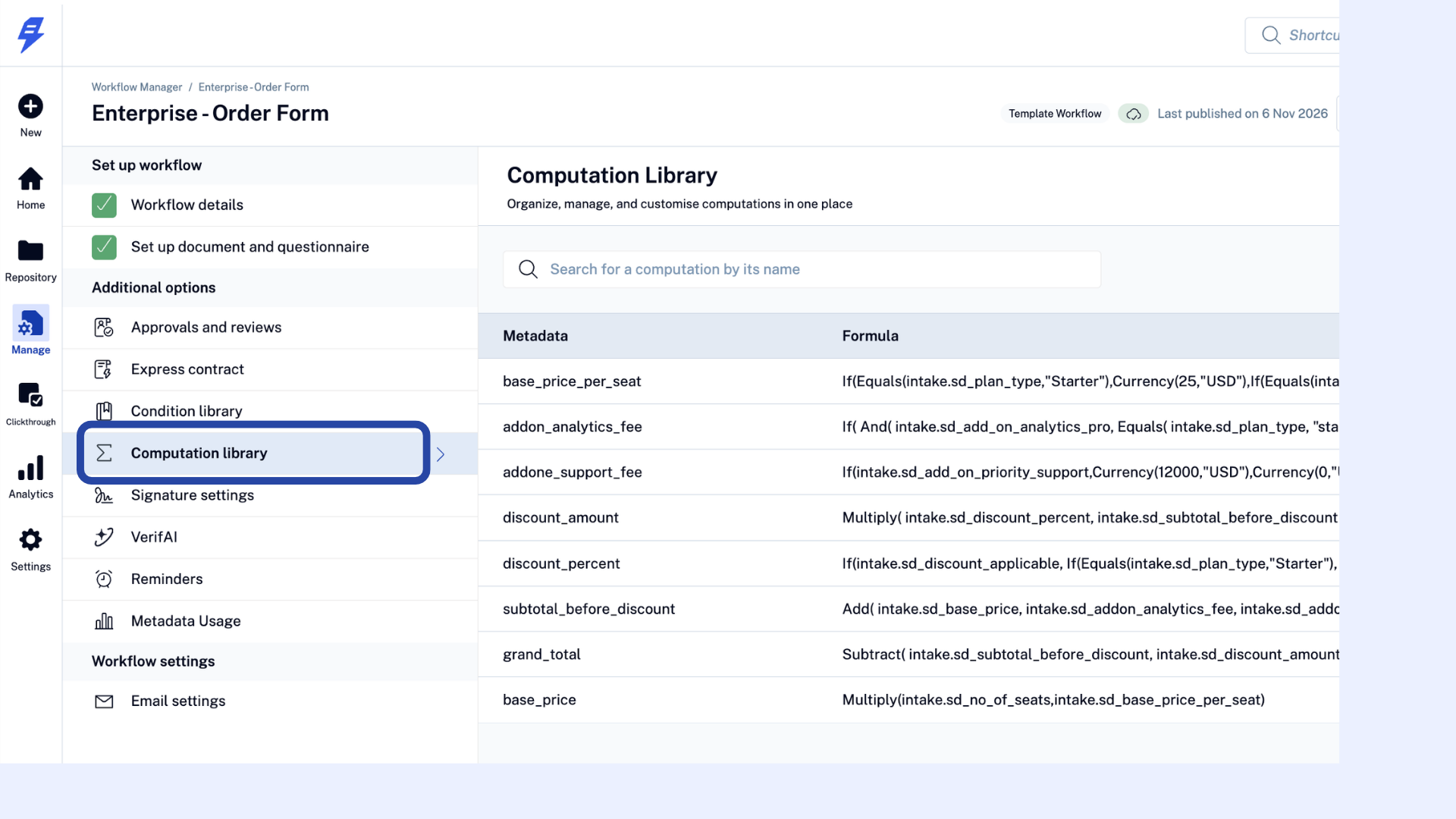
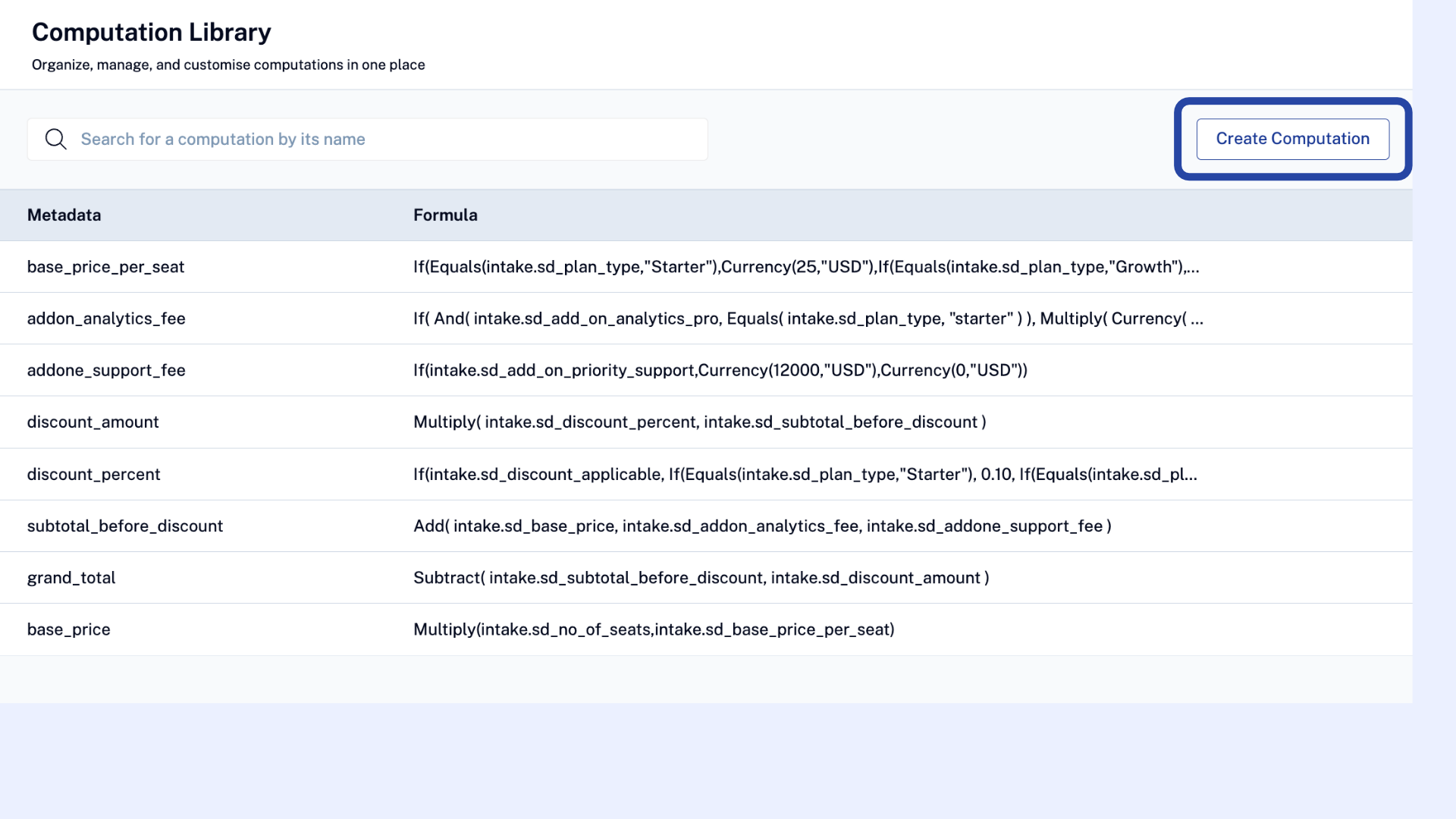
The Computation Library is where you create and edit a computation. The Computation Library is the saved list of every computation in that workflow, each one identified by the metadata field it's linked to, along with where it's used.
Why use the Computation Library?
The Computation Library lets you build formulas directly into a workflow, without writing code. On an Order Form or SOW, that might mean calculating a total contract value or a volume discount. On an NDA or a services agreement, it might mean working out a renewal date from the effective date and term, or a notice deadline ahead of expiration. It's also what makes this self-serve: without it, building this kind of calculation usually means going through SpotDraft support or your CSM.
Accessing the Computation Library
Go to Manage > Workflow Manager, select the relevant workflow, and open Computation Library.
Creating a computation
Here's how Tony built his implementation fee formula:
Click Create.
Choose the metadata field the result should be saved to, for example,
Implementation Fee. That field's own data type, Number, Currency, Duration, Date, or Boolean, determines what the computation needs to return. If Generate with AI is available in your workspace, you can describe the calculation in plain English instead of building the formula step by step yourself. See Generating Computation Formulas with AI.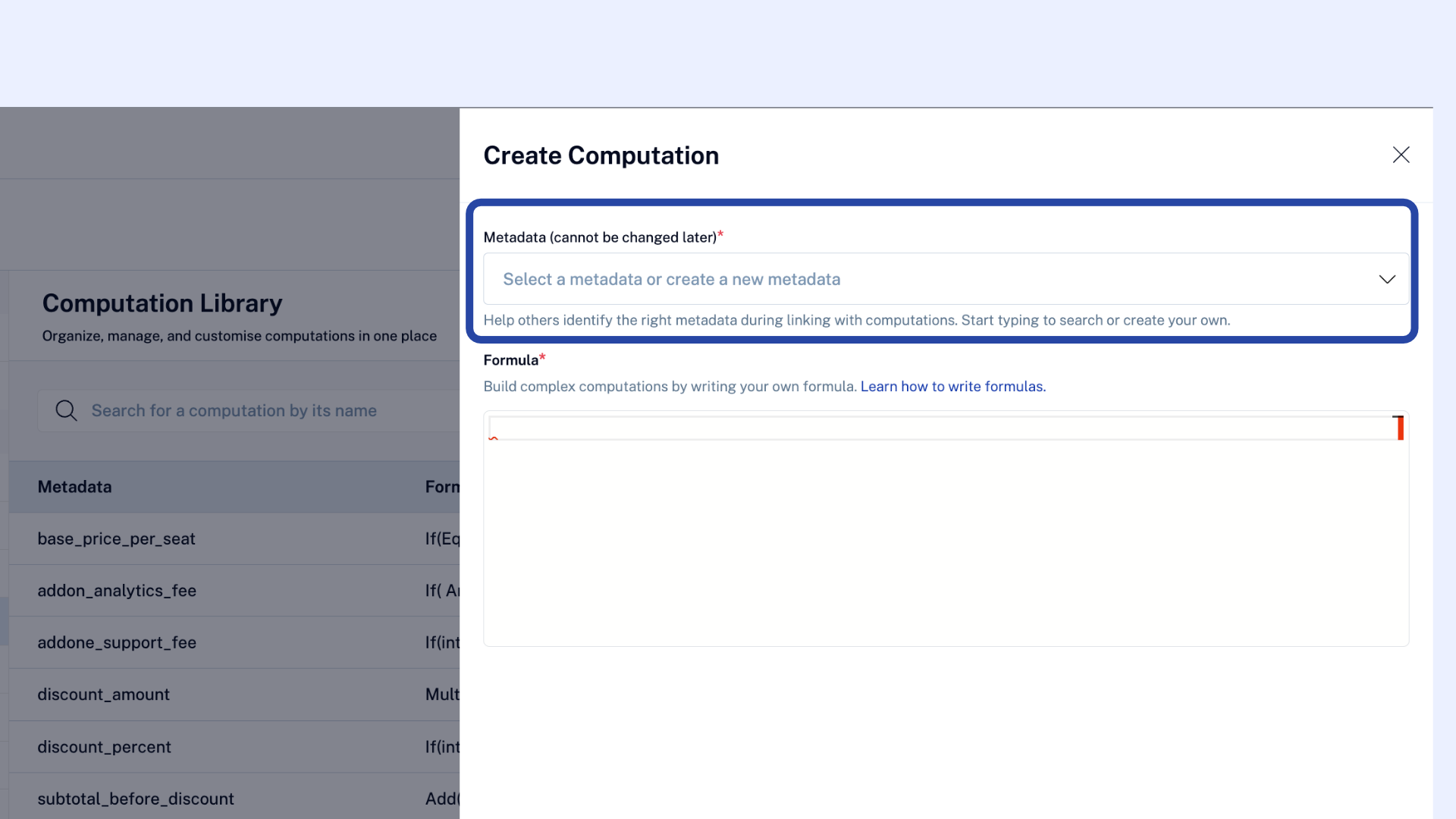
Build the formula using the functions covered in Supported Functions in the Computation Builder. For the implementation fee example, that means checking the dropdown field of
plan_typeand returning $10,000, $25,000, or $50,000 depending on its value.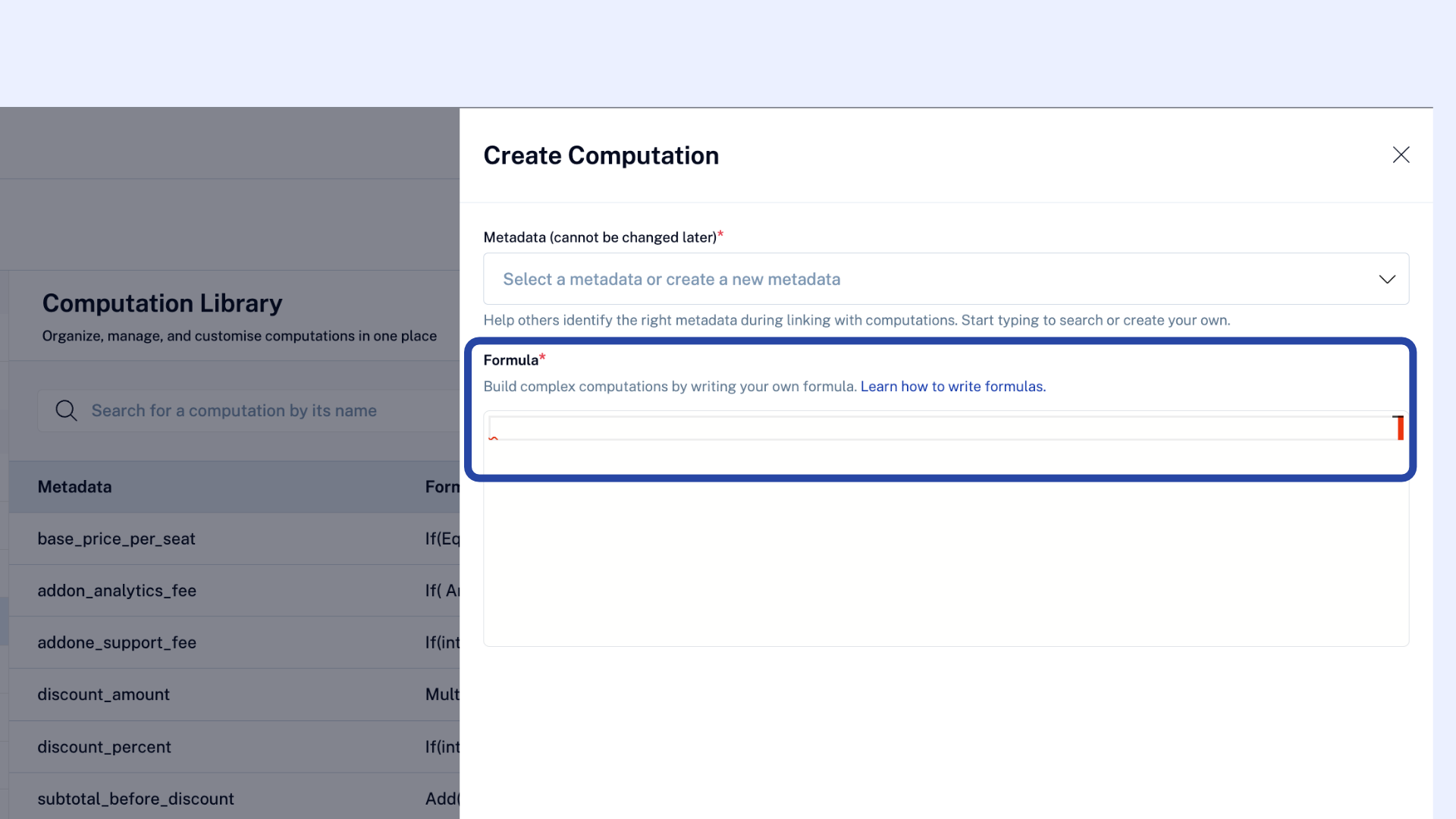
Click Create to add it to the library.
Editing a computation
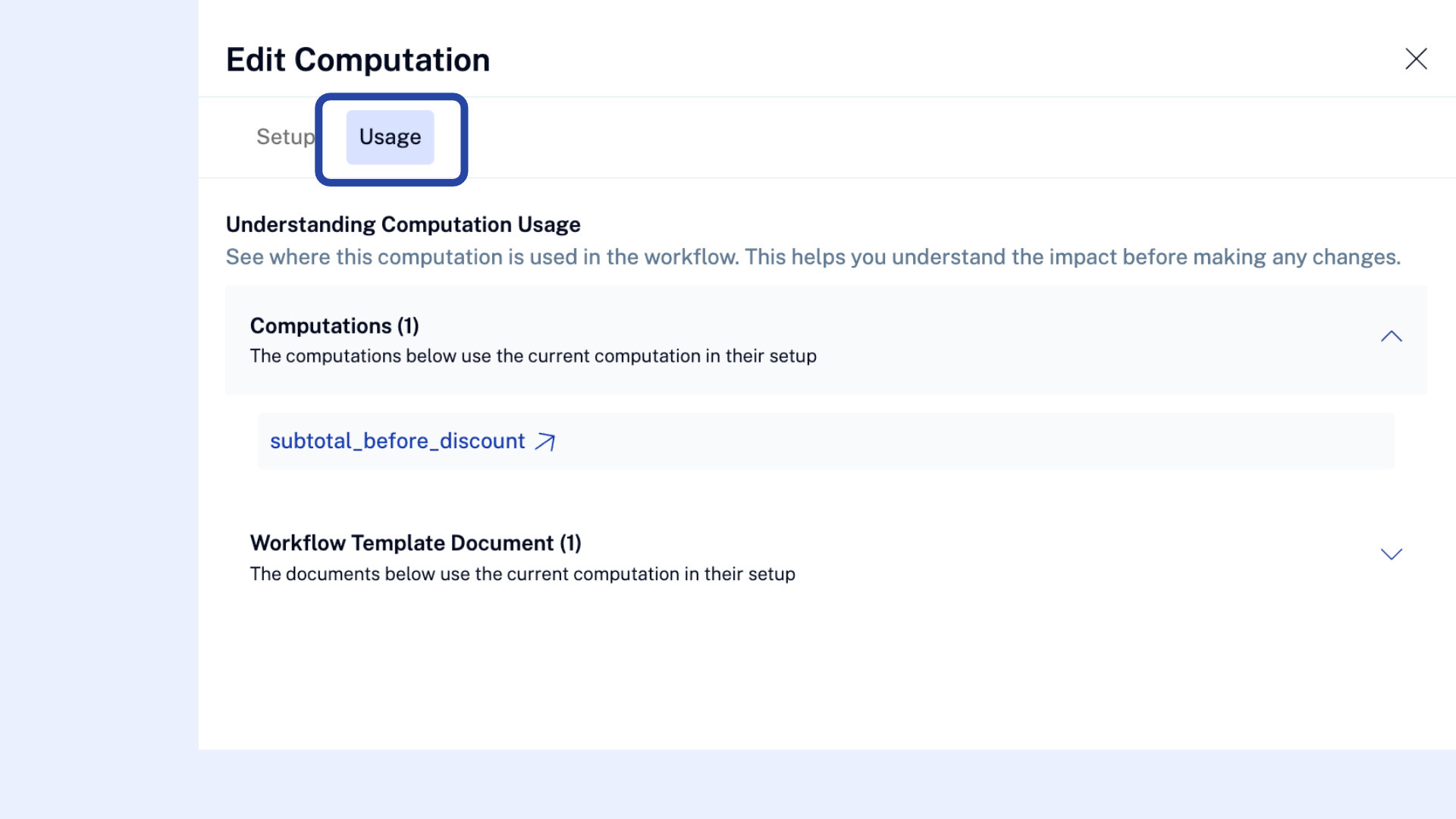
A change to a computation's formula applies everywhere it's used within that workflow, the moment you save it. Check the Usage tab first if it's already linked to a live metadata field, so you know the full impact before you change it.
A computation's metadata field is set when you create it and cannot be changed later, so it's worth confirming you've got the right one before you save.
Viewing where a computation is used
The Usage tab lists where a computation is used, in a template, a questionnaire, or another computation, so you can judge the impact before you edit or delete it.
Deleting a computation
To delete a computation that's currently in use, resolve its usage first: remove or replace it everywhere it's listed in its Usage tab. Once nothing in the workflow references it anymore, you're free to delete it.
Click on the three dot menu
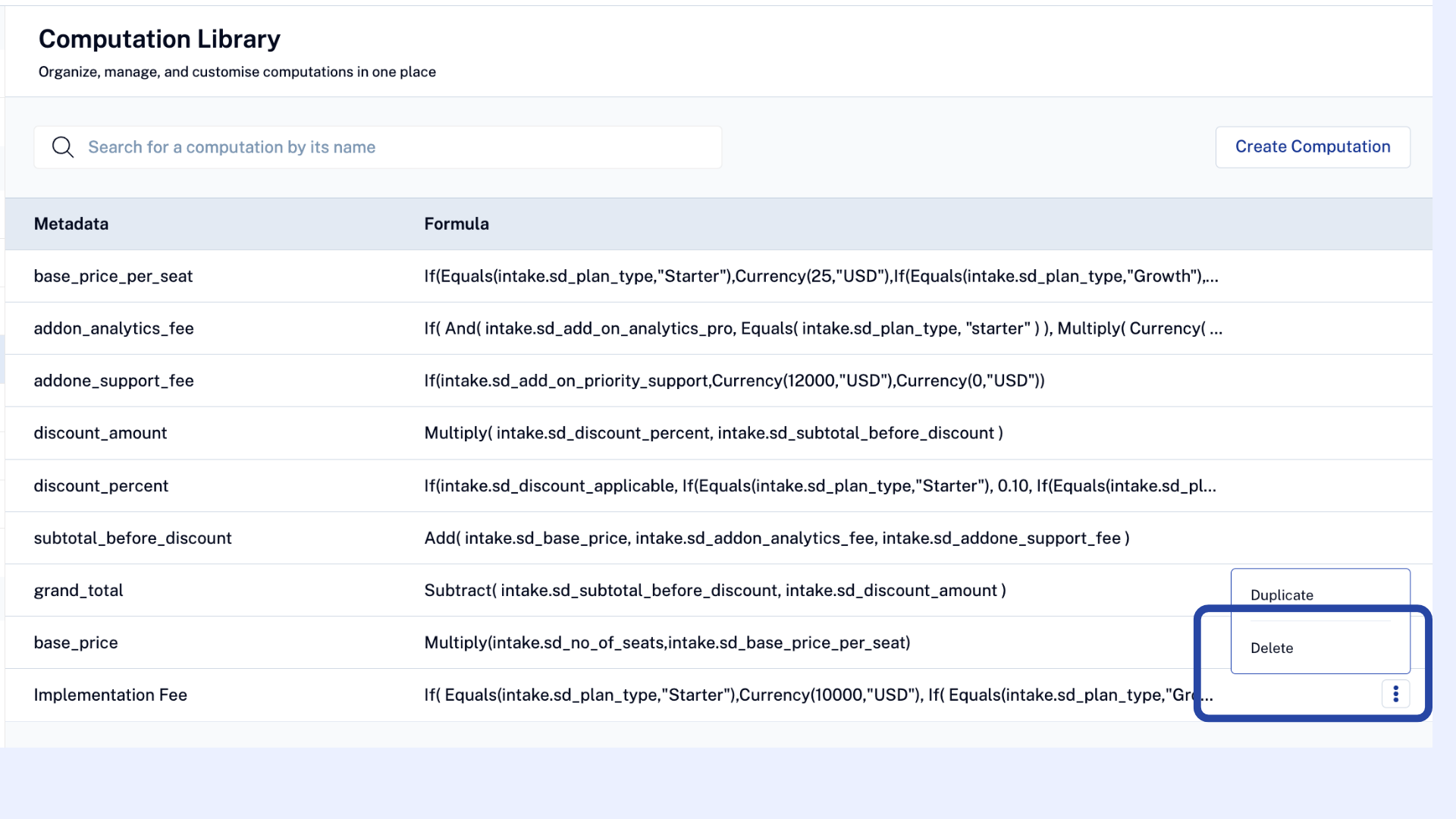
Click delete
Using a computation in a workflow
When you're setting up a computed field in a questionnaire or template, select an existing computation from the library, or create a new one from the same dropdown. Once it's linked to a metadata field, that field becomes read-only for whoever fills out the form, and is marked with a Σ symbol so they know the value is calculated rather than typed in.
A computation can also reference another computation, which is how you break a long formula into smaller pieces, each saved to its own metadata field. See Best practices below.
Best practices for using computations
Break up complex logic. Split a long formula into smaller computations within the workflow, each saved to its own metadata field, and reference one from another rather than writing one long formula. It's easier to read, test, and hand off to someone else later.
Pick a telling metadata field. A computation doesn't have a name of its own, so the metadata field it's linked to is what identifies it in the library and in the Usage tab. A clear field name matters more here than it would elsewhere.
Check usage before you edit. A change to a computation applies the moment you save it, so check the Usage tab first if it's already linked to a live metadata field.
Keep data types consistent. Matching currency codes and data types is the most common reason a formula fails to save. See Supported Functions in the Computation Builder for what each function supports.
Don't see Computation Library in your workflow? Reach out to your CSM or SpotDraft support to get it enabled.