Ramp
Last updated: August 18, 2026
In this article
🚀 Introduction
📝 Prerequisites
⚙ Installation & Configuration
✅ Verification
💬 FAQs
🏁 Conclusion
📚 Additional Resources
👉 In this article, you’ll discover a detailed guide for installing and configuring the Ramp integration with SpotDraft. It outlines prerequisites, step-by-step instructions, and essential considerations for seamless integration, empowering you to streamline contract creation processes.
Ramp is a financial management platform that helps businesses control spending, automate expense tracking, and gain real-time visibility into finances. It offers corporate cards, powerful reporting, and seamless integrations with accounting systems to improve efficiency and reduce manual work.
🚀 Introduction
The Spotdraft - Ramp integration helps finance and legal teams work together more efficiently by connecting contract workflows with spend management.
With this integration, contracts created and managed in Spotdraft can be seamlessly linked to Ramp, enabling better visibility into vendor agreements, faster approvals, and tighter financial controls. Teams can ensure that spending on Ramp is backed by the right contracts in Spotdraft - reducing manual coordination, minimizing risk, and improving compliance.
By bringing contract intelligence closer to spend data, the Spotdraft - Ramp integration enables organizations to streamline operations, make informed financial decisions, and scale with confidence.
📝 Prerequisites
Guidance for SpotDraft Business Users and Ramp Administrators: This section ensures you have all the prerequisites in place for a smooth integration journey.
Checklist for Ramp Integration Setup:
Ramp Account: Ensure you have a Ramp account with the Procurement module enabled.
Ramp System Administrator Role:
The individual with System Administrator access in Ramp must also have a SpotDraft account, as they will set up the integration.
Verify Ramp Activation in SpotDraft: To ensure Ramp integration is enabled, log into your SpotDraft account and go to Settings → Integrations → My Integrations. Check if the Ramp card is present, indicating the integration is active.
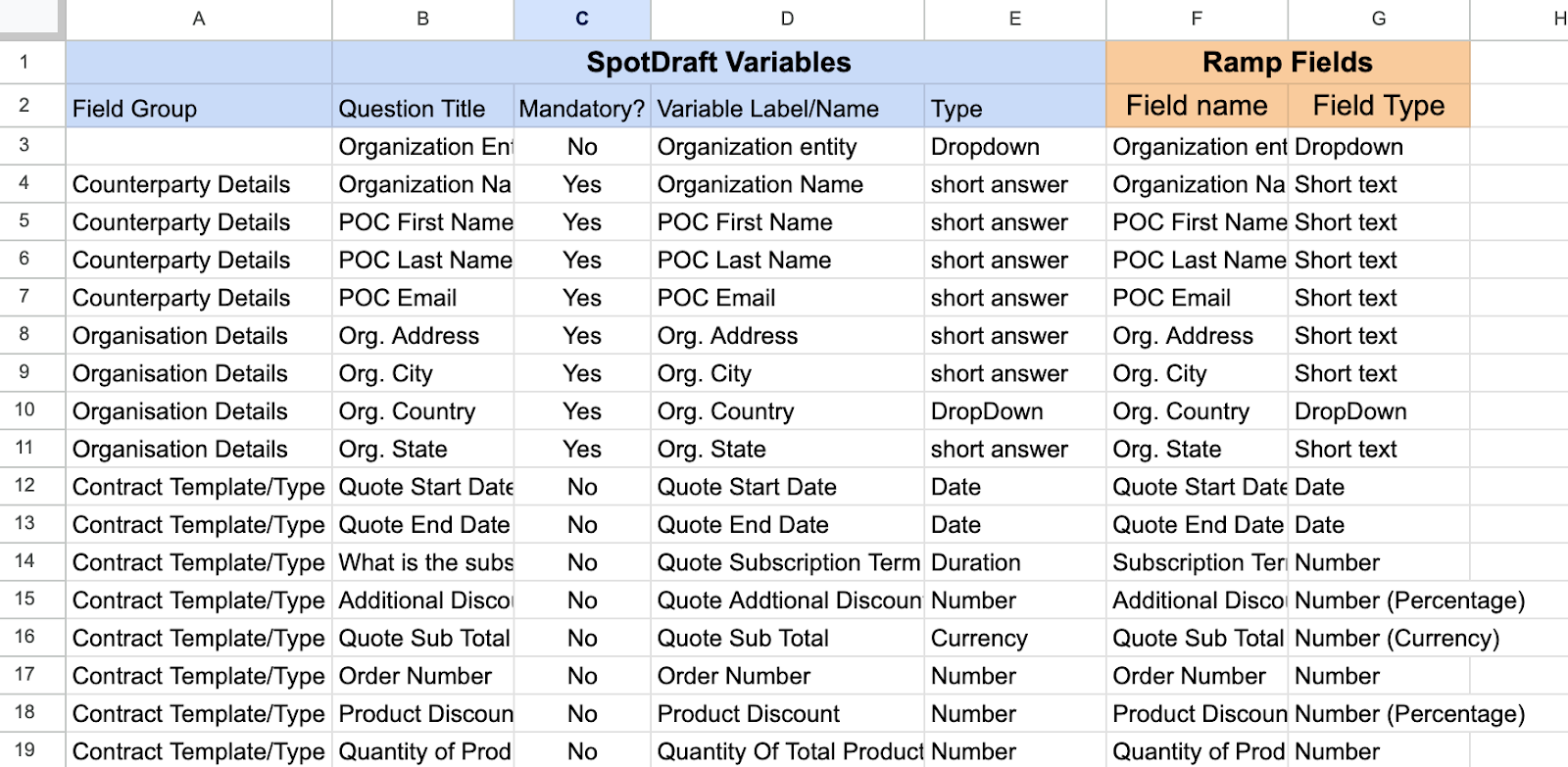
Mapping Sheet: It is recommended that you have a mapping sheet created with fields that you want to map between Ramp and SpotDraft. Having all the mapping data in one place will make it easier for you to map the fields while setting up integration.
Select Contract Templates: Determine which SpotDraft contract template requires integration with Ramp for a given node (e.g., Order Form, NDA).
Request Mapping Sheet: For the selected template, ask your SpotDraft representative for a corresponding mapping sheet.
Map Ramp Fields: On the provided mapping sheet, enter the corresponding Ramp fields next to the SpotDraft fields. Please note that these fields will be sourced from the selected Ramp Spend Program Questionnaire and mapped to the respective SpotDraft contract template fields. Create custom fields in Ramp if any required fields are not already available.
Review with SpotDraft: Collaborate with your SpotDraft representative to confirm the accuracy of the mapping sheets.
If you’d like to set up this integration with your Ramp sandbox account, please connect with your SpotDraft POC. Both the Ramp sandbox and production environments are supported through separate instances in this integration.
💡 Note. Repeat this process for each SpotDraft contract template you plan to integrate with Ramp. This ensures that each template's unique data needs are met and properly mapped for seamless integration.
Sample Mapping Sheet :
⚙ Installation & Configuration
💡 Insights for System Administrators: While this section is detailed for the technical setup, we encourage business users to engage in the process for insights into how their systems and processes integrate.
🔩 Configuring the Ramp integration on your SpotDraft workspace.
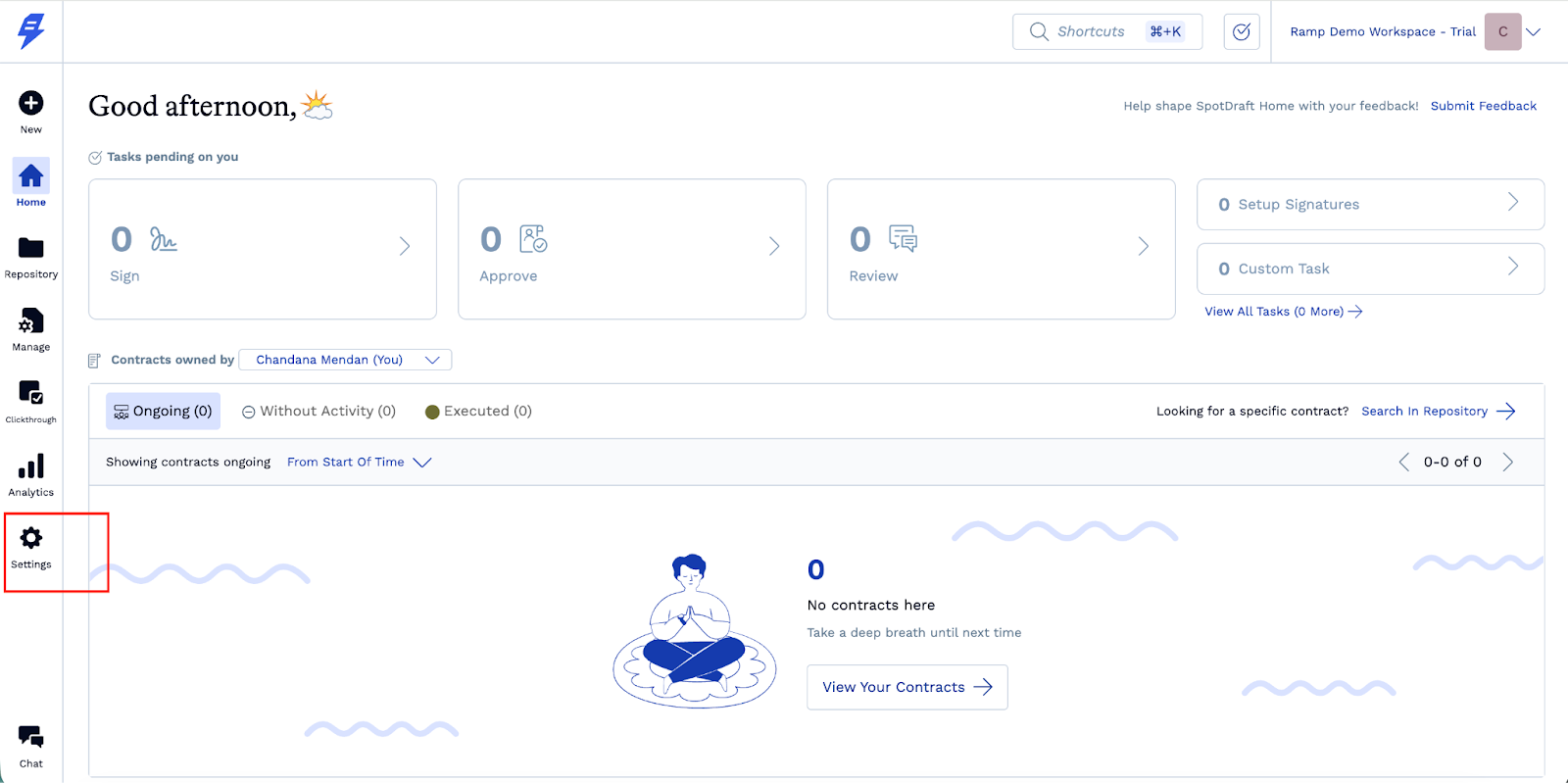
Go to SpotDraft workspace settings.
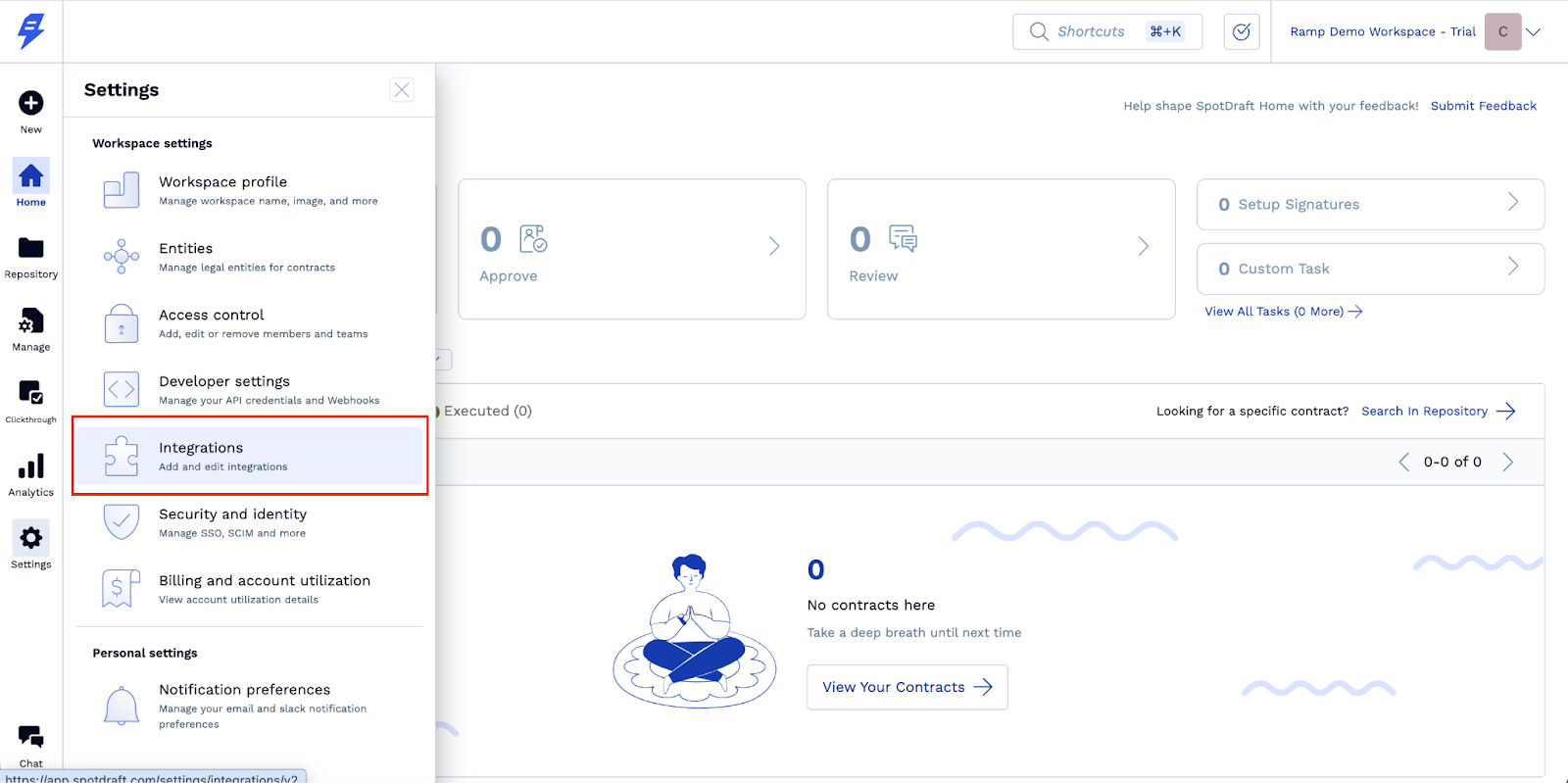
Navigate to Integrations
3. Click on All, then search for Ramp.
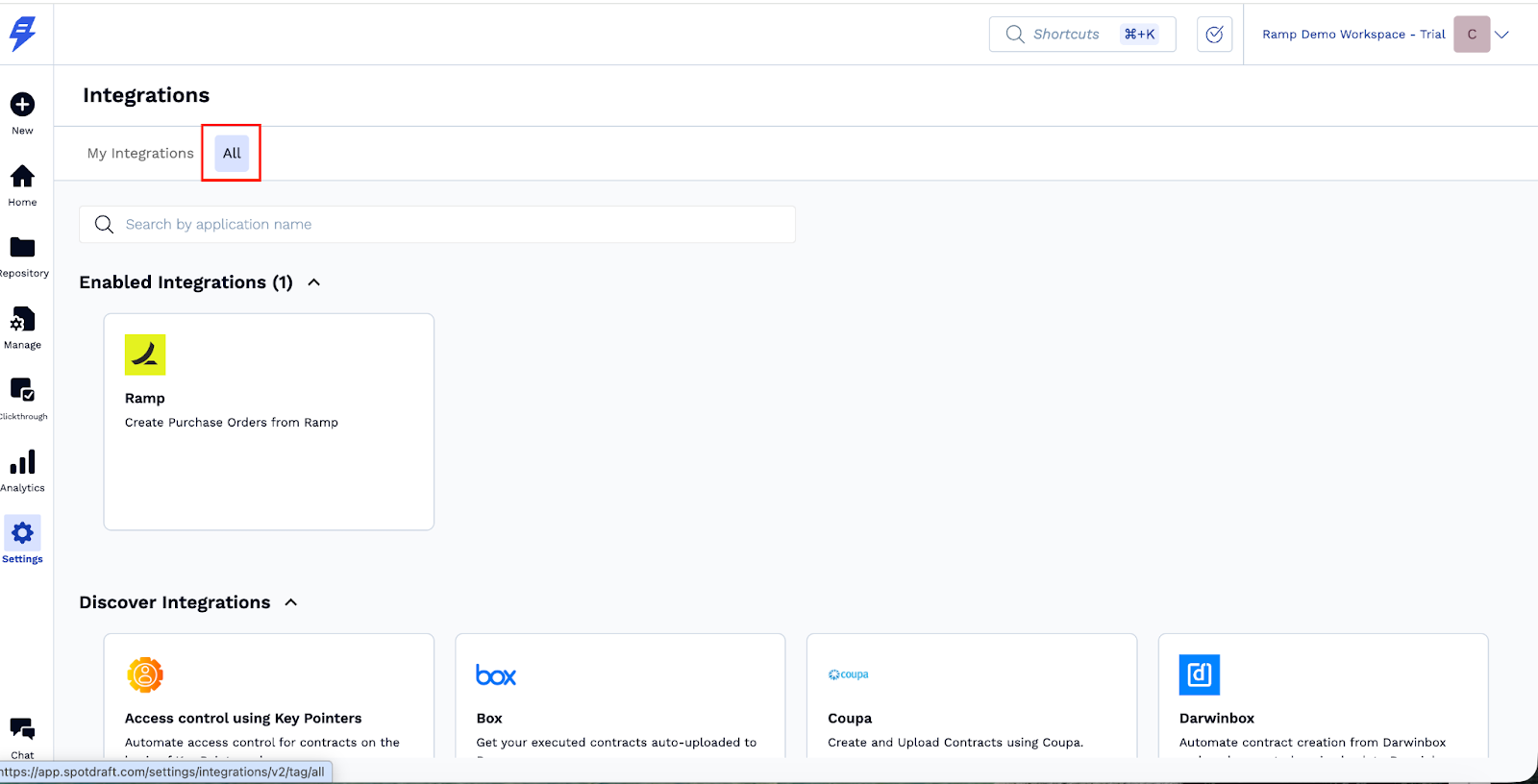
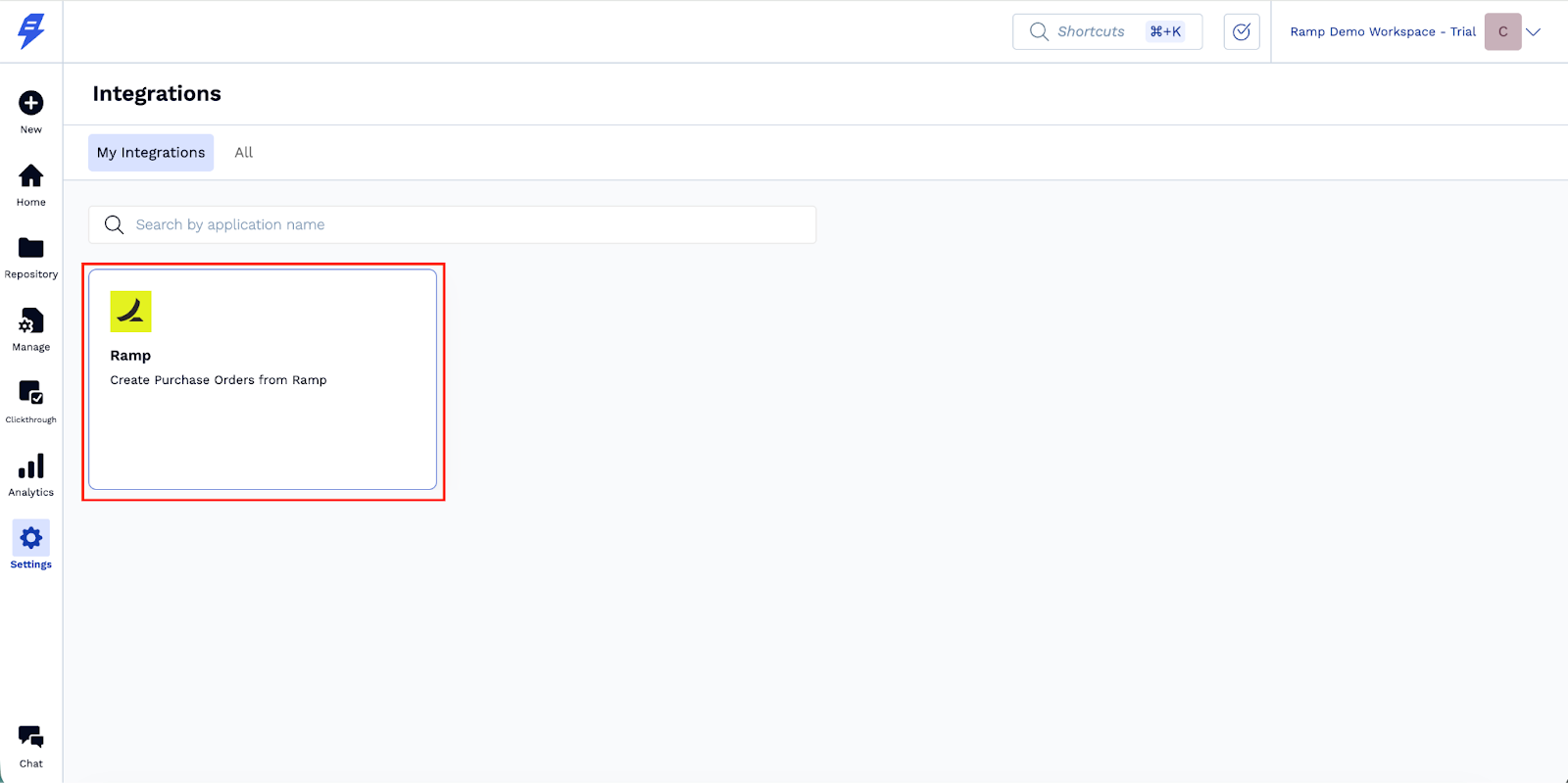
4. Click on the Ramp Integration card.
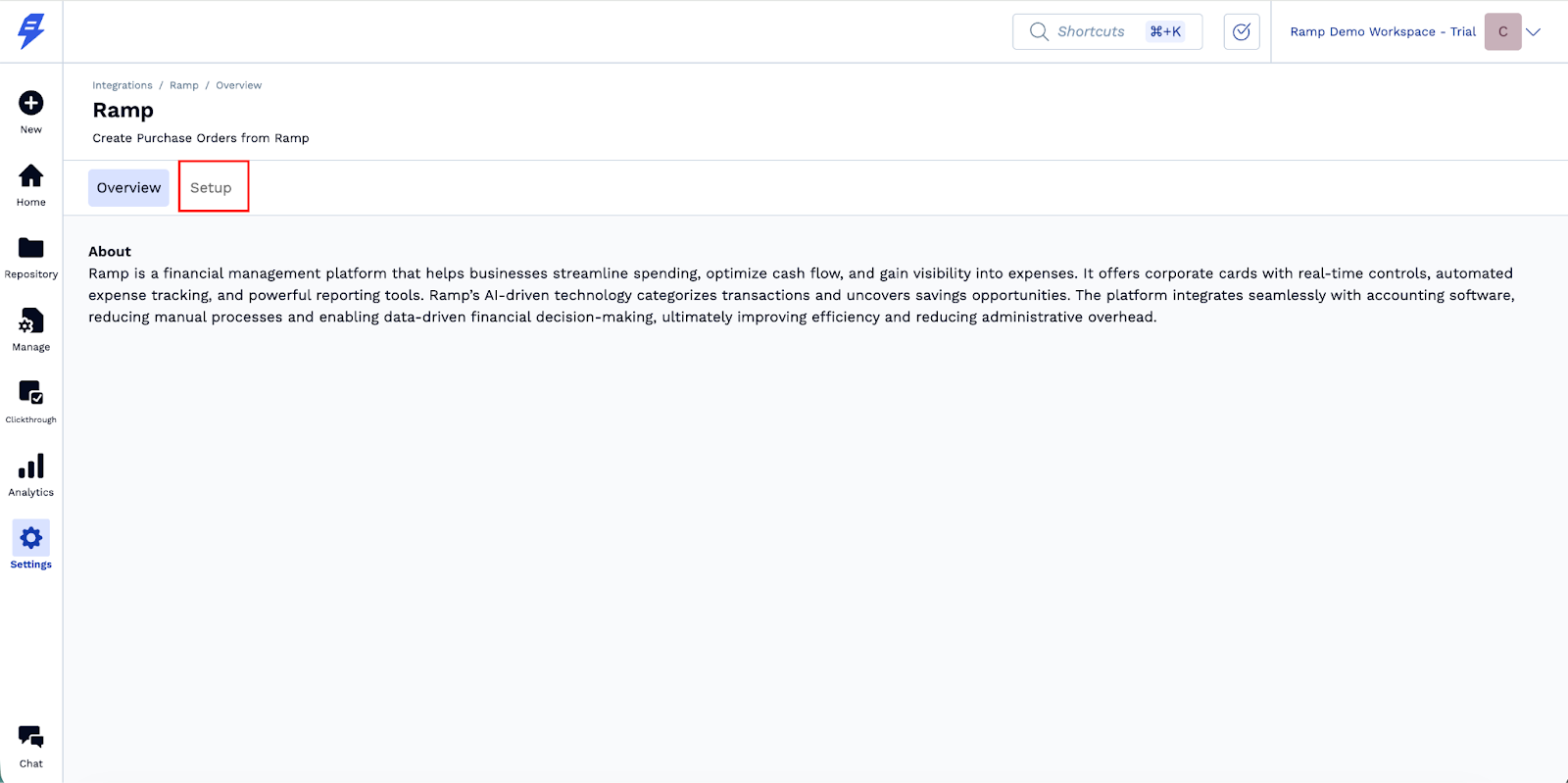
5. Click Setup.
Generic Settings:
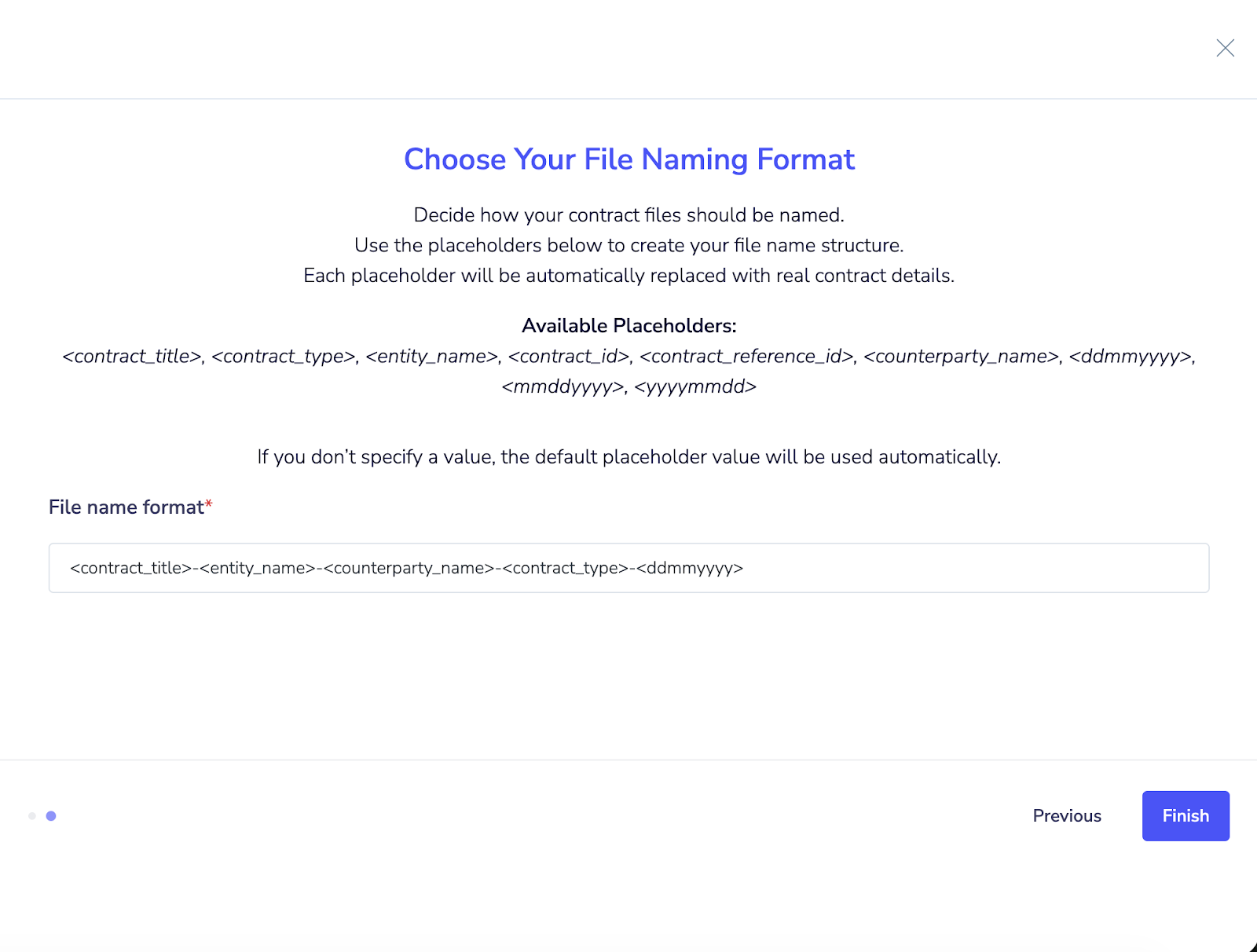
This setting helps Ramp and SpotDraft to connect automatically. Once enabled, Ramp sends updates to SpotDraft whenever a contract-related approval is triggered. This ensures the right request details are shared at the right time, without any manual intervention. And you can choose your contract file naming format for this integration.
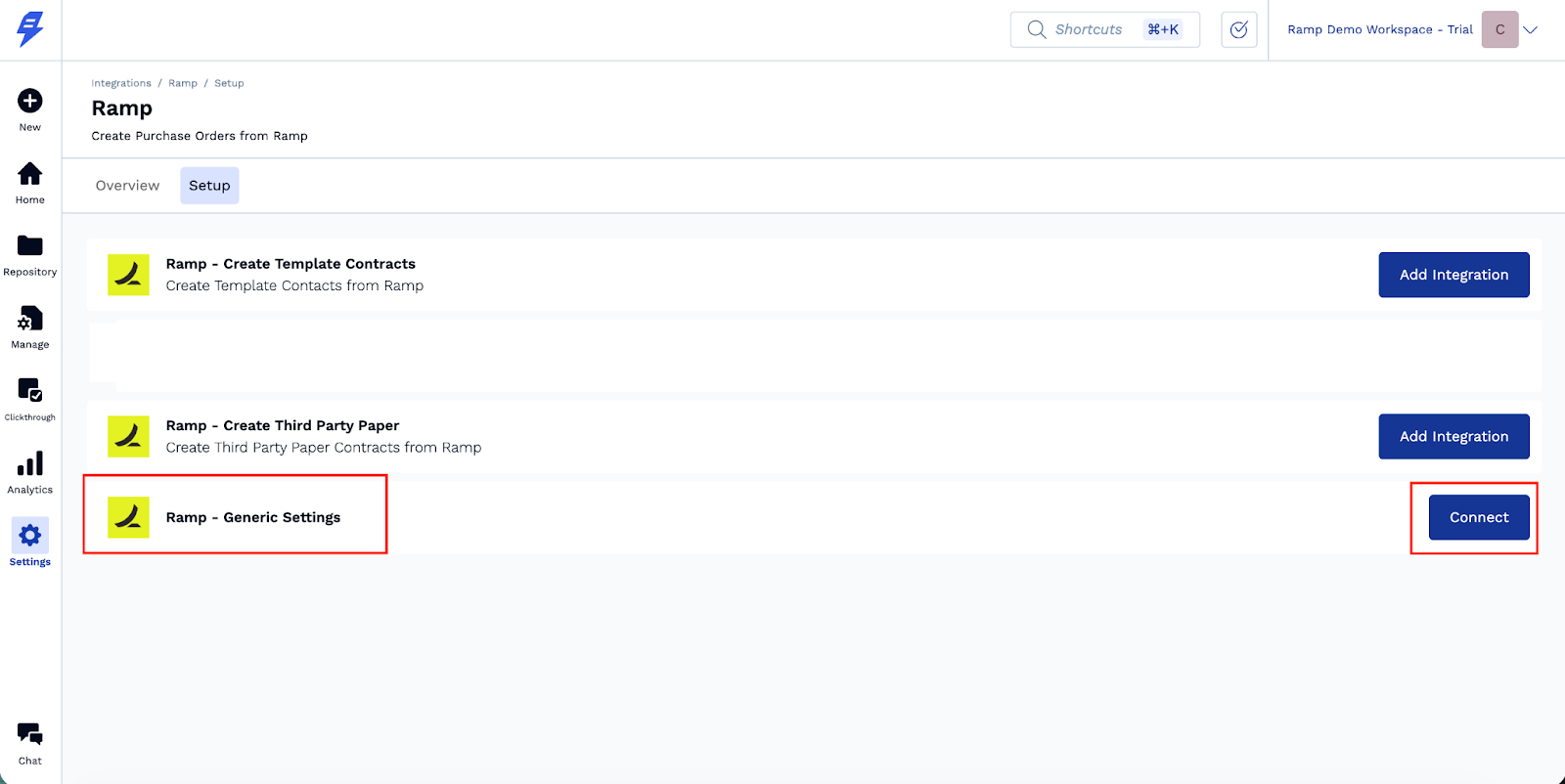
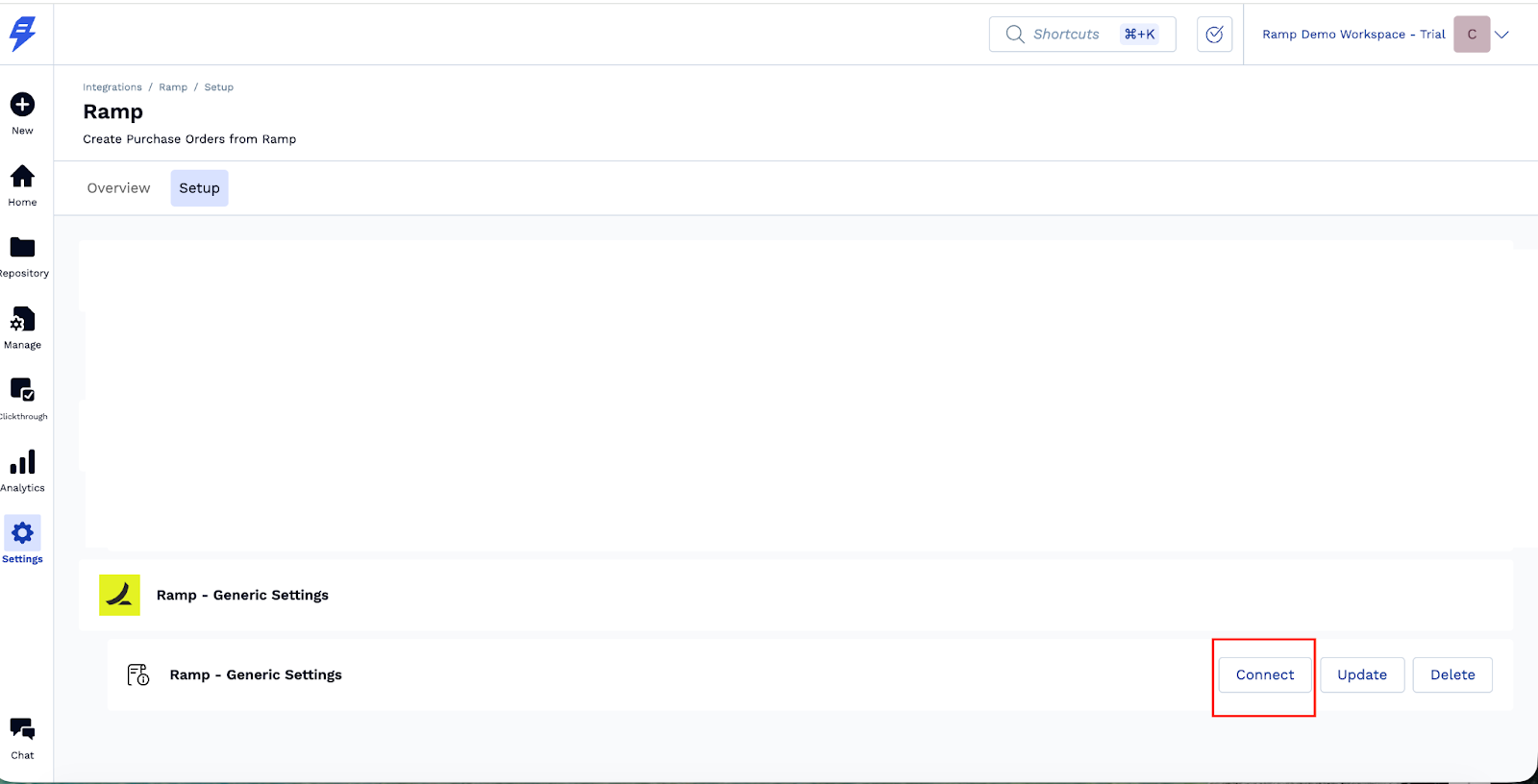
1. Locate the Ramp - Generic Settings Instance and click “connect”.
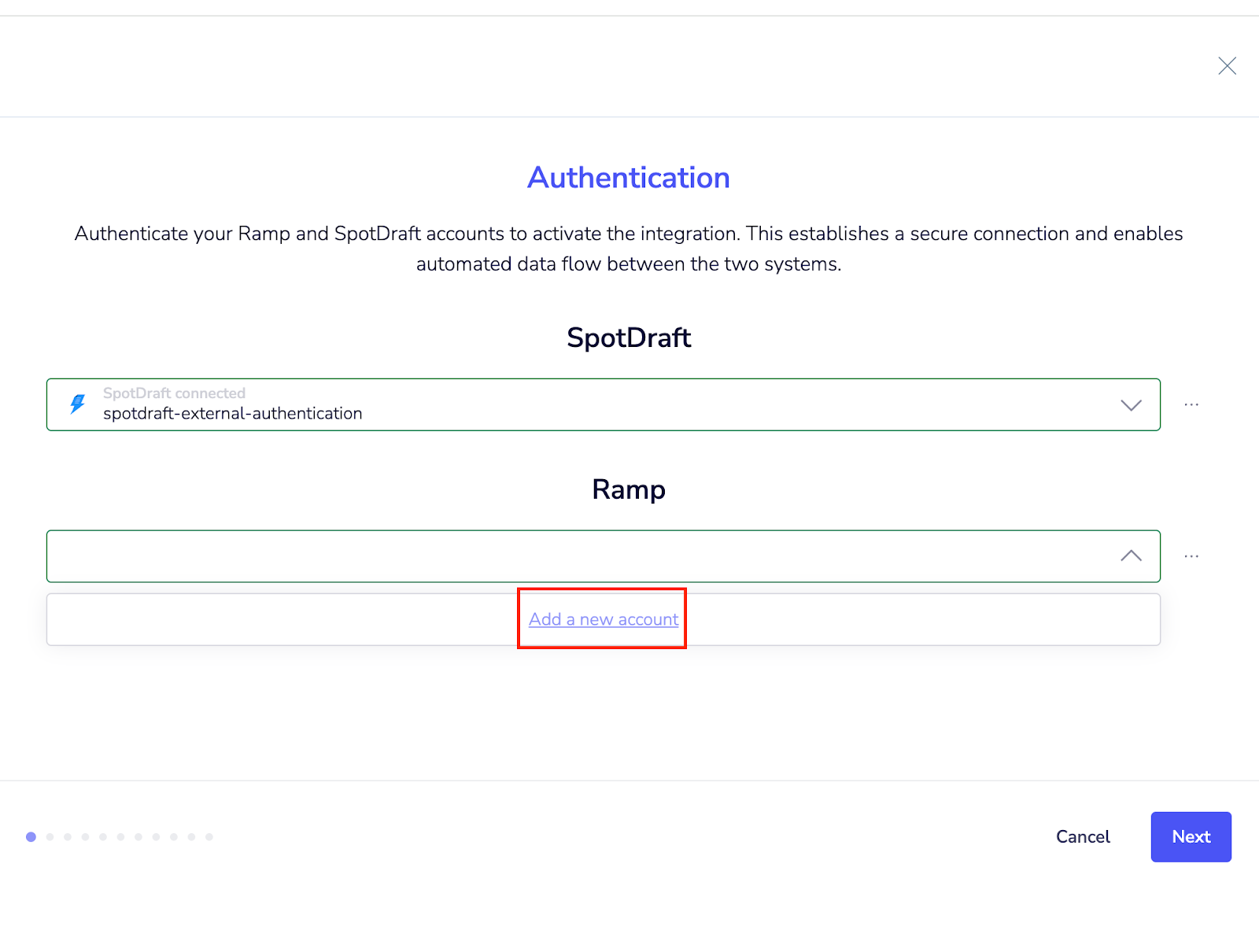
2. Click “Add account” to authenticate using your Ramp credentials. Ensure you have access to the Ramp Spend Program you want to map, as this is required to enable contract creation from Ramp.
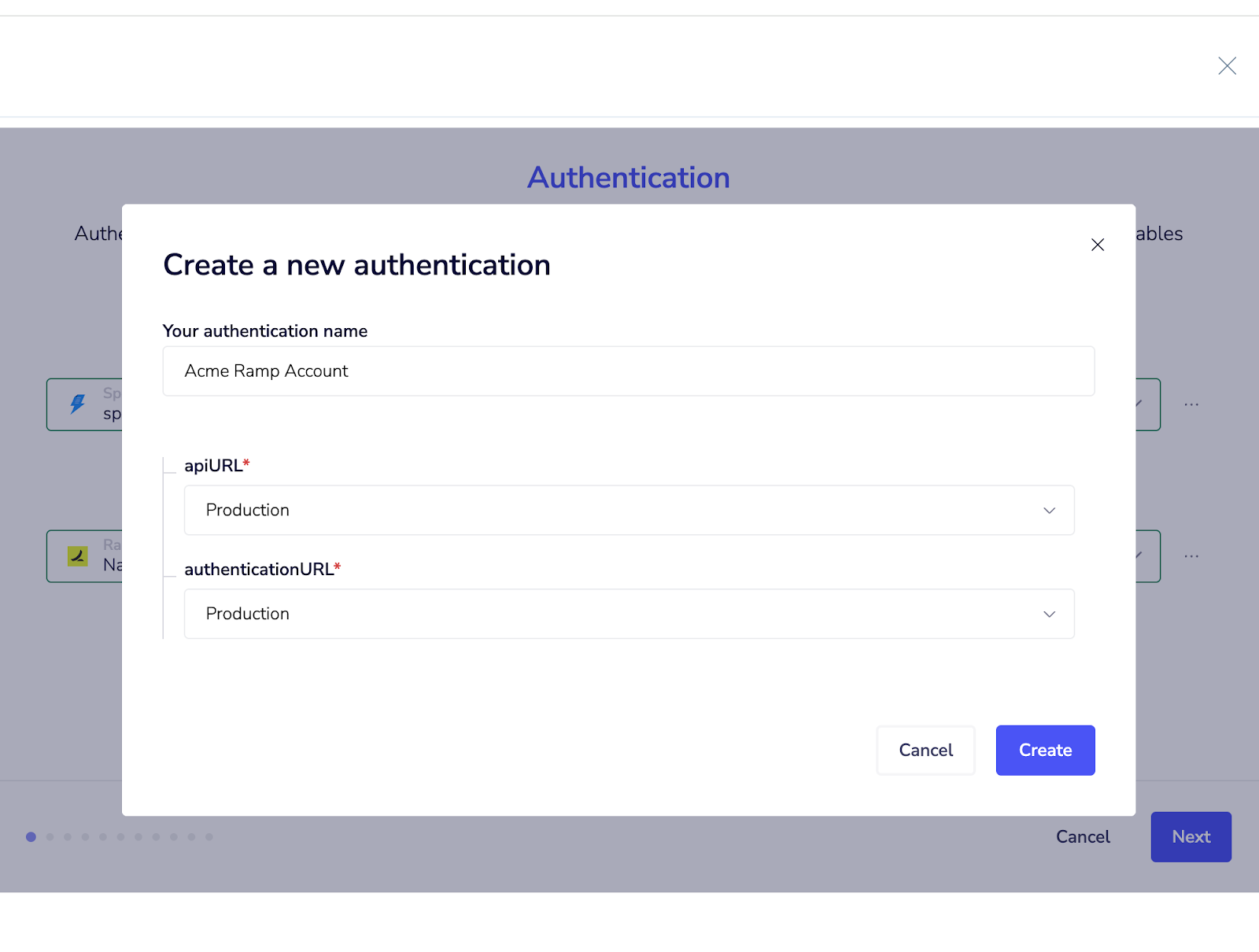
3. Add a name for this authentication and select the Ramp environment from the dropdown. Once this is done, click create.
Note: Make sure to keep both environments the same.
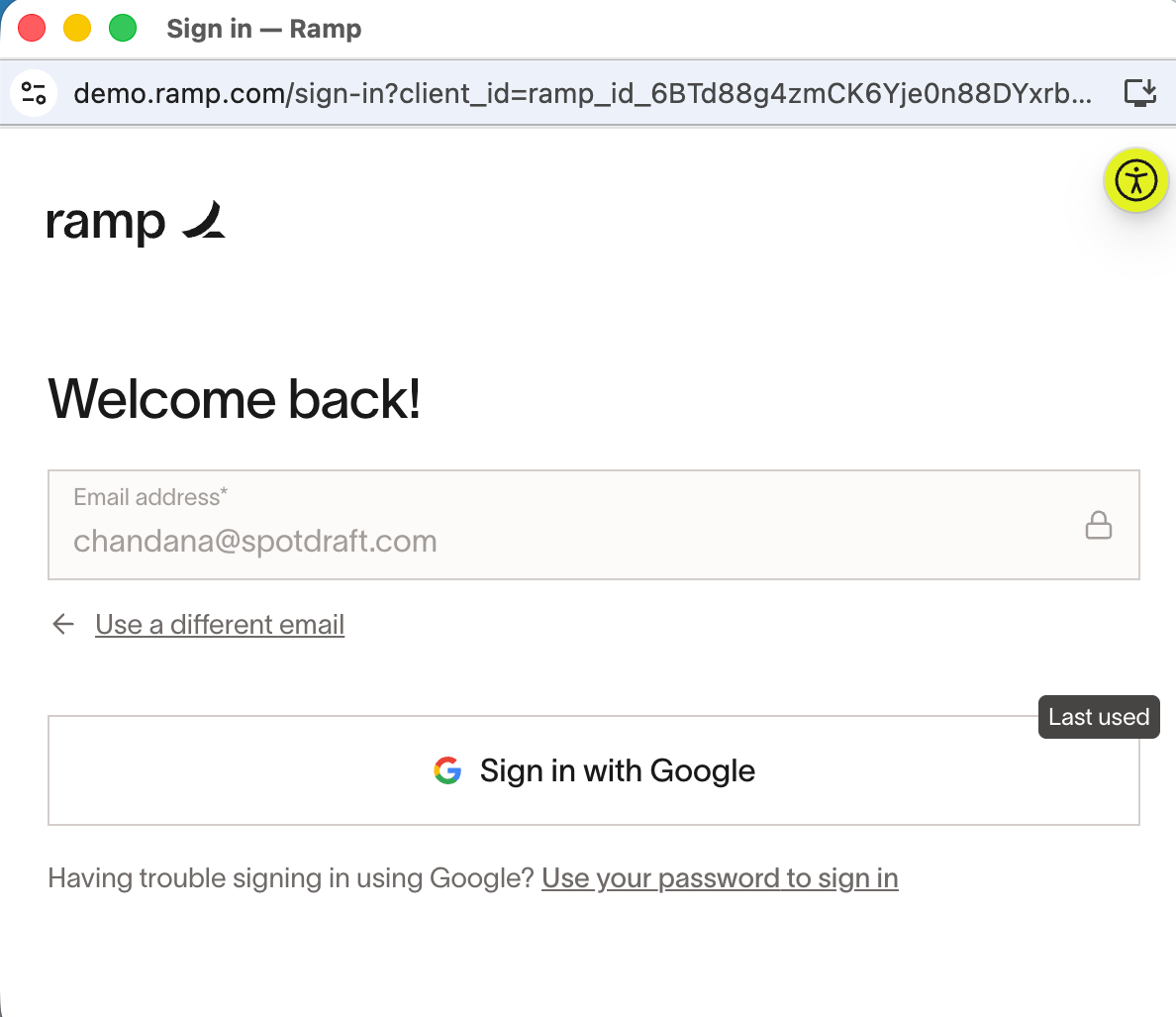
4. Sign in to the desired Ramp account.
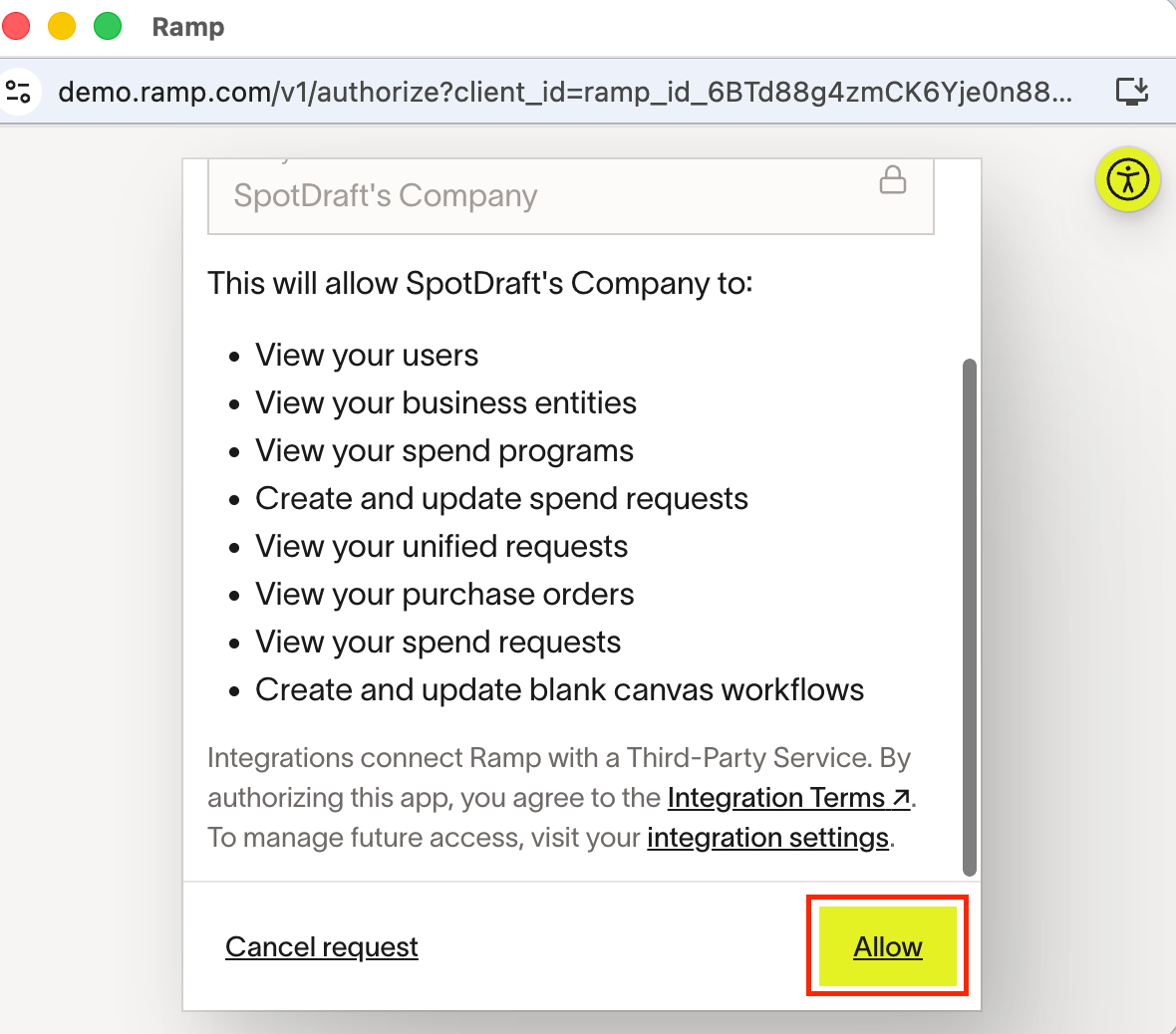
5. Read through the detailed scopes in the consent screen and click Allow to proceed.
6. A new authentication is created, and click next to proceed.
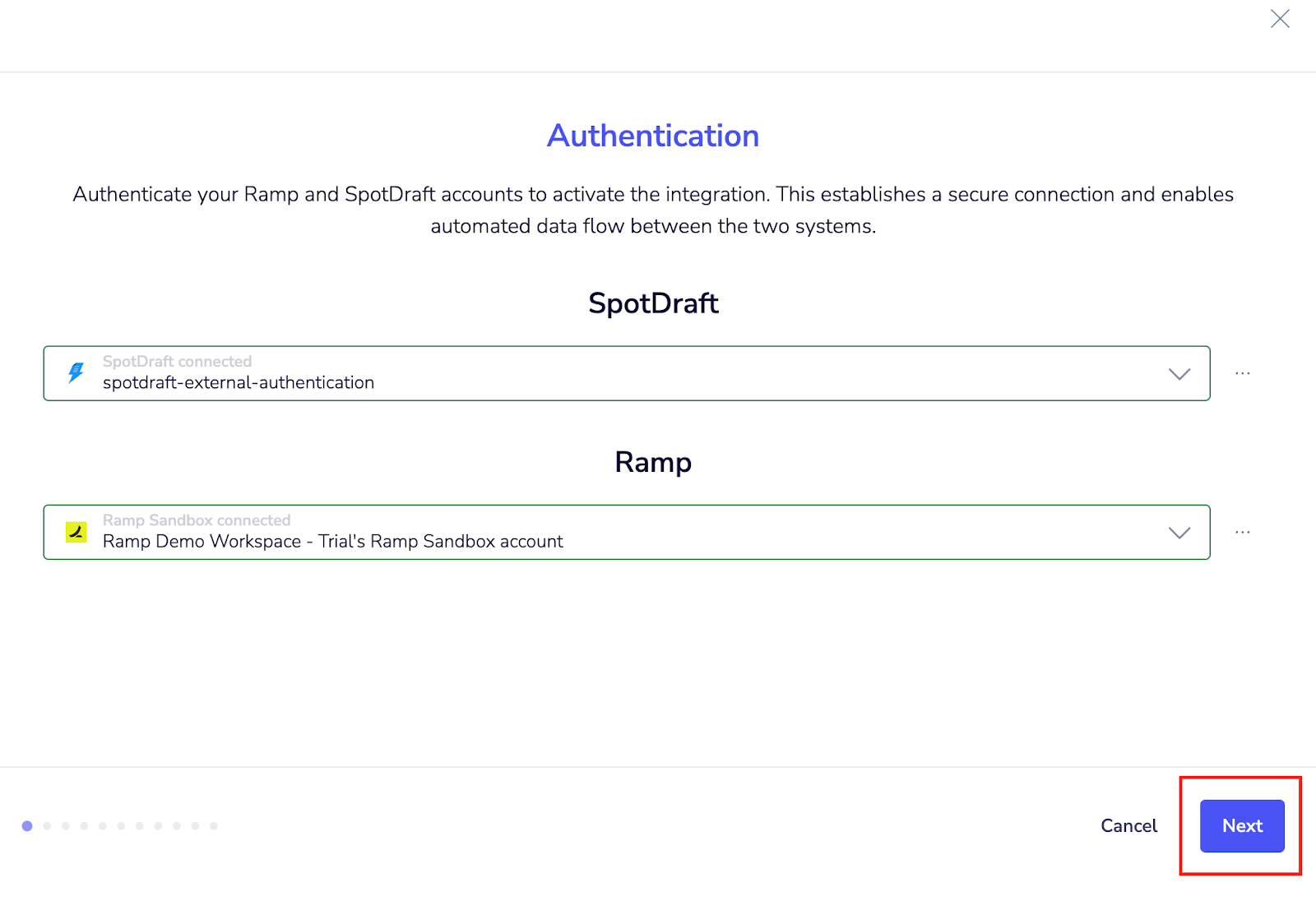
Note: Please select this authentication from the dropdown for setting up other instances.
7. Choose the desired file naming format and click finish.
8. Generic Settings is ready to be connected now. Click on connect.
Template Contracts:
Template contracts are created using predefined SpotDraft templates that automatically populate contract details using mapped fields from Ramp.
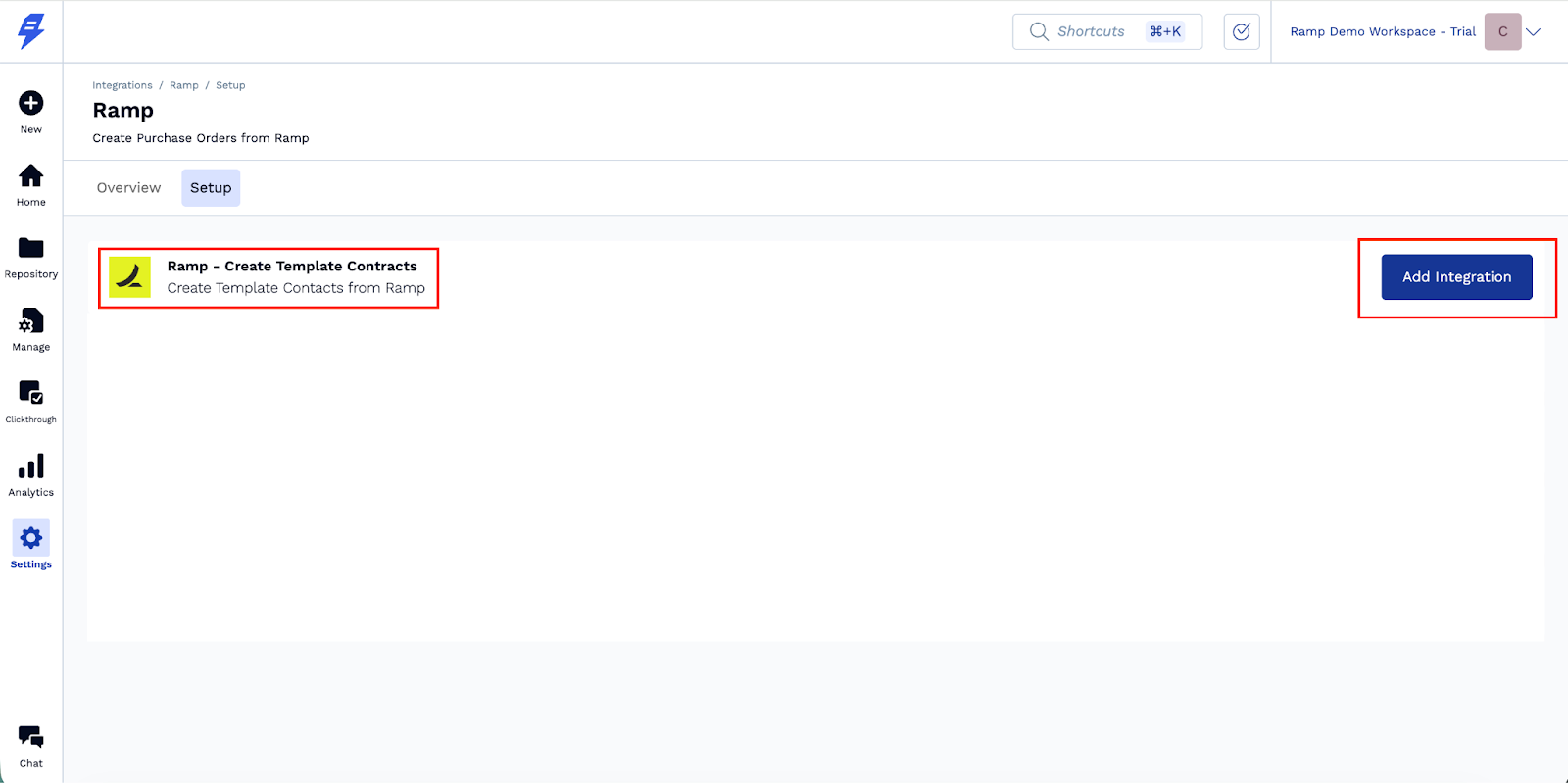
1. Locate the Ramp - Create Template Contracts Instance and click on “Add integration”
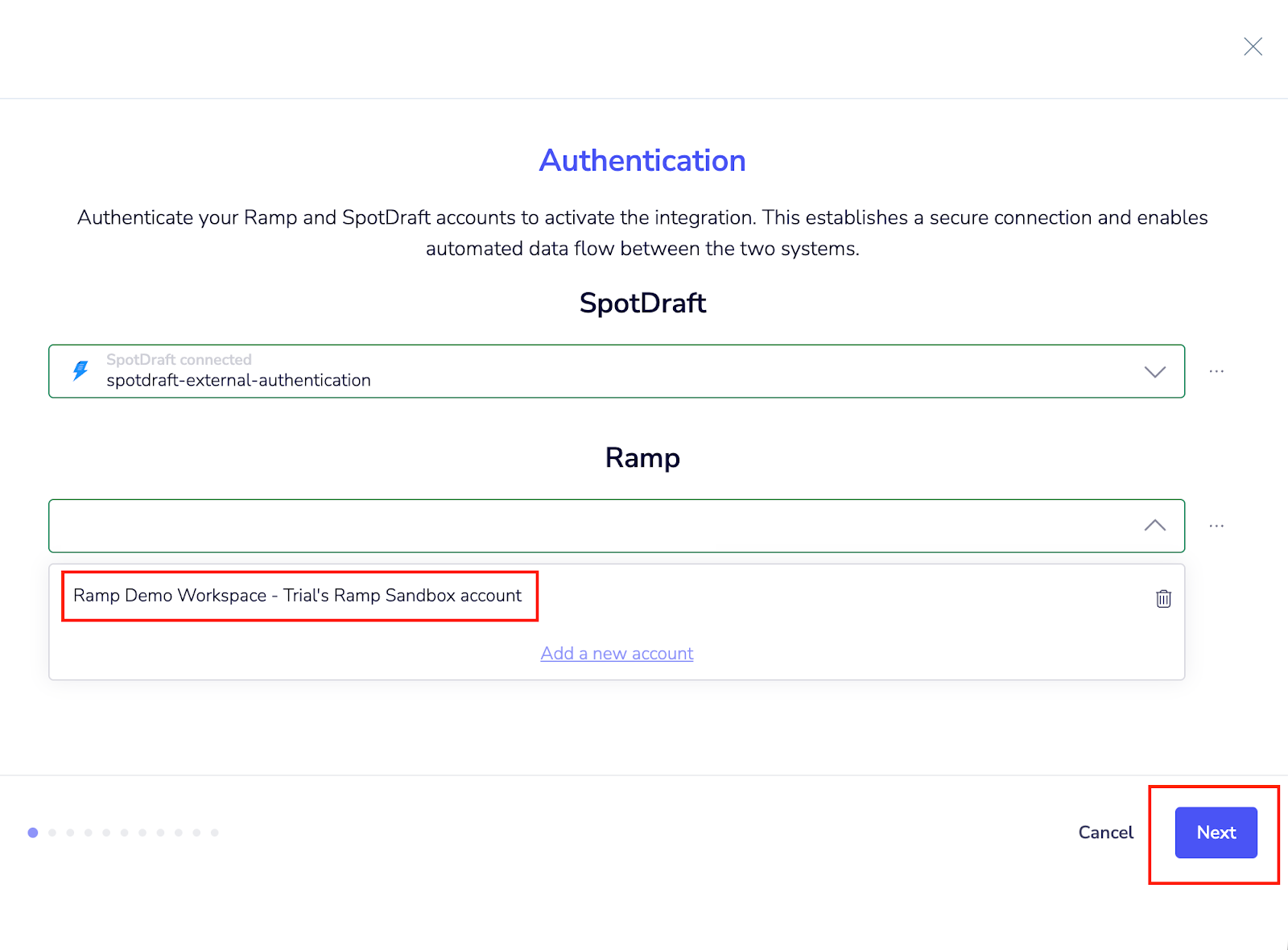
2. Select the authentication that was used in the Generic settings from the dropdown and click Next to proceed.
Note: If this is the first instance you are setting up under this integration, you won’t see an existing authentication. Please create a fresh authentication to proceed.
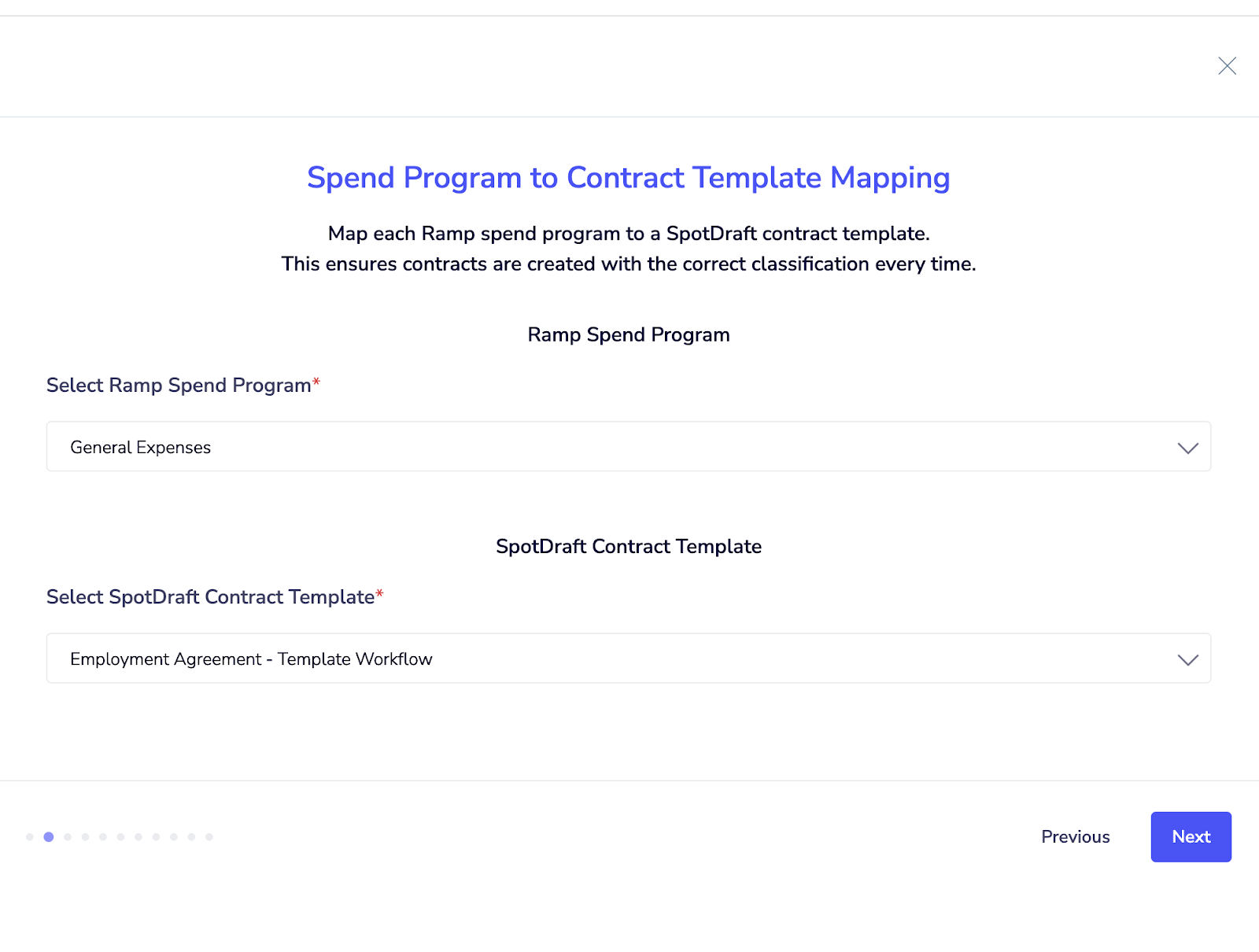
3. Select Ramp Spend Program and contract template from the dropdown.
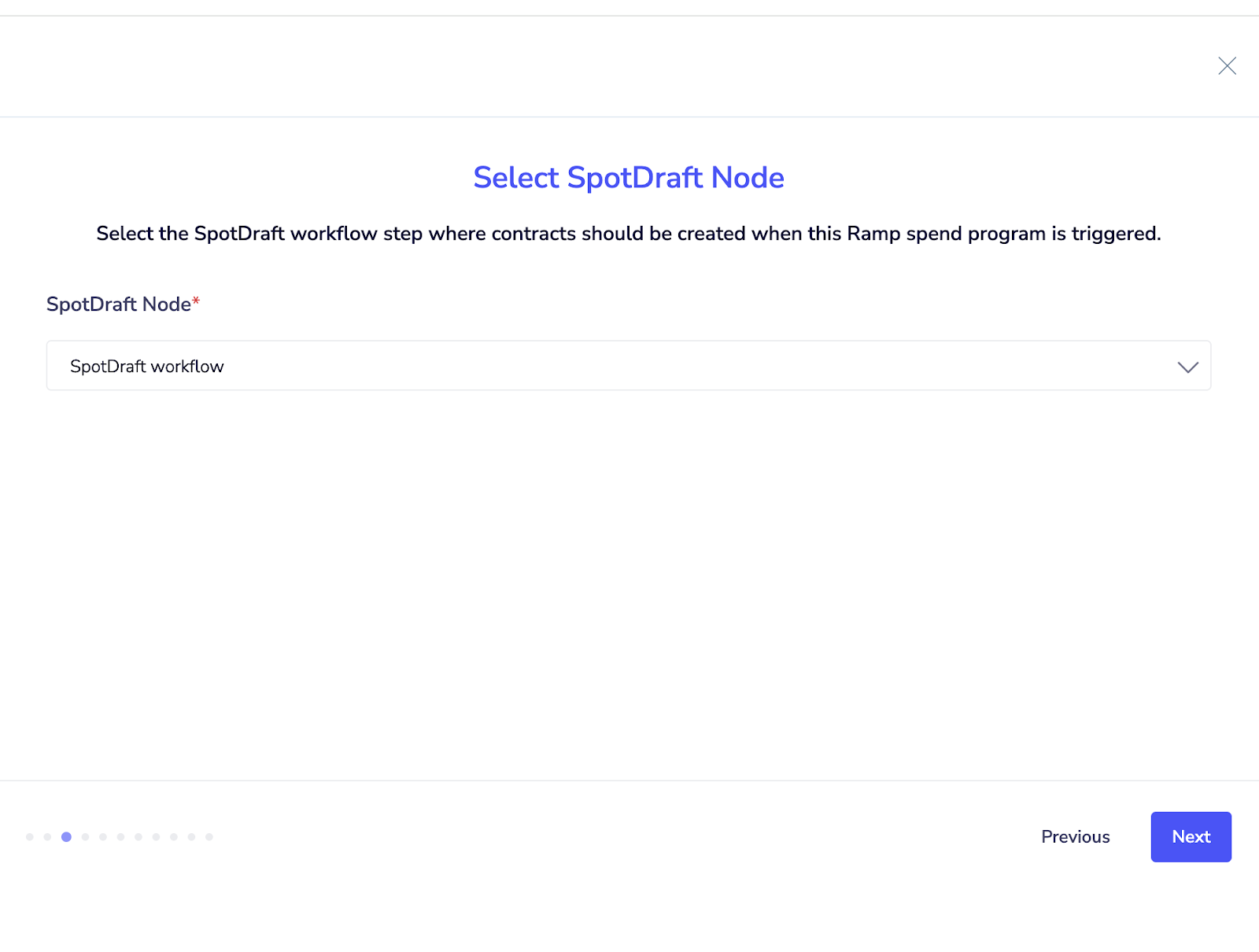
8. Select SpotDraft’s Workflow Approval Node
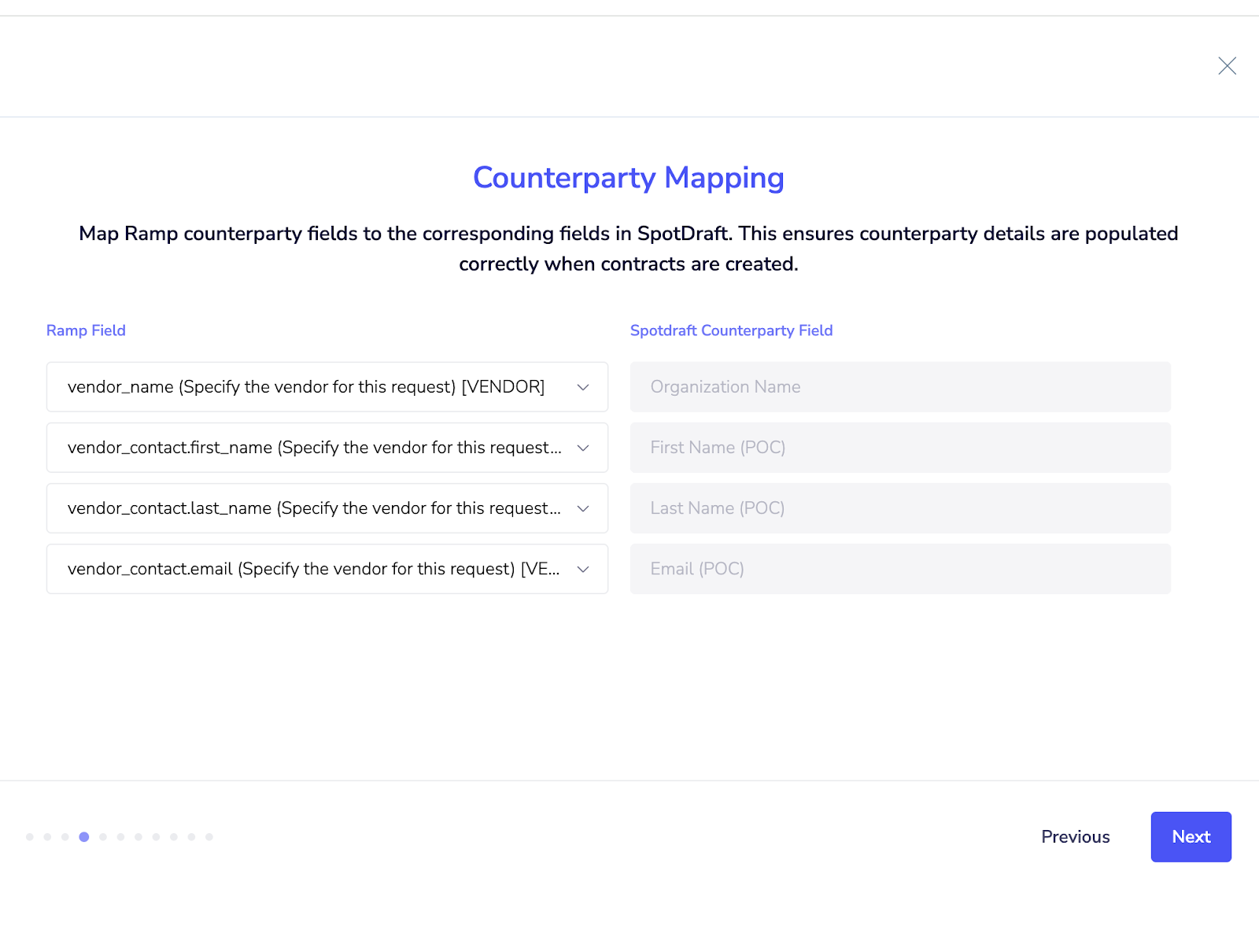
9. Map Counterparty fields.
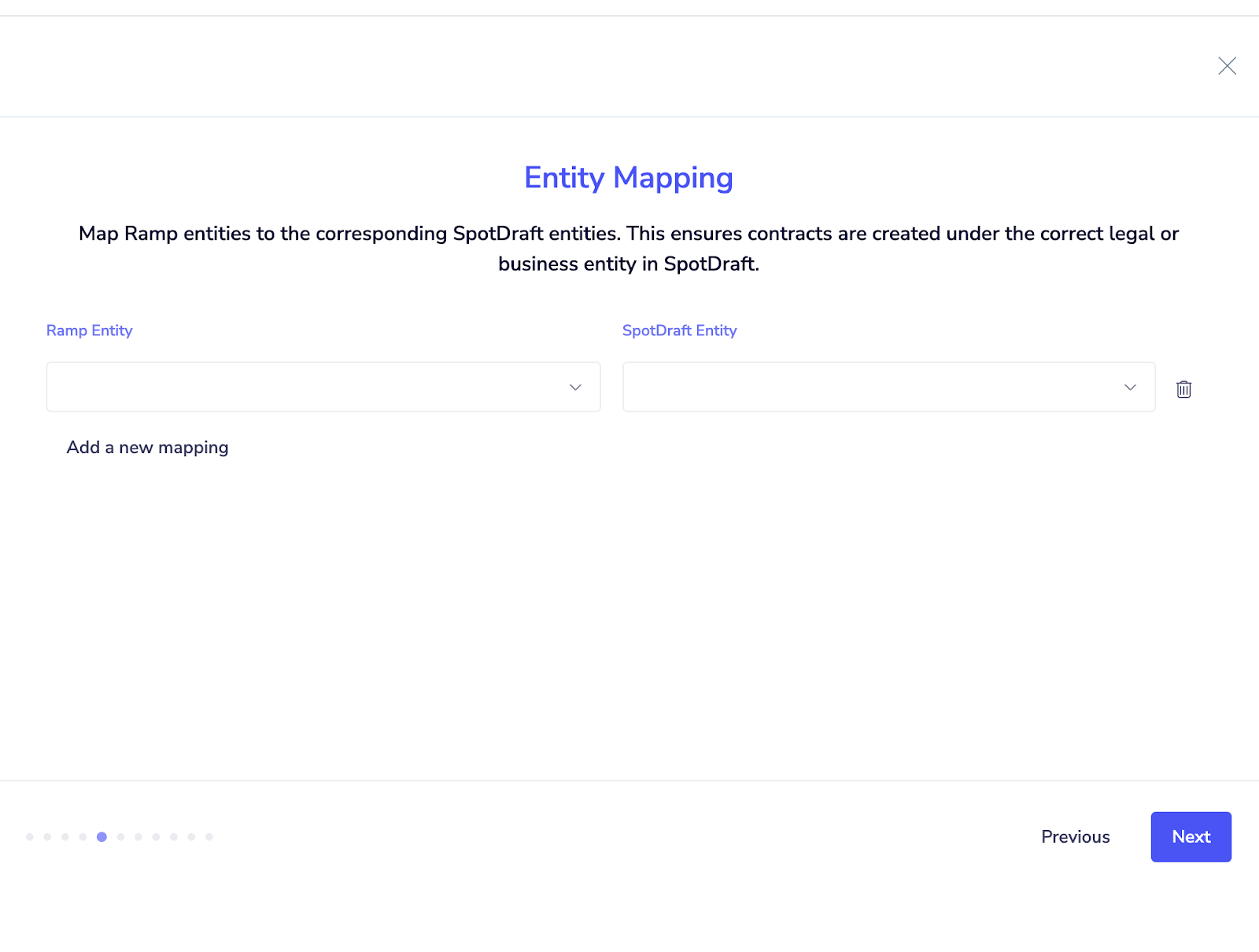
10. Map Entity
11. Map Contract Fields.
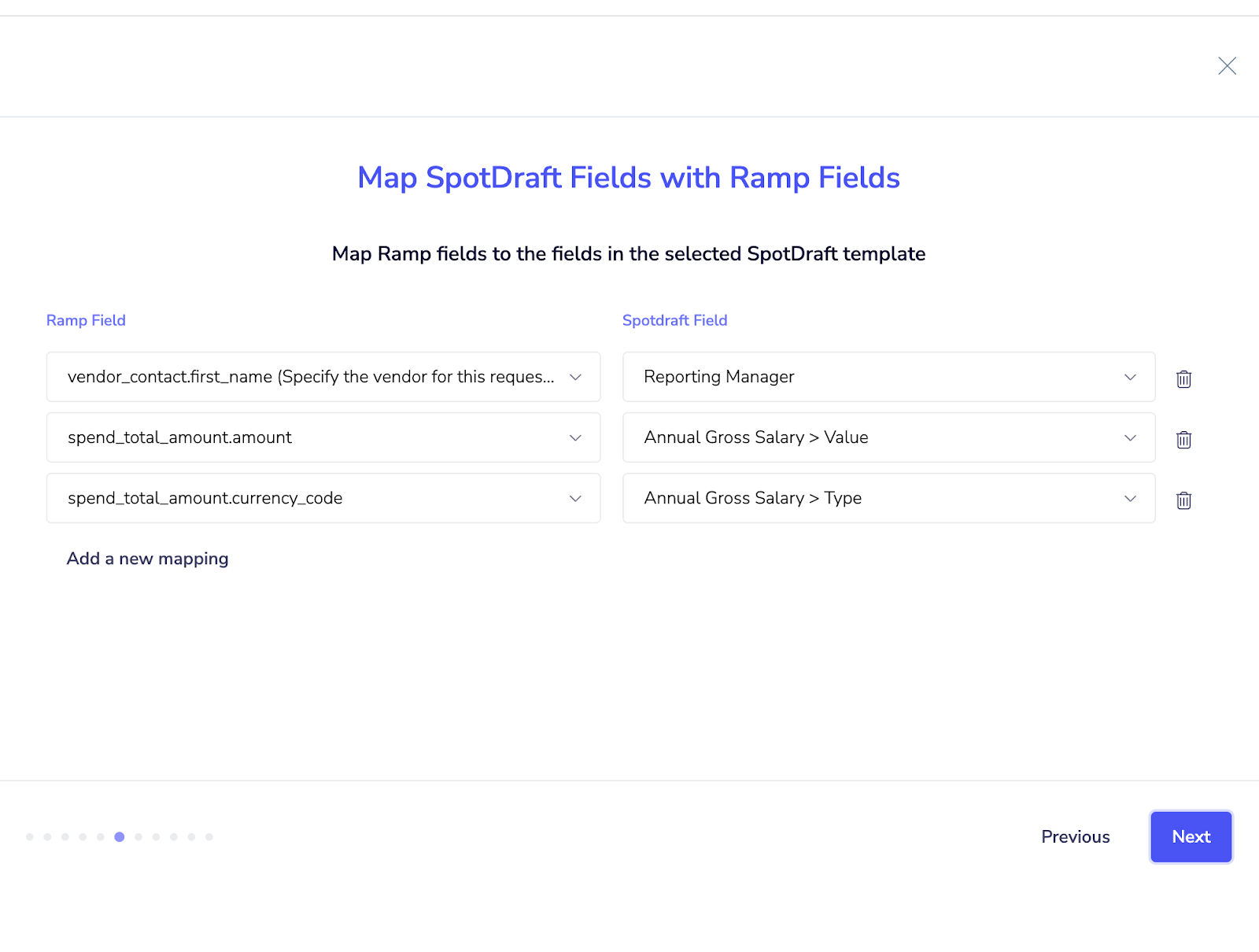
12. Complete Dynamic Table Mapping as required.
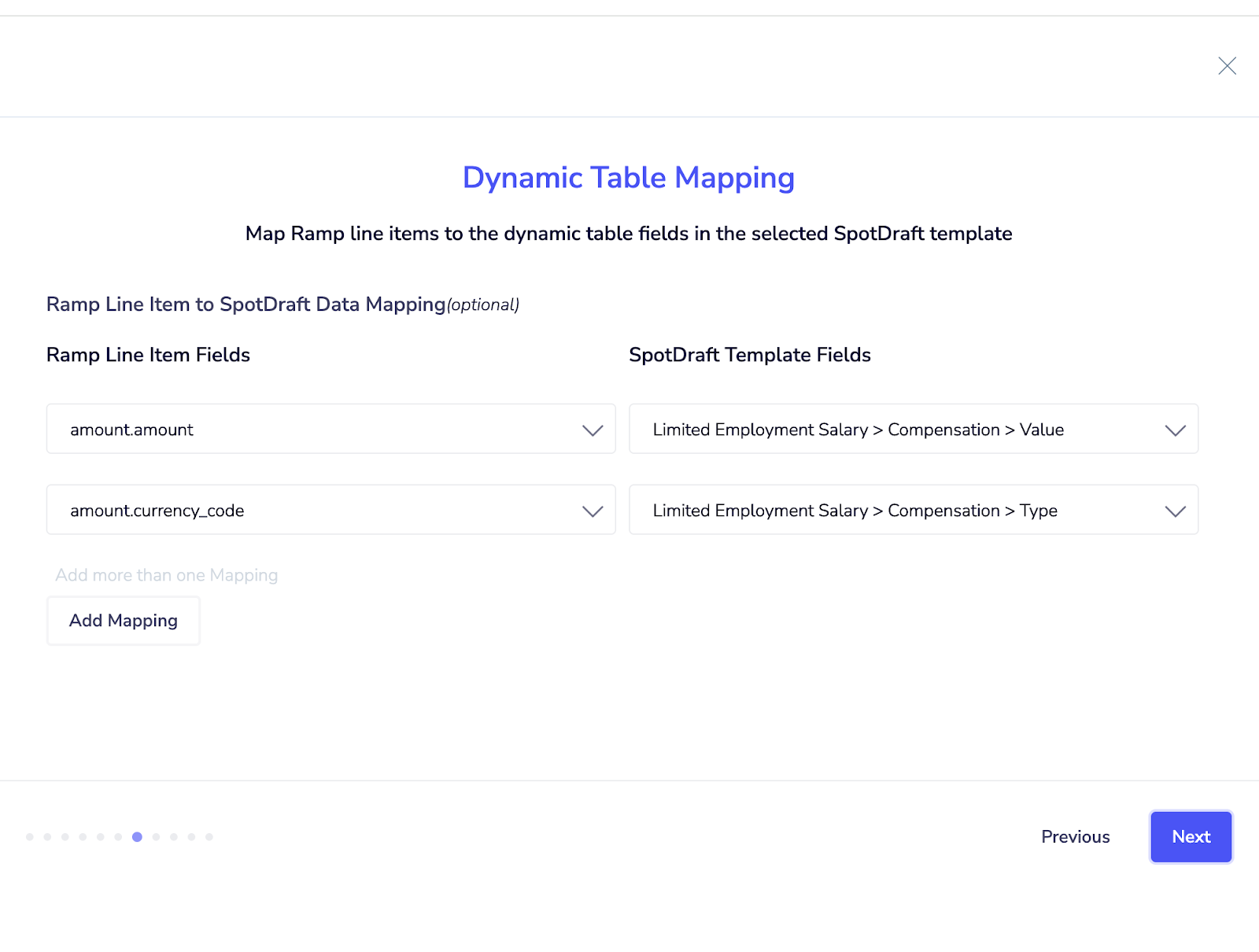
13. Select the desired Business Owner from the dropdown.
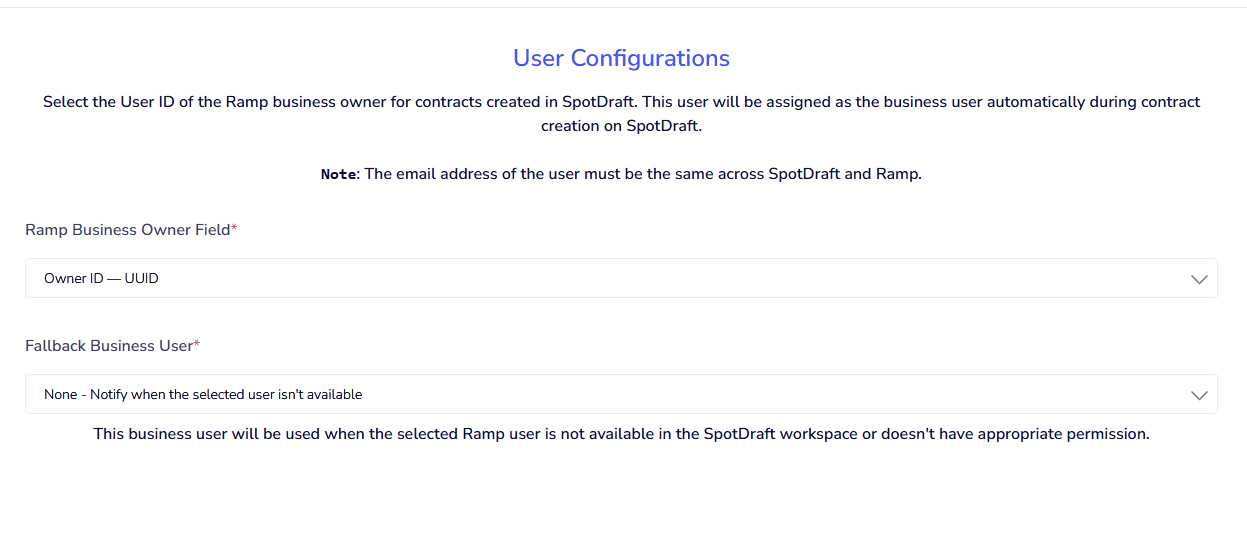
Fallback business user will be used when the selected Ramp user is not available in the SpotDraft workspace or doesn't have appropriate permission.
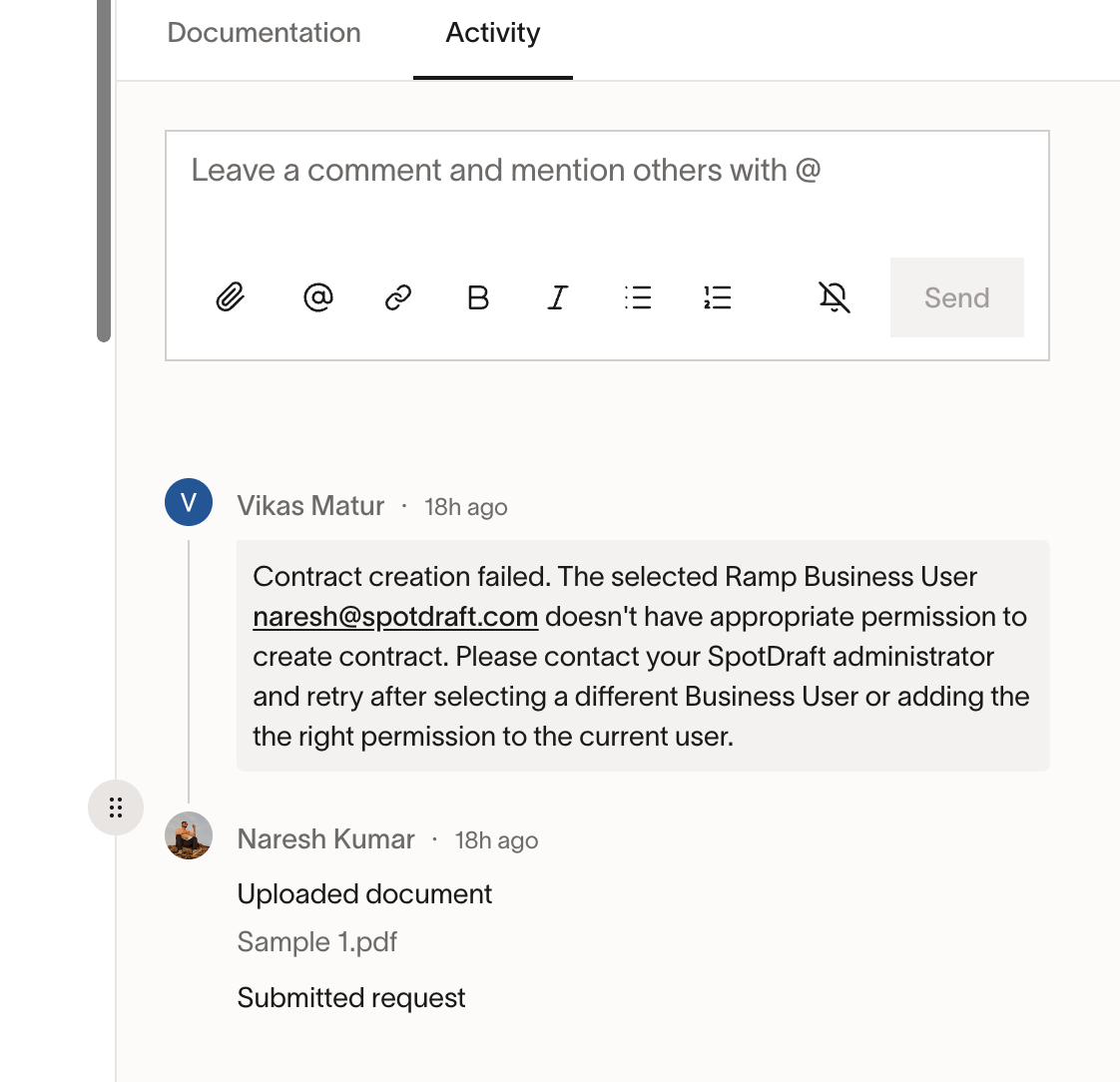
"None – Notify when the selected user isn't available" means that if the selected Business user doesn't have appropriate permission to create a contract or isn't part of the SpotDraft workspace, the user will be notified through a comment in the Ramp activity tab.
Example :
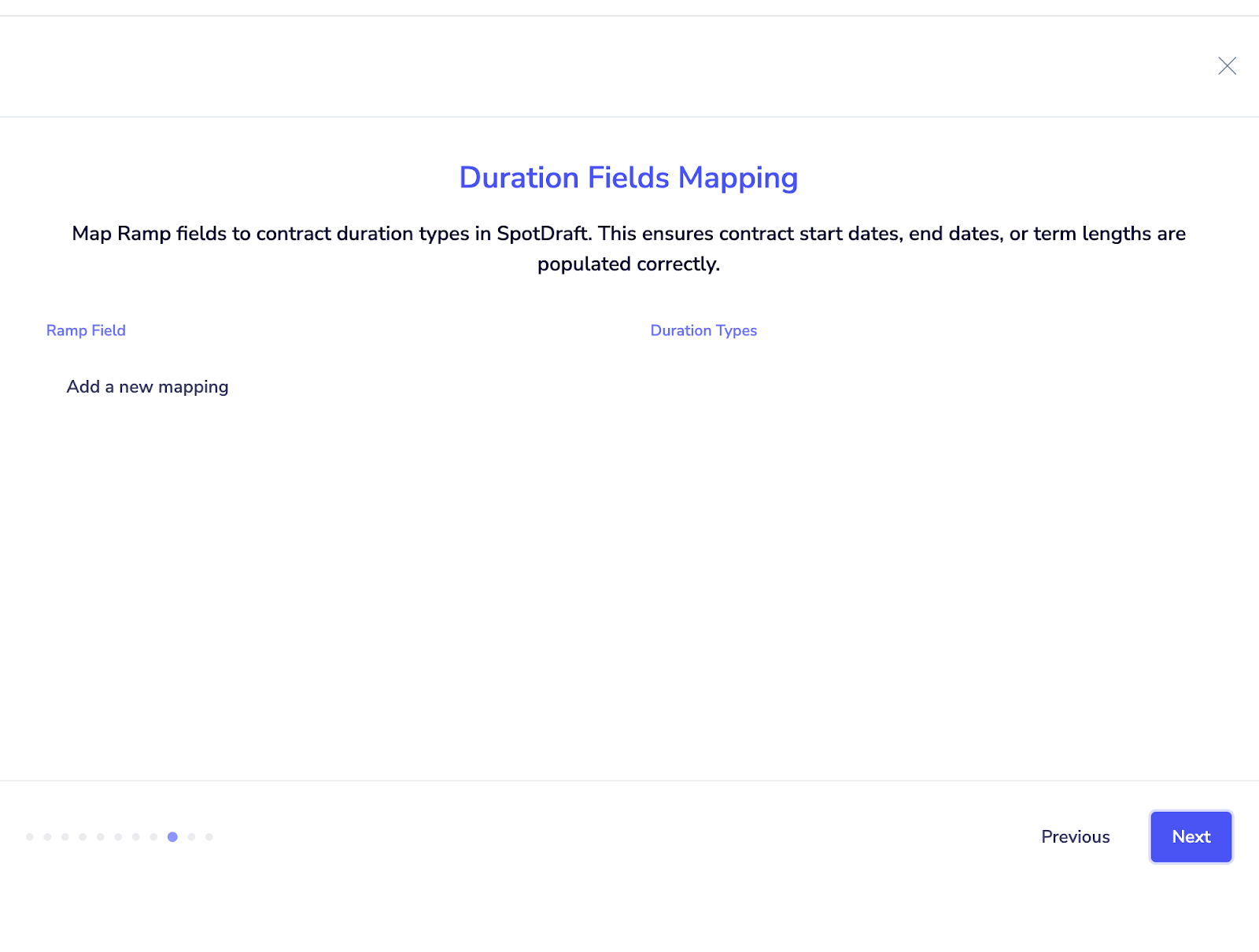
14. Map the Duration fields as required.
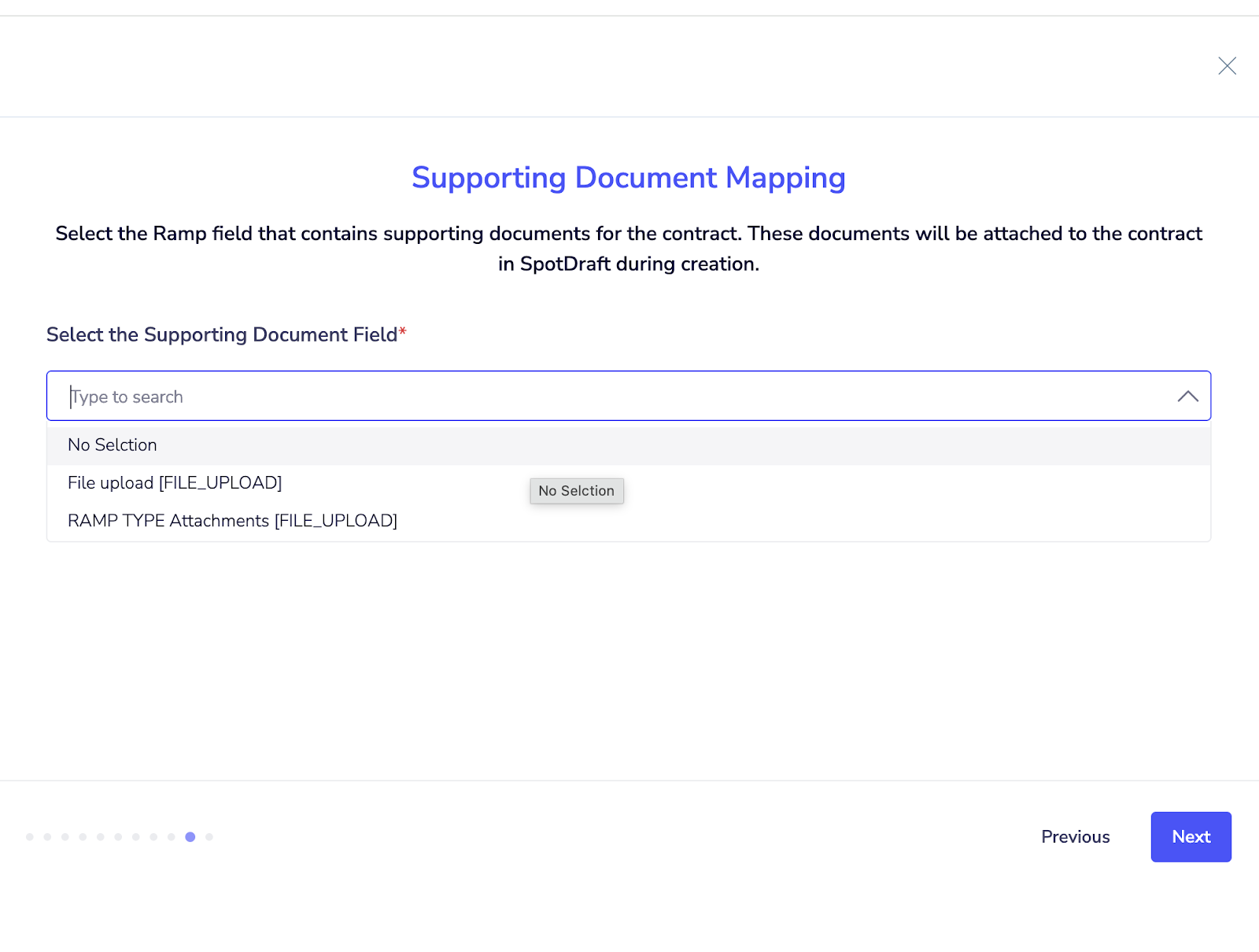
15. Select the supporting document, if there are any.
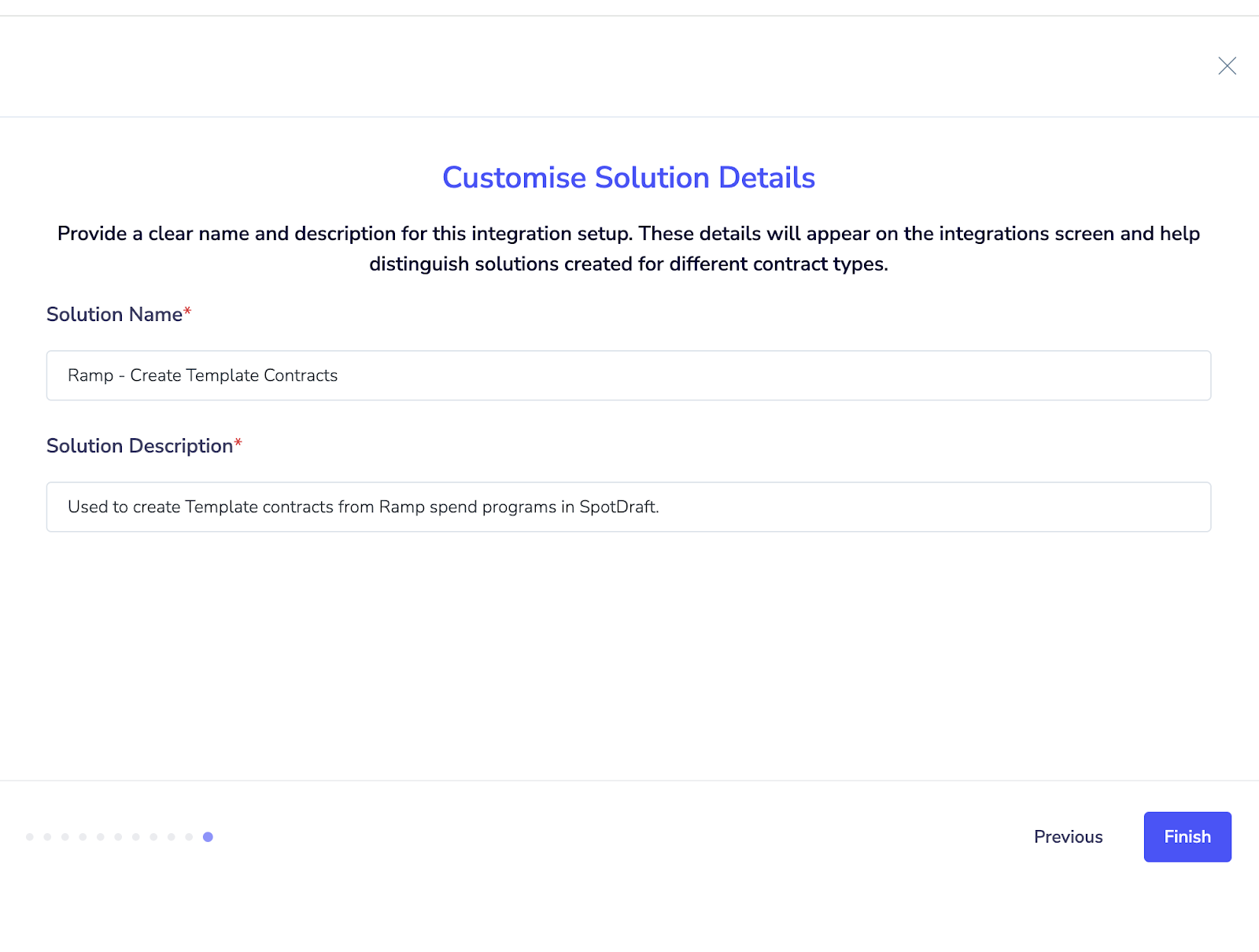
16. Add solution name and description and click finish to complete the setup.
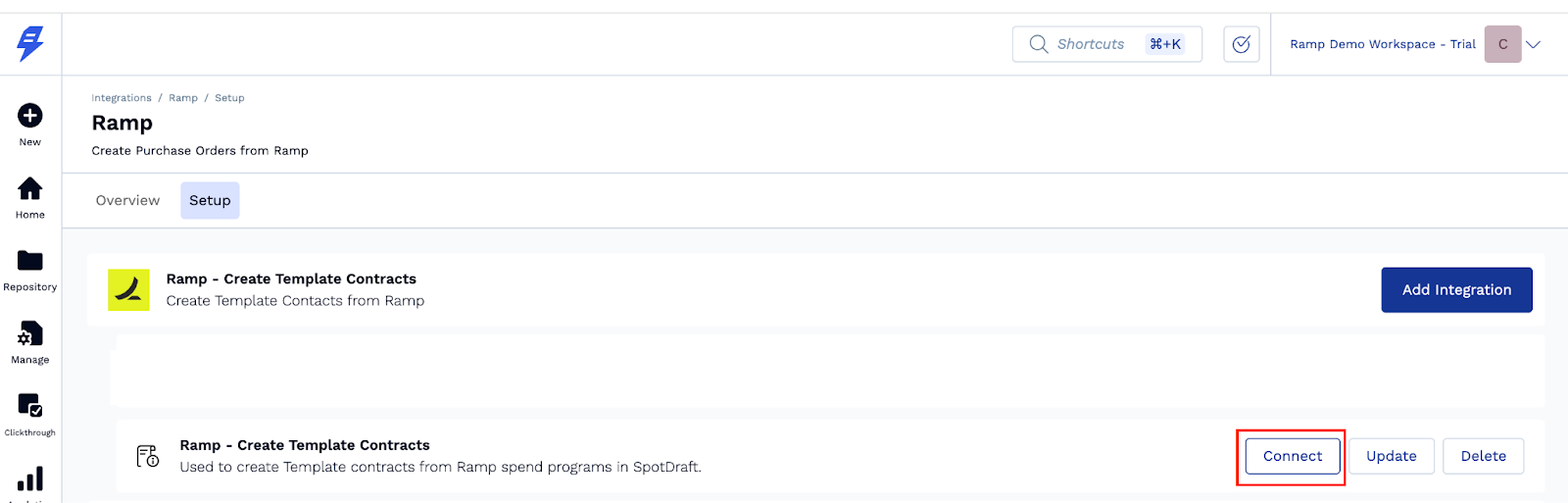
17. Click “Connect” to enable the integration.
Third Party Paper Set-up:
This step is used for third-party paper contracts, where the base contract document is already provided by an external party. The existing contract is uploaded, and a SpotDraft contract record is created from that document for review, approval, and tracking.
1. Locate Ramp - Create Third Party Paper Instance and click “ Add integration”.
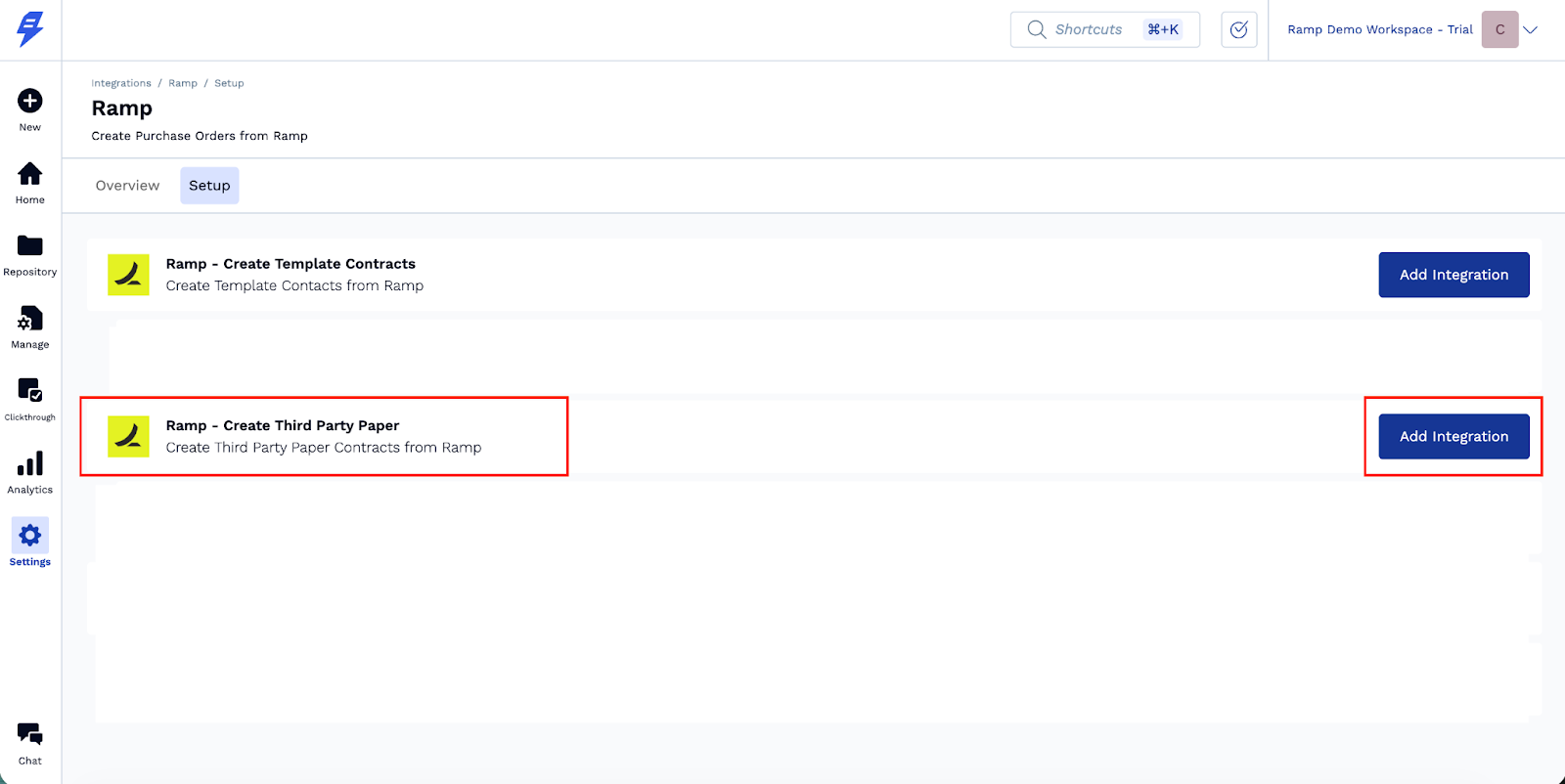
2. Select the authentication that was used in the Generic settings from the dropdown and click Next to proceed.
Note: If this is the first instance you are setting up under this integration, you won’t see an existing authentication. Please create a fresh authentication to proceed.
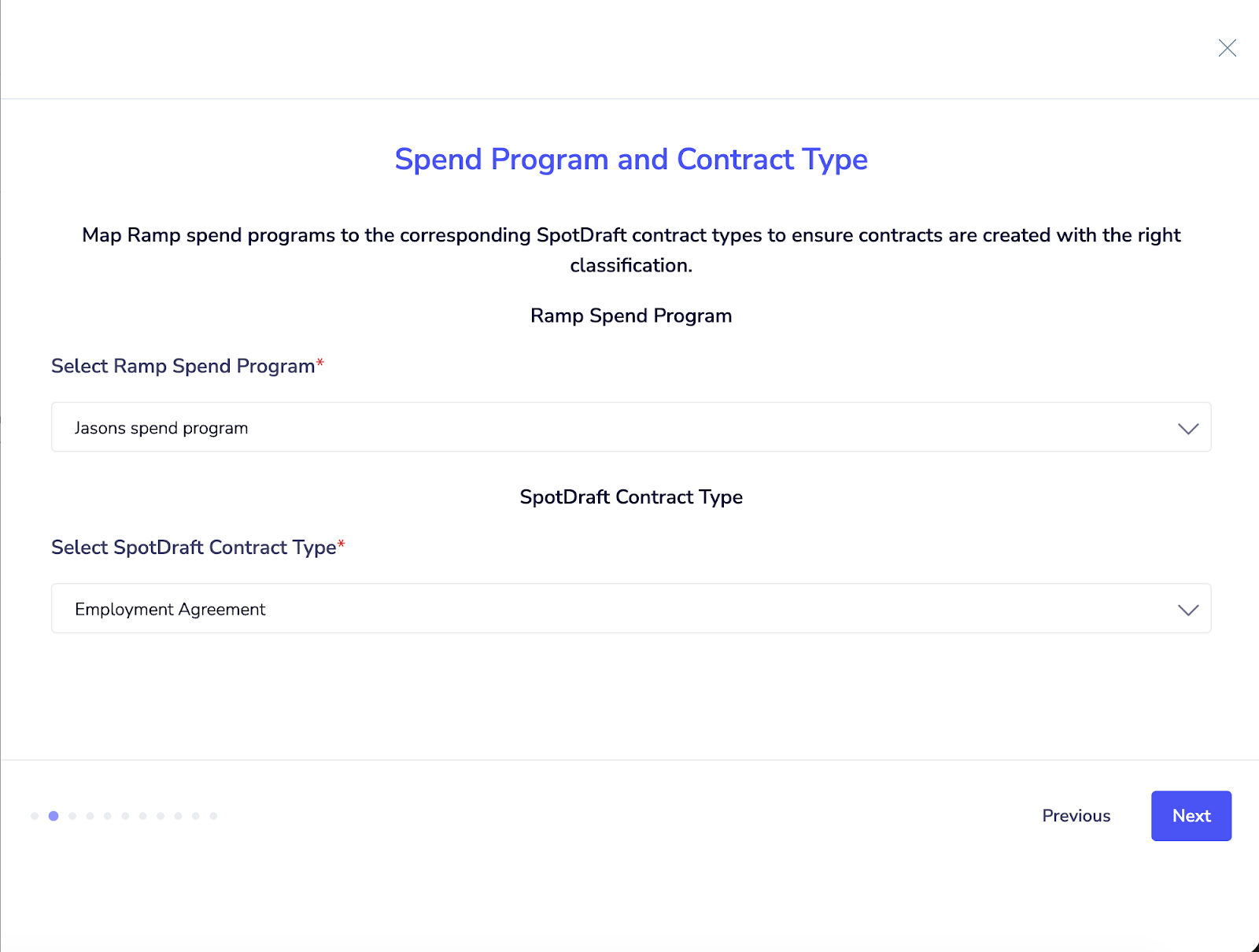
7. Select Ramp Spend Program and Contract Type from the dropdown.
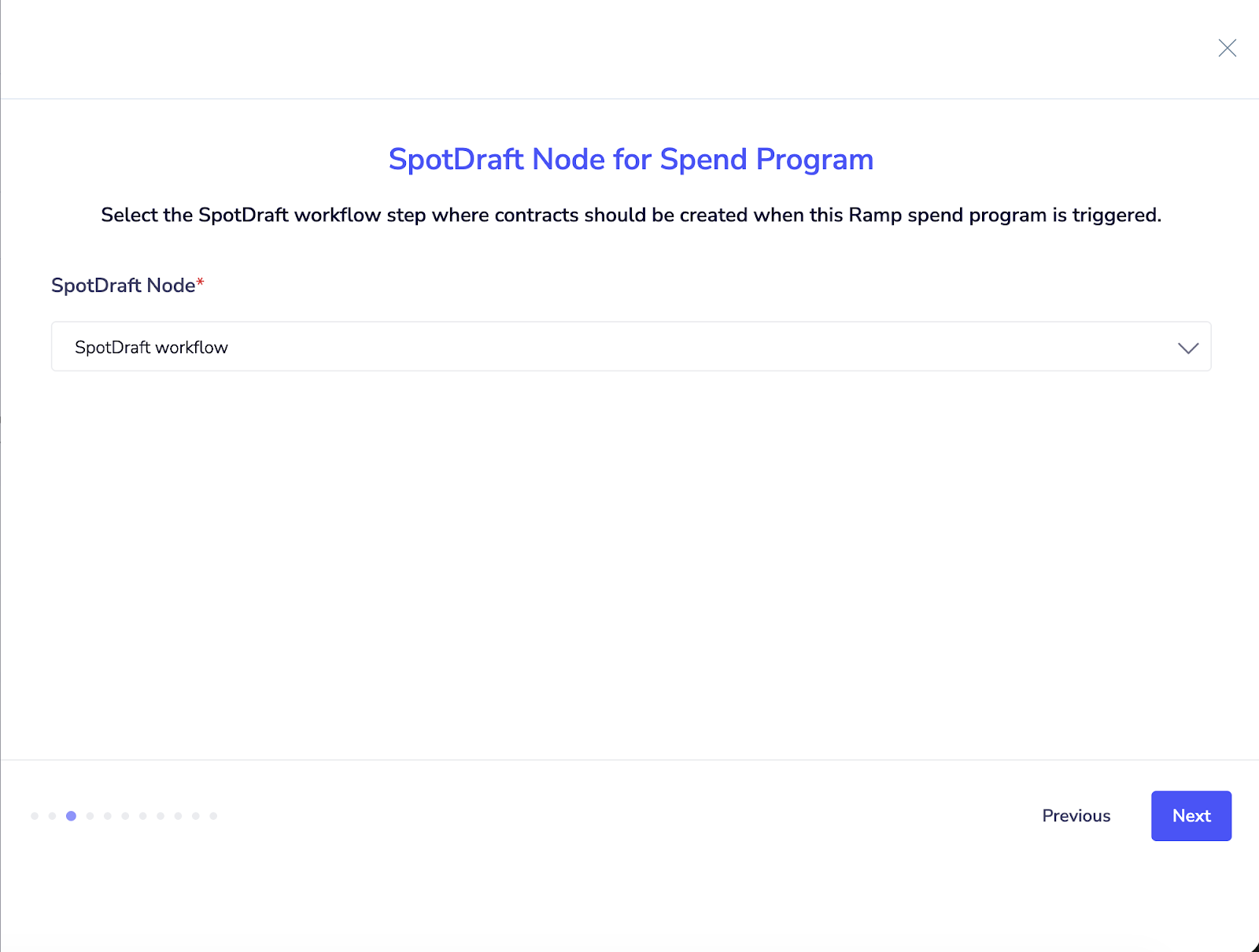
8. Select SpotDraft’s Workflow Approval Node from the dropdown.
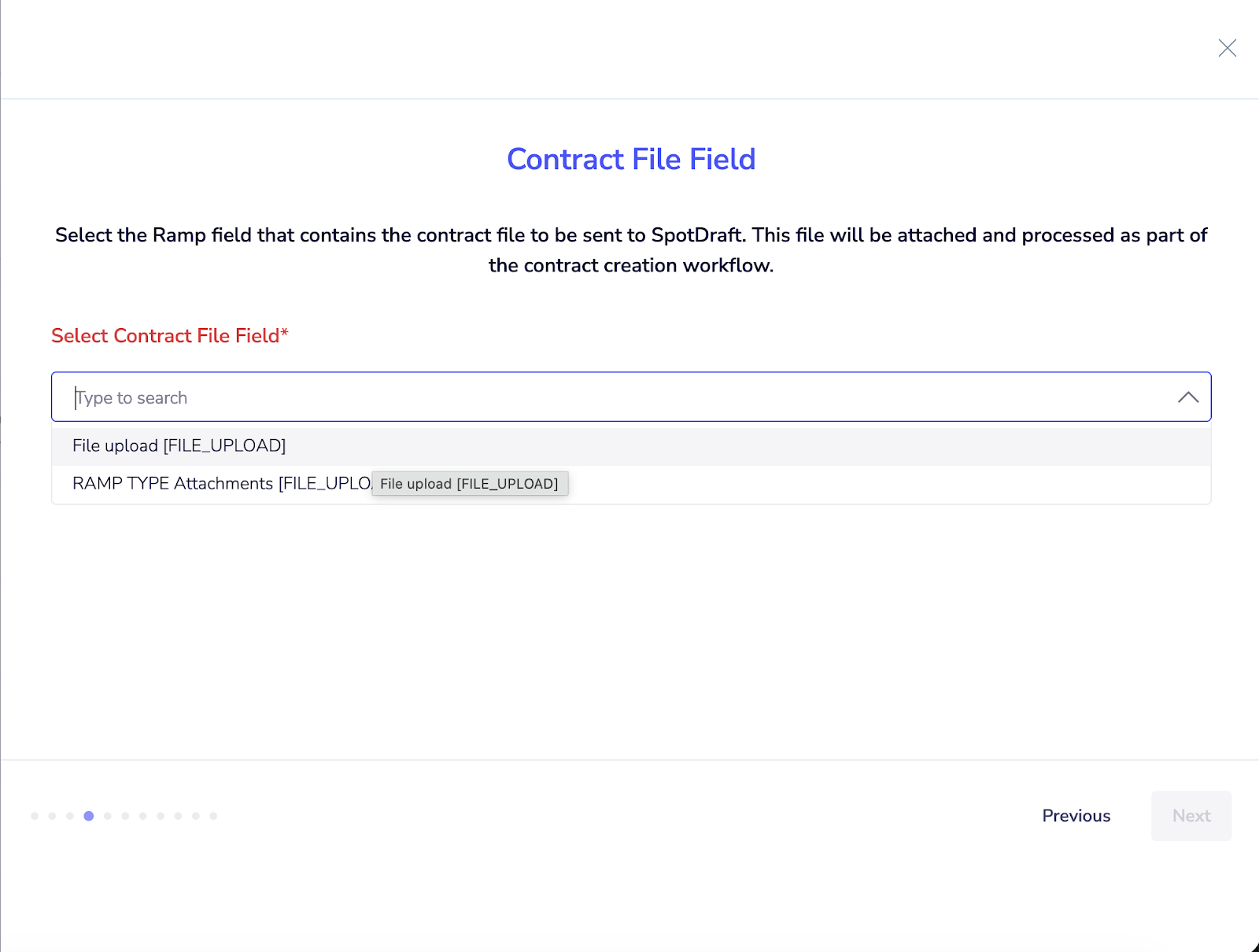
9. Select the Third Party Paper from the dropdown.
10. Map the counterparty fields.
Mandatory fields
Organization Name
First Name (POC)
Email (POC)
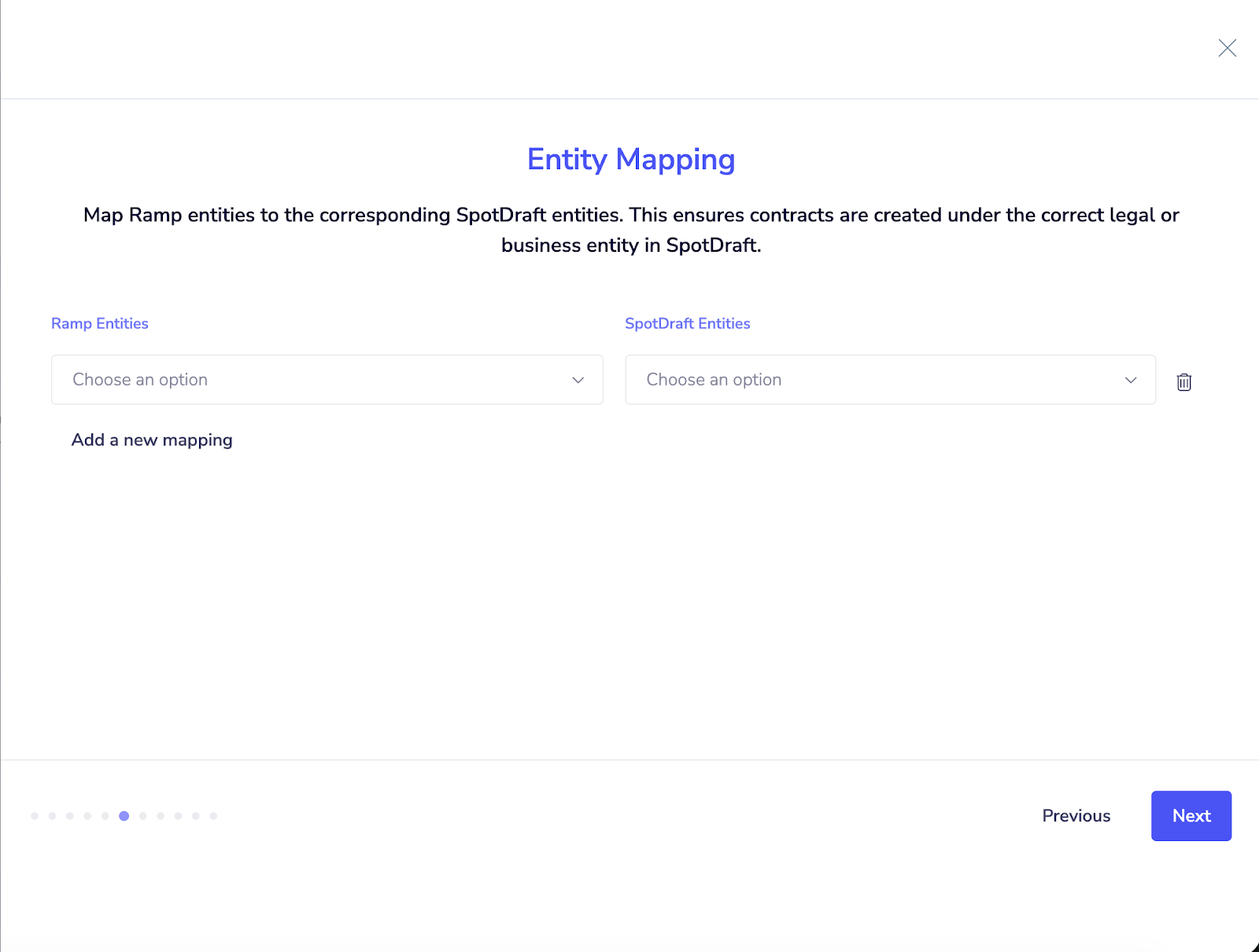
11. Map the Entity.
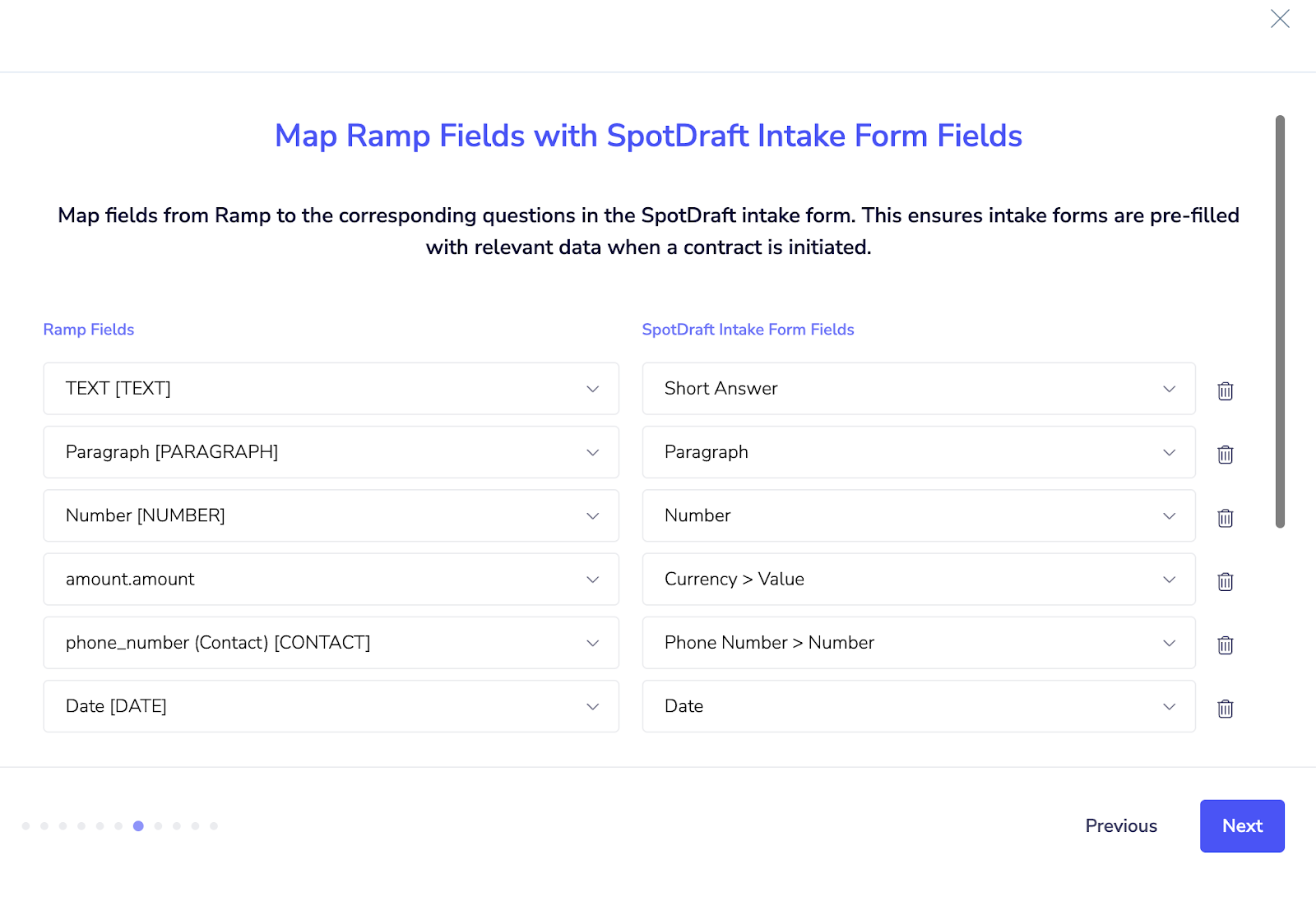
12. Map contract fields.
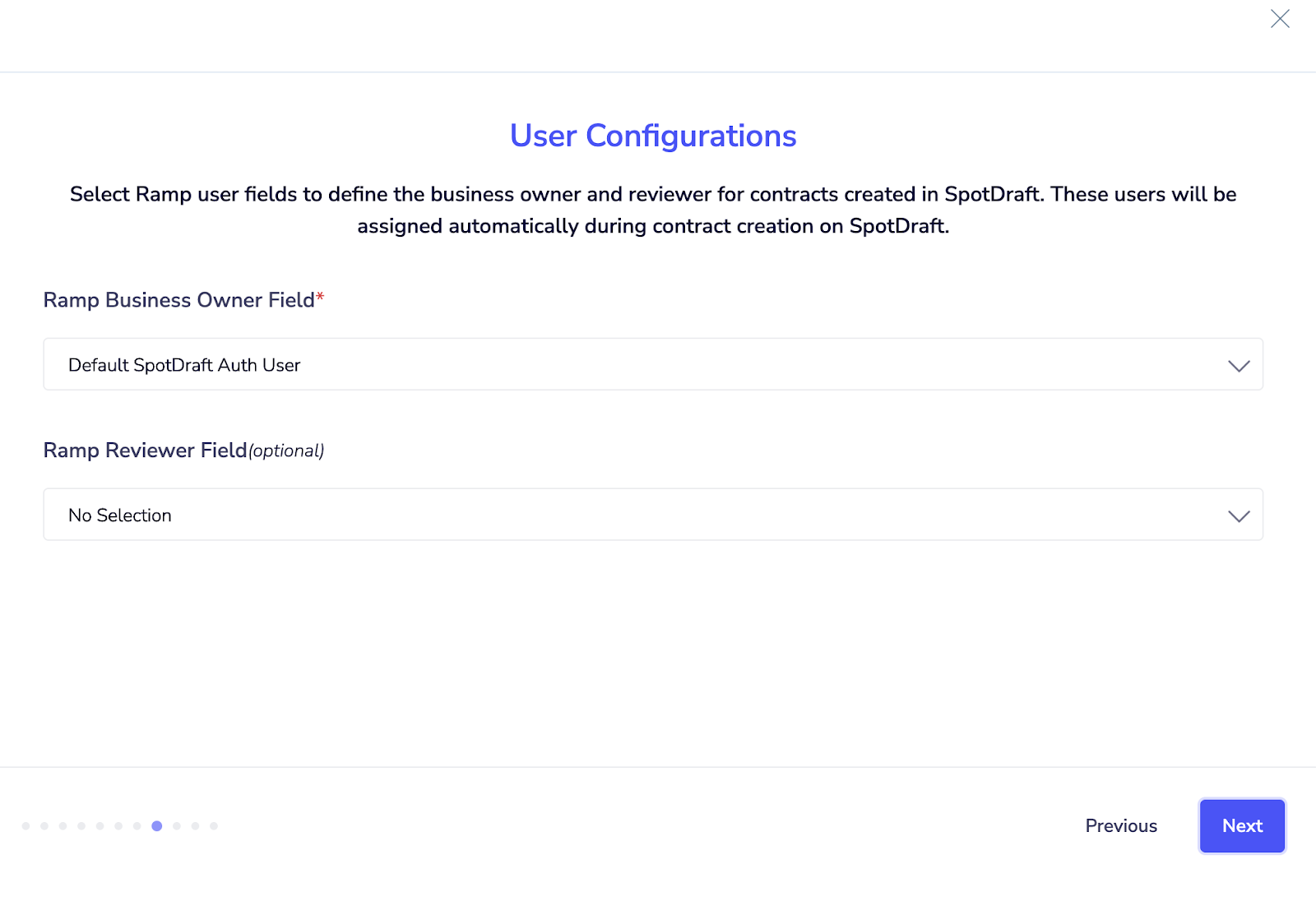
13. Select Business Owner and Reviewer from the dropdown.
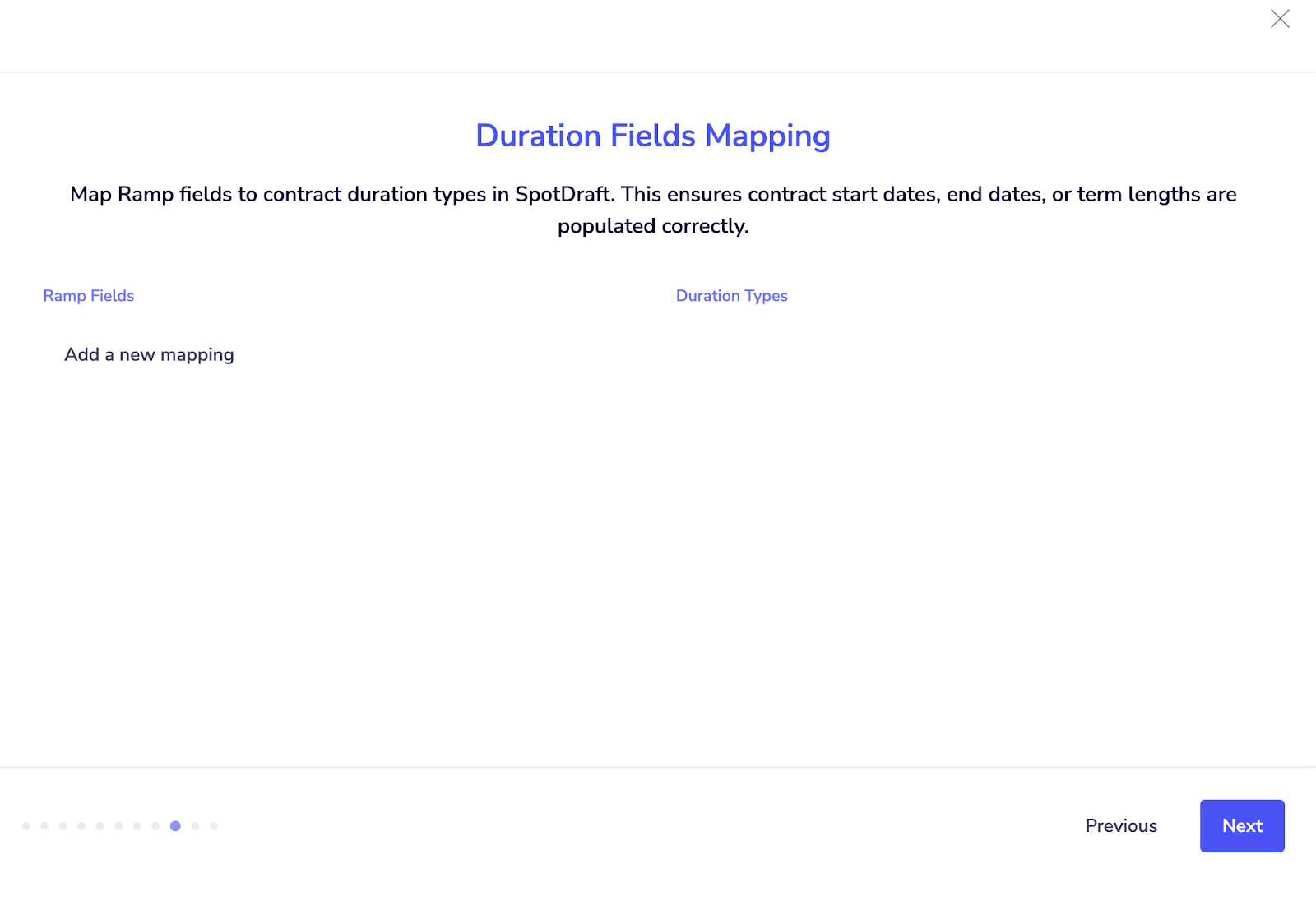
14. Map Duration fields, if any.
15. Select a supporting document if any, from the dropdown.
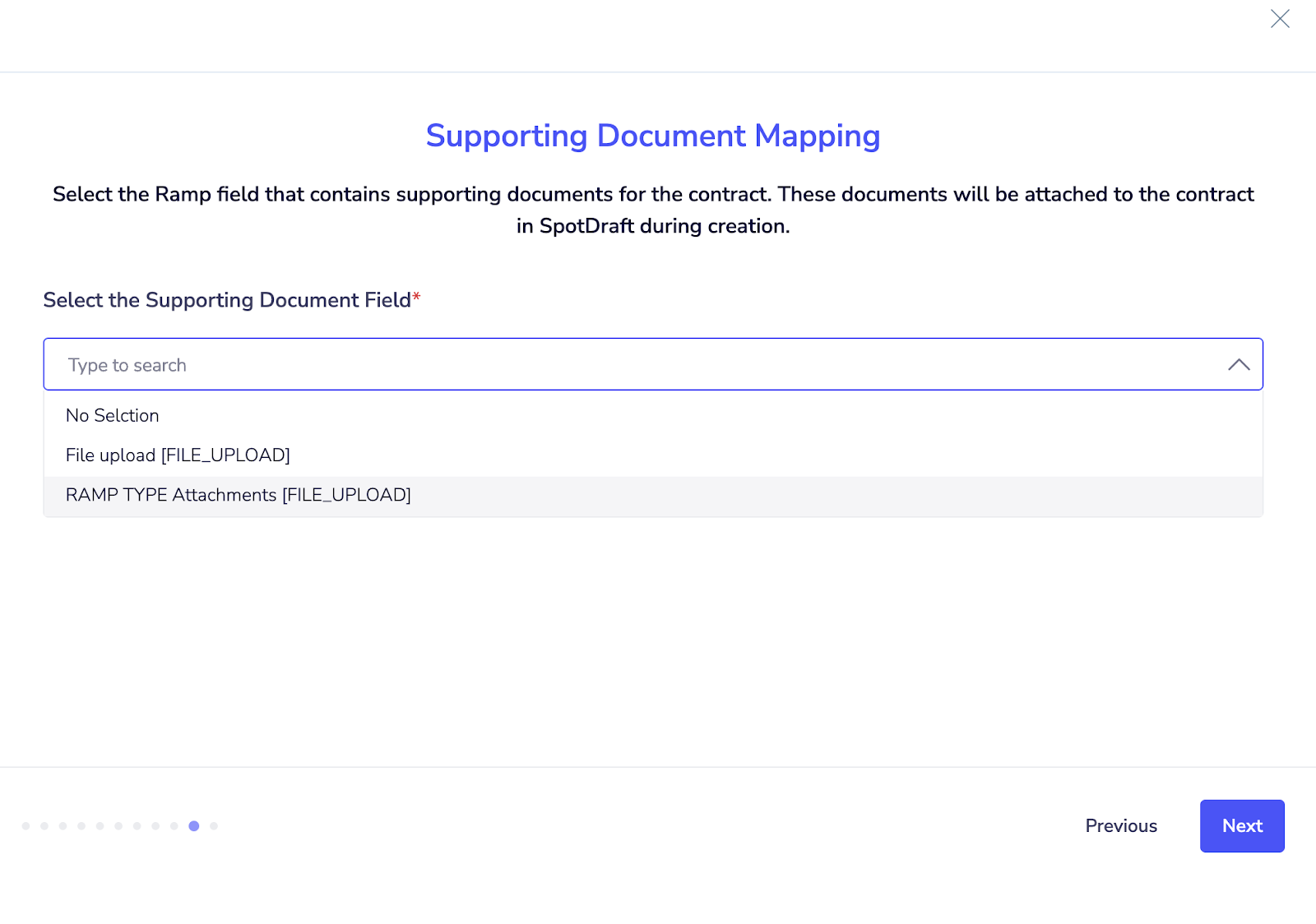
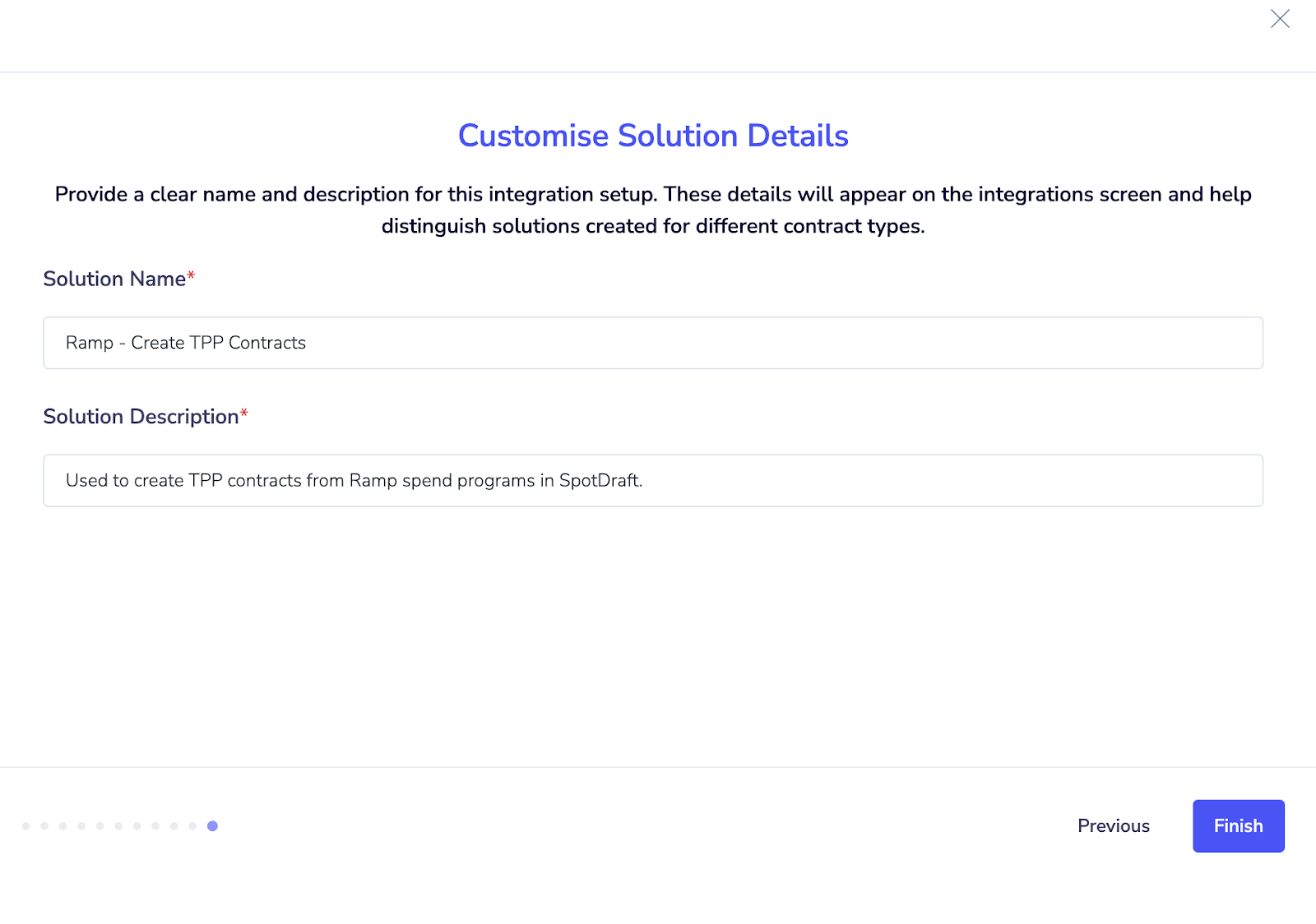
16. Add the solution name and description, and click finish to complete the setup.
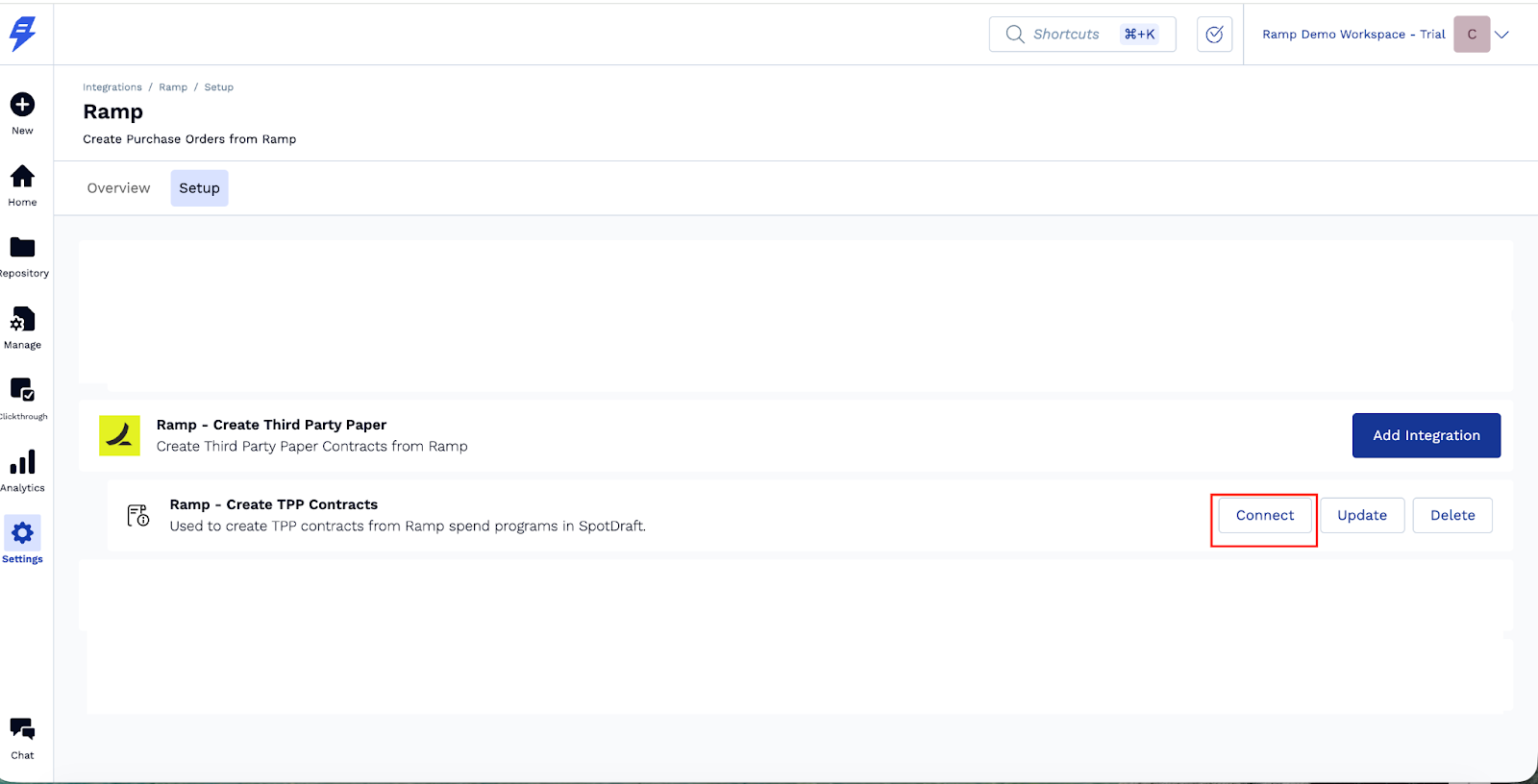
17. Click “connect” to integrate the solution instance.
✅ Verification
After completing the installation and configuration, follow the steps below to verify that the Spotdraft - Ramp integration is working as expected:
Verify Integration Connection :
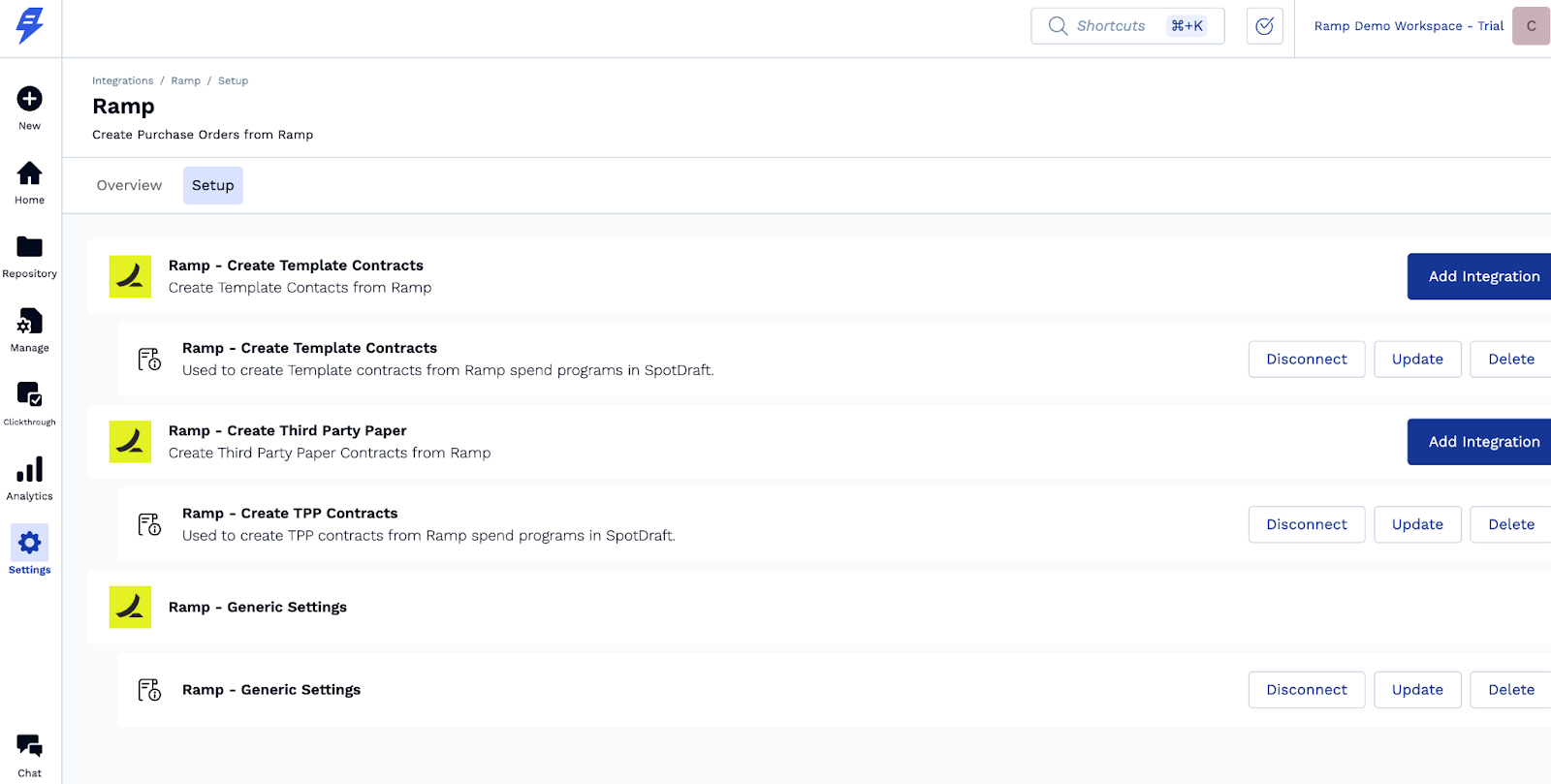
Go to SpotDraft Settings → Integrations → My Integrations
Confirm that the Ramp integration shows a Connected status for:
Generic Settings
Create from Template (if configured)
Third Party Paper (if configured)
Verify Contract Creation from Ramp
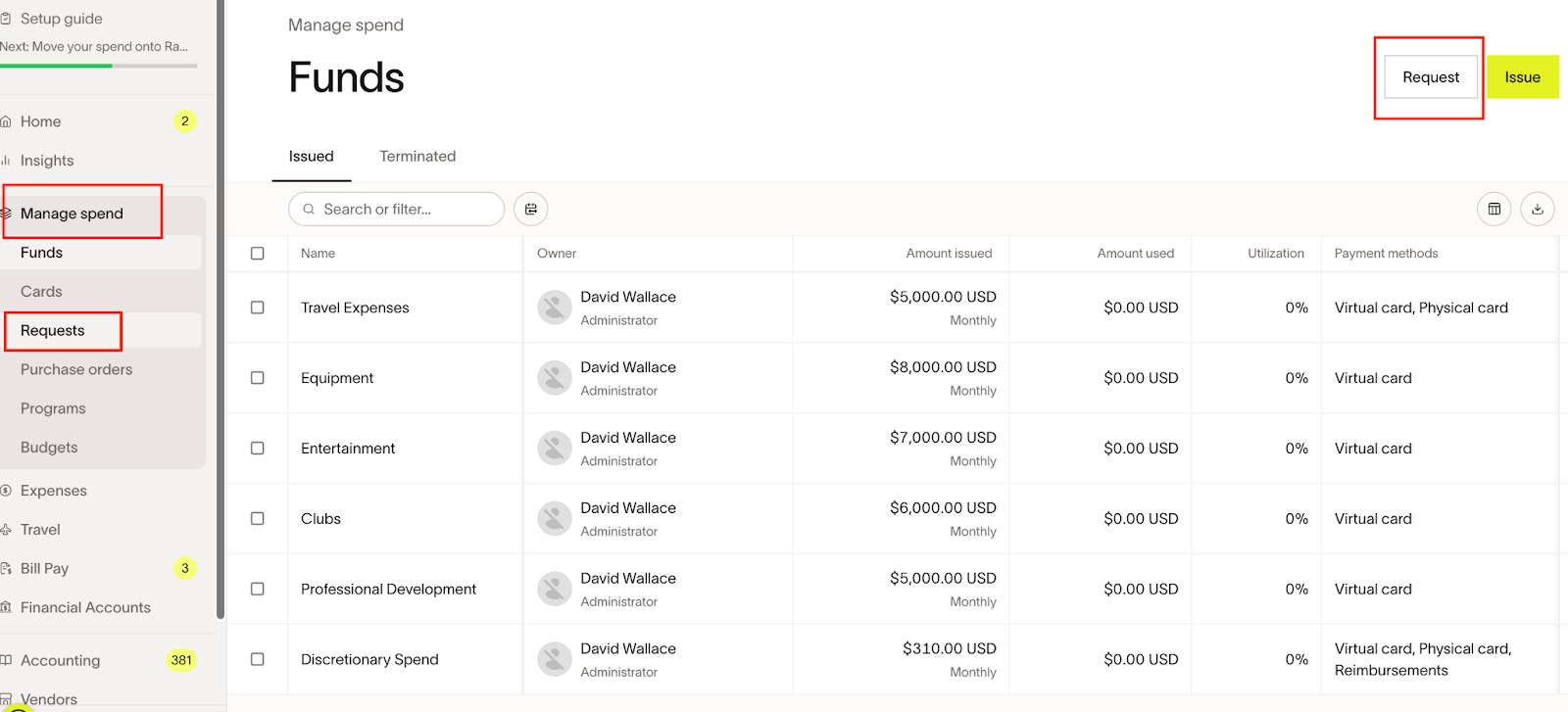
Log in to your Ramp account and navigate to Manage spend → Requests → Click on the Request button to create a new purchase order request.
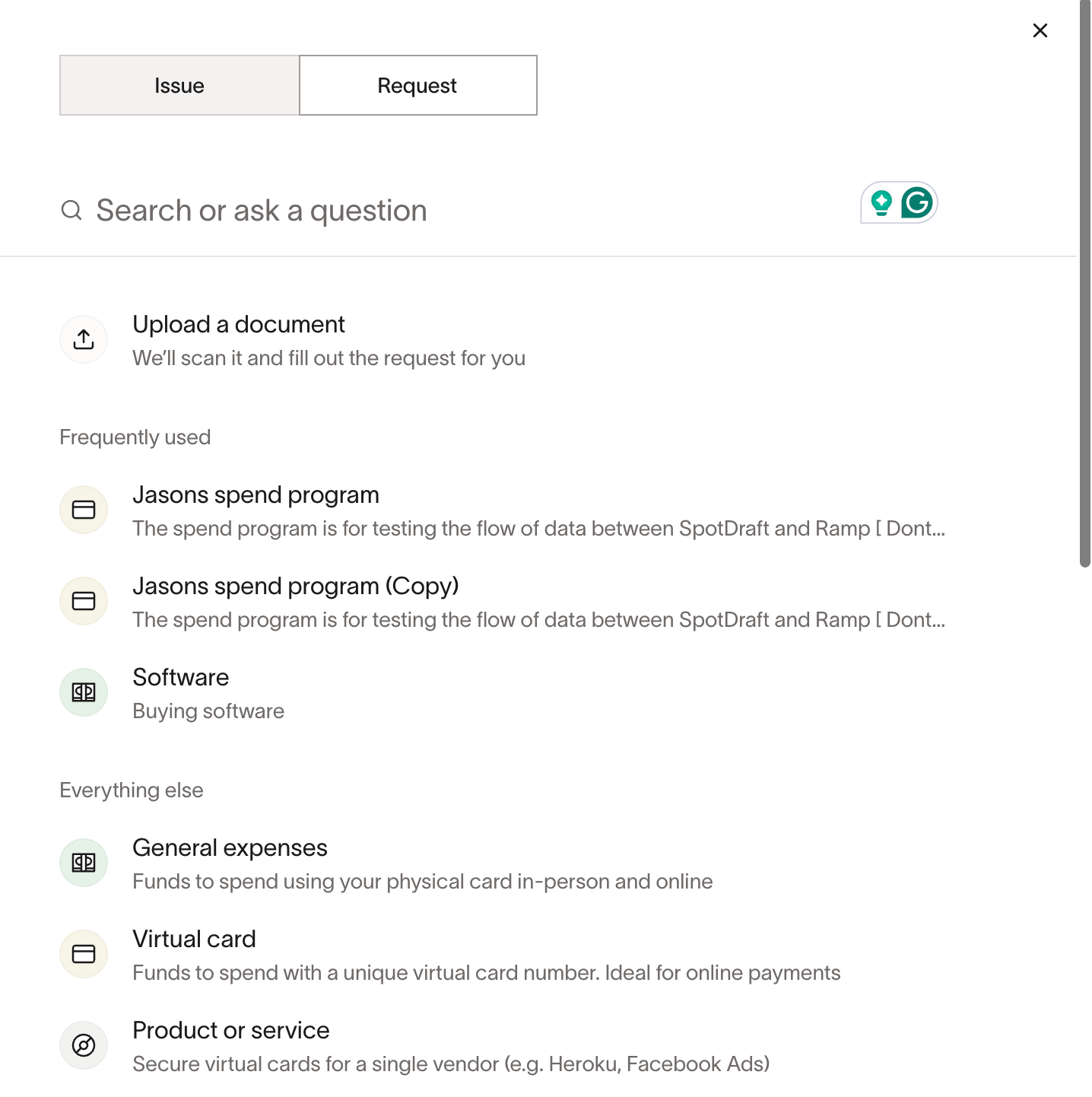
Select a Spend Program that is used in the SpotDraft Integration.
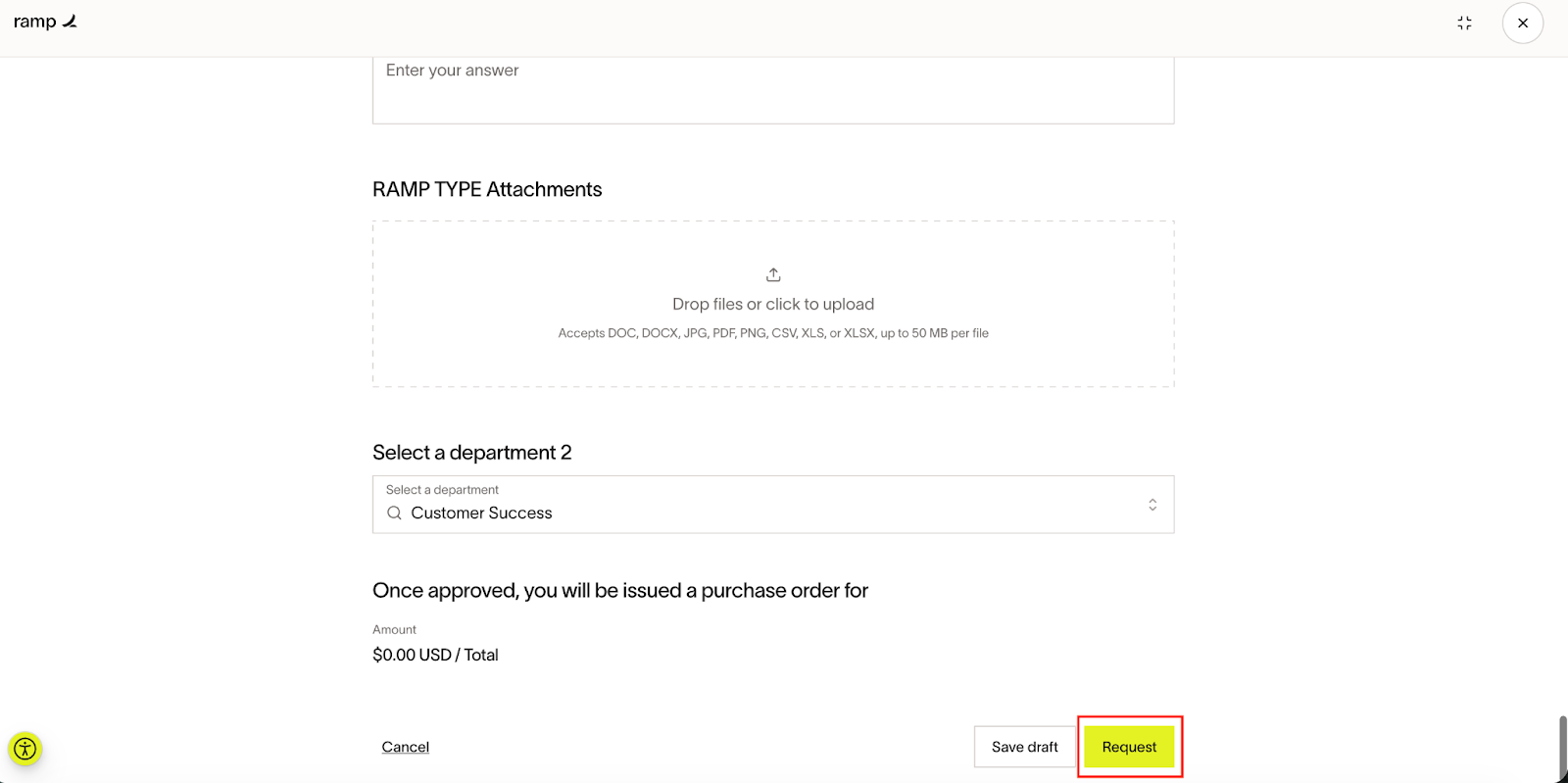
Fill in all the required information to create a request and to process further for the contract creation. Once done, click Request.
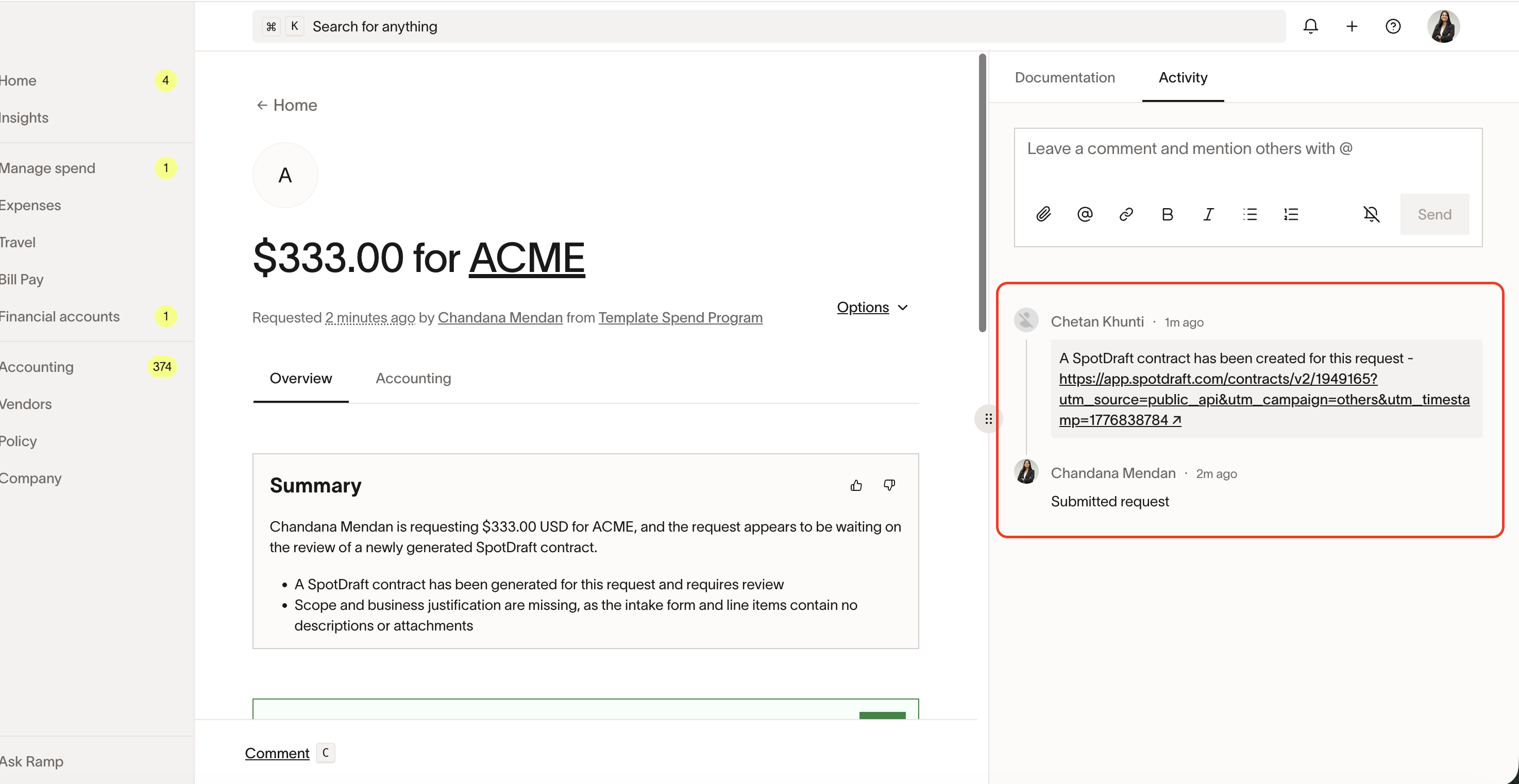
In the activity logs, you can see that the request has been submitted. A contract draft is created in SpotDraft, and the link to the contract will also be available in the activity log.
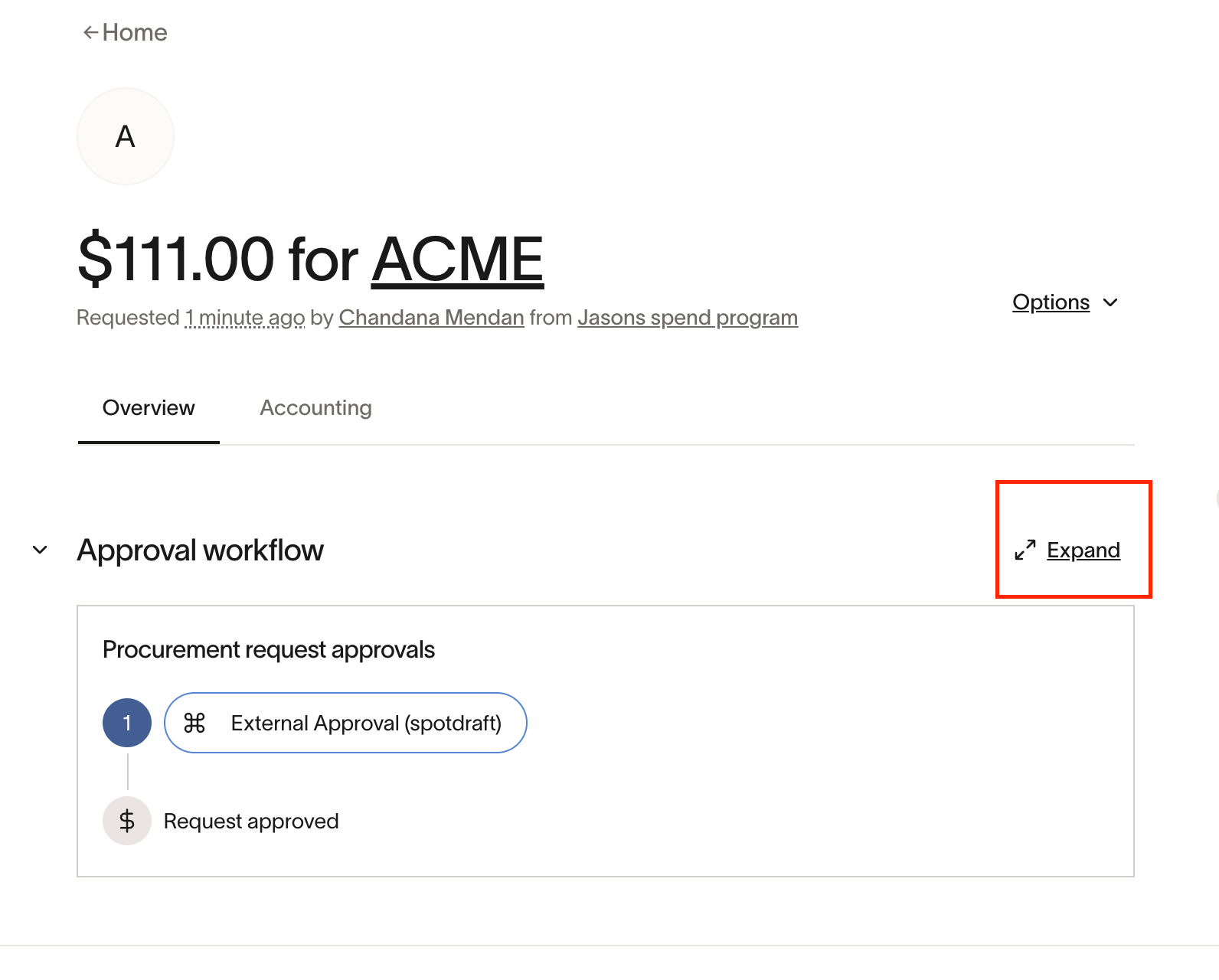
Click on “expand” to see the workflow approval.
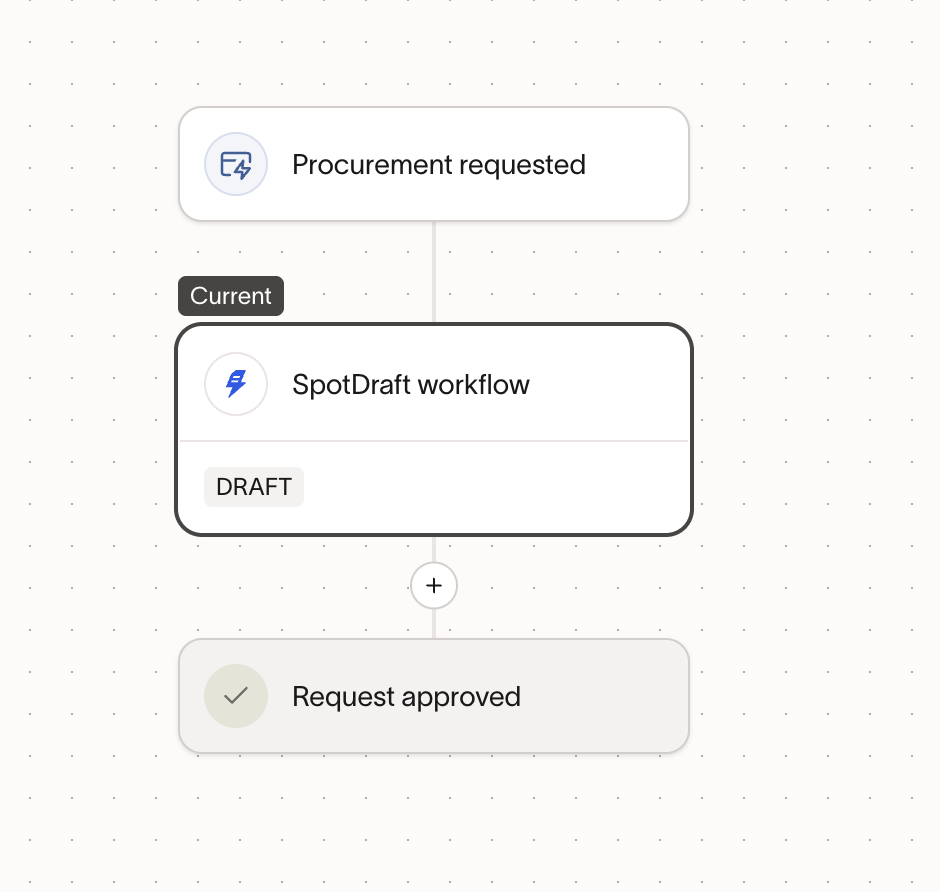
Once the contract status changes in SpotDraft, the Ramp workflow node will reflect the corresponding status.
Contract Status | Status sync back to Ramp |
Contract Created | DRAFT |
Send for Signing | IN_PROGRESS |
Sent to Counterparty for Signature | SIGNING |
Contract Executed | EXECUTED |
Contract Voided | VOIDED |
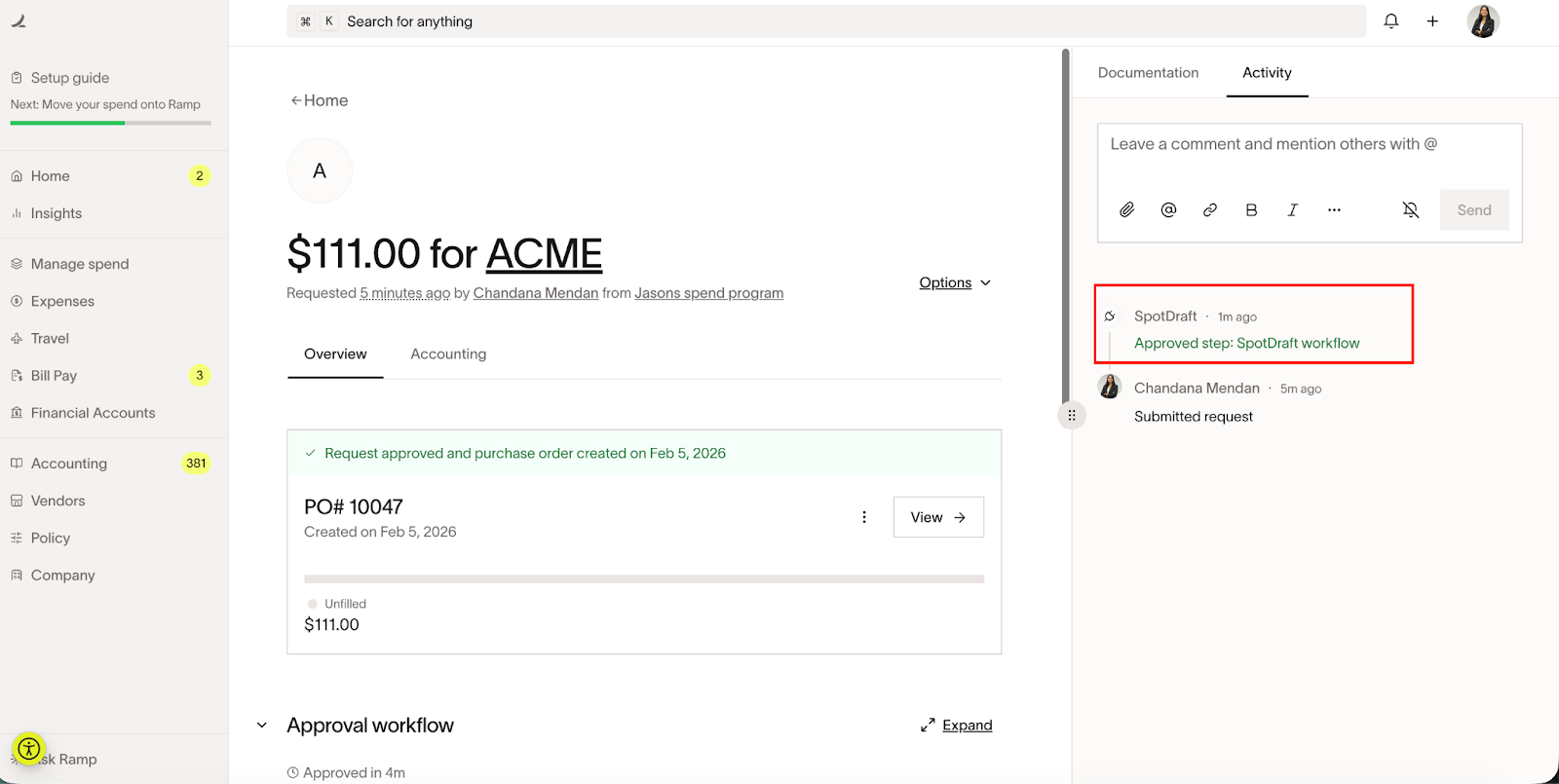
Once the contract is executed, you can see the update in the activity log.
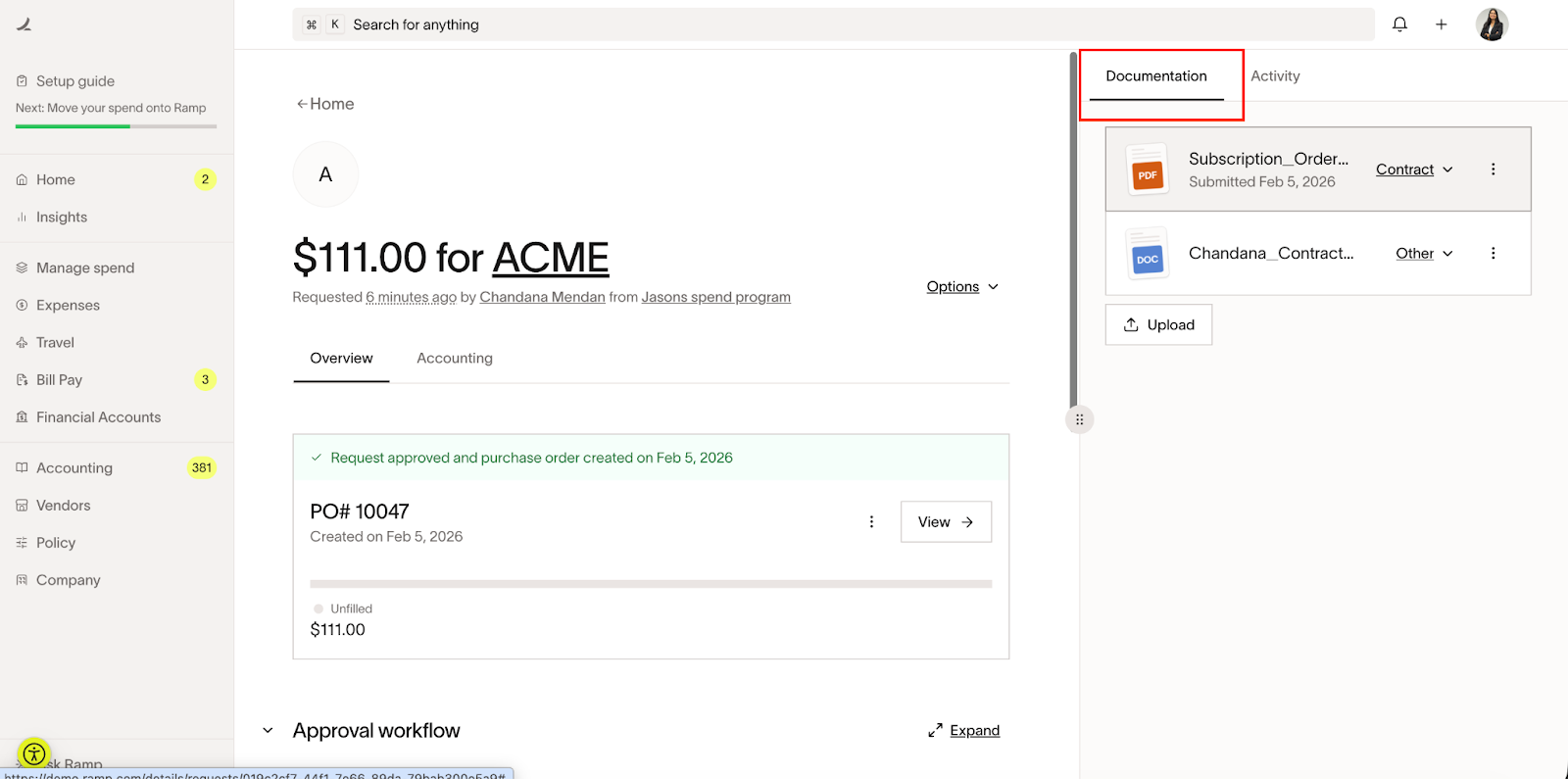
The executed contract PDF, along with any other contract attachments, would be available underthe Documentation section.
Verify Data Mapping
Open the created contract in SpotDraft.
Validate that the following details are populated correctly:
Counterparty information
Entity details
Contract file mapping (in case of Third Party Paper)
Contract fields mapped via the mapping sheet
Dynamic tables (if configured)
Business owner fields
Confirm that any supporting documents are attached as expected
If any data is missing or incorrectly mapped, revisit the mapping sheet and update the field mappings before reconnecting the integration.
💬 FAQs
Q. Can I integrate multiple SpotDraft contract templates with Ramp?
A: Yes. Each SpotDraft contract template requires its own mapping sheet and integration setup. Repeat the mapping and configuration process for every template you want to connect. Can mention that integrations are for a specific node
Q. What is the purpose of the mapping sheet?
A: The mapping sheet defines how data flows from Ramp fields to SpotDraft contract fields, enabling automated contract creation with accurate data population.
Q. Can I update mappings after the integration is live?
A: Yes. You can update the mapping sheet and reconfigure the integration instance. However, changes will only apply to new contracts created after the update.
Q. Is API access mandatory for Ramp integration?
A: Yes. Ramp API access must be enabled to authenticate and allow data exchange between Ramp and SpotDraft.
Q. What happens if the integration connection fails?
A: If the integration fails:
Check API access and authentication credentials
Ensure the correct Ramp account is selected
Verify that the integration instance is connected in SpotDraft
If issues persist, contact SpotDraft Support.
Q. Can I use the integration for third-party paper workflows?
A: Yes. SpotDraft supports third-party paper workflows through Ramp, allowing you to initiate review and approval flows for externally created contracts.
🏁 Conclusion
The SpotDraft - Ramp integration enables teams to bring together contract management and spend control into a single, streamlined workflow. By connecting Ramp spend programs with SpotDraft contract templates and approval flows, organizations can ensure that every spend request is backed by the right contractual safeguards.
With proper setup, accurate field mapping, and verification, this integration reduces manual effort, improves visibility across finance and legal teams, and helps maintain compliance at scale. Once configured, teams can confidently automate contract creation, approvals, and reviews - allowing them to focus on strategic work rather than operational overhead.
For additional customization or support, reach out to your SpotDraft representative to make the most of your Ramp integration.