Archiving Counterparties in Your Workspace
Last updated: March 27, 2026
When creating contracts, users often end up generating multiple versions of the same company or individual, referred to as counterparties. This can lead to clutter and confusion, particularly when initiating new contracts and having to select from multiple counterparty options.
Prerequisites
To archive or restore counterparties, you must have the "Manage Counterparties" permission enabled. This permission is applied at the team level. If you do not have this permission, contact your workspace admin to request access.
How to Archive Counterparties
Follow these steps to archive a counterparty:
Quickly search by using 'Cmd+K' (Mac) or 'Ctrl+K' (Windows) and type "Counterparties". Alternatively, from the sidebar, navigate to "Manage" > "Contract Attributes", and then click on "Counterparties".
2. Choose the desired counterparty under the "Active" tab and click on "Archive."
3. A confirmation pop-up will appear to ensure that you want to proceed. It will outline the effects of archiving.
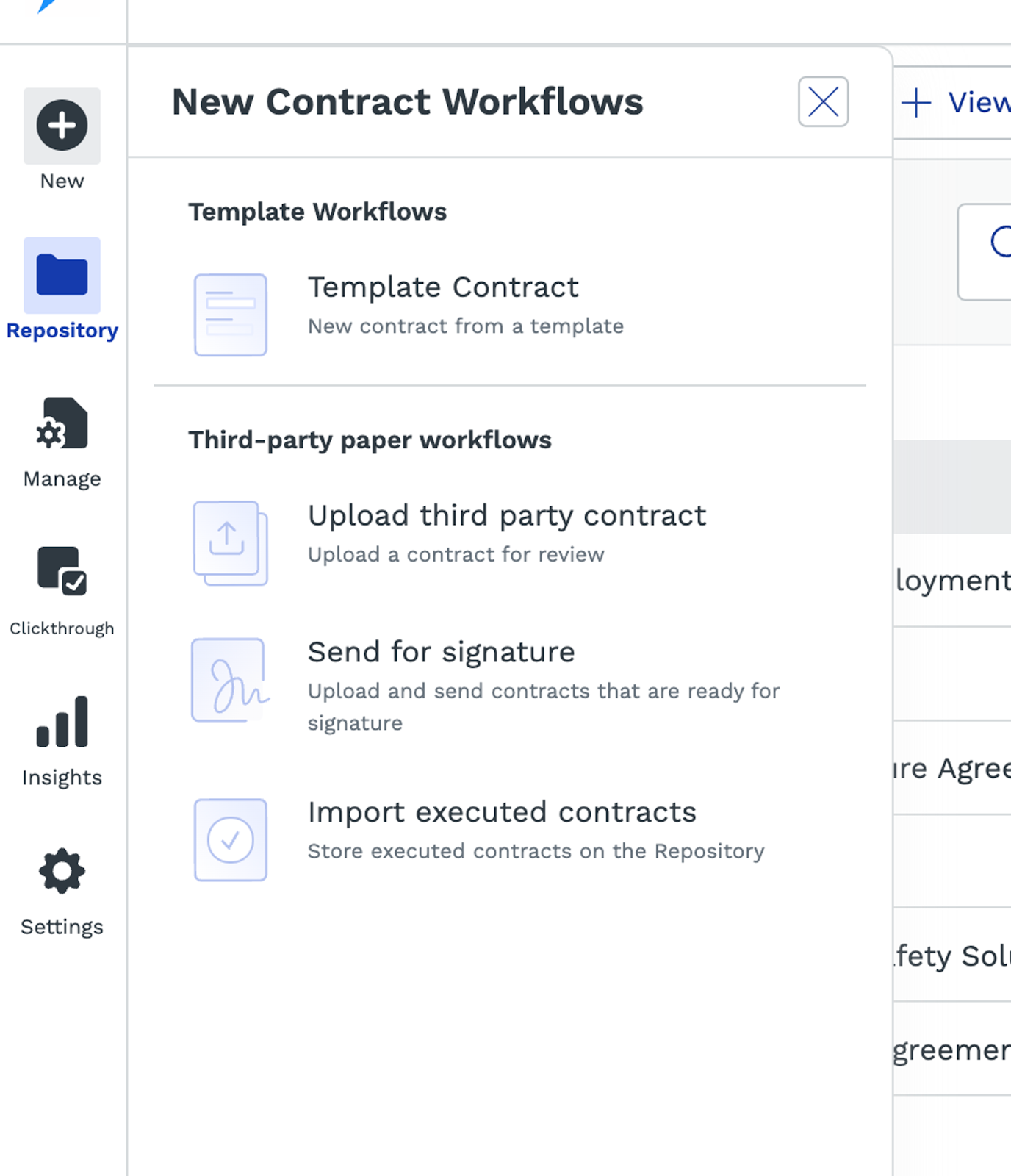
After archiving, the counterparty will be moved to the "Archived" tab.Impact of ArchivingArchived counterparties cannot be selected for creating new contract workflows such as "Template contract", or "Upload third party contract", or for sending the contract for signature.