How to Submit a Legal Request
Last updated: June 23, 2026
Overview
Need something from your legal team? Instead of sending a Slack message that might get buried, use Legal Intake to submit a structured request. Your legal team sees it immediately, in context, with everything they need to get started.
Use case:
Meet Jamie. Jamie is a Product Marketing Manager at a 300-person SaaS company in Chicago. Every time she needed legal to review campaign copy or an influencer agreement, she used to send a Slack DM to the GC. Half the time, legal would come back with three clarifying questions. Now Jamie fills out the intake form once, includes all the context upfront, and gets a status update automatically when the request is picked up.
How to submit a request via SpotDraft
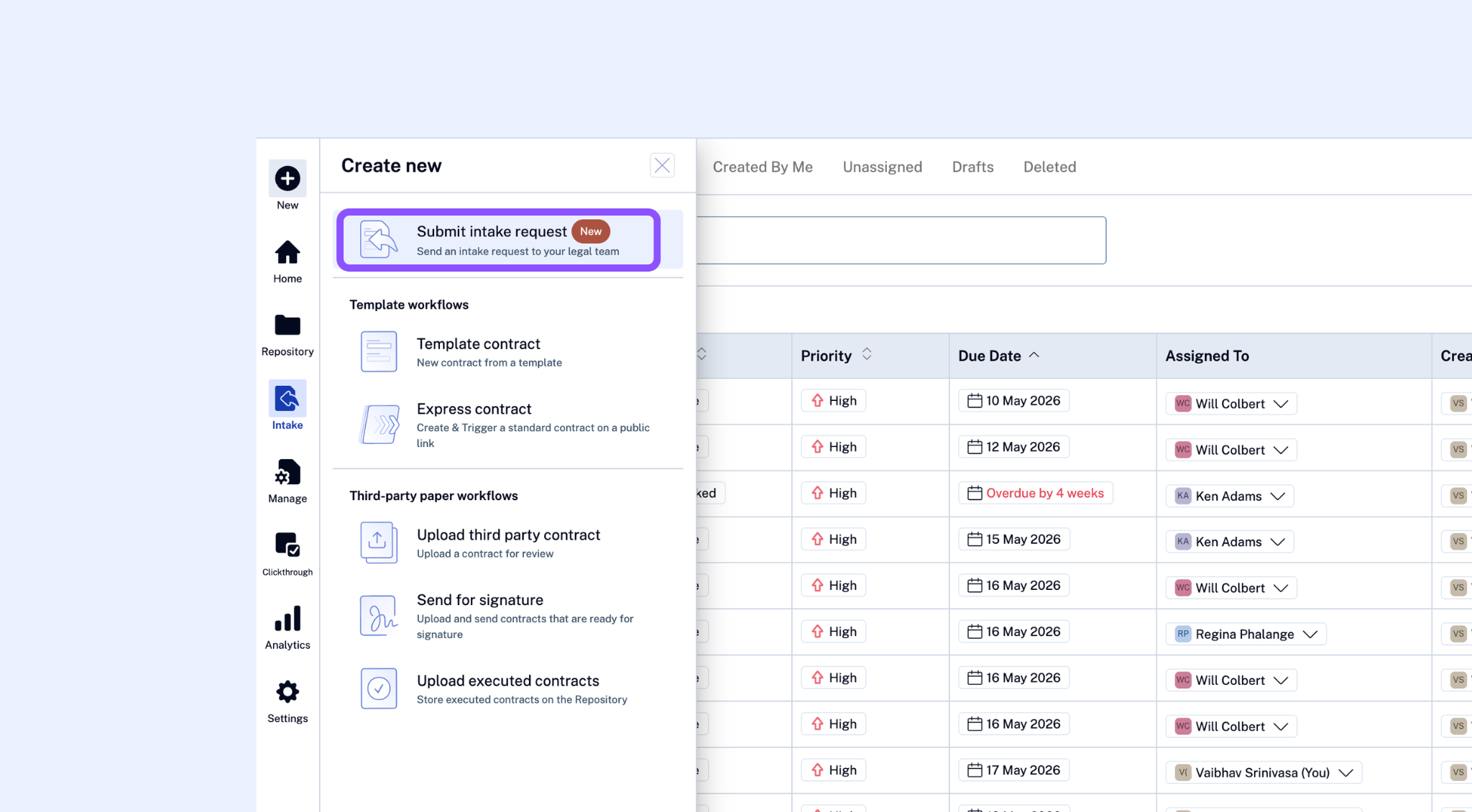
Step 1: Click "Submit intake request"
From the left navigation menu, click on + New and click the Submit intake request button at the top of the list.
Step 2: Select the right workflow
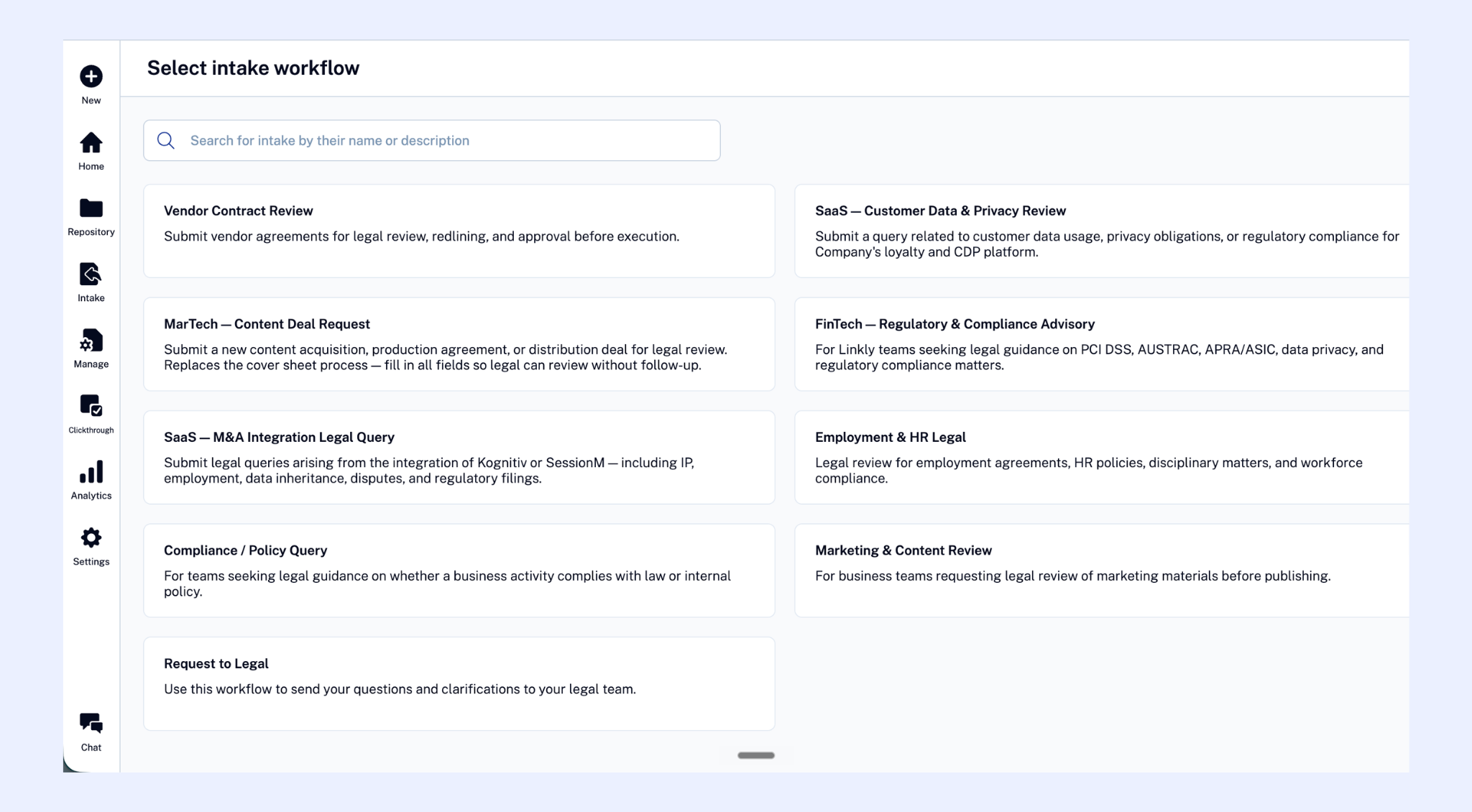
You'll see a list of available intake workflows — each one is designed for a specific type of request. Choose the one that best matches what you need.
Not sure which to pick? Check the workflow description, or ask your legal team which one to use.
Step 3: Fill out the form
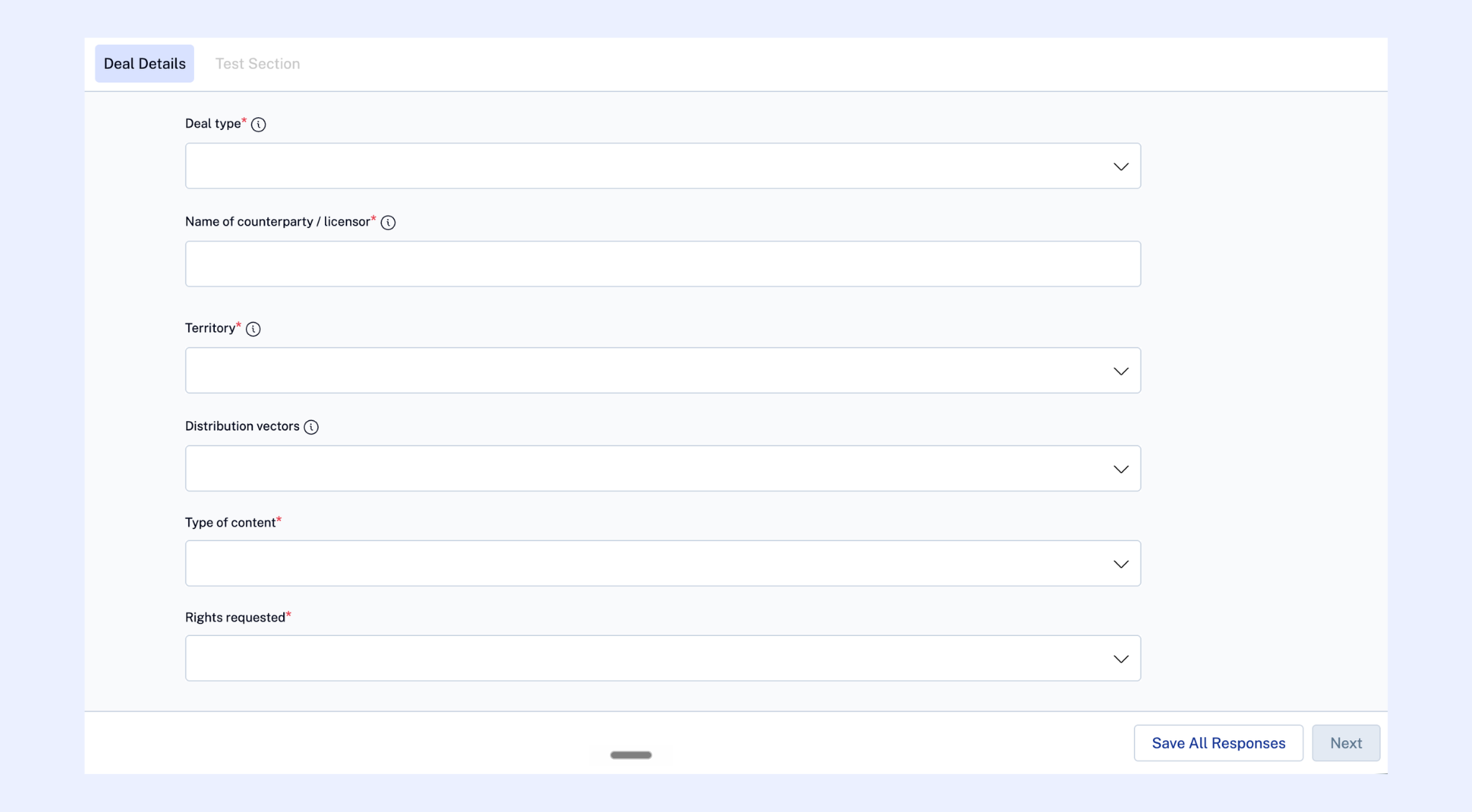
Complete all required fields (marked with an asterisk). The more context you provide, the faster legal can act.
Step 4: Submit
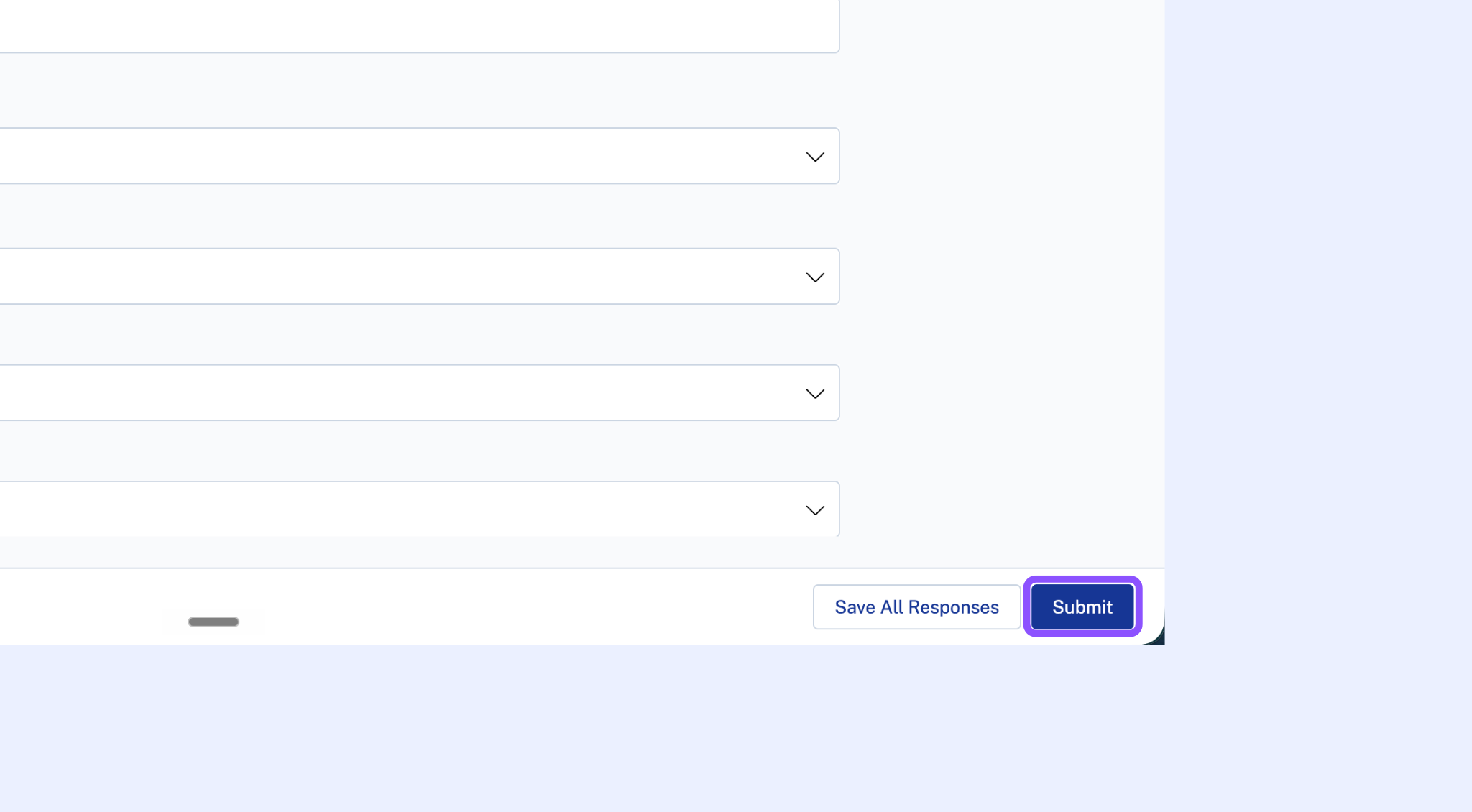
Click Submit Request. You'll see a confirmation and your request will appear in the legal team's queue immediately.
Tracking your request
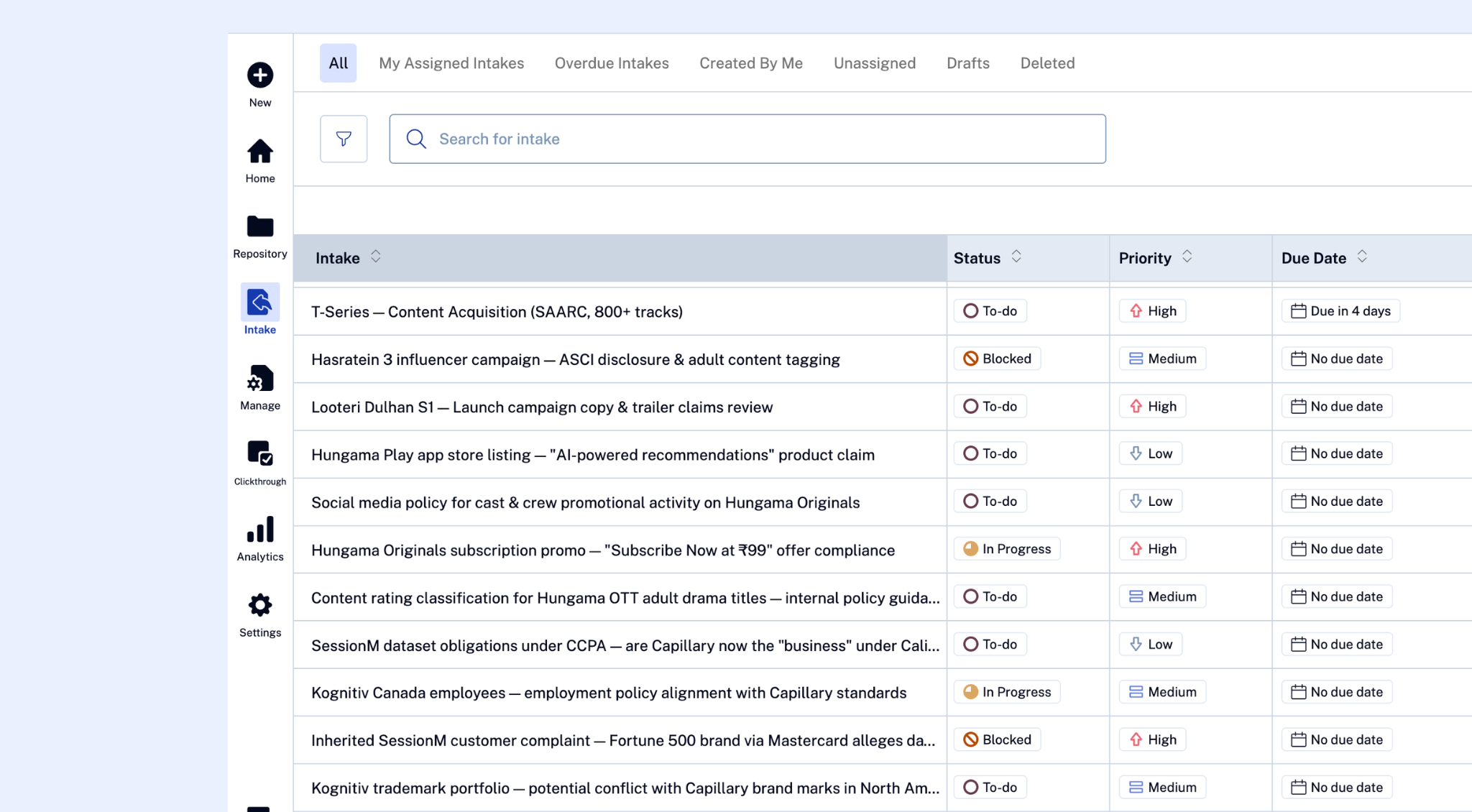
After submitting, you can check the status of your request at any time from the Intake section. Statuses you might see:
To Do — received and in the queue
In Progress — a legal team member is actively working on it
Blocked — legal needs something from you before they can continue
Done — resolved
Discarded — request was closed without action (you'll usually get a note explaining why)
Submitting via Slack
If your team has the Slack integration enabled, you can also submit requests directly from Slack without opening SpotDraft.