Setting up your first Intake workflow
Last updated: June 17, 2026
Overview
An Intake Workflow is the form template your business teams use to submit legal requests. Each workflow is designed for a specific type of request — for example, you might have one for marketing reviews, another for vendor DPA reviews, and a third for general compliance queries.
Use case:
The legal team at a London-based fintech creates three intake workflows: one for compliance reviews, one for data protection queries (required for GDPR compliance), and one for general legal asks from the business. Each workflow asks for the information most relevant to that request type.
Who is this guide for?
This guide is for SpotDraft Administrators or any user with permissions to create and manage workflows.
Why is this important?
Building a structured intake workflow allows you to:
Standardize Your Request Process: Ensure that every request from a business team is submitted in the same format.
Gather All Necessary Information Upfront: Use a custom questionnaire to make sure you get all the details you need to start working immediately.
Improve Efficiency: Reduce the time spent chasing down information and clarifying ambiguous requests.
Assign and Track with Ease: Once a request is submitted, it can be easily assigned and tracked within SpotDraft's Intake module.
How to Create a New Intake Workflow?
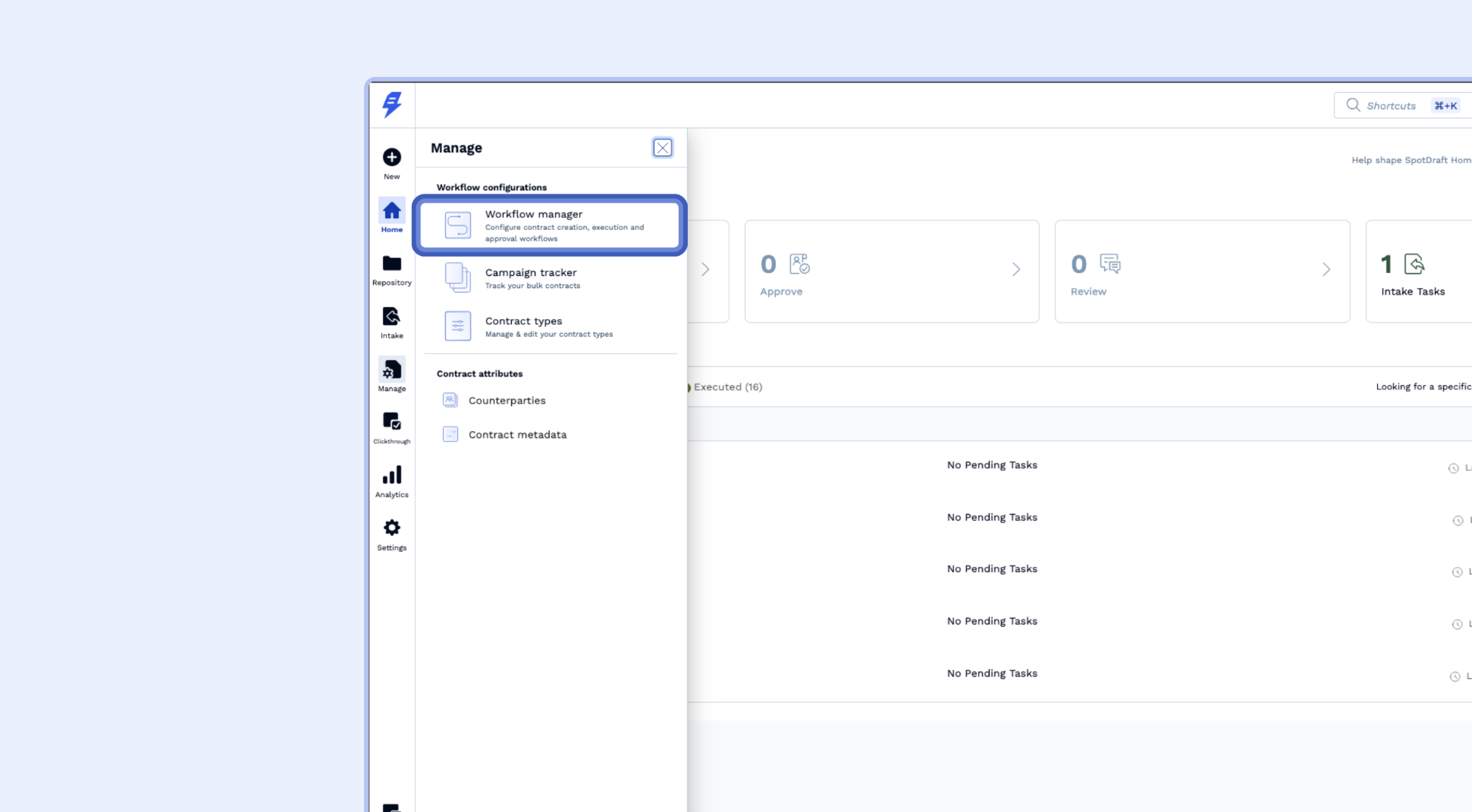
Step 1: Navigate to the Workflow Manager
From the left navigation menu, go to Manage → Workflow Manager.
Step 2: Create a new Intake Workflow
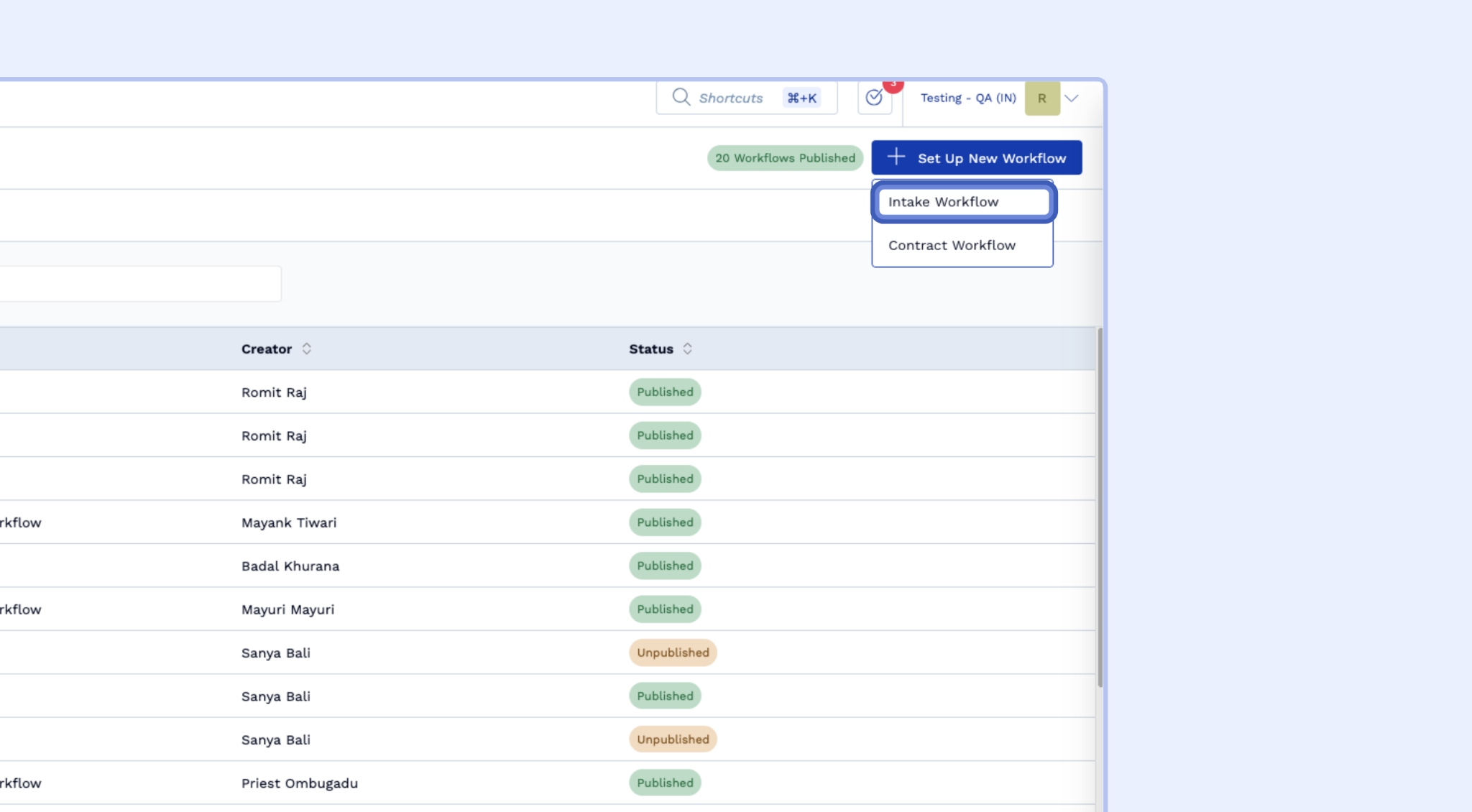
Click + Set Up New Workflow in the top right corner. From the dropdown, select Intake Workflow.
Step 3: Name and describe your workflow
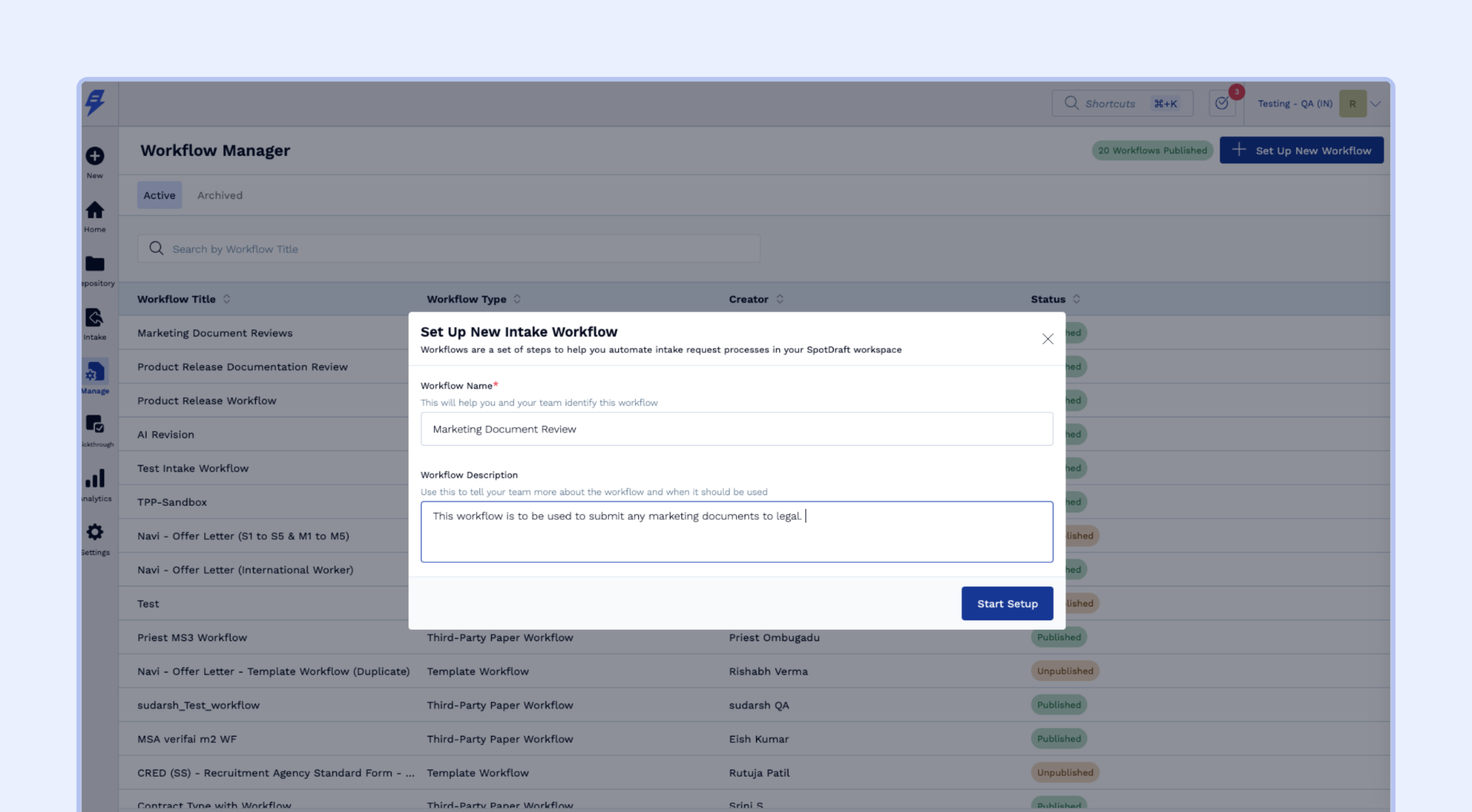
In the setup modal, enter:
Workflow Name — be specific. "Marketing Content Reviews" is more useful than "Legal Requests."
Workflow Description — explain when requestors should use this workflow. This shows up in the form, so write it for a non-legal audience.
Click Start Setup.
Step 4: Configure the questionnaire
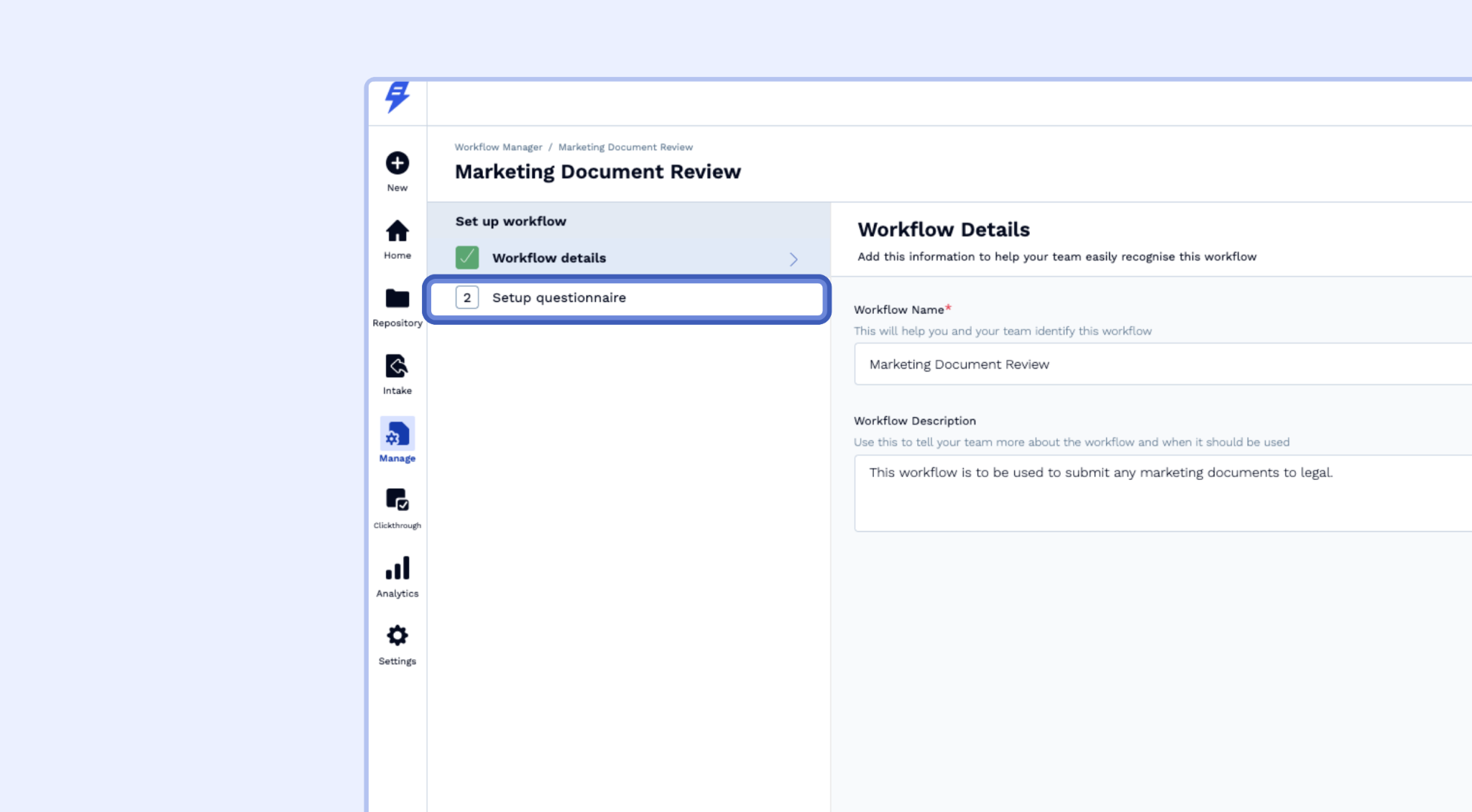
This is where you build the form. Click Setup Questionnaire from the left panel.
A. Basic fields
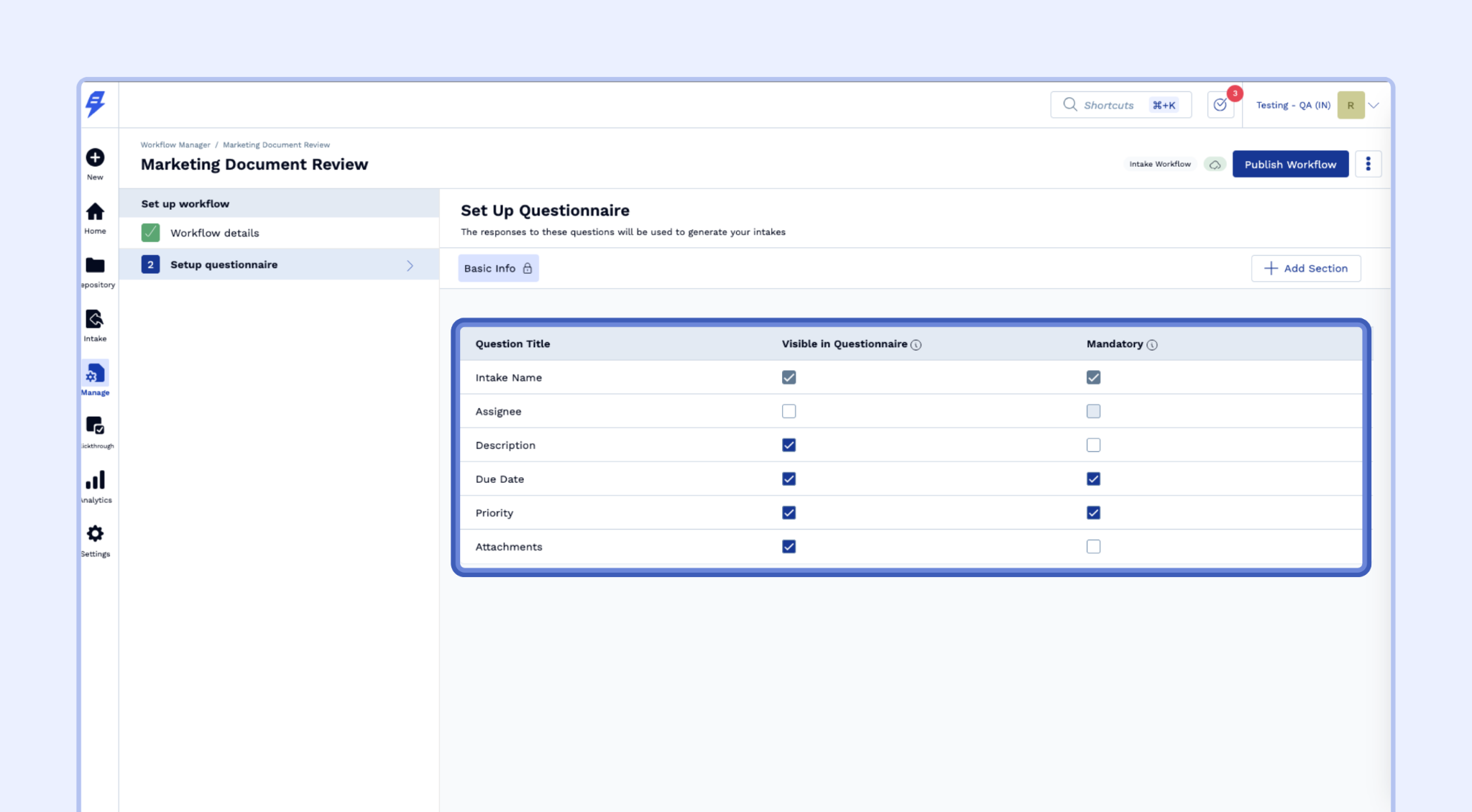
SpotDraft includes a standard set of Basic Info fields: requestor, assignee, due date, priority, and description. For each field, you can:
Show or hide it — uncheck "Visible in Questionnaire" to hide fields you'd rather set internally (e.g., assignee)
Make it mandatory — check "Mandatory" for fields that are non-negotiable, like due date and priority
B. Adding custom questions
Click + Add Section to group related questions, then + New Question within a section.
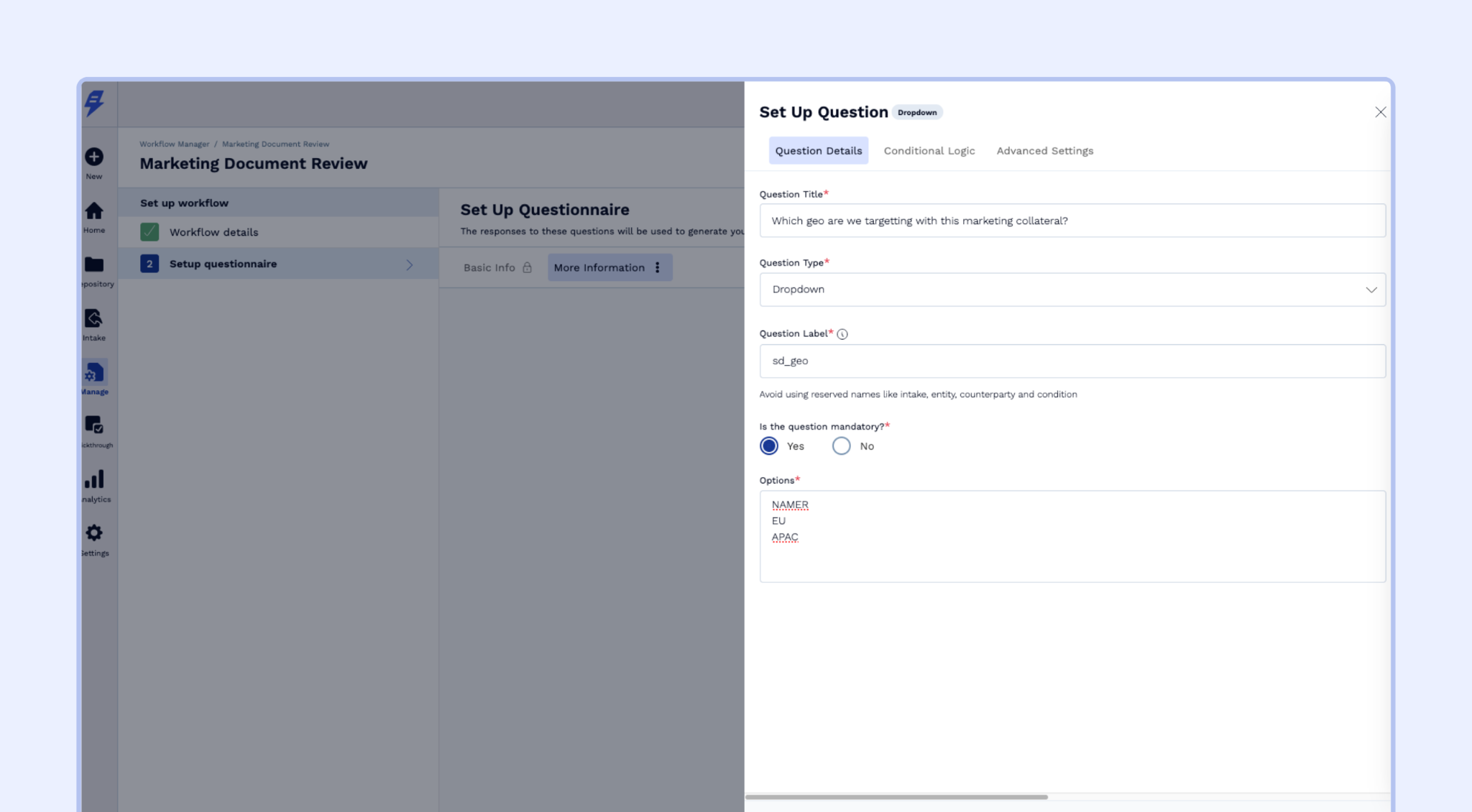
For each question, fill in:
Question Title — the actual question, written plainly (e.g., "Which jurisdiction does this apply to?")
Question Type — Short answer, Long answer, Dropdown, Date, Number, File upload
Question Label — a unique internal identifier
Mandatory — Yes or No
Step 5: Publish the workflow
When your questionnaire is ready, click Publish Workflow in the top right corner.
Managing multiple workflows
You can create as many intake workflows as needed. Common setups:
One workflow per request category (marketing, vendor, compliance)
One workflow for contract-related asks, one for everything else
A catch-all "General Legal Request" workflow for teams just getting started