Auto-Sign for Template, TPP and Upload Flows
Last updated: May 11, 2026
Overview
Auto-Sign allows SpotDraft to automatically apply an internal signatory's signature to a contract, without requiring them to manually log in and sign. Previously available only for template-based contracts, Auto-Sign now supports Third-Party Paper (TPP), upload, and template editable workflows.
This is particularly useful when the internal signatory's details (name, email, job title, etc.) are already saved in their SpotDraft profile, and their signature is a standard, non-negotiable step in the process.
How It Works
Once Auto-Sign is configured for a signatory in the Workflow Manager, SpotDraft will automatically sign the contract on their behalf when the contract is sent for signing, provided only auto-sign-able fields are assigned to them.
The signatory does not need to take any action.
Setting Up Auto-Sign
Auto-Sign is configured at the workflow level by an admin. This is a one-time setup that applies to all contracts created via that workflow.
Go to Manage → Workflow Manager from the side navigation.
Select the workflow you want to configure.
Navigate to the Signature Settings section.
Switch tab to Signing Preferences.
Ensure the signature service is set to SpotDraft Sign.
Then go to 'Auto-Sign' Contracts and add the signatory from the dropdown.
Save and publish the workflow.
Note: Auto-Sign must be enabled by your Customer Success Manager before it appears in the Workflow Manager. Contact your CS rep/support team to get this activated for your workspace.
Supported and Unsupported Fields
Not all signature fields are compatible with Auto-Sign. The prepare-for-sign screen will visually separate fields into two sections:
Auto-Sign fields: Signature, Date, Name, Email, Company, Job Title, Address, Text (with a pre-filled default value)
Recommended: To ensure AutoSign functions correctly, the required user profile fields must be properly updated.
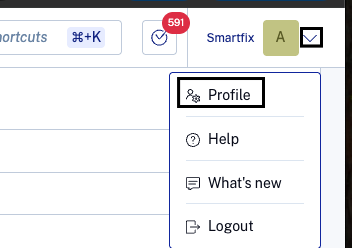
You can update these details by navigating to: Workspace → Profile → User Profile
Manual Sign fields: Checkbox, Stamp, Seal, Text (without a default value)
Tip: If a signatory's profile is missing relevant data then SpotDraft will categorise that field under 'Manual Sign' fields.
What Happens When a Non Auto-Signable Field Is Added
If a non auto-signable field is assigned to an Auto-Sign signatory during the prepare-for-sign step:
That signatory automatically switches to manual signing — they will receive a signing request and need to sign manually.
The rest of the contract flow is unaffected. Other signatories configured for Auto-Sign continue as normal.
A dynamic message on the prepare-for-sign screen will indicate which signing mode applies to each signatory.
The switch is logged in the Activity Log:
If you go back and remove the non auto-signable fields, Auto-Sign will get re-enabled for that signatory, and the activity log will update accordingly.
Things to Know
Auto-Sign configuration is done at the workflow level, there is no per-contract override available.
If Auto-Sign is enabled for a user in the workflow, but they are not added as a signatory during contract creation and are added later, they will need to sign the contract manually.
The existing signing flow for counterparty signatories remains unchanged.