Submitting Legal Requests via Email
Last updated: September 3, 2026
Overview
Not every request starts in SpotDraft. A lot of them start in someone's inbox. With Email Intake, business users can submit a legal request by sending an email to your workspace's dedicated address. No picking a workflow, no filling of questions — SpotDraft reads the email and takes it from there.
Use case:
Meet Marcus. Marcus is an Account Manager at a consumer goods company in Chicago. He doesn't have regular reason to log into SpotDraft, so every time a distributor sends over a vendor agreement to review, he'd forward it to legal and hope someone picked it up. Now he forwards that same email to his company's intake address. SpotDraft reads the attached agreement, works out this is a Vendor Contract Review, and asks him one missing question before creating the request — all without Marcus leaving his inbox.
Prerequisites
Your workspace must have Email Intake turned on, with a routing address configured by your admin (ask your legal team for this address if you don't have it)
You must be a SpotDraft user in the workspace — emails from unrecognized addresses are rejected
How to submit a request by email
Step 1: Email the workspace's intake address
Send your request to your workspace's routing address (for example, acme-legal@intake.spotdraft.com). Ask your legal team for the exact address if you're not sure.
Step 2: Describe your request in the subject and body
Write what you need in plain language — you don't need to know which workflow it belongs to. If you have a document to review (an NDA, a vendor agreement, a policy), attach it directly.
Step 3: SpotDraft classifies the request automatically
SpotDraft reads the subject, body, and any attachments, and works out which legal workflow your request belongs to. You'll only hear back if something's missing.
Step 4: Answer any follow-up questions
If a required field wasn't included in your email, SpotDraft replies on the same thread asking for it. Just reply to answer.
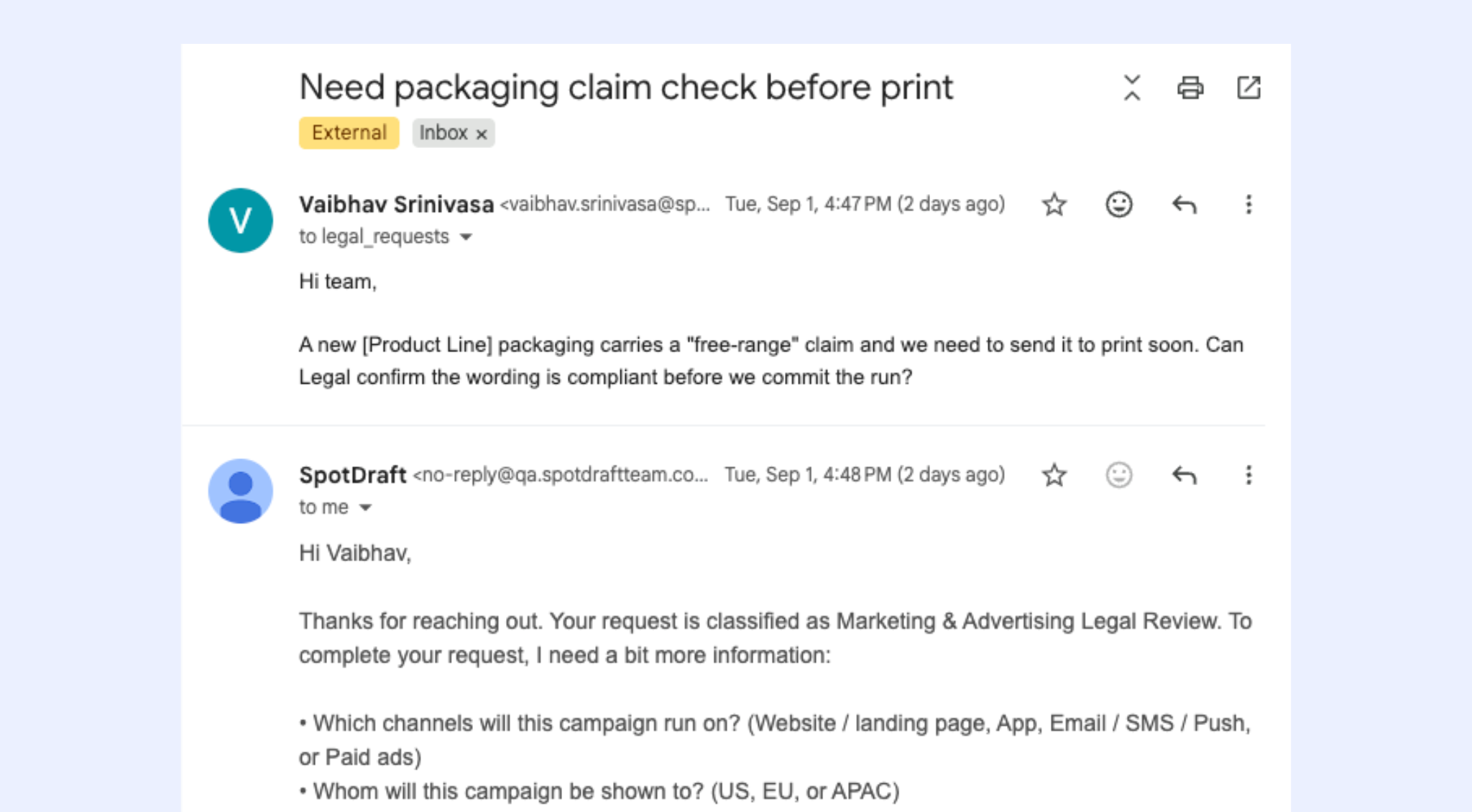
Step 5: Get your confirmation
Once everything required has been collected, you'll receive a confirmation reply with your request ID and a link to track it in SpotDraft.
![Confirmation email showing request ID and tracking link]](https://assets.usepylon.com/6778eb64-1393-4a30-936f-e9304ea5012e%2F1788452575639-Untitleddesign%252820%2529.png?Expires=253370764800&Signature=eSbuAuTVM64Q5V-bSQ4SiZLjtQspiJWYLc~fkrP7mlRTK95e~dpVbsKzBfF4uviyM6LUcKgEzwEm0haJ-JsafmD66tauvfH5nm0g-NGwAoBJ9RI0tU8S-au3zxJ3A8M-QROQhhhrIASihAvRS5WgLFH-i7DEiSlVYjMm9Ztcos6Av9ngQkJqIoeq2EqBJs57Tugkdh6Prb3PIDO7DN2yMLCzbaC3RzL4BTGJ28kEx7khBz7V8JOVH6iZiqkkZcVx8RHqZzAVo40w3KU0Qizfr43YUNyoSbwtb-MOVsUeCu3Am~ozgkbZhuSF3ayzITZTmFPQTx4MkiHvopKR0d~Q5w__&Key-Pair-Id=K3NV4LZ47N8M46 "Untitled design (20).png")
What happens after you submit
Any further email on the same thread is automatically logged to your request's activity log in SpotDraft — your legal team sees the full conversation without you having to repeat yourself.
If your request gets routed to the wrong workflow, your legal team can correct it. You may hear back with a couple of additional questions the corrected workflow needs.
Things to know
Only SpotDraft users in your workspace can submit requests this way. If your email address isn't recognized, you'll get a reply saying so.
Attachments over 25 MB aren't processed — you'll be asked to resend them.
Available in English only, for now.
For admins: setting up Email Intake
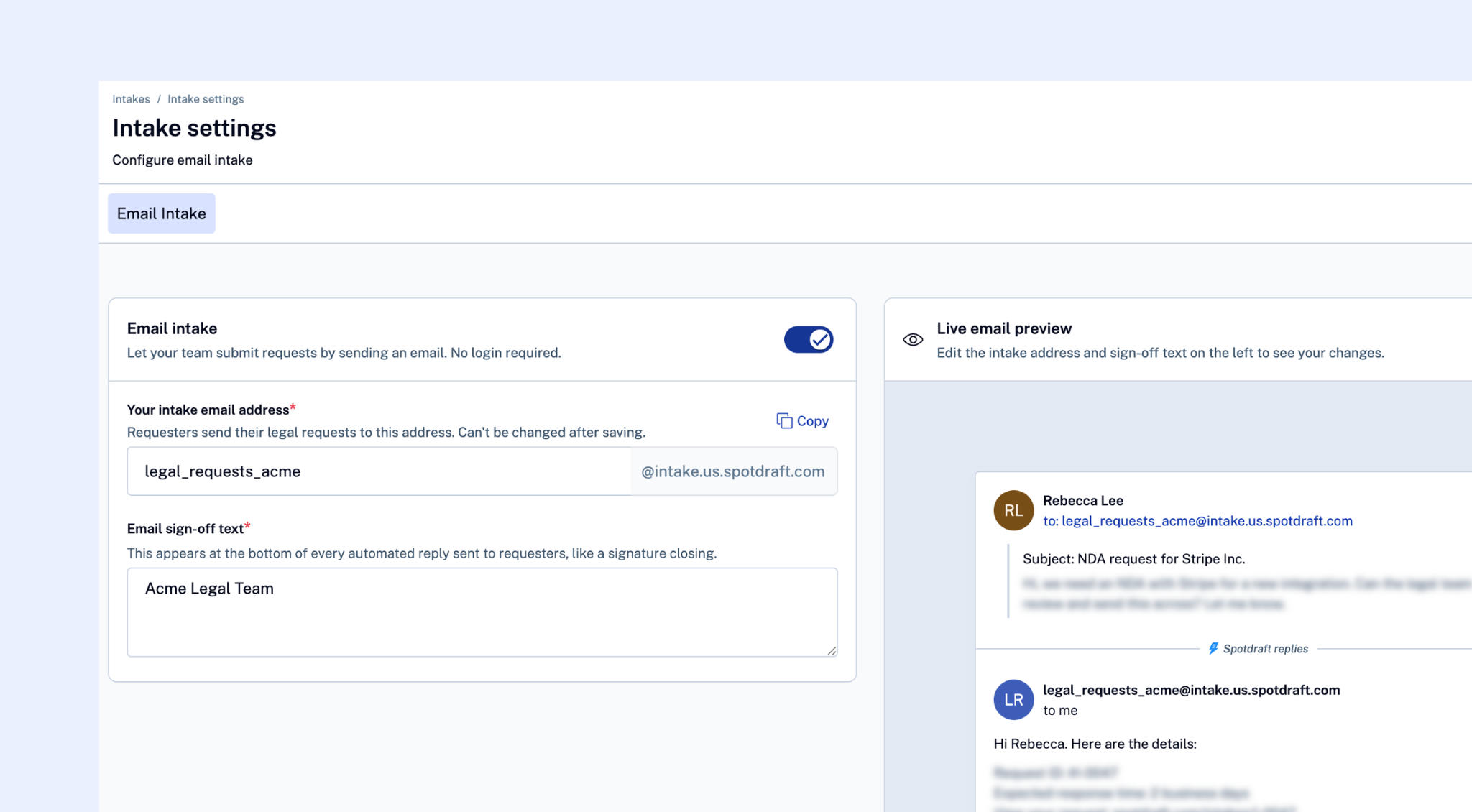
Open the Legal Intake page and go to its settings.
Turn on Email Intake and choose a routing address name (for example, "acme-legal").
Once someone has emailed that address, the name is locked — choose it carefully before sharing it.
Share the address with your business users.