Setting up Sidebar on Slack Channels
Last updated: August 14, 2026
Stop context-switching and manually tracking legal questions that come through Slack. Channel Monitoring turns any Slack channel into a legal intake system: Sidebar watches the channel, drafts a response, and either sends it to you for review or posts it automatically, depending on how you configure it.

How Channel Monitoring Works
Two things determine what happens:
when Sidebar responds (every message, or only when mentioned) and
who can see the response (only the notified reviewer, or everyone in the channel).
Workflow 1: Private Review (Human-in-the-Loop) Recommended for most legal intake channels exposed to internal stakeholders. The legal team keeps full control and final approval.
A business user posts a question in a monitored channel (e.g.
#ask-legal).Sidebar reacts with 👀 and analyzes the request in the background.
Sidebar sends a private, ephemeral draft (visible only to the "user to notify") with a suggested response.
That reviewer edits as needed and decides how to respond to the original requestor.
Workflow 2: Public Auto-Response For automated FAQ-style channels where Sidebar should answer directly, no review step.
A user posts a question in a monitored public channel (e.g.
#legal-faq).Sidebar analyzes the request.
Sidebar posts its answer as a threaded reply, visible to everyone in the channel, automatically. No edit step.
Pro tip: You can also set up Slack workflows to route these requests further. Reach out to the Sidebar team to learn more.
How to Configure a Monitored Channel
In Slack, open the Sidebar app's Home tab.
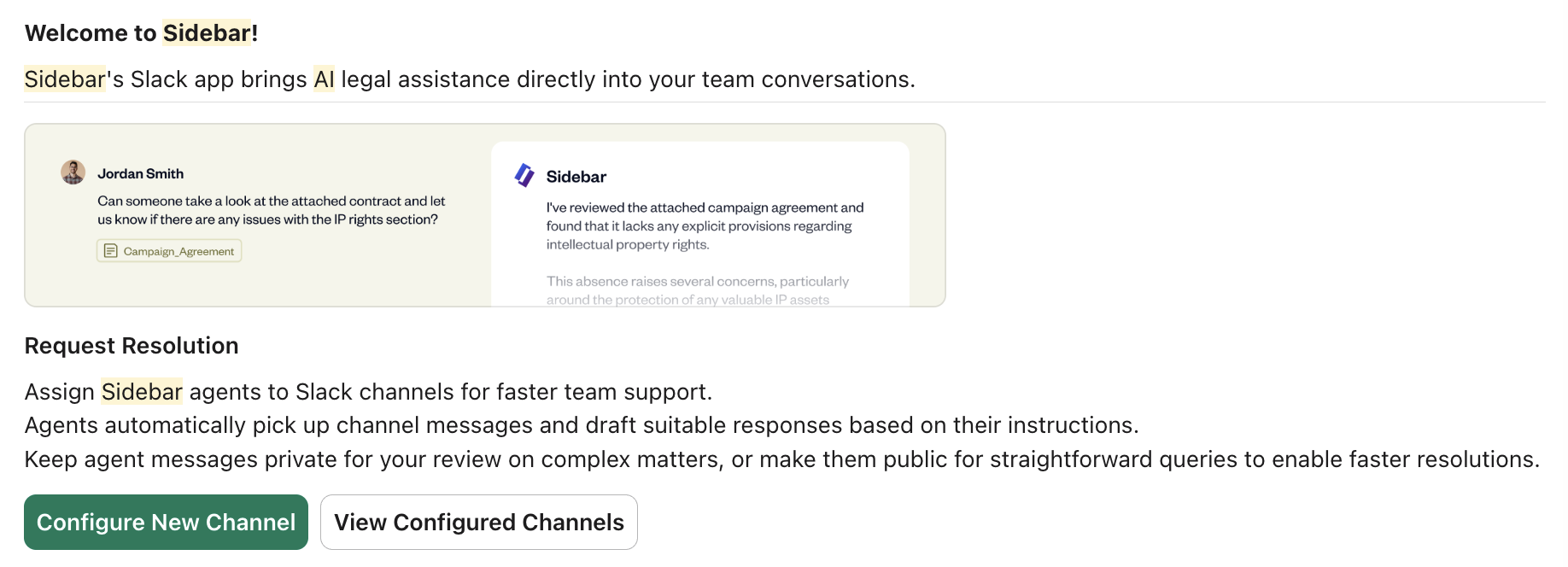
Under Request Resolution, click Configure New Channel.
Fill out the configuration:
Channel to monitor: the public or private channel Sidebar should listen to.
If it's a private channel, you'll also have to invite Sidebar to it.
User to notify: the legal team member whose SpotDraft permissions generate the response, and who receives the private draft in Workflow 1.
Agent (optional): a specific AI Agent to handle requests from this channel. Agents can be created on the web app (sidebar.spotdraft.com).
When should Sidebar respond?
Only when @Sidebar is mentioned — Sidebar stays silent until tagged.
Respond to all messages in the channel — Sidebar analyzes every message posted.
Agent version:
V1 · Legacy — consistent, reliable responses.
V2 · Default — higher accuracy, current default.
Sidebar responses should be visible to:
Only the user selected above (recommended for intake) — enables Workflow 1, private review.
All users in the monitored channel (not recommended for public channels) — enables Workflow 2, public auto-response.
Custom Suggested Response Prompt (optional): a prompt that shapes how Sidebar drafts the suggested response, e.g. matching your team's tone or format. Optional but recommended if your team has a specific communication style.
Click Save. Invite Sidebar to the channel: in that channel, type @Sidebar and press enter. Click Add to Channel when prompted. Sidebar can't read a channel it hasn't been added to.
Pro Tip
Private Intake: Create a dedicated #ask-legal channel, set visibility to "Only the user selected above," and respond to all messages. This centralizes intake and lets Sidebar triage every request before it reaches the requestor.
Public FAQ: Populate a Knowledge Hub with your most common policies, then set visibility to "All users in the monitored channel" for a self-service FAQ channel. Since this setting is not recommended for public channels by default, use it deliberately, scoped to low-risk questions answered from pre-approved documents.
Access Control: Whose Permissions Apply
Being a Sidebar user is not the same as being a SpotDraft user. To become a Sidebar user, someone must have logged into SpotDraft and opened Sidebar at least once. Until then, they're a SpotDraft user but not yet a Sidebar user.
This matters because access control works differently depending on how someone reaches Sidebar:
Scenario | What happens |
|---|---|
Someone who isn't a Sidebar user DMs Sidebar directly | The request fails. They need to log into SpotDraft and open Sidebar at least once first. |
A Sidebar user DMs Sidebar directly | Sidebar answers using that person's own SpotDraft access (which determines the contracts they see). They only see what they're already permitted to see. |
Anyone posts a question in a monitored channel, private mode ("only the user selected above") | Sidebar generates the response using the notified user's access (which determines the contracts they see), not the requestor's, and sends it to them privately. They can edit it before sharing with the requestor. |
Anyone posts a question in a monitored channel, public mode ("all users in the monitored channel") | Sidebar generates the response using the notified user's access (which determines the contracts they see) and posts it automatically. There's no edit step, the requestor sees it as-is. |
The takeaway: in channel monitoring, the requestor's own permissions never determine what Sidebar can see or say. It's always the notified user's access, whether or not that response gets reviewed first depends solely on the channel's visibility setting.
Troubleshooting & Common Questions
When should I choose private vs. public response visibility? Use private ("only the user selected above") for any channel where questions might be novel or sensitive, since you get to review and edit before the requestor sees anything. Use public ("all users...") only for low-risk, high-volume FAQ channels answering from a specific, pre-approved Knowledge Hub, and be deliberate about it since it's off by default recommendation.
I configured a channel, but Sidebar isn't responding. Why? Most likely Sidebar hasn't been invited to the channel yet. Go to the channel and type
@Sidebar, then click Add to Channel. Sidebar can only read channels it's a member of.Can I edit a response before it's posted in Public Auto-Response mode? No. Public mode is fully automated. If you need to review or edit, use the private, human-in-the-loop setting instead.
Why does a question in my intake channel get answered using someone else's permissions? Channel monitoring always uses the notified user's access to generate the response, regardless of who asked the question. This is different from DMing Sidebar directly, where your own access applies.
A teammate says Sidebar won't respond to their DM. Why? They likely haven't logged into Sidebar yet. Being a SpotDraft user isn't enough, they need to open Sidebar at least once to become a Sidebar user before DMs work.