Installing and Connecting the Sidebar App for Slack
Last updated: August 14, 2026
Bring Sidebar's intelligence directly into the conversations where legal requests are born. By connecting Sidebar to Slack, you can meet your business teams where they work, capture unstructured requests, and begin resolving them without ever leaving your workflow. This guide covers the simple, one-time process of installing and authorizing the Sidebar app in your Slack workspace.
How to Install the Sidebar App
This process connects your Sidebar account to your company's Slack workspace.
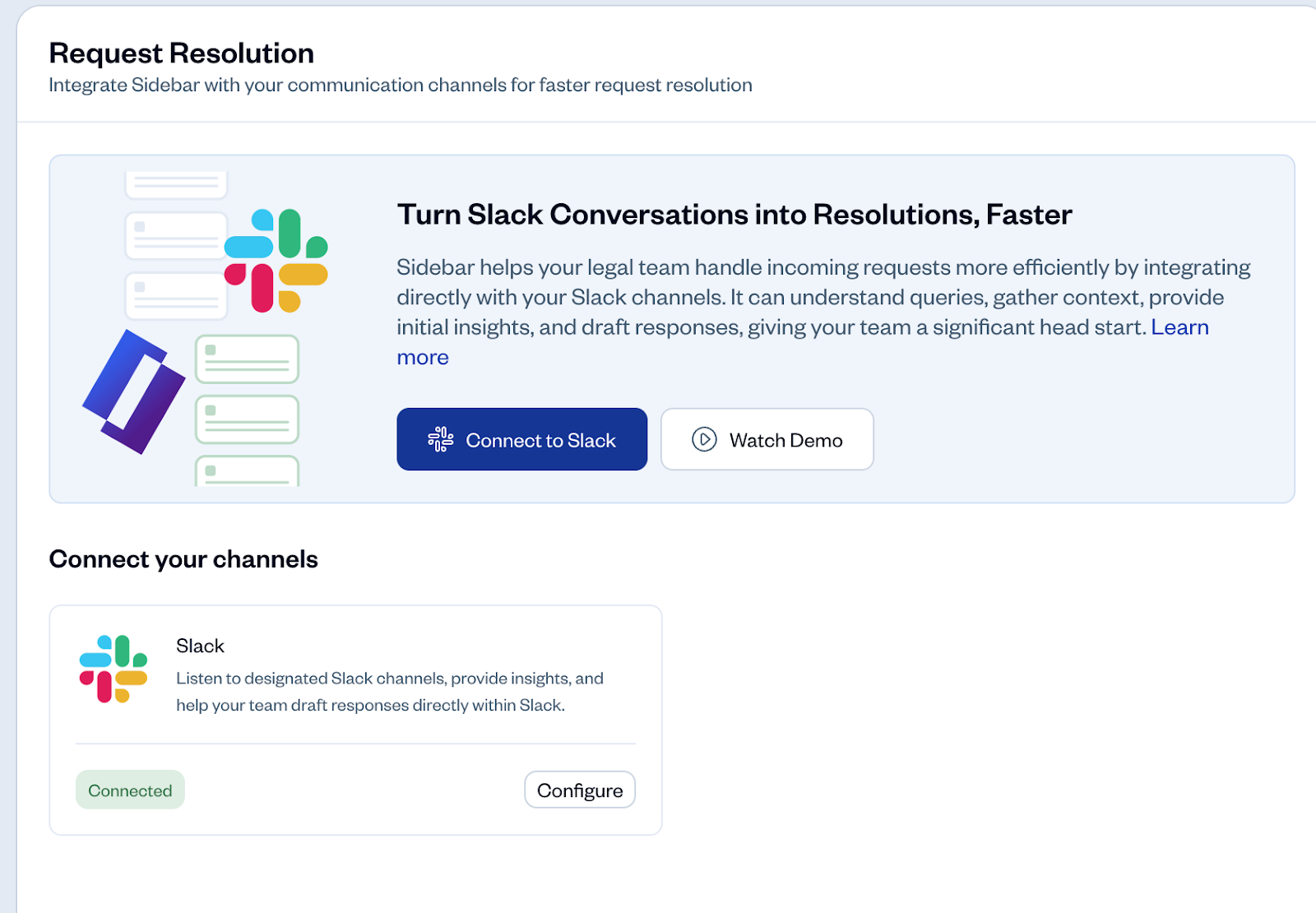
From the Sidebar web application, navigate to Request Resolution in the left-hand menu.
Click the Connect to Slack button.
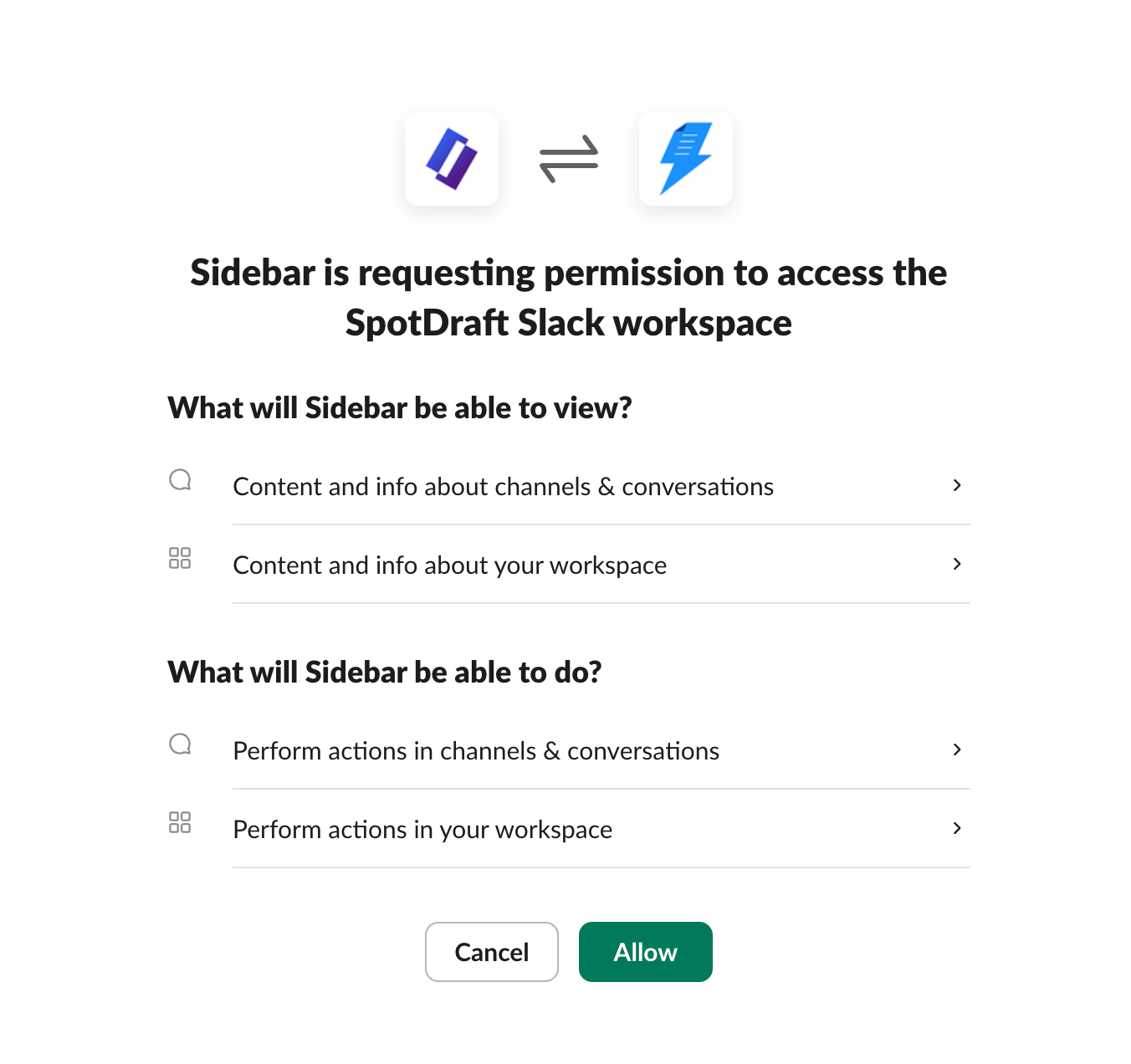
You will be redirected to a Slack permission request page. This page details what the Sidebar app will be able to view and do within your workspace. Review the permissions and click Allow. There is a possibility this might send an approval request to your IT/Slack admin, in which case you may add a message for them to review. Here’s some information on why these permissions are needed by Sidebar.
Once you click "Allow," you will be redirected back to Sidebar. The connection is now active, and you will see a "Connected" status.
Note: Depending on your company's Slack settings, you may need an administrator to approve the app before you can install it. If the "Allow" button is replaced with a "Request Approval" button, click it. This will send a notification to your Slack admin to approve the Sidebar app for your workspace.
Finding the Sidebar App in Your Slack Workspace
After installation, the Sidebar app will be available within Slack.
In your Slack desktop or web app, look for Sidebar under the Apps section in your left-hand navigation panel.
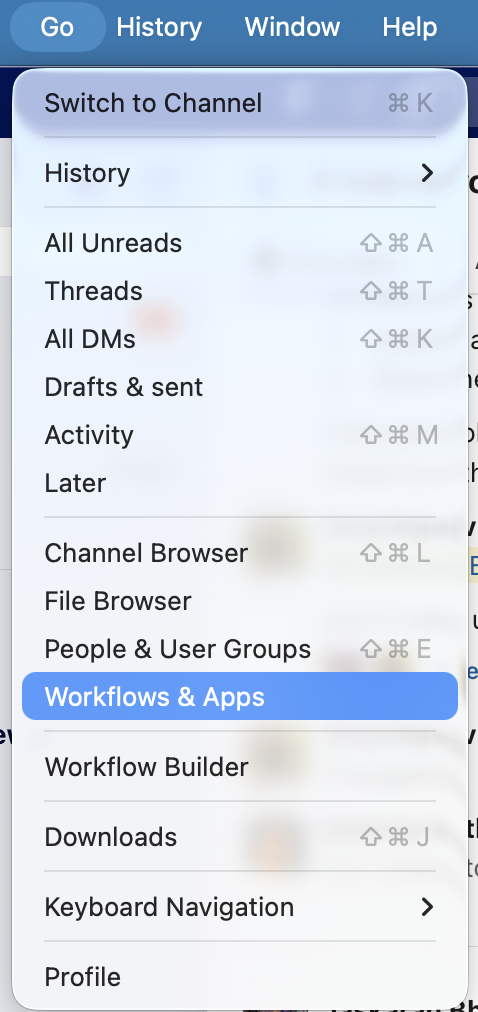
If you don't see it, click Go on the header, Workflows & Apps, and then search for Sidebar
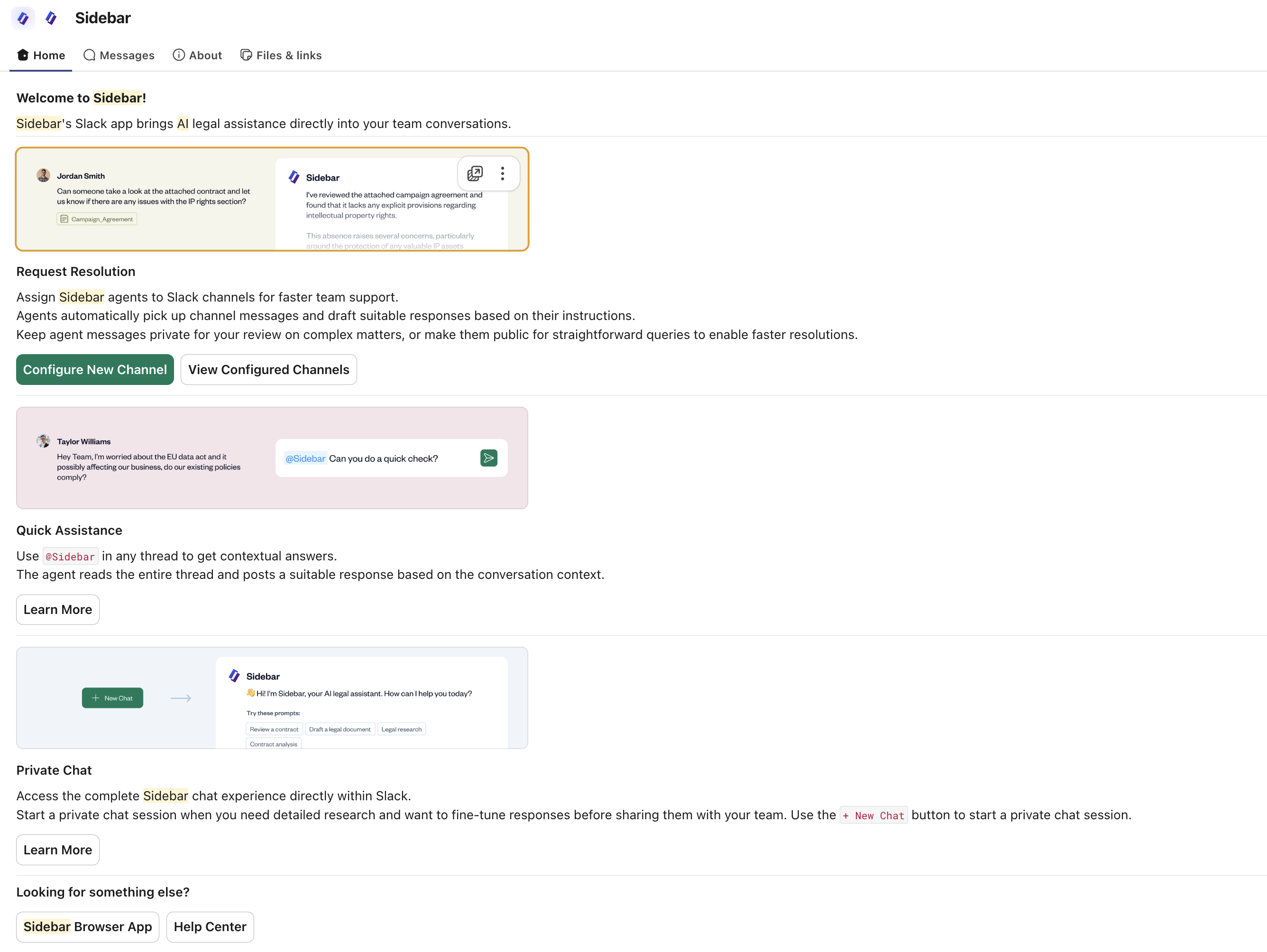
Click on Sidebar (and "Open App" if prompted) to open the app's Home tab.
Next: Read how to set up Sidebar on Slack channels
Troubleshooting & Common Questions
Does every user on my team need to install the app?
No. The installation is a one-time action that makes the Sidebar app available to the entire Slack workspace. However, each individual user who wants to interact with the app (e.g., be notified of requests) must have their own Sidebar user account.
What permissions does the Sidebar app require and why?
The app requires permissions to read messages in channels it's invited to, send messages, and interact with users. This allows it to monitor for requests, acknowledge them, and send private draft responses to the legal team. A full breakdown of permissions is available during the installation process.
I've installed the app, but I don't see the "Chat" tab in the Slack app home.
You may be on a previous version of the app. Please try reinstalling the app by following the steps above. The latest version includes Home, Chat, History, and About tabs for a richer experience directly within Slack.