Setting up Approvals and Review Reminders
Last updated: June 2, 2026
To prevent contracts from stalling during internal review and approval stages, SpotDraft allows you to configure automated reminder emails for approvers and reviewers. Once enabled, SpotDraft tracks each pending approval or review task and automatically sends reminder emails — and optionally Slack notifications — to the assigned person until the task is completed, without requiring your team to send manual follow-ups.
There are two distinct reminder types covered in this article:
Approval Reminders — Automated reminders sent to approvers when an approval is pending.
Review Reminders — Automated reminders sent to internal reviewers when a review is pending.
Who Can Use This Feature?
Reminder configuration is managed by workspace administrators via the Workflow Manager. Any user who has permission to edit workflow settings can configure reminder schedules.
How It Works
Once an approval or review task is triggered on a contract (the task moves to Pending status), the reminder countdown begins. SpotDraft will send the first reminder after the configured delay, and then continue sending follow-up reminders at the configured interval until the task is completed.
Configuring Approval and Review Reminders
To set up automated reminders for a specific workflow:
Navigate to the Workflow Manager and select the workflow you wish to edit.
Go to the Additional Options > Reminders tab.
You will see separate cards for Approval Reminder and Review Reminder. Toggle on the relevant one.
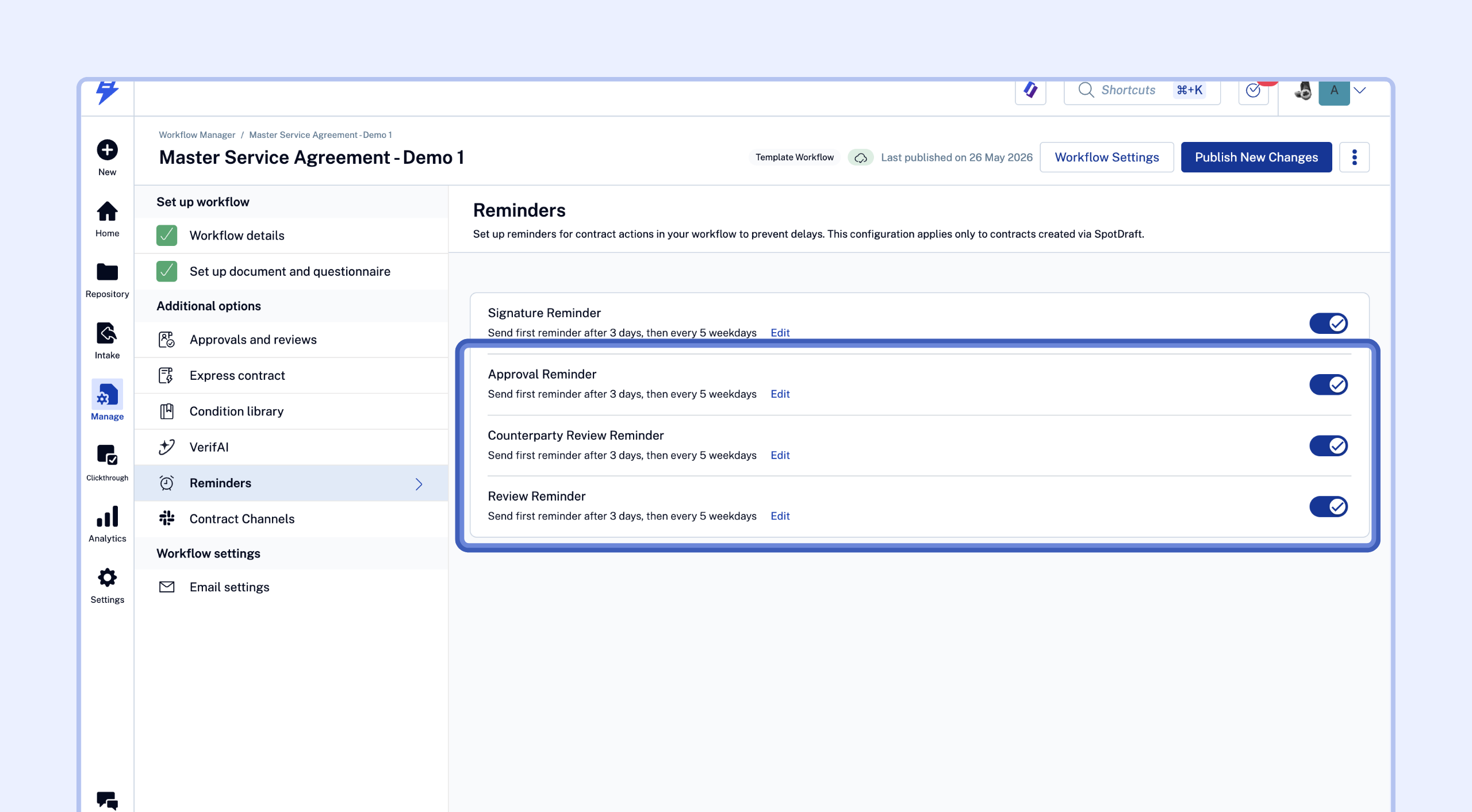
Configure the following settings:
Days before sending first reminder: The number of days to wait after the initial task is assigned before sending the first reminder. Default is 3 days. Minimum: 1 day; Maximum: 365 days.
Days between reminders: How often subsequent reminders are sent if the task remains pending. Default is 1 day (daily). Minimum: 1 day; Maximum: 365 days.
Business days only: Toggle this on to send reminders only on weekdays (Monday through Friday), skipping weekends.
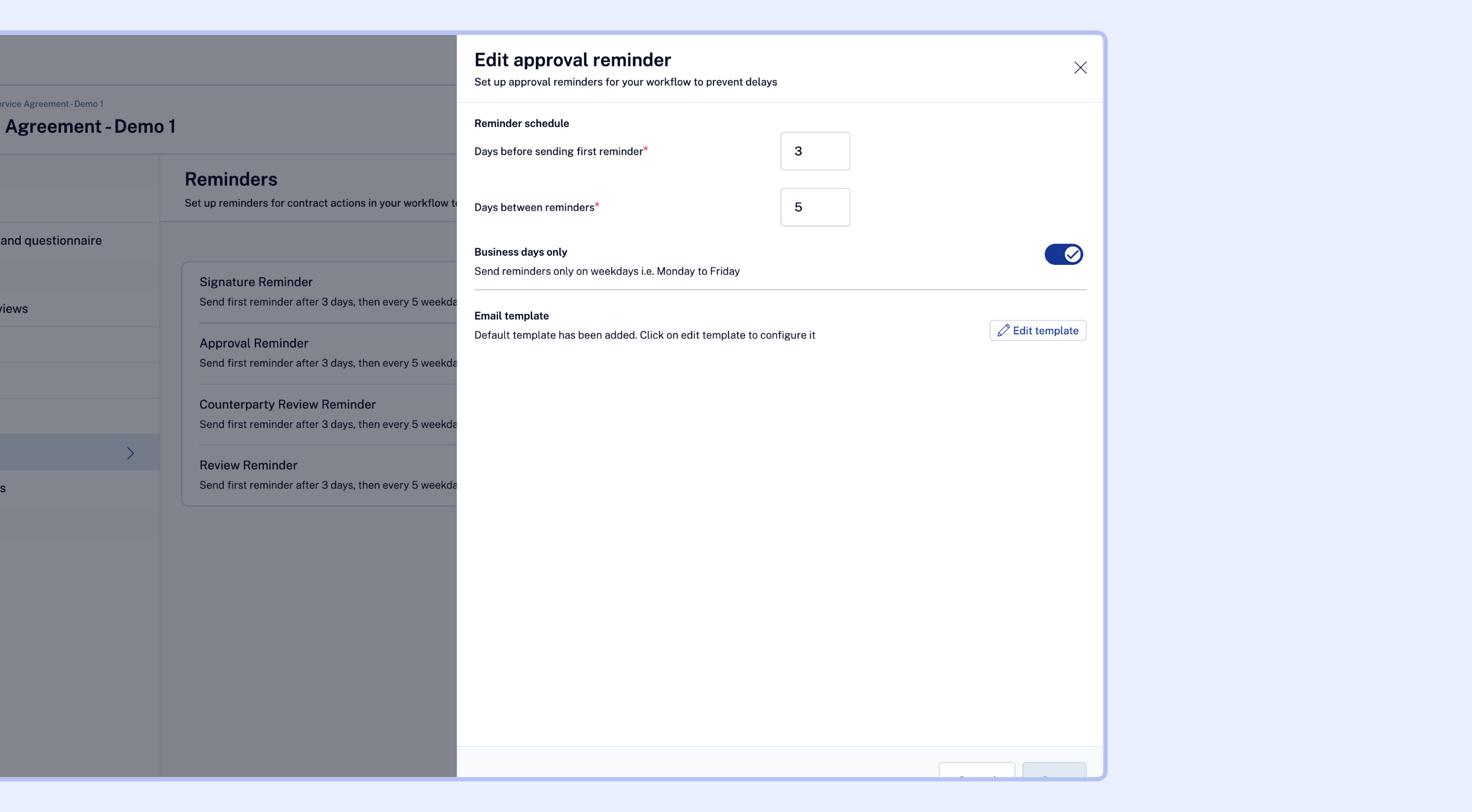
Save your changes and Publish the workflow.
Note: Approval reminders apply to both pre-configured approvals and ad-hoc approvals added directly to a contract.
Note: Reminders do not apply to legacy request review tasks, it works for reviews pre-configured in the workflow.
Customizing the Reminder Email Template
SpotDraft sends reminder emails using a standard template. You can customise the content of these emails to match your organisation's tone.
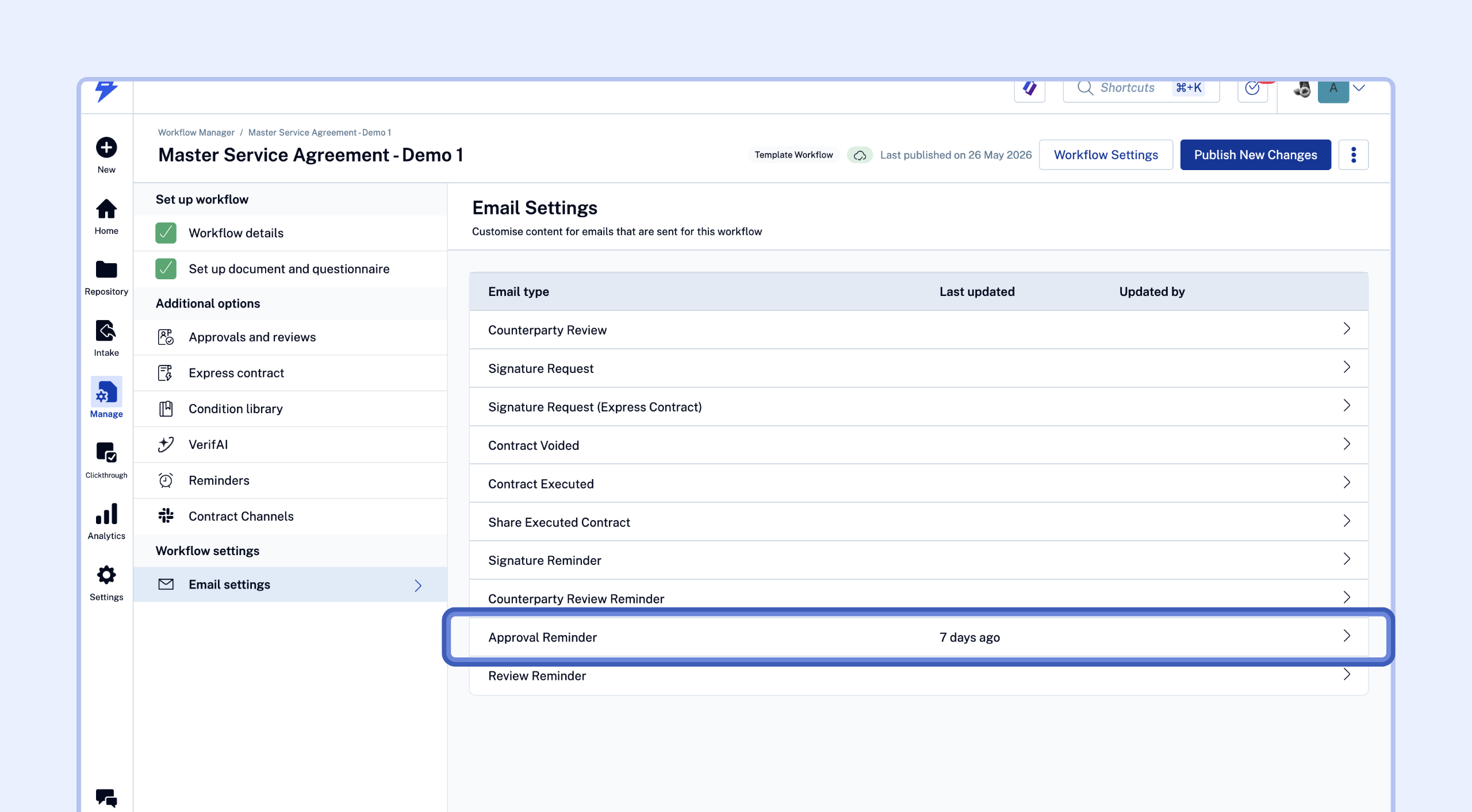
In the Workflow Manager, navigate to the Email Settings tab for the relevant workflow.
Select the Approval Reminder or Review Reminder email template.
You can use dynamic variables such as [Contract Name], [Requester Name], and [X days] (to show how long the task has been pending) to personalise the message.
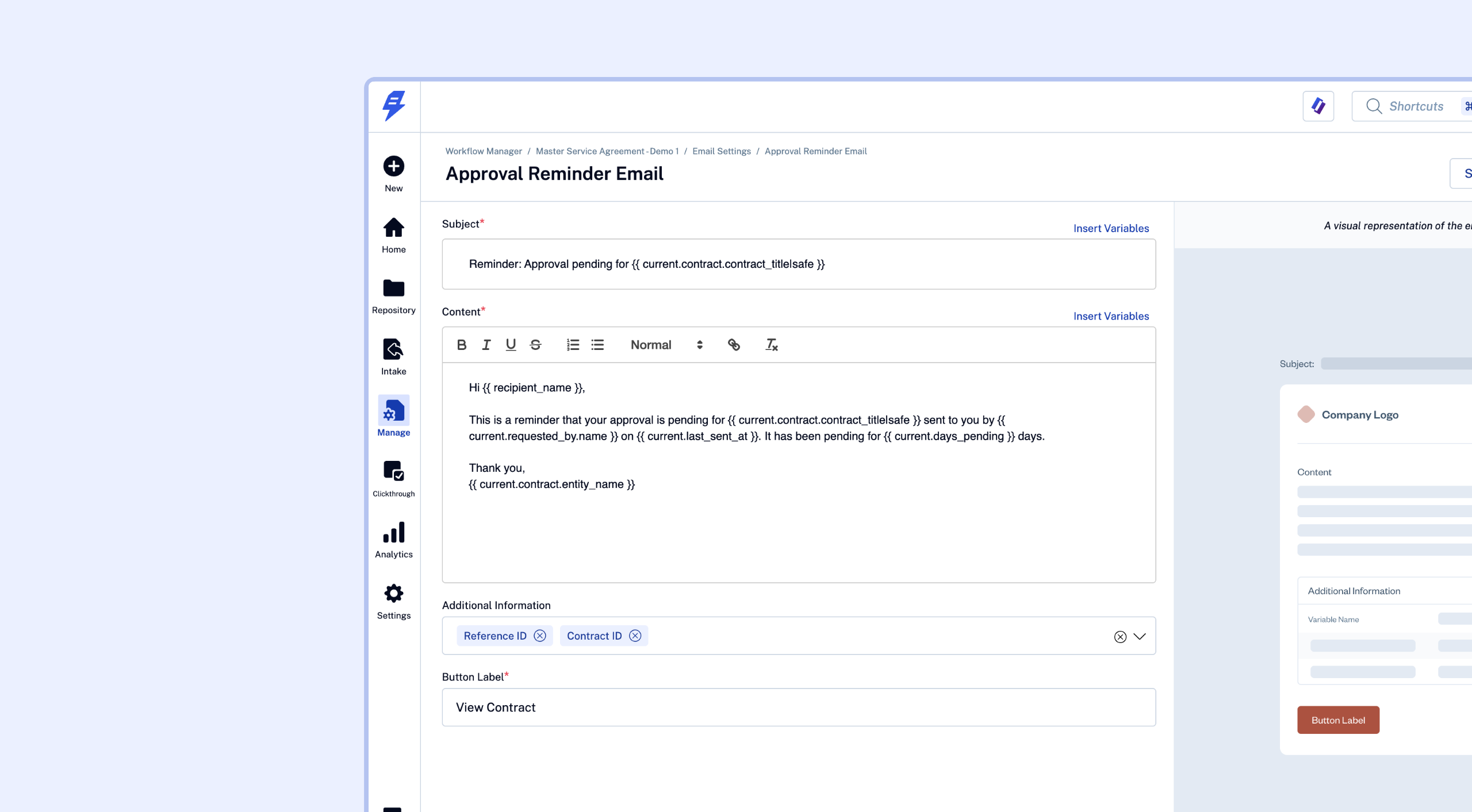
Save the template and Publish the workflow.
Reminder Logic and Behaviour
When It Starts
The reminder countdown begins the moment an approval or review task is triggered on the contract (i.e., its status changes to Pending). If the task is not acted on within the configured delay, the first reminder is sent.
When It Stops
Automated reminders stop automatically when:
The approver approves the contract.
The approval or review task is skipped.
The approval is reverted.
The contract is voided or deleted.
When an Approval Is Rejected
If an approver rejects an approval, SpotDraft shifts the reminder to the original requester — prompting them to resolve the feedback and collect the approval. The reminder schedule continues on the same cadence until the requester takes action.
Role-Based Approvers
If an approval is assigned to a team role rather than an individual, all active members of that role will receive the automated reminder email.
Slack Notifications
If your workspace has the SpotDraft Slack integration active, automated approval and review reminders are also delivered as Slack messages to the approver or reviewer, in addition to the email.
Tracking Reminders
At the Contract Level
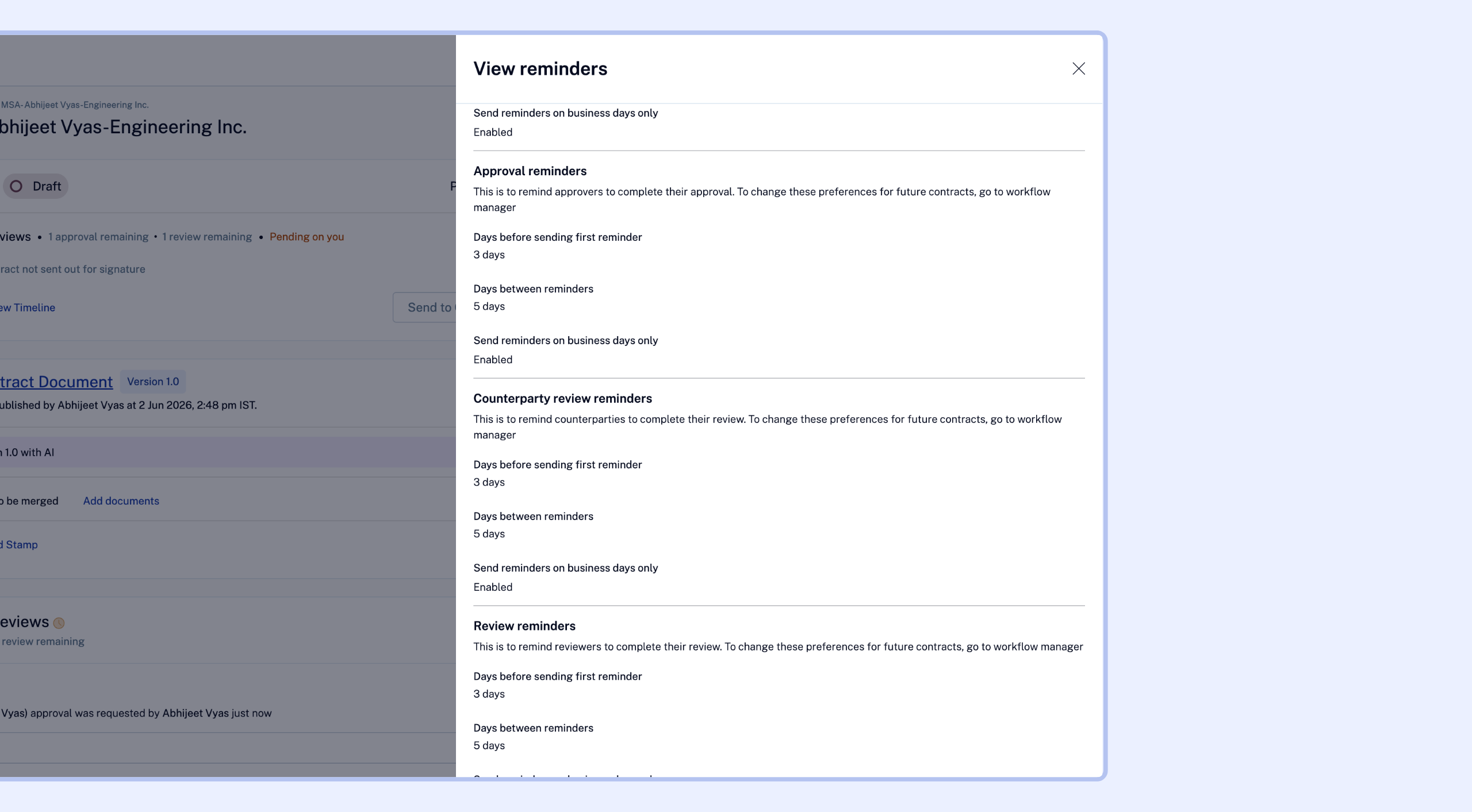
For any active contract, you can view the current reminder settings by clicking the More Actions (three-dot) menu on the Contract Details page and selecting View Reminders. These settings are read-only at the contract level and reflect the configuration inherited from the workflow at the time the contract was created.
Frequently Asked Questions
Q: Do approval reminders work for ad-hoc approvals (approvals added manually to a contract)?
A: Yes. Approval reminders apply to all pending approval tasks on a contract, regardless of whether they were set up via the workflow or added ad-hoc. The reminder configuration lives at the contract level and is shared across all approval types.
Q: Can I configure different reminder schedules for different approvals on the same contract?
A: No. All approval tasks on a contract share the same reminder schedule, inherited from the workflow at contract creation. There is currently no per-approval configuration.
Q: What happens if the approver hasn't acted but the contract is put on hold?
A: If a contract is voided or deleted, all automated reminders are cancelled. If a contract is paused in other ways, refer to your workspace settings — reminders tied to paused, voided or deleted contracts are stopped.
Q: Will the assigned approver be reminded if they are part of a team role?
A: Yes. If the approval is assigned to a role (team), all active members of that role will receive automated reminder emails.
Q: Can I customise the reminder email content?
A: Yes. You can edit the email template for Approval Reminders and Review Reminders in the Email Settings tab of the Workflow Manager. Dynamic variables are supported.