Darwinbox integration
Last updated: March 23, 2026
SpotDraft’s Darwinbox integration is designed for HR Operations teams to streamline employee contract creation and ensure accurate employee data flows seamlessly between Darwinbox and SpotDraft.
This integration helps HR teams reduce manual effort, improve data accuracy, and centralize employee contracts in SpotDraft while keeping Darwinbox updated with executed documents.
Who is this integration for?
This integration is primarily built for:
HR Operations teams
People Ops teams involved in offer letters and employment contract management
It is best suited for organizations using Darwinbox as their HRMS and SpotDraft for contract creation and execution.
What problems does this integration solve?
With the Darwinbox integration, HR teams can:
Automatically generate employee contracts in SpotDraft using predefined templates
Ensure employee data from Darwinbox flows accurately into contracts
Push executed contract PDFs back into Darwinbox for record-keeping
Maintain a single source of truth for employee contracts in SpotDraft
How the Darwinbox integration works
Trigger from Darwinbox
The integration is powered by Darwinbox webhooks. When specific events occur in Darwinbox (for example, candidate activation or offer-related events), a webhook is triggered.Contract creation in SpotDraft
Based on the webhook event, SpotDraft automatically generates a contract using a predefined SpotDraft template.
Employee information, such as role, compensation, start date, manager, and other candidate details are populated from Darwinbox into the contract.Contract execution in SpotDraft
The contract follows SpotDraft’s standard signing and execution workflow.Executed PDF pushed back to Darwinbox
Once the contract is fully executed, the signed PDF is automatically pushed back to Darwinbox for HR records.Centralized contract repository
All generated contracts appear directly at the top of the SpotDraft contract repository for easy access and visibility.
Supported contract flows
Currently, the Darwinbox integration supports:
Template-based contract generation in SpotDraft
The following are not supported at this time:
Third-party paper flows
Contract updates or amendments after initial generation
Data synced from Darwinbox to SpotDraft
The integration uses employee and candidate information available in Darwinbox, including but not limited to:
Candidate name, Role or designation, Compensation details, Start date, Reporting manager, etc.
Technical Setup Guide
📝 Prerequisites
Takes 20-30 minutes to complete the set up
Darwinbox Studio access
SpotDraft Admin or Integrations access
Ensure "Darwinbox" integration is enabled in your SpotDraft workspace
⚙ Installation & Configuration
A. Darwinbox Studio Configuration
Login to your org's Darwinbox Admin portal
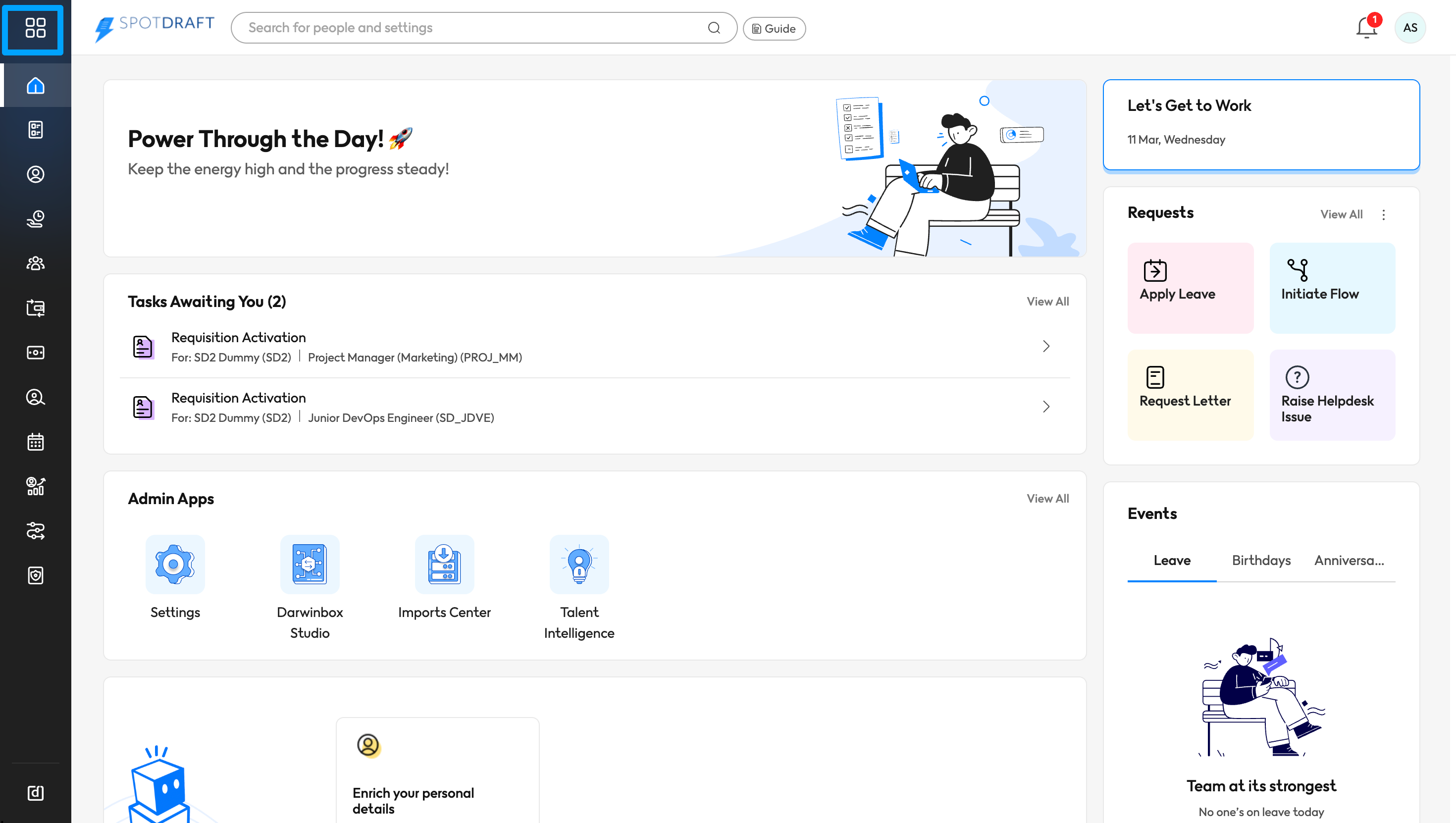
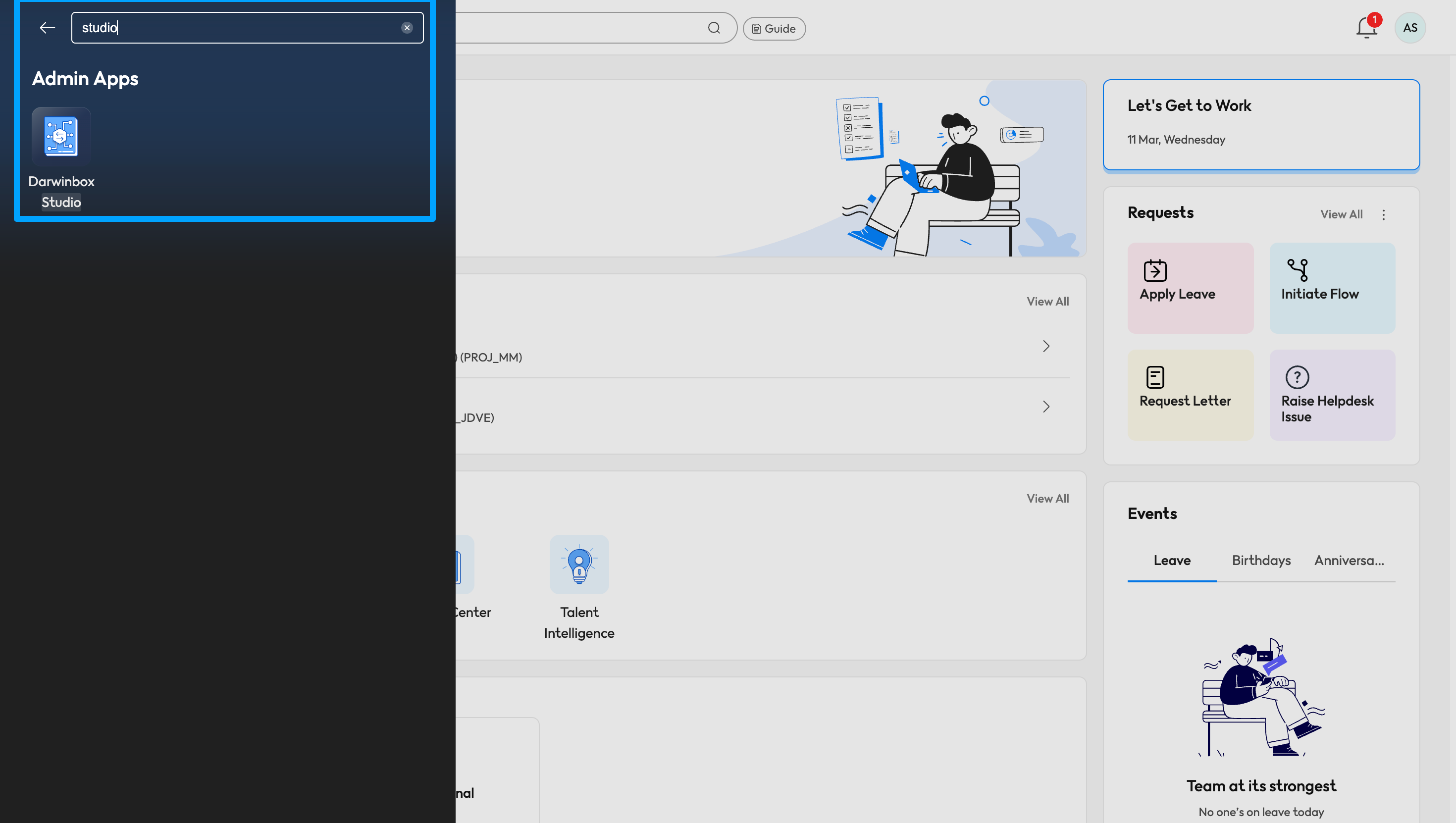
Search for Darwinbox Studio & open
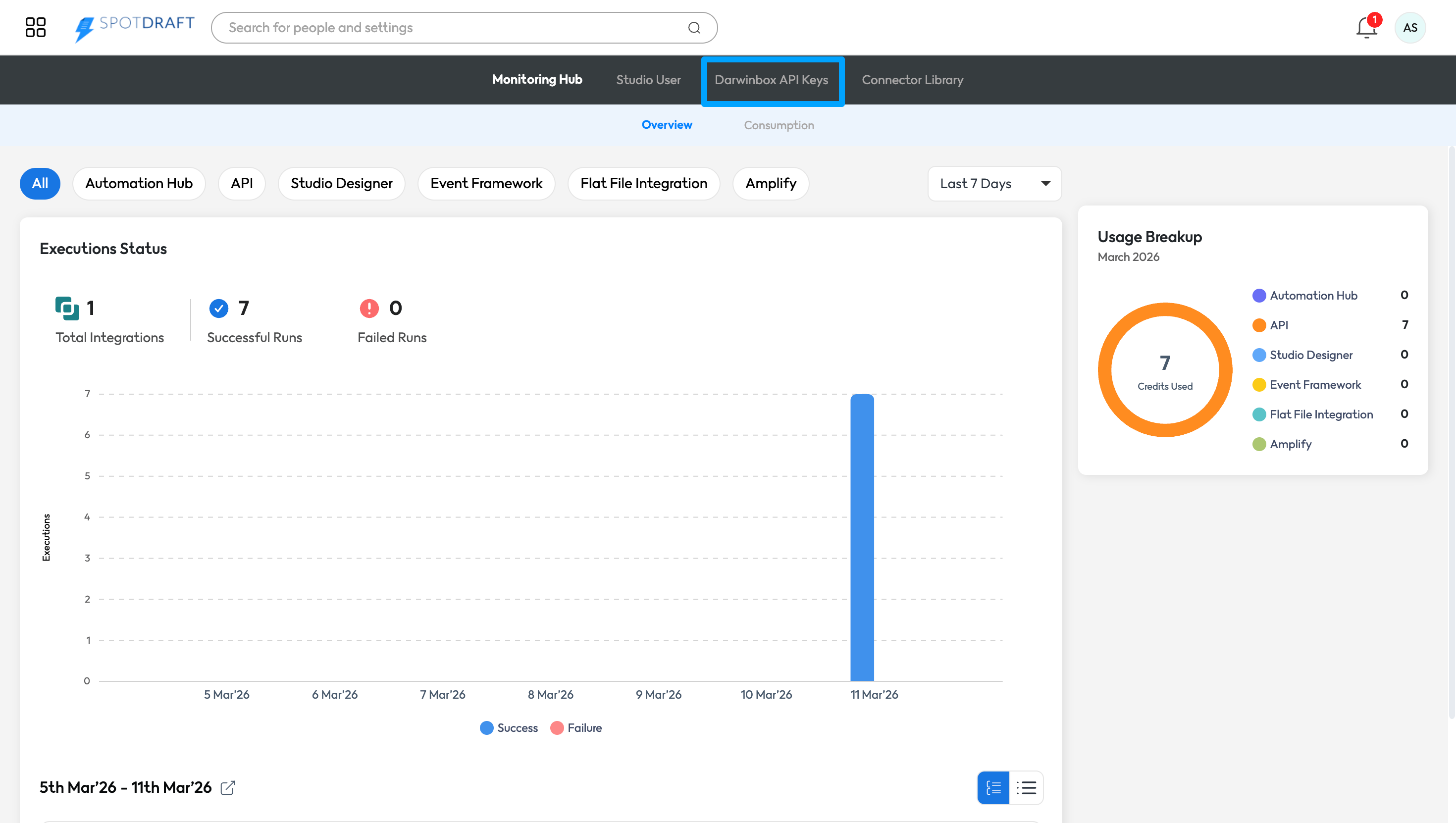
Locate & open Darwinbox API Keys section
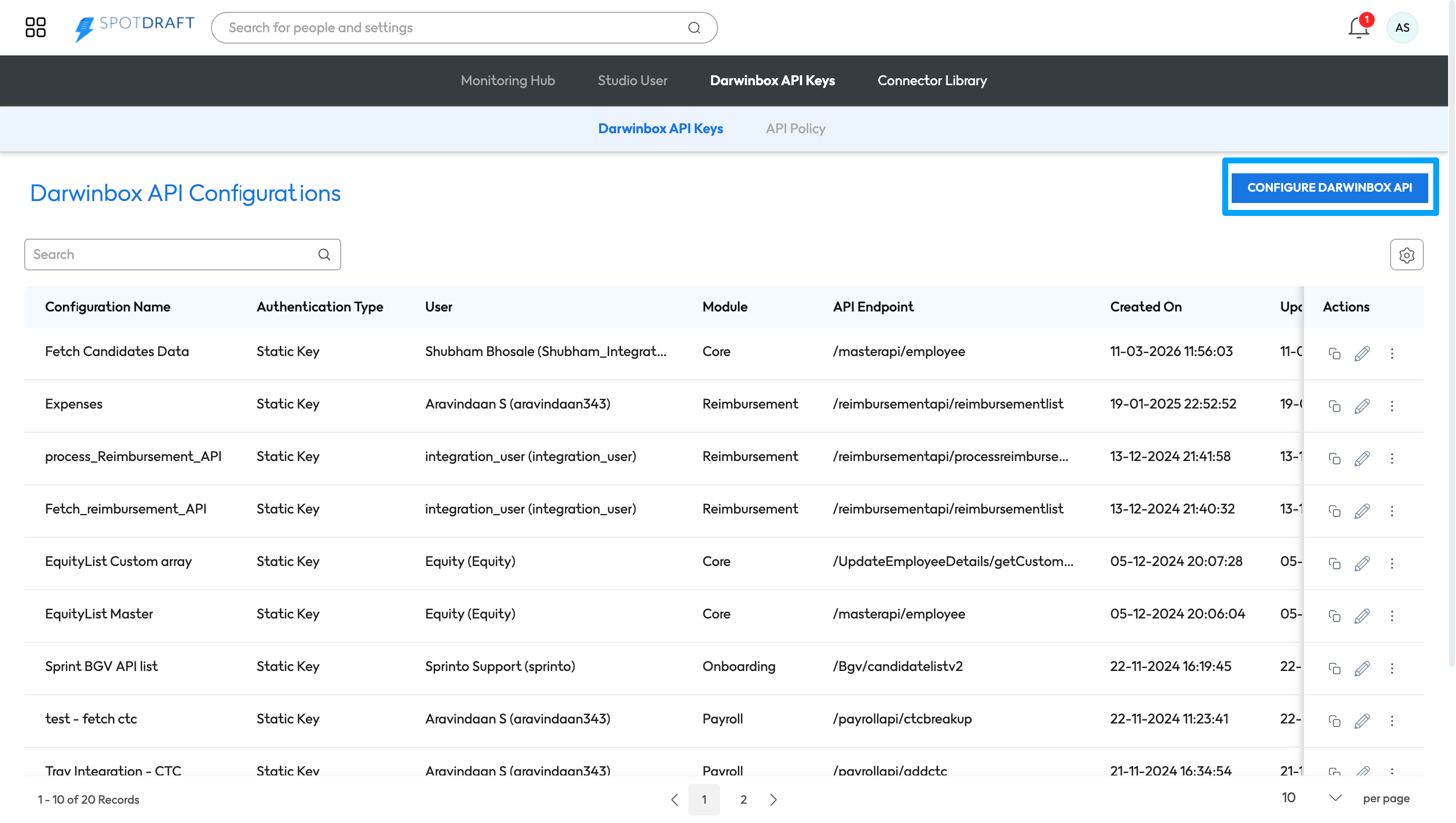
Click on Configure Darwinbox API option to create new API configuration
Enter the mandatory details and create new API
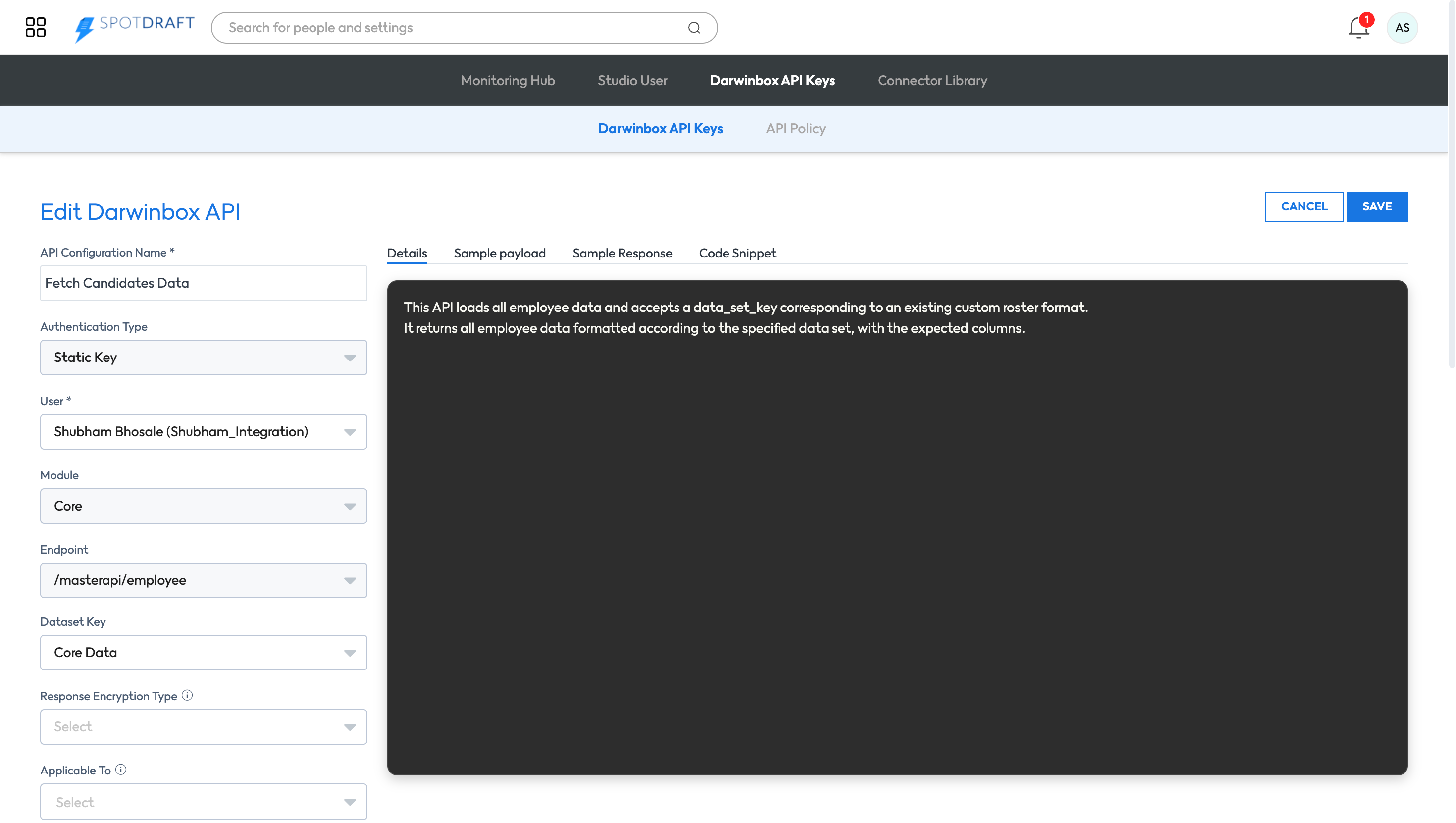
Give API Configuration name
Authentication Type
User - make a note of selected user's User ID & Password
Module -> Core
Endpoint -> /masterapi/employee
Dataset Key -> Core
Optional fields
Response Encryption Type
Applicable To
API Policy
Hit Save to create API configuration.
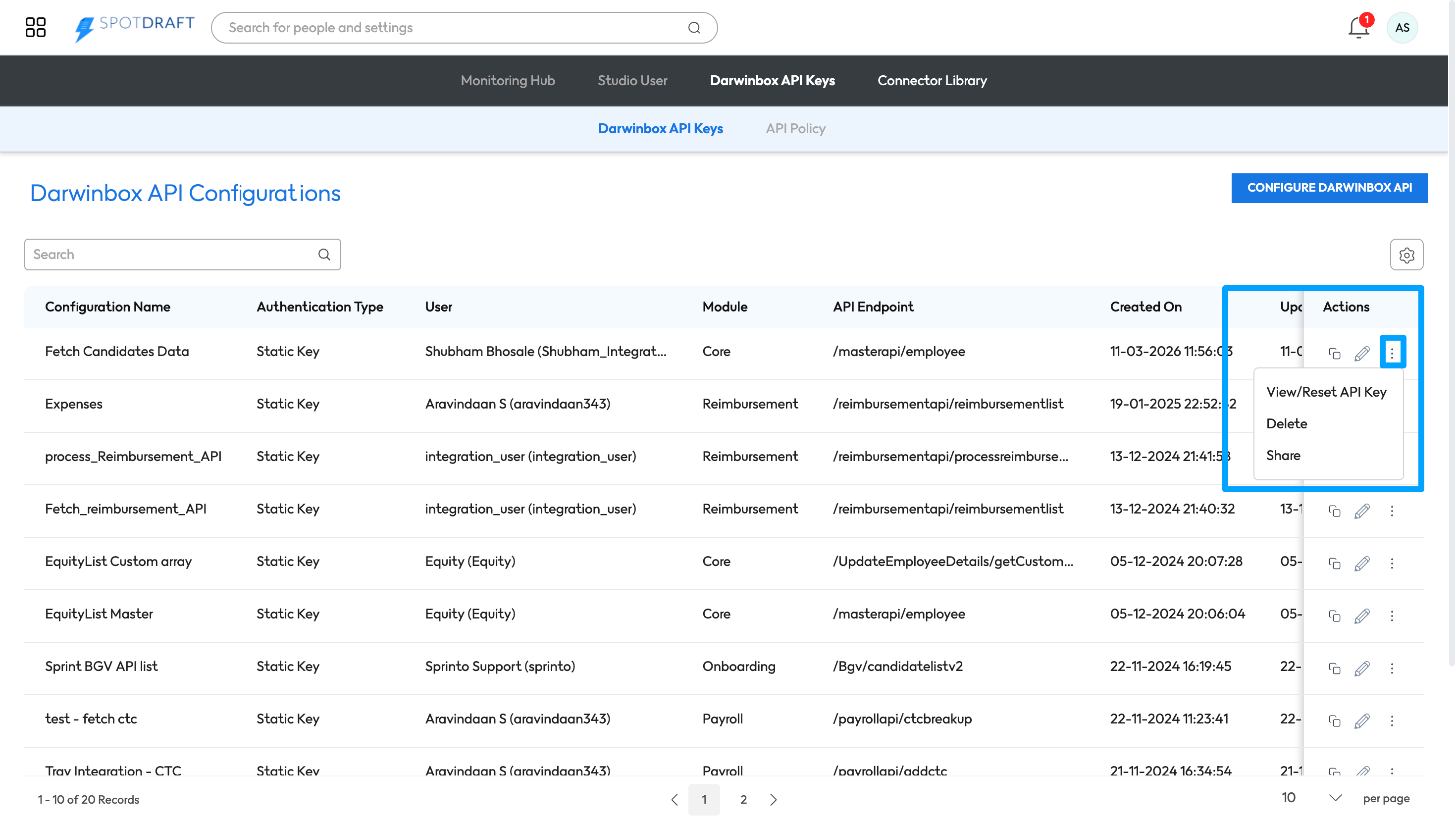
Once API is created, click on three dots and open 'View/Reset API Key'
Make a note of below details
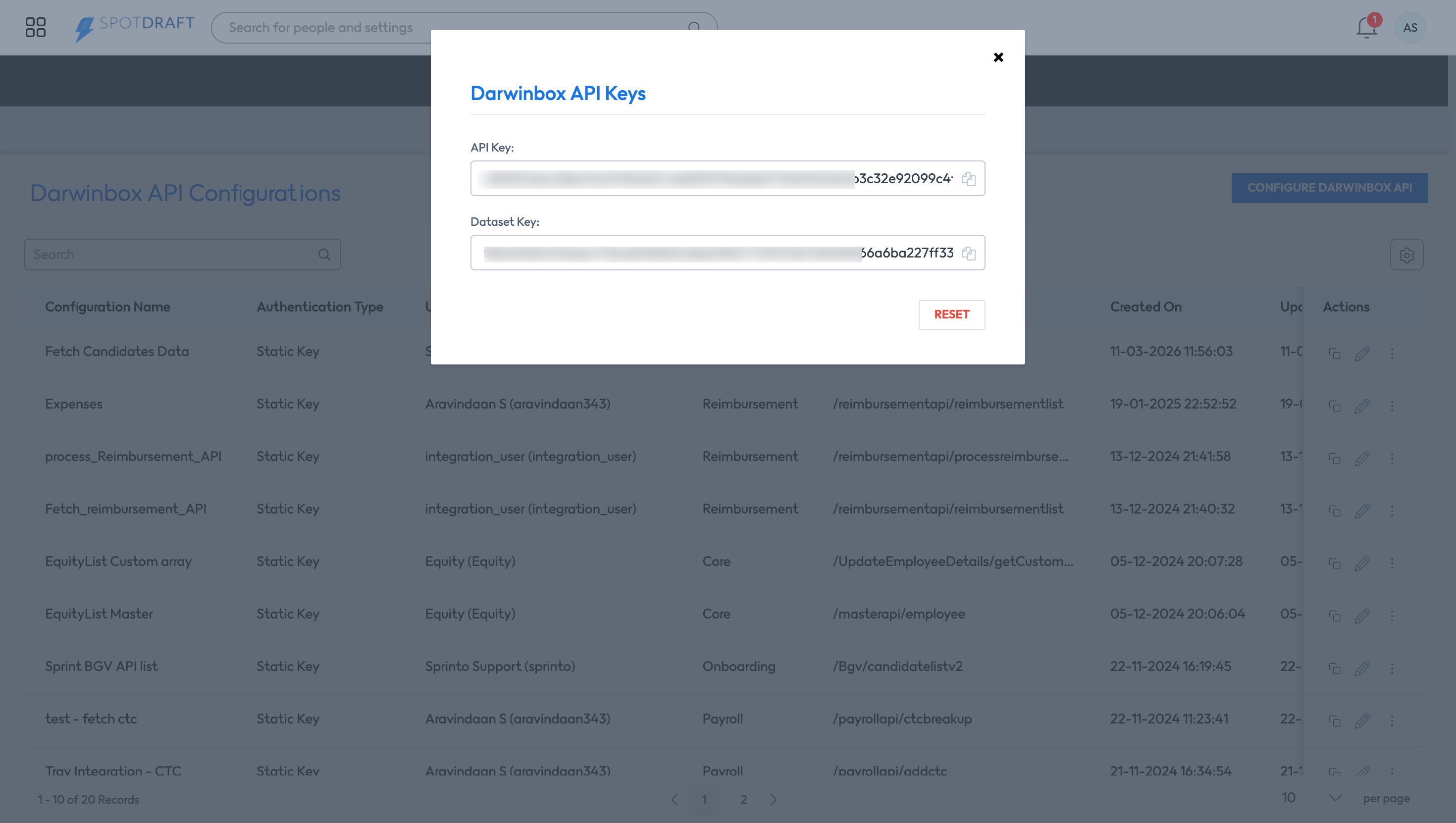
API Key
Data Set Key
User ID of selected user while creating API (you can get it from Darwinbox Studio Users
Password of selected user while creating API
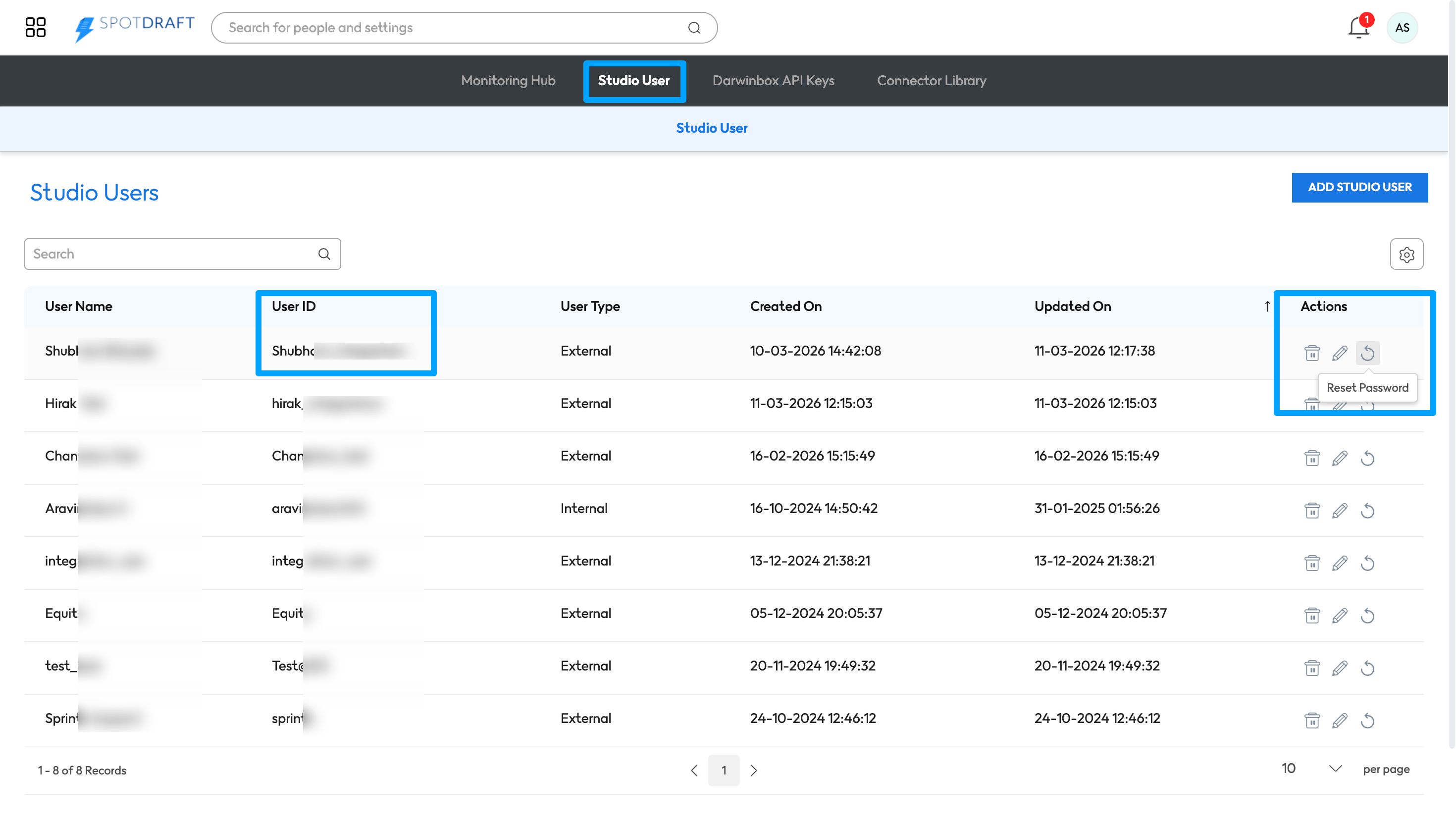
Copy & paste these details on a notepad for better accessibility while authentication.
B. SpotDraft Configuration
Login to your SpotDraft workspace and navigate to Settings→ Integrations.
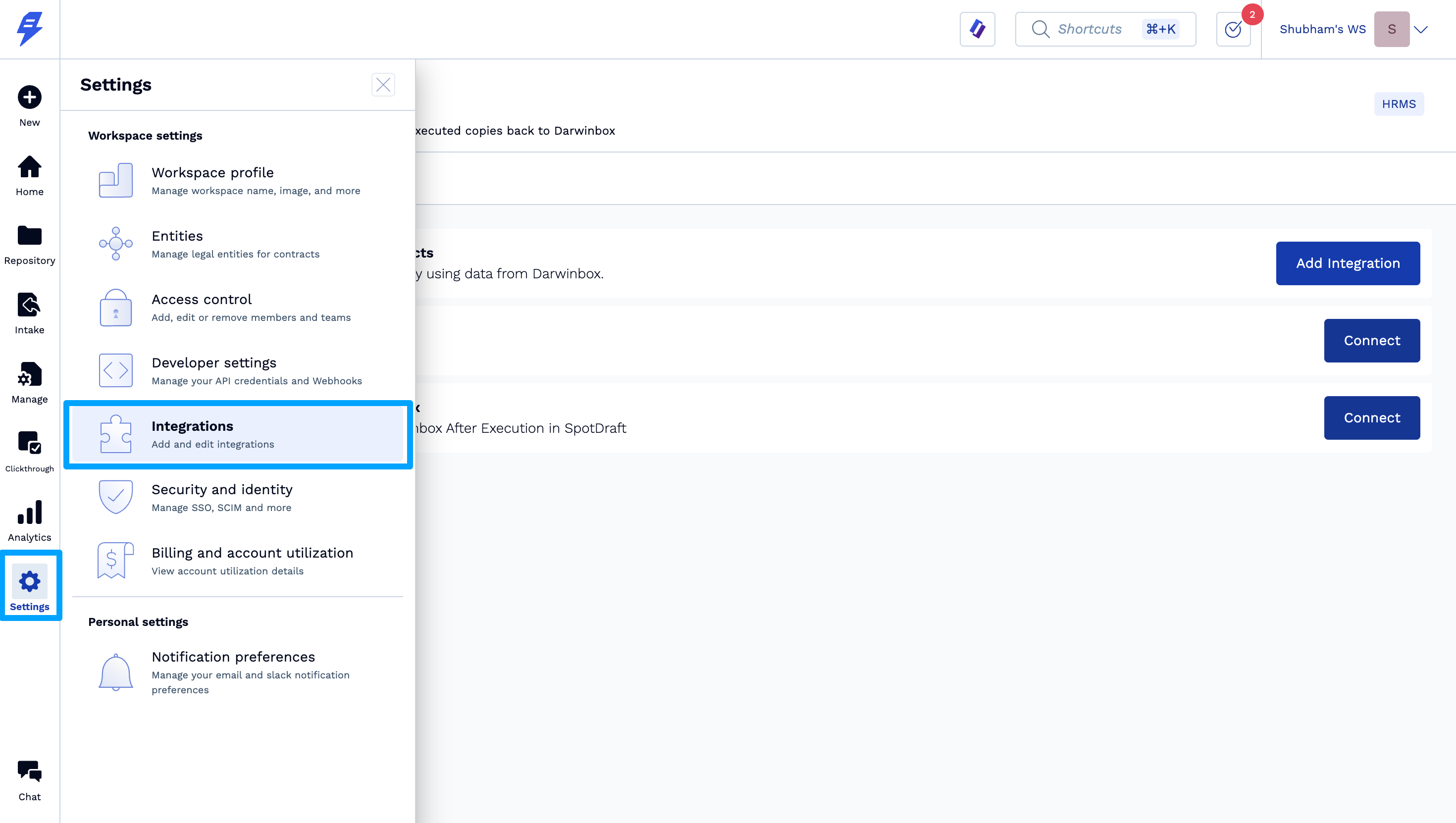
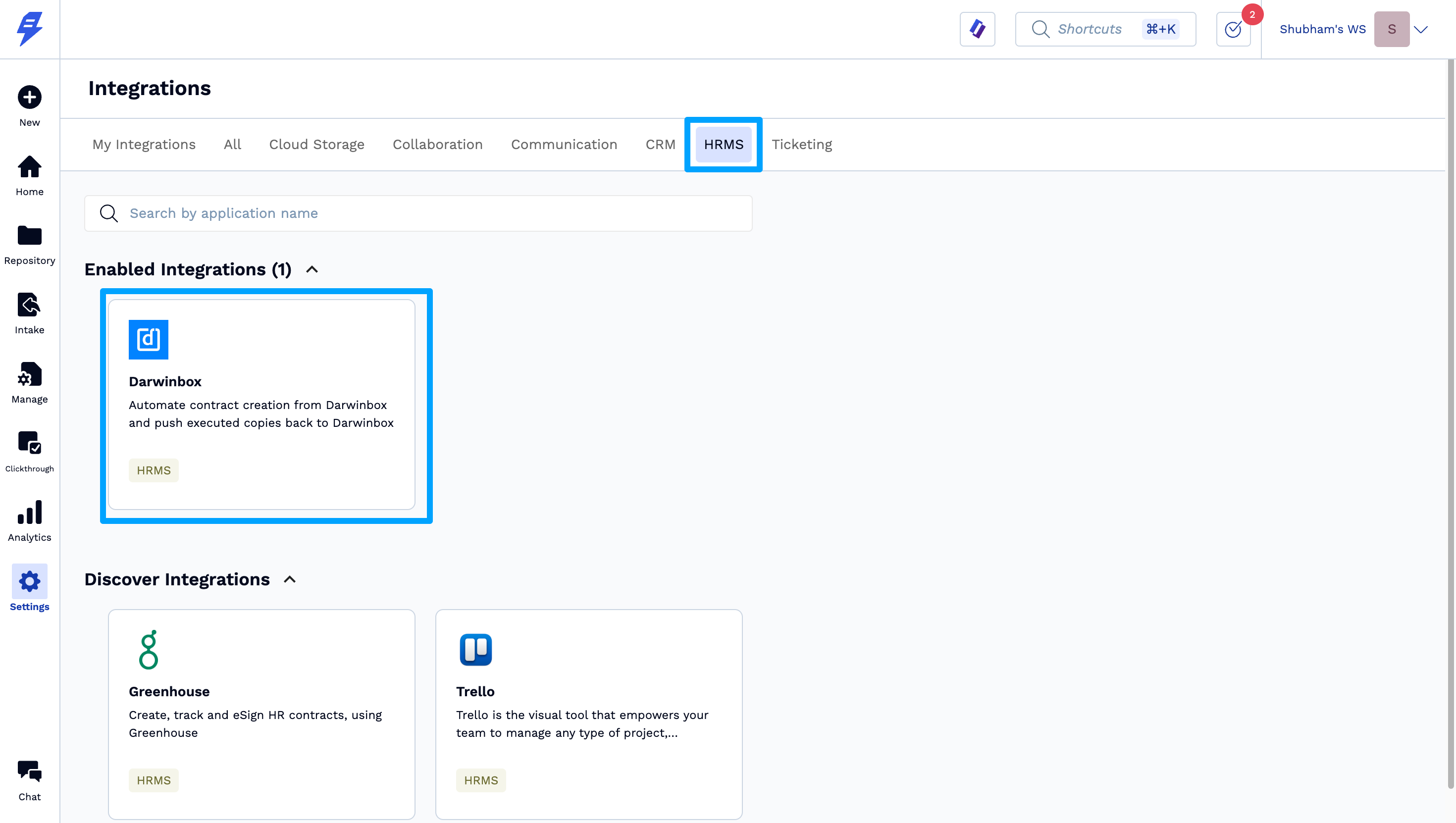
Open the HRMS section and select Darwinbox and open Setup
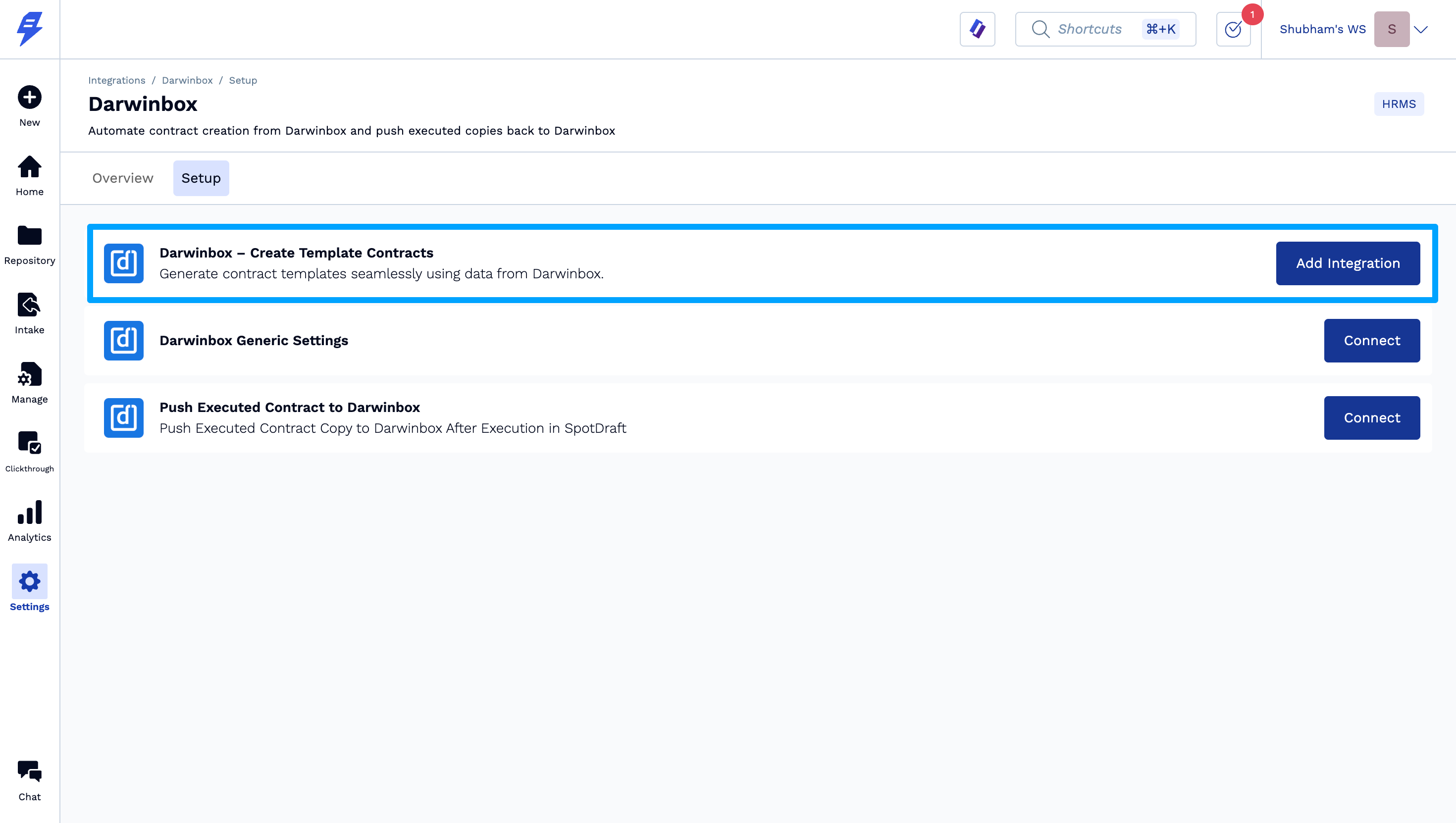
Click on Darwinbox - Create Template Contracts 'Add Integration' option
Setup wizard
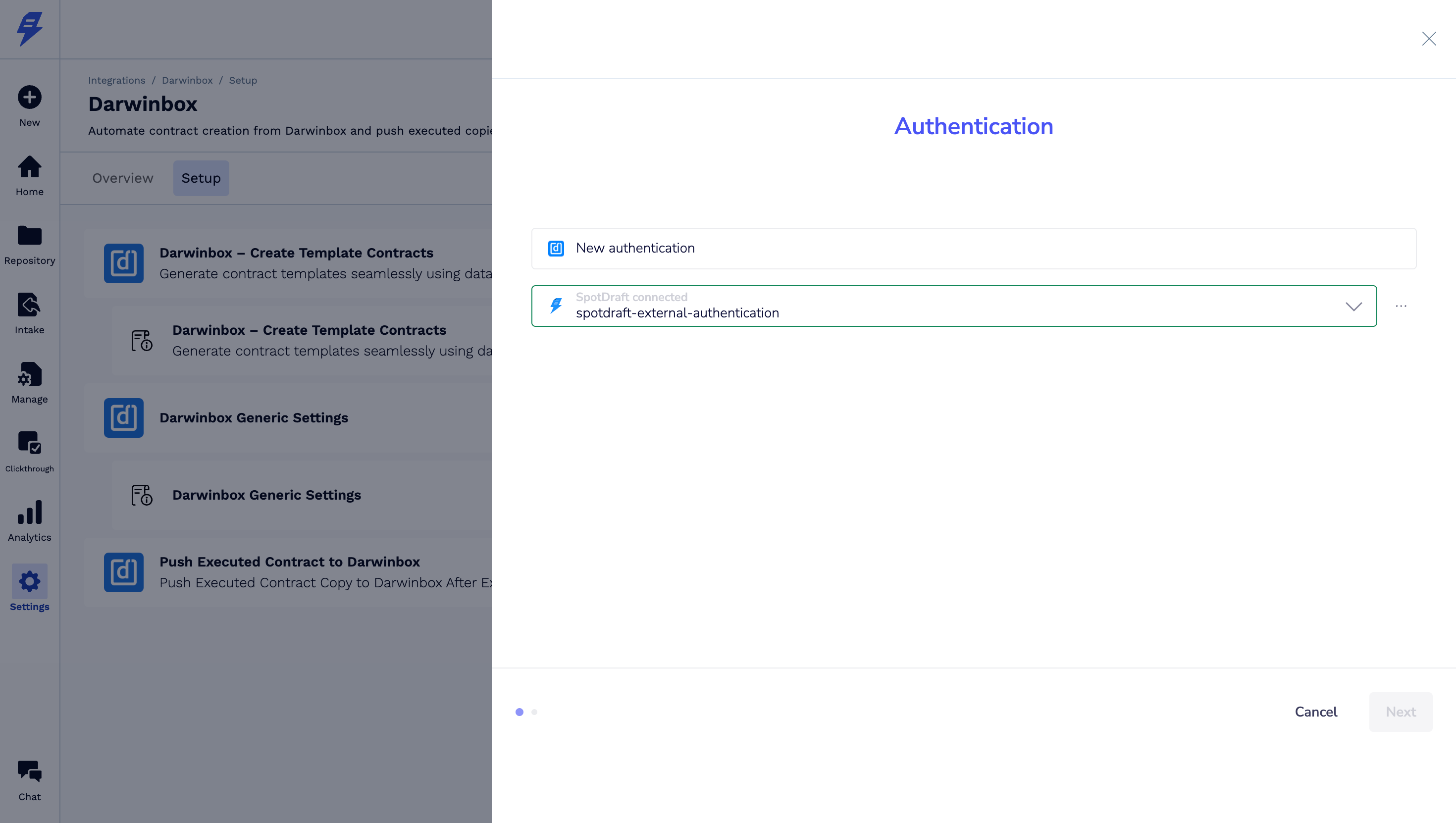
4.1 Click on New Authentication for Darwinbox
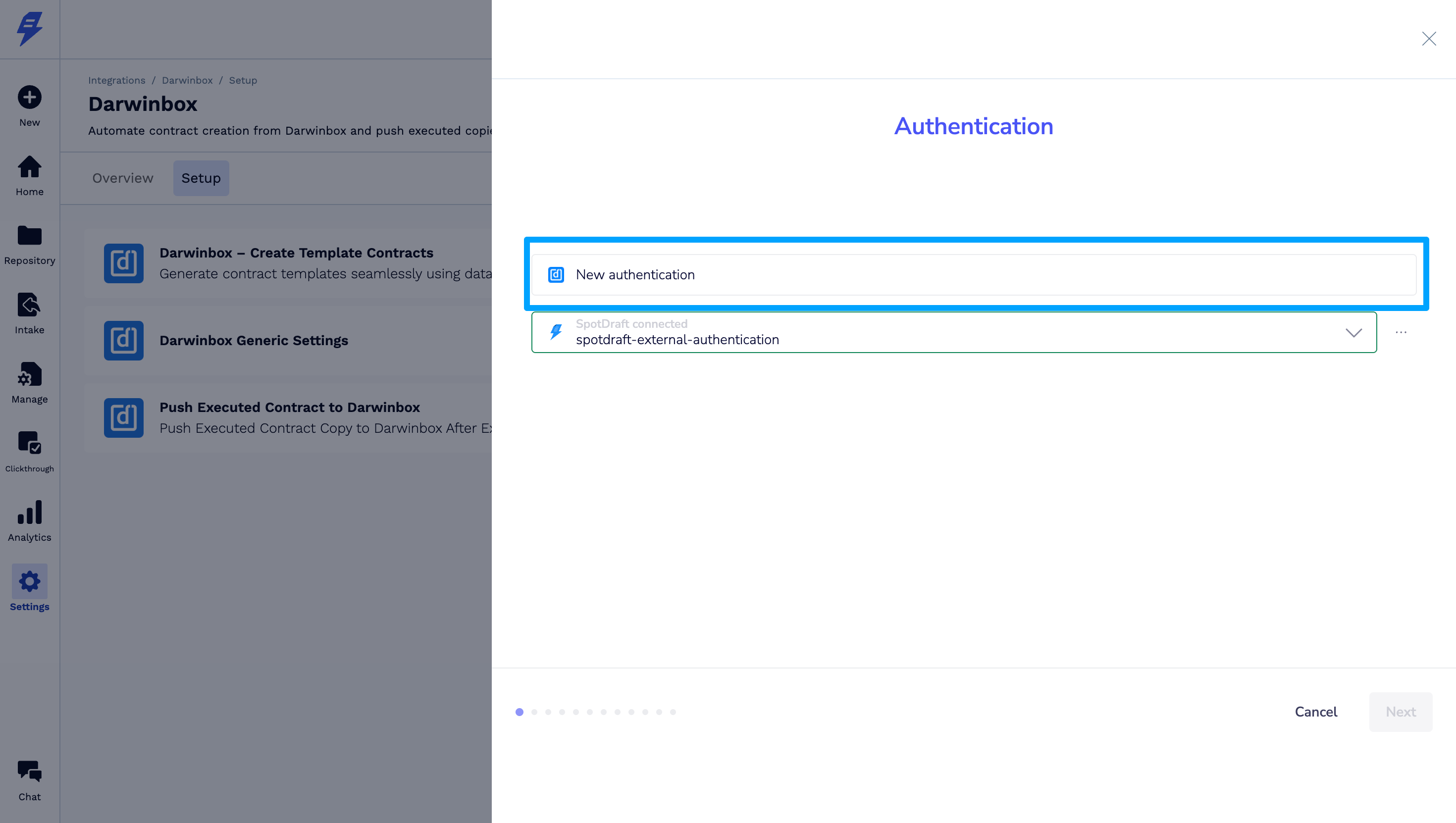
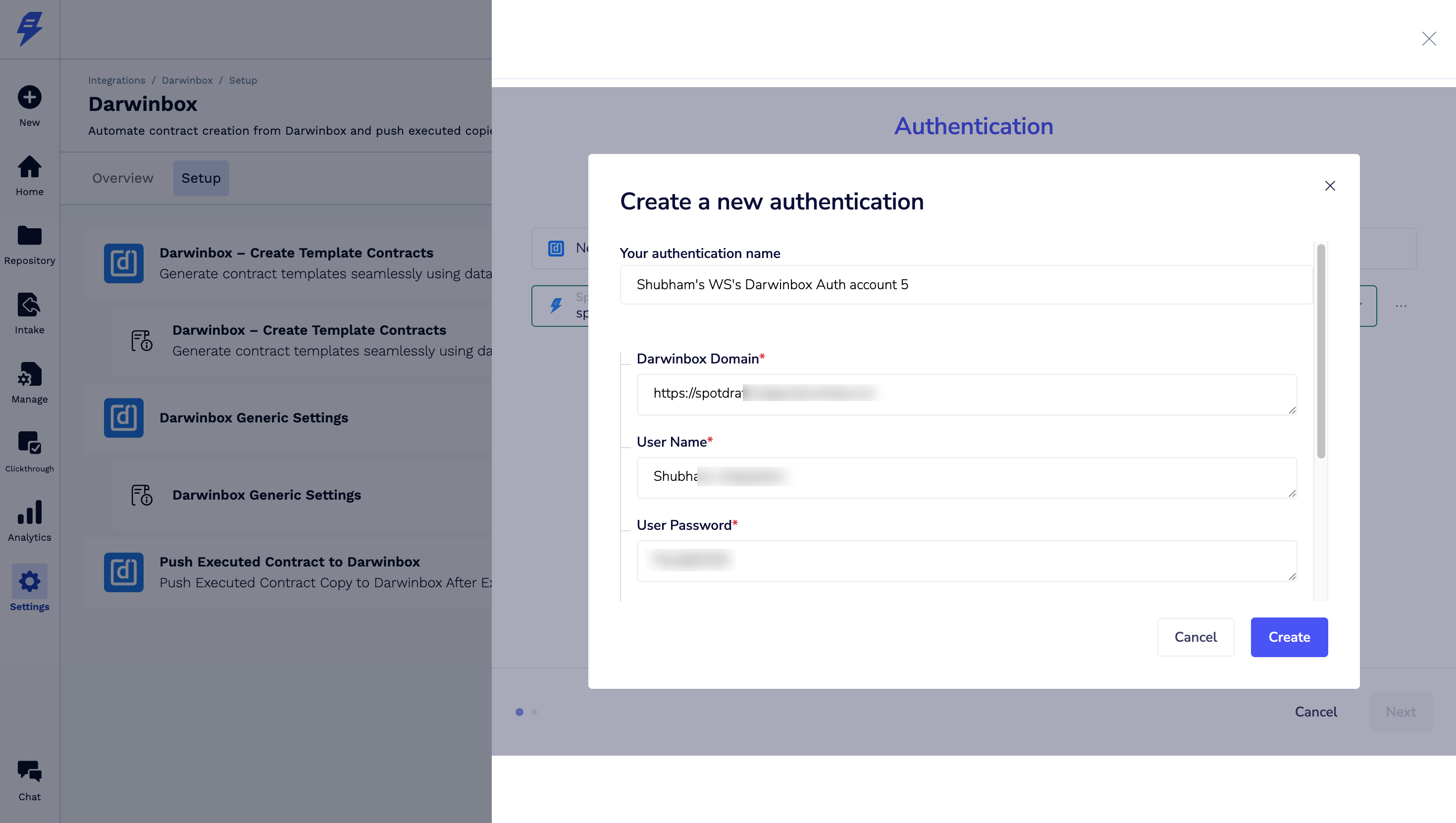
4.2 Enter details to complete authentication
Authentication Name
Darwinbox Domain - something like spotdraft.darwinbox.io/
Enter below details as per Darwinbox Configuration Steps
User name - Enter the User ID
User Password
API Key
Dataset Key
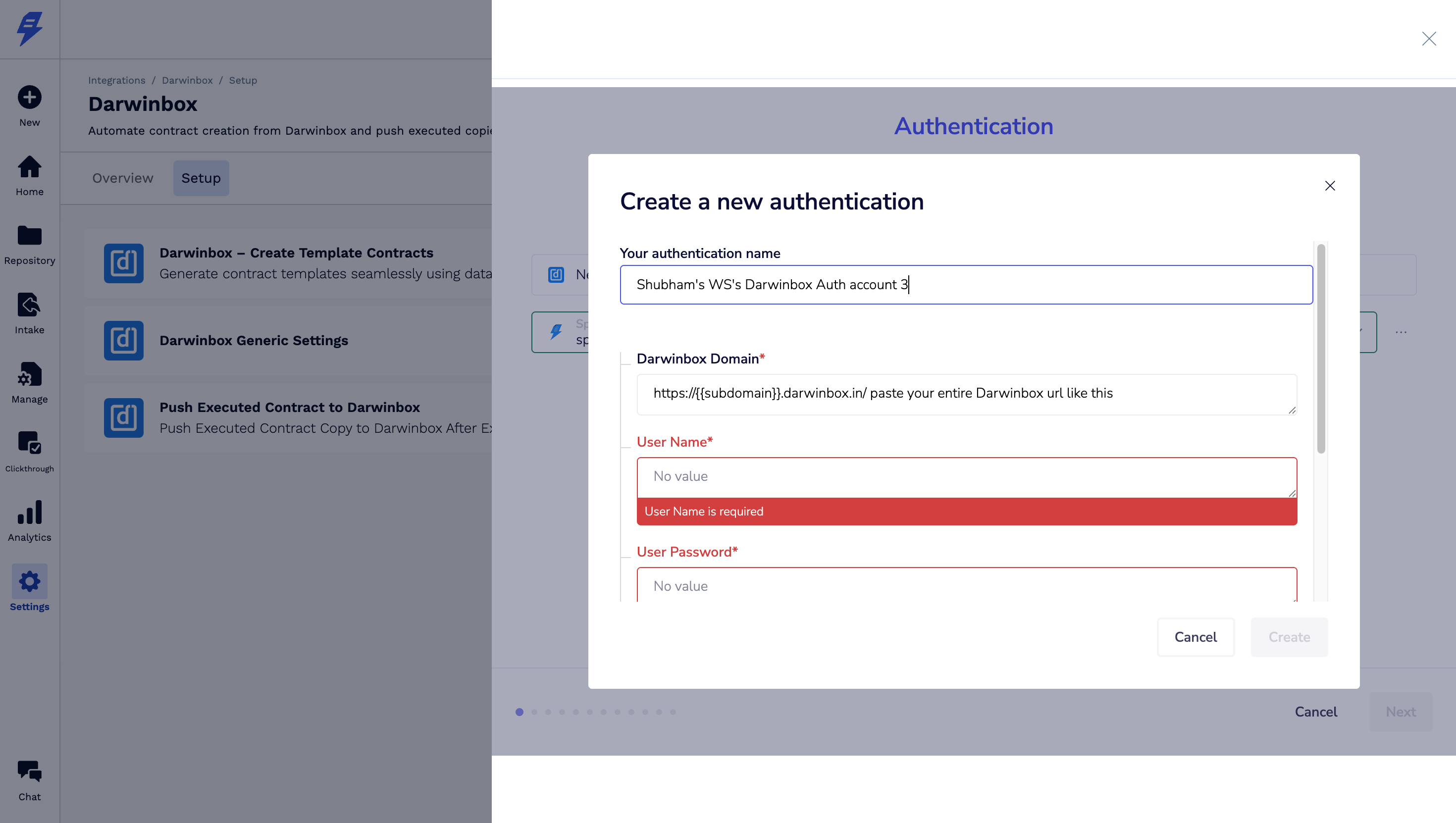
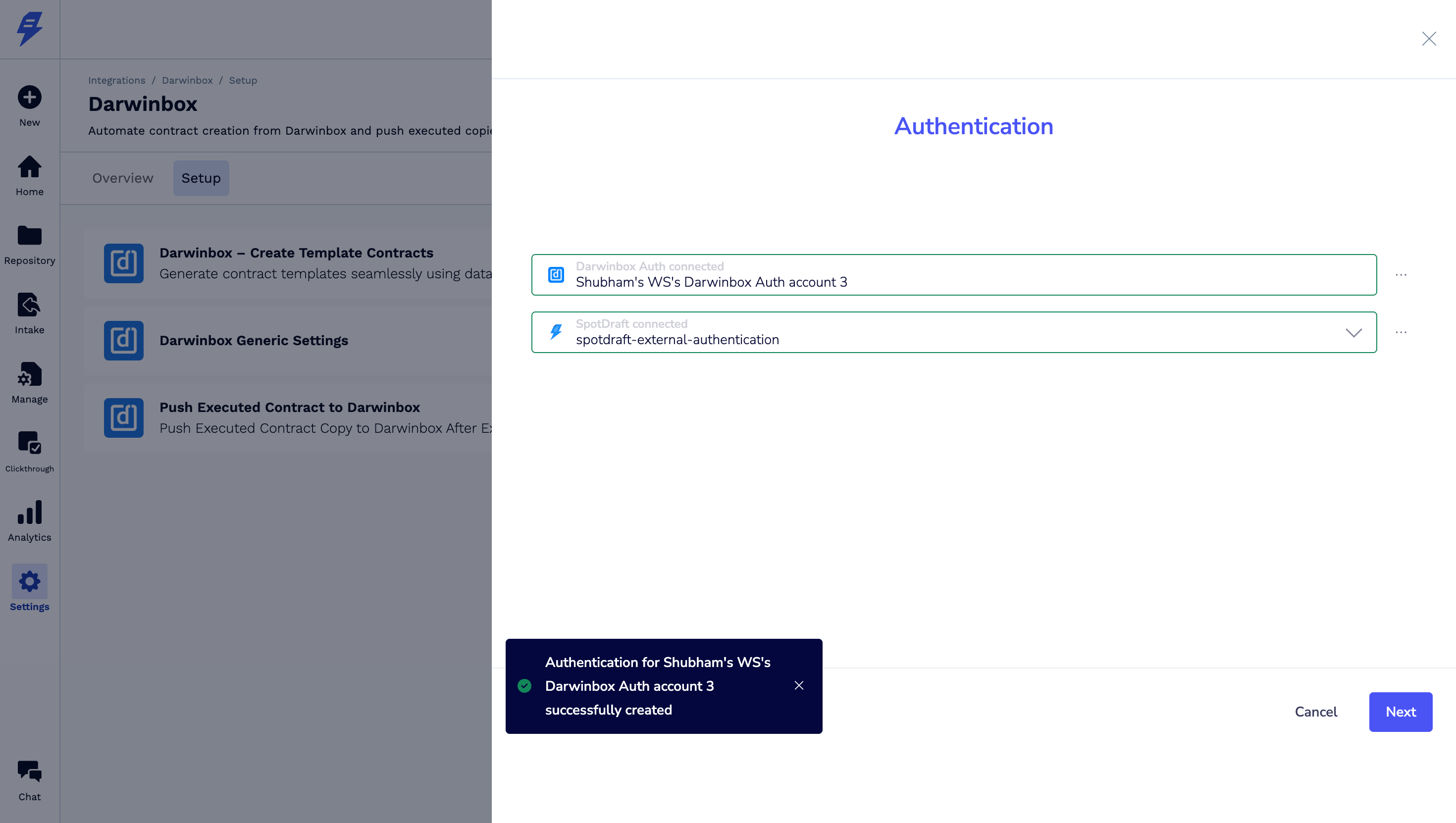
4.3 Click on Create to complete authentication. You will get successful message & then click Next
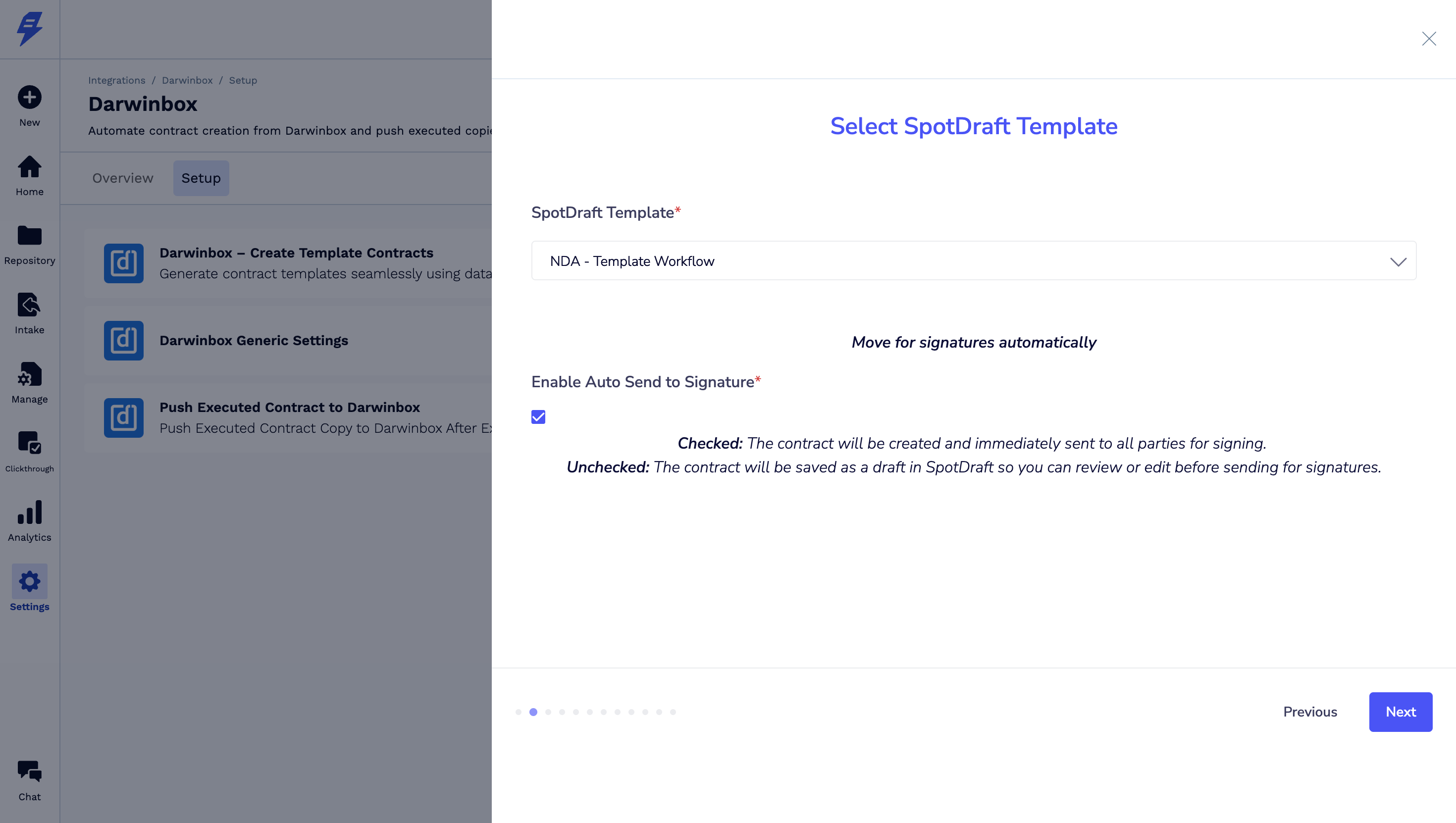
4.4 Select SpotDraft Template which you want to use as integration with Darwinbox & Move for signatures automatically - Enable Auto Send to Signature
Checked: The contract will be created and immediately sent to all parties for signing. Unchecked: The contract will be saved as a draft in SpotDraft so you can review or edit before sending for signatures.
Click on Next
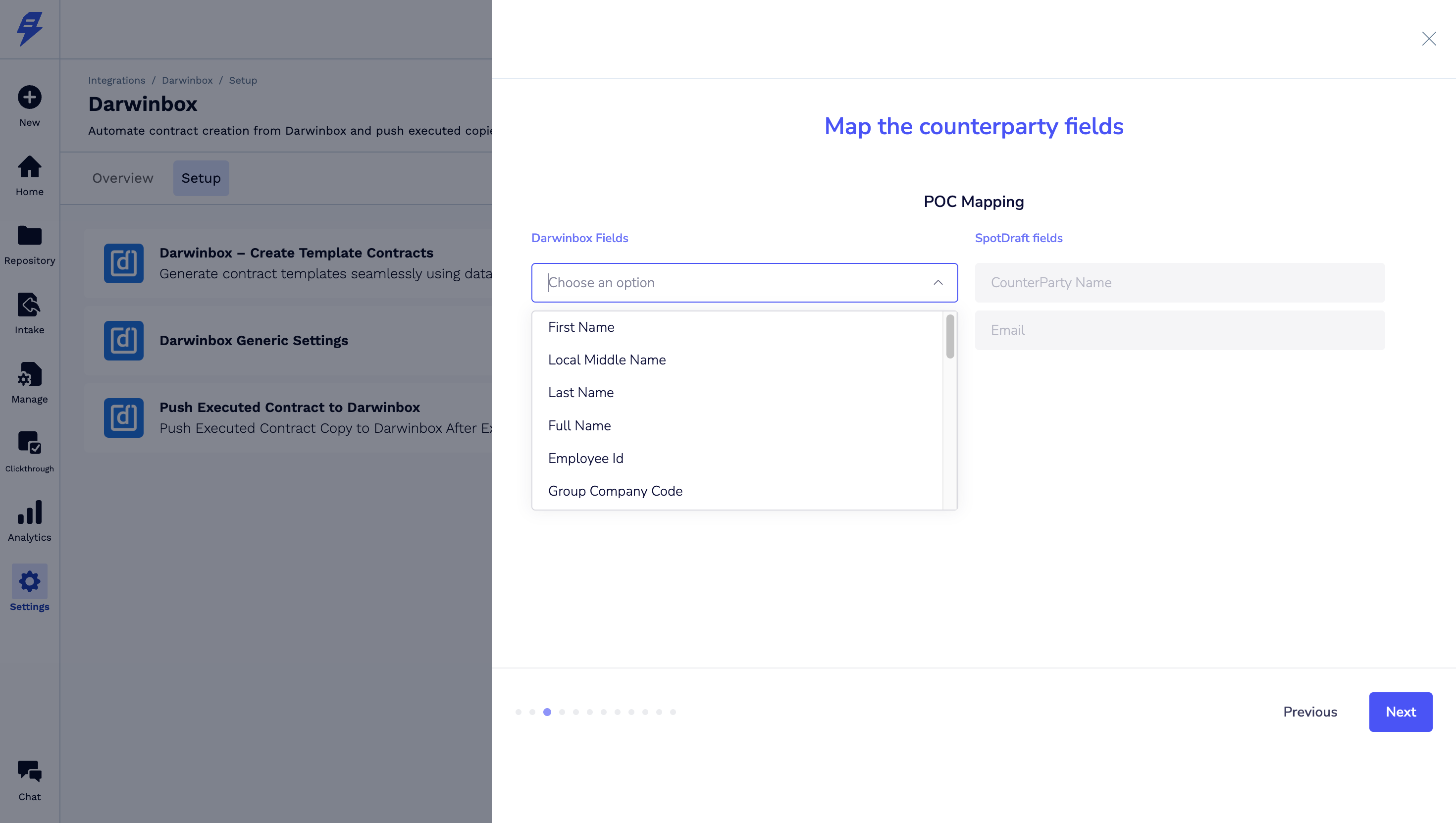
4.5 Map the two important fields - Counterparty Name & Email from the dropdown. These dropdowns show fields available in your Darwinbox account.
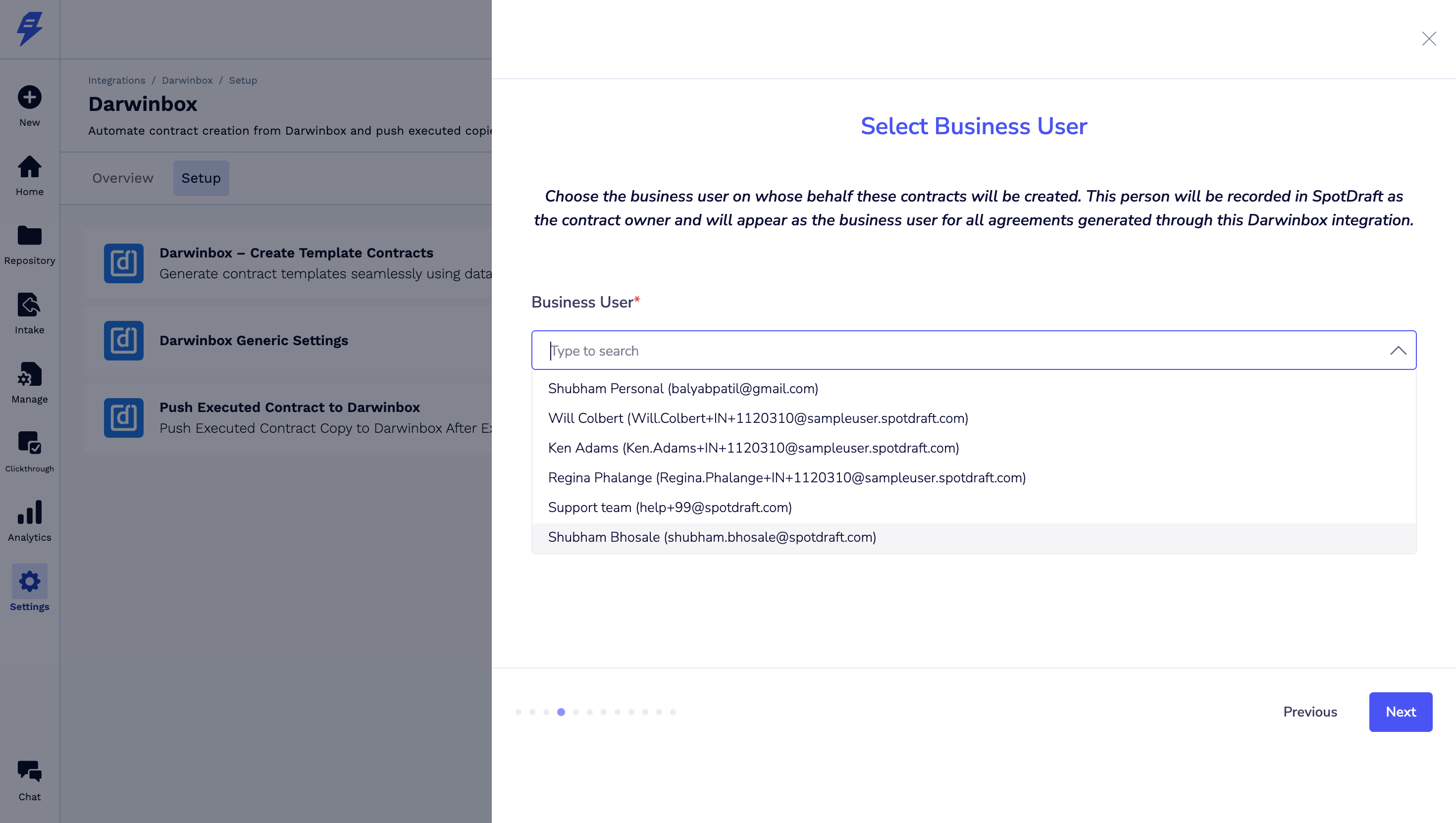
4.6 Selecting Business User - Choose the business user on whose behalf these contracts will be created. This person will be recorded in SpotDraft as the contract owner and will appear as the business user for all agreements generated through this Darwinbox integration.
Click on Next
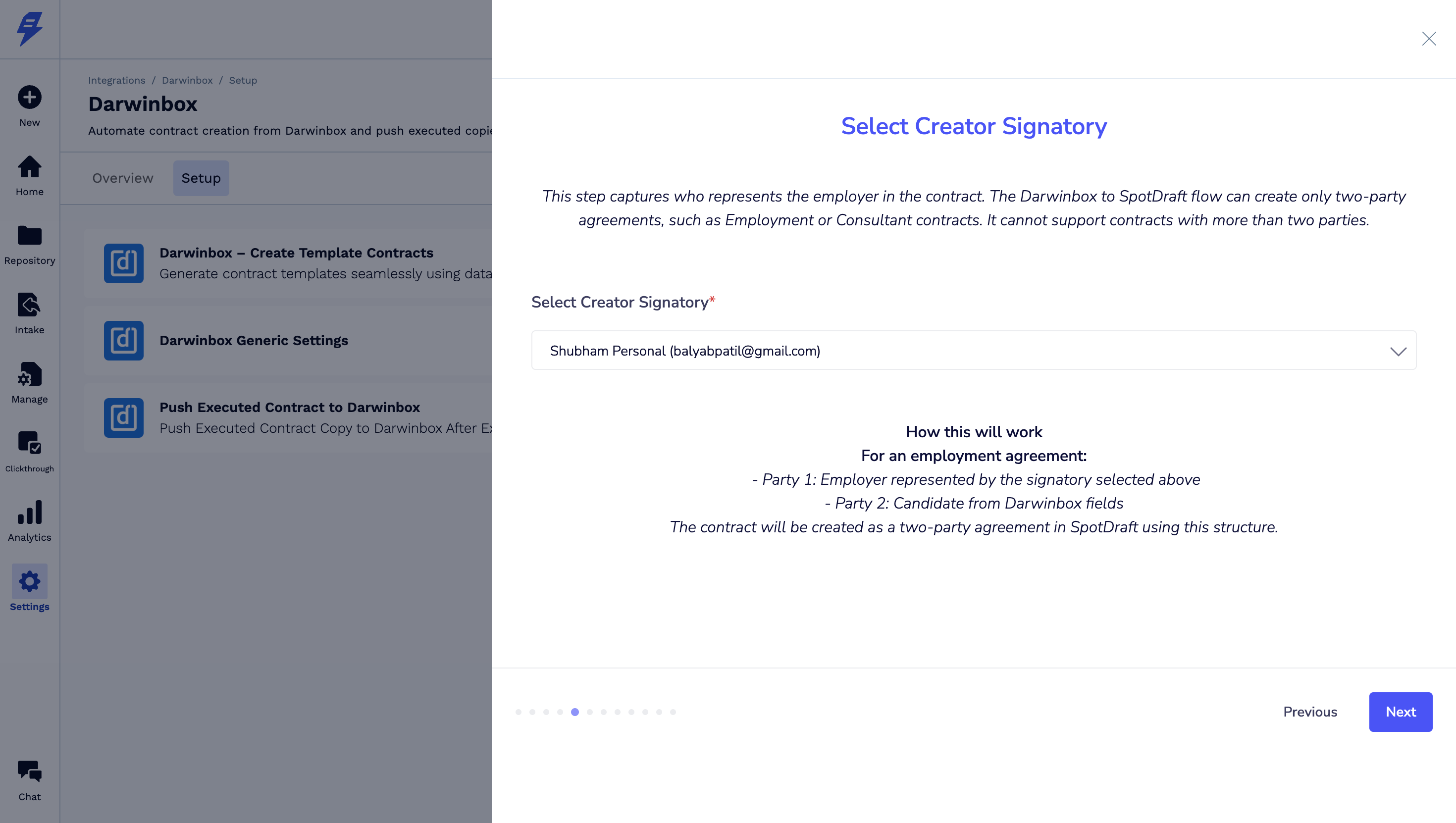
4.7 Select Creator Signatory - This step captures who represents the employer in the contract. The Darwinbox to SpotDraft flow can create only two-party agreements, such as Employment or Consultant contracts. It cannot support contracts with more than two parties.
Click on Next
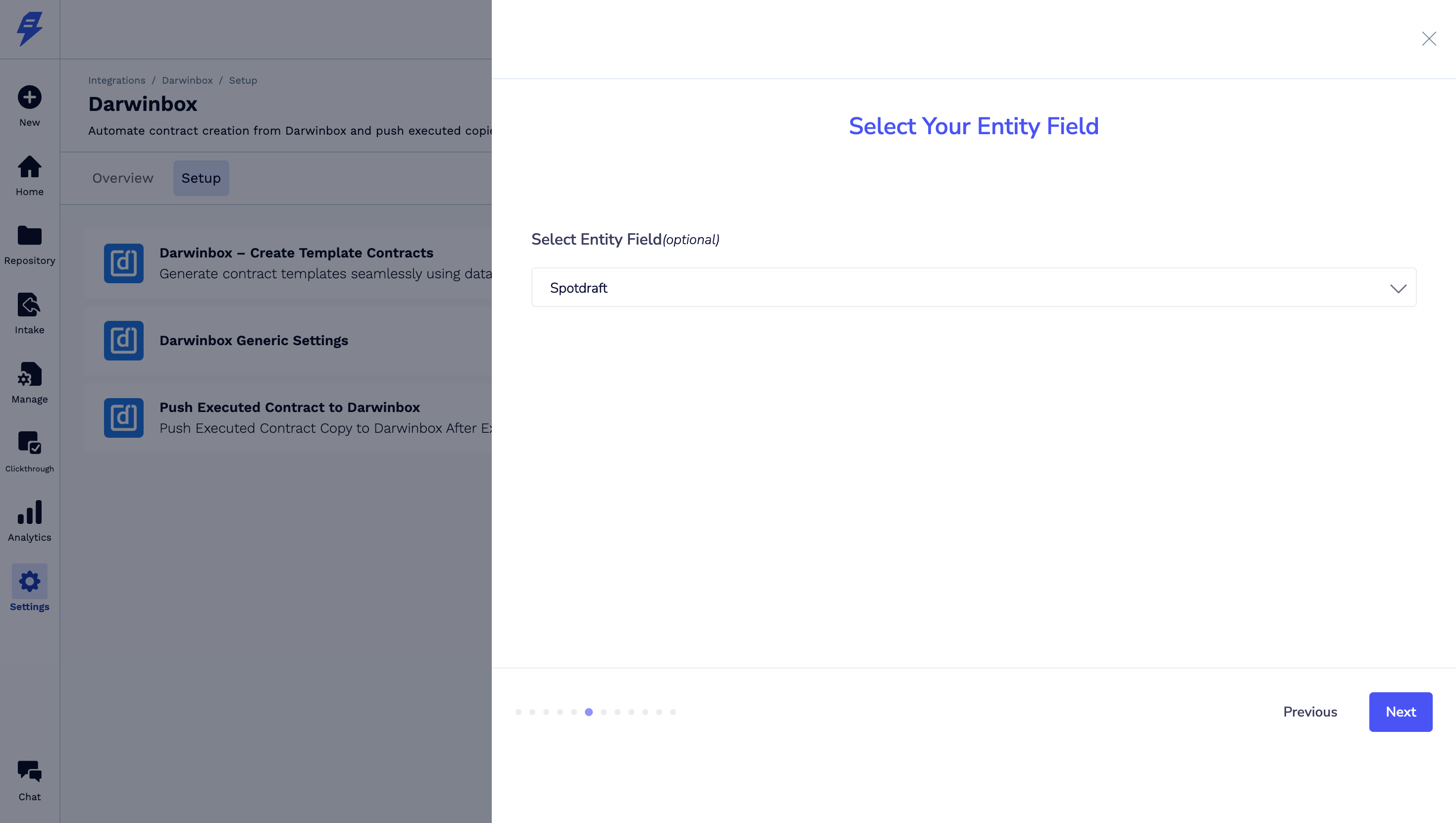
4.8 Select your SpotDraft business Entity & click on Next
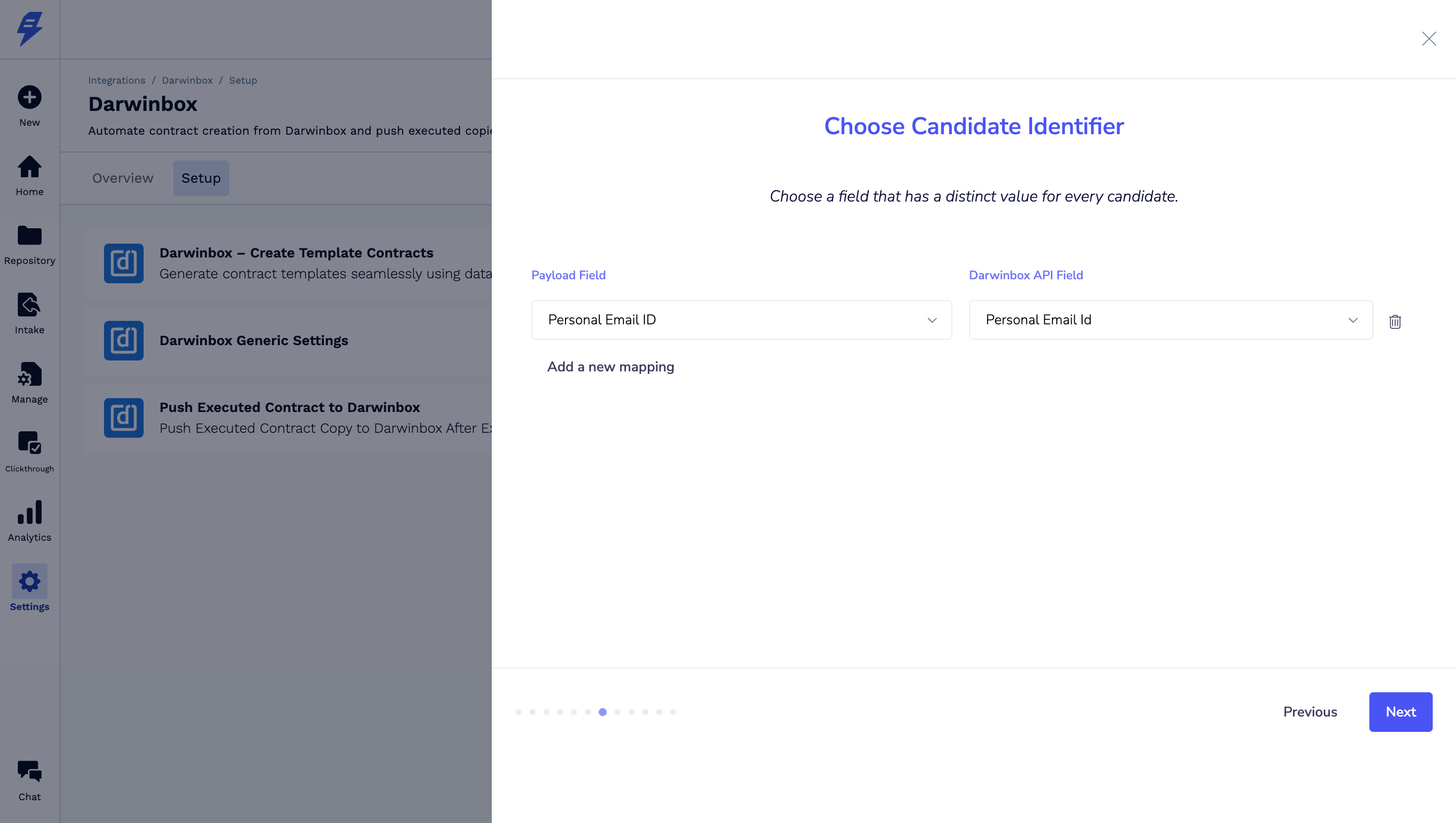
4.9 Select Candidate Identifier from the dropdown & add mapping. Make sure the identifier is unique per candidate - like personal email ID.
Click on Next
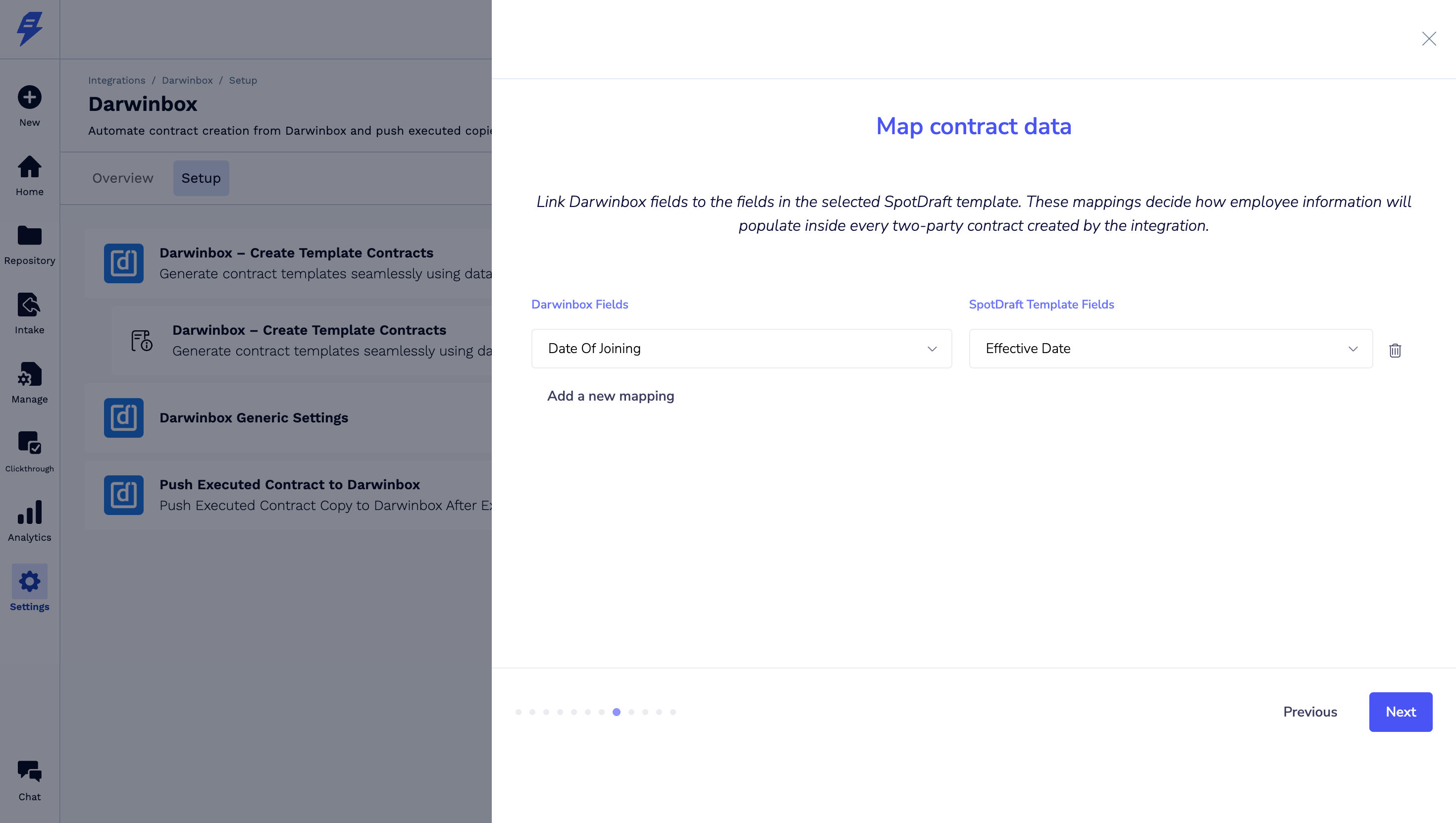
4.10 Select contract mapping fields between SpotDraft & Darwinbox
These fields will be available as per selected contract type. You need to create new mappings to map all required fields in SpotDraft contract.
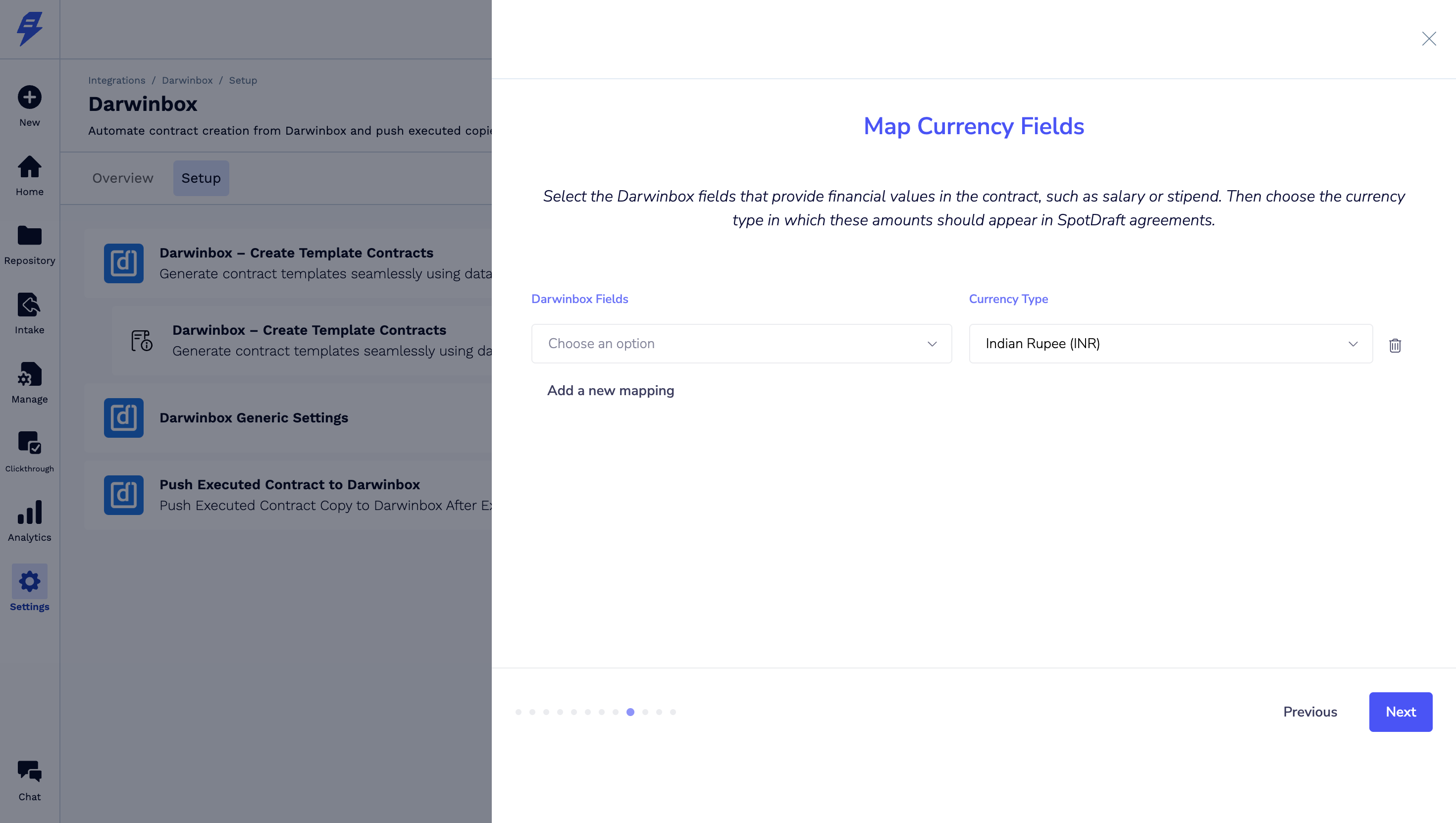
4.11 Map currency value from dropdown - INR,USD, etc.
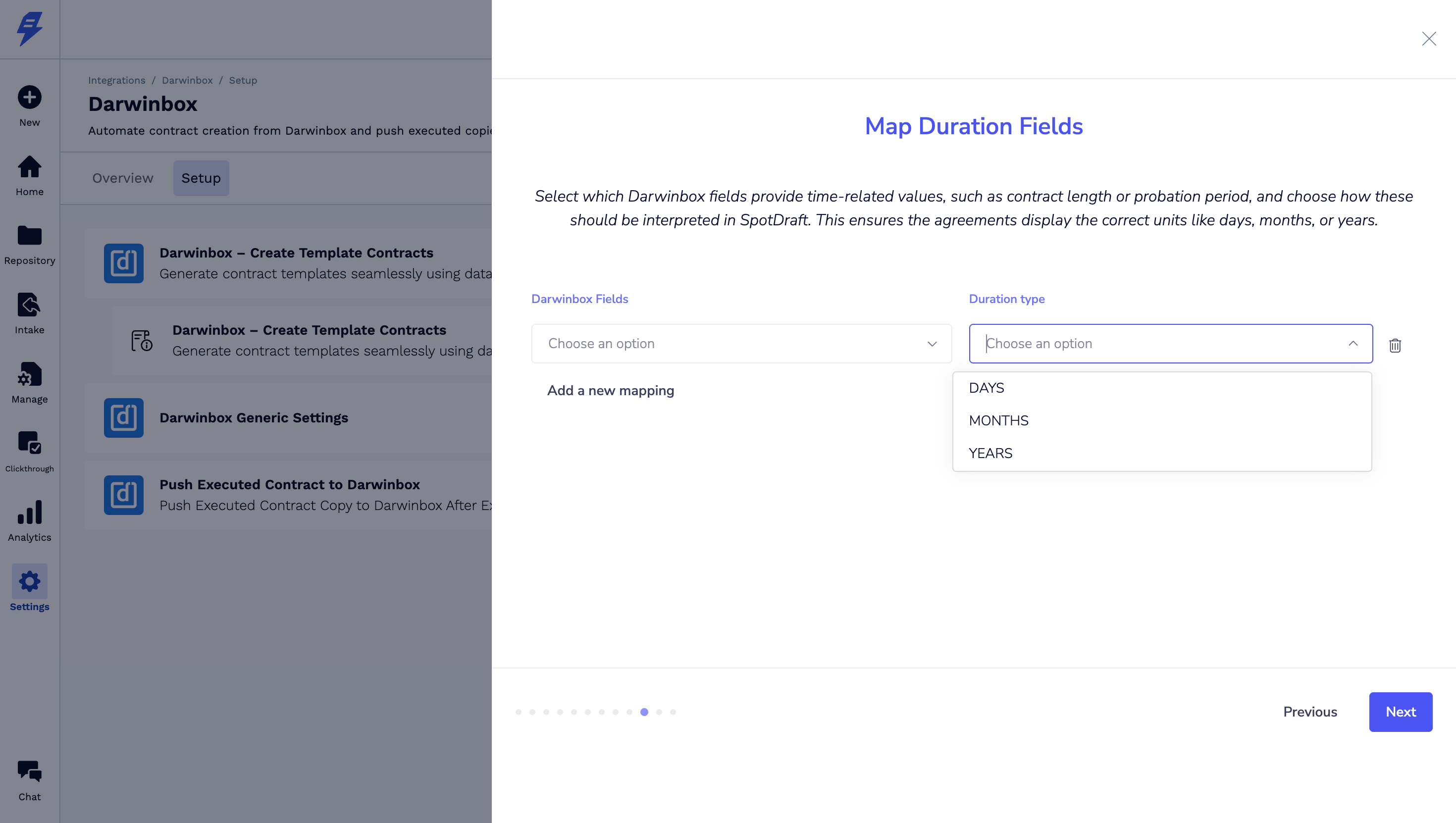
4.12 Map Duration fields from dropdown - DAYS, MONTHS, YEARS
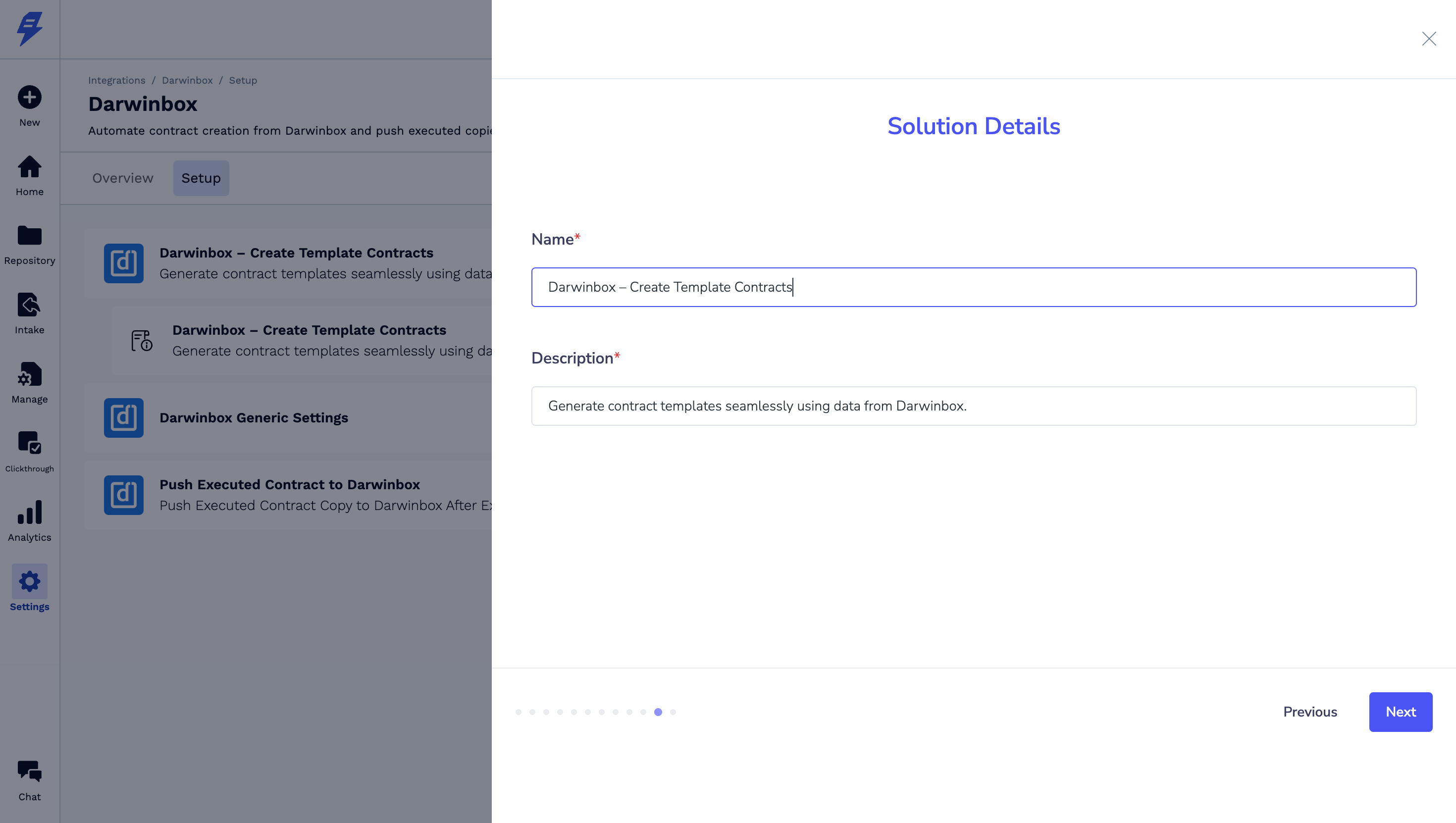
4.13 Give solution name
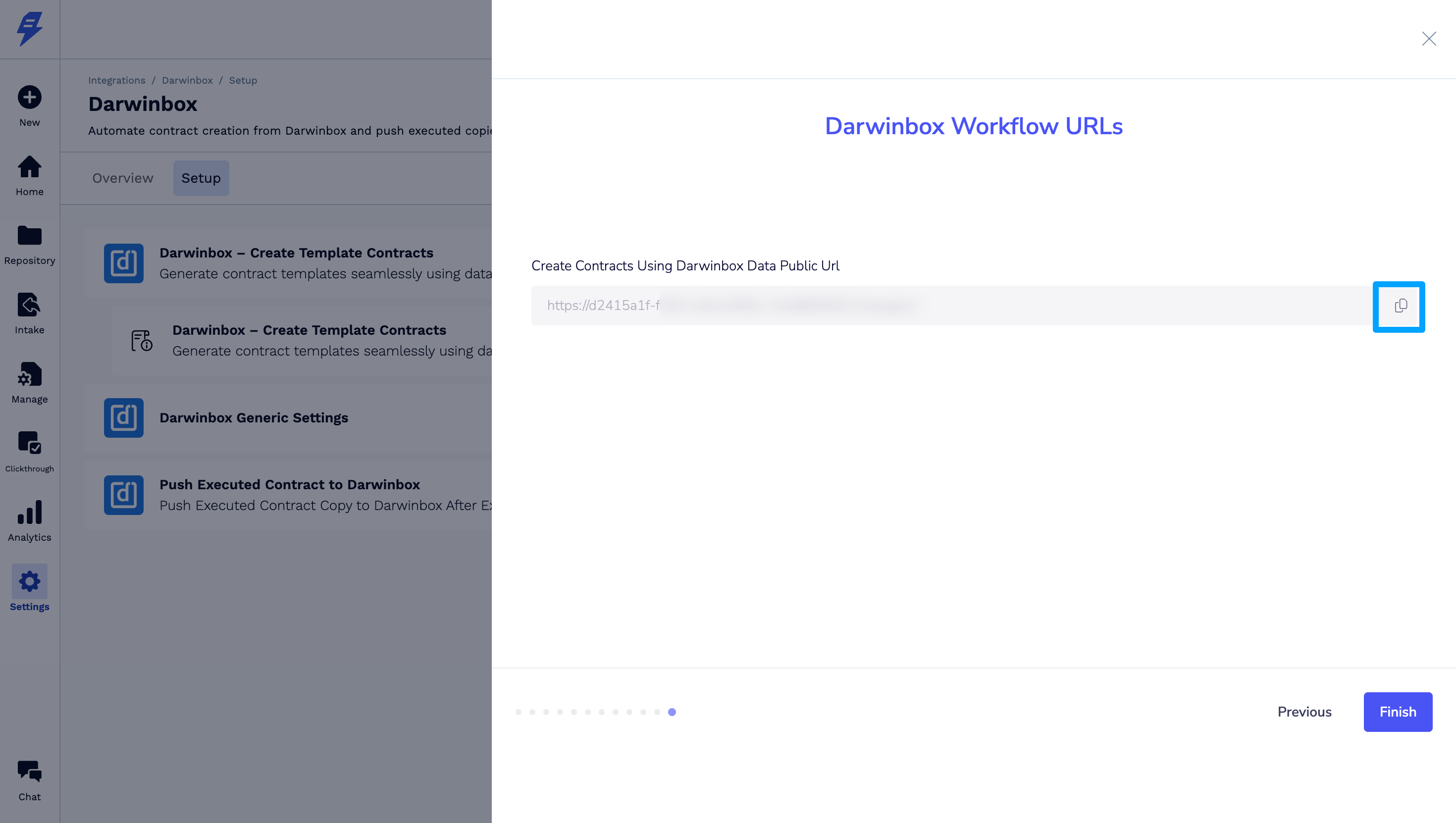
4.14 Darwinbox Workflow URLs - Copy and paste this link in notepad as we need this for next steps.
Click Finish to complete this step.
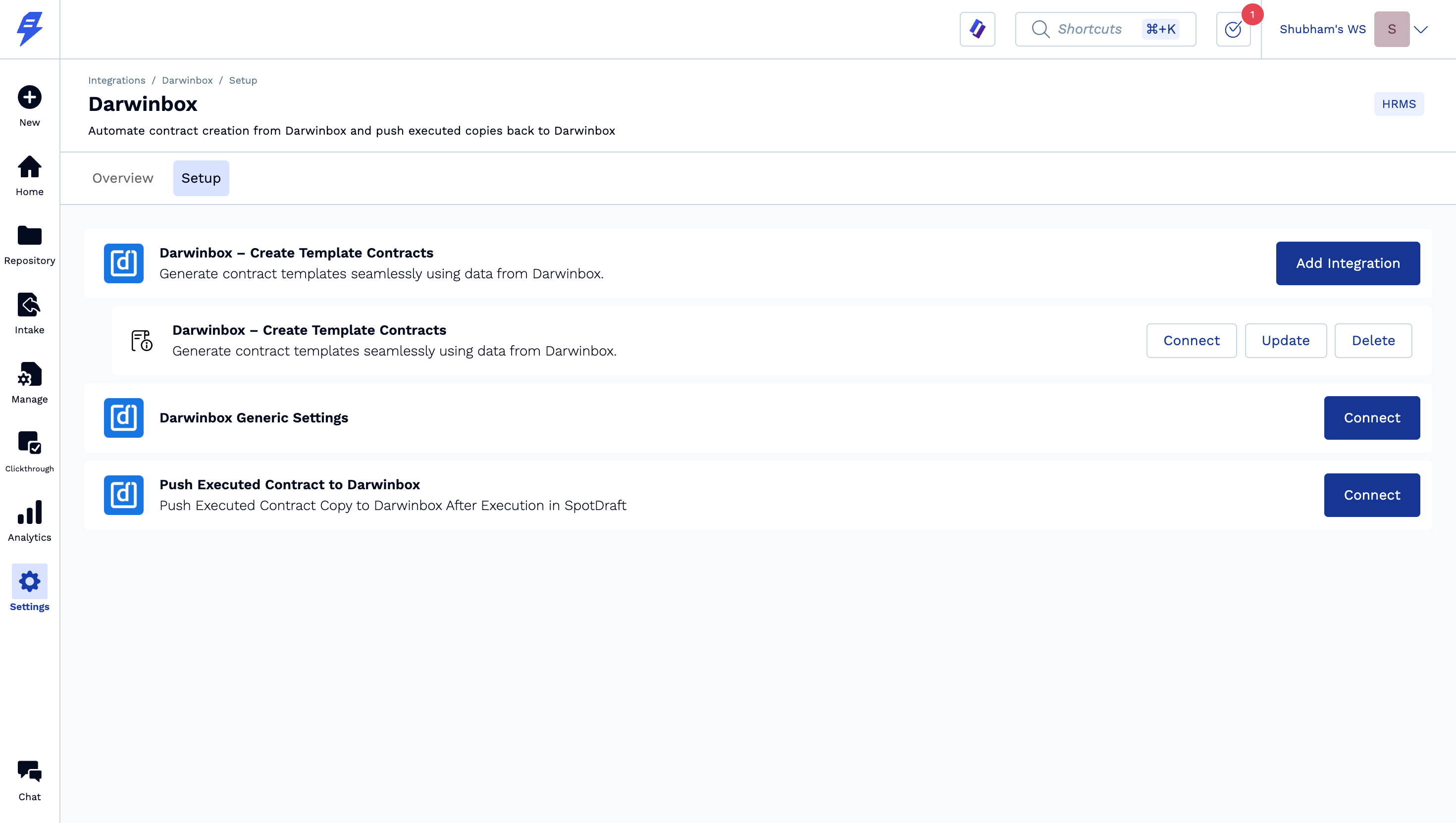
Darwinbox Generic Settings
5.1 Click on Darwinbox Generic Settings 'Connect'
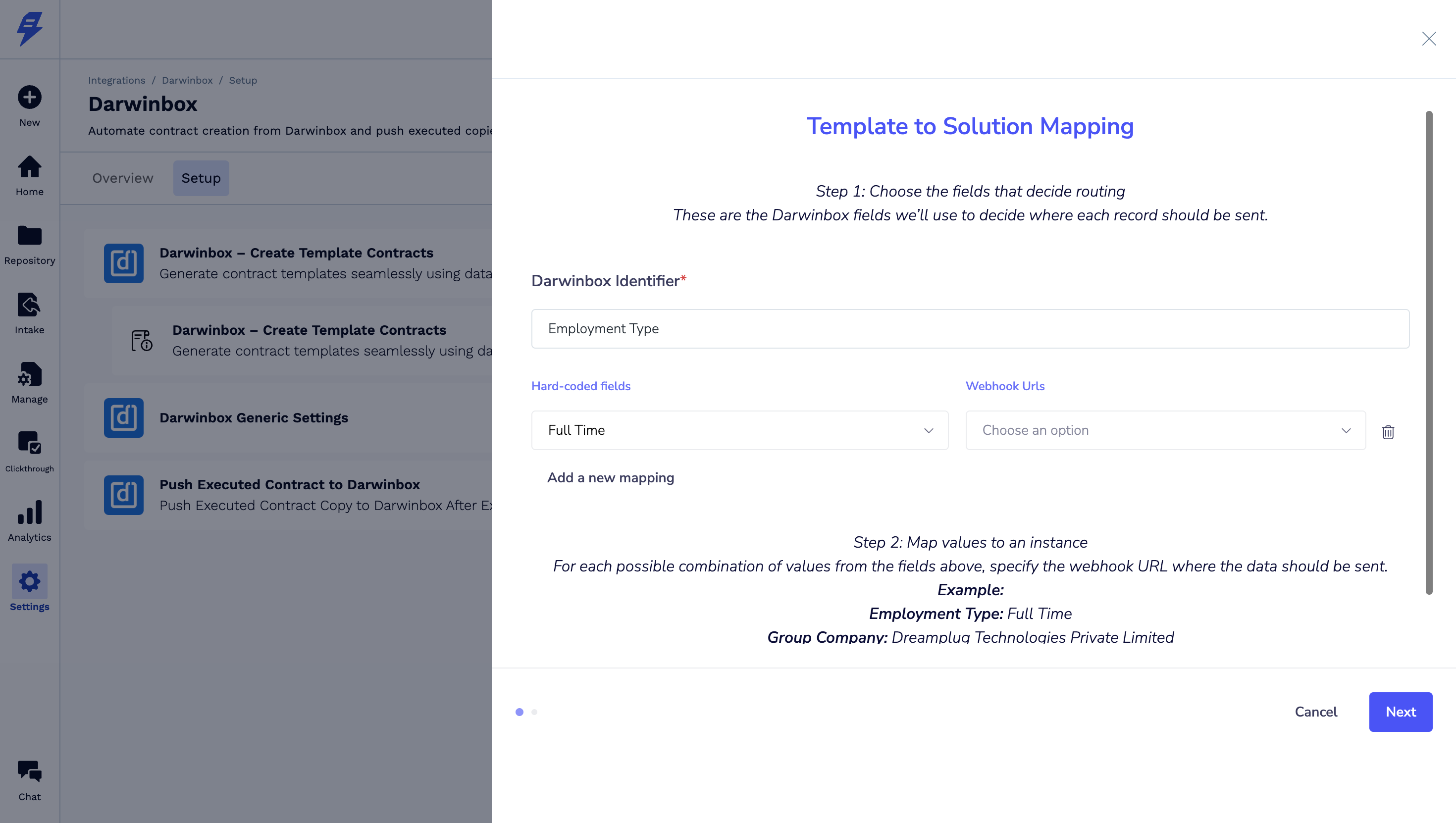
5.2 Enter details - Darwinbox Identifer
Select Hard-coded fields from dropdown as empType and paste Webhook URL as copied from 4.14 step
Click Next
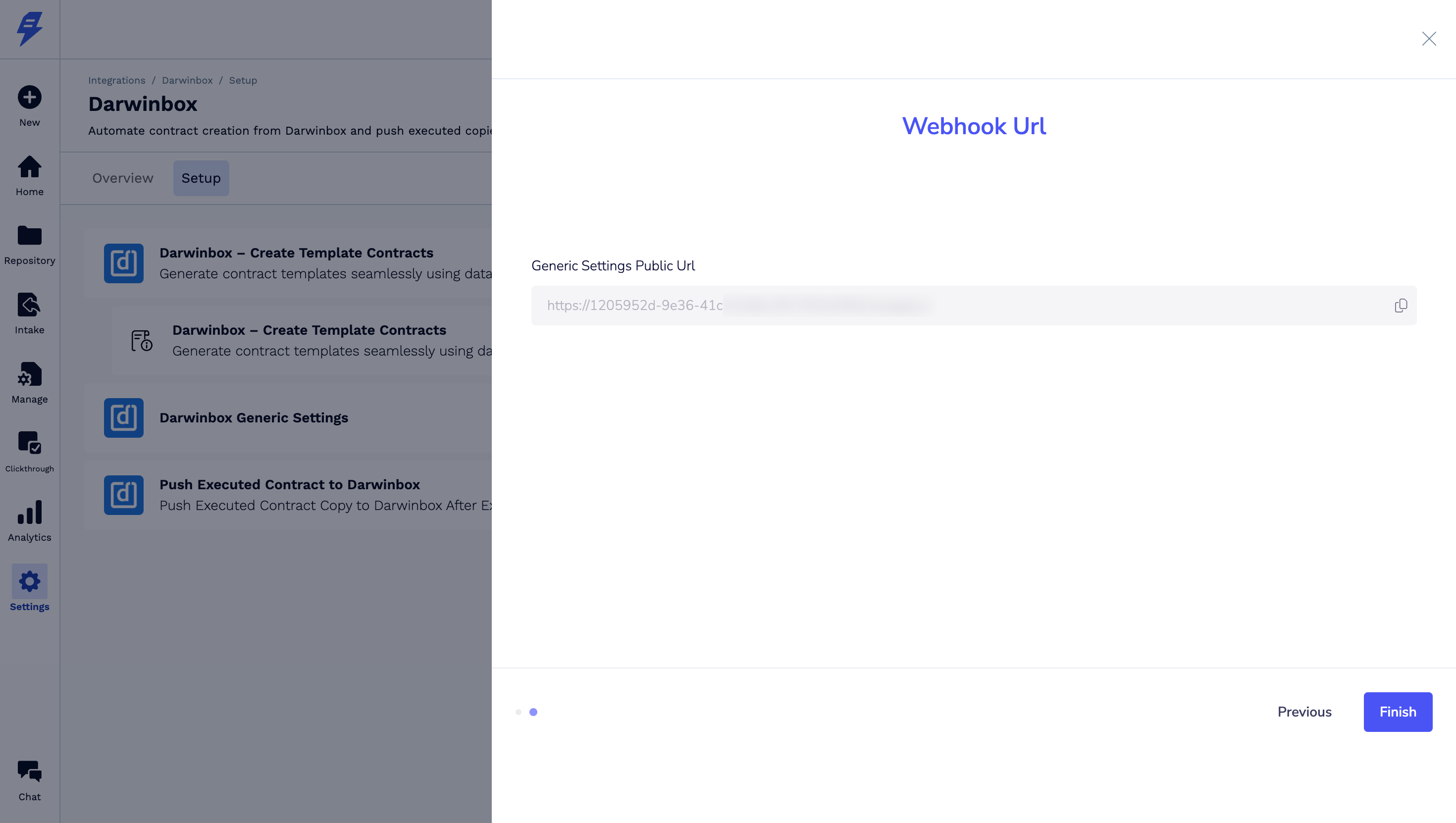
5.3 Copy Webhook URL into notepad & click Finish
Push Executed Contracts to Darwinbox
6.1 Click on 'Push Executed Contract to Darwinbox' Connect
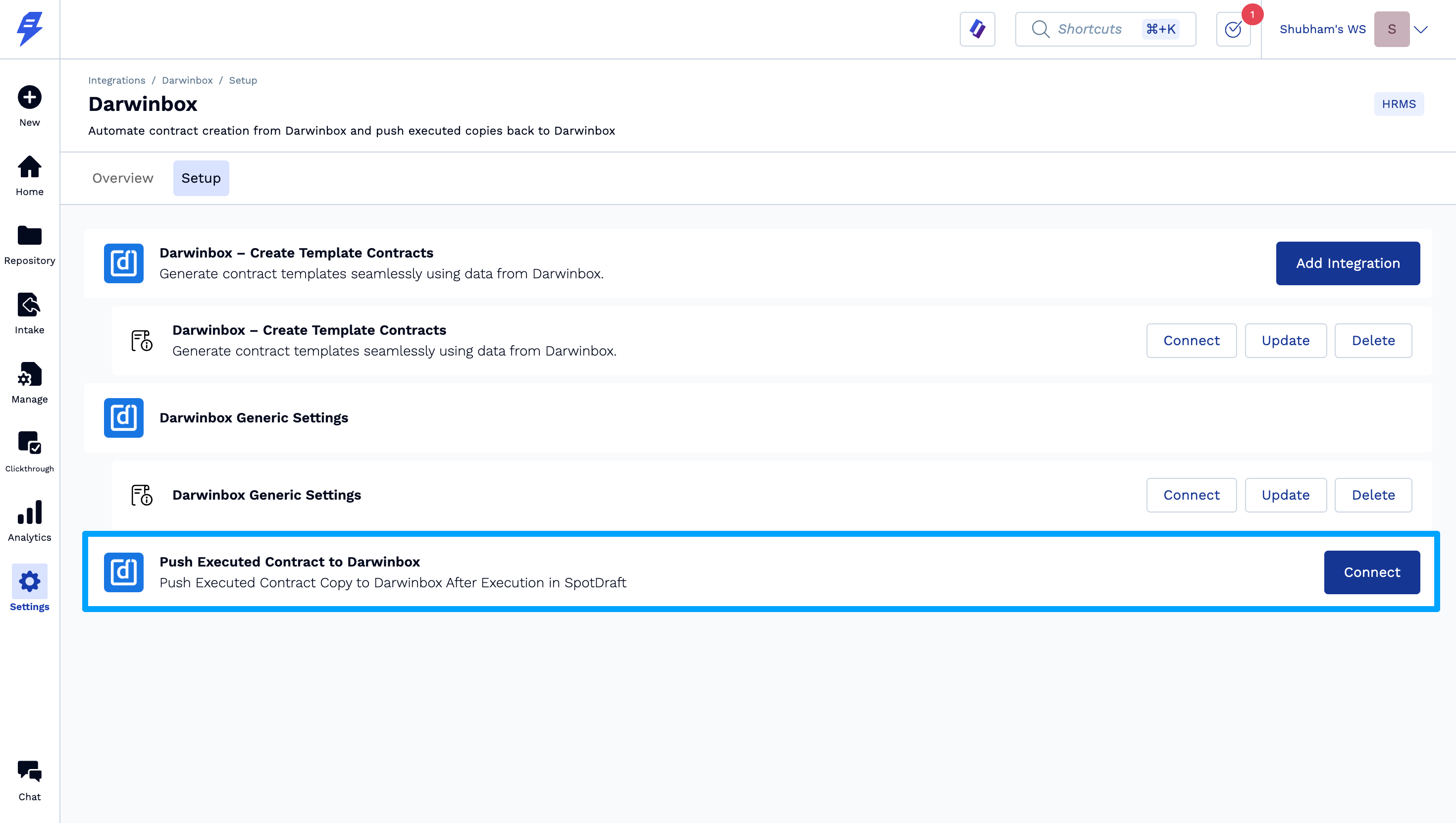
6.2 Click on New Authentication for Darwinbox
6.3 Enter all details - same as 4.2 step above & click on Create
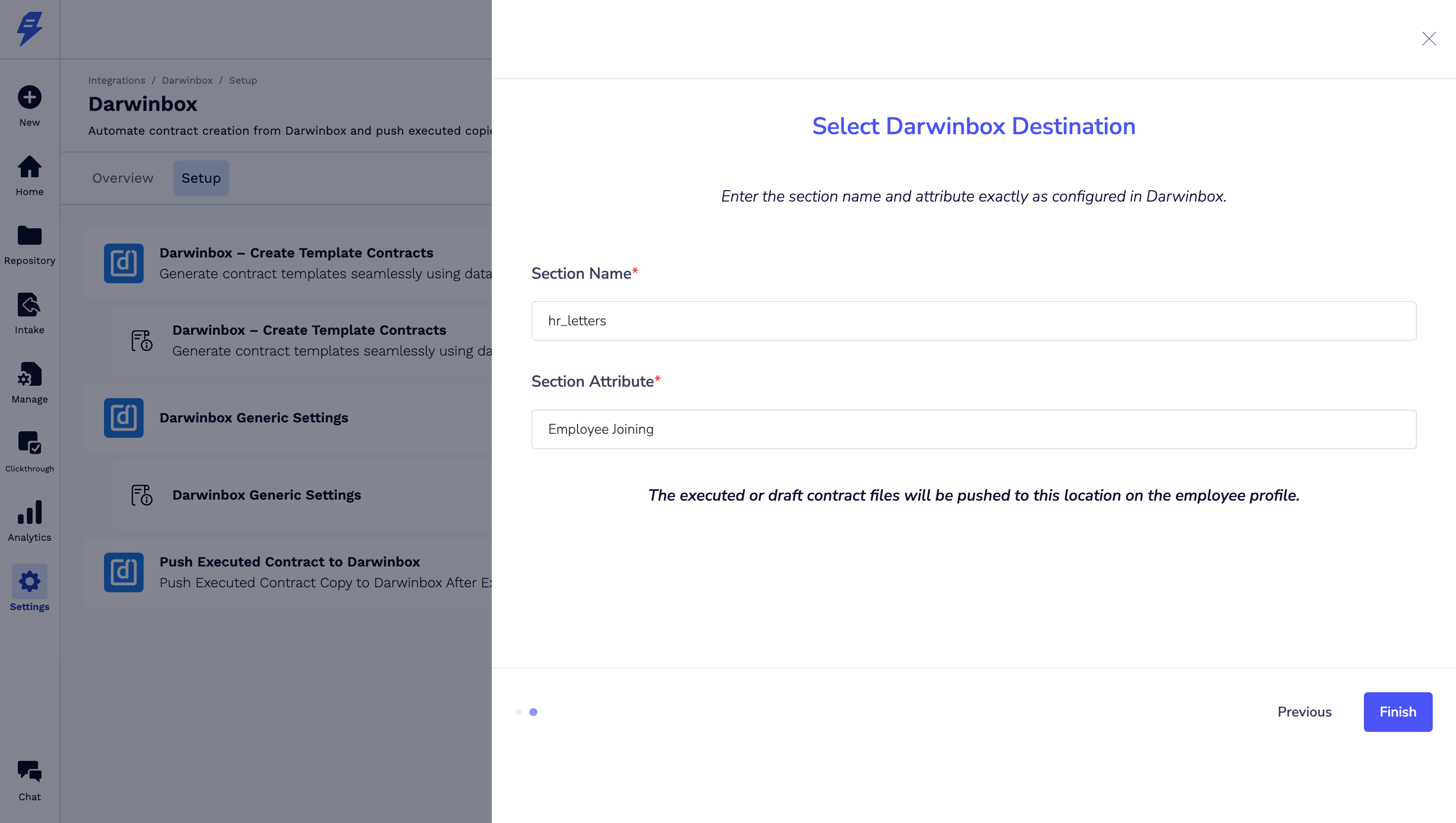
6.4 Select destination in Darwinbox to push executed contracts PDF file & click on Finish
Now click on Connect for all 3 integrations
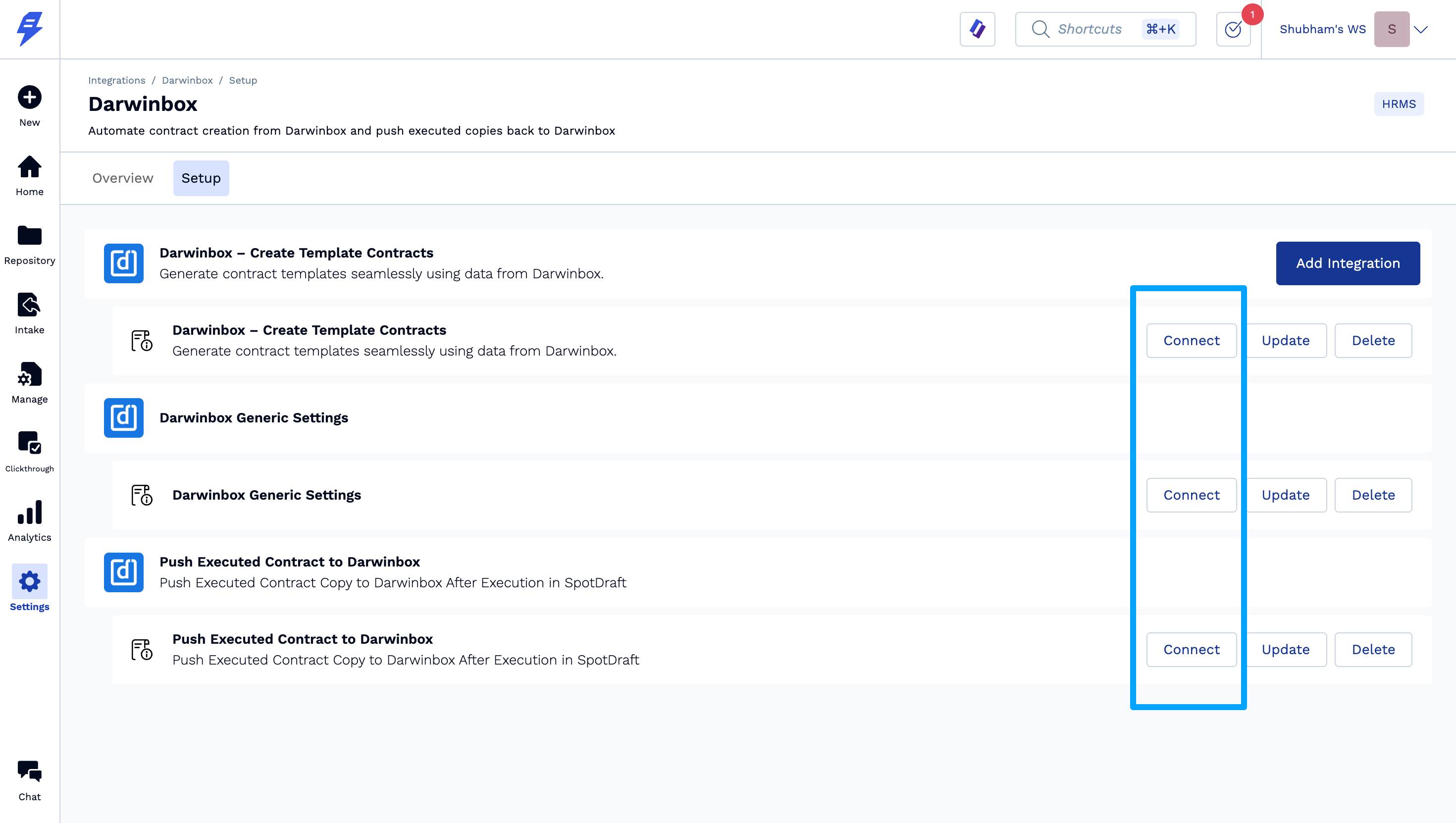
Darwinbox Webhook Setup
Setup Webhook in Darwinbox studio as Employee Created and enter URL copied from 5.3 step above.
💡 🎉 Congratulations. The integration is now complete.
✅ Verification
Create a new employee in Darwinbox, you will see a contract created in SpotDraft
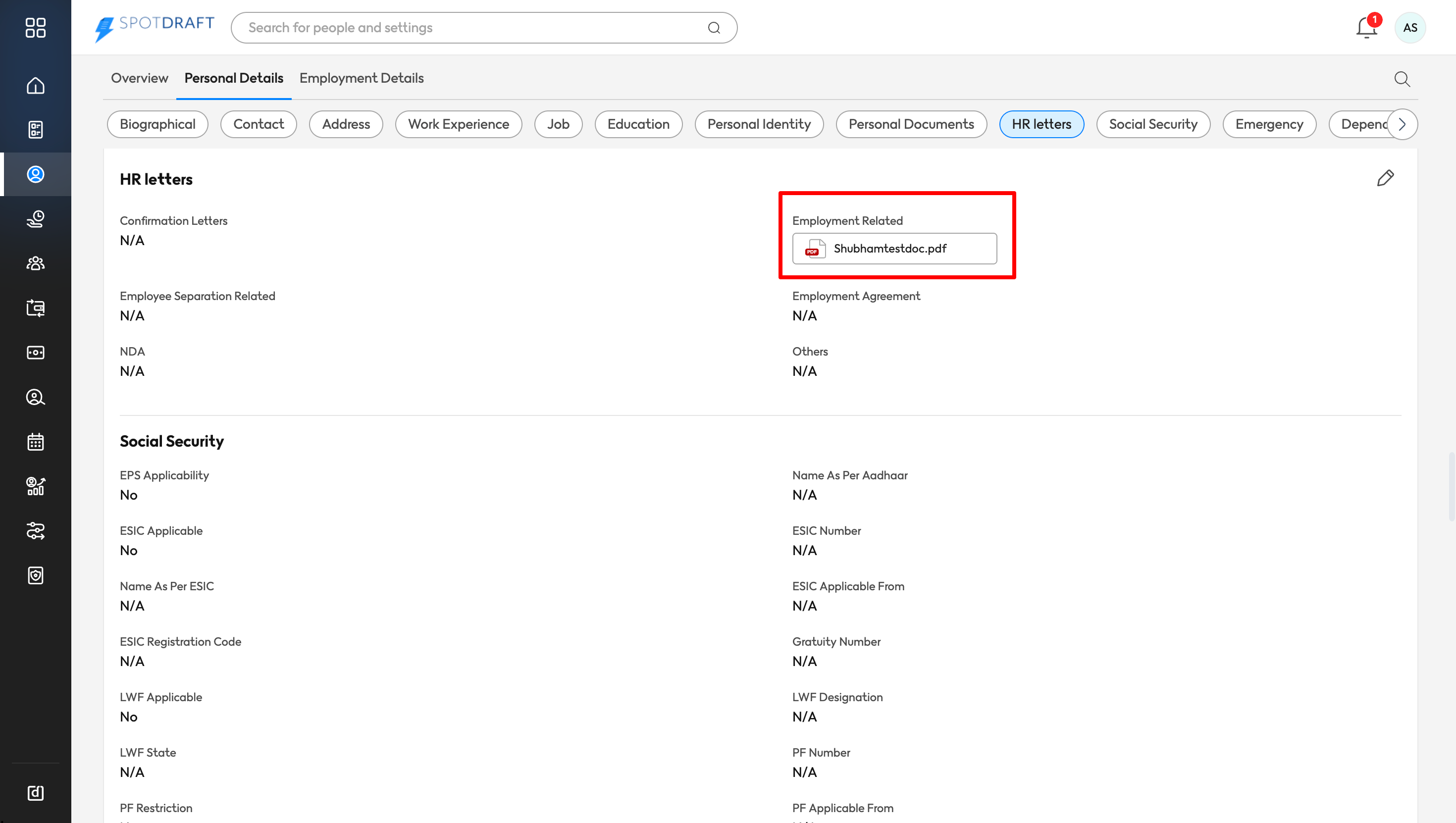
Once the contract gets executed, the contract file will be pushed to HR Letters -> Employee Related
Known limitations
Contract creation success or failure is not visible within Darwinbox.
If contract creation is successful, the contract is automatically created directly in the SpotDraft repository.
Failures must be monitored with support from the SpotDraft team.
Contract generation is supported only when exactly two parties are involved, where the counterparty is an individual (for example, an employee or candidate).
The integration only supports template-based contract generation. Other contract flows are not supported.
Dynamic table mapping is not supported at this time.
Customers must have Darwinbox Studio purchased and enabled to access the required APIs and webhooks needed for this integration.