Setting Up the Adobe Sign Integration in SpotDraft
Last updated: September 2, 2026
A step-by-step guide for admins and implementation teams to connect Adobe Sign with SpotDraft.
Index
Prerequisites 📋
Before setting up the integration, ensure the following are in place:
✅ The Adobe Sign integration is enabled for your SpotDraft workspace. Contact your CS or Implementation team if it is not visible under Integrations.
✅ An organisational Adobe Sign account (e.g. integrations@yourcompany.com). This account will be used to create and send all agreements on Adobe Sign via SpotDraft.
✅ A paid Adobe Sign API plan — Standard Plan or higher.
Part A: Create the SpotDraft API Application in Adobe Sign ⚙
Log in to Adobe Sign as an Admin and navigate to API section (Settings → Acrobat Sign API → API Applications).
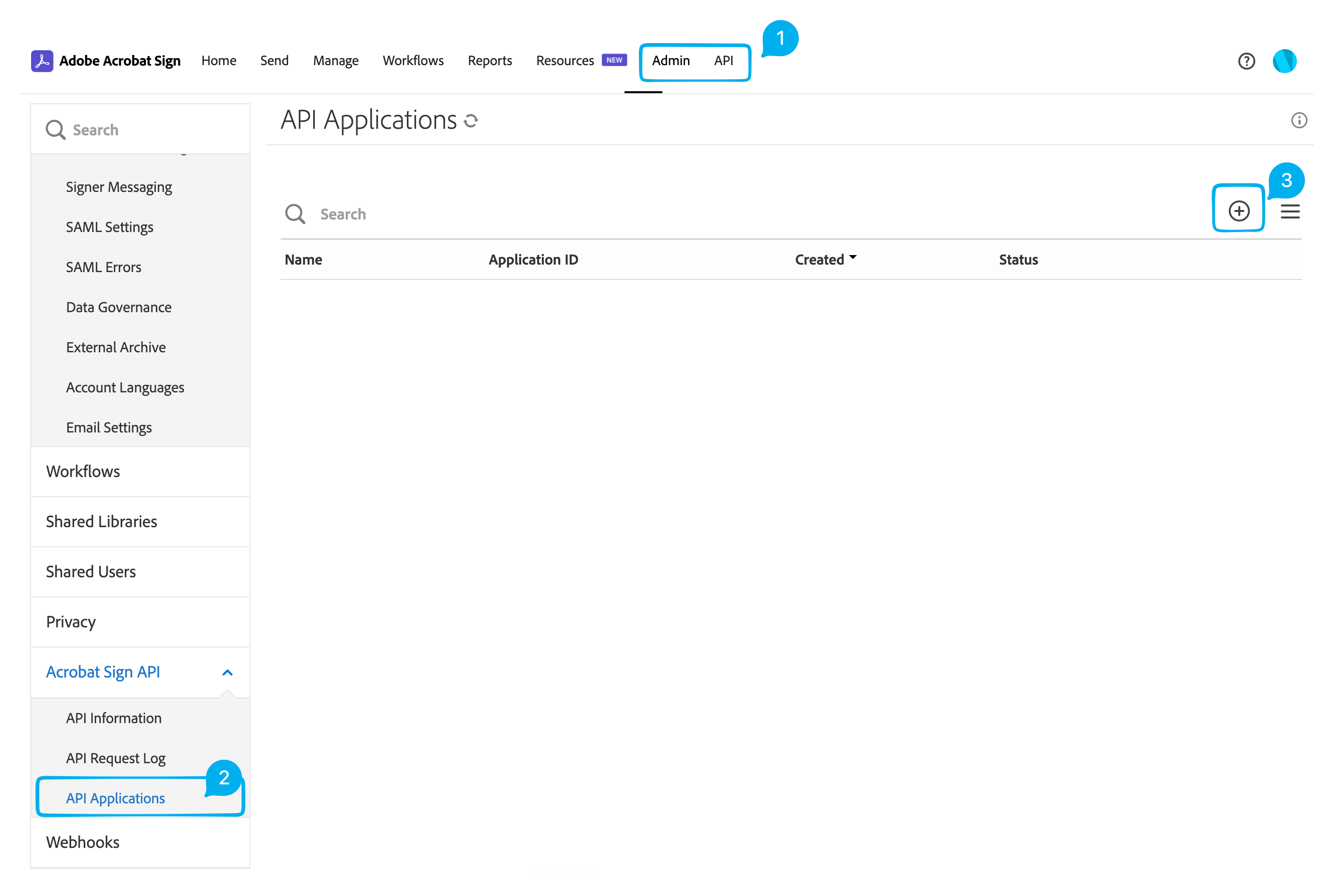
Click the ⊕ (Circled Plus) icon to create a new API application.
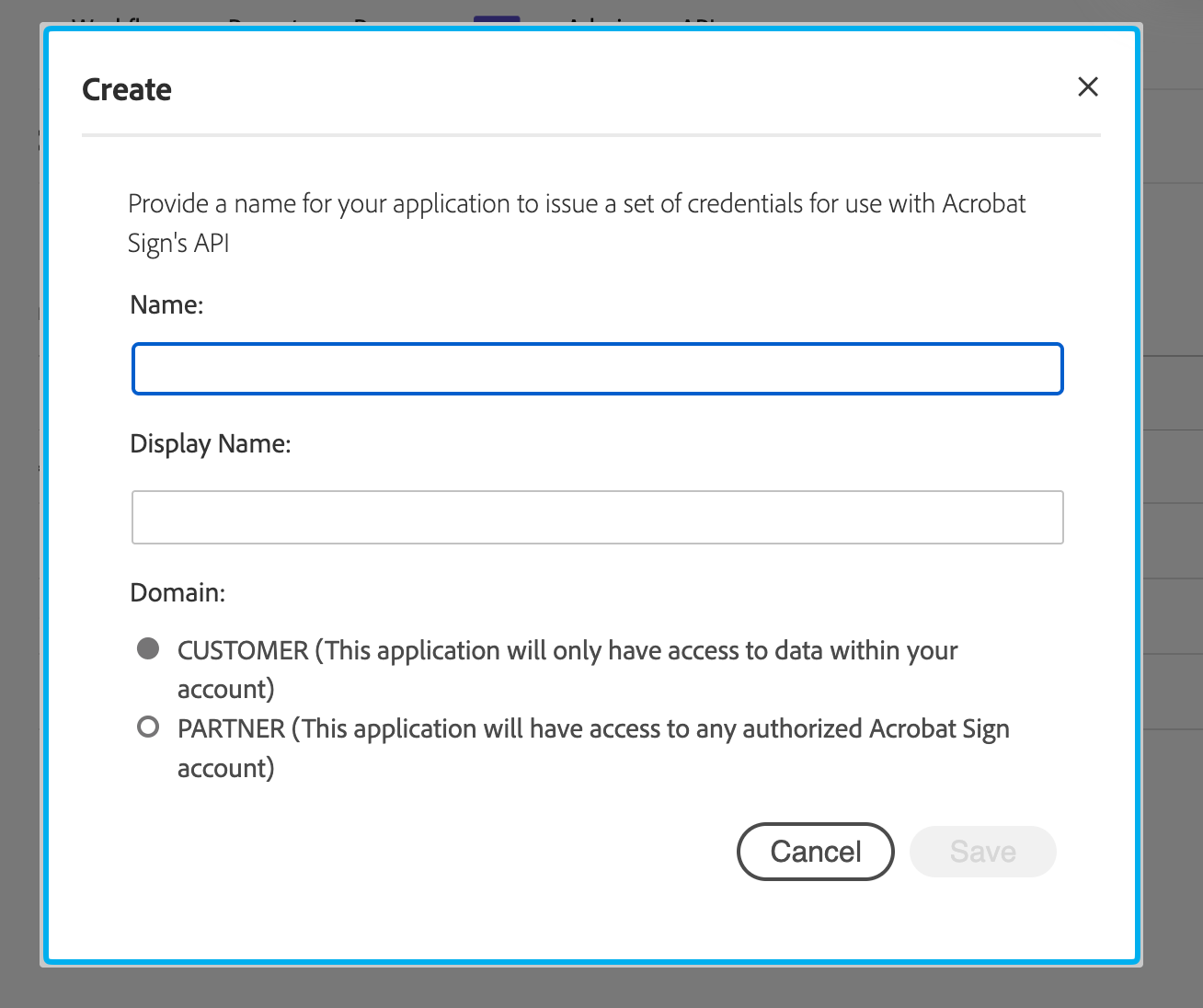
Fill in the following fields:
Name: SpotDraft Integration
Display Name: SpotDraft Integration
Under Domain, select Partner.
Click Save.
Step B: Connect Adobe Sign to SpotDraft 🔗
It helps to have Adobe Sign and SpotDraft open side-by-side for this step.
Follow the below steps:
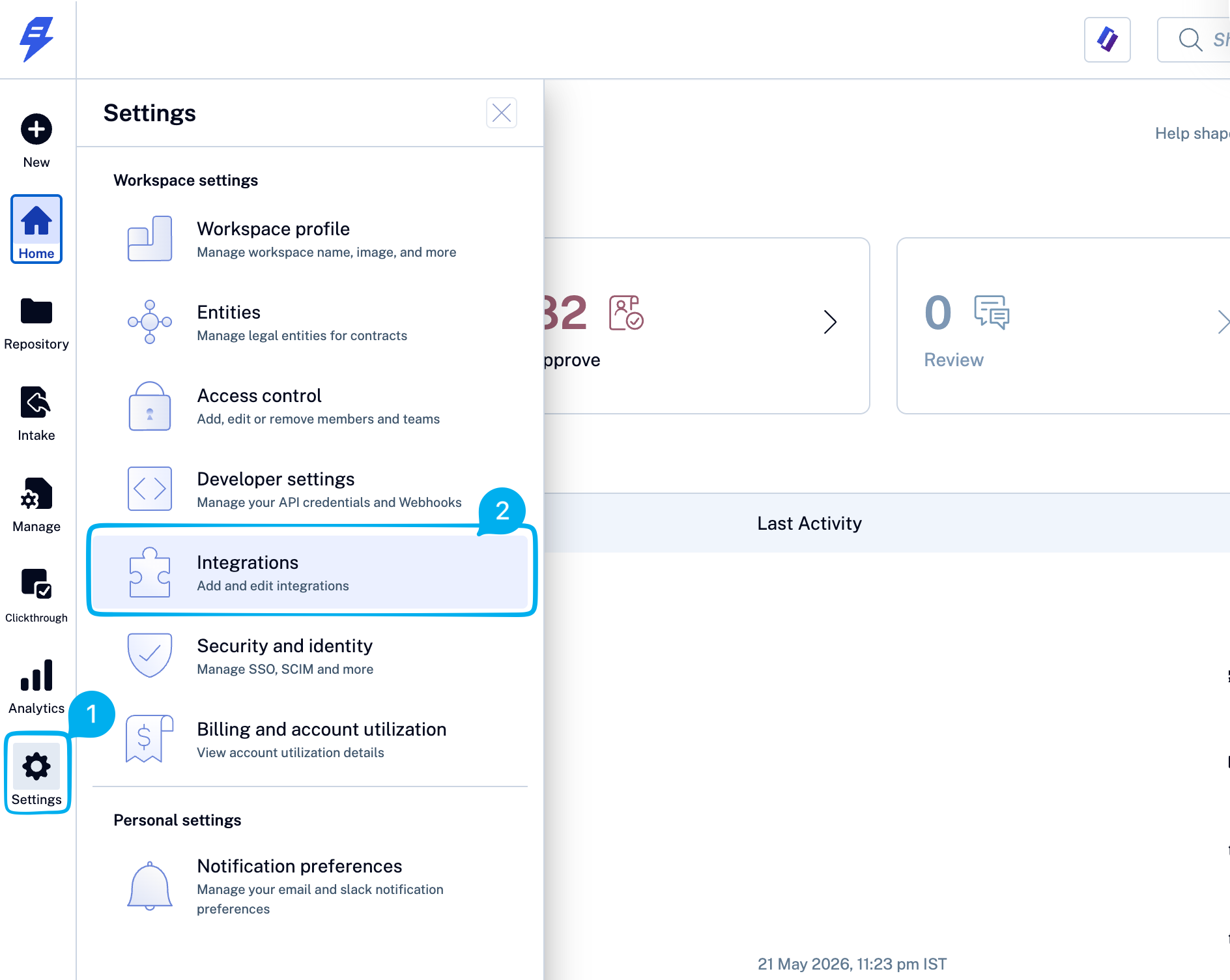
In SpotDraft, navigate to Settings → Integrations → E-Signature → Adobe Sign → Setup → Configure.
In Adobe Sign, copy the Base URL from your browser address bar (the part up to and including
.com) and paste it into the Adobe Sign Base URL field in SpotDraft.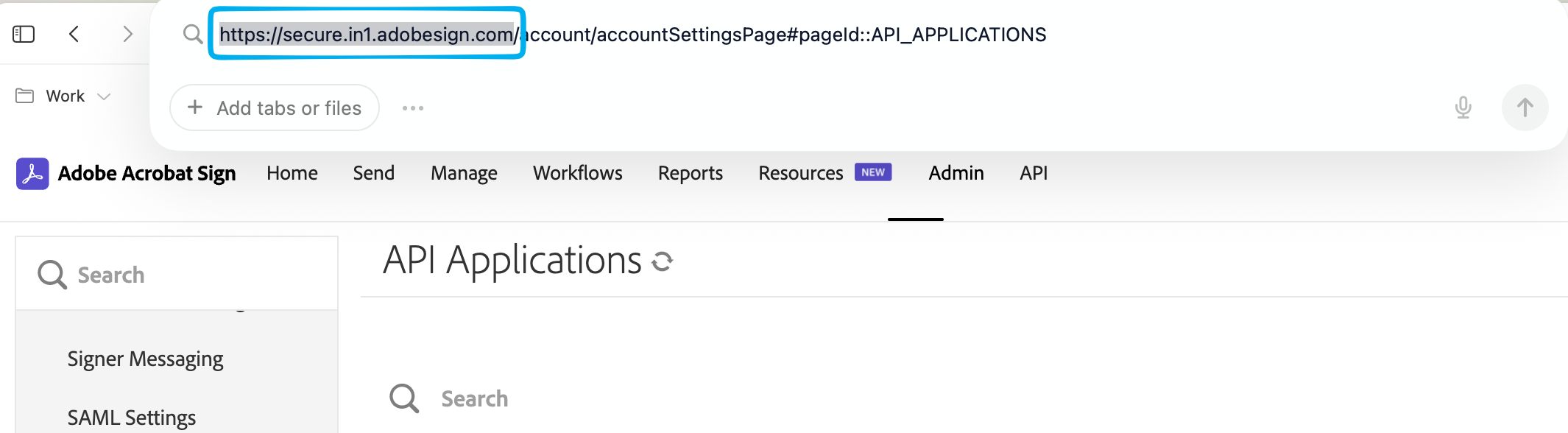
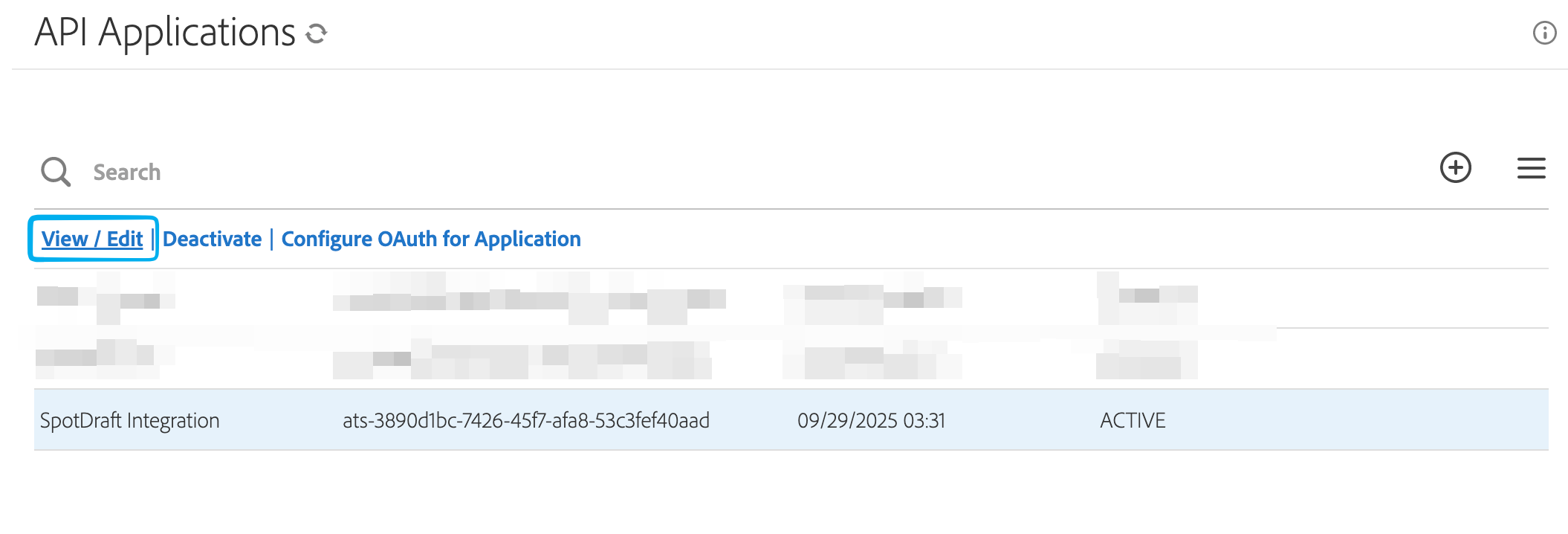
In Adobe Sign, select the 'SpotDraft Integration' you created under API and click View/Edit from the top menu.
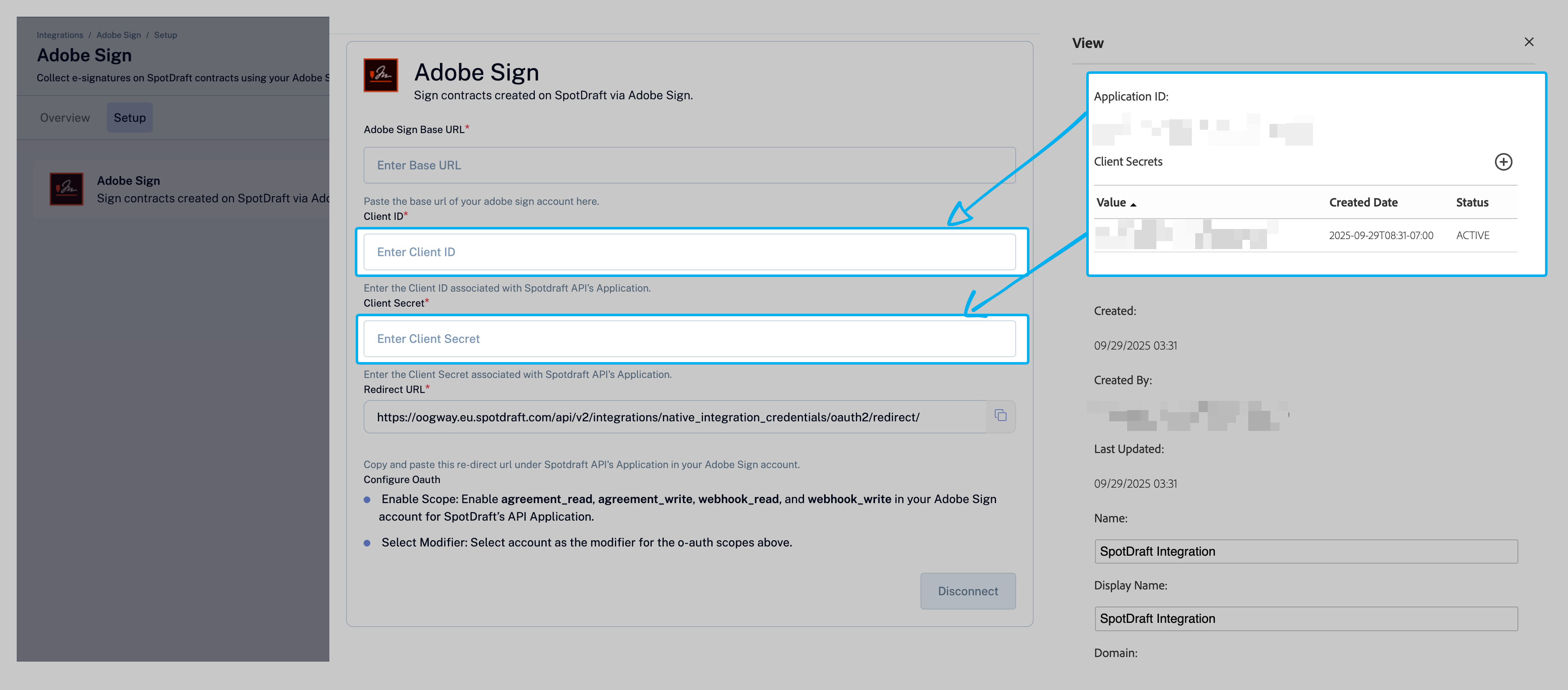
Copy the following values and paste them into SpotDraft:
Application ID (Adobe Sign) → Client ID (SpotDraft)
Value under Client Secrets (Adobe Sign) → Client Secret (SpotDraft).
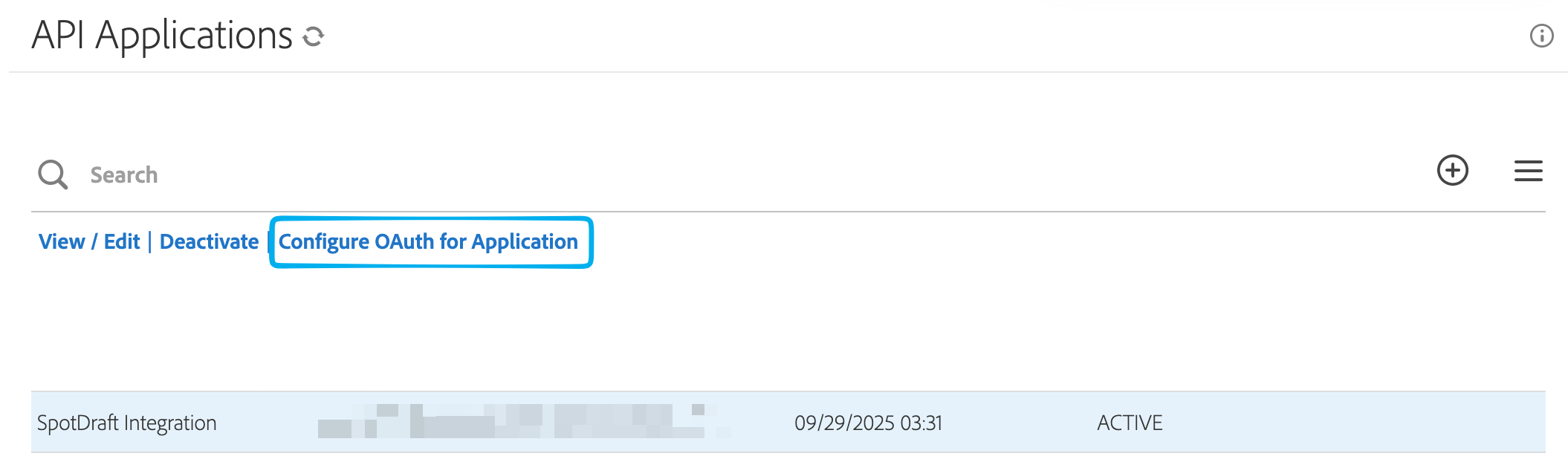
In Adobe Sign, with the SpotDraft Integration still selected, click Configure OAuth for Application from the top menu.
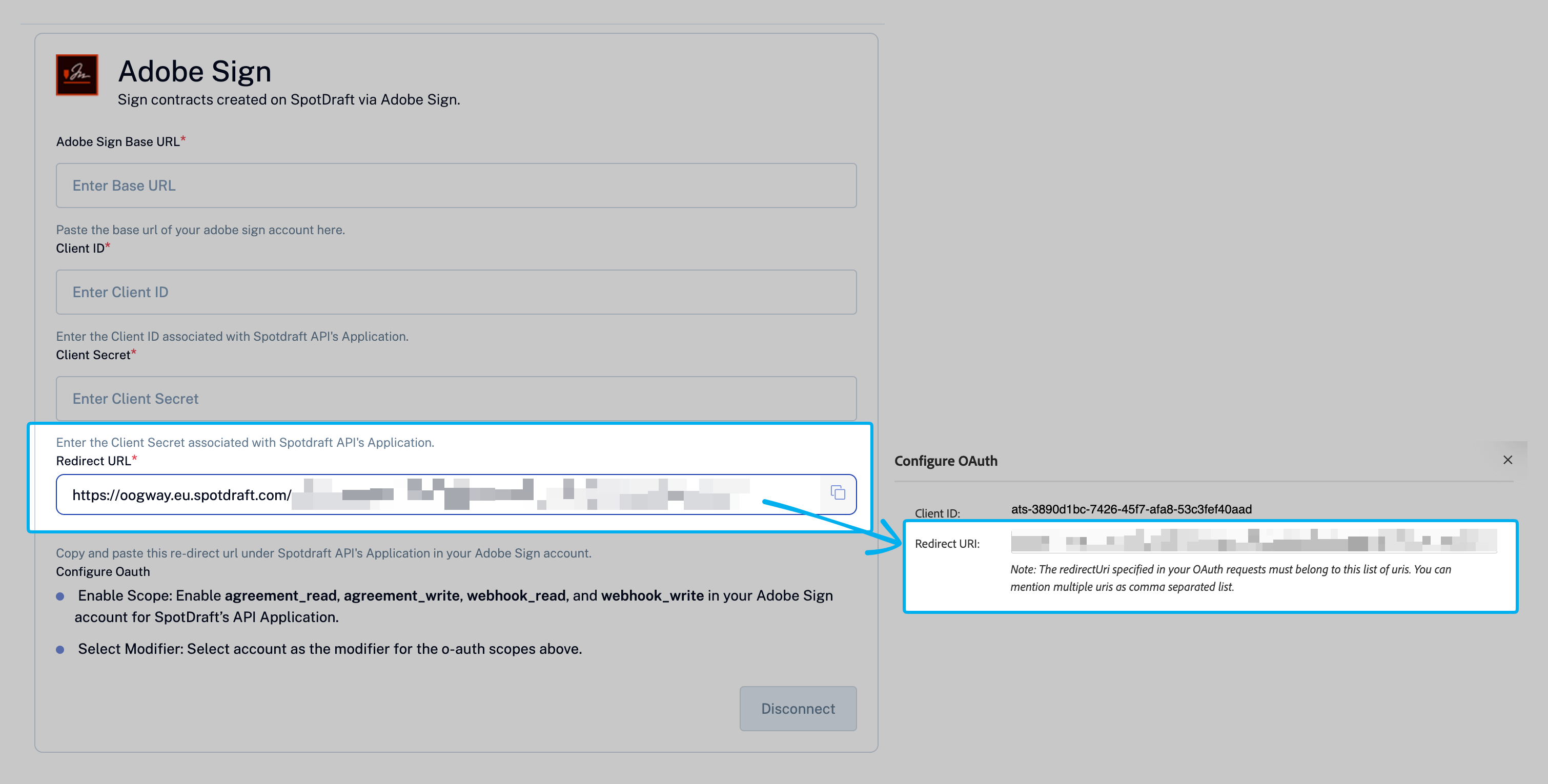
Copy the Redirect URL from SpotDraft and paste it into the Redirect URL field in Adobe Sign.
Enable the following OAuth scopes & click 'Save':
agreement_readagreement_writewebhook_readwebhook_write
Back in SpotDraft, click Connect, then click Allow Access on the Adobe Sign authorisation screen.
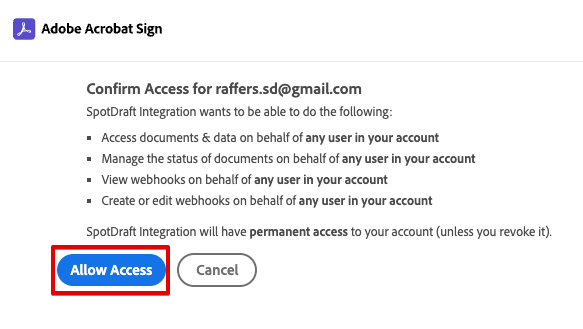
Close the success message and refresh the SpotDraft page.

Open the integration and confirm:
All credential fields are populated
The button now reads Disconnect
🎉 Adobe Sign is now connected to SpotDraft.
Step C: Set Adobe Sign as the Default for a Contract Type ⚙
In SpotDraft, go to Manage → Contract Types.
Select the relevant contract type (e.g. Vendor Agreement).
Click Signatories from the top menu.
Click on the Entity.
Click Edit on the Default eSignature Service field.
Select Adobe Sign from the dropdown and click Save.
Repeat for each contract type that should route through Adobe Sign.
The integration is fully configured. Users can now send all contracts for signature via Adobe Sign.
The same setting can be found for Workspaces that have 'Contract Type' settings migrated to workflows here: Workflow Manager > Select the TPP Workflow > Signature Settings > Signing Services > Default Signature Service > Adobe Sign
Verification ✅
To confirm the setup is working end-to-end:
Create a test contract whose contract type/workflow is configured to use Adobe Sign.
Add a test signatory and complete any required approvals.
On the contract summary page click "Send for Signature".
Confirm SpotDraft creates the agreement on Adobe Sign and the "View on Adobe Sign" button appears on the summary page.
Click "View on Adobe Sign", place a test signature field, and send the agreement.
Complete the test signing and confirm the contract transitions to "Executed" in SpotDraft with the signed document attached.
FAQs 💬
Q: What OAuth scopes are required and why?
The four required scopes (agreement_read, agreement_write, webhook_read, webhook_write) allow SpotDraft to create agreements, register webhooks to receive signing status updates, and read agreement data back in real time.
Q: Can I configure Adobe Sign for some contract types and DocuSign for others?
SpotDraft supports native eSigning by default for all workspaces. A workspace can additionally integrate with either Adobe Sign or DocuSign as a third-party service — but only one can be active at a time. Within the workspace, individual contract types can be configured to use native signing or the active third-party service for ease of use.
Q: What Adobe Sign plan is required?
A paid Adobe Sign account on the Standard Plan or higher is required. This plan includes API access, which is necessary for the integration. Free or trial plans do not support API connections.
Q: How do I disconnect or reconfigure the integration?
A: Go to Settings → Integrations → E-Signature → Adobe Sign → Setup and click Disconnect. Note that disconnecting while contracts are in "Signing" state may cause sync issues, thus the system will restrict the action until all all active agreements are completed or voided before disconnecting.
For setup assistance or to enable the feature flag for your workspace, contact your Customer Success Manager or the Implementation team.