Setting Up Approvals with Conditional Assignment
Last updated: January 30, 2026
This article will guide you through setting up "Conditional Assignment" for approvals in your workflow. This powerful feature allows you to dynamically assign who needs to approve a contract based on specific conditions, streamlining your approval processes and reducing the need for multiple, redundant approval steps.
Imagine you have different department heads who need to approve contracts, but only one is required for a given contract depending on the department involved. Instead of creating a separate approval step for each department, you can set up one "Department Head Approval" and use conditional assignment to route it to the correct person automatically!
Prerequisites
Before you begin, ensure you have:
- Access to the Workflow Manager in SpotDraft.
- Relevant Contract Variables configured in your Intake Form or Questionnaire. These variables (e.g., "Department," "Contract Value," "Region") will be used to define your conditions.
- Conditions defined in your Condition Library that utilize these contract variables. (For details on creating conditions, please refer to our article: Managing Conditions with the Condition Library.
How to Set Up Conditional Approval Assignment
To set up an approval in your workflow, including its basic details, overall collection criteria, and reset conditions, please refer to our main guide: Setting Up Approvals in New Approvals System on SpotDraft
Once you are creating or editing an approval, follow these steps to configure its conditional assignment:
-
Access the Approver Assignment Section:
- Within the "Add Approval" or "Edit Approval" modal, scroll down to the "Who should approve?" section.
-
Enable Conditional Assignment:
- Click on Assign Approvers Conditionally. This will activate the dynamic "If/Else If/Else" framework.
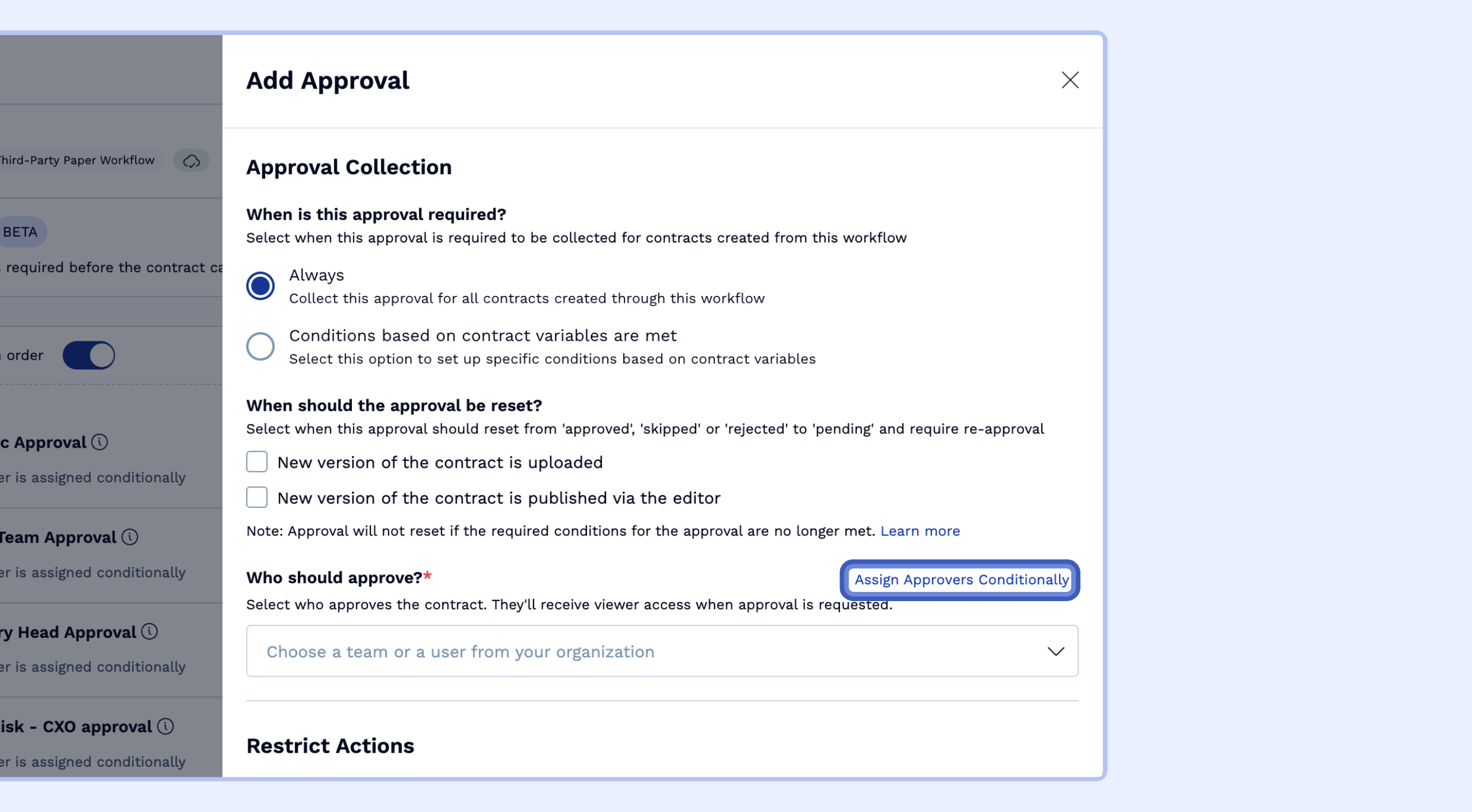
- Click on Assign Approvers Conditionally. This will activate the dynamic "If/Else If/Else" framework.
-
Define Your Conditions and Assign Approvers:
-
Adding an "If" Condition:
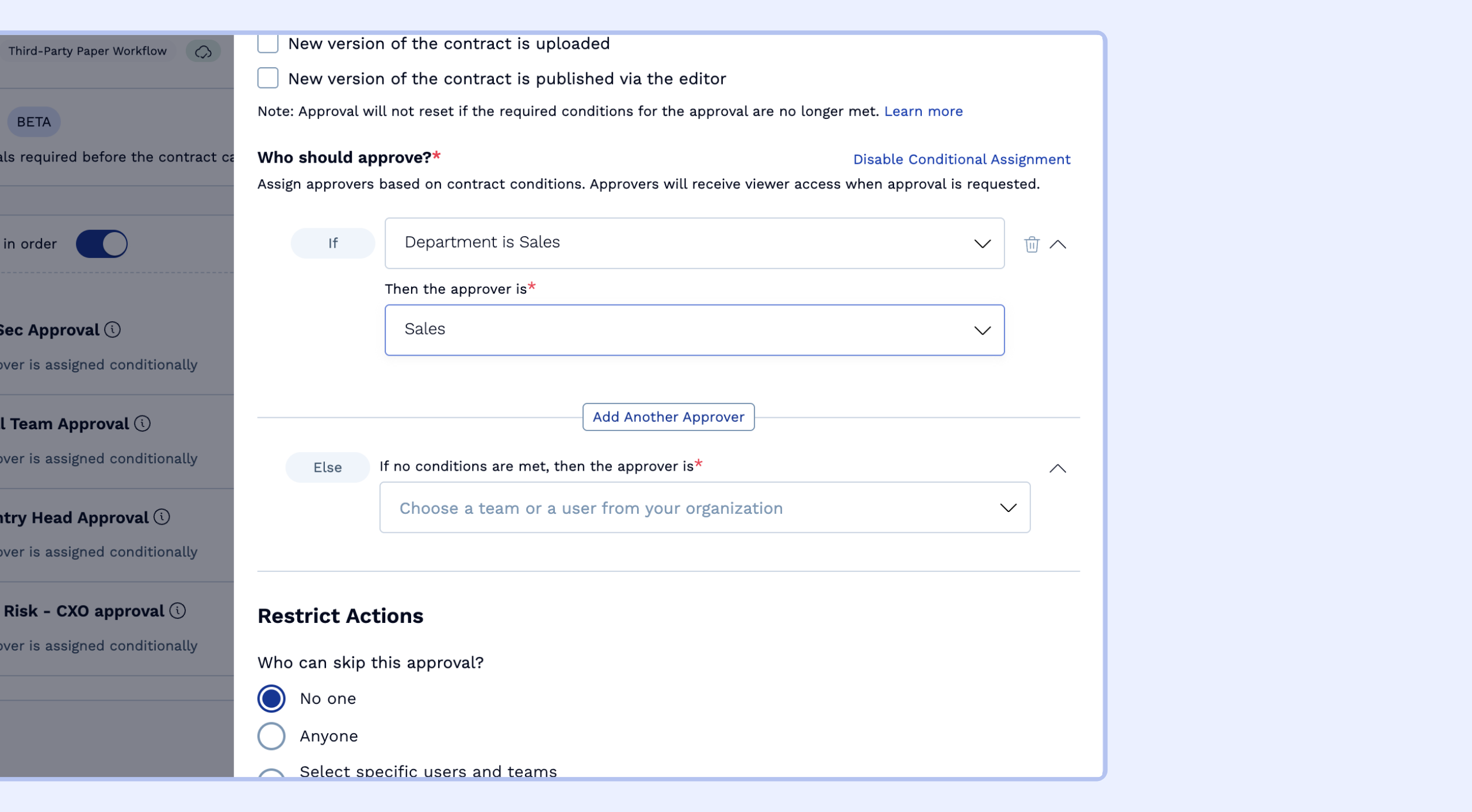
- Click on Select condition within the "If" block.
- Choose an existing condition from your Condition Library (e.g., "Department is Sales").
- Then, in the "Then the approver is" field, select the specific user or team who should approve if this condition is met (e.g., "John Doe").
-
Important: Only one approver or team will be assigned per condition.
-
Adding "Else If" Conditions:
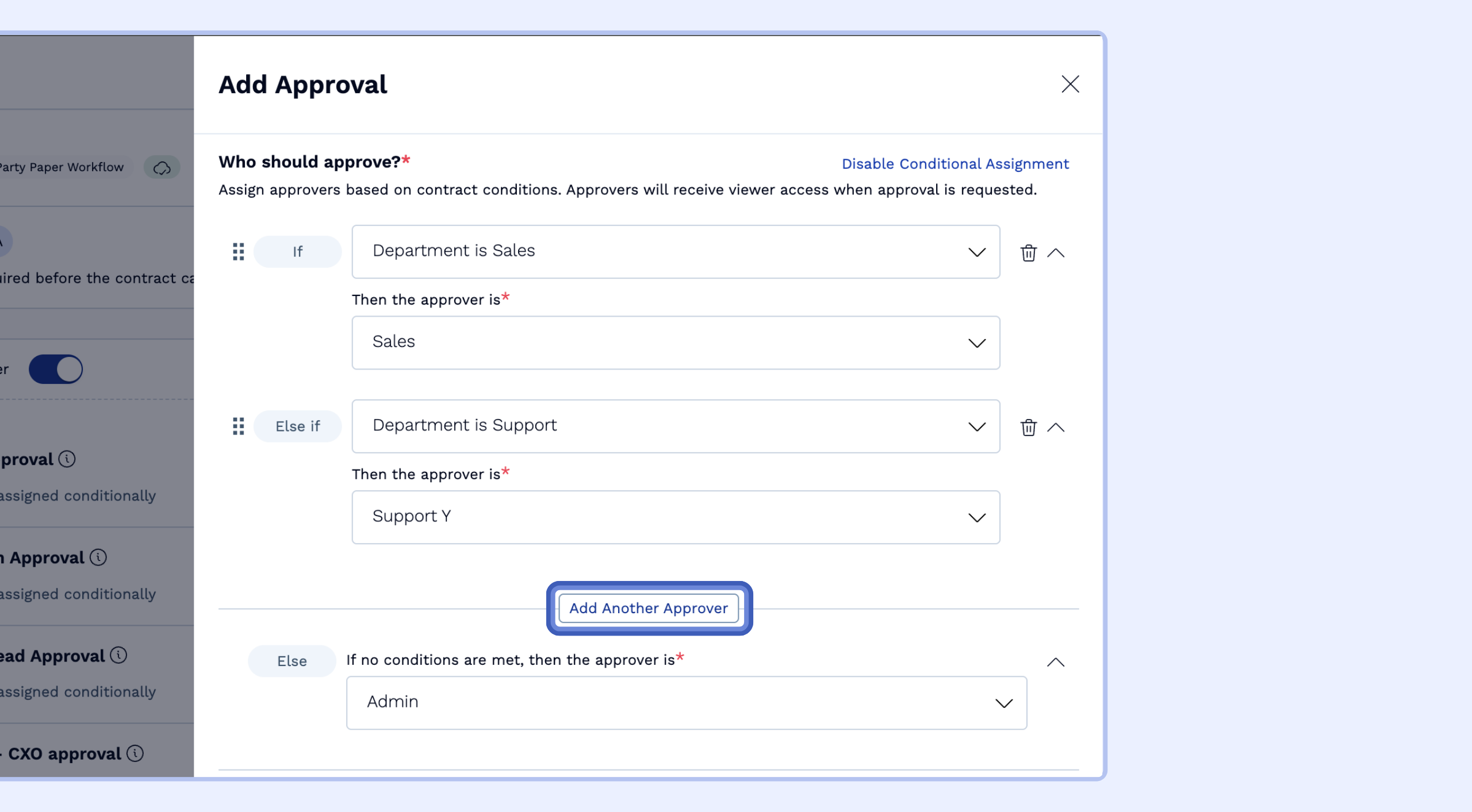
- To add more conditions, click Add Another Approver. This will create an "Else If" block.
- Repeat the process: Select condition (e.g., "Department is Support") and then select the corresponding approver (e.g., "Jane Doe").
- You can add as many "Else If" blocks as needed; there is no limit.
-
Reordering Conditions:
- The system evaluates conditions from top to bottom. The first condition that is met will trigger its assigned approver, and no further "Else If" conditions will be checked.
- You can drag and drop the "If" and "Else If" blocks using the arrows on the right to set the priority and evaluation order of your conditions.
-
Setting the "Else" (Fallback) Approver:
- The "Else" block is a mandatory fallback. If none of the "If" or "Else If" conditions are met, the approver designated in this "Else" block will be assigned the approval.
- Select a default user or team for this fallback (e.g., "Kim Wexler").
-
Adding an "If" Condition:
- Save Your Approval: Once you have set up all your conditional assignments, click Save at the bottom right.
Important Notes
- Approver Access: Any user within your workspace can be selected as an approver. If an assigned approver does not already have access to the specific contract, they will automatically be granted view access when the approval request is sent.
- Notifications: Approvers will receive standard email notifications for their approval requests, containing all relevant details.
- Approval Resets: Setting up conditional assignments does not affect how approval resets work (e.g., if a new version of the contract is uploaded). The reset logic remains separate.
- Visibility of Conditions: You can easily see where your conditions are being used. If you open a condition from the Condition Library and navigate to its Usage tab, you will see a list of approvals (including those with conditional assignments) that utilize that specific condition.
By using Conditional Assignment, you can build flexible and efficient approval workflows that adapt automatically to your specific contract data.