Setting Up Approvals and Reviews in Workflows
Last updated: January 30, 2026
As a SpotDraft administrator, you can use approvals and reviews to control the flow of contract processes, ensuring necessary steps are taken and the correct individuals are notified. This guide explains how to set up approvals and reviews and use the new "Pause Collection" feature within SpotDraft.
Setting up Reviews in workflow is coming soon. Please reach out to your Customer Success Manager (CSM) to get it enabled. We recommend reviewing our guide to understand the updates to the review feature: Requesting Review on Contracts (Latest Updates).
Setting Up Approvals and Reviews
- Navigate to the Workflow Manager:
- Go to the "Manage" section on the side navigation panel.
- Click on "Workflow Manager."

- Select a Workflow:
- Click on the workflow for which you want to set up approvals or reviews.
- This will open the workflow details page.
- Go to Approvals and Reviews Settings:
- On the workflow details page, you'll see a section on the left-hand side labeled "Additional Options."
- Click the "Approvals and Reviews" button.
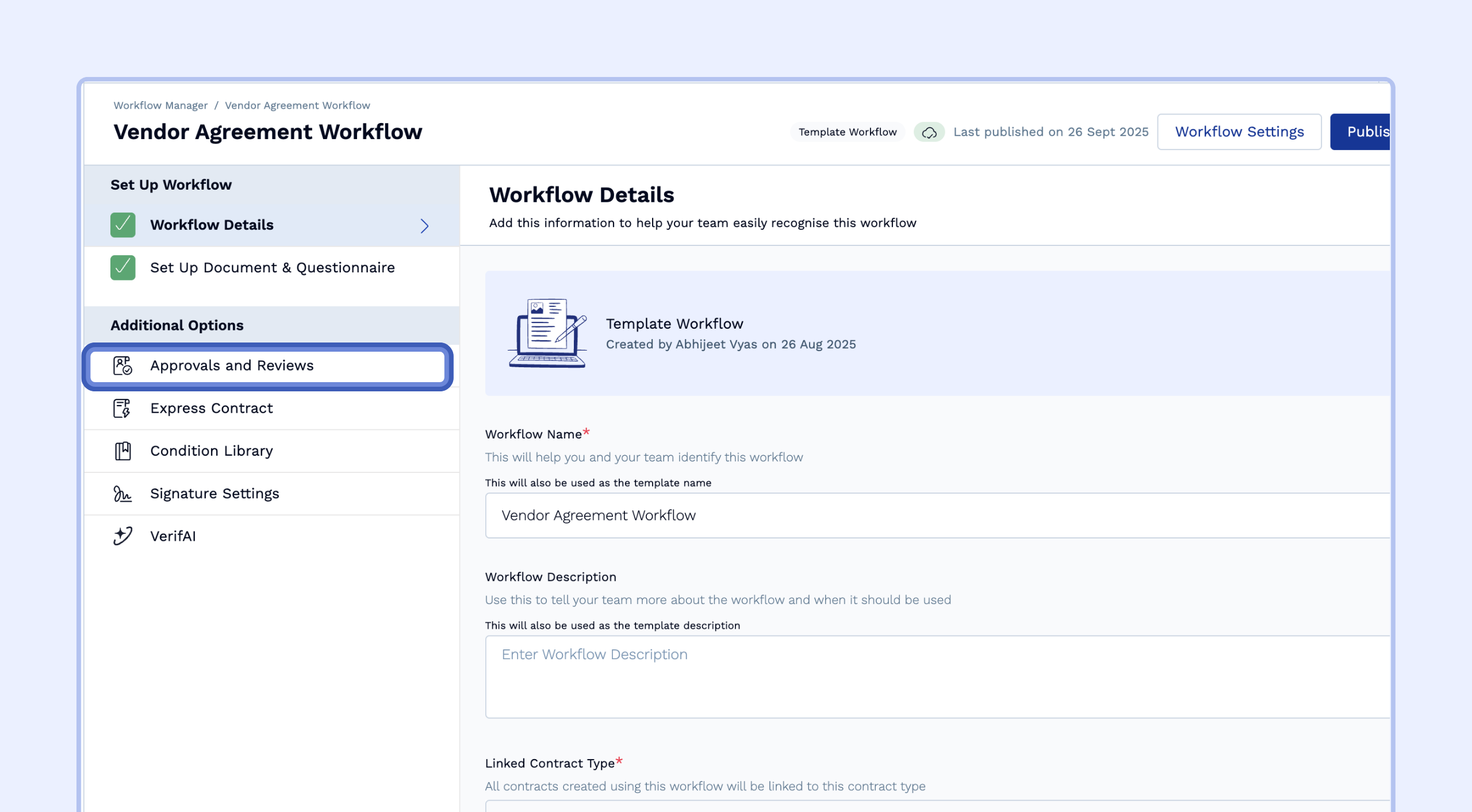
- Add a New Approval:
- Click the "Add Approval" button to create a new approval step.
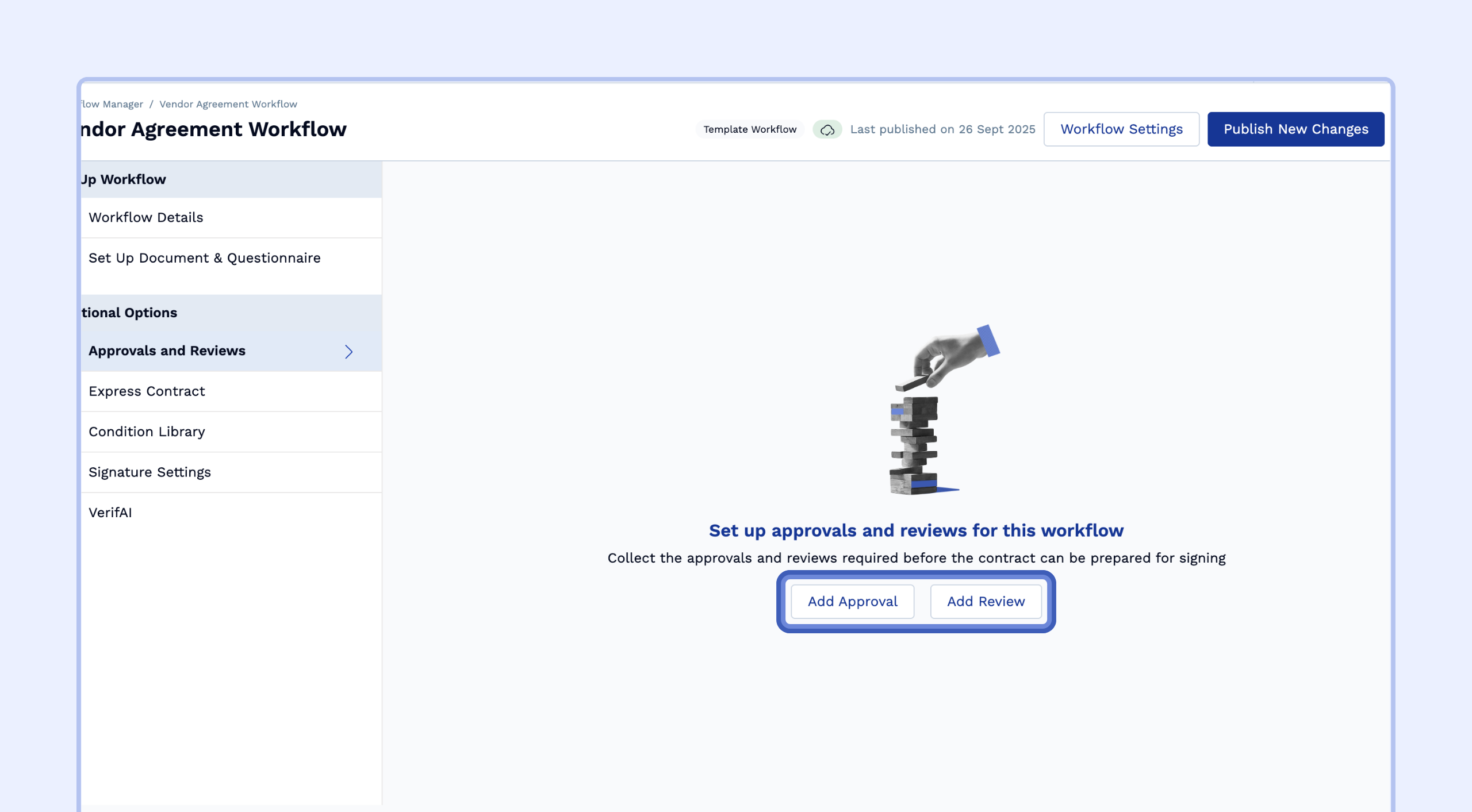
- Click the "Add Approval" button to create a new approval step.
- Configure the Approval:
- Approval Name or Review Name: Give the approval a descriptive name (e.g., "Finance Approval," "Legal Review").
-
Instructions: Write clear instructions for the approver or reviewer, explaining what they need to review and what actions they should take (e.g., "Please review all commercial details and payment terms before approving").
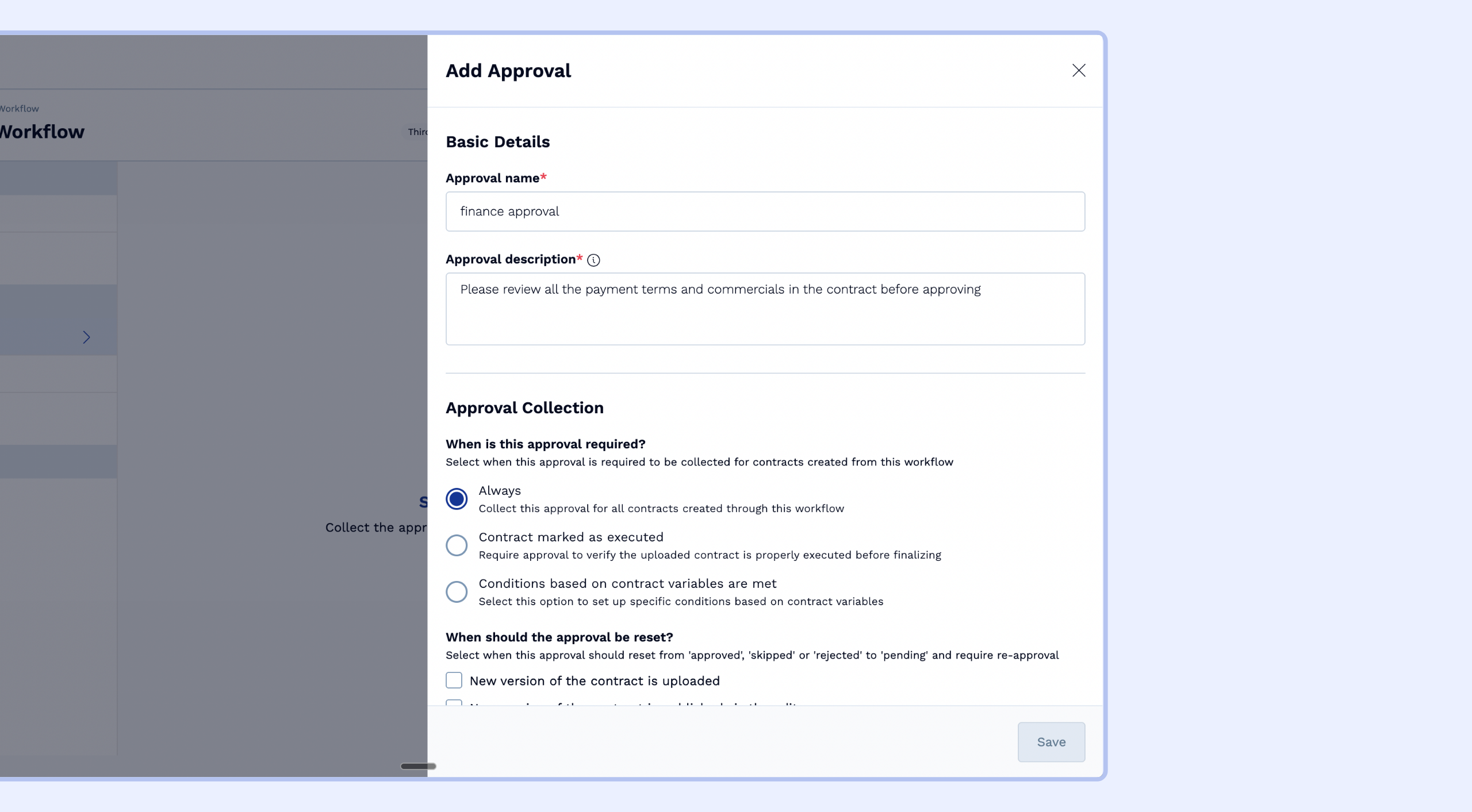
- Choose When the Approval or Review is Required:
- You have two options for when to collect this approval or review:
- Always: This will ensure that approval or review is requested for all contracts created through this workflow.
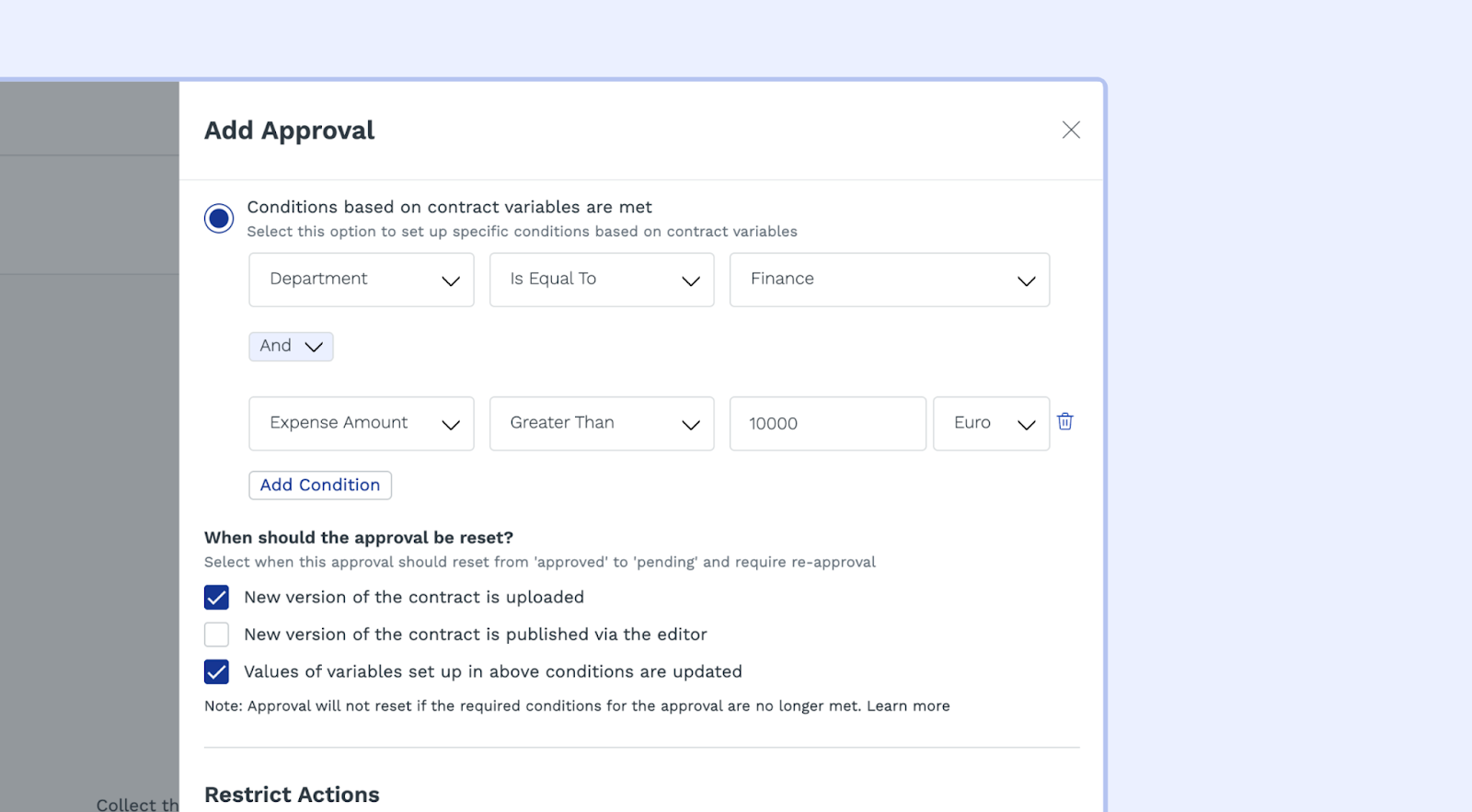
- Conditions Based on Contract Variables: This allows you to request approval or review only if the specific conditions configured based on data fields in the contract are TRUE (e.g., "If the department is 'Finance' and the expense amount is greater than 10,000 euros").
- You will see an option to select a condition from the condition library. Please use the library to define your condition first (see Managing Conditions with the Condition Library) and then select it from the dropdown menu here.
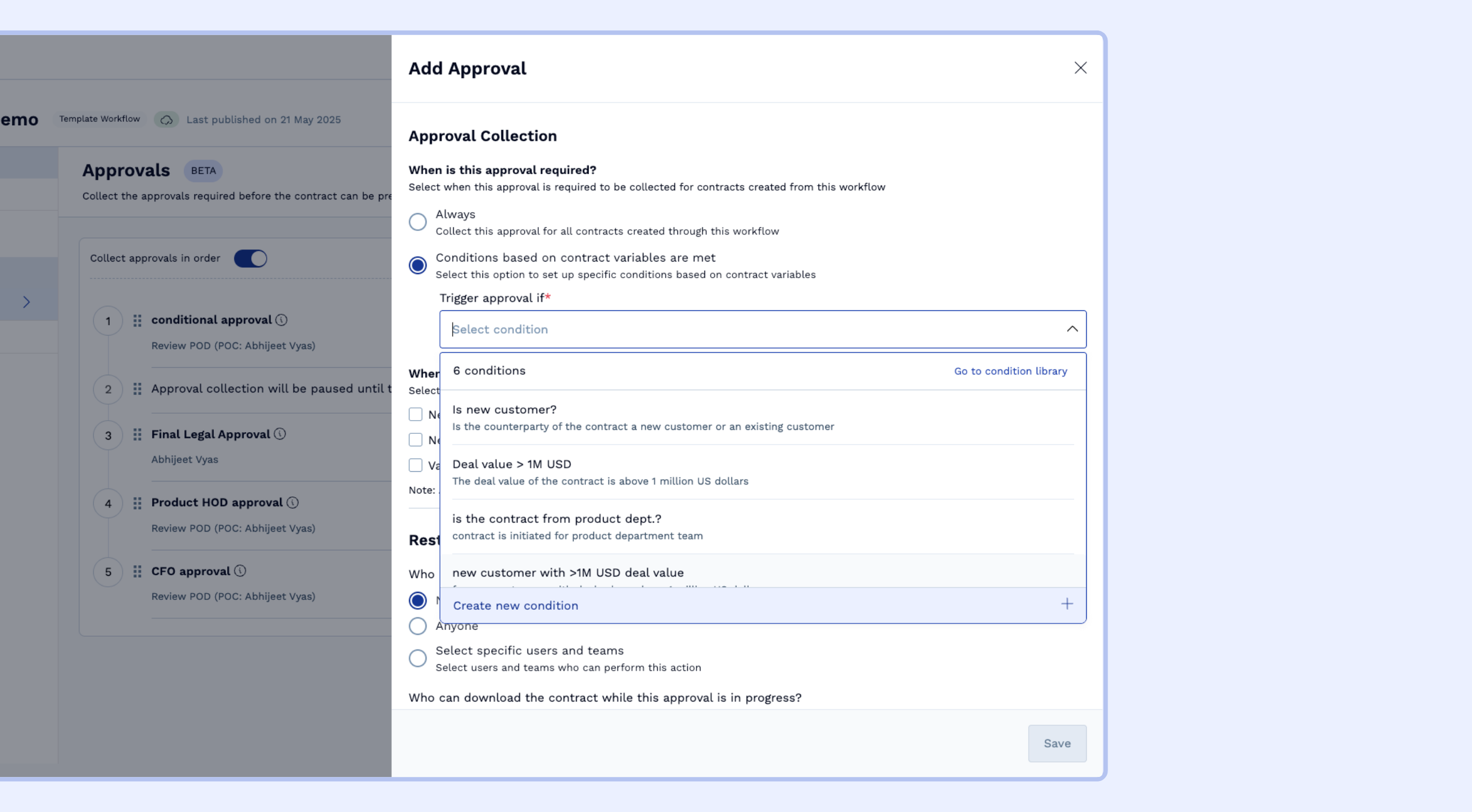
- You have two options for when to collect this approval or review:
- Define When the Approval or Review Should Be Reset:
- Select when this approval or review should reset to 'pending' and require approval or review again.
- New version of the contract is uploaded: The approval or review will automatically reset if a new version of the contract is uploaded to SpotDraft, requiring approval or review again on the latest version. This is useful when changes are made to the contract offline and uploaded to the system.
- New version of the contract is published via the editor: The approval or review will reset if a new version of the contract is published by the editor, ensuring the latest edits are approved.
-
Values of variables set up in the above conditions are updated: This ensures the approval or review is re-triggered if any values within the conditions that you have set up are changed, ensuring continuous review.
-
Note: This option is only available if the approval or review is set to be requested when 'Condition based on contract variables are met'.
-
Note: This option is only available if the approval or review is set to be requested when 'Condition based on contract variables are met'.
- Select when this approval or review should reset to 'pending' and require approval or review again.
- Note: Approval or Review will not reset if the required conditions are no longer met. For further details refer to this section.
- Select who should approve or review?
- This section determines who will be responsible for approving or reviewing the contract when this step is triggered. You have two options for assigning approvers or reviewers:
-
Direct Assignment:
Select a specific team or individual user from the dropdown list. This approver or reviewer will always be assigned if the approval or review is collected.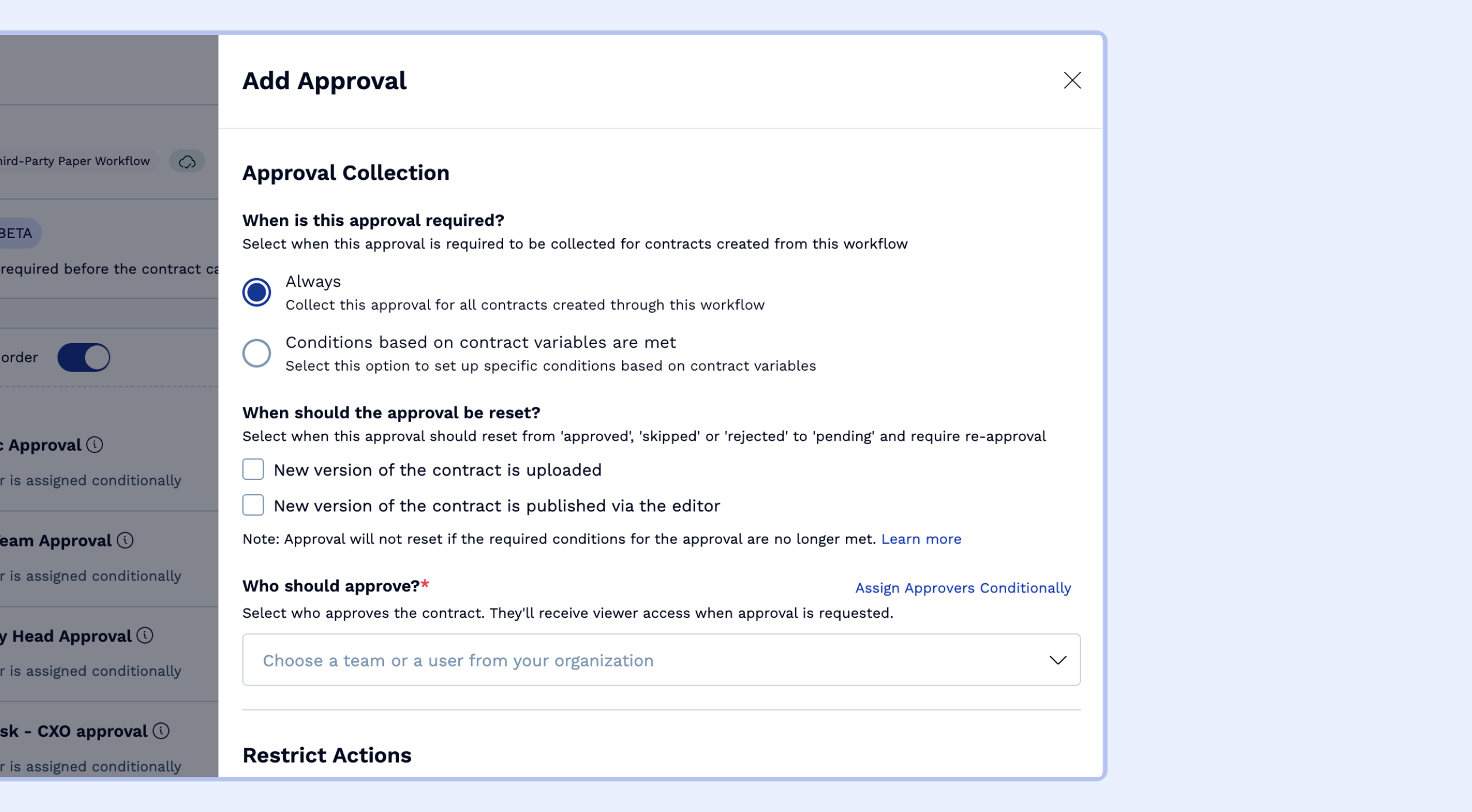
-
Conditional Assignment:
For more dynamic workflows where different individuals or teams need to approve or review based on specific contract details (e.g., department, contract value), click on "Assign Approvers Conditionally" or "Assign Reviewers Conditionally". This opens an "If/Else If/Else" framework, allowing you to set up rules for who approves or reviews based on conditions.
-
Direct Assignment:
- To learn how to set up and manage these dynamic assignments, please refer to our dedicated guide: Setting Up Approvals with Conditional Assignment
- This section determines who will be responsible for approving or reviewing the contract when this step is triggered. You have two options for assigning approvers or reviewers:
- Restrict Actions:
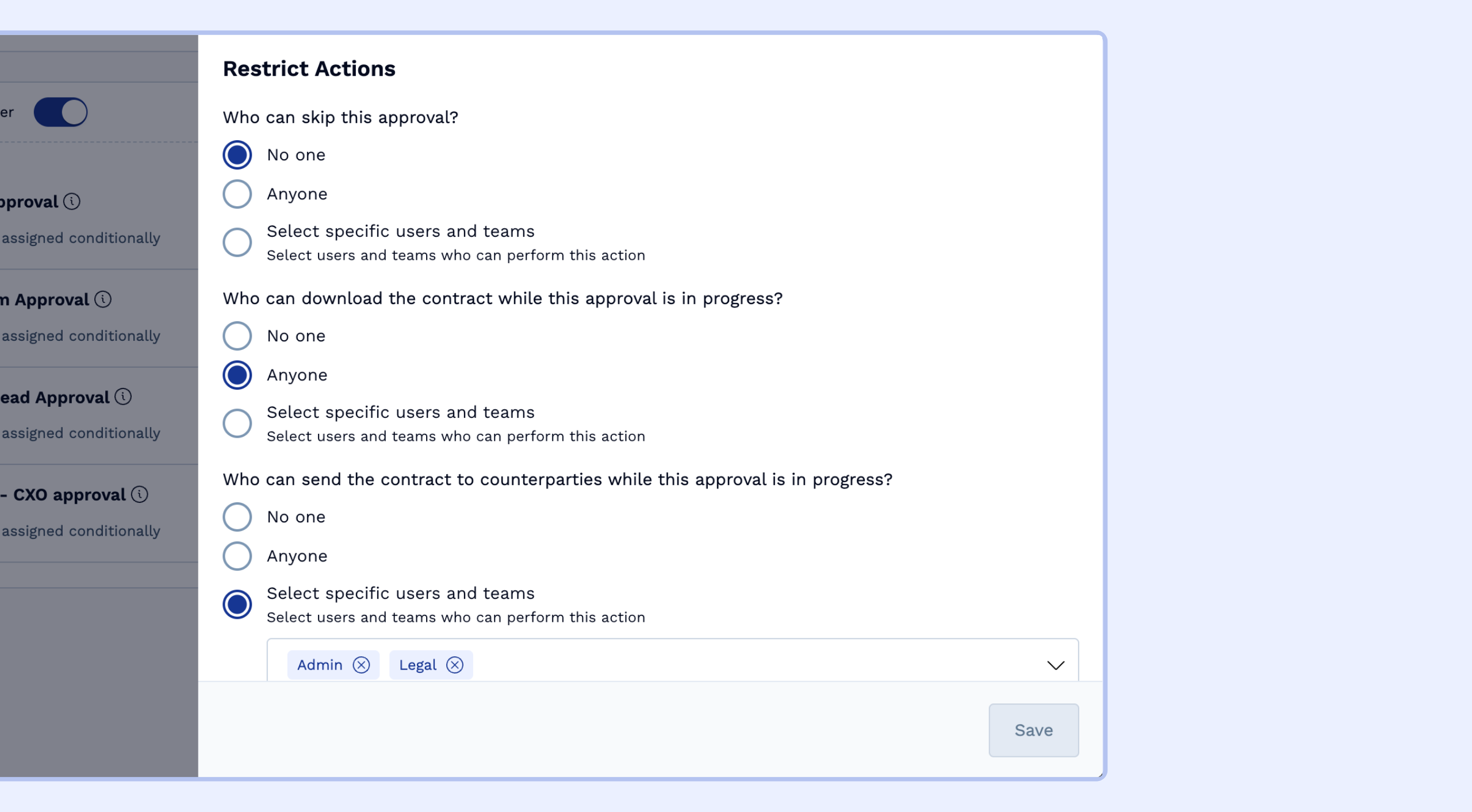
- Who Can Skip This Approval or Review?:
- Control who (individuals or teams) can skip a particular approval or review.
- Who Can Download the Contract?:
- Control who can download the contract while this approval or review is in progress. This is a useful setting to prevent contracts without the necessary approvals or reviews from being shared offline.
- Who Can Send the Contract to Counterparties?:
- Similar to downloading, you can restrict who can share the contract with counterparties while this approval or review is in progress. This is a useful setting to prevent premature sharing of the contract with the counterparty.
- Similar to downloading, you can restrict who can share the contract with counterparties while this approval or review is in progress. This is a useful setting to prevent premature sharing of the contract with the counterparty.
- Who Can Skip This Approval or Review?:
- Save Your Approval or review :
- Click "Save" to finalize your approval or review setup.
Pausing Collection
The "Pause Collection" feature temporarily halts the approval and review process at a specific point. This can be used when you need to:
- Wait for External Actions: Pause collection until a counterparty completes its review or other external actions (eg. check to make sure Vendor is onboarded on our ERP solution) are finished.
- Control the Approval and Review Flow: Pause collection to ensure that a contract is reviewed by certain individuals or teams before proceeding to the next level of approval or review.
Note: This feature is only available within ordered (sequential) approval and review sets. You cannot pause collection within an unordered (parallel) set.
How to Use Pause Collection:
- Click "Pause Collection": Find the "Pause Collection" button.
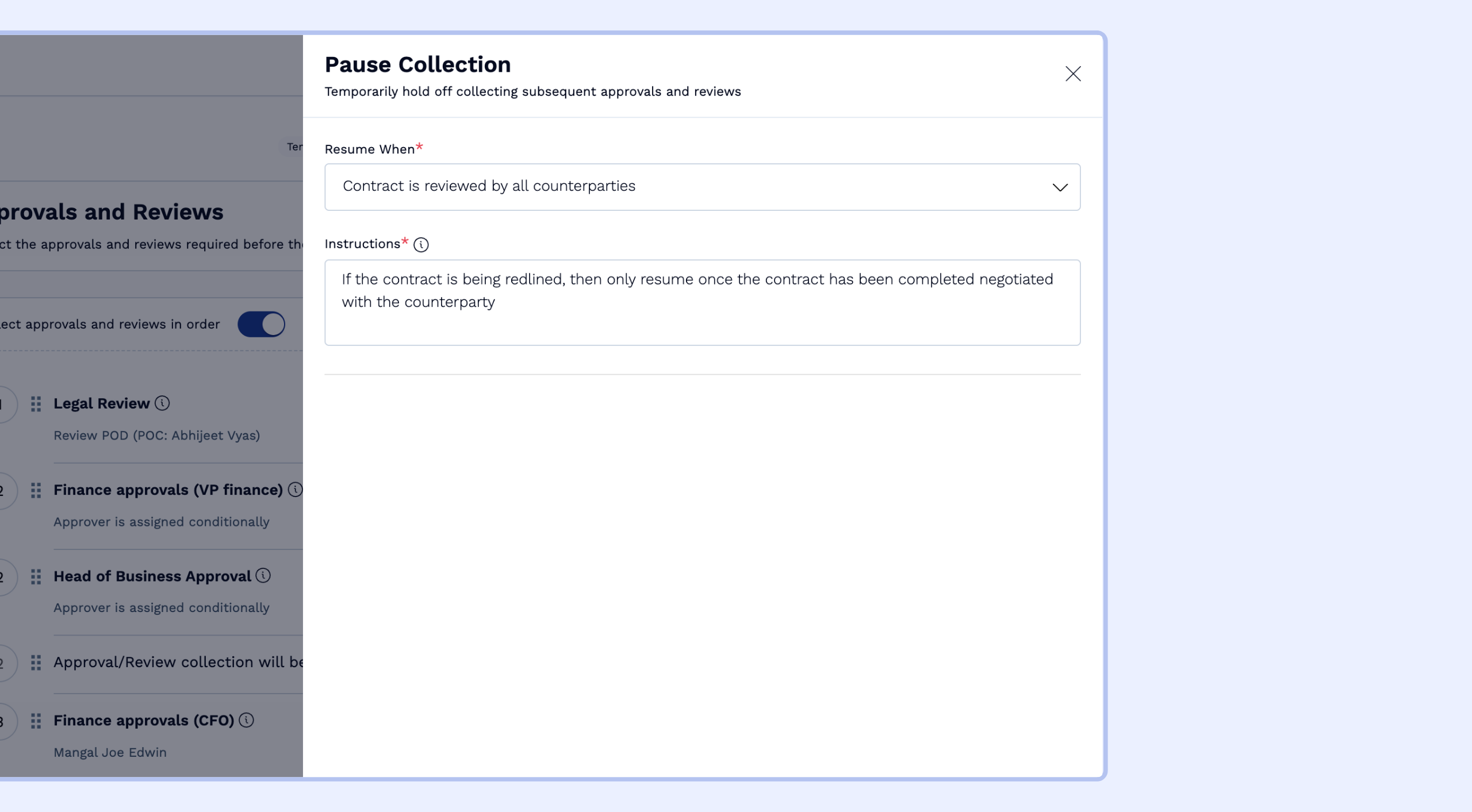
- Configure the Pause:
-
Resume When?:
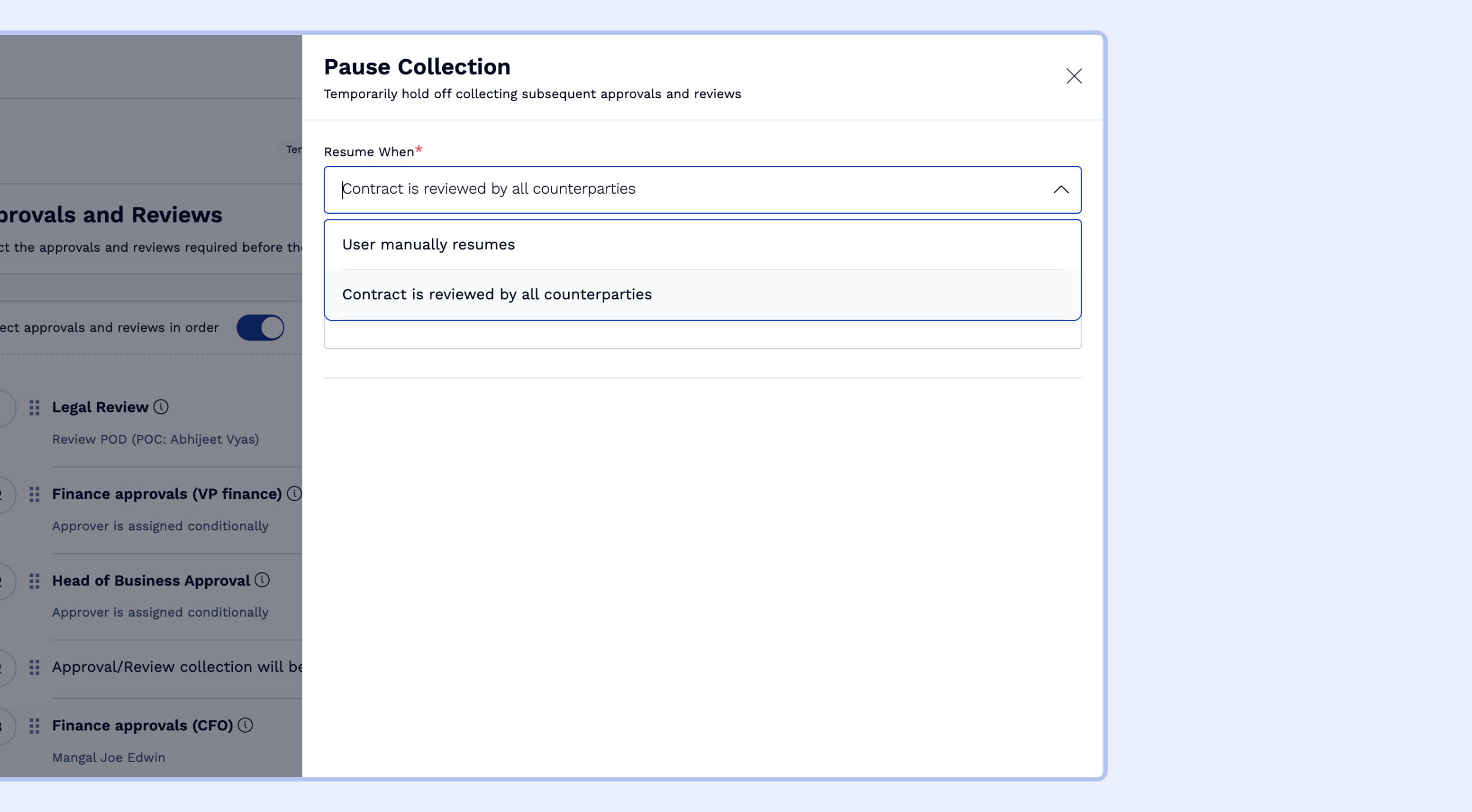
- Select the event that will automatically resume approval or review collection from the dropdown menu. There are two options:
-
User manually resumes: Use this when you want a user to manually resume the approval and review process. For example, you might pause approvals or reviews until the sales team completes the negotiation of the contract with the counterparty. When they're ready, they can resume the collection and take the final signoff.
- Note: A task is created on Business user of the contract to manually resume approval and review collection.
-
Contract is reviewed by all counterparties: This option is helpful when the approval and review process should resume only after the counterparty completes its review. For example, if you want the Finance team to review a contract only after the legal team and the counterparty have both reviewed it, you can add a pause before the Finance team's approval until the counterparty's review is complete.
- Note: this option is only available in template workflows. For template contracts which undergoes redlining, this pause will have to be resumed manually.
- Note: Any user with viewer access to the contact can manually resume the approval and review collection.
-
User manually resumes: Use this when you want a user to manually resume the approval and review process. For example, you might pause approvals or reviews until the sales team completes the negotiation of the contract with the counterparty. When they're ready, they can resume the collection and take the final signoff.
- Select the event that will automatically resume approval or review collection from the dropdown menu. There are two options:
-
Resume When?:
-
Instructions: Add clear instructions for users on when should the approval and review collection be resumed(e.g., "Please resume only after both the parties have completed all negotiations").
- Save Your Pause:
- Click "Save" to finalize the pause setup.
Example:
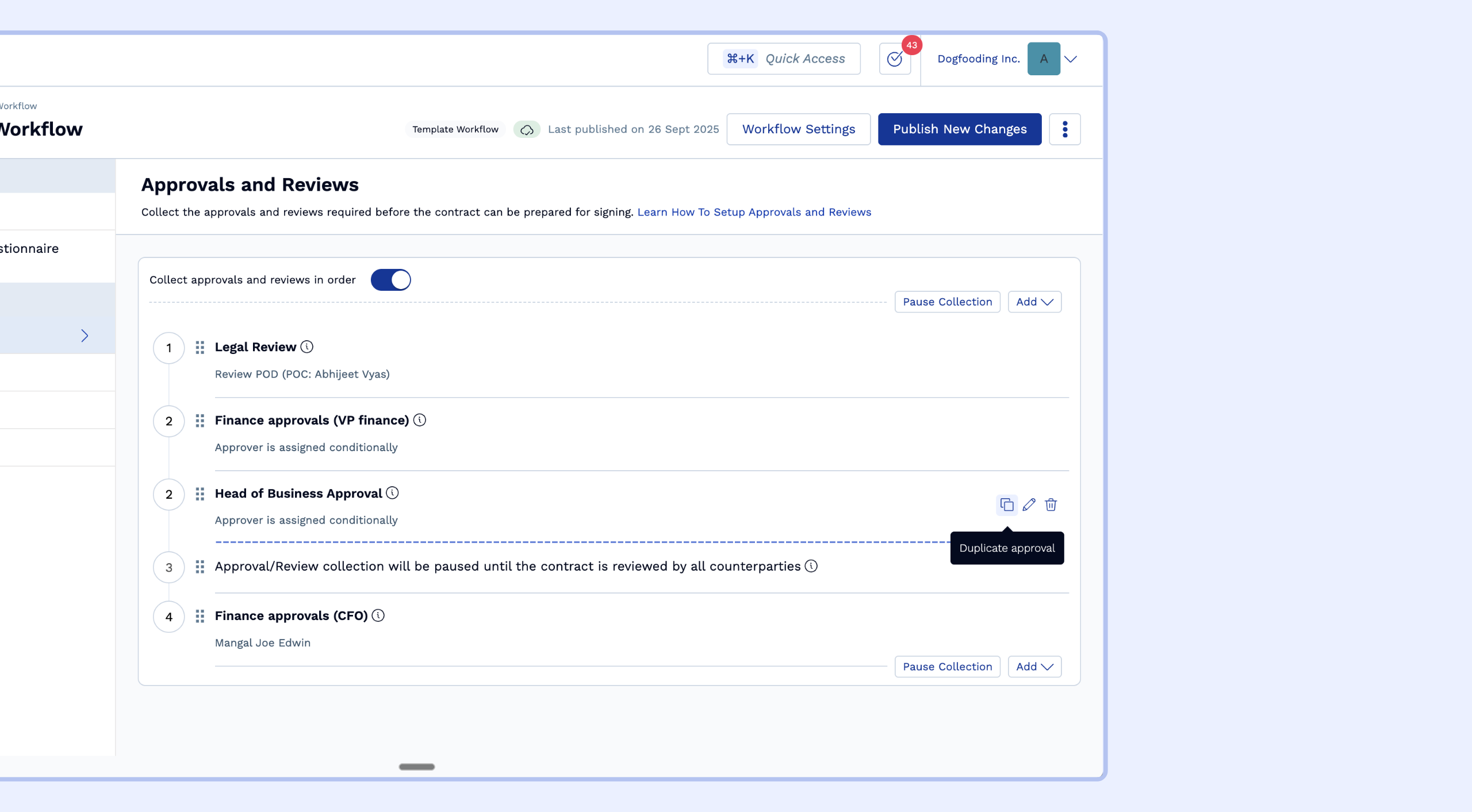
Imagine a template contract workflow where you want legal to review a contract first, followed by finance. However, you don't want finance to approve the contract until the counterparty has completed their review. You could set up the following:
- Legal Approval: This approval is collected "Always."
- Pause Approval Collection: The pause is set to resume when the "Contract is reviewed by all counterparties."
- Finance Approval: This approval is collected "Always".
Reordering Approvals and Reviews
-
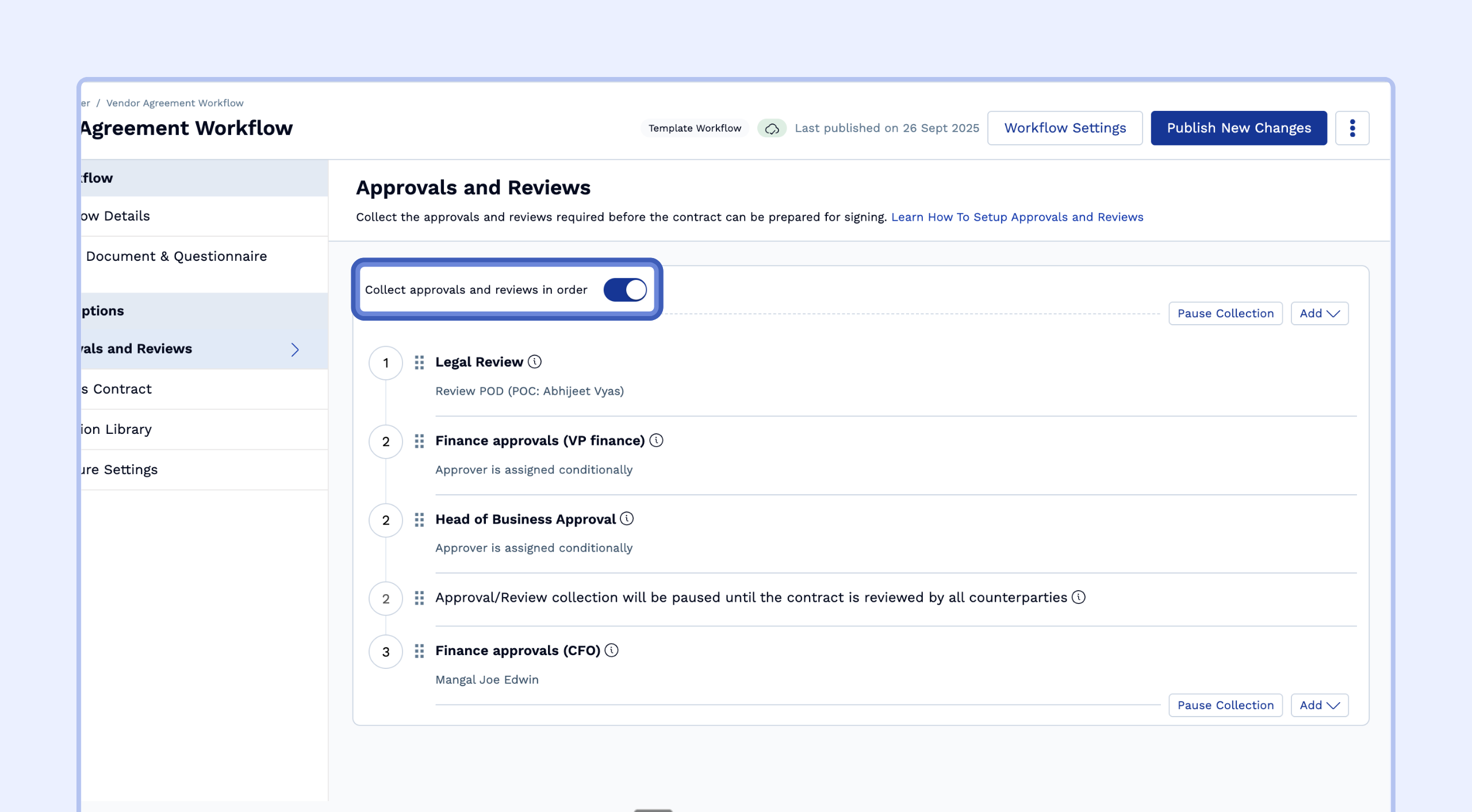
Enable order for approvals and reviews: Toggle on "Collect approvals in order" to enable ordering.
You can easily reorder approvals and reviews using the following two methods:
-
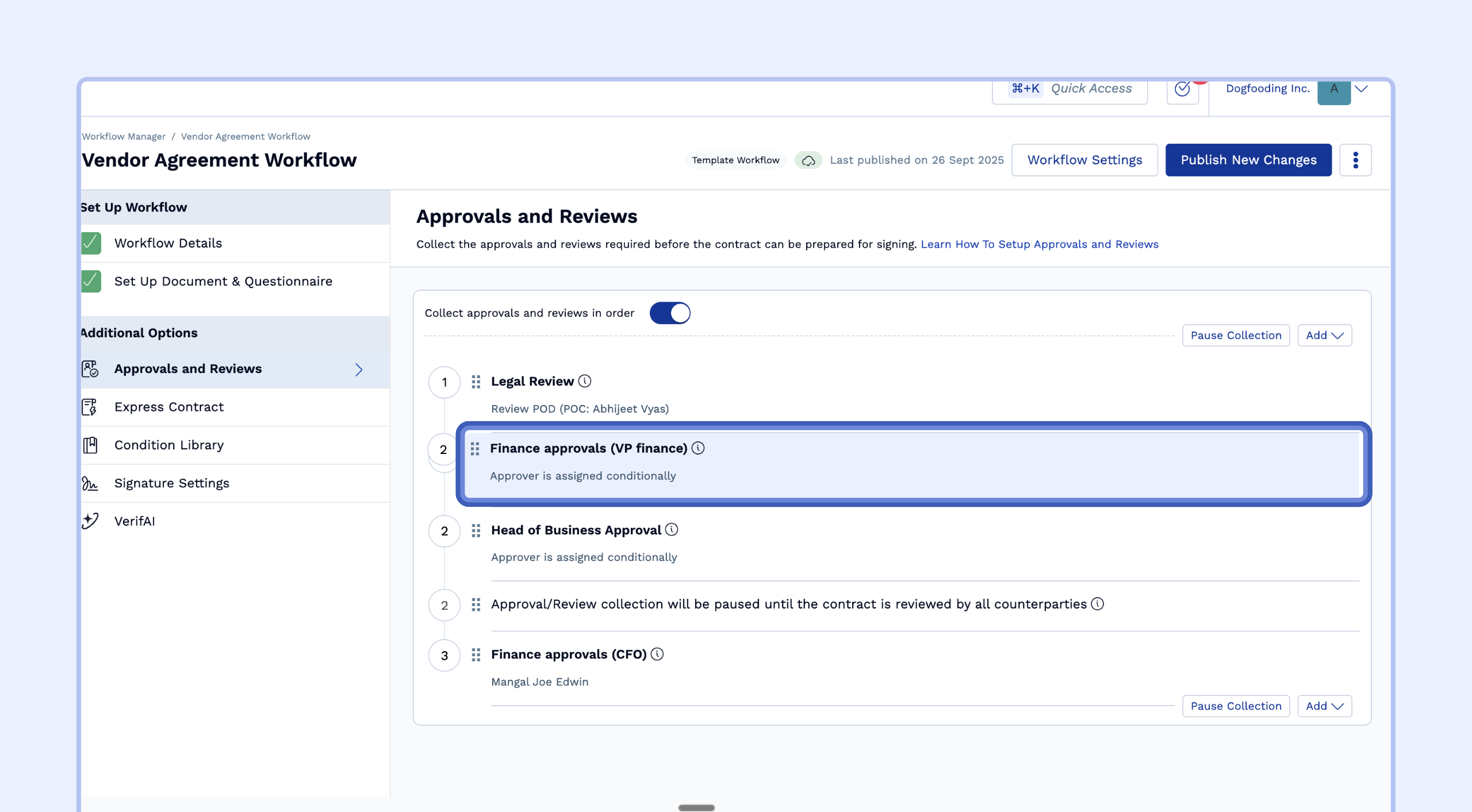
Drag and Drop: Click and hold on the approval or review you want to move and drag it to its desired position in the list.
-
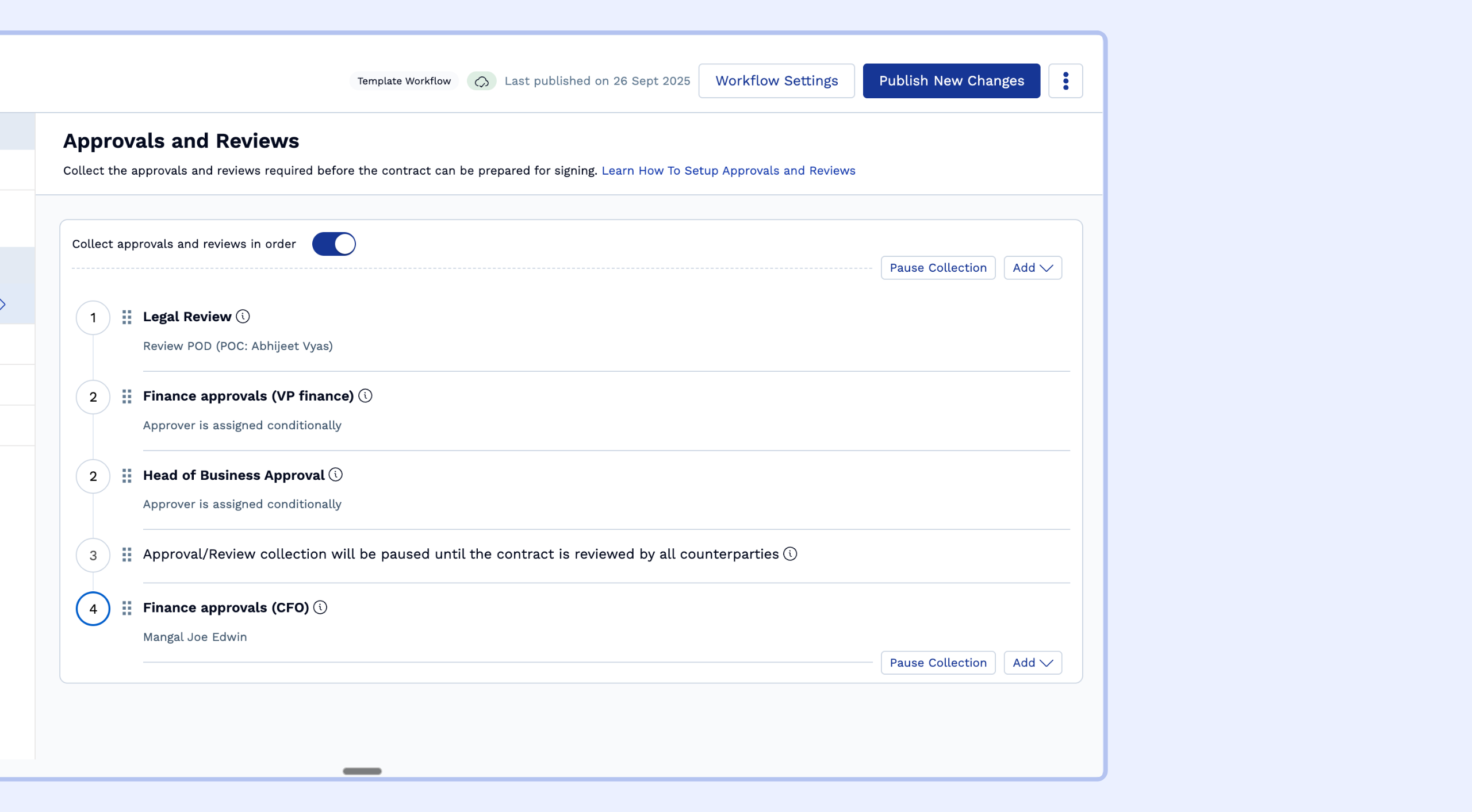
Direct Edit: Click on the order number to the left of the approval or review and directly edit the number to change its position in the list.
Duplicating Approvals and Reviews
If you have an existing approval or review setup that you want to use as a template for a new one, simply click the "Duplicate" button to the right of the approval or review. This will copy all of the settings from the original one. You can then make any necessary changes to the new one, such as the name or instructions, and save it.
FAQs
- I have set a finance approval for my workflow that is supposed to trigger if the deal value of the contract is more than 10,000 USD. Will the finance approval reset every time the deal value changes if I configure the approval to reset when 'values of variables set up in above condition are met'?
Let’s say the contract is created with a deal value of 11,000 USD, since this satisfies the approval condition (deal value > 10,000 USD), the approval will be requested and the finance team will approve the contract.
Now the business team has updated the deal value to 12,000 USD, in this case, the condition (deal value > 10,000 USD) is still satisfied therefore the approval will be reset when the deal value gets updated to 12,000 USD. Let’s say the finance team approves the contract again.
Now again if the business team updates the deal value to 9,000 USD, the condition (deal value > 10,000 USD) is not satisfied anymore, therefore even though the deal value is updated, the approval won’t reset. Additionally, this approval will no longer be required.
- How should I set approvals if I want to collect all the approvals just before getting the contract signed?
In the legacy approvals system, you could directly add pre-sign approvals and these approvals would trigger once a user attempts to make the contract for execution (for third-party paper contracts) or once the contract review is completed by all counterparties (for template contracts).
In the new approvals system, you can add all the necessary approvals and then add a pause before the 1st approval, this will allow you to ensure that the approval collection does not start immediately after the contract is created. For third-party paper contracts, you can add a manual pause. For template contracts, you can add a manual pause or an automated pause which resumes when all counterparties complete the contract review.