Requesting Review on Contracts (Latest Updates)
Last updated: March 19, 2026
Note: The updates mentioned in this article will be available soon. These updates will be available only for customers who have opted in for the update on setting up reviews in the workflow (further details here Setting Up Approvals and Reviews in Workflows). Please reach out to your Customer Success Manager (CSM) to get it enabled after these important updates to the Request Review feature.
Let's first start with understanding the best practices on when to use Approvals vs when to use Reviews
Reviews vs. Approvals: Understanding the Difference
While both reviews and approvals are required tasks in your workflow, they serve different operational purposes:
Feature | When to use Approvals | When to use Reviews |
Purpose | To secure a formal, official sign-off that makes a contract compliant with organisation's requirements | To seek detailed feedback, validation, or confirmation from internal experts (e.g., product, security, marketing). |
Authority | Required from individuals in a position of authority (e.g., CFO, Department Head). | Can be requested from any internal stakeholder or team to track reviews, specially from individuals who are not in position of authority. |
Official Chain | Essential for maintaining the official chain of command and adhering to SOPs. | Can be more ad-hoc and is used primarily for internal feedback. |
Requesting Reviews at the Contract Level
You can request a review manually from the contract details page. This is useful for contracts that don't follow a workflow or when you need last-minute ad-hoc feedback.
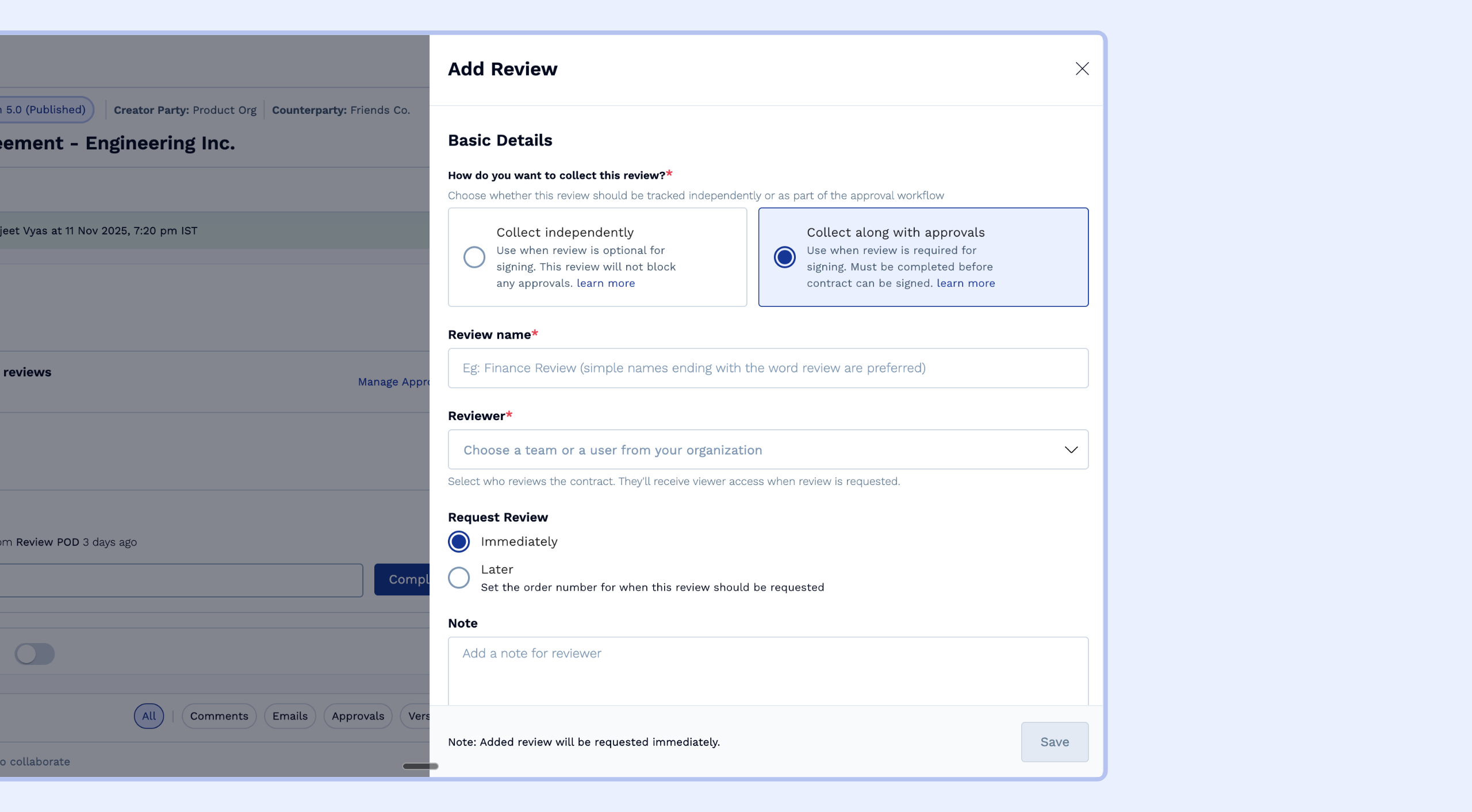
Access the Review Request: On the contract details page, click Request Review.
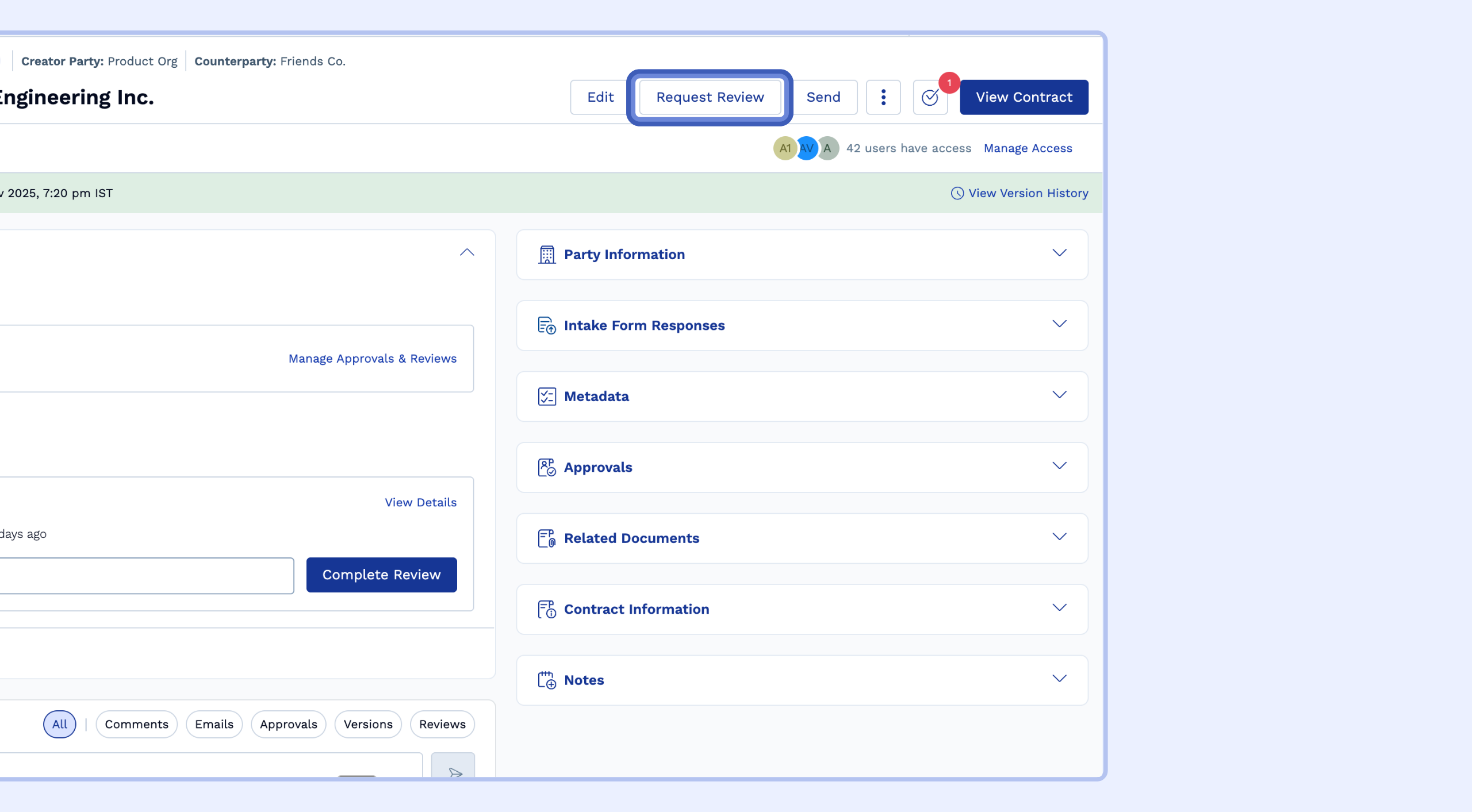
or, if you are using the new contract details page.
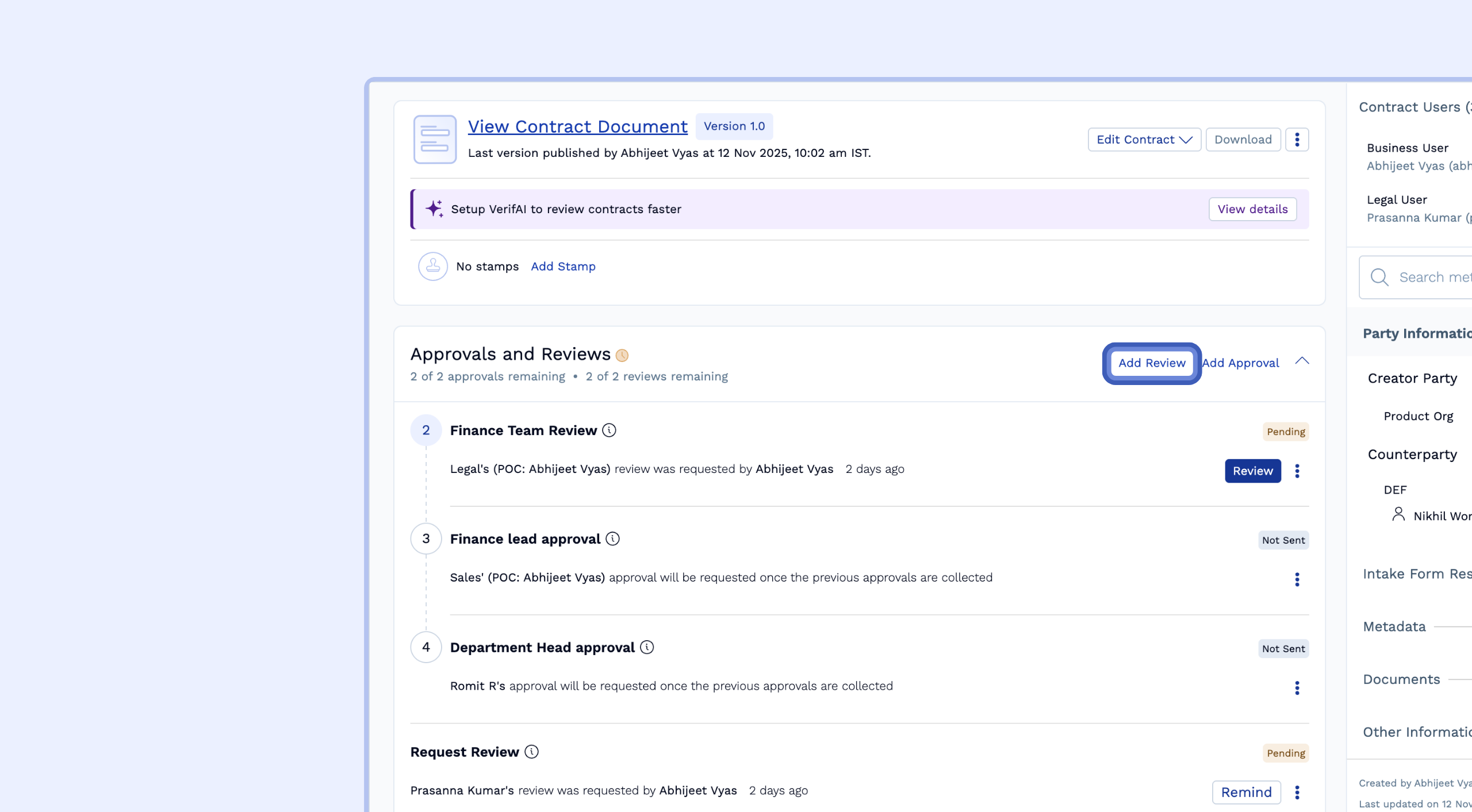
Choose How to Collect the Review: Select either Collect Independently or Collect along with approvals based on your need (see below).
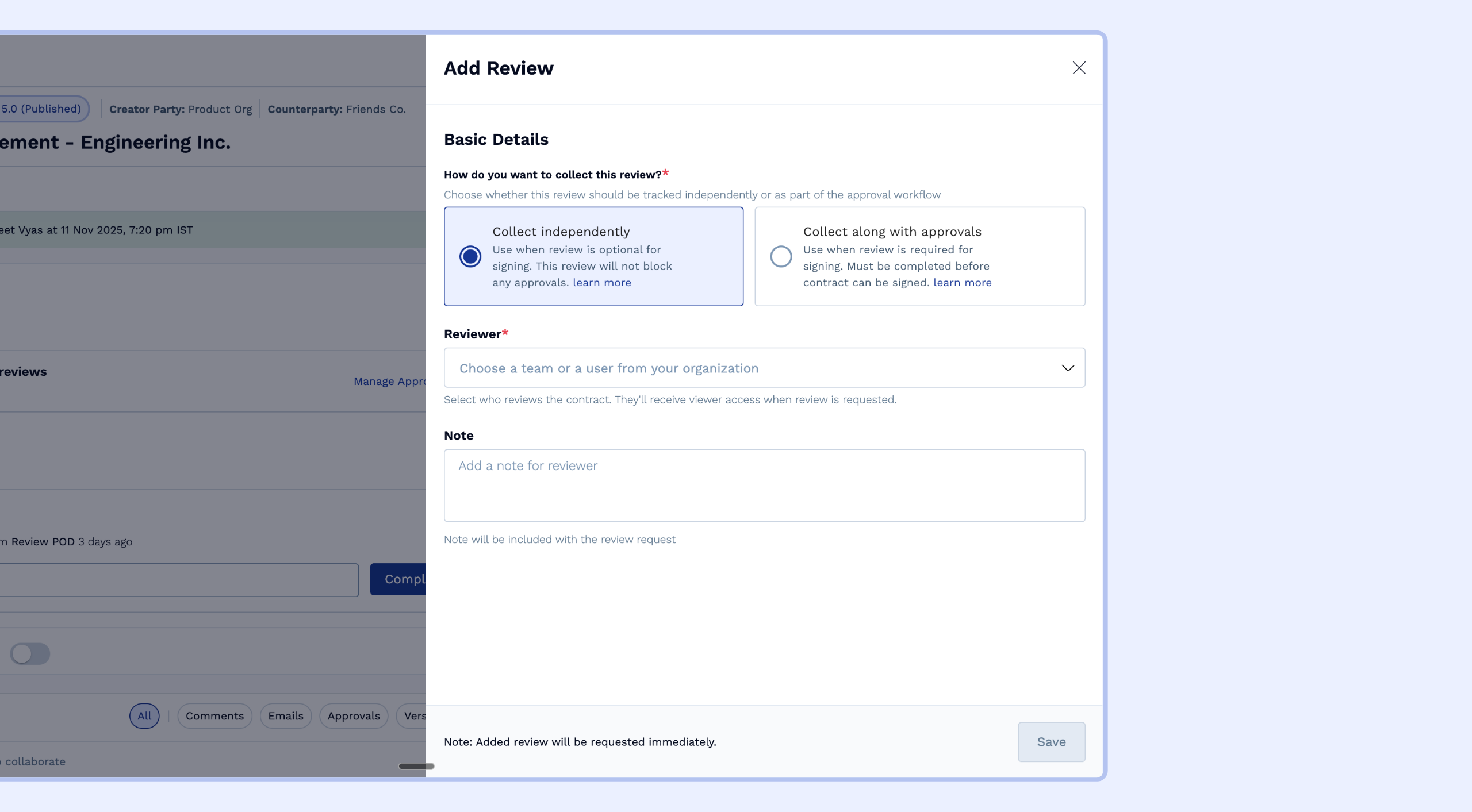
Assign the Reviewer: Select the individual user or team from the Reviewer dropdown.
Add a Note: Include a note with specific instructions for the reviewer (e.g., "Please check for compliance with GDPR requirements").
Save: The Review task will be immediately created and assigned.
When to Collect a Review Independently?
Choose the Collect Independently option when the review is optional or for tracking purposes only, and you do not want the review task to block the contract from proceeding to signing.
Use this for scenarios like:
Optional Feedback: You have already secured all mandatory approvals, but you want an additional stakeholder to check the contract if they have time. If the review is not completed, you will still move forward with the contract execution.
Non-Critical Reviews: You need to notify the team that the contract is being processed, but their input is not strictly required for compliance or financial sign-off.
Key Result: Reviews collected independently will not block the contract from being sent for signing.
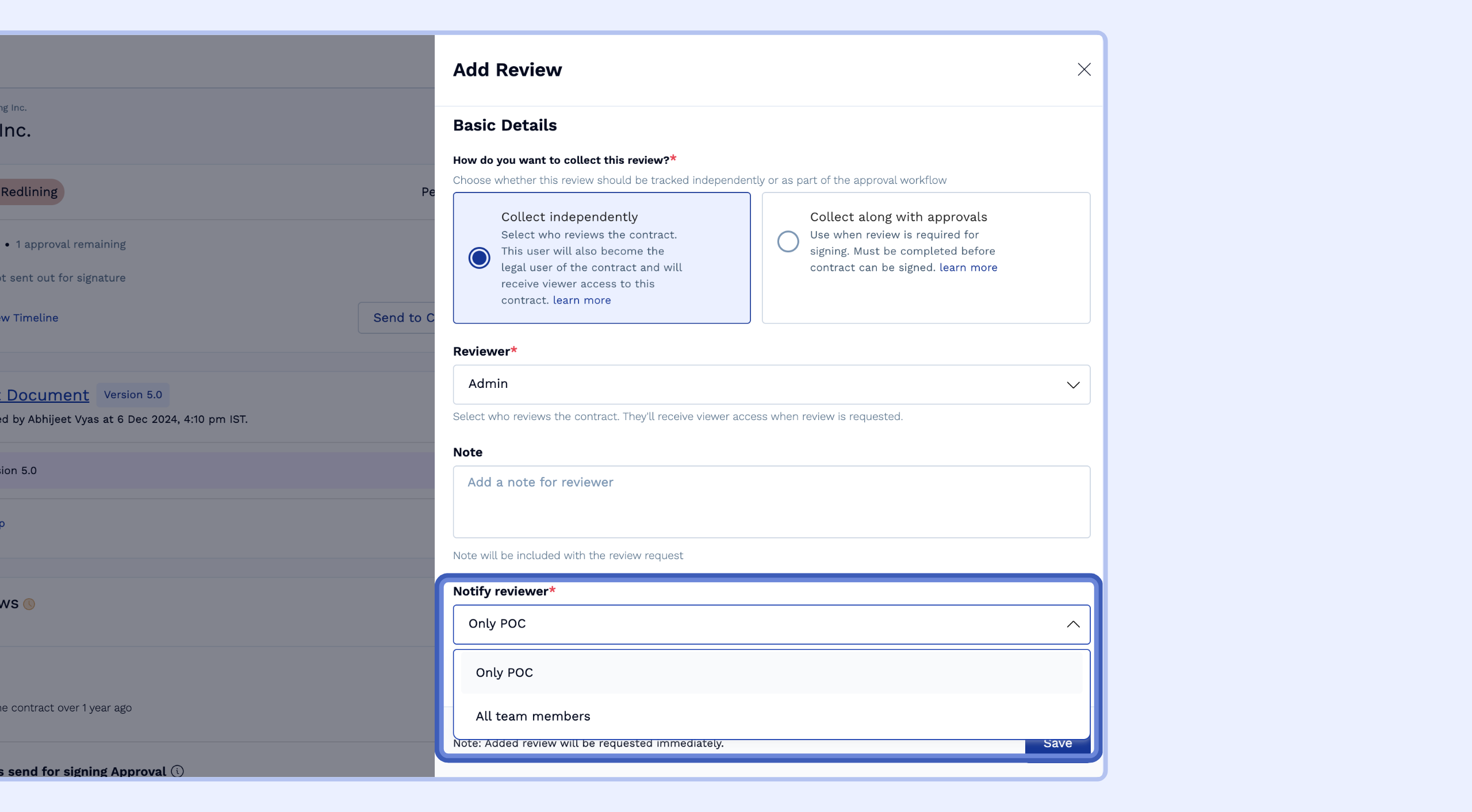
Note: You can choose to notify the entire team or just the POC of the review task assigned to the team, though anyone in the team will be able to complete the task
When to Collect a Review Along with Approvals? (new)
Choose the Collect along with approvals option when the review is a mandatory part of your internal process, and the contract cannot proceed to the next step (or signing) until this review is completed.
Use this for scenarios like:
Mandatory Internal Clearance: The review is mandatory as part of an internal compliance or operational process (e.g., the security team must review all vendor contracts, but they are reviewers, not formal approvers).
Conditional Mandatory Task: An Approver has explicitly requested input from another team (e.g., the Finance Lead requests a review from the Product team to confirm the scope), and this input must be collected before the overall approval chain can continue.
Additionally, when collecting a review along with approvals, you can decide when the review should be collected (if at a later stage in the sequence) and if you want to block actions like download and send to counterparty until this review is completed.
Key Result: Reviews collected along with approvals will block the contract from being sent for signing until the review is completed or manually skipped.
Actions on a Pending Review Task
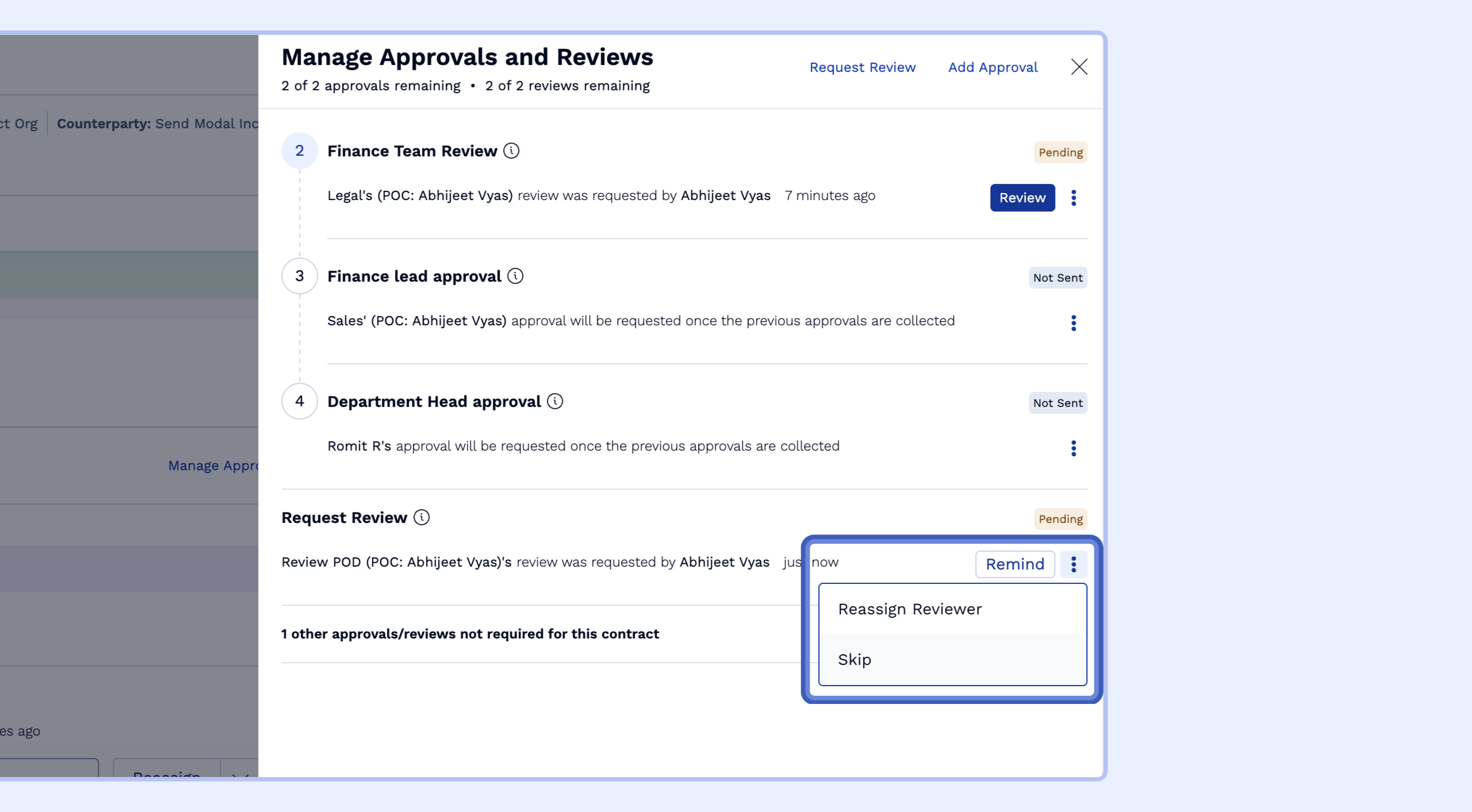
Once a Review task is assigned, the reviewer will see it listed under My Tasks on the contract details page. There are several actions available to manage or complete the task:
Review Management Actions
Action | Purpose |
Reject | Allows the reviewer to immediately decline the request. When a review is rejected, the Business User of the contract needs to take action and resend the review. |
Skip | Allows specific users with access to skip the review in case it is not necessary cannot be actioned in specific cases. |
Reassign | To hand off the review task to another individual or team within the organization. |
Starting and Completing the Review
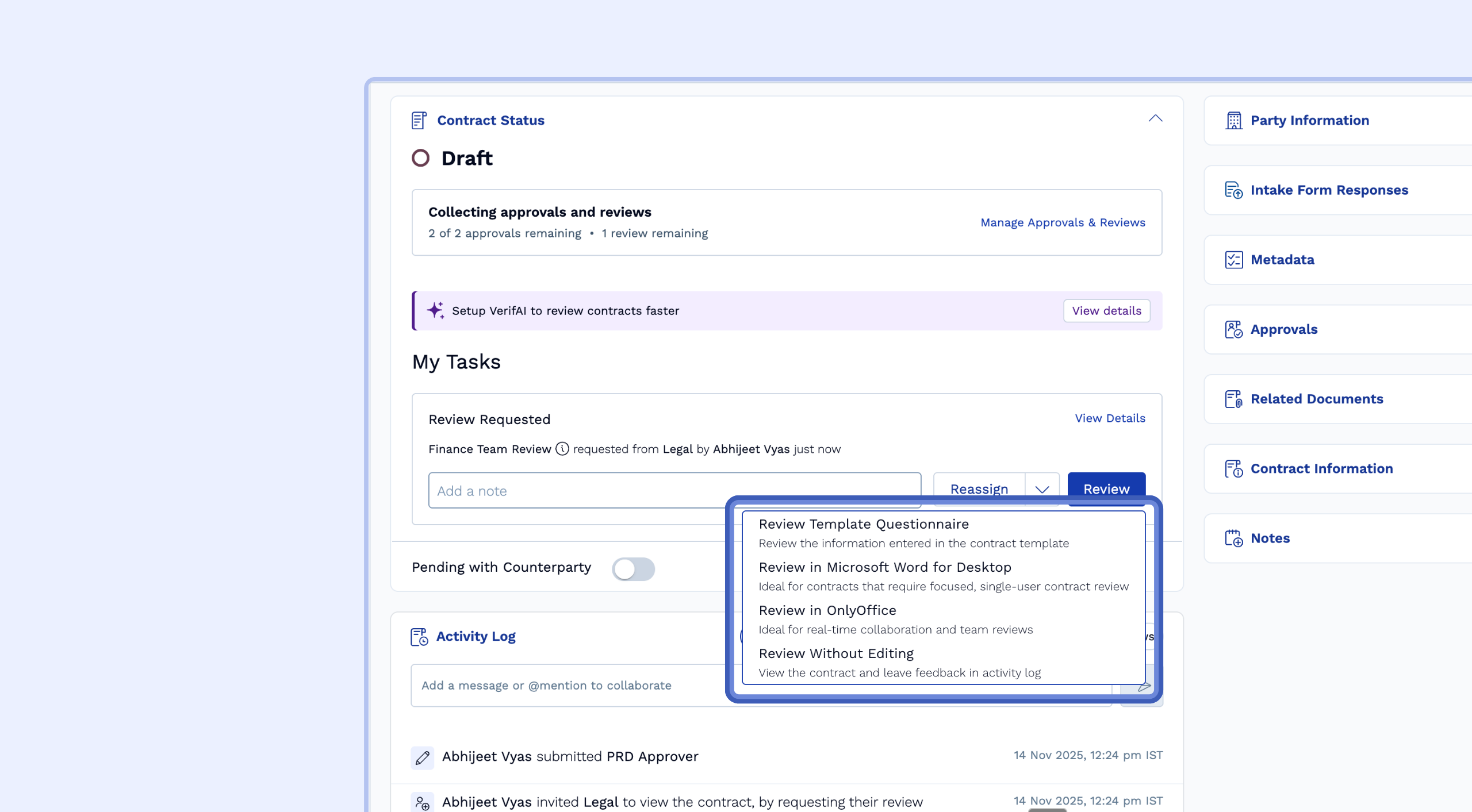
The main way to complete the task is by clicking the Review button. When you click Review, you are presented with options on how you want to interact with the contract:
Review in Microsoft Word for Desktop: Opens the contract in the MS Word editor, allowing you to use all familiar redlining tools for deep, offline document editing.
Review in Office Editor: Opens the contract in the web-based, in-app editor for quick, collaborative redlining and markup without needing to download any files.
Review Template Questionnaire: Opens the contract’s Intake Form/Questionnaire. This option is used when the reviewer only needs to check the data entered by the contract creator (e.g., confirming department, value, or region) without reviewing the clause language itself.
Review without editing (New): This is the quickest way to complete the review task. Choose this option if your review is based on external processes (like a checklist or system verification) and you do not need to open or redline the document. Selecting this option starts the review task immediately.
Key Updates to the Review Functionality
Enabling the feature to set reviews in the workflow significantly enhances how reviews are managed and requested across SpotDraft, removing previous limitations and increasing workflow flexibility:
Feature | Without Latest Updates | With Latest Updates |
Setting up reviews in Workflow | Manual Only | Workflow-based available |
Request multiple reviews simultaneously | One at a time | Multiple simultaneous reviews possible* |
Who Can Review | Only Editor | Anyone with view access |
Reviewer Notification | Only POC | All team members |
Any team member can start review | Only POC | All team members |
Reviews blocking signing (along with approvals) | Not supported | Blocks signing* |
Reviews blocking signing (independent reviews) | Doesn't block signing | Doesn't block signing |
Multiple Concurrent Approvals and Reviews on a user | Only one of approval or review at a time | Multiple approvals and reviews |
Legal User Assignment | Always auto assigned to the reviewer | Custom or conditionally assigned |
Delete a review task | Can delete | Skip action instead |
*Requesting multiple reviews simultaneously will only be applicable for contracts using the new approval system. For older contracts using pre-send and pre-sign approvals setup, only one review at a time can be created.