Signing a contract on SpotDraft
Last updated: May 18, 2026
This guide walks you through the process of signing a contract using SpotDraft's eSignature feature, including how to handle various fields that may be required.
How to Sign a Contract on SpotDraft
When a contract is ready for your signature, you’ll receive an email from SpotDraft. Note that counterparty signatories (external parties signing the contract) receive only email notifications and do not need platform access to sign. If you are a counterparty signatory, the contract will not appear in your platform’s ‘To be Signed’ list even if your name is listed as a pending signer.
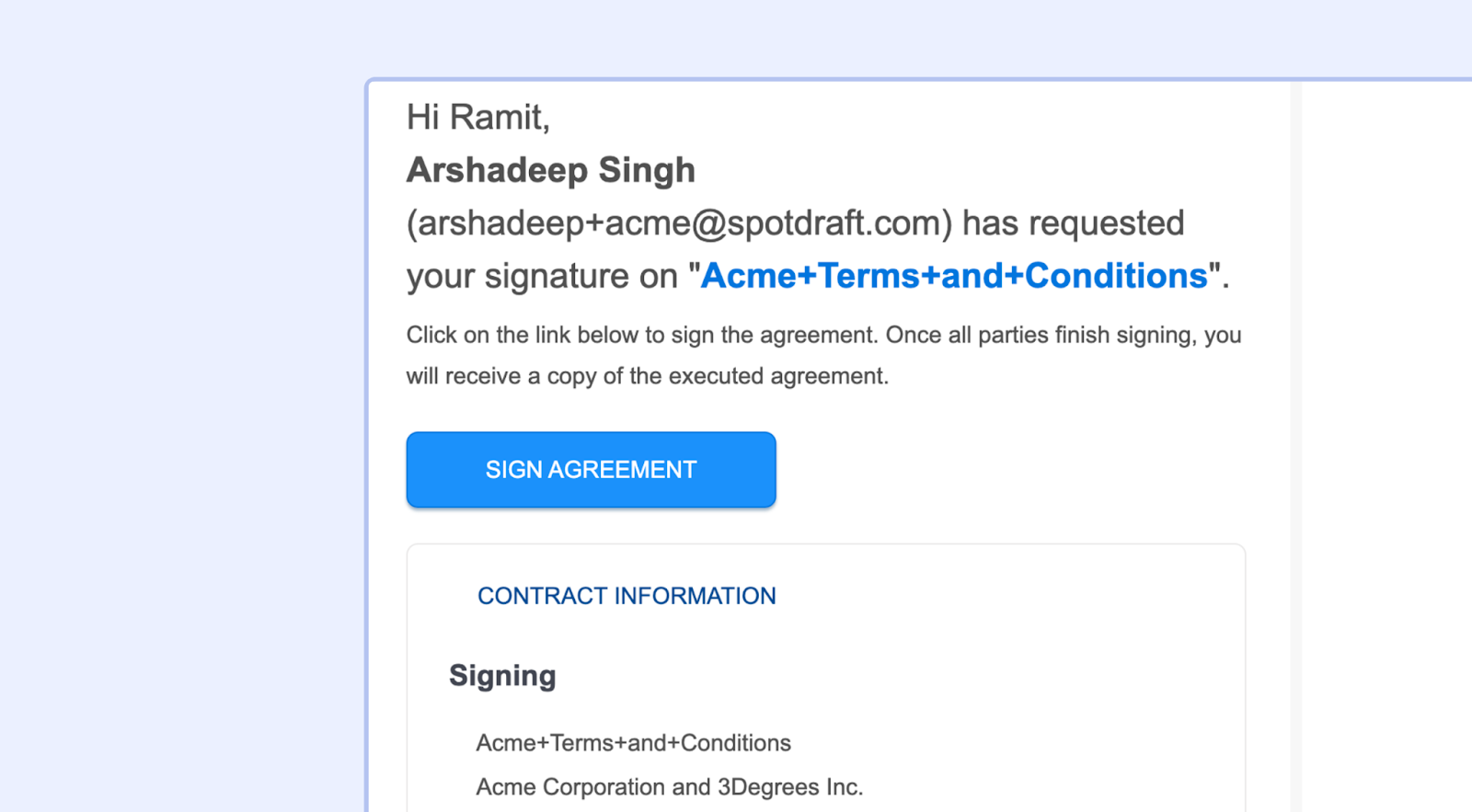
Important: If the contract has a signing order configured, you will only receive your notification and be able to sign when it reaches your position in the signing sequence. If you have multiple signatory roles on the same contract (e.g., as both counterparty and creator party), you will not receive the signing request for later roles until all earlier signatories have completed their signatures.
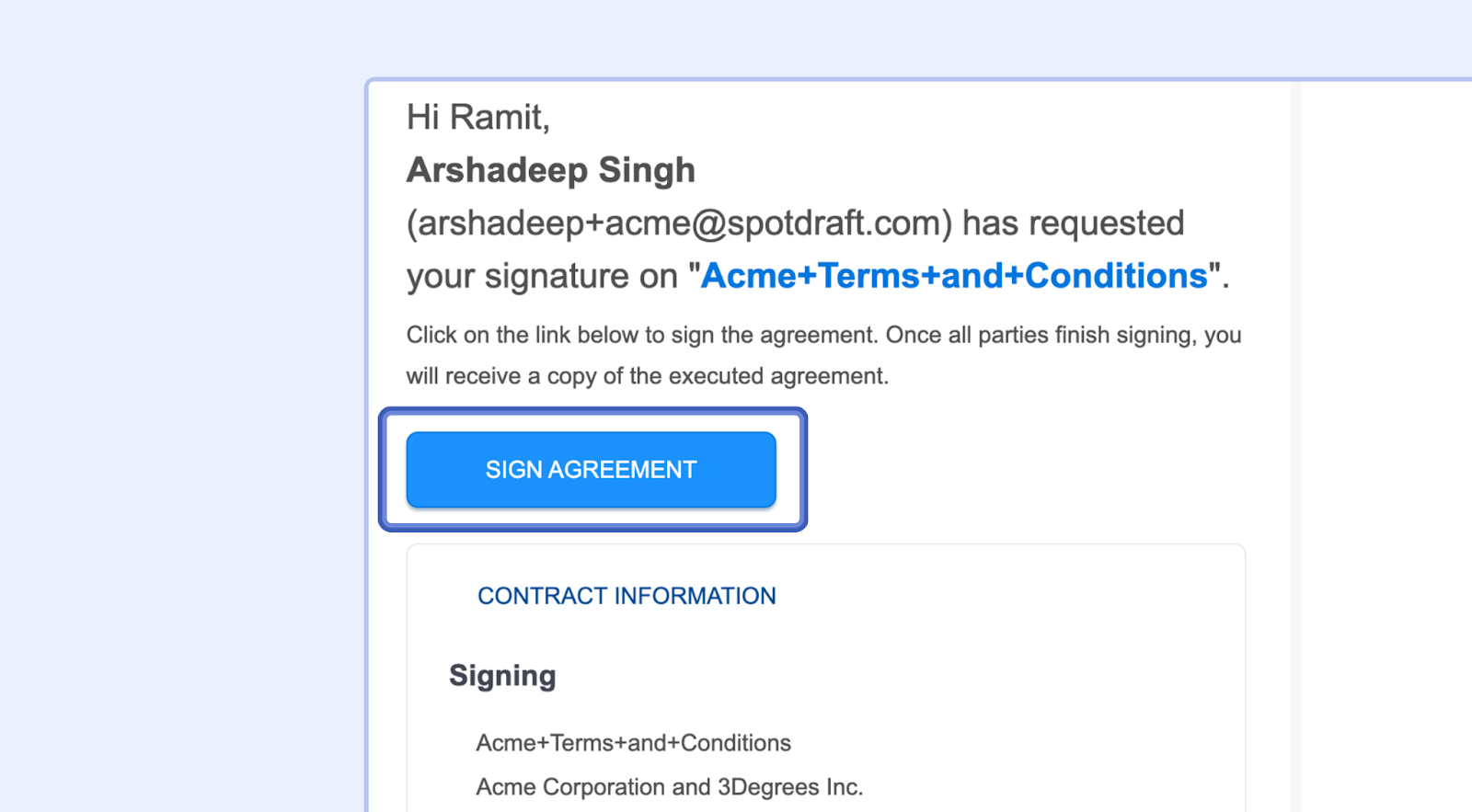
Click the "Sign Agreement" Button: The email will contain a button labeled "Sign Agreement." Click on this button to open the contract in SpotDraft.
Review the Contract: The contract will open in a new tab within your browser. Take a moment to read the entire contract carefully before signing.
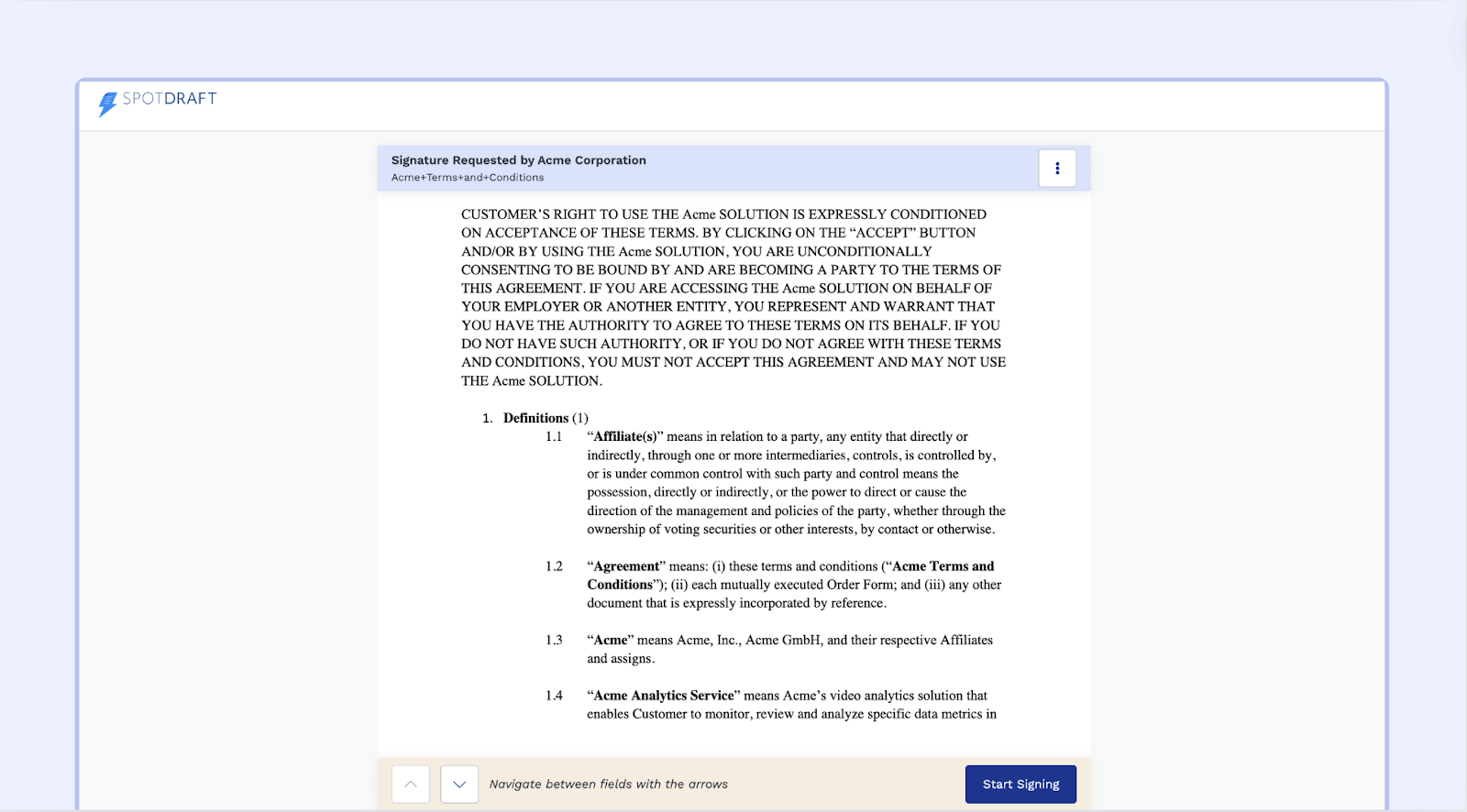
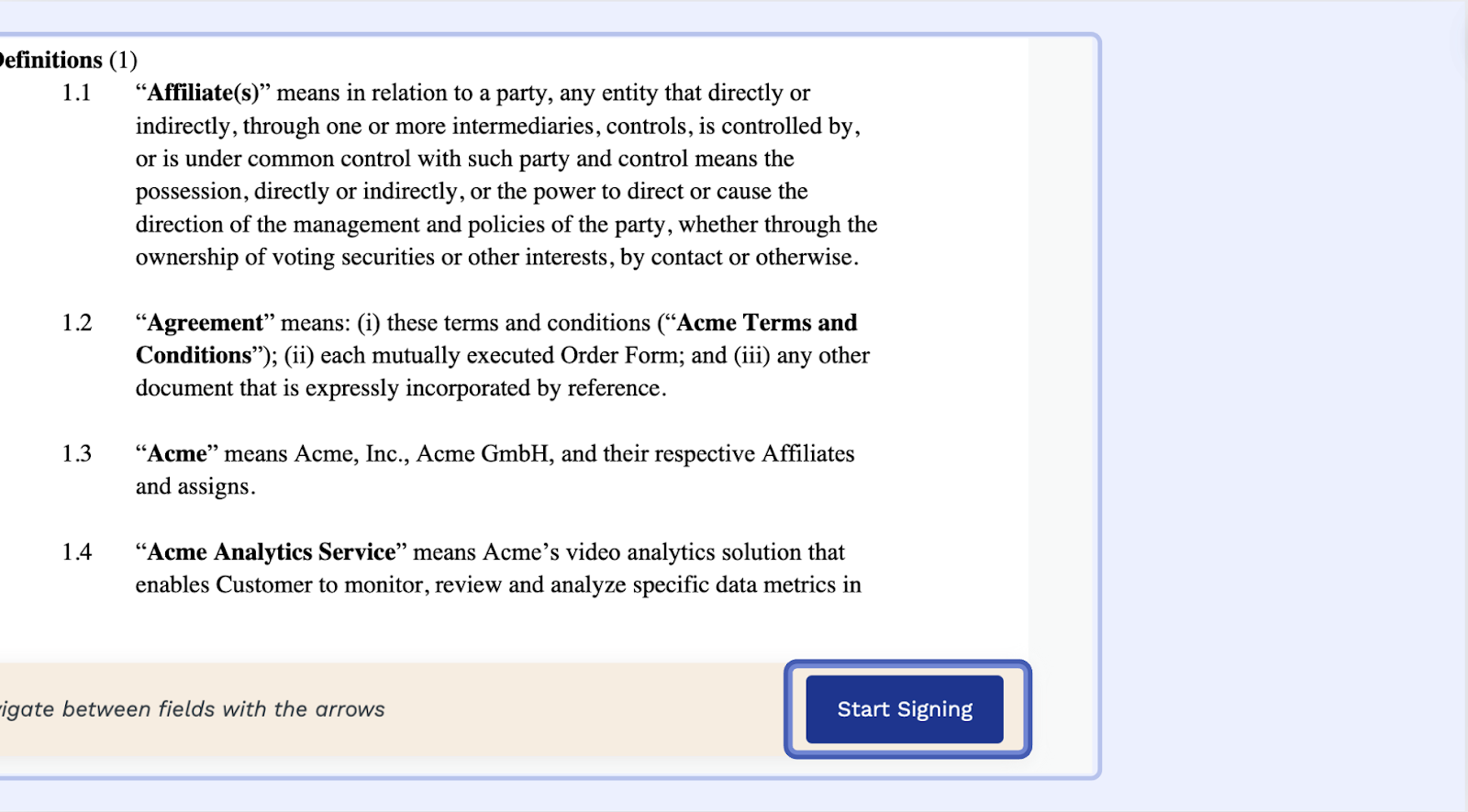
Start Signing: Locate the “Start Signing” button at the bottom of the screen and click on it to begin signing the contract.
Note:- The page will automatically take you to the next field that requires your input.Fill in the Fields: The contract may contain various fields where you need to provide information. Here's a breakdown of how to handle each:
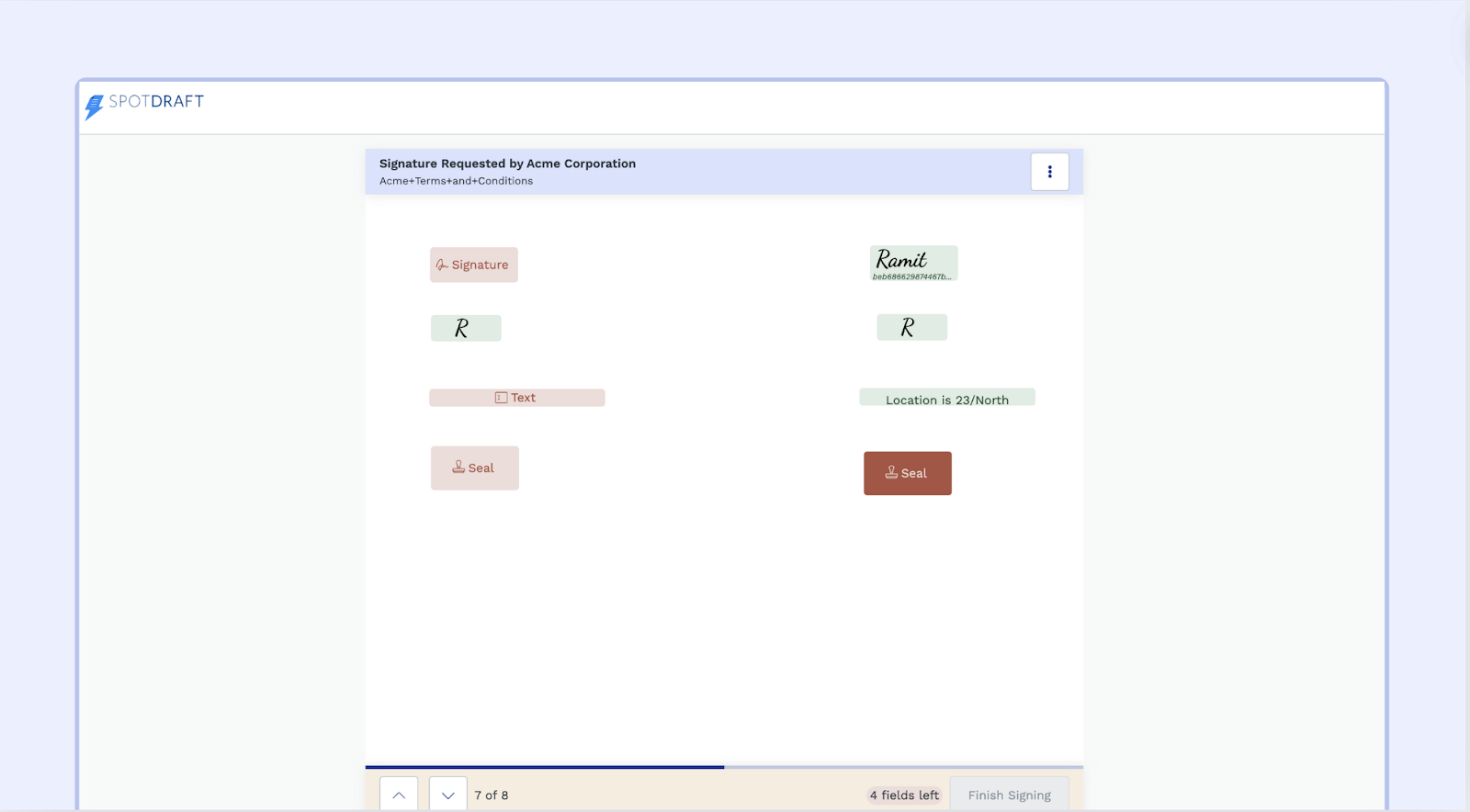
Name and Job Title Fields: These are typically text fields. Simply type your full name and job title into the designated boxes.
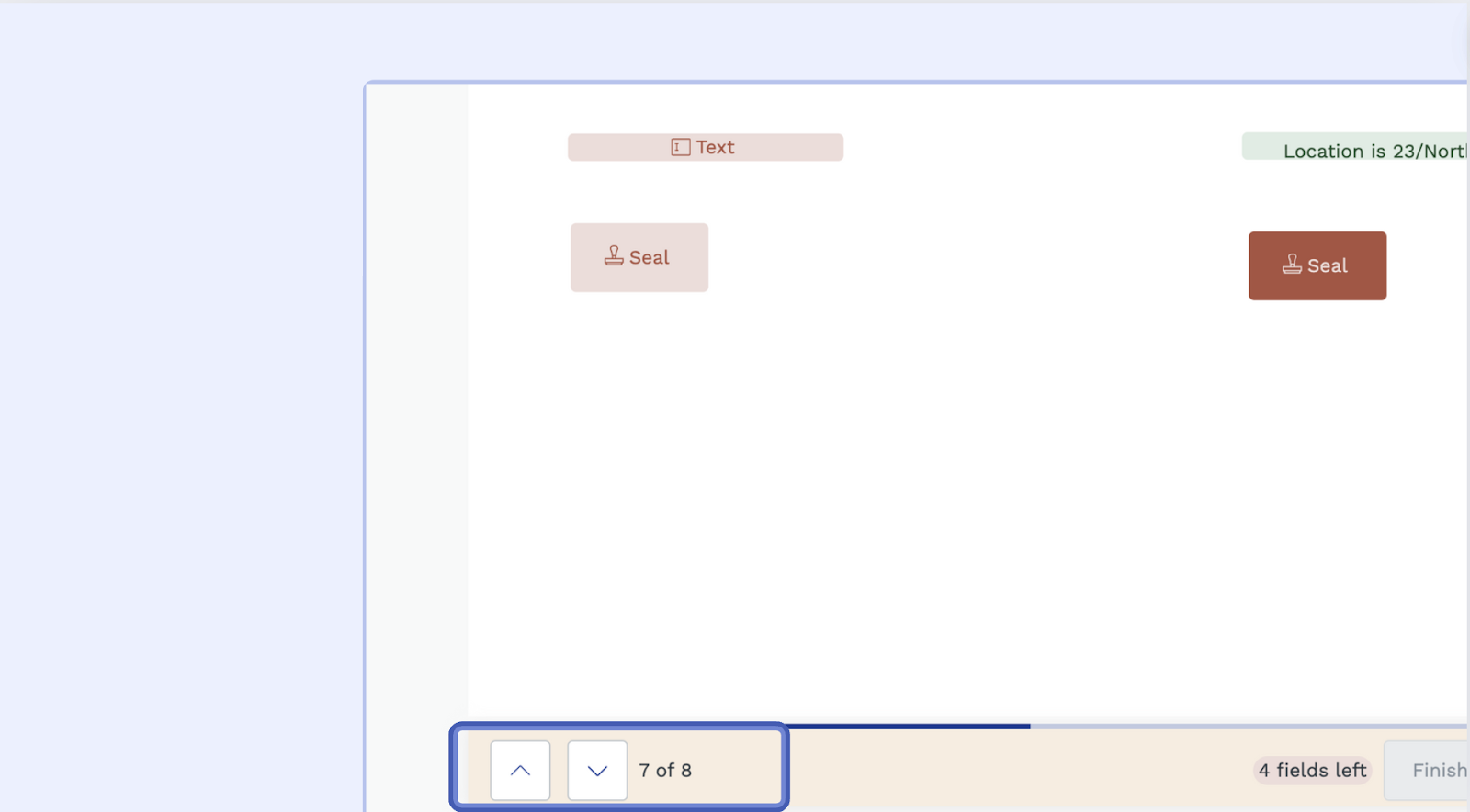
Tip:- Use the Navigator: You can use the arrows at the bottom of the screen to navigate between the different fields.
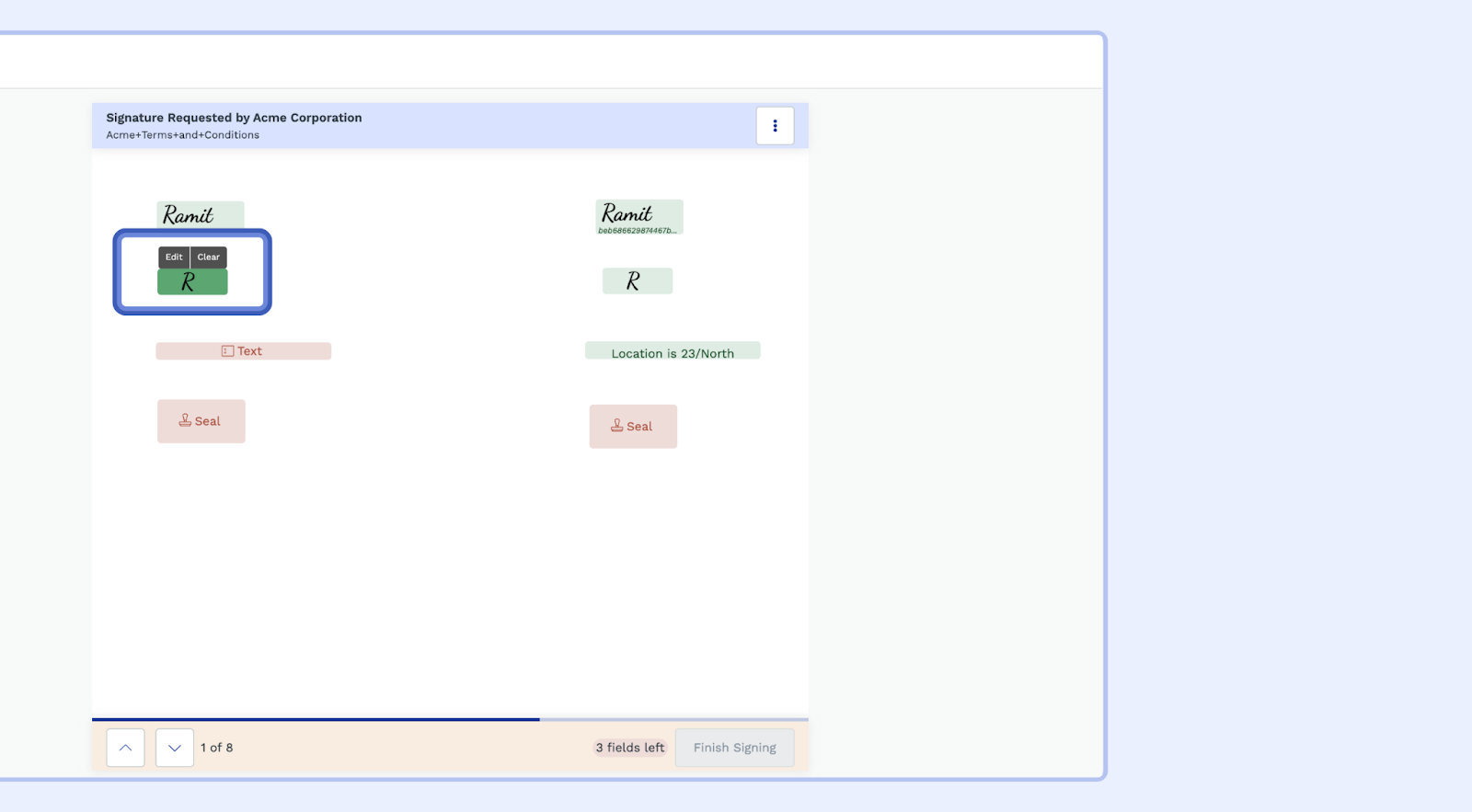
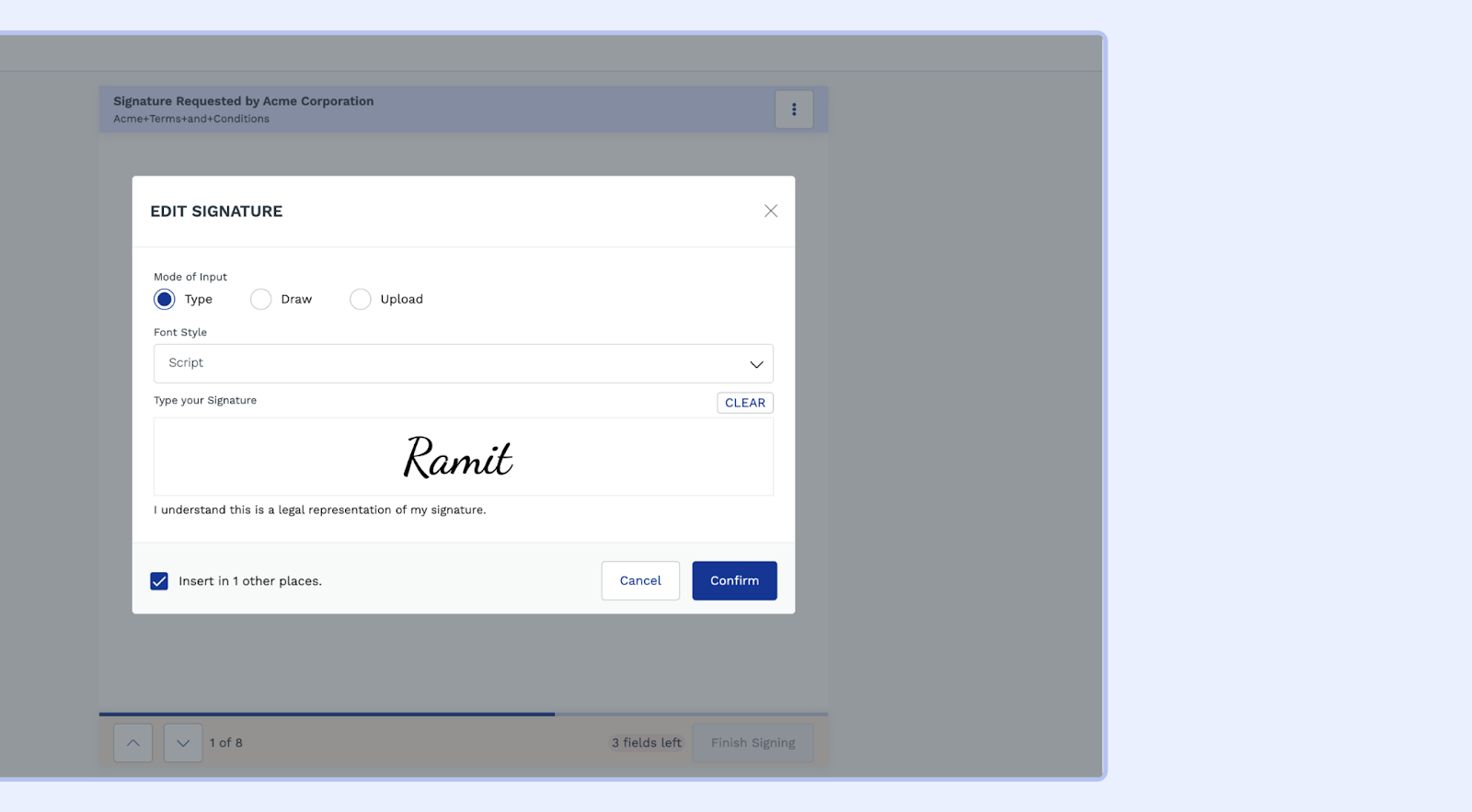
Initials, Signature and Job Title Fields: Clicking on the fields will automatically populate the field value, however you can click on “Edit” to change the field values.
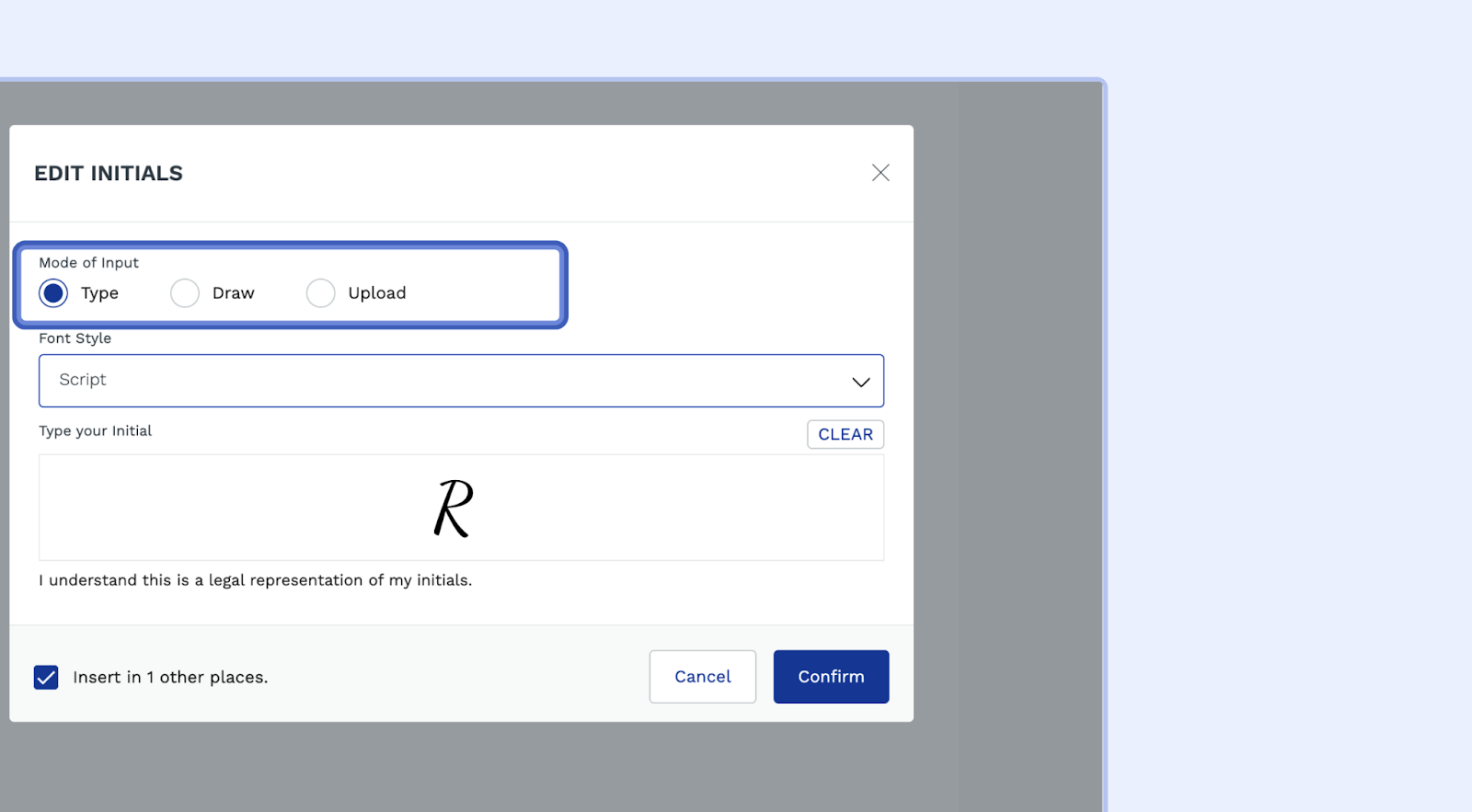
Initial Fields: You can choose to type, draw, or upload a scanned image of your initials.
Signature Fields: You can choose to type, draw, or upload a scanned image of your signature.
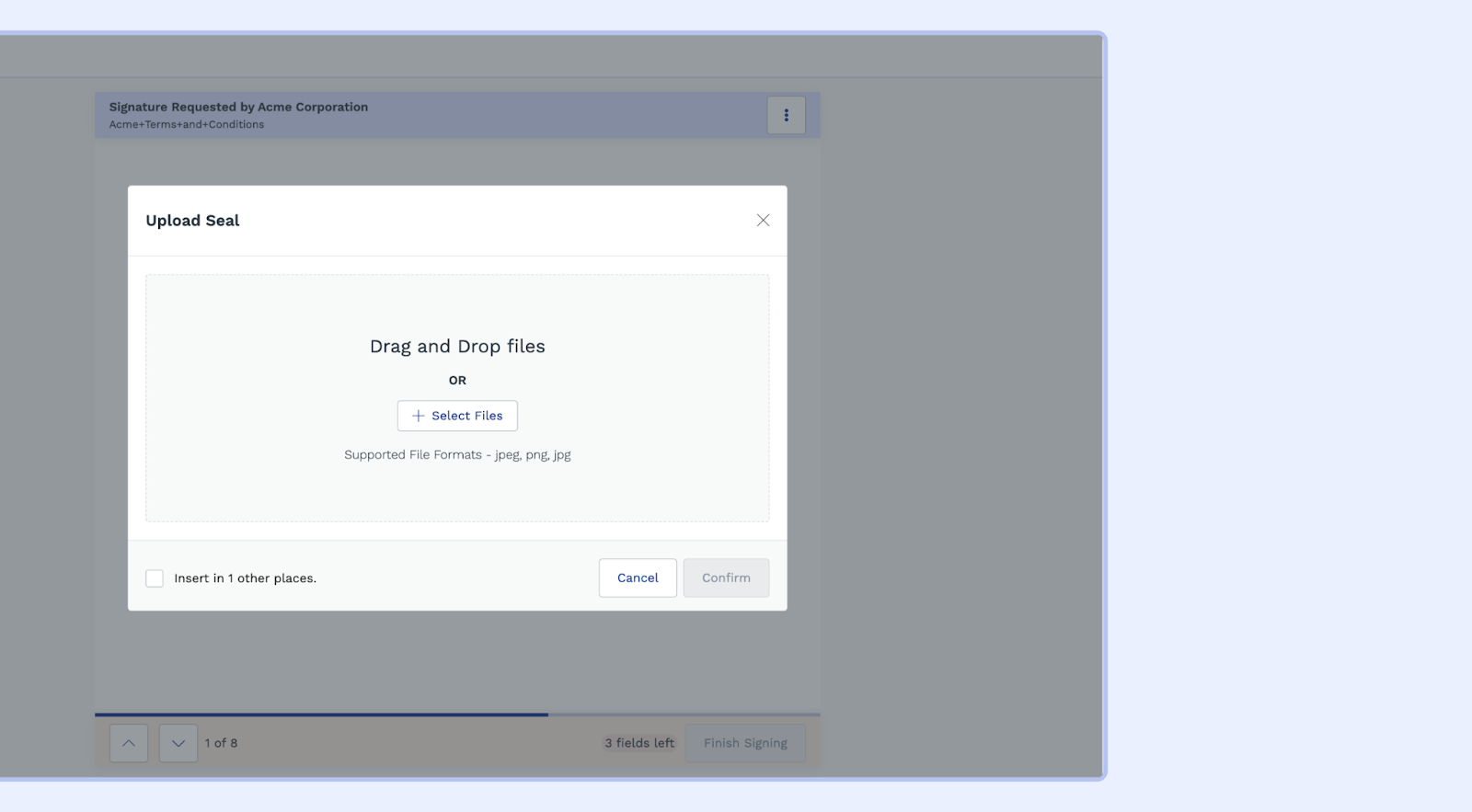
Seal Fields: These fields require you to upload a digital image of your organization's seal. You can:
Drag and Drop: Drag the image file directly into the field.
Upload File: Click the "Upload File" button to browse your computer and choose the image.
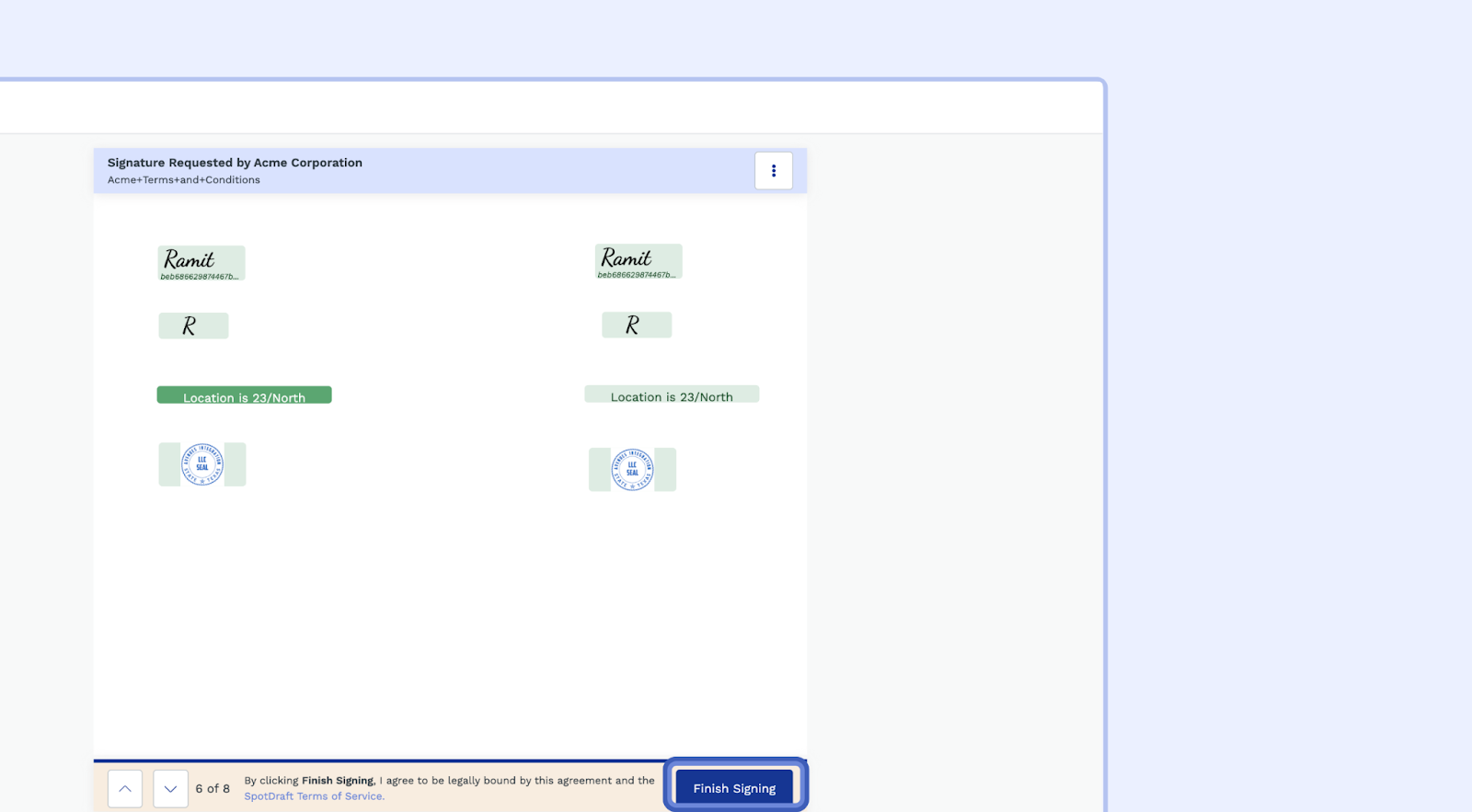
Click "Finish Signing": Once you've filled in all the required fields, click the "Finish Signing" button at the bottom of the screen. SpotDraft will process your signature and finalize the document.
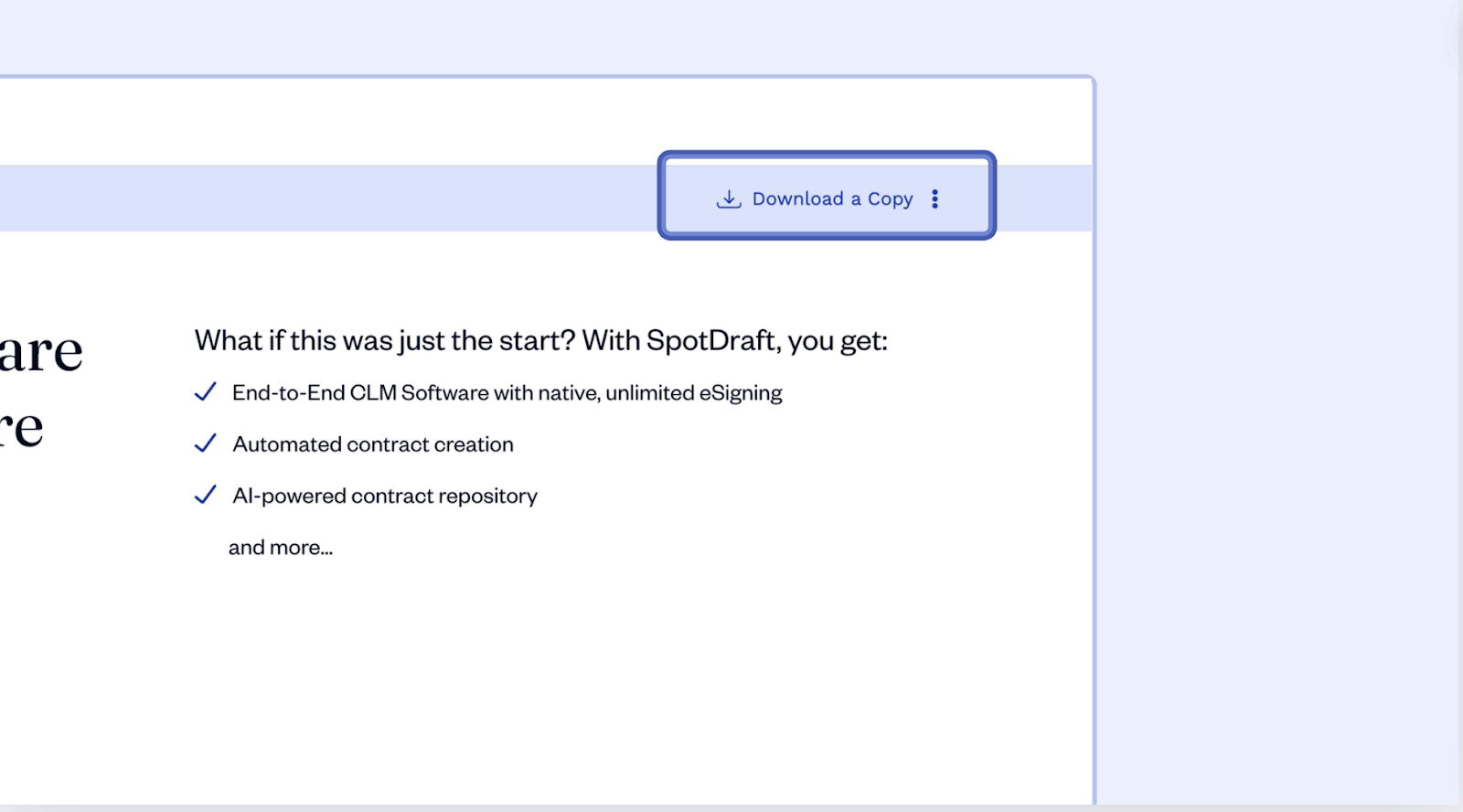
Review and Download: After the contract has been processed, you'll see a confirmation message indicating that the contract has been signed successfully. You can then download a copy of the signed contract.
Additional Tips:
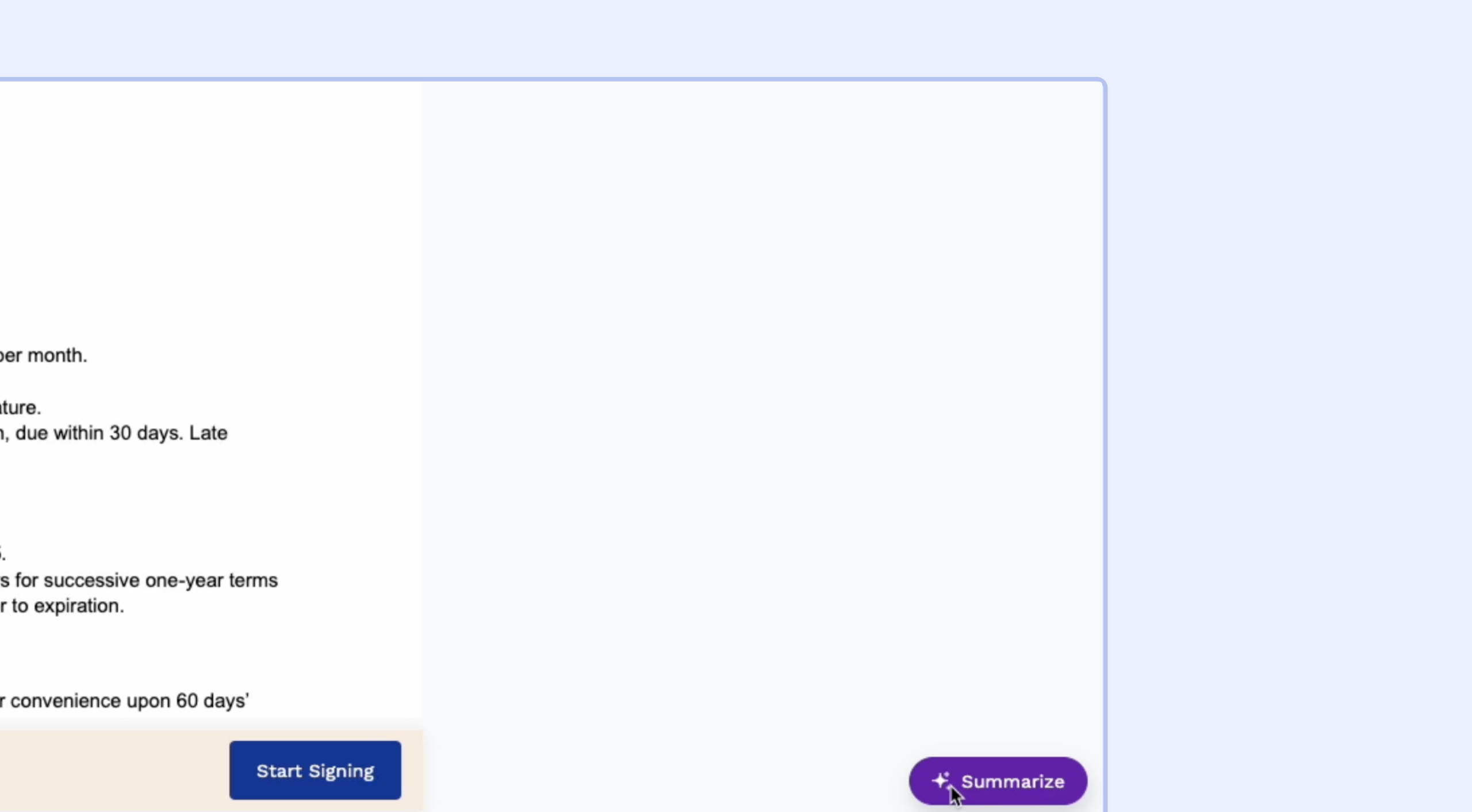
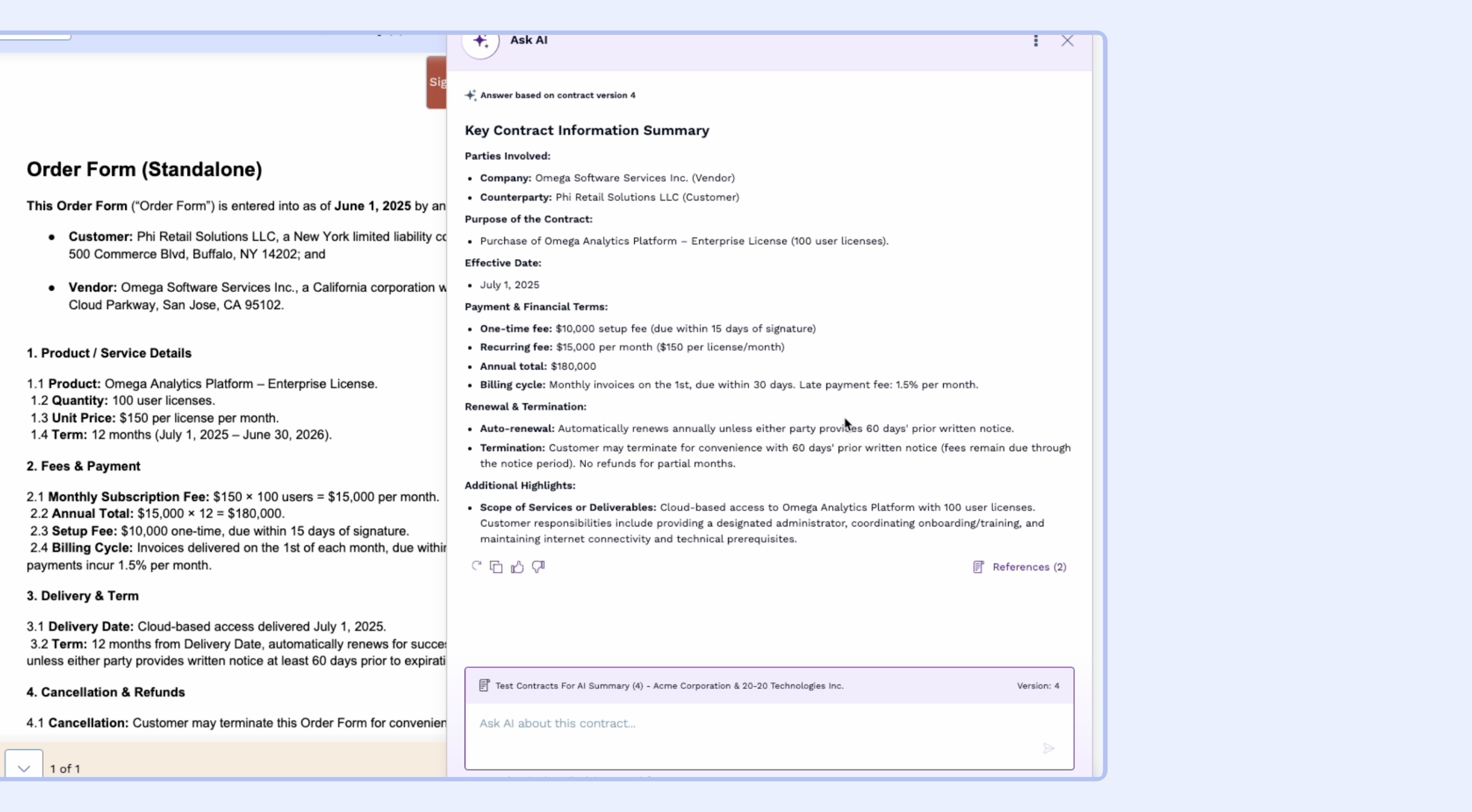
AI Summary: You can use the summarise CTA to get AI Summary of contract
Save the Email: Keep the email containing the contract signing link for your records.
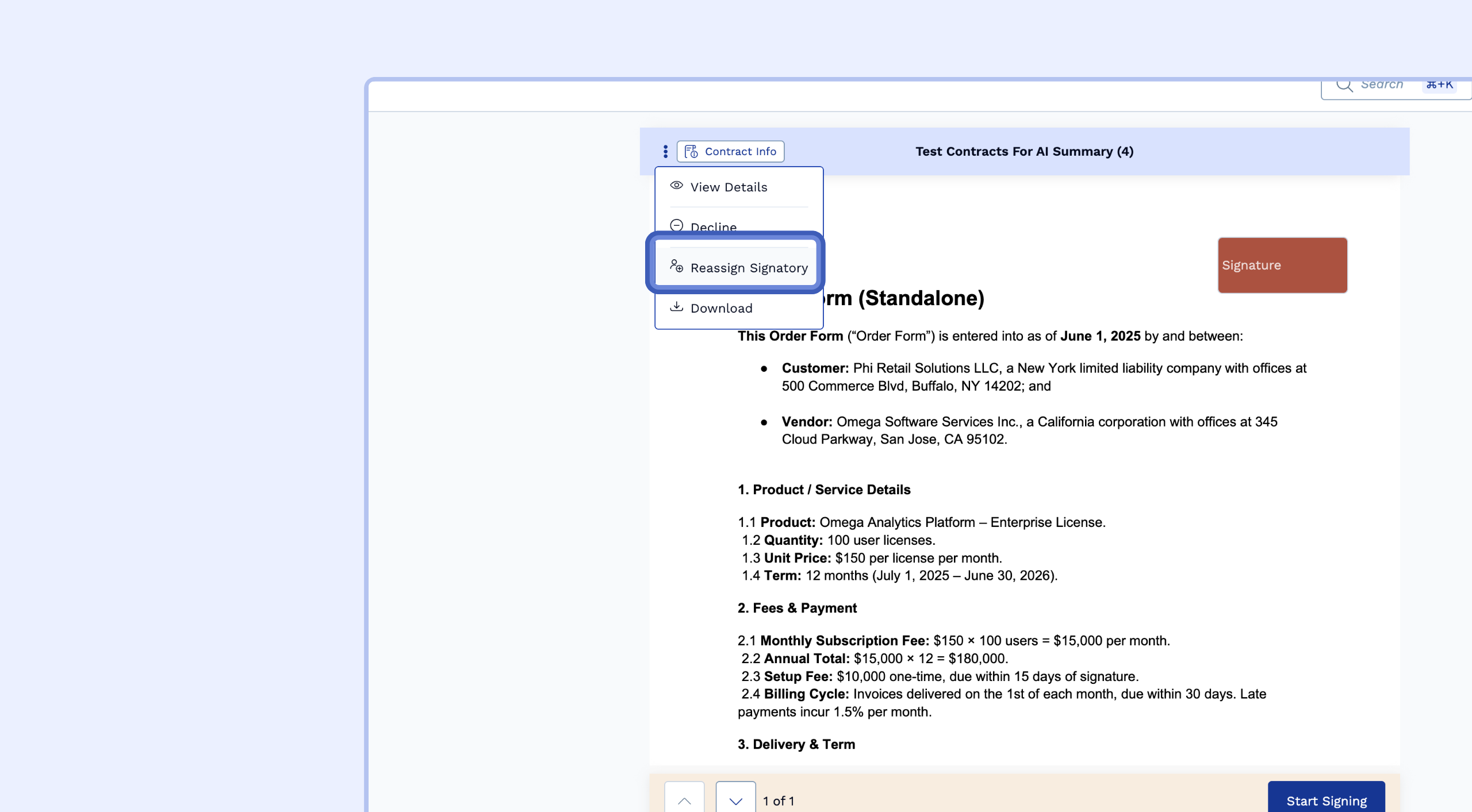
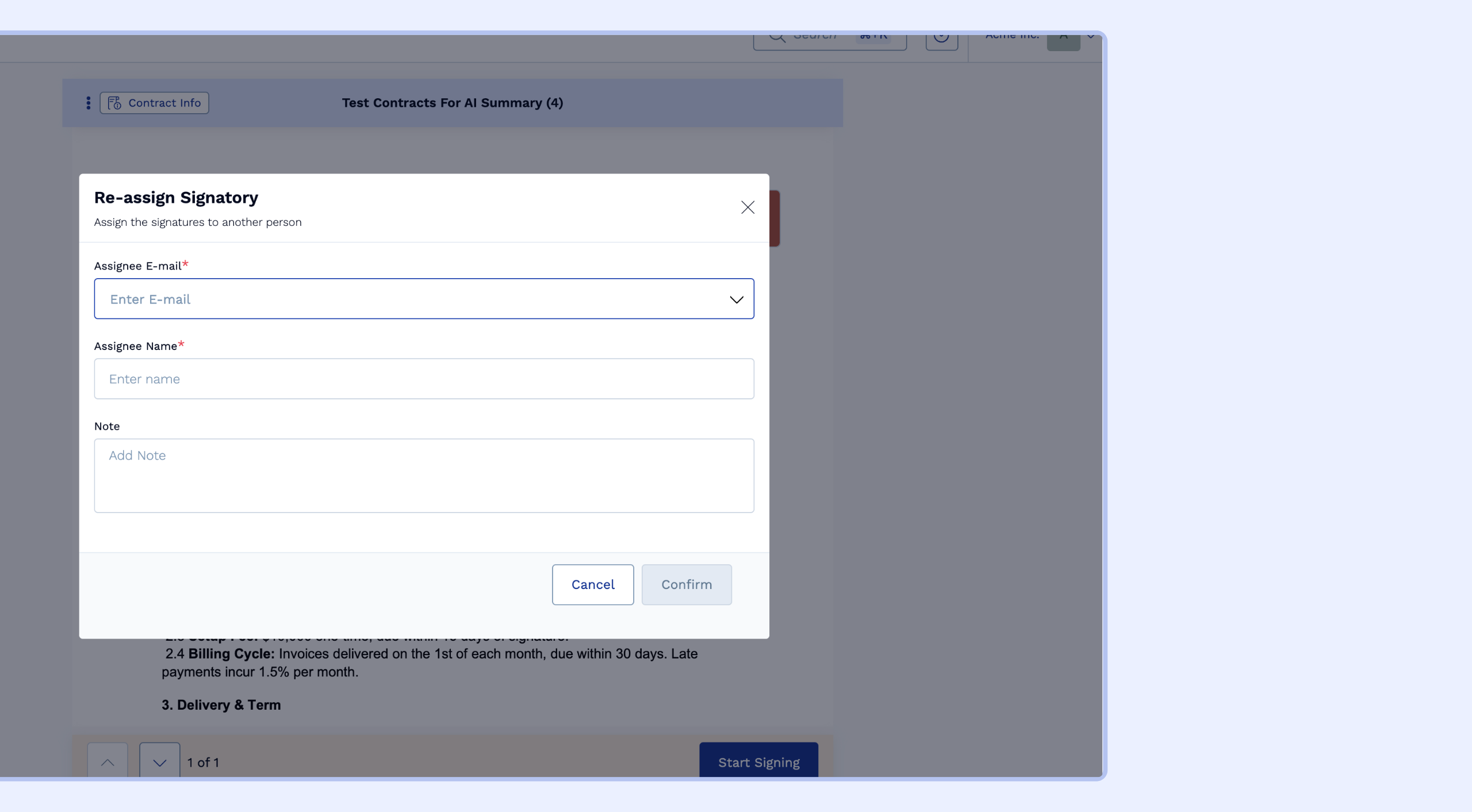
Reassigning a signatory: You can reassign a signatory on the signing page by clicking the Kebab icon on the page.
Note: If a signatory is reassigned from DocuSign's side (using "Assign to Someone Else"), SpotDraft will automatically sync the change. The contract will transition to "Executed" once the reassigned person completes signing. See the DocuSign integration article for details on how different reassignment scenarios are handled.
Limitation: The signatory reassignment feature is only available for organization‑type counterparties. Individual‑type counterparties will not see the Kebab icon or be able to self‑reassign signatories.