Reverting a Contract from Signing Stage
Last updated: May 12, 2026
In SpotDraft, contracts generally move forward through a linear lifecycle. However, if you spot a typo or need to change a clause after a contract has been sent for signature, you can move it back to an editable state.
Who this article is for
This article is for:
Admins who want to recall contracts sent for signing
Legal team members who want to make changes to contracts in signing status
Business users who manage contract workflows
At a Glance
When to use this: When a contract is "Sent for Signing" but requires edits or a change in signers.
Who can do this: Business User or Legal User of the contract
The Golden Rule: Moving a contract back to Redlining stage immediately voids all outstanding signature links for that version. This is different from voiding the entire contract - moving back to redlining keeps the contract active and editable, while voiding permanently cancels it. Additionally, moving a contract back to redlining will reset any approvals that were collected, requiring you to collect them again before resending for signing.
For example, you can:
Move a contract back to redlining status to make edits
Update contract terms or dates that need correction
Continue working on the same contract without losing progress
Key concepts
Use this section to understand the different contract statuses and actions available.
Signing Status: Contract has been sent for signing and changes cannot be made at this stage.
Redlining Status: Contract is in an editable state or sent to counterparty for review. Changes can be made here.
Executed Status: Contract have been fully signed and cannot be reverted to the previous stages.
Voided Status: Contract has been permanently voided and cannot be reverted to previous stages, similar to executed contracts. Use “Move Back to Redlining” instead if you need to make edits.
Move Back to Redlining: Action that withdraws a contract from signing status back to an editable state.
Prerequisites
You have editor permissions and appropriate access to the contract. Know more about access controls here.
The contract is currently in signing status (not executed).
You understand that existing signing links will expire when the contract is moved back.
How to withdraw a contract from signing
Step 1: Access the contract
Navigate to the contract you want to withdraw from signing.
Confirm the contract is currently in Signing status.
Step 2: Move back to redlining
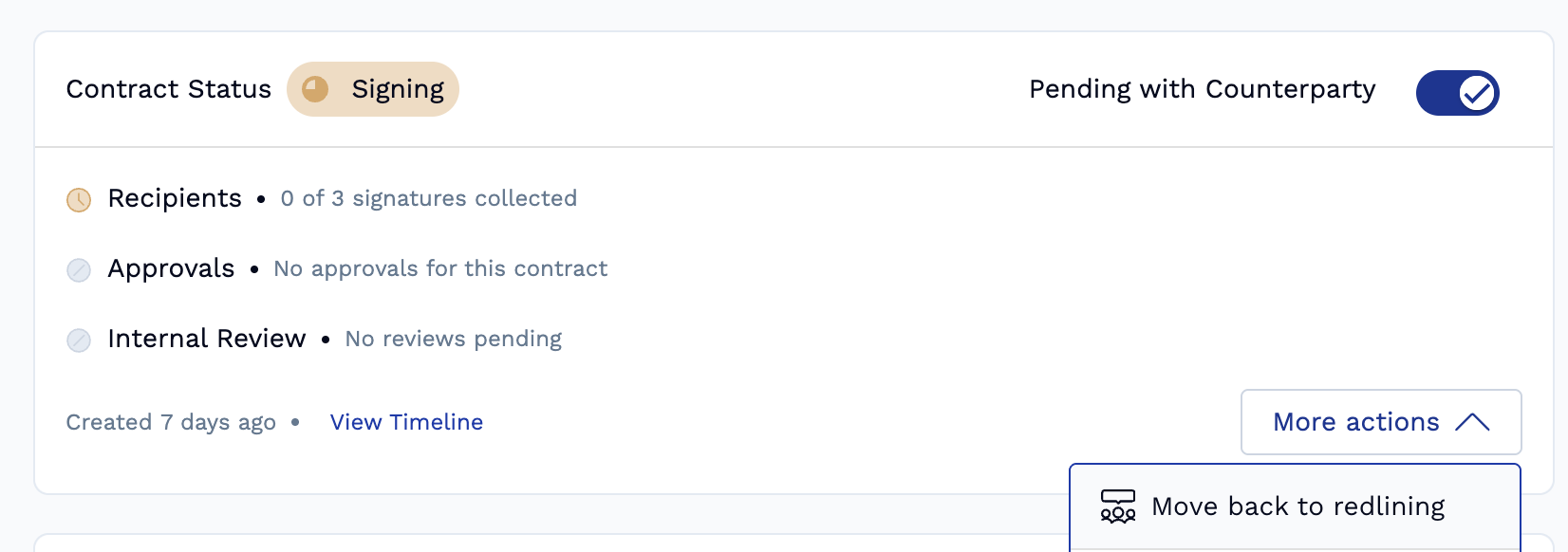
On the contract page, click the More Actions
Select Move Back to Redlining from the dropdown menu.
The contract status will change from Signing to Redlining.
Step 3: Make necessary changes
Edit the contract as needed (update terms, dates, or other content).
If needed, upload stamp papers by navigating to View Contract Document and selecting the stamp upload option.
Save your changes.
Step 4: Resend for signing
Once edits are complete, prepare/send the contract for signing again.
Signers will receive new signing links as per the order defined.
Note that previous signing links will no longer work.
Changing Signers When Moving Contracts Back to Redlining
Critical Limitations for Signer Changes
When moving a contract back to redlining to change signers, there are important timing restrictions:
Before any signatures: You can modify all signers by navigating to the Recipients section.
After first signature: You cannot change subsequent signers from your side – only the counterparty can reassign signatories on their end.
How to Change Signers in Recipients Section
After moving the contract back to redlining status, navigate to the Recipients section.
Update the signatory information as needed.
Save changes before resending for signing.
When Signer Changes Are Not Possible
If the first signer has already signed:
You cannot modify subsequent signers from your side.
The counterparty must reassign the signatory on their end.
Moving back to redlining will not override this limitation.
Best Practice
Always verify signer information before sending contracts for signature to avoid complications once the signing process begins.
Alternative method: Download and re-upload
You can also withdraw a contract by downloading and re-uploading the document:
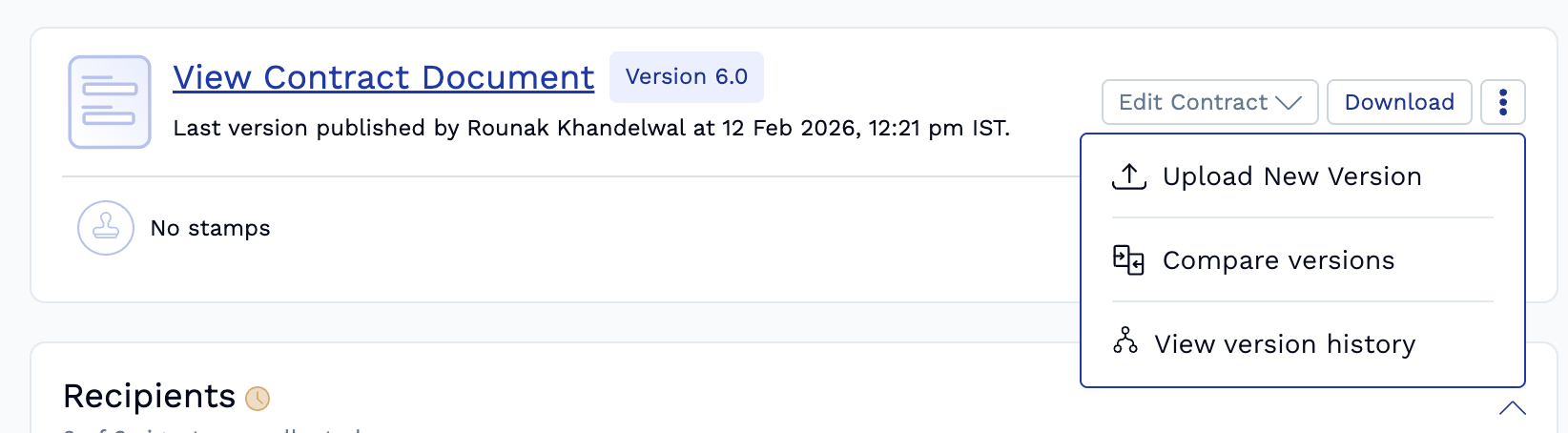
Click Download to save the contract document on the contract summary page.
Click the Kebab / Three dots, menu on the contract summary page.
Select Upload New Version from the same menu to re-upload the document.
This will recall the contract from signatures and allow you to set it up for signing again.
Common use cases
Date corrections: Update signing deadlines or effective dates that are incorrect.
Legal revisions: Make changes requested by legal team after contract was sent for signing.
Signer updates: Modify recipient name when signer information needs to be changed.
Signature field corrections: Adjust signature field positions or sizes when signatures were placed incorrectly during the signing process (only available for contracts in signing status, not executed contracts).
Stamp paper upload: Move contract back to redlining to upload stamp papers, which cannot be added while in signing status.
Workflow corrections: Move back to redlining if you accidentally selected the wrong workflow stage (e.g., sent to Signature instead of Third Party Contract Review) and need to access and edit the intake form.
Troubleshooting
I don't see the "Move Back to Redlining" option
Confirm the contract is in Signing status, not Executed or Draft.
Verify you have the necessary permissions/role to modify the contract.
Check if the contract has already been fully executed - executed contracts cannot be moved back.
The contract was accidentally marked as executed
Executed contracts cannot be reverted or have their status changed back to Draft, Redlining, or Signing. [It can't be Voided as well]
To correct this, download the latest version from "View Version History" and re‑initiate it through the Send for signature workflow.
I need to make changes to an executed contract
Executed contracts cannot be modified directly.
If you need to make changes that require signatures or amend terms, you must create an amendment or a new contract instead.
I accidentally voided the contract instead of moving it back to redlining
Voided contracts cannot be reversed or undone.
Create a new contract and upload the latest version of the voided contract to continue tracking it.
To avoid this in the future, use "Move Back to Redlining" when you need to make edits to a contract in signing status.
Signers are confused about new signing links
System will notify the signers that the previous links are no longer valid.
Explain that they will receive new signing links in case they are required to sign.
I accidentally moved the contract back to redlining after the counterparty already signed
You can recover the signed version without requiring the counterparty to re‑sign.
Navigate to the Version History of the contract.
Locate the version that shows the counterparty's signature (it will be labeled something like "[Counterparty Name] signed the contract").
Download that signed version.
Upload it as a new version of the contract using the "Upload New Version" option.
Your team can then proceed to countersign it on your end.
FAQs
Will moving a contract back to redlining delete the contract history?
No, the contract history and activity log are preserved. However, existing signing links will expire and new ones will be generated when you resend for signing.
What happens to approvals when I move a contract back to redlining?
All approvals will be reset when you move a contract back to redlining. You will need to collect approvals again before resending the contract for signing.
Can I void just the signature request without voiding the entire contract?
Yes, use "Move Back to Redlining" instead of voiding the contract. This allows you to continue working on the same contract without starting over.
What happens to review tasks when I move a contract back to redlining?
Edits can be made and signatories can be changed once the contract is moved back to redlining status. You may want to move back to redlining to complete pending review tasks.
How do I mark a contract as fully executed if it was signed off-platform?
If you have a contract that was signed outside SpotDraft and you need to mark it as executed:
Navigate to the contract in SpotDraft.
Click the Kebab / Three dots menu on the contract summary page.
Select Upload New Version.
Upload the executed contract as a PDF file (if your document is in DOCX format, convert it to PDF first using an online converter).
When prompted with "Has the contract been executed by all parties?", select Yes.
Complete the upload, and the contract will automatically move to executed status.
Note: Uploading an executed PDF version is the only way to mark a contract as executed without collecting signatures through the platform.
Have more questions. Contact support on help@spotdraft.com