Using the New SpotDraft Card in HubSpot
Last updated: September 18, 2026
⏰ Key date
Add the new card before October 15, 2026 — HubSpot deletes classic CRM cards on that date, and the old SpotDraft card will stop working.
ⓘ NOTE
Note: All the configuration below happens entirely within HubSpot. Nothing changes on the SpotDraft side. Your existing contracts, workflows, and integration remain exactly as they are.
Who this is for
Anyone who uses SpotDraft inside HubSpot.
To add the card for the whole team, you need Super Admin permission, or the HubSpot permission Customize record page layout. If you cannot see Customize, ask your HubSpot admin to follow the steps below.
Before and after
These screenshots show the old classic card and the new React card on the same kind of HubSpot record (right sidebar).
BEFORE — classic / legacy CRM card 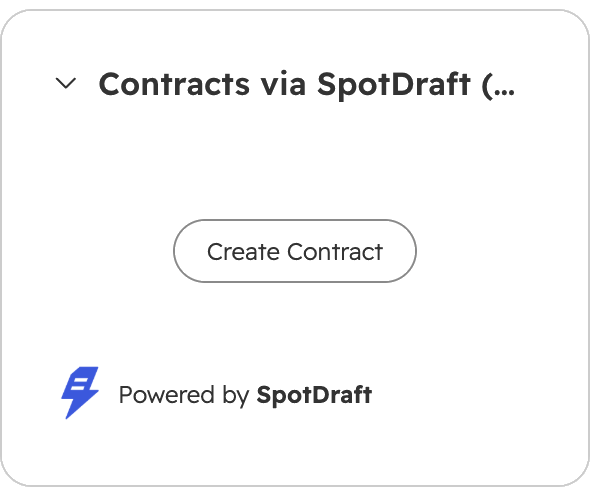 | AFTER — new React card (Contract via SpotDraft) 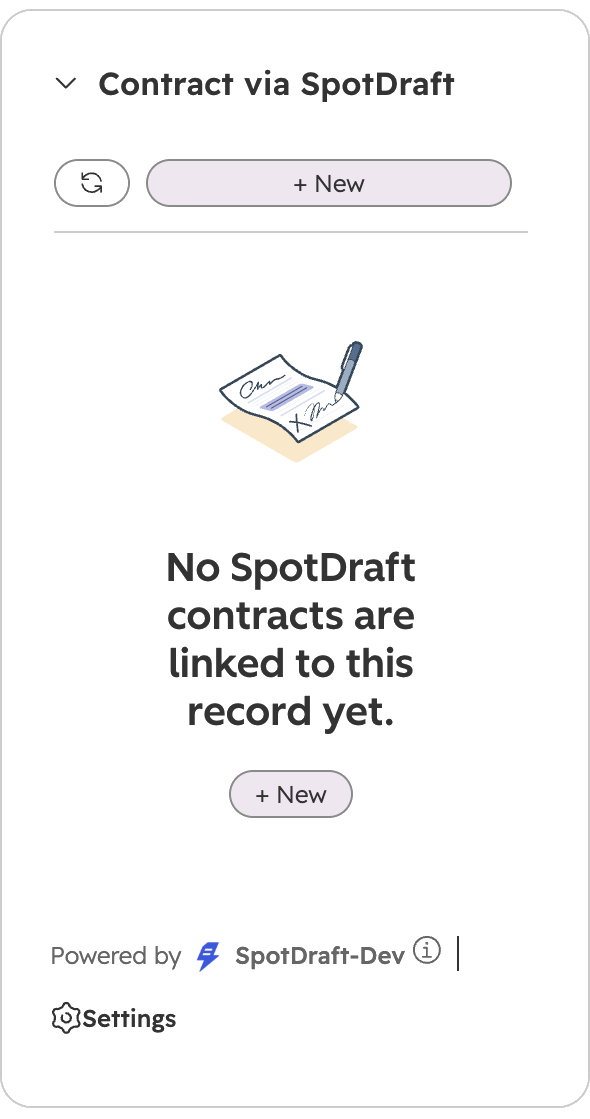 |
Why this is changing
HubSpot is retiring classic CRM cards (also called legacy CRM cards).
What HubSpot has announced
Classic CRM cards have not been supported for new work since June 16, 2025.
HubSpot will officially deprecate them on October 15, 2026.
On that date, HubSpot will also delete classic cards on the backend. After that, the old SpotDraft card will stop working.
SpotDraft has moved to HubSpot's current standard: a React app card. Same SpotDraft contracts and workflows you already use — a newer card that HubSpot will keep supporting.
Please add the new card before October 15, 2026 so nothing disappears from your deal, contact, company, or ticket sidebars.
HubSpot's announcement: Deprecating Support for Classic (Legacy) CRM Cards
What the new React card is
Card name in HubSpot: Contract via SpotDraft
Where it can appear
Right sidebar on Deals, Contacts, Companies, and Tickets
Help Desk ticket sidebar (separate card: Contract via SpotDraft (Help Desk))
What it shows
Contracts already linked to that HubSpot record: title, status, type, and other details from SpotDraft. You can open a contract, continue editing a draft, upload a version, create a new contract, and search when a record has many contracts.
ⓘ Important
The new card does not appear by itself. HubSpot no longer auto-places app cards on every record the way classic cards did. Someone with the right permission must add it from the Card library. Until you add it, you may still see the old card. After you add it, existing contracts load on the new card and you can create new ones from there.
What is in the new card
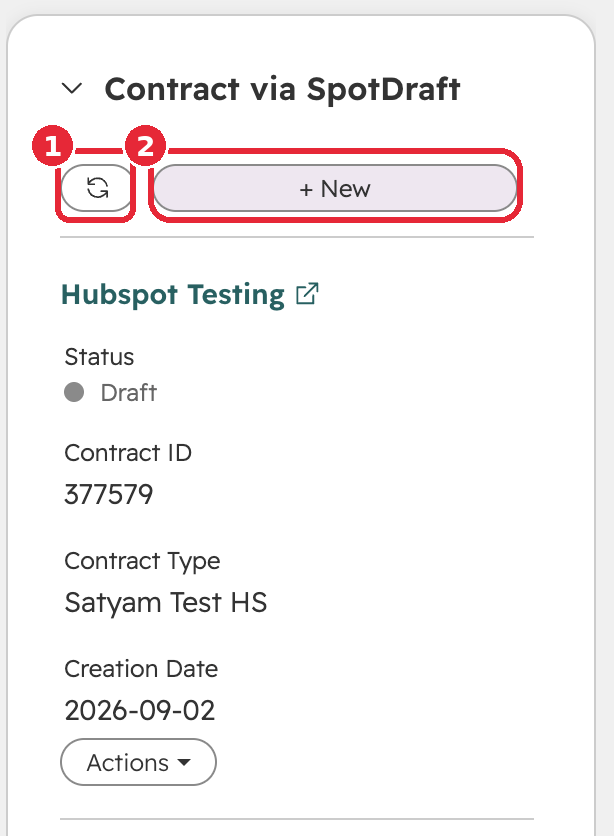
Refresh button
A compact refresh control reloads contracts for this record without leaving HubSpot.
+ New button at top
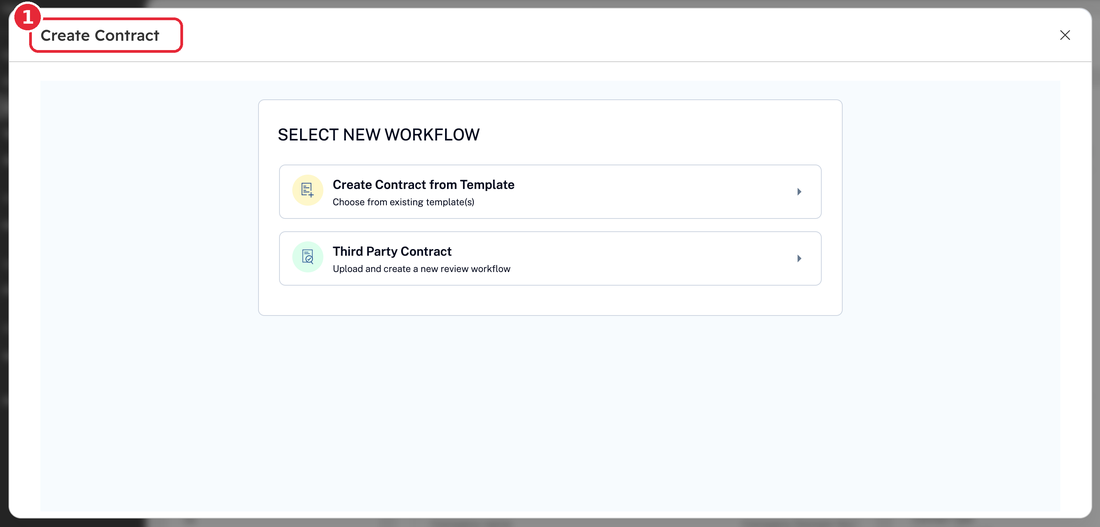
The main button to create a contract. It opens the familiar SpotDraft create flow (template, third-party / upload for review, and so on). HubSpot fields still pre-fill where they did before.
Clearer contract rows
Each contract shows a clickable title, a readable status (for example Redlining, Executed, Draft, Sign), and the details you need without extra clutter.
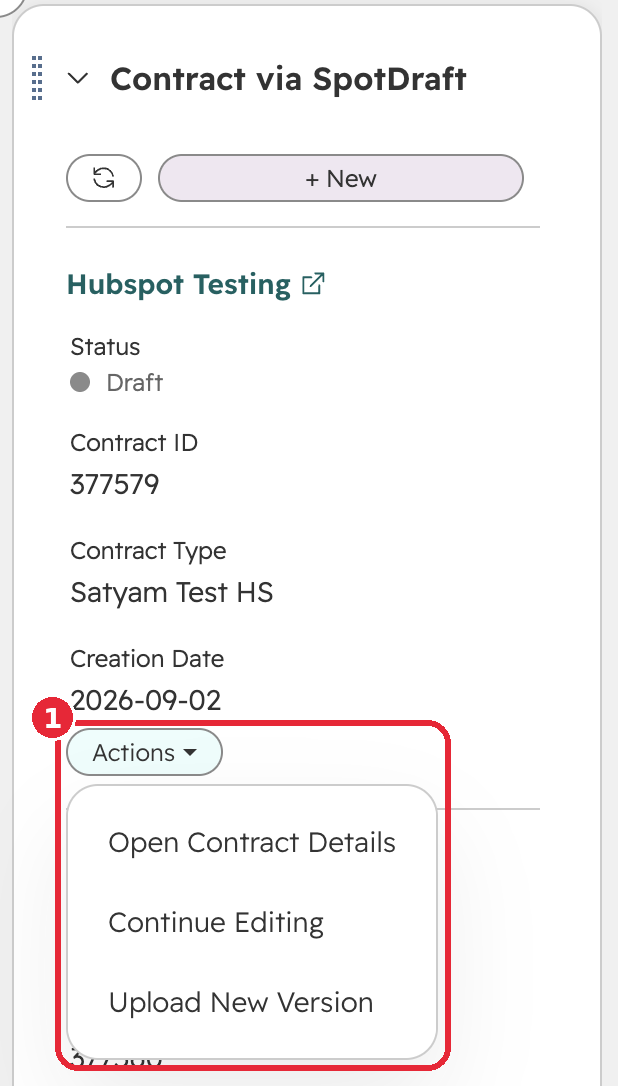
Actions
An Actions menu per contract. Typical items (depending on status):
Open contract details — SpotDraft summary in a HubSpot window
Continue editing — drafts
Upload — new version, when SpotDraft allows it
Move back to Redlining — when the contract is in Sign, so it can be edited again
View all + search
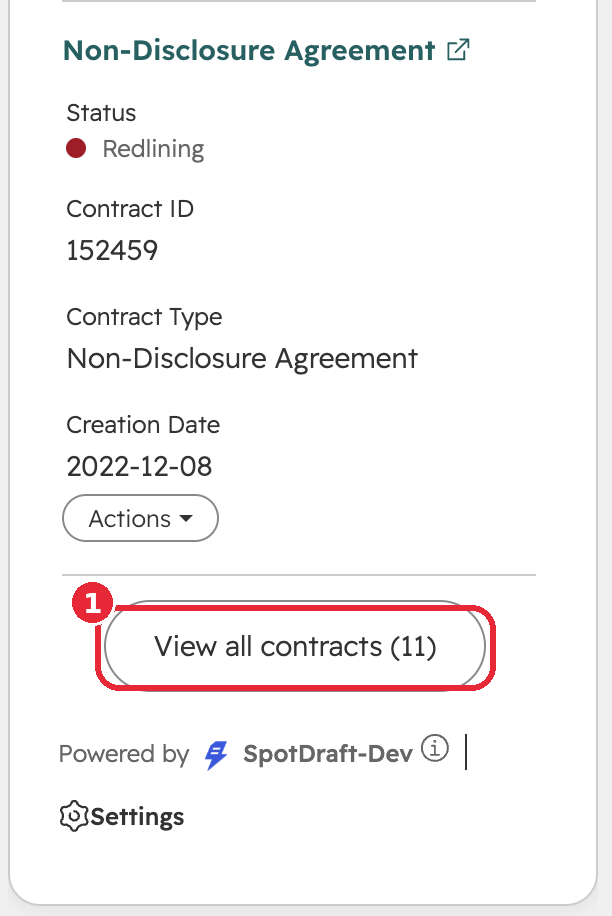
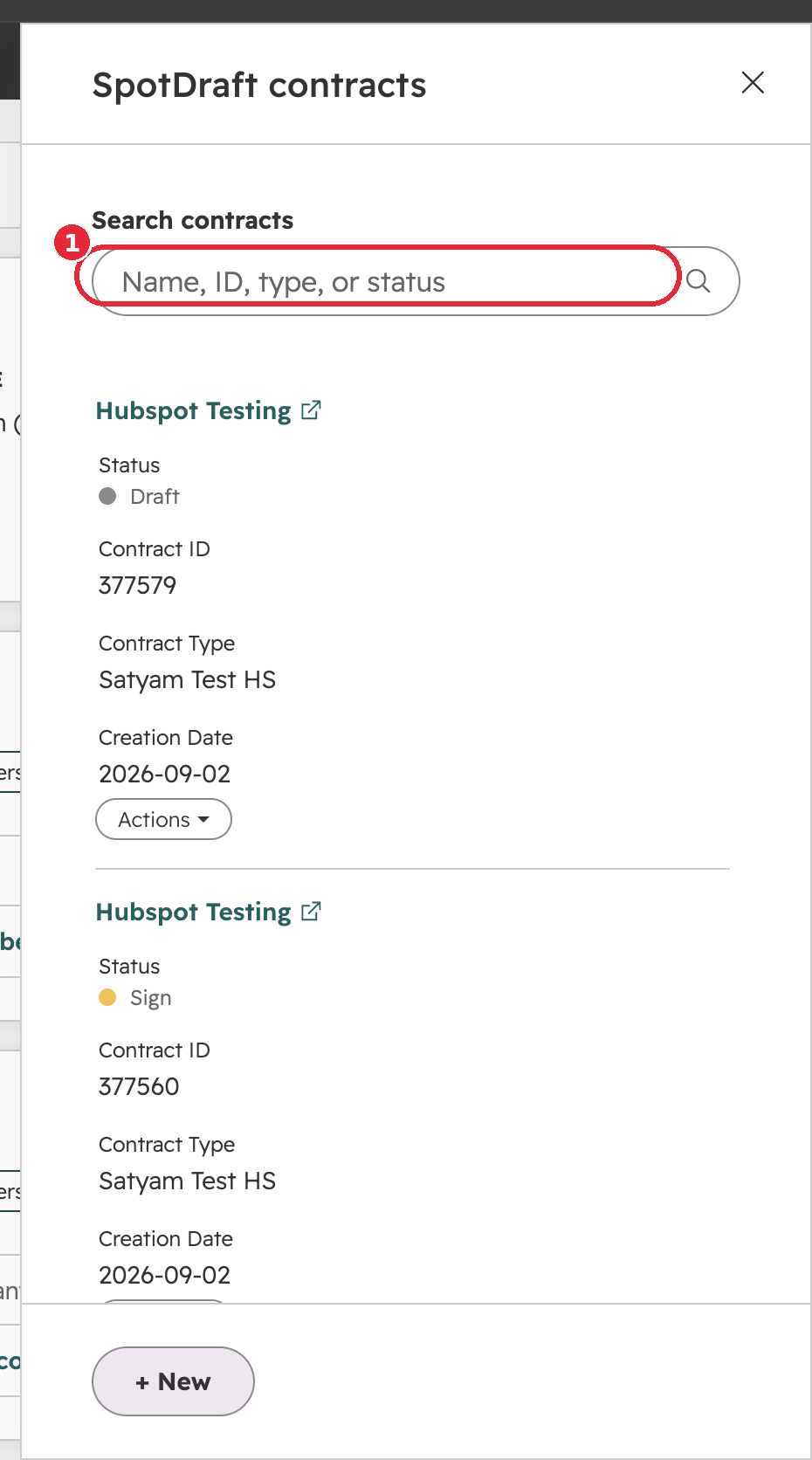
The sidebar shows the first 3 contracts so the page stays usable. If there are more, tap View all contracts (n). A panel opens with the full list. Search by name, ID, type, or status. + New is also in the panel footer.
Same data as before
This is not a new integration. Linked contracts, create, and open-in-SpotDraft still go through your existing SpotDraft – HubSpot connection.
How it differs from the old (classic) card
Old classic card | New React card |
|---|---|
Added automatically by HubSpot on install | Added once from Customize → Card library |
Older look, limited layout | Built on HubSpot's current React app card system |
Long lists made the sidebar grow | First 3 contracts shown; full list & search in “View all” |
HubSpot removes it on October 15, 2026 | Clearer status, + New, refresh, and Actions menu |
What does not change
SpotDraft still has to be connected for your workspace.
You still see contracts linked to that record.
Create, open details, and continue editing still open SpotDraft in a HubSpot window.
Your HubSpot user should use the same email as in SpotDraft.
You may see both cards for a while. That is expected. Use Contract via SpotDraft (the new one) going forward. The old card can stay until you are comfortable, but it will not work after October 15, 2026.
Before you add the card
SpotDraft's HubSpot integration is installed and enabled for your SpotDraft workspace (Settings → Integrations → HubSpot in SpotDraft).
You can open a Deal, Contact, Company or Ticket in HubSpot.
You have Super Admin or Customize record page layout permission — or an admin will do this for the team.
ⓘ Tip
If the card shows “SpotDraft account required,” sign in to SpotDraft with the same email as HubSpot, or ask your SpotDraft admin to add that user.
How to add the card (from a record)
Do this on one Deal first, then repeat on a Contact, a Company, and a Ticket. HubSpot stores the layout per object, so adding it on Deals does not automatically add it on Contacts.
Add it on Deals
In HubSpot, go to CRM → Deals and open any deal.
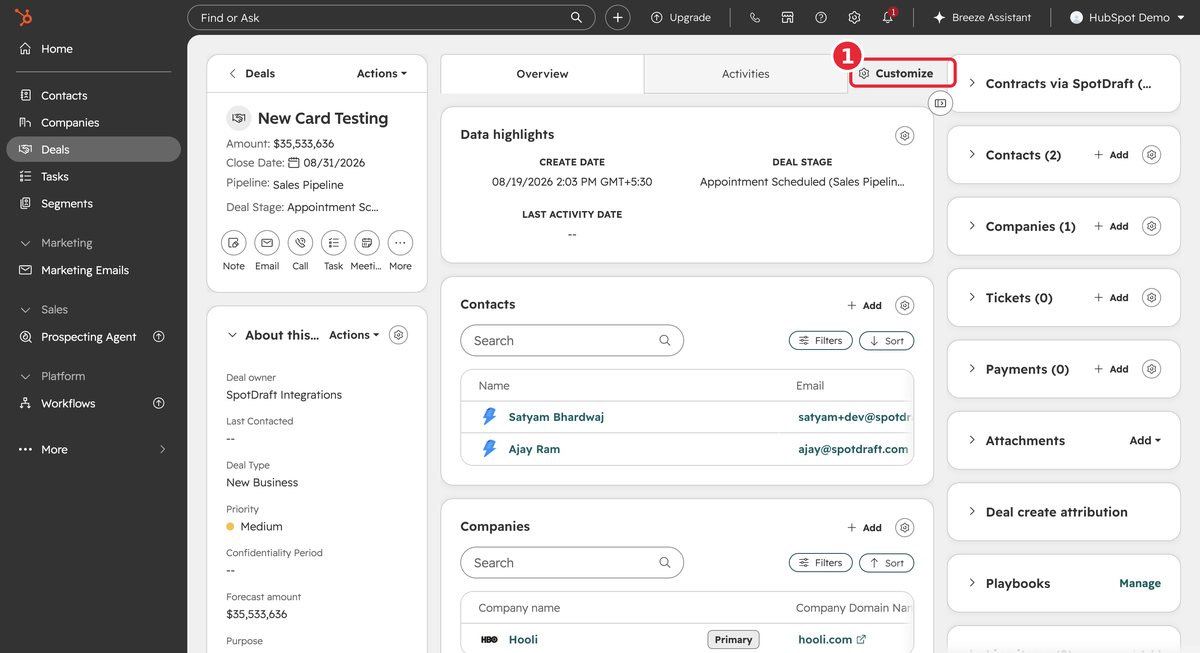
Click Customize (on the record).
You are in the record layout editor. Look at the right sidebar (where associations and app cards sit).
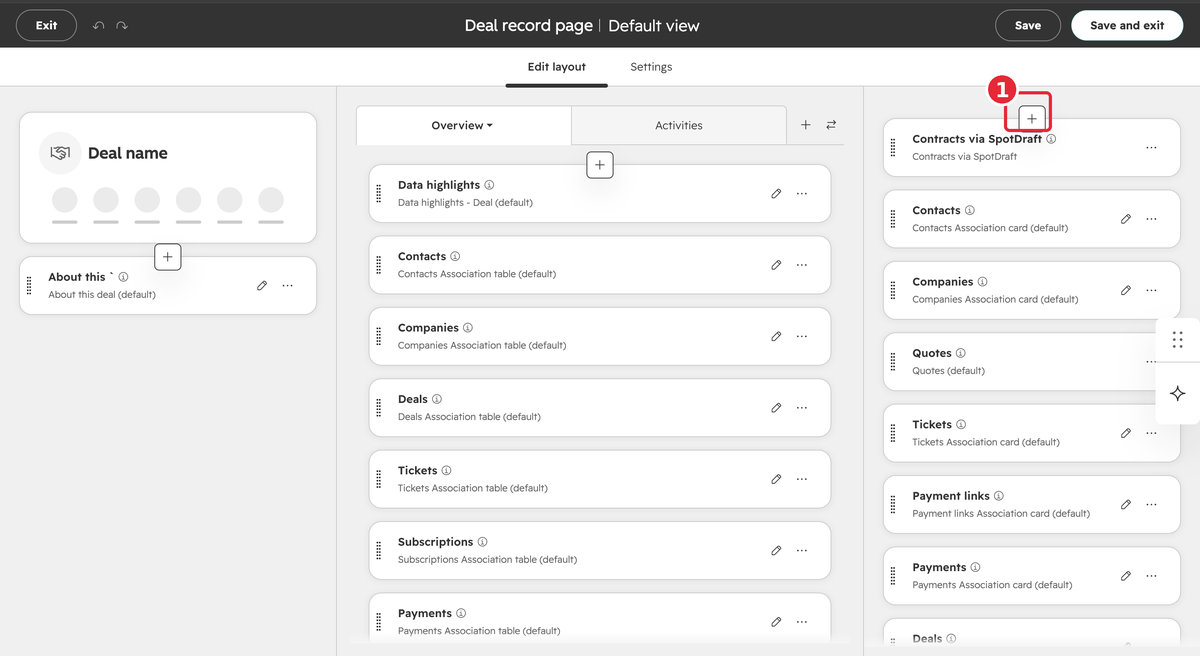
Hover in the right sidebar where you want SpotDraft, then click the + (add) icon.
Open the Card library tab.
Find Contract via SpotDraft. If the list is long, filter by App or search for SpotDraft.
Click Add card.
Optional: drag the card so it sits near the top of the right sidebar.
Click Save and exit (top right).
Visual walkthrough
Here is the same flow end to end, screen by screen.
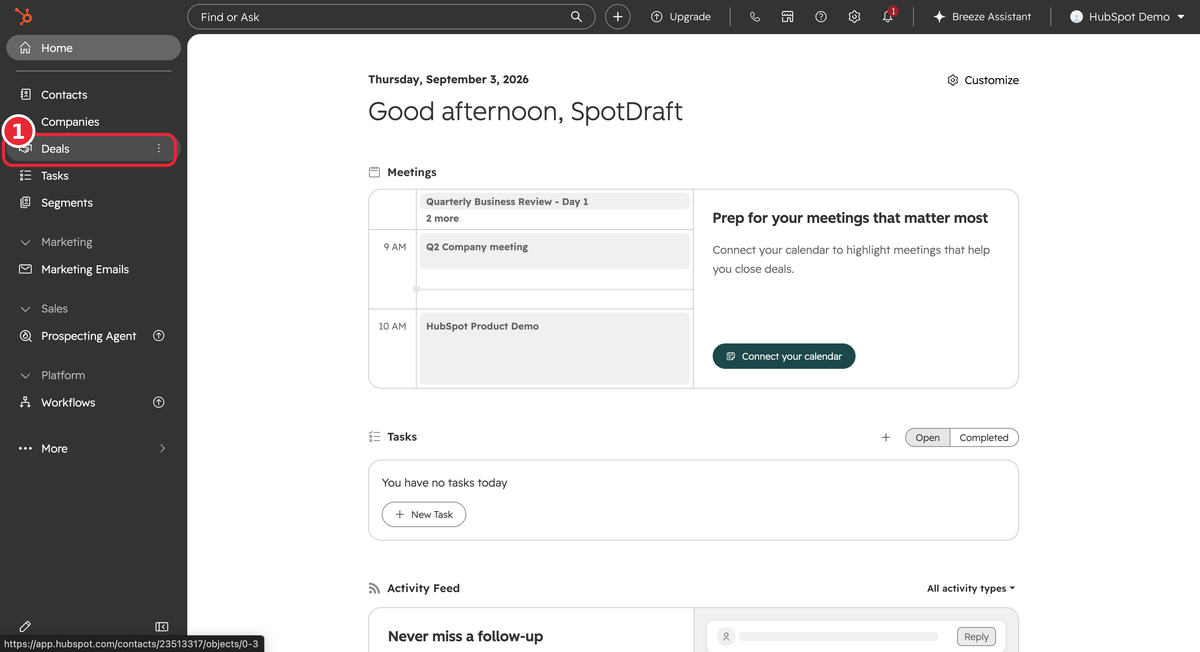
1. Open Deals from the left sidebar.
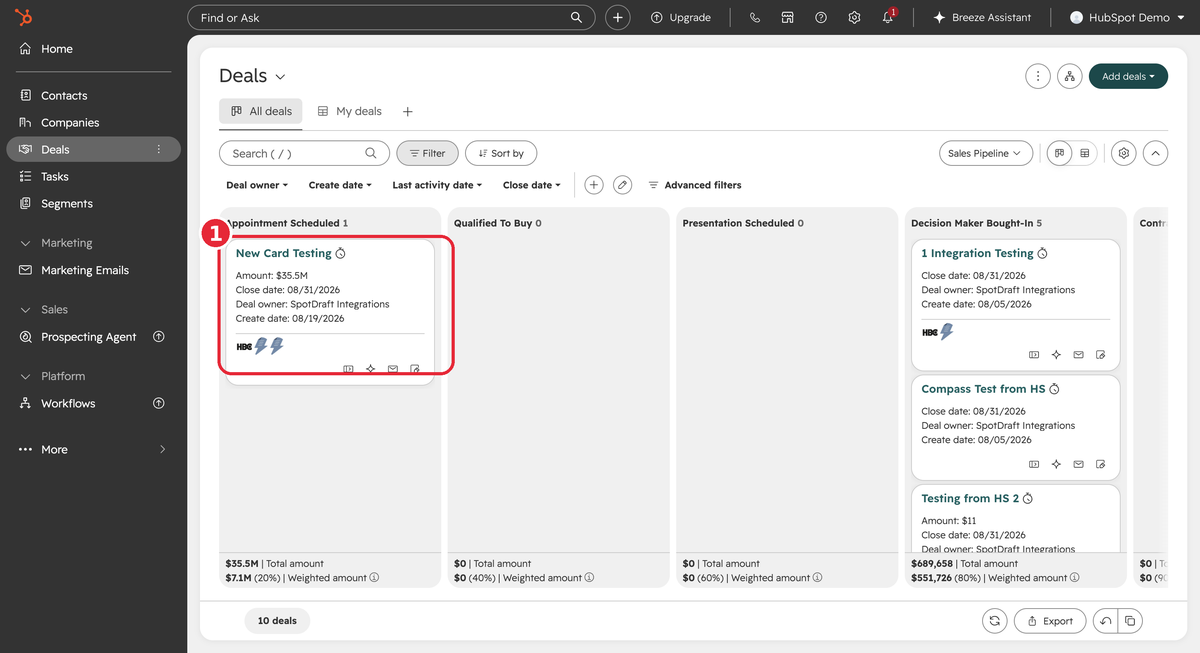
2. Open any deal — click a deal card in the pipeline.
3. On the deal record, click Customize (top right).
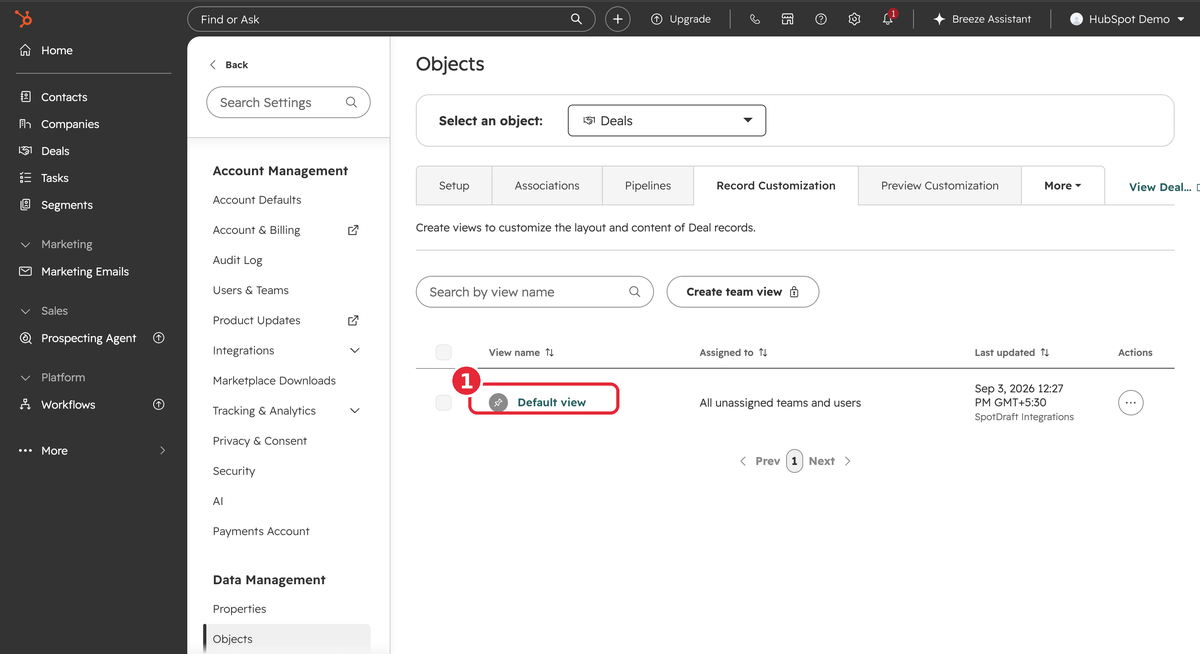
4. On the Record Customization tab, click Default view (or your team view).
5. In the right sidebar of the layout editor, hover and click the + icon.
6. In the panel that opens, stay on the Card library tab and click the card type filter.
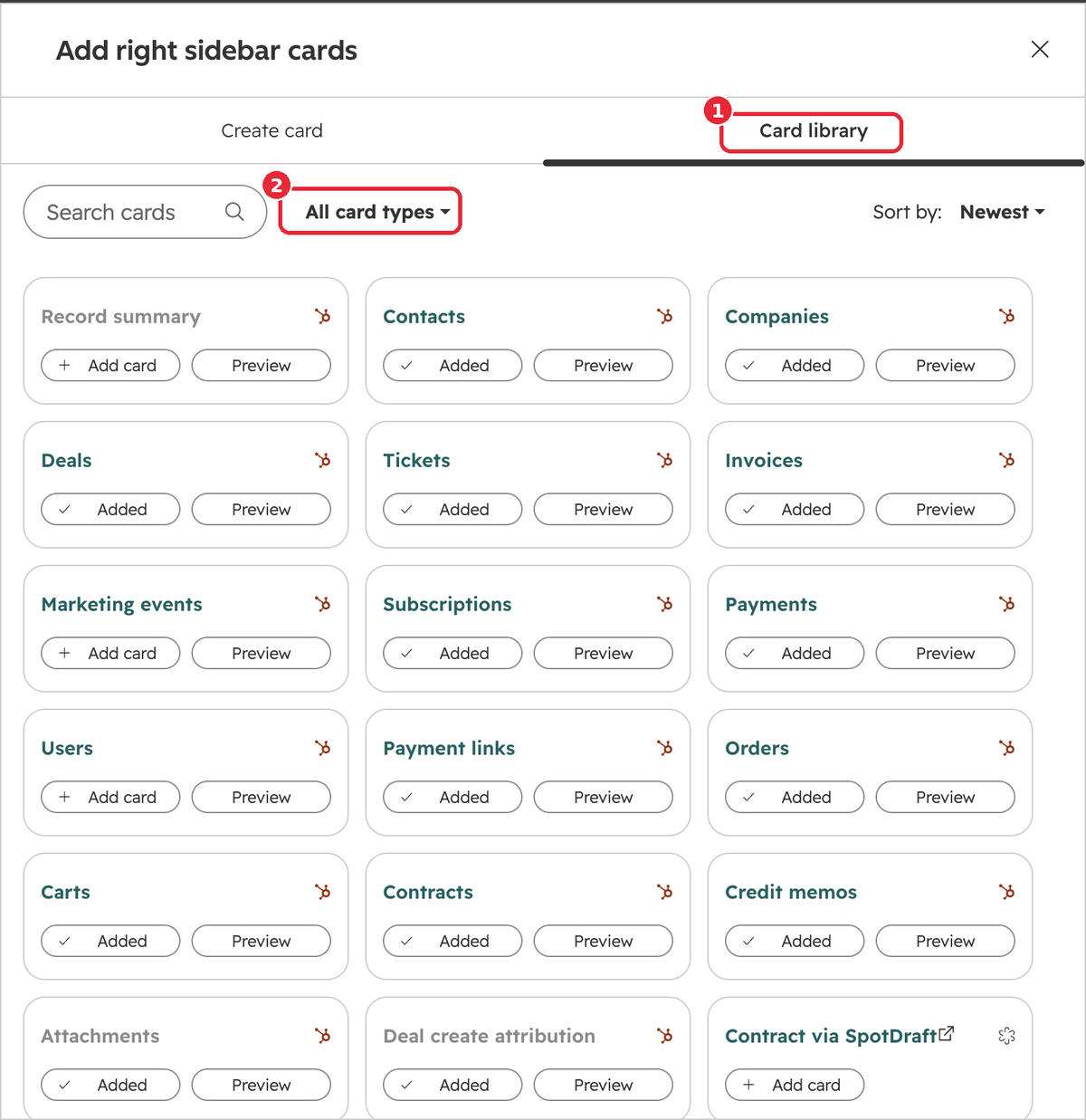
7. Check Apps in the filter list to narrow the results.
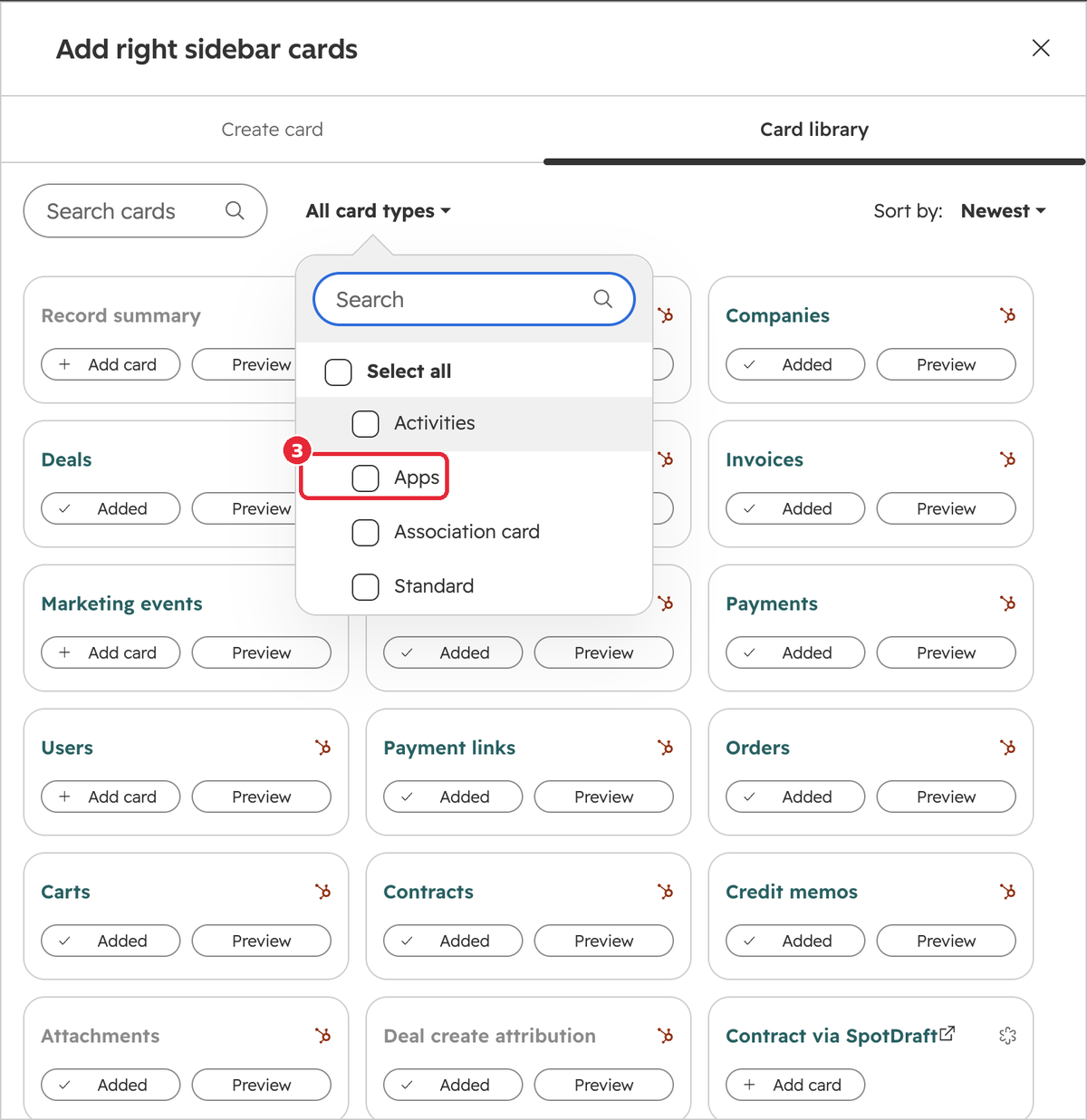
8. Find Contract via SpotDraft and click Add card.
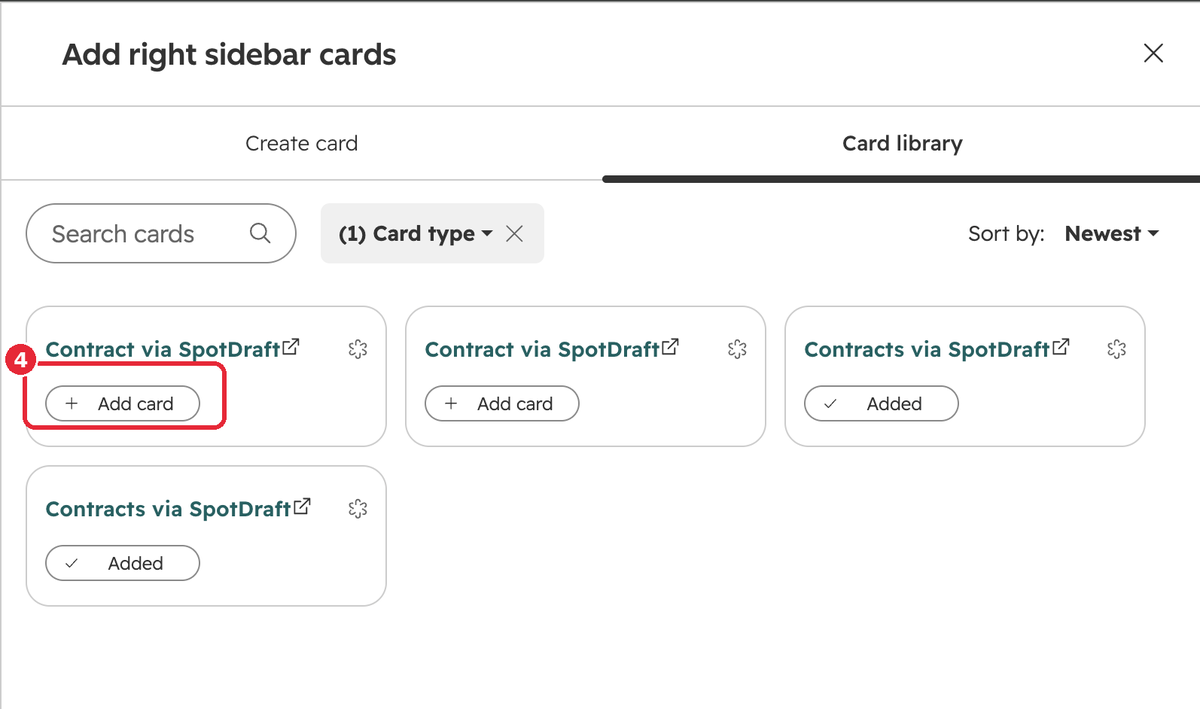
ⓘ NOTE
This demo workspace is connected to both a Dev and a QA SpotDraft environment, so the Card library lists each app twice. The two "Contracts via SpotDraft" cards (already marked Added) are from the earlier connection; the two "Contract via SpotDraft" cards are the current React card — click Add card on either one. In a typical workspace, you'll only see a single card here.
9. The card now shows Added — close the panel.
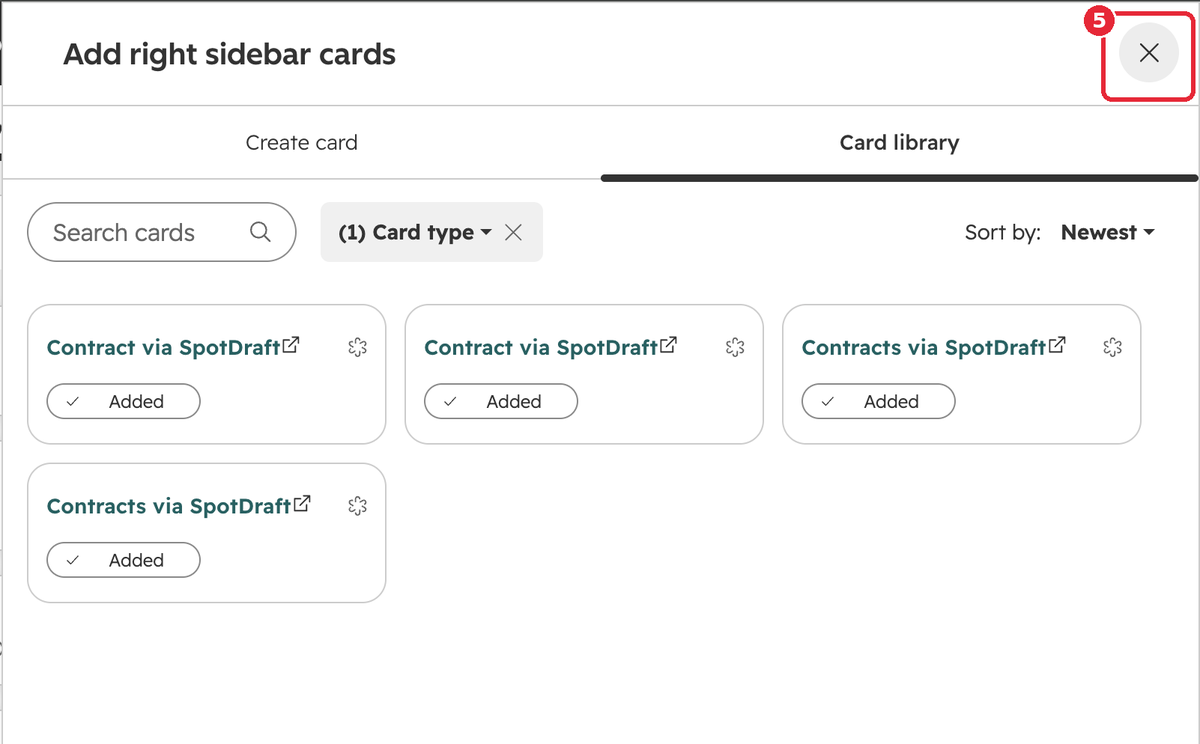
10. Back in the layout editor, click Save and exit (top right).

11. Open the deal again — Contract via SpotDraft is live with your linked contracts.
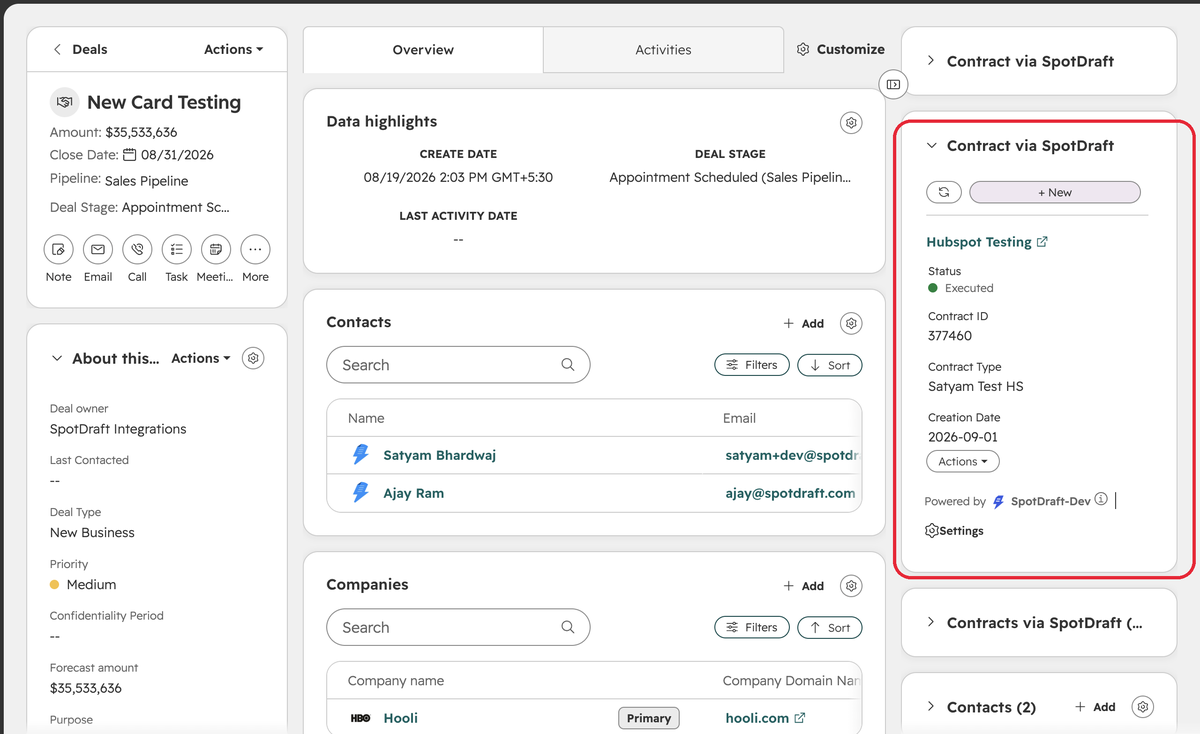
Open the same deal again. You should see the Contract via SpotDraft. Existing linked contracts should load. Use + New to create a contract.
Add it on Contacts, Companies, and Tickets
Repeat the same steps, starting from a different object each time:
Contacts: CRM → Contacts → open a contact → Customize → right sidebar → + → Card library → Contract via SpotDraft → Add card → Save and exit
Companies: CRM → Companies → open a company → same steps
Tickets: CRM → Tickets → open a ticket → same steps
If you use Help Desk, add Contract via SpotDraft (Help Desk) to the Help Desk ticket sidebar the same way (Customize / card library), or ask an admin to add it in Help Desk sidebar settings.
How to add the card for everyone (recommended for admins)
Use this so the whole team sees the card, not only your own view.
In HubSpot, click the settings gear (top right).
In the left menu, under Data Management, click Objects.
Open Select an object and choose Deals.
Open the Record Customization tab.
Click Default view (this is what users see if they are not on a team view). If you use team views (Professional / Enterprise), repeat these steps on each team view that should show SpotDraft.
In the right sidebar of the editor, hover and click +.
Open Card library.
Add Contract via SpotDraft.
Click Save and exit.
Repeat for Contacts, Companies, and Tickets (change the object in step 3 each time).
Another admin path (connected apps)
Settings → Integrations → Connected apps.
Open the SpotDraft app.
Open the App cards tab.
On Contract via SpotDraft, click Manage locations.
Check the views where the card should appear (Deals, Contacts, Companies, Tickets).
Click Save.
HubSpot's official articles:
Using the new card day to day
Refresh — reload contracts for this record.
+ New — create a contract from a template or upload a third-party contract. The SpotDraft window opens in HubSpot. When you finish, the list updates.
Contract title — opens that contract in SpotDraft.
Actions — open details, continue editing, upload, or move back to redlining (when available).
View all contracts — full list plus search, when there are more than 3 contracts.
Visual walkthrough
1. Refresh reloads the list. + New starts a new contract.
2. + New opens the create-contract window — pick a template or upload a third party contract.
3. Click Actions on a contract for options: open details, continue editing, or upload a new version.
4. When there are more than 3 contracts, View all contracts opens the full list in a side panel.
5. The side panel lists every linked contract, with a search box to find one by name, ID, type, or status.
Empty record
If nothing is linked yet, you will see a short empty state and + New.
Errors
If the card cannot load, use Try again. If it still fails, confirm the HubSpot integration is enabled in SpotDraft and that you are signed in with the same email.
Quick checklist for go-live
SpotDraft – HubSpot integration is on for this workspace |
New card added on Deals |
New card added on Contacts |
New card added on Companies |
New card added on Tickets |
Help Desk card added, if you use Help Desk |
Open a record that already has contracts — they appear on the new card |
Create a test contract with + New |
Open contract details from Actions |
FAQ
Q: Why don't I see the new card?
It is not added automatically. If Customize is missing, you need an admin.
Q: I added it on a deal. Why is it missing on contacts?
Layouts are per object. Add it on Contacts, Companies, and Tickets too.
Q: Will we lose existing contracts?
No. They stay in SpotDraft and still show after you add the new card to that record type.
Q: Can we keep the old card?
For now, yes. Plan to rely on the new card before October 15, 2026. HubSpot will delete classic cards then.
Q: Who should do this activity?
HubSpot Super Admin (or anyone with Customize record page layout) should add it on the default view so the whole team gets it.