Sync SpotDraft Contract Metadata Details to HubSpot
Last updated: April 22, 2026
💡 In this article: Discover how SpotDraft’s integration with HubSpot allows you to seamlessly sync Contract Metadata, enriching your Deal records and empowering your team to manage contracts with greater efficiency—all within the HubSpot platform.
🔃 Sync SpotDraft Contract Metadata details to HubSpot Fields
Enhance your CRM's capabilities by syncing General, Lifecycle, and Contract Type-specific metadata from SpotDraft into HubSpot. This integration allows you to customize HubSpot Deal records with up-to-date contract information, offering a comprehensive view that captures all unique aspects of your business contracts.
💡 Tip: This integration syncs Contract Metadata from SpotDraft to HubSpot.
📝 Prerequisites
HubSpot Objects: This integration syncs with all HubSpot objects. Ensure that the data to synchronize is associated with the right object.
Contract Type setup with Contract Metadata: Choose the Contract Type to integrate with HubSpot and ensure it has Contract Metadata set up in SpotDraft.
Data Synchronization Plan:
Identify the specific Contract Metadata data you wish to synchronize.
Determine the corresponding HubSpot fields for synchronization.
Ensure each mapped field has the same data type in both SpotDraft and HubSpot.
Generic Settings Connection: Confirm that the generic settings between SpotDraft and HubSpot are already configured and active.
HubSpot User Role: The individual setting up the integration must have appropriate access in HubSpot and a SpotDraft account. Their email address for both accounts should be identical. (If the HubSpot user needs a SpotDraft account, please follow this guide to create one.)
⚙ Installation & Configuration
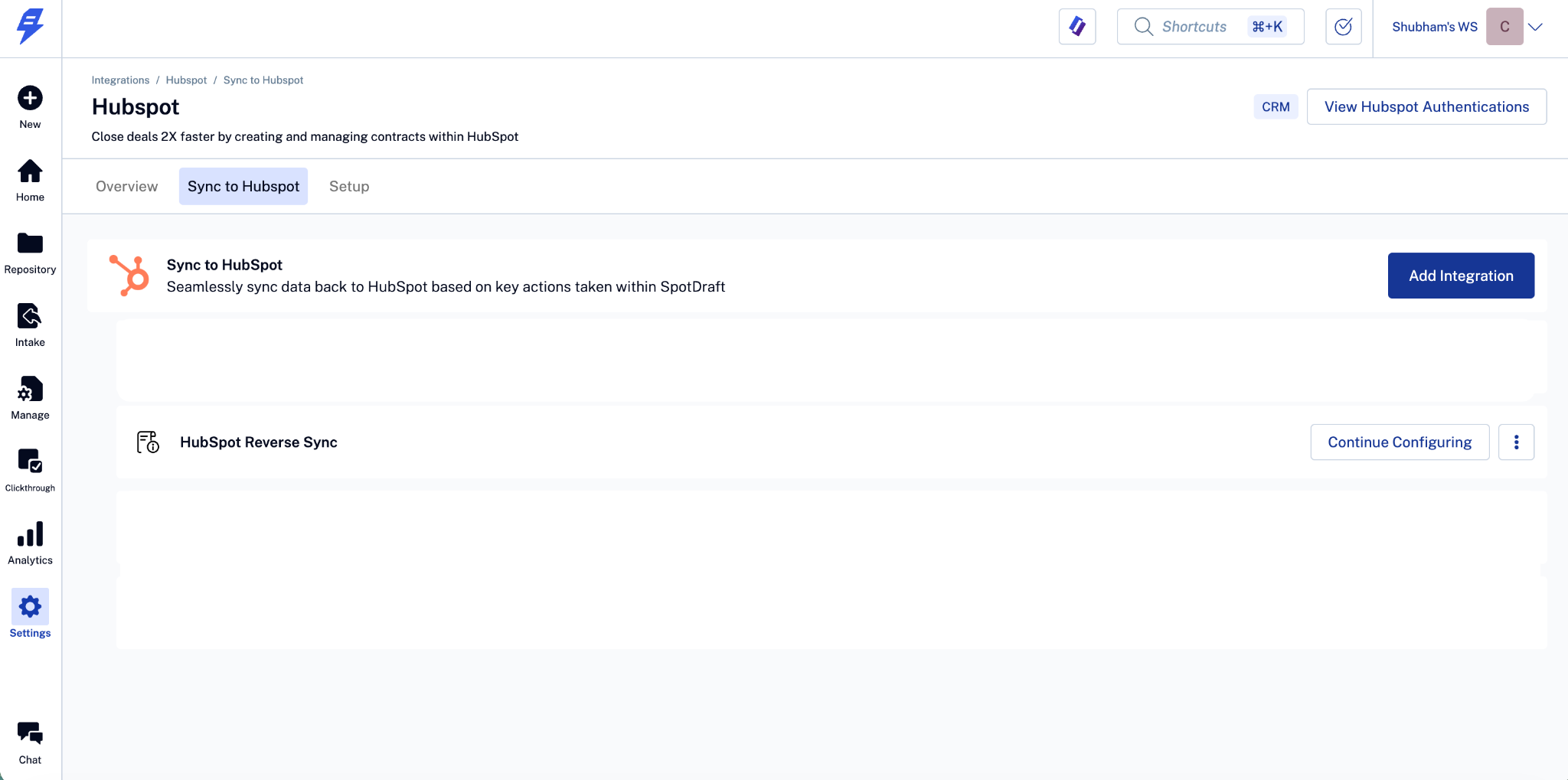
Log into SpotDraft, navigate to 'Settings' → 'Integrations' → ‘CRM’, open the HubSpot card, and select ‘Sync to HubSpot’ from the top menu. Then hit the ‘Add Integration’ button on the ‘Sync to HubSpot’ option to open the setup wizard.
Authenticate your HubSpot account.
2.1 - Click New authentication.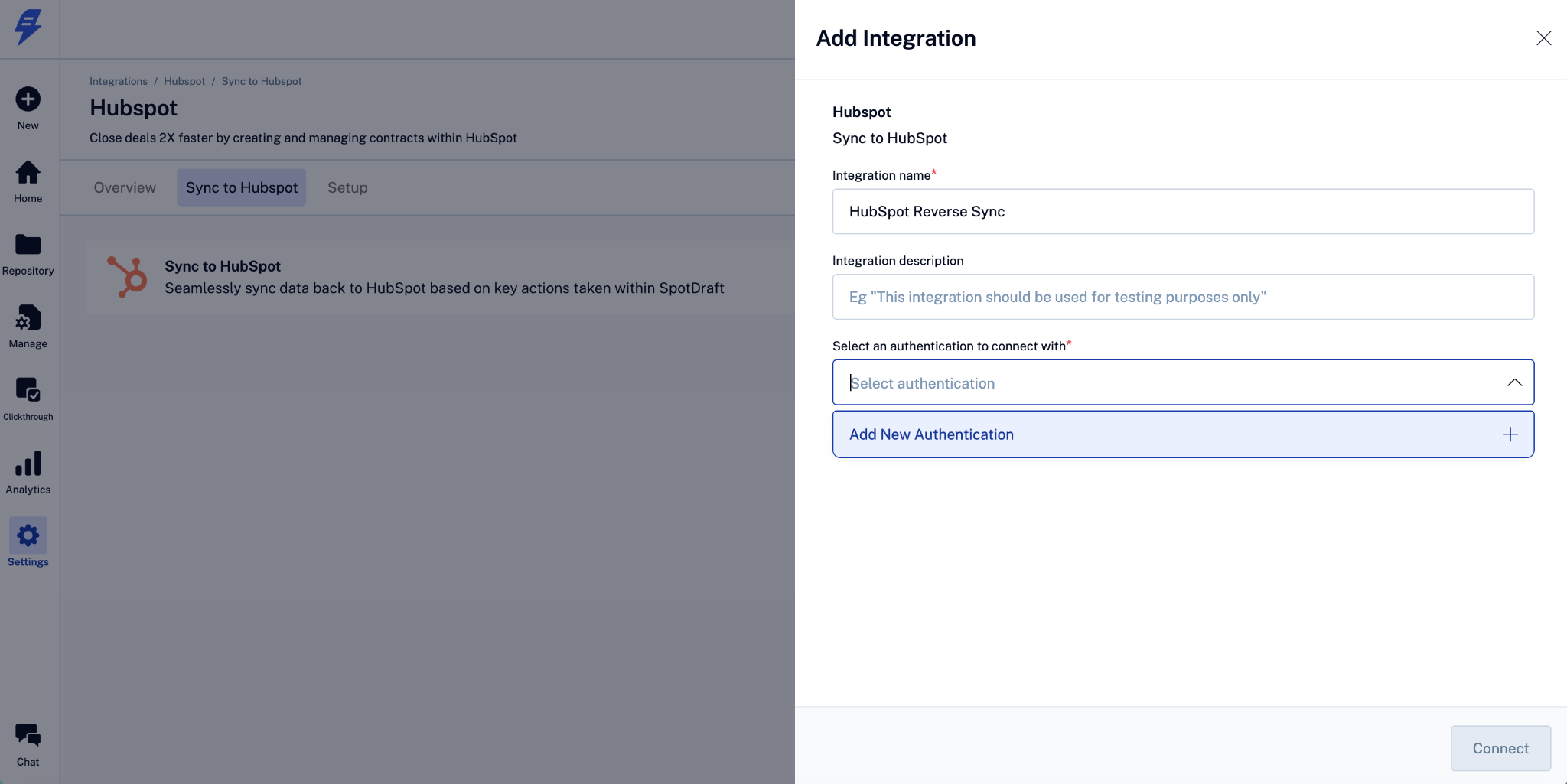
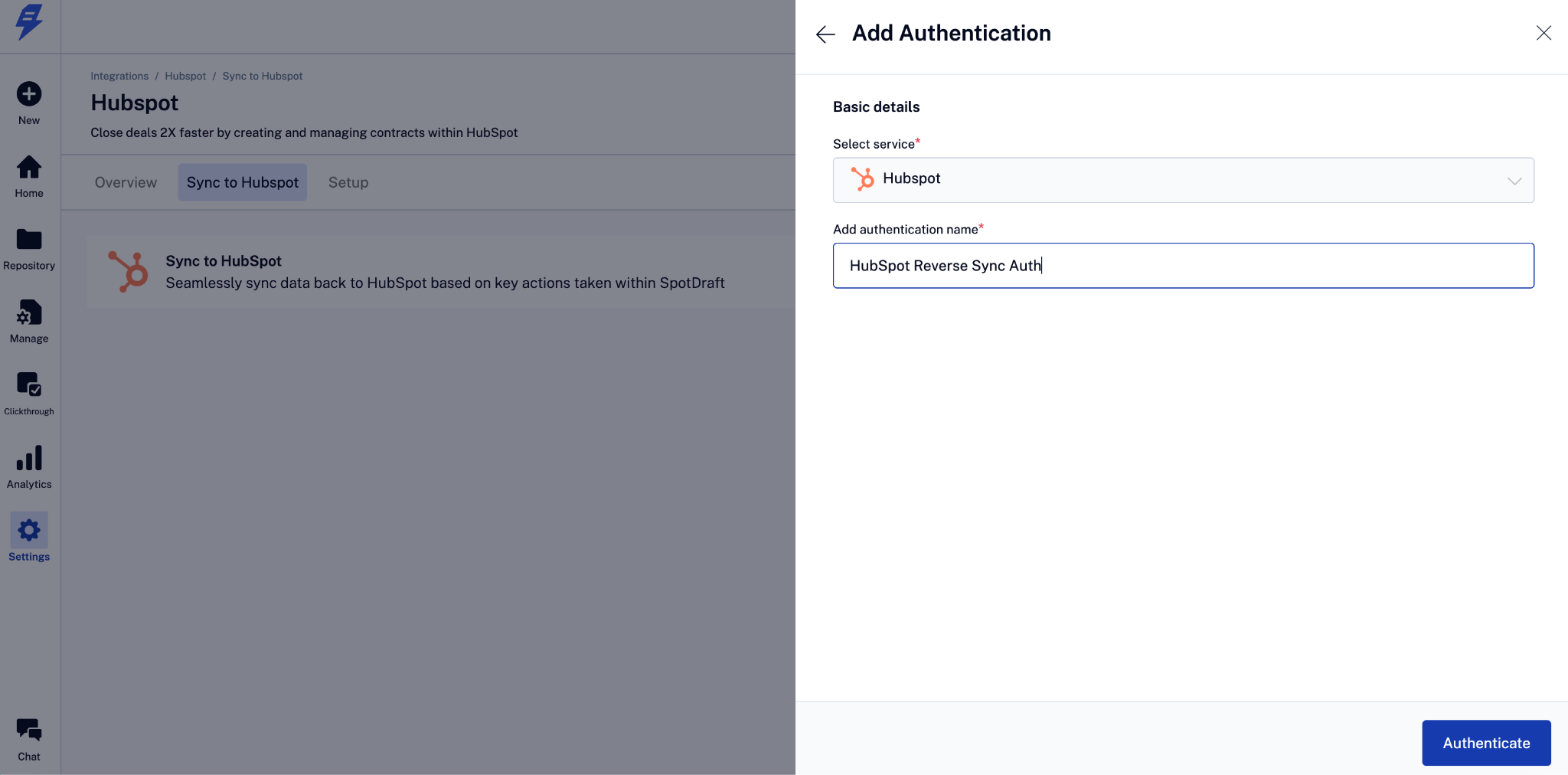
2.2 - Set the authentication name, then click on the Authenticate button.
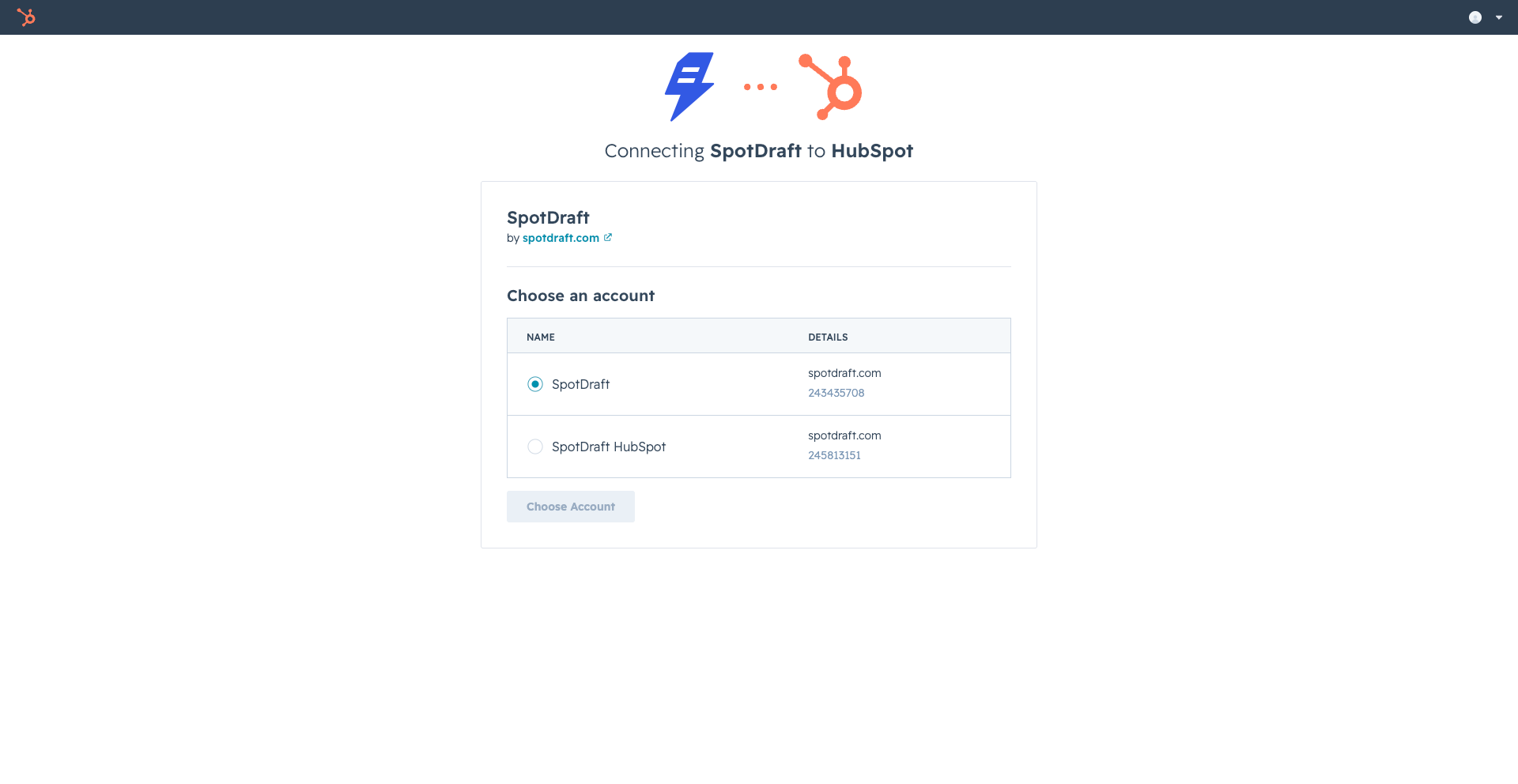
2.3 - Choose the HubSpot account.
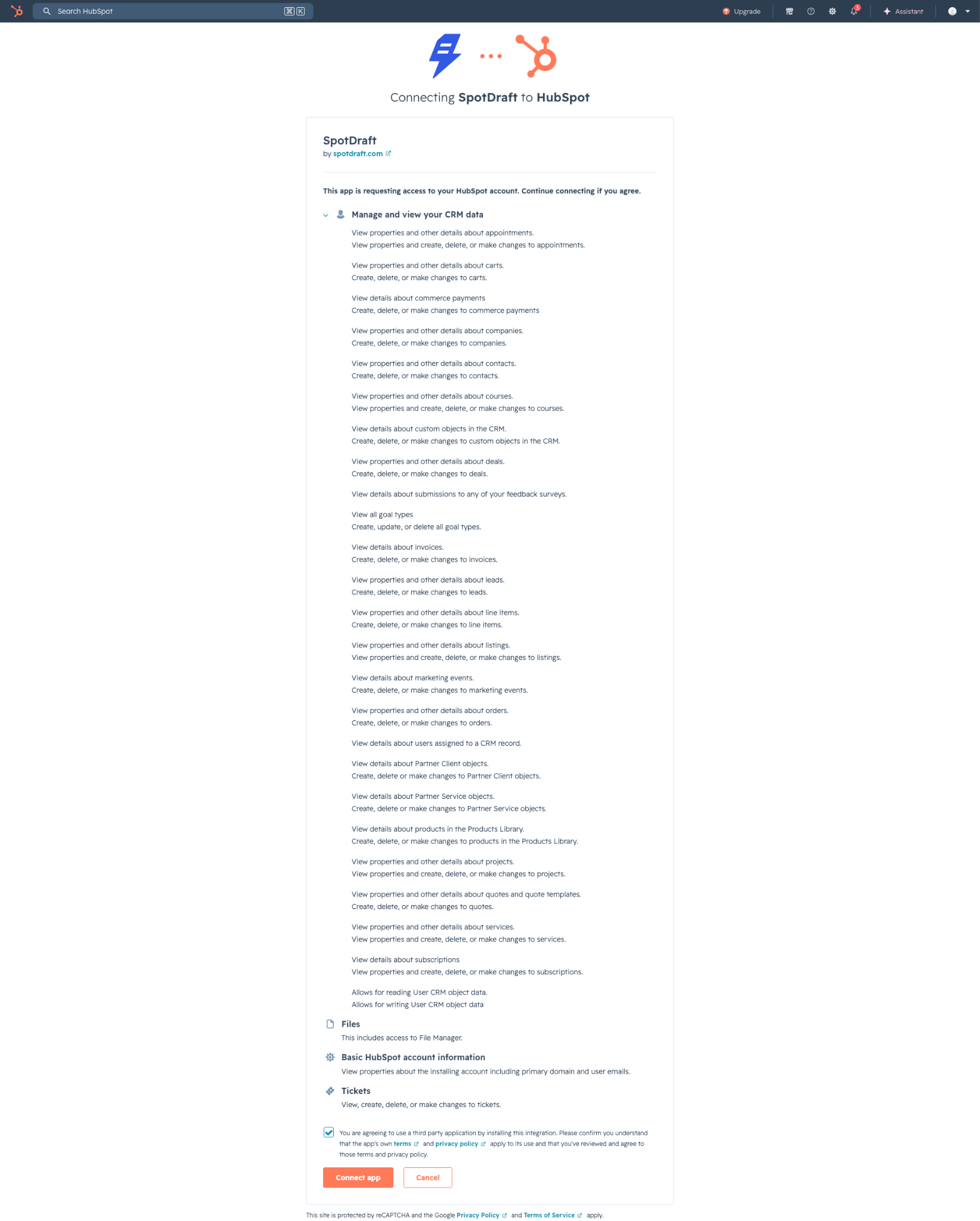
2.4 - Read through HubSpot’s Terms and click on the Connect app.
Selecting the HubSpot object to push data to
Click Continue Configuring; this will take you to a screen to select the object to push the data to.
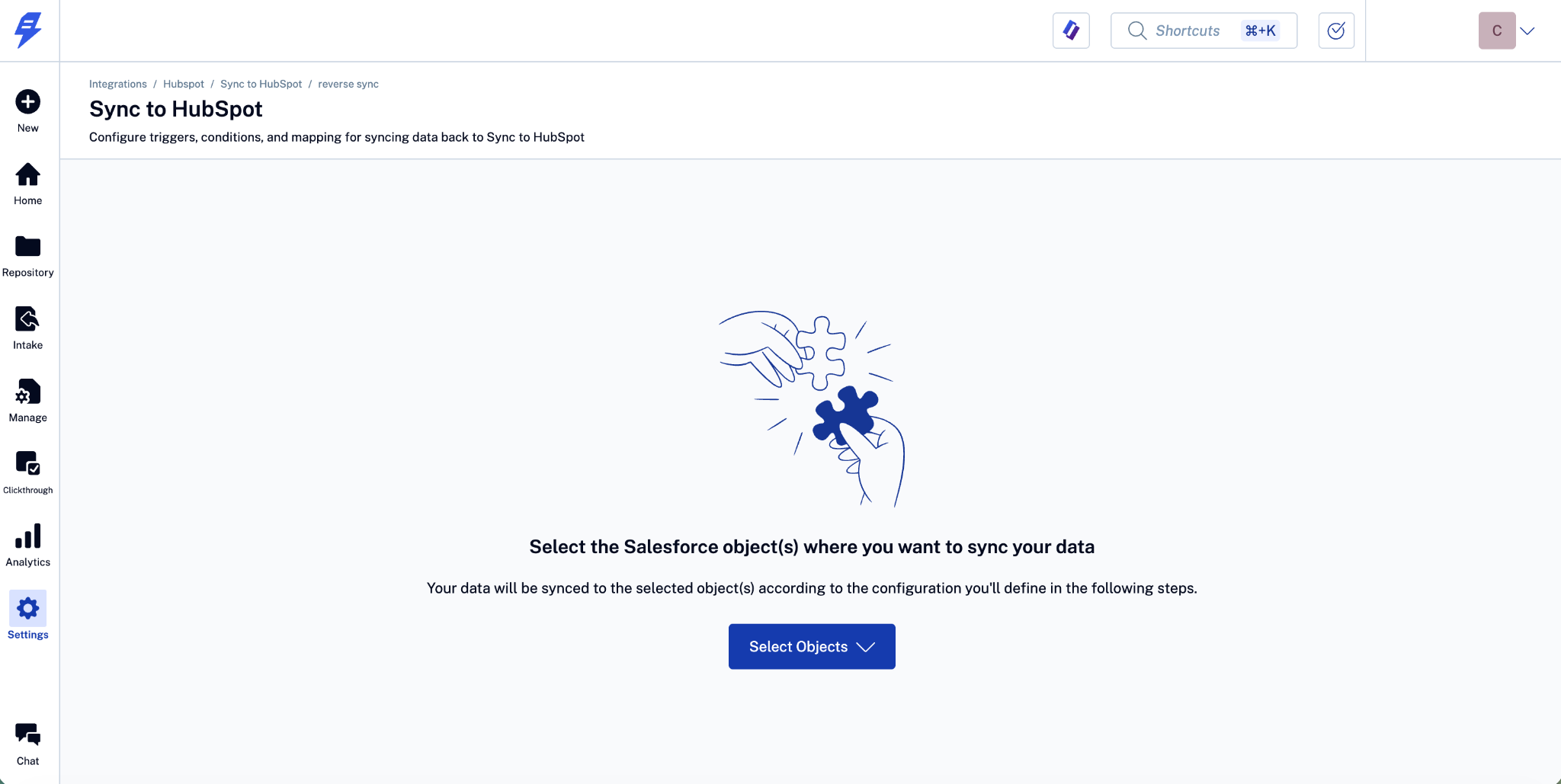
Click on Select Objects and select the object to take you to the landing page to set up workflows.
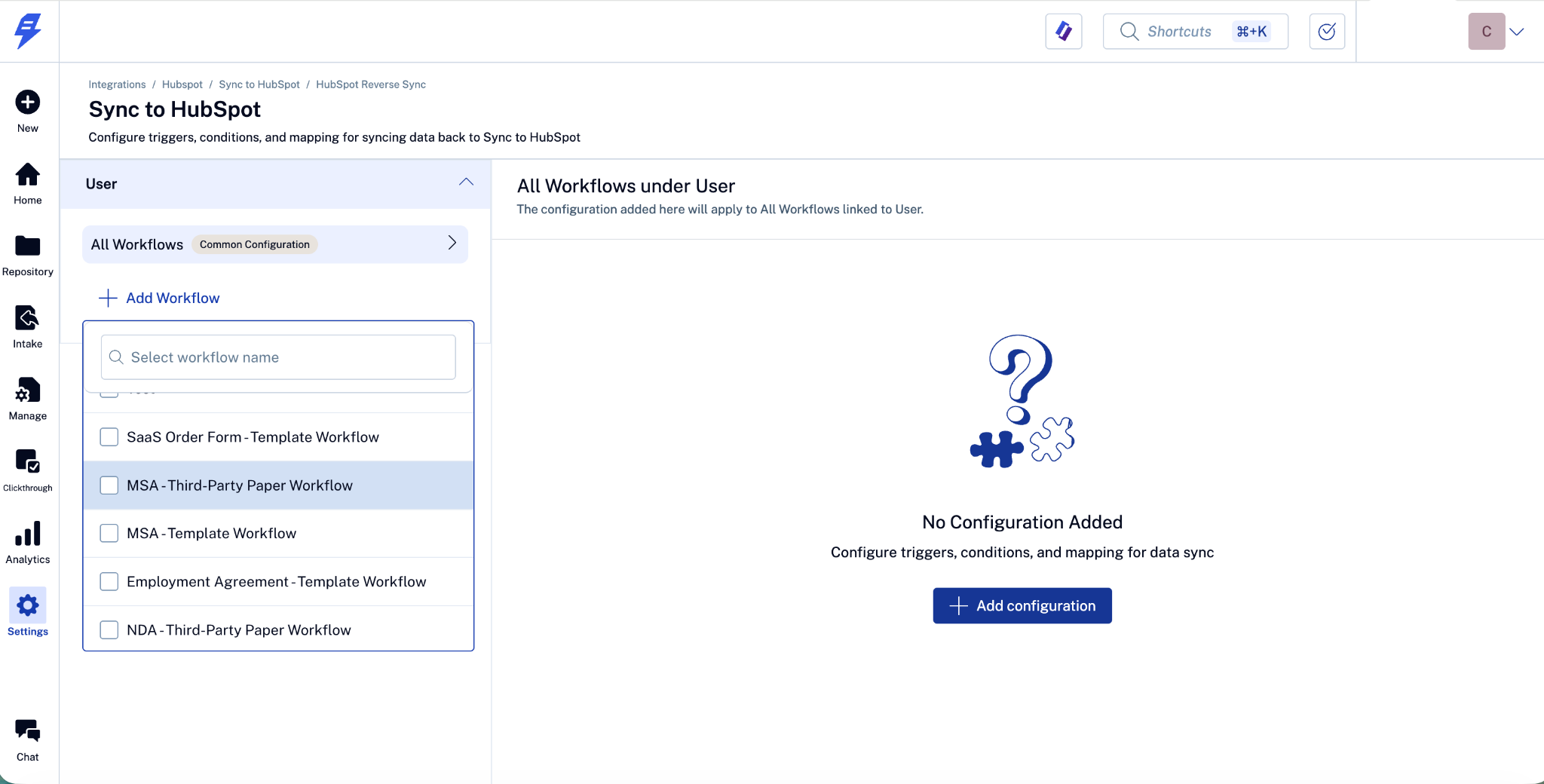
Click on Add Configuration: This will open a modal to enter basic information
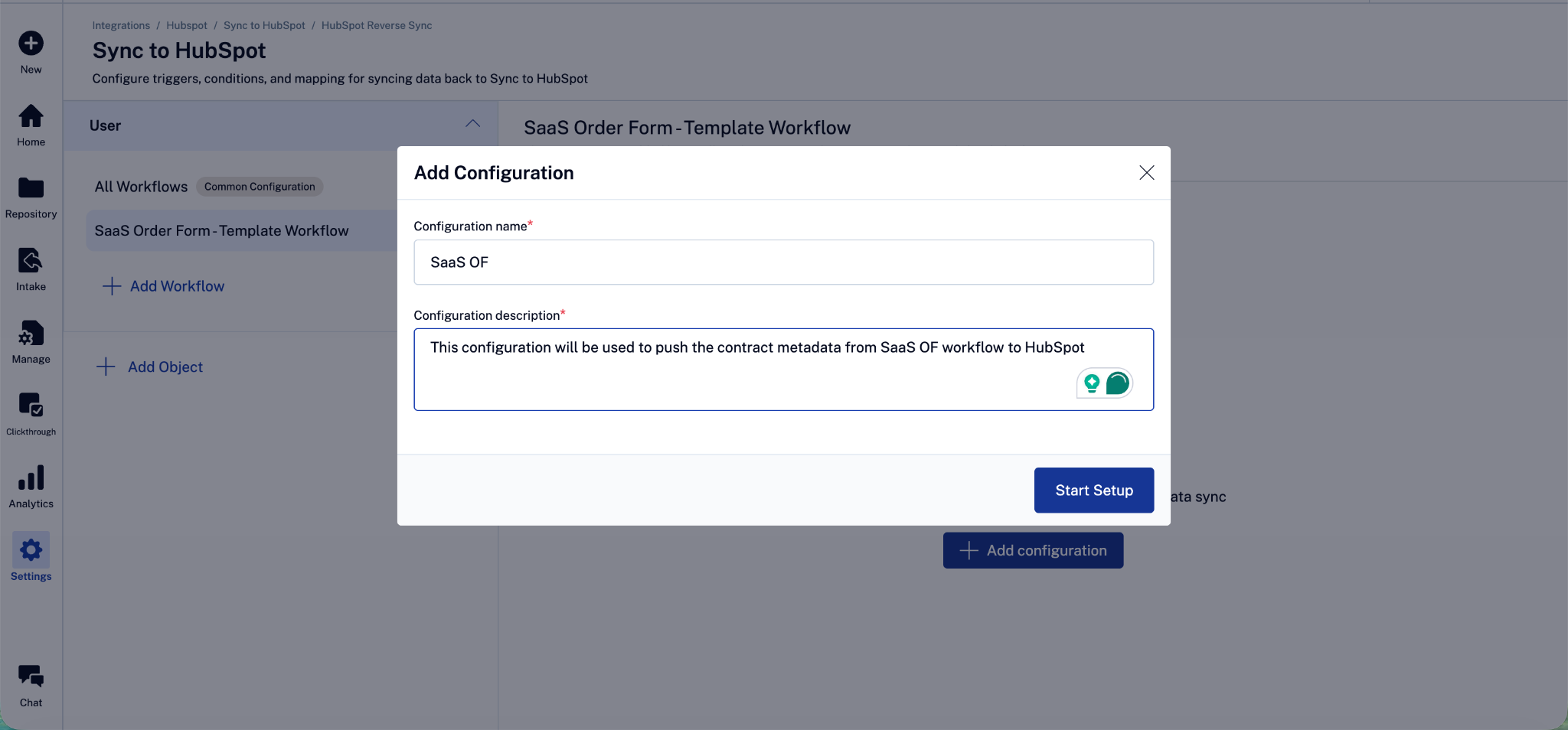
4. Click on Start Setup: This will take you to the configuration page.
Set triggers and conditions
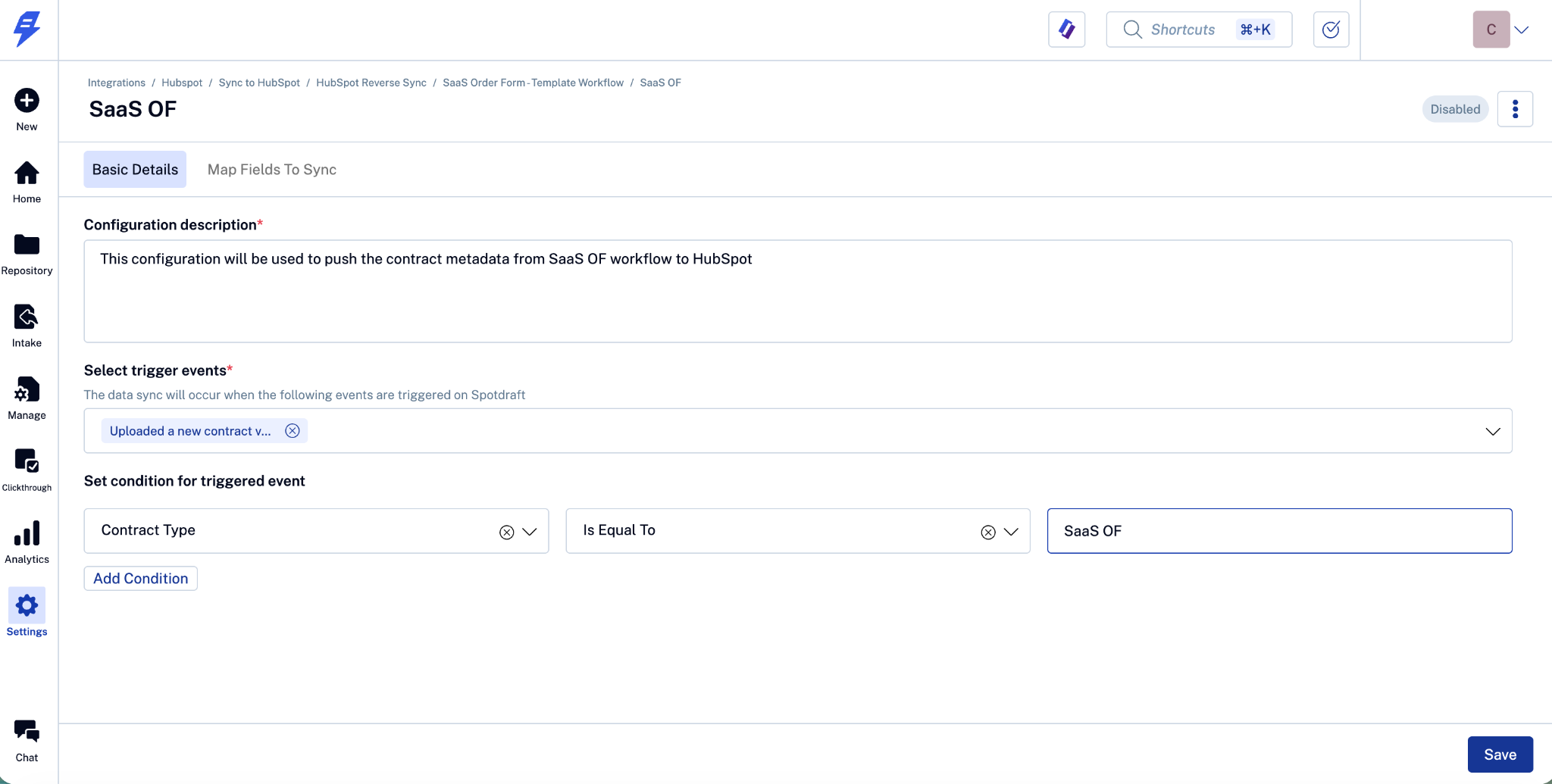
Select the triggers: Select when the events on SpotDraft should push data to HubSpot
Set the condition: The events occur for all contracts that are on SpotDraft. The reverse sync is usually needed for the contracts that are created from HubSpot. In such cases, add the required conditions to identify the contracts created from HubSpot.
Map HubSpot and SpotDraft fields
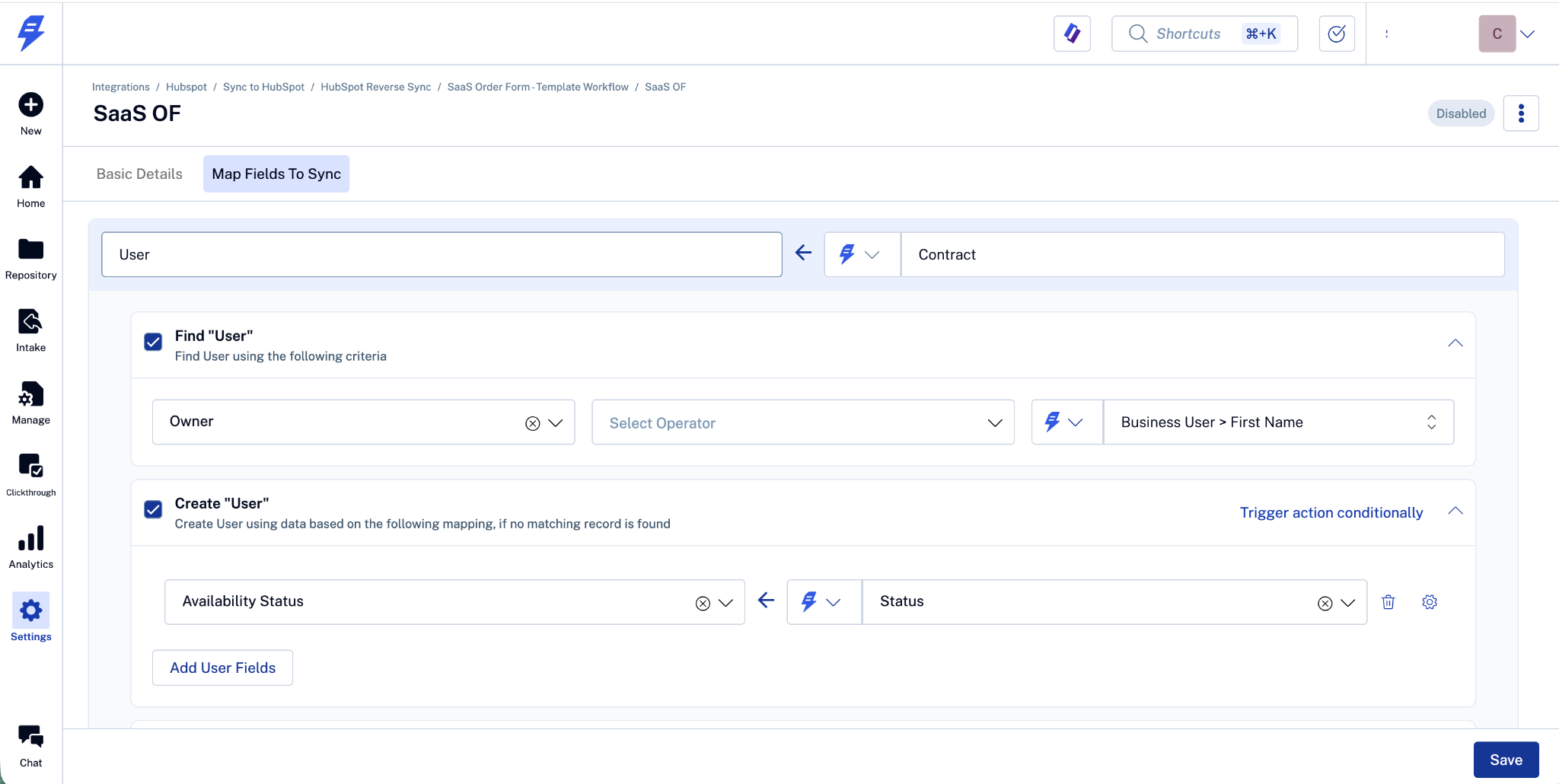
Find: Usually, the contract data will be pushed back to the linked HubSpot record, such as Deal, Company, etc., from which the contract was created. Find this record based on the required search criteria.
Create: If no record is found based on the search criteria, you can choose to create a new record. Select the Create option and map the fields that you need to auto-populate based on the contract data. Note: All mandatory fields should be mapped.
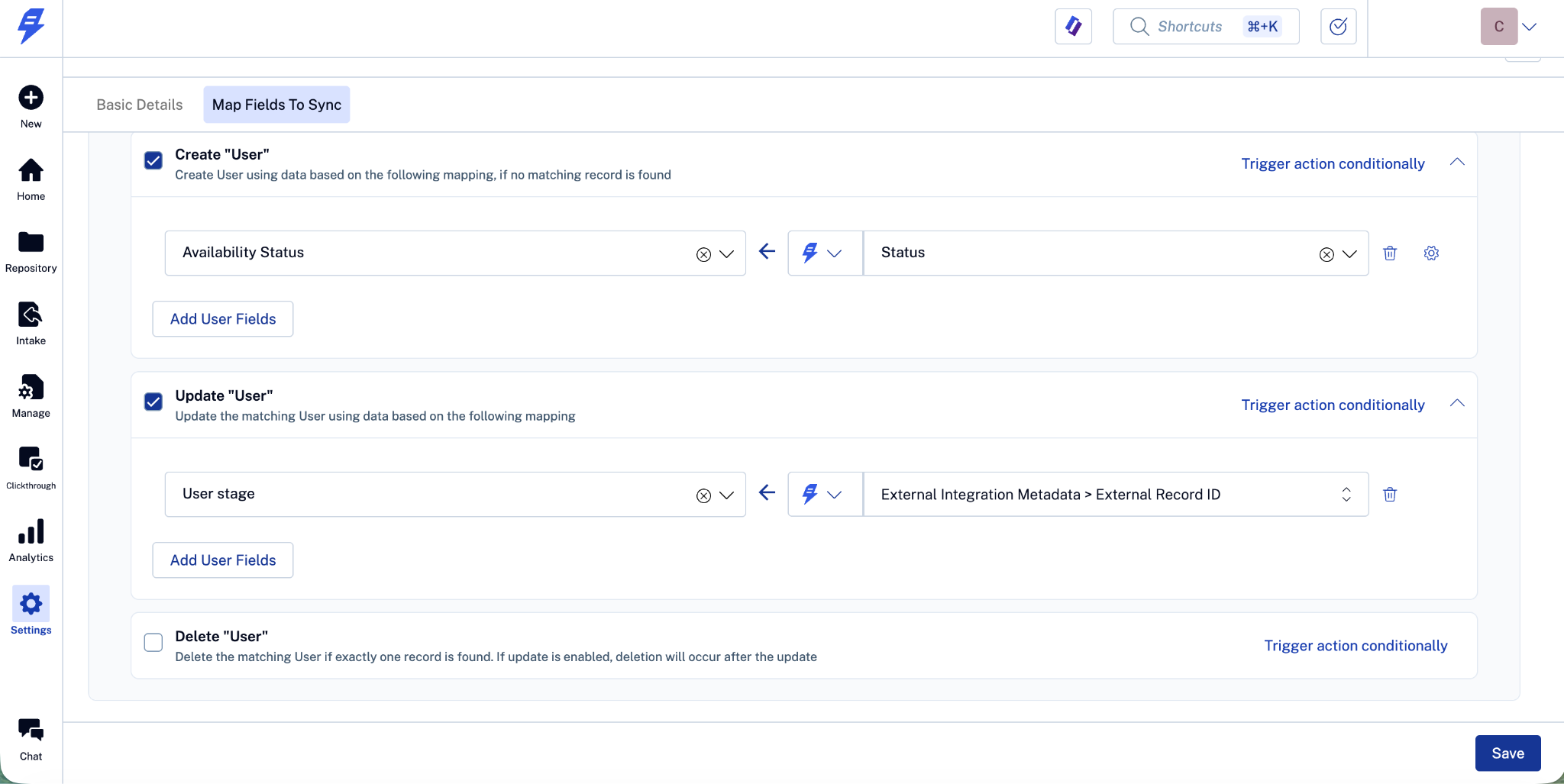
Update: The most common use case is to update some of the fields in the object that is linked/found. To do this, map the fields on HubSpot with the fields on SpotDraft.
Save and enable
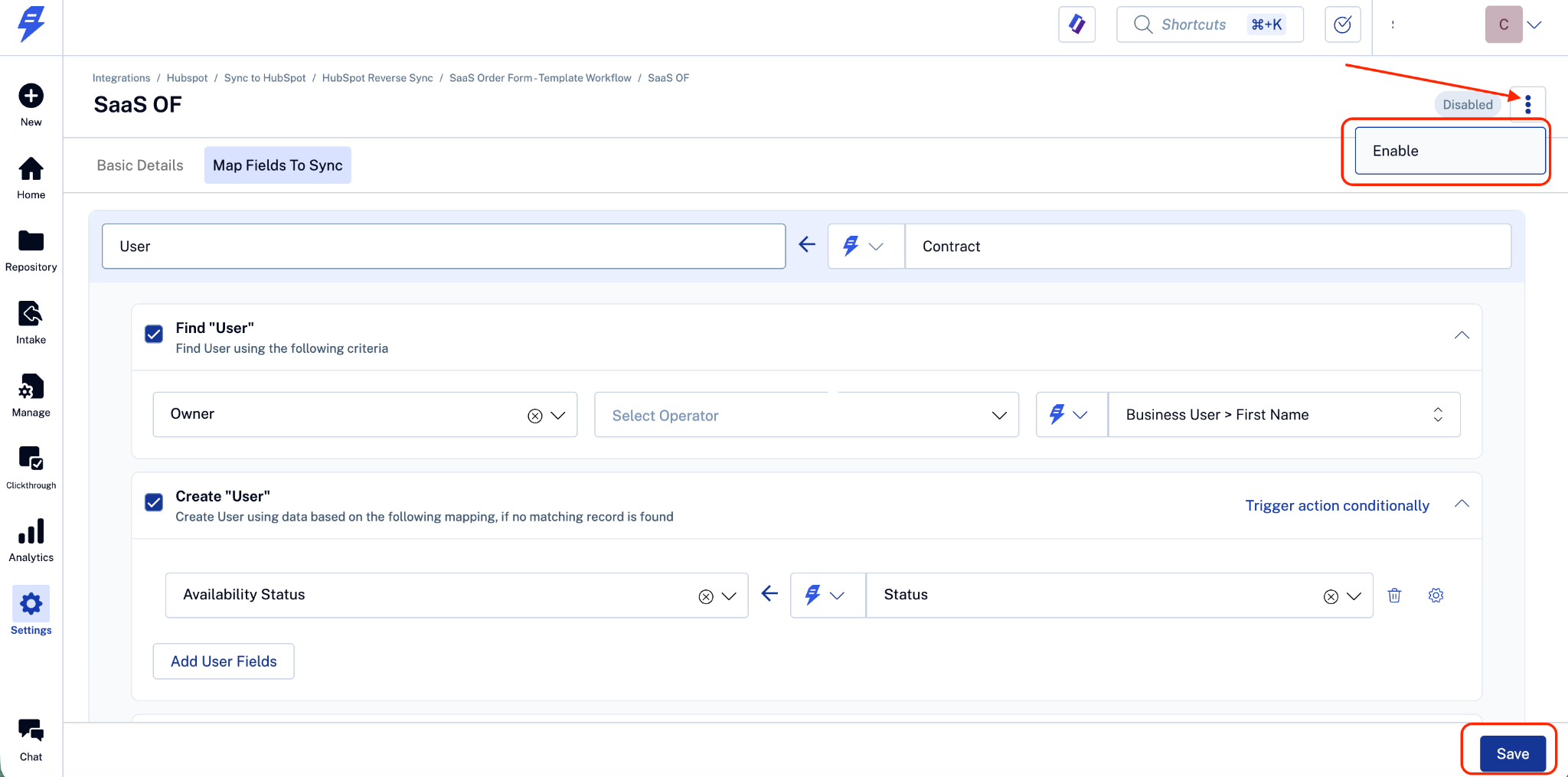
Once all the mapping is complete, save and enable it. Your reverse sync is now active!
✅ Verification
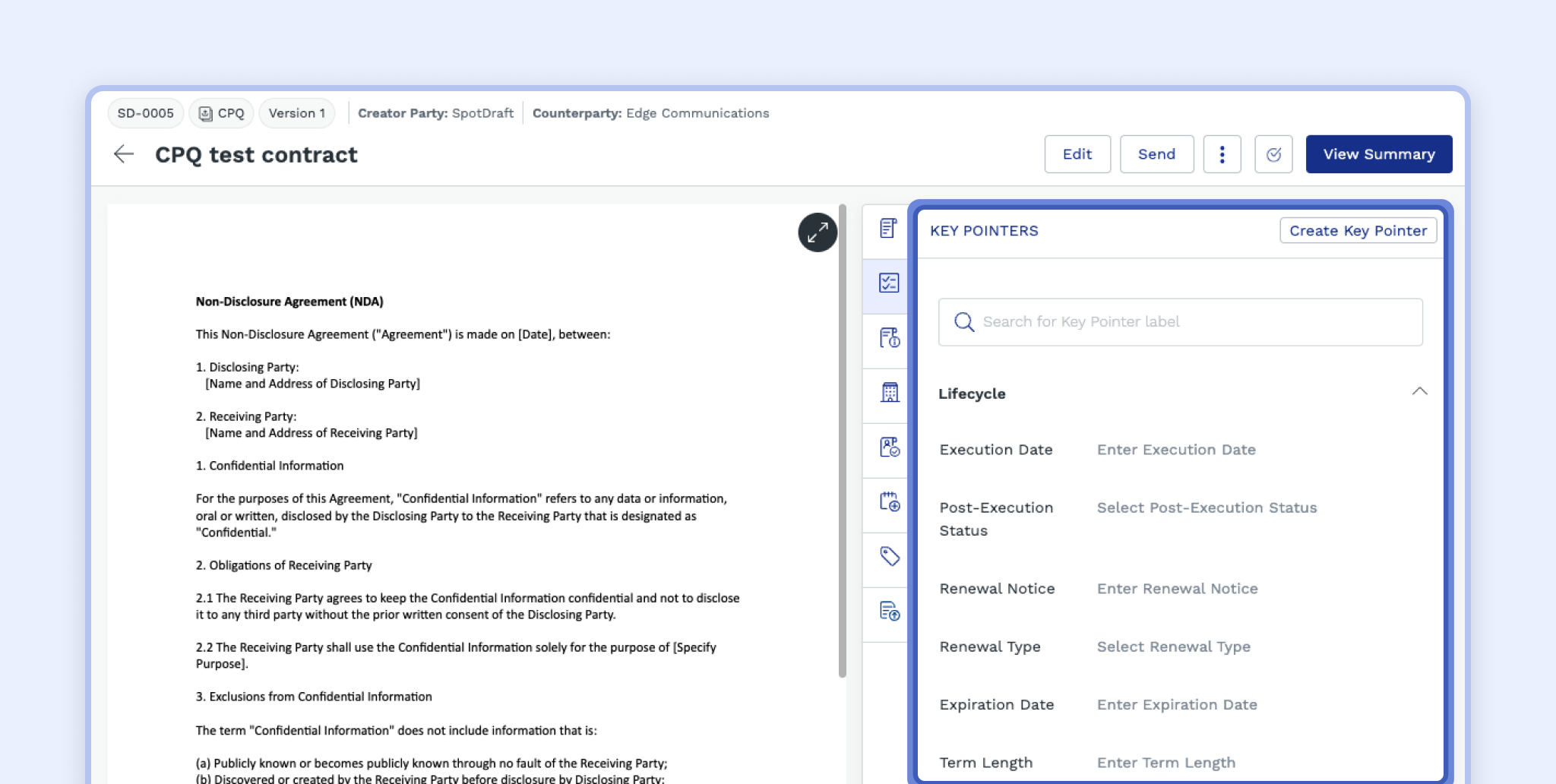
Create a Test Contract in SpotDraft: Begin by creating a dummy contract in SpotDraft and populate some, if not all, of its Contract Metadata that are mapped to sync with HubSpot.
Update Contract Metadata: In SpotDraft, modify one or more of the Contract Metadata in the test contract.
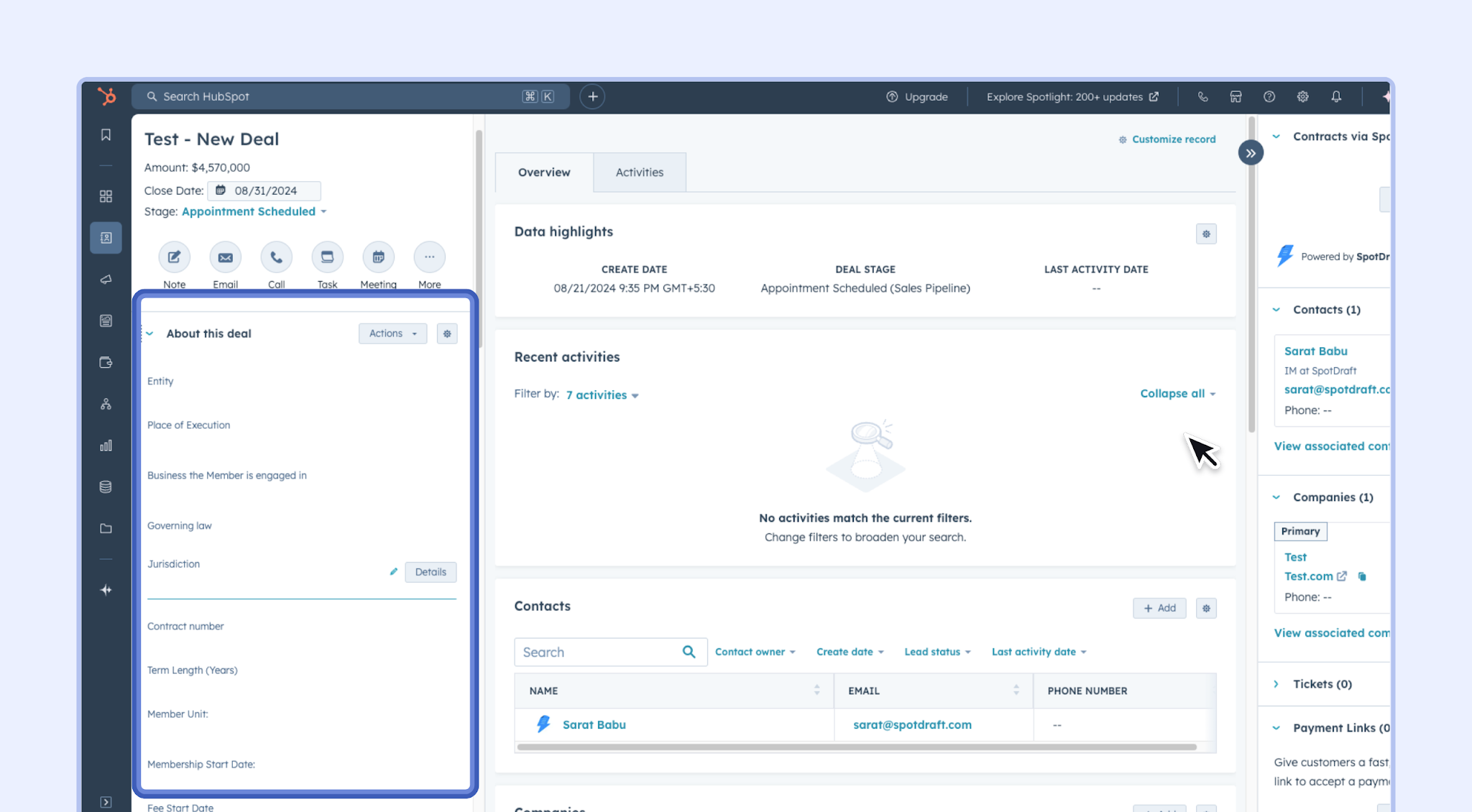
Check HubSpot Records: Verify if the changes in Contract Metadata are reflected accurately in the corresponding HubSpot fields.
Test Automations (if any): If HubSpot automations depend on these fields, check if they trigger as expected after the sync.
Review HubSpot Reports: If you have reports that utilize these fields, run these to ensure that the synced data is being included correctly.
💬 FAQs
Which HubSpot objects can be synced with SpotDraft Contract Metadata?
You can sync Contract Metadata with any object in HubSpot.Can custom Contract Metadata sections be synced to HubSpot?
Yes, custom sections like Contract Type-specific sections can be synced with HubSpot, allowing for a fully tailored data transfer.How frequently does the data sync from SpotDraft to HubSpot?
The data synchronization occurs based on the configured trigger conditions.Is there a limit to the number of Contract Metadata that can be synced?
There's no set limit on the number of Contract Metadata you can sync, but it's important to ensure that your HubSpot setup can accommodate the data structure you plan to use.