Connecting SpotDraft to ChatGPT (Web)
Last updated: September 8, 2026
Find contracts and ask questions about them in ChatGPT, using the access you already have in SpotDraft.
Use the same ChatGPT account and company workspace your team uses. If you're not sure whether SpotDraft is already connected for your organization, check Connect your Account below before starting a first-time setup -- it avoids creating a duplicate connection.
Connect your account (if it's already set up)
Use this path if your admin has already made SpotDraft available in ChatGPT, or you can already see an existing SpotDraft connection.
Open Plugins in ChatGPT. Open your profile menu, then Settings > Plugins. You can also open the Plugins directory directly. If your version shows "Apps" instead of "Plugins," open Apps.
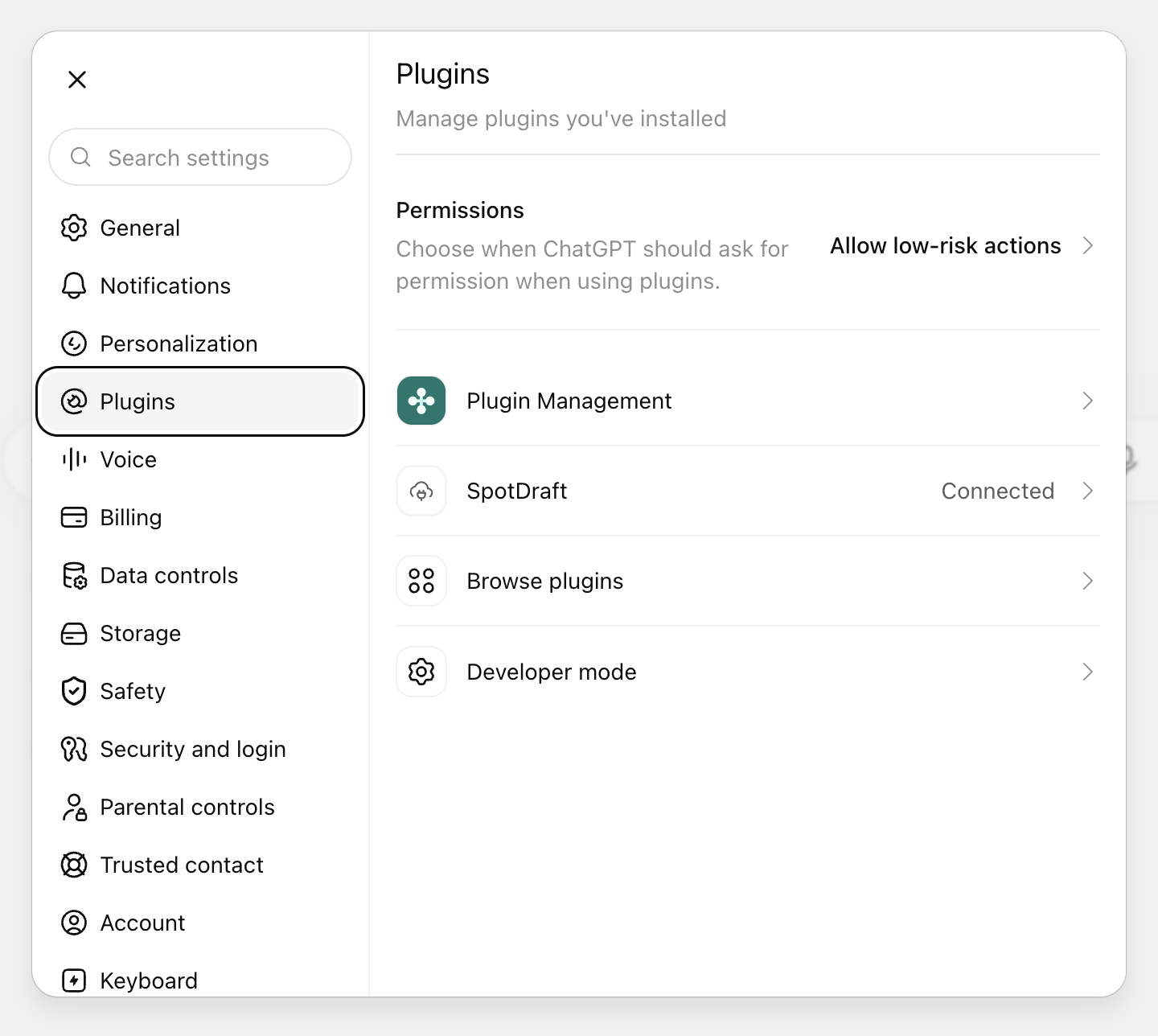
Open Plugins in Settings. If SpotDraft is already connected, skip ahead to testing your connection.
Find and open SpotDraft. Search for SpotDraft and open the connection your organization has made available. If an "Install plugin" button appears, select it, then continue to the next step. If SpotDraft doesn't show up at all, ask your ChatGPT workspace admin to publish it and grant you access -- a connection someone else made under "Personal" isn't automatically shared with the team.
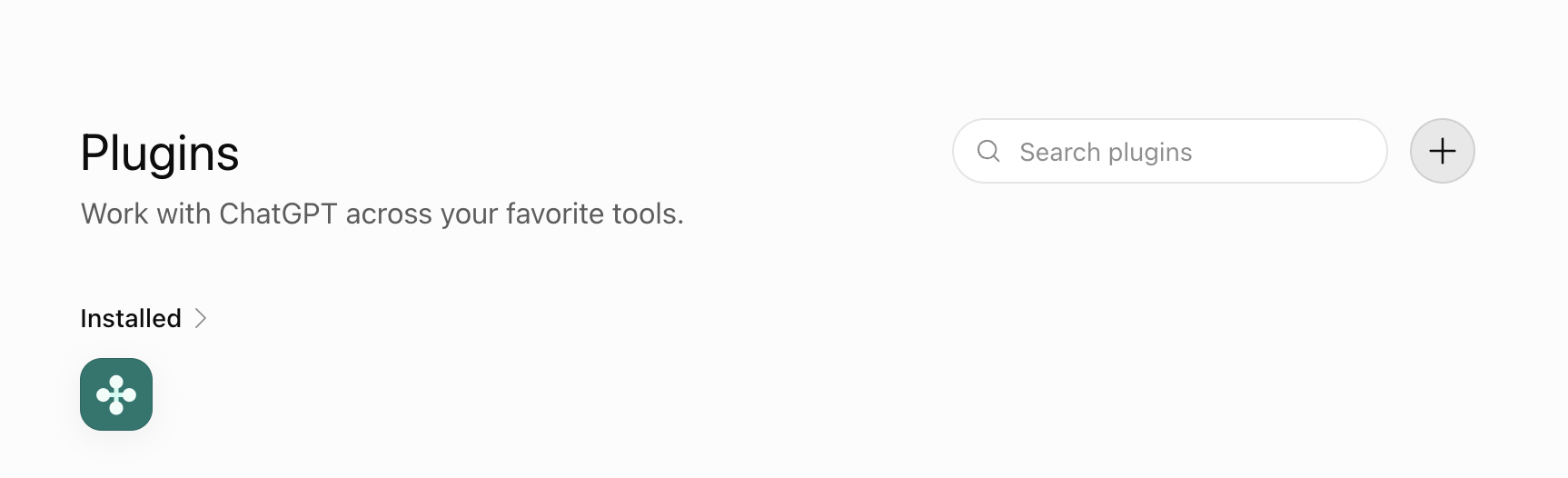
Use Search plugins to find an existing connection. The + button opens Create app instead, for first-time setup.
Select Connect and sign in. Select Connect, then "Sign in with SpotDraft" when prompted. Sign in to your SpotDraft account, review the requested access, and approve it if it matches your organization's policy. Return to ChatGPT once sign-in finishes. Each team member connects their own SpotDraft account. If you already see "Connected" or "Try in chat," skip to the next step.
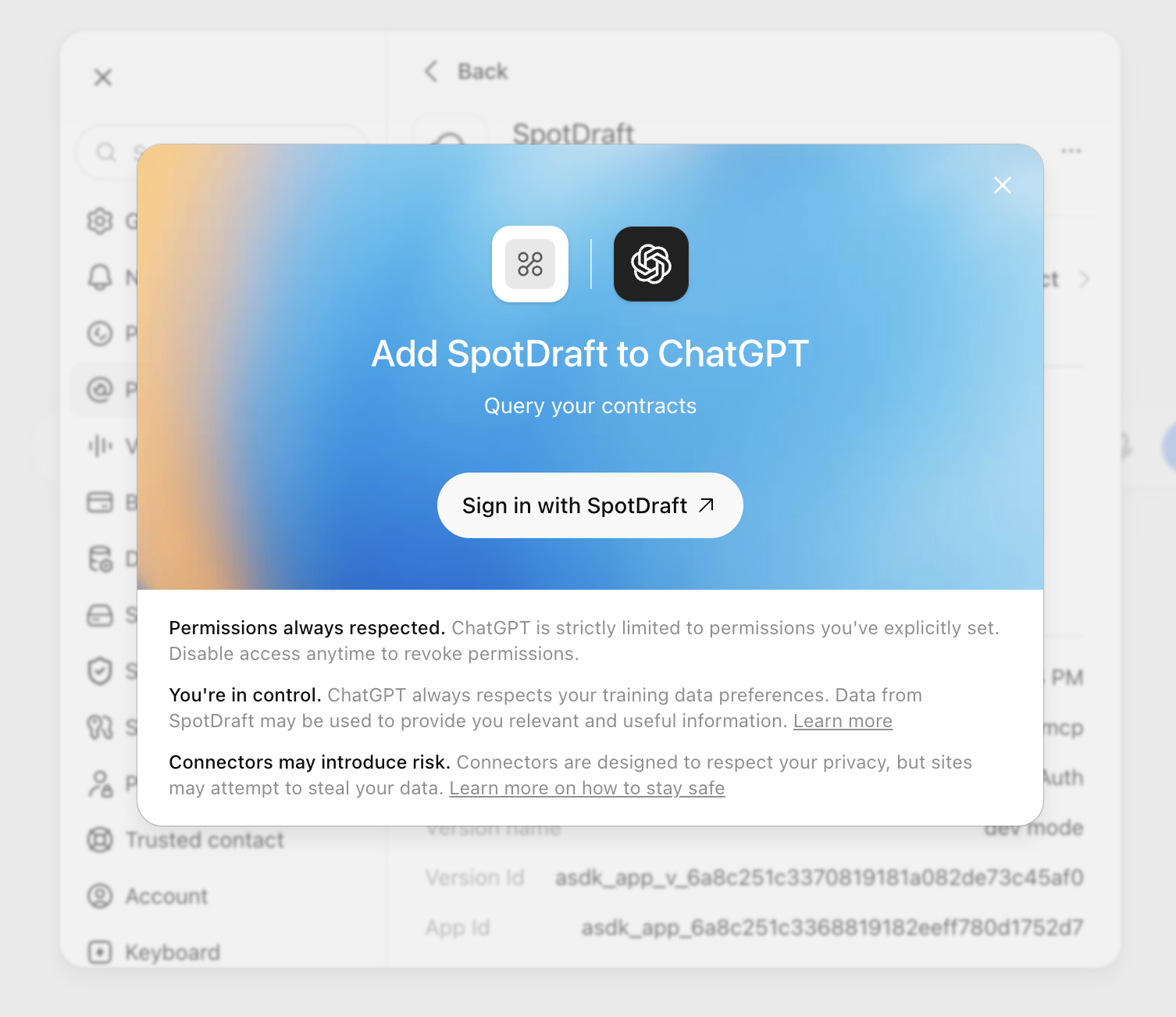
Select "Sign in with SpotDraft" to continue to your SpotDraft account.
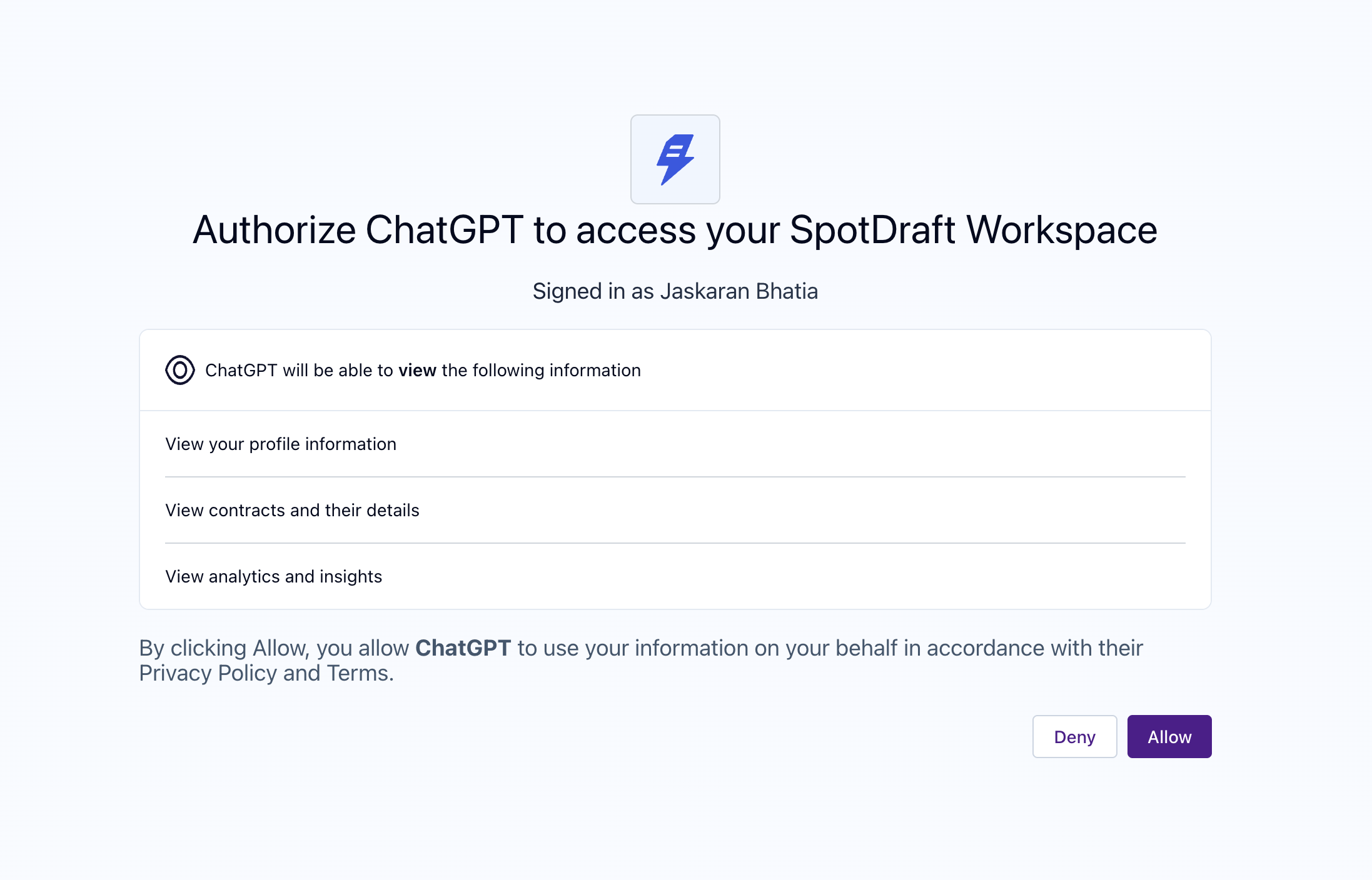
Select "Allow" to give ChatGPT access to your SpotDraft account. This inherits the access that you have in SpotDraft.
Ask your first question. Select "Try in chat" if it's available, or open a new text chat, type
@SpotDraft, and select the matching app. Some interfaces show this under a+menu instead, then More. Use the test question to confirm ChatGPT actually retrieves a result from SpotDraft.
If it works on the web but not in the desktop app: check that you're signed into the same account and workspace on both. If SpotDraft is still unavailable in the desktop app, keep using it on the web -- availability can differ by app version and product surface. See Connecting SpotDraft to ChatGPT (Desktop App).
First-time setup (no connection exists yet)
Complete these steps in ChatGPT on the web. Before starting, check for an existing approved SpotDraft connection (see above) to avoid creating a duplicate.
Setup differs slightly depending on who's adding it:
Company workspace, admin or owner -- for eligible ChatGPT Business, Enterprise, or Edu workspaces. An admin or owner publishes the connection for the whole team. Enterprise and Edu plans can also authorize developers to create and test it.
Individual ChatGPT account -- your account needs Developer mode enabled. Not every paid plan includes this access, so confirm your organization's policy before connecting work data.
Step 1: Confirm your SpotDraft region (both audiences)
Use the region where your SpotDraft workspace is hosted -- this may not match where you're physically located. Ask your SpotDraft contact or support@spotdraft.com if you're unsure.
Region | Server URL |
|---|---|
United States |
|
Europe |
|
India |
|
Middle East |
|
These URLs use SpotDraft's default read access. See the SpotDraft MCP Server reference for details on regions and permissions.
Step 2: Enable Developer mode
Company workspace: In Business, an admin or owner can enable it while creating an app, under Workspace settings > Apps > Create. In Enterprise or Edu, access can be granted under Permissions & Roles > Connected Data; authorized users then enable it in Settings > Apps > Advanced Settings. If your UI shows "Security and login" instead, look for Developer mode there.
Individual account: Open your profile menu, then Settings > Security and login, and scroll to Developer mode. Turn it on after reviewing the notice. Some accounts show this under Apps > Advanced Settings instead. If neither path is available, check your account's eligibility with OpenAI Support.
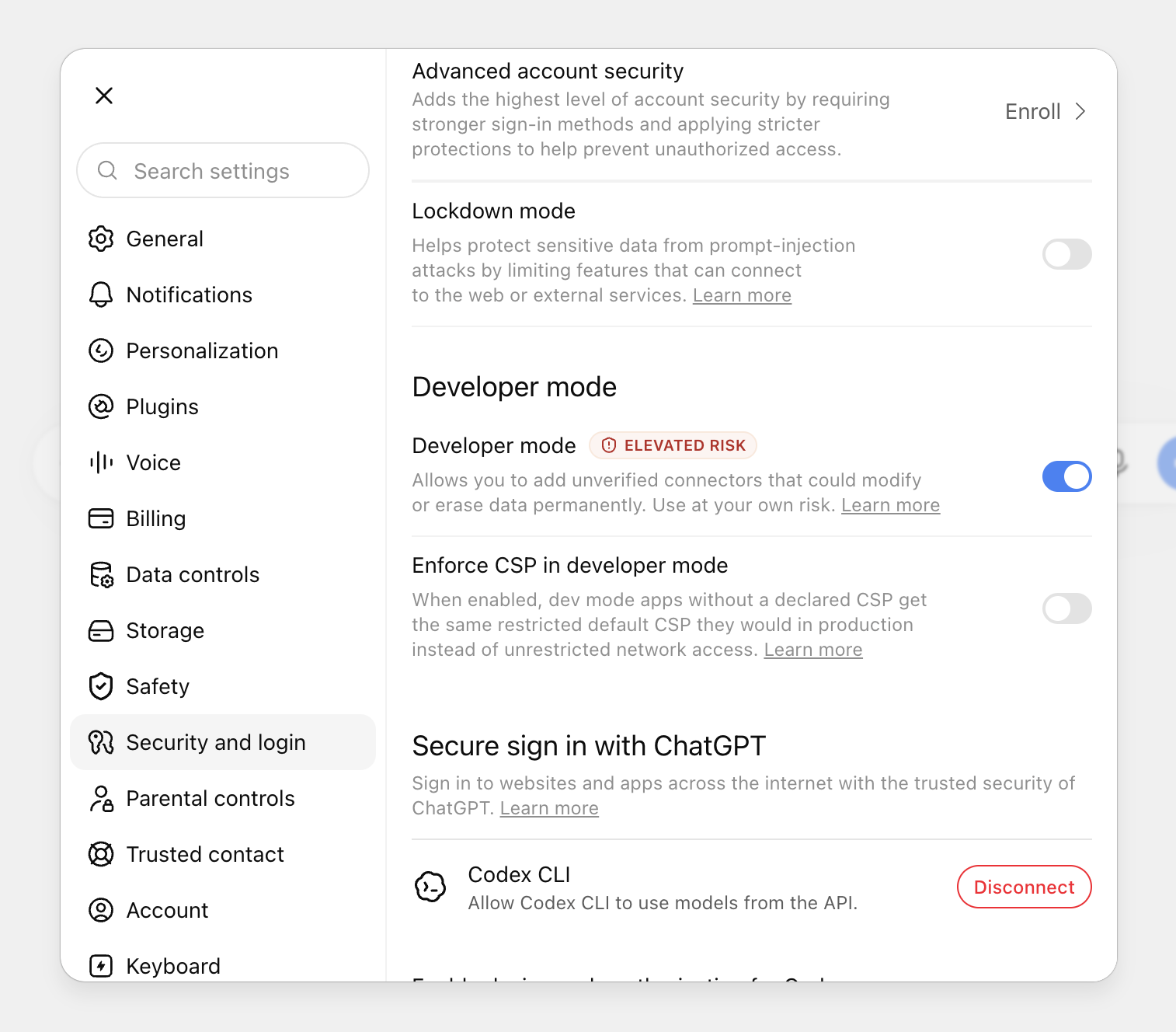
Open Security and login, then find Developer mode. Workspace admin controls can differ.
Step 3: Enter the SpotDraft connection details
Company workspace: Open Workspace settings > Apps > Create. If your account uses the Plugins flow instead, open Plugins and select the + button beside search, labelled "Create app."
Individual account: Open Plugins and select the + button beside search, labelled "Create app." The dialog currently opens as "New Plugin."
Fill in these fields:
Field | Value |
|---|---|
Name | SpotDraft |
Description | Find and read my SpotDraft contracts. (Optional) |
Connection | Server URL |
Server URL | The regional URL you confirmed in step 1 |
Authentication | OAuth |
Keep Advanced OAuth settings at their defaults.
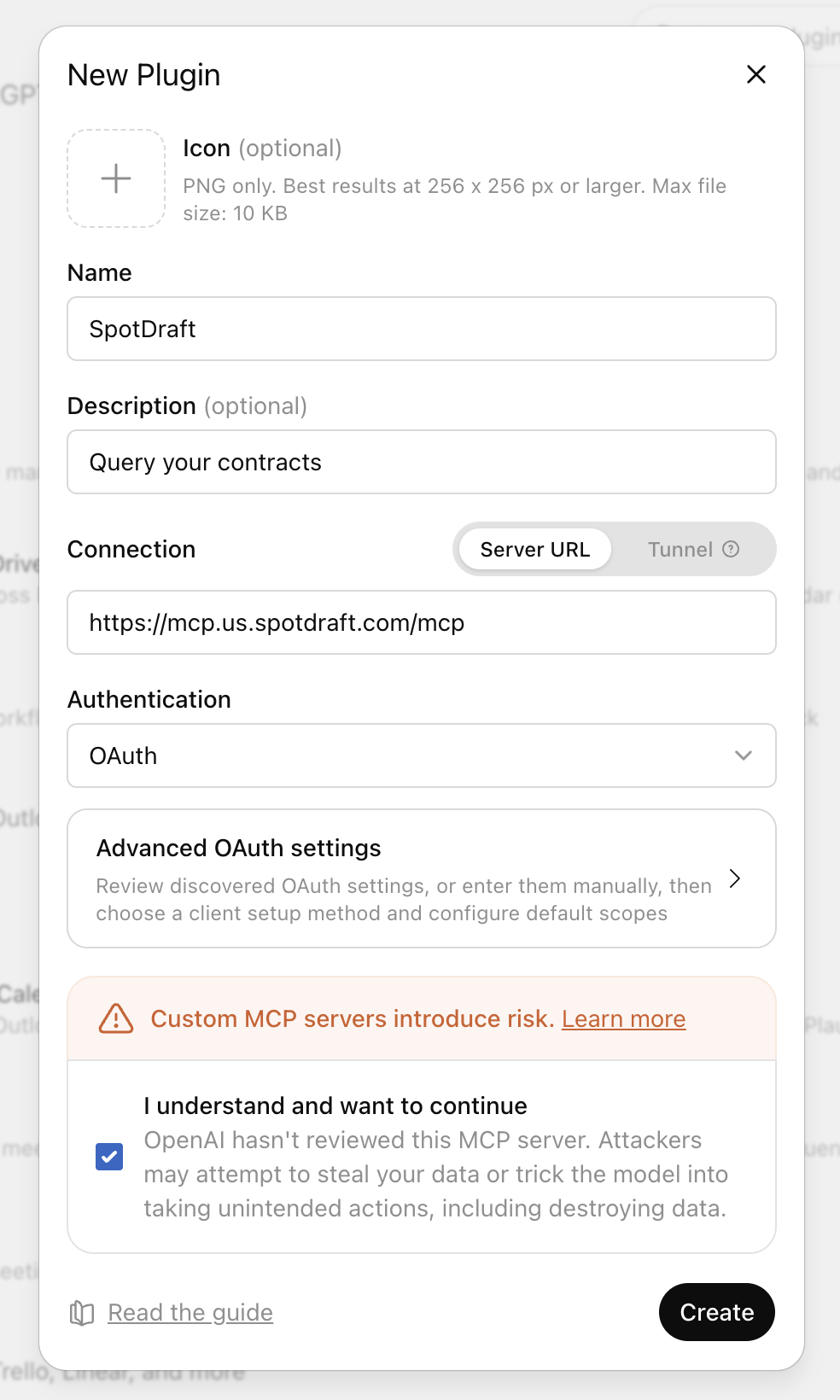
Filled example for the US region -- use your own workspace's regional URL. All required fields and the Create button are shown.
Step 4: Create the connection and sign in
Review the custom-server notice. If your organization has approved custom connections, check "I understand and want to continue," then select Create. If your form shows "Scan Tools," use it first and complete the sign-in prompt before selecting Create.
Choose "Sign in with SpotDraft" when prompted, sign in, review the requested access, authorize it, and return to ChatGPT. Run the test question before inviting anyone else to use it.
Step 5: Publish it for your team (company workspace only)
Go to Workspace settings > Apps > Drafts, open SpotDraft, and select Publish. Review the available actions and assign the intended users or roles.
If your workspace distributes it as a plugin, also make that plugin available under Workspace settings > Plugins -- publishing an app alone doesn't necessarily publish a directory listing.
Ask one team member to follow Connect your account above and confirm they can retrieve a contract themselves. Your own successful sign-in doesn't mean the connection works for everyone else.
Next steps
Test your connection
Troubleshooting
Need a hand setting this up? support@spotdraft.com
The example screenshots come from the ChatGPT experience as of 8 September 2026. Desktop and workspace guidance is based on OpenAI documentation; screens can differ by plan, role, version, and rollout.