Egnyte
Last updated: March 23, 2026
💡 In this article: You’ll discover a comprehensive guide for seamless integration of SpotDraft with Egnyte, enabling automated saving of executed contracts for enhanced organization and collaboration.
🛠 Integrating SpotDraft with Egnyte
Seamlessly save executed contracts to Egnye for better organization and collaboration.
🚀 Introduction
SpotDraft’s integration with Egnyte revolutionizes this aspect by offering a cohesive solution for contract storage and management. This integration harmonizes SpotDraft's contract execution capabilities with Egnye's reliable storage, bringing forth a streamlined and automated process for handling contracts.
As soon as a contract is executed in SpotDraft, an automated system kicks in. A PDF version of the contract is immediately generated and synchronized to your designated Egnyte folder.
Key Features of the Integration:
Centralized Contract Repository: Securely store all your contracts in Egnyte, providing a single, accessible location for your contract portfolio.
Efficient Sharing and Collaboration: Utilize Egnyte's capabilities for easy sharing and collaboration, enhancing teamwork and external communication while maintaining control over access.
Automated Backups for Security: Egnyte's inherent security features are complemented by SpotDraft’s automated backup system, ensuring your contracts are not only stored safely but also backed up regularly.
This guide aims to walk you through the steps of setting up this integration, enabling you to harness these features effectively for a more organized and efficient contract management experience.
📝 Prerequisites
Before installing the Egnyte integration:
Takes ~24 hours to complete the integration
Have an organizational Egnye account ready (e.g. integrations@company.com)
Have SpotDraft - Admin or Manage Integrations & Developer access enabled
Create a parent folder in your Drive root folder
Ensure "Egnye" integration is enabled in your SpotDraft workspace.
Make sure to have sufficient space on Egnyte to auto upload executed contracts.
⚙ Installation & Configuration
A. Egnyte Setup
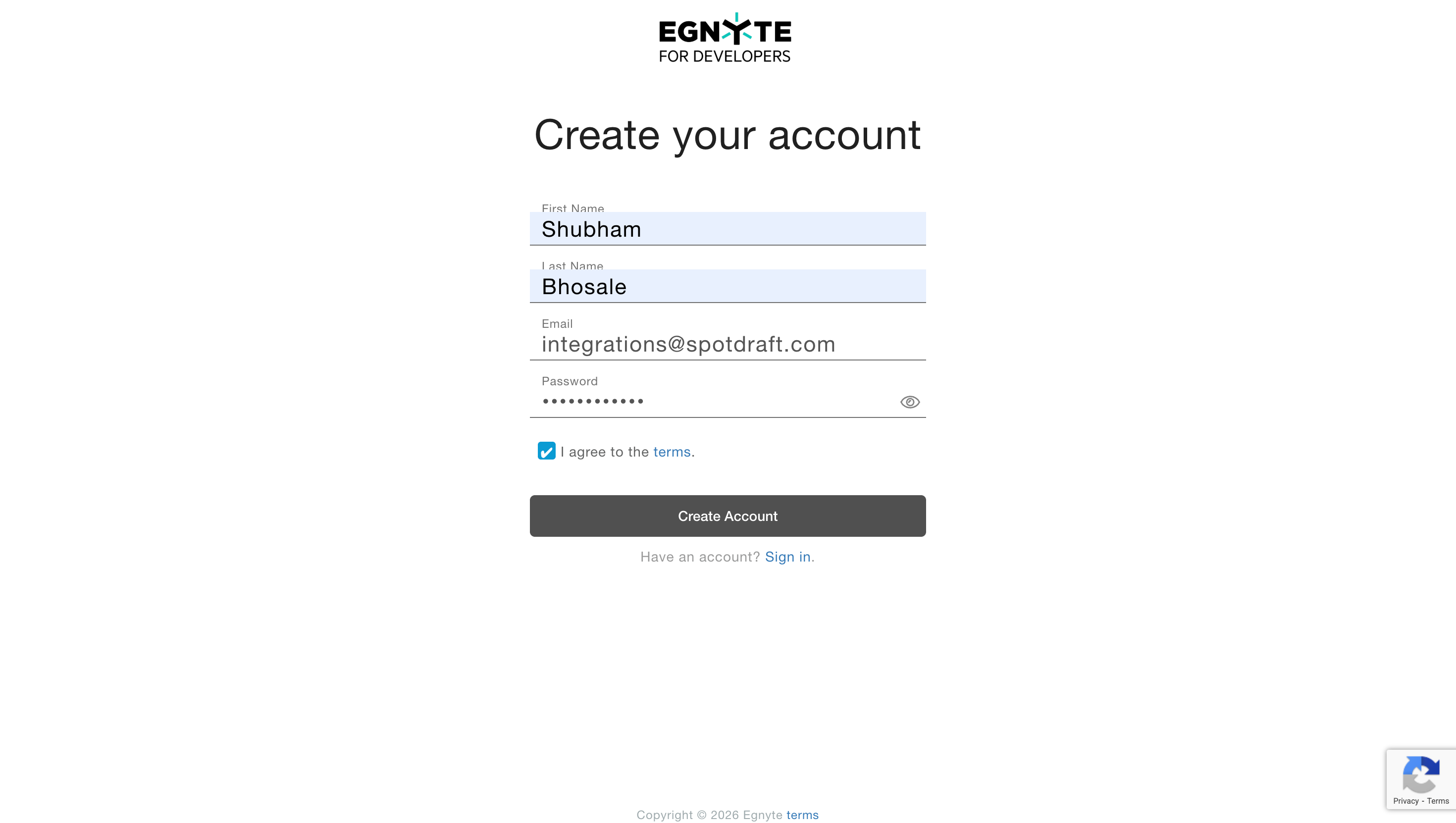
Sign up for Egnyet Developer Accounnt. Enter all details - First name, Last Name, email and password and hit 'Create Account'
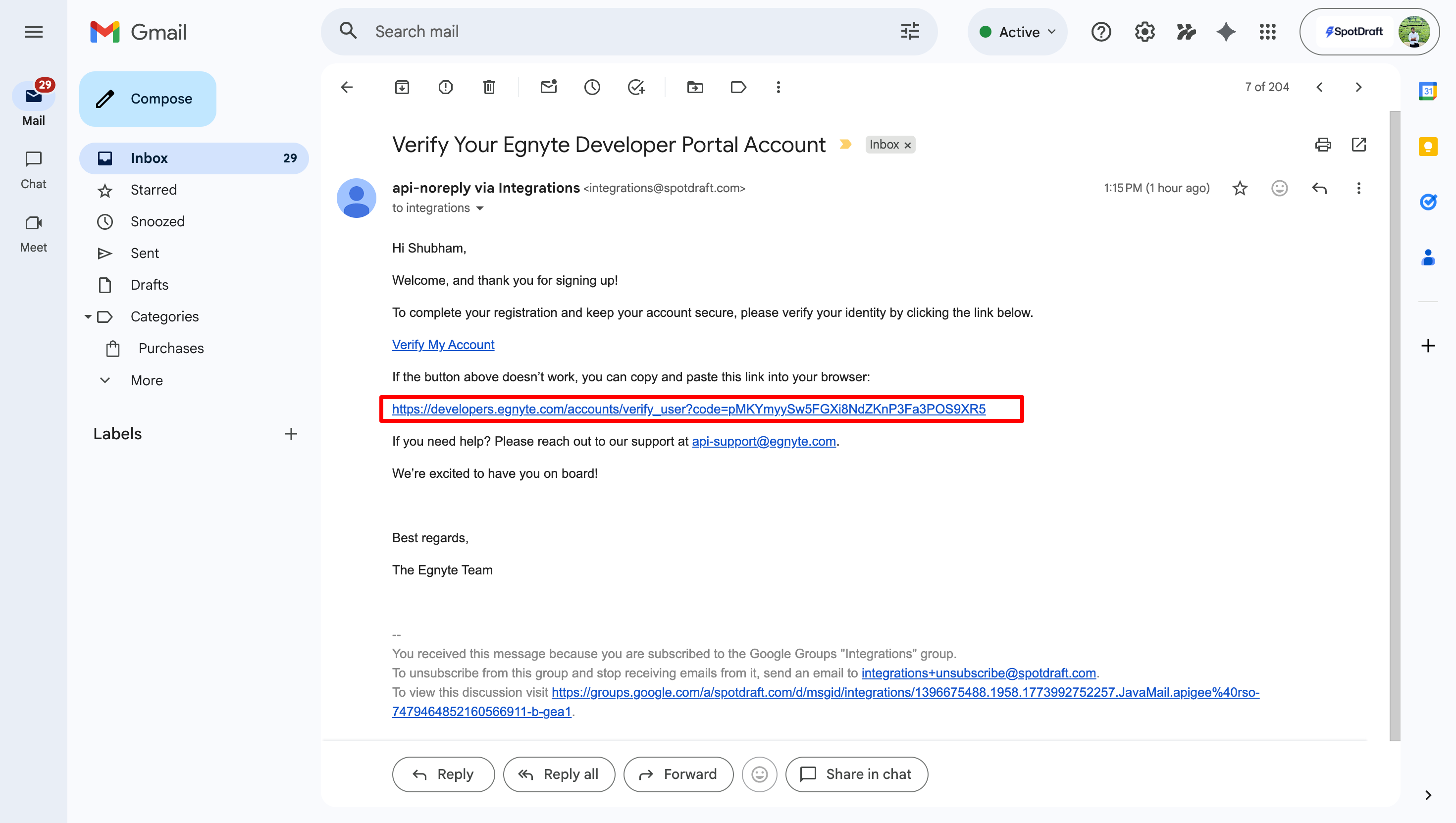
Egnyte will send a verification email - click on Verify.
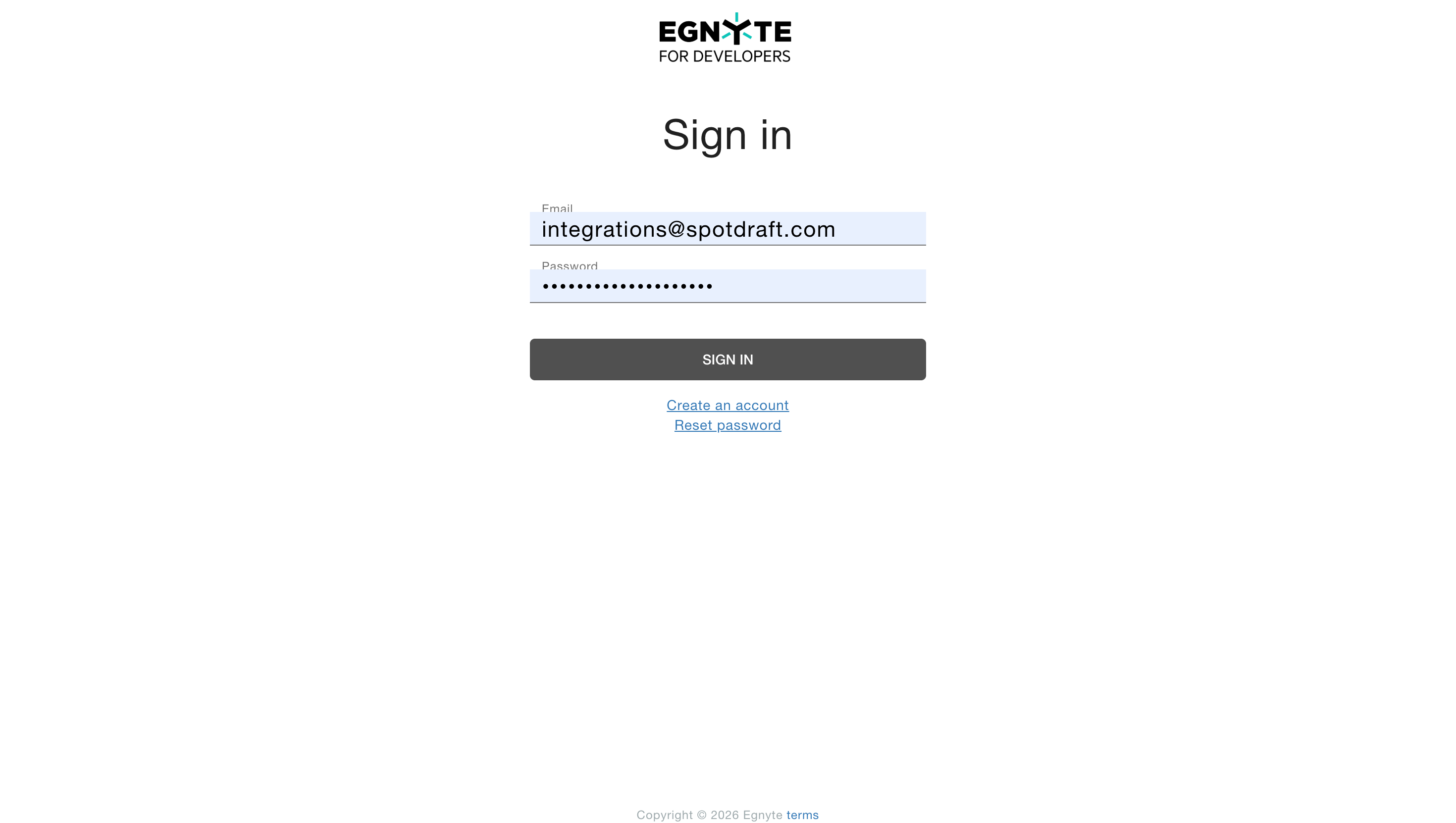
Login to Egnyte Developer Account after email verification
https://developers.egnyte.com/accounts/login
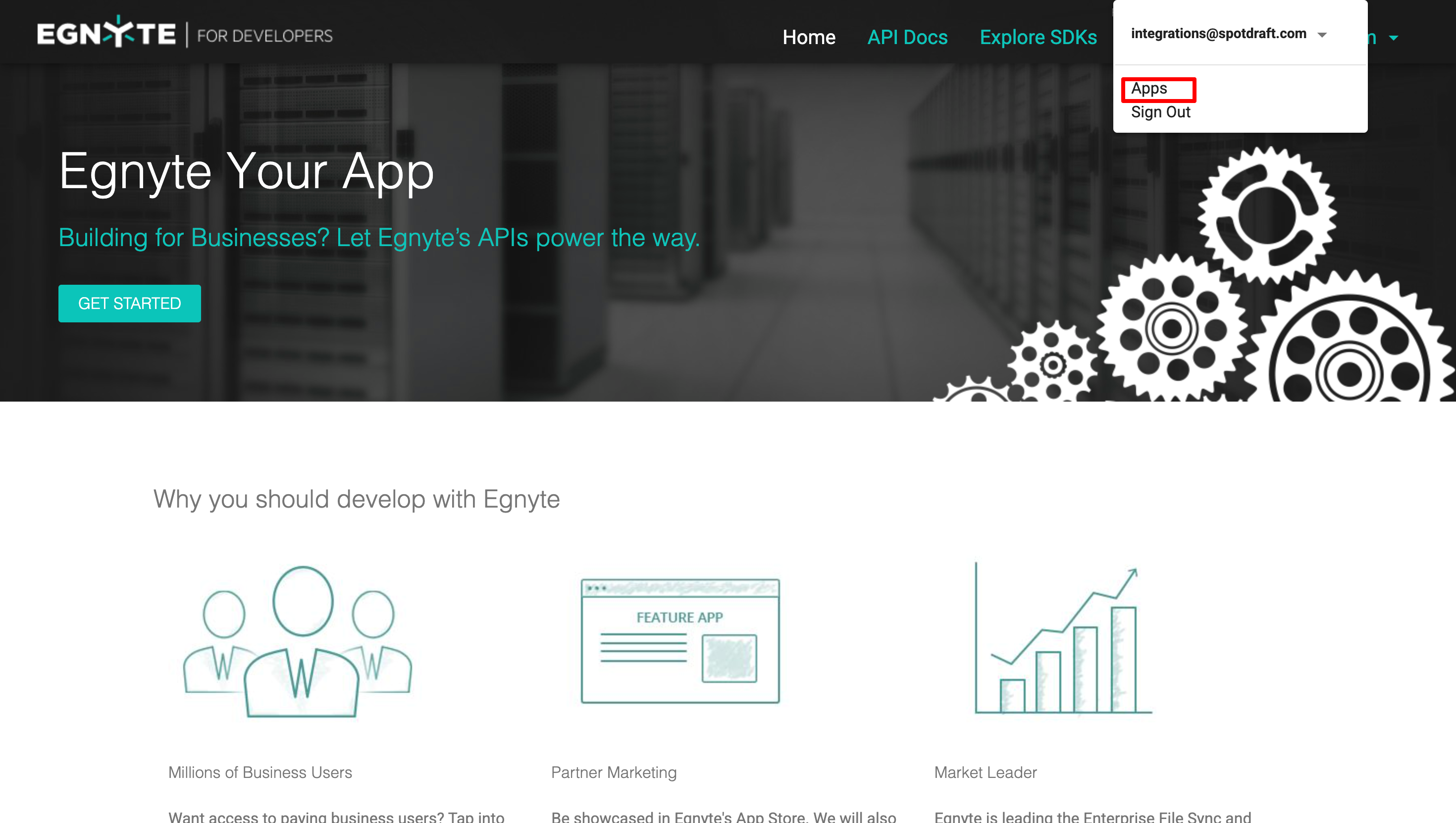
On the interface click on your profile dropdown and click on Apps

Click on Apps
Click on New App
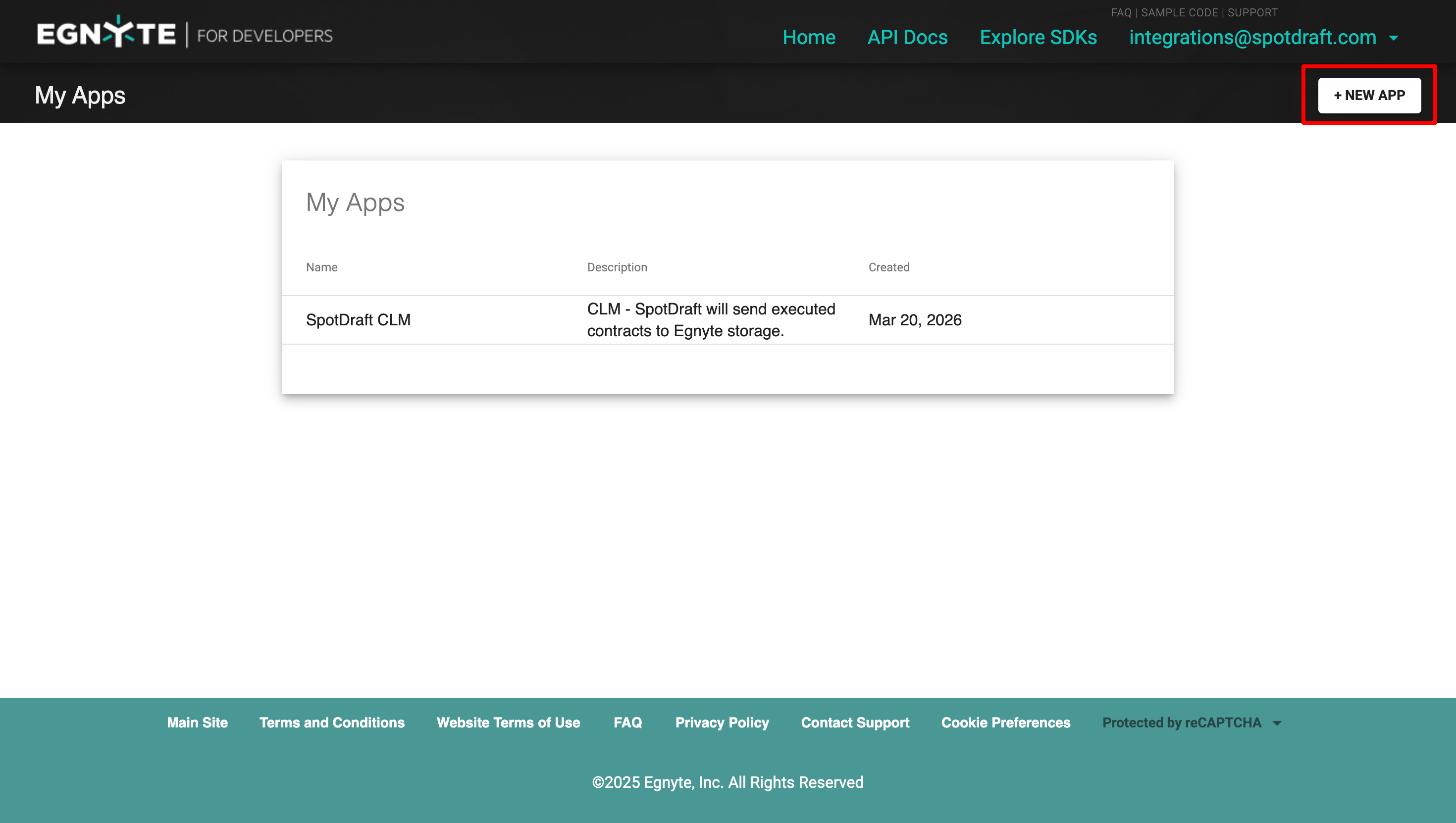
Enter the details for New App
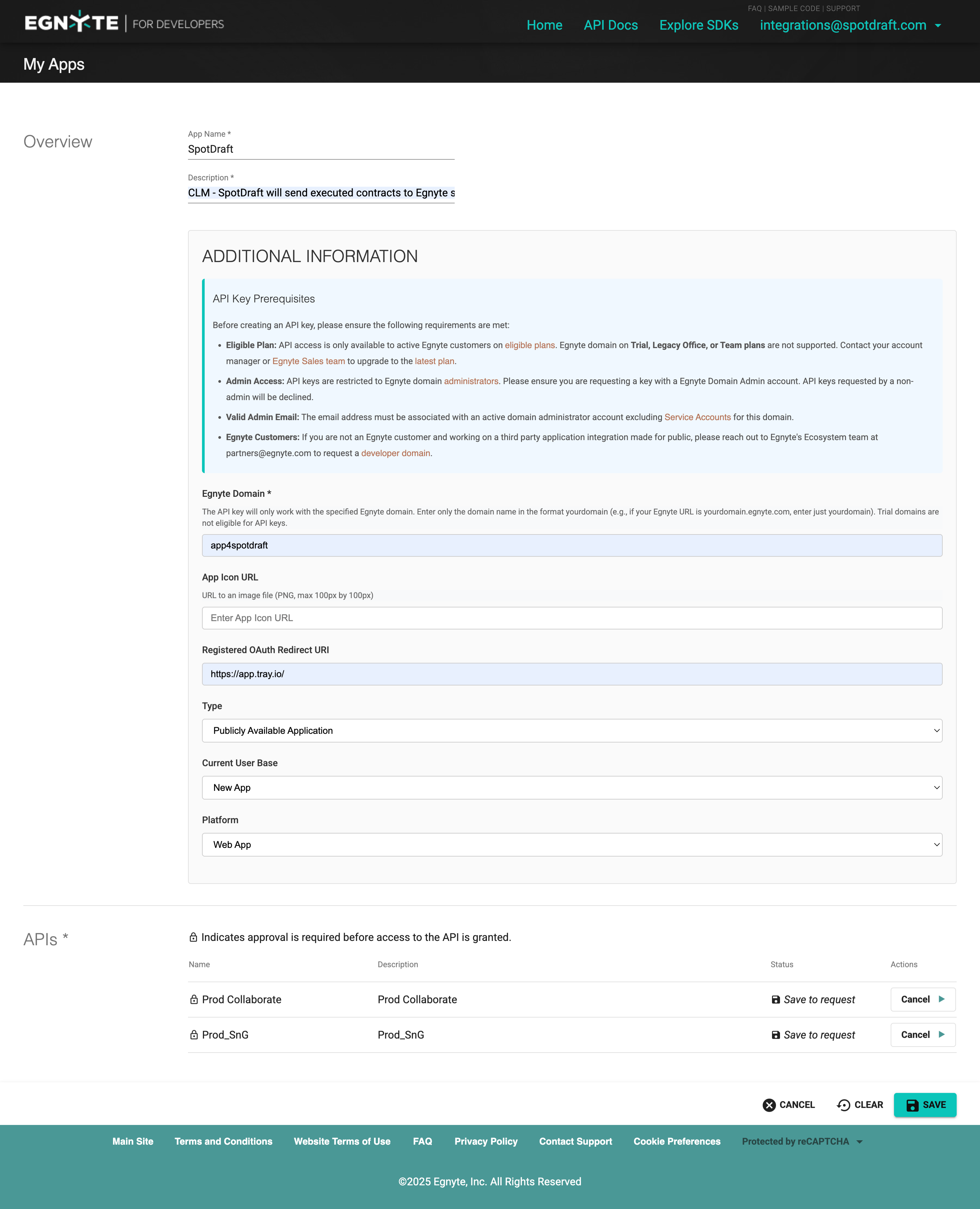
App Name: SpotDraft
App Description: CLM
Egnyte domain: Enter your Egnyte domain name. If your domain name is app4spotdraft.egnyte.com then enter only app4spotdraft
App icon URL: Leave blank
Registered OAuth Redirect URL: enter https://app.tray.io/
Type: Select - Publicly Available Application
Current user base: Select - New App
Platform: Web App
APIs - Request access to both APIs
Click on Save
Post creating app, open the app and go to API Keys section
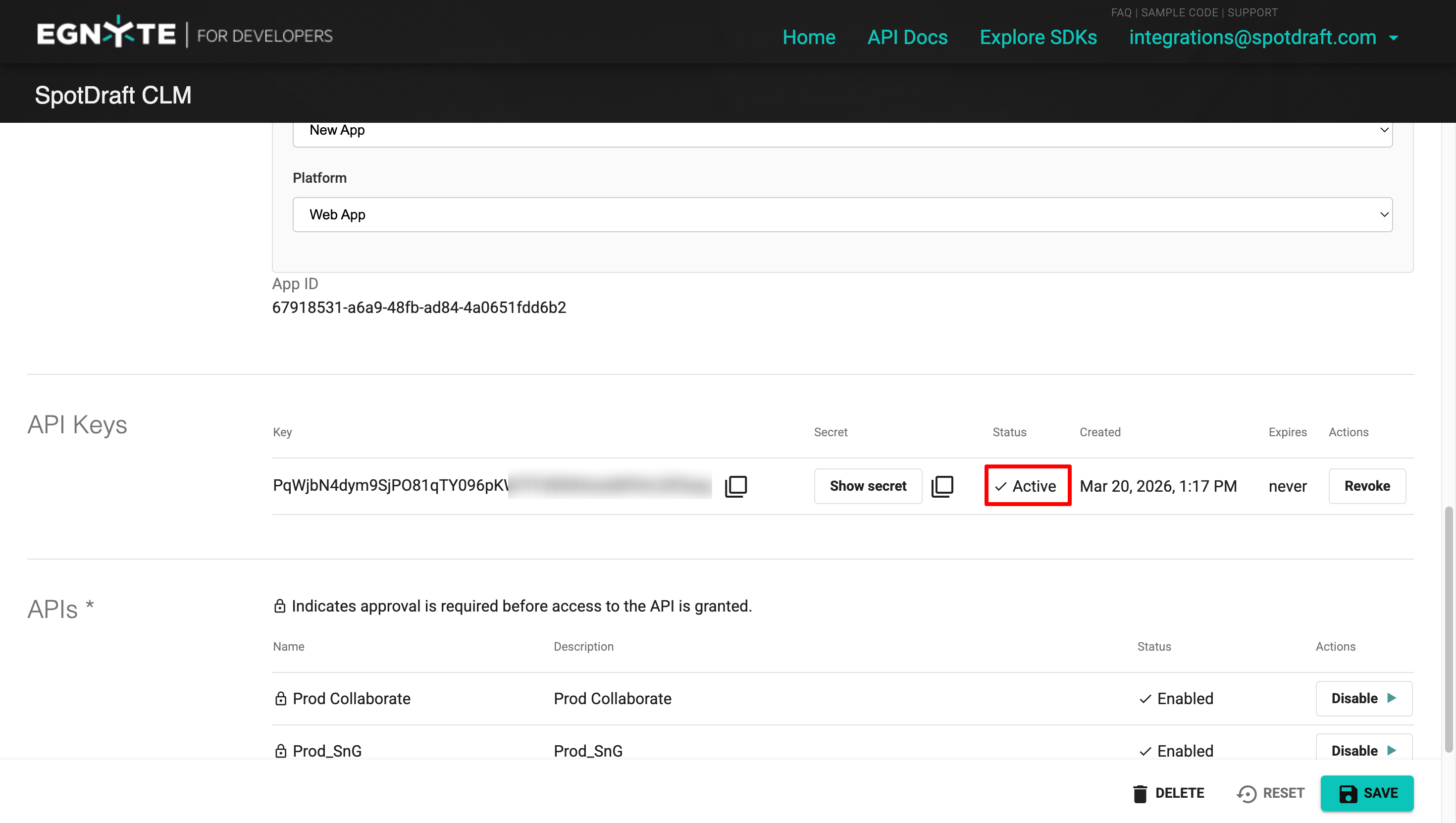
Note: Initially the API Key Status will be inactive, it be activated within 24 hours. If not, please connect with Egnyte support team.
Now, we need to generate access token, you need prepare a URL to hit
<Egnyte Domain> - enter URL like app4spotdraft.egnyte.com/
<API Key> - copy paste API key from step 8
<Callback URL> - enter https://app.tray.io/
https://<Egnyte Domain>.egnyte.com/puboauth/token?client_id=<API Key>&redirect_uri=<Callback URL>&response_type=token
Sample access URL will look like -
https://app4spotdraft.egnyte.com/puboauth/token?client_id= PqWjbN4dym9SjPO81qTY0N4oeidNYkm2E9yxg&redirect_uri=https://app.tray.io/&response_type=token
Copy the entire URL and paste in browser and hit enter.
New window will open to authenticate Egnyte, select you account and click on Allow Access to grant access to SpotDraft App
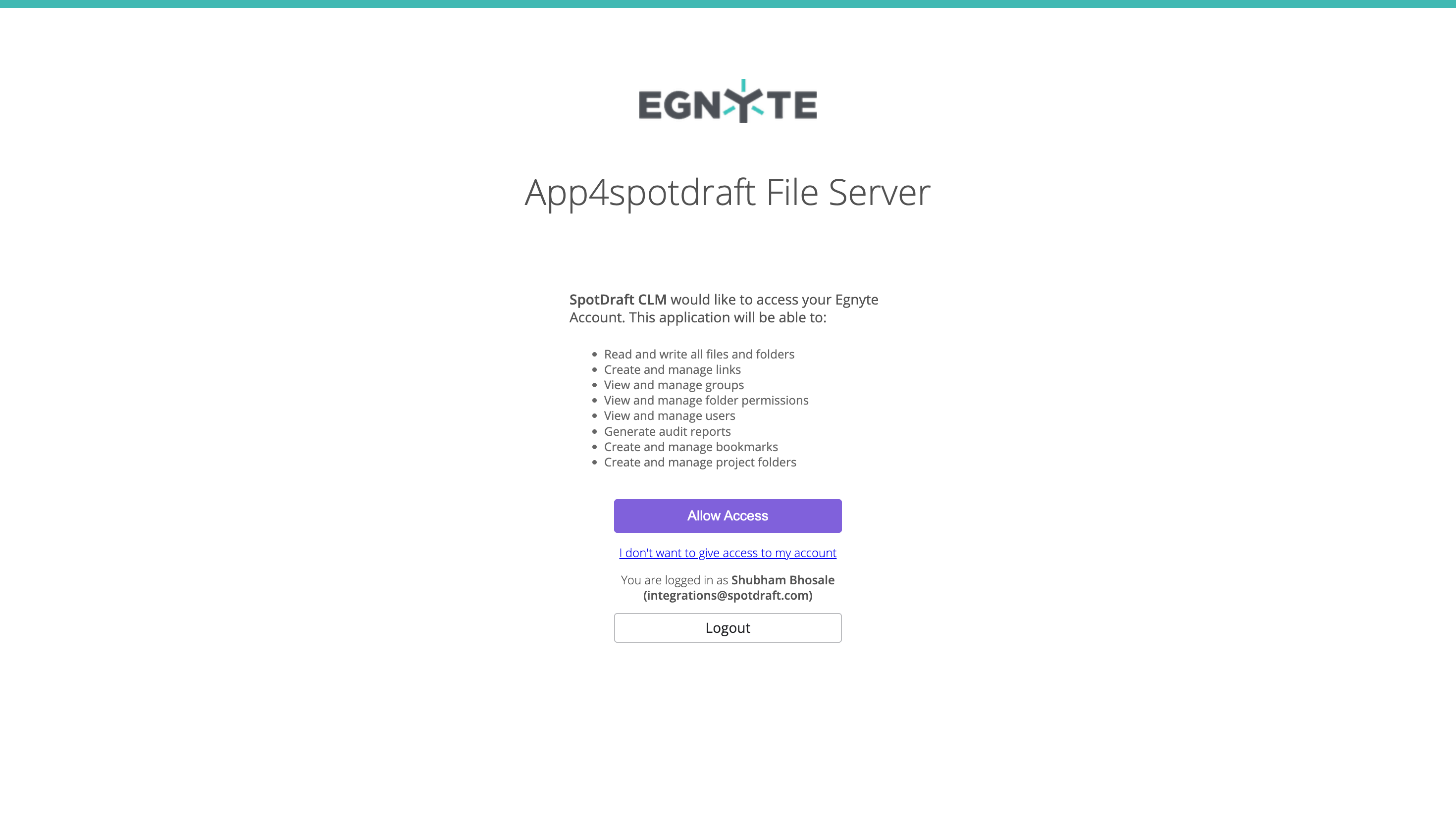
After allowing, you will be redirected to a URL like this https://app.tray.io/#access_token=GRWodZcI7ppQ3IOMmFk6rbxt&state=&token_type=Bearer - copy the access token from this URL and save in notepad as "GRWodZcI7ppQ3IOMLdwGk6rbxt"
B. SpotDraft Setup
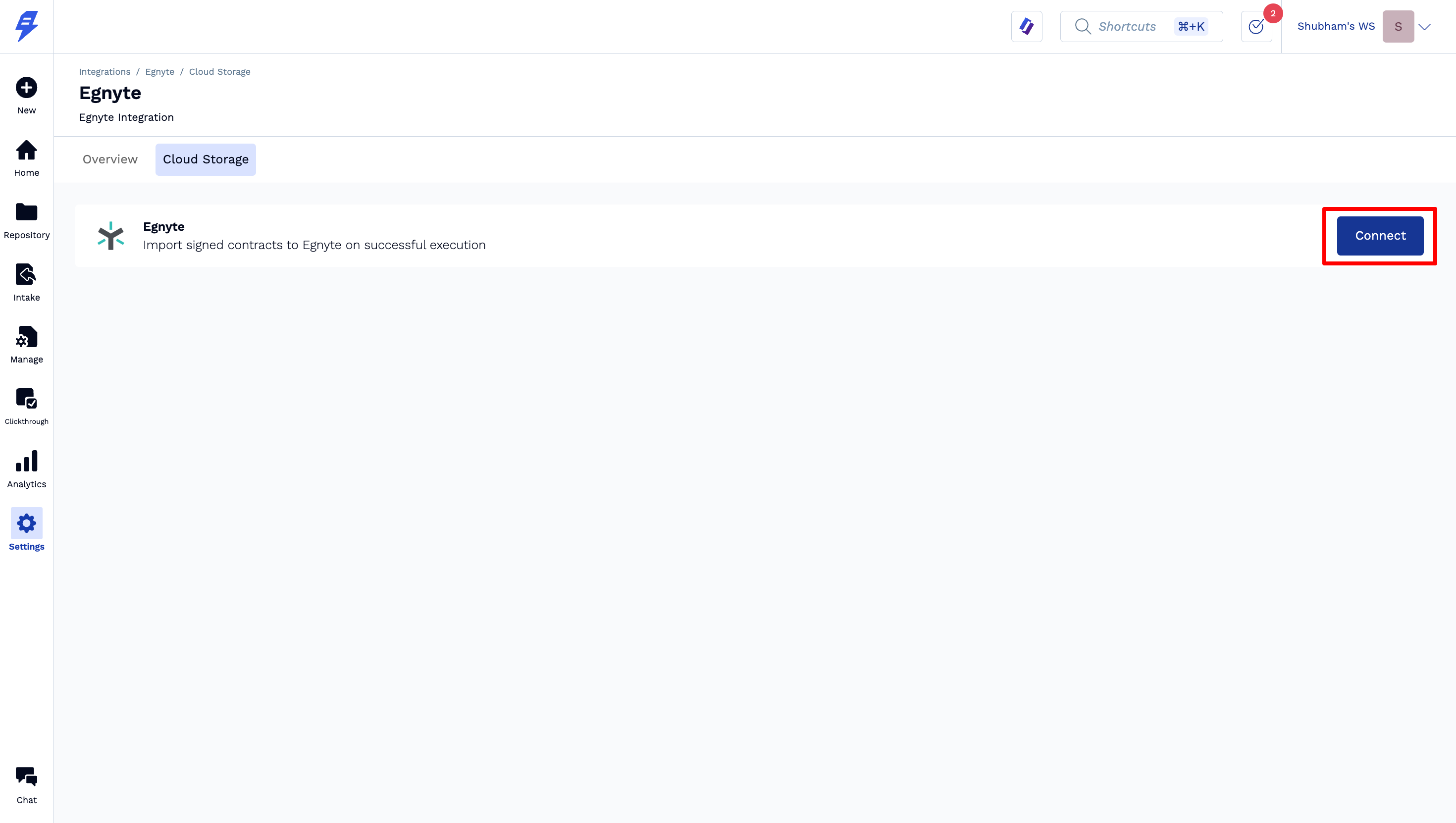
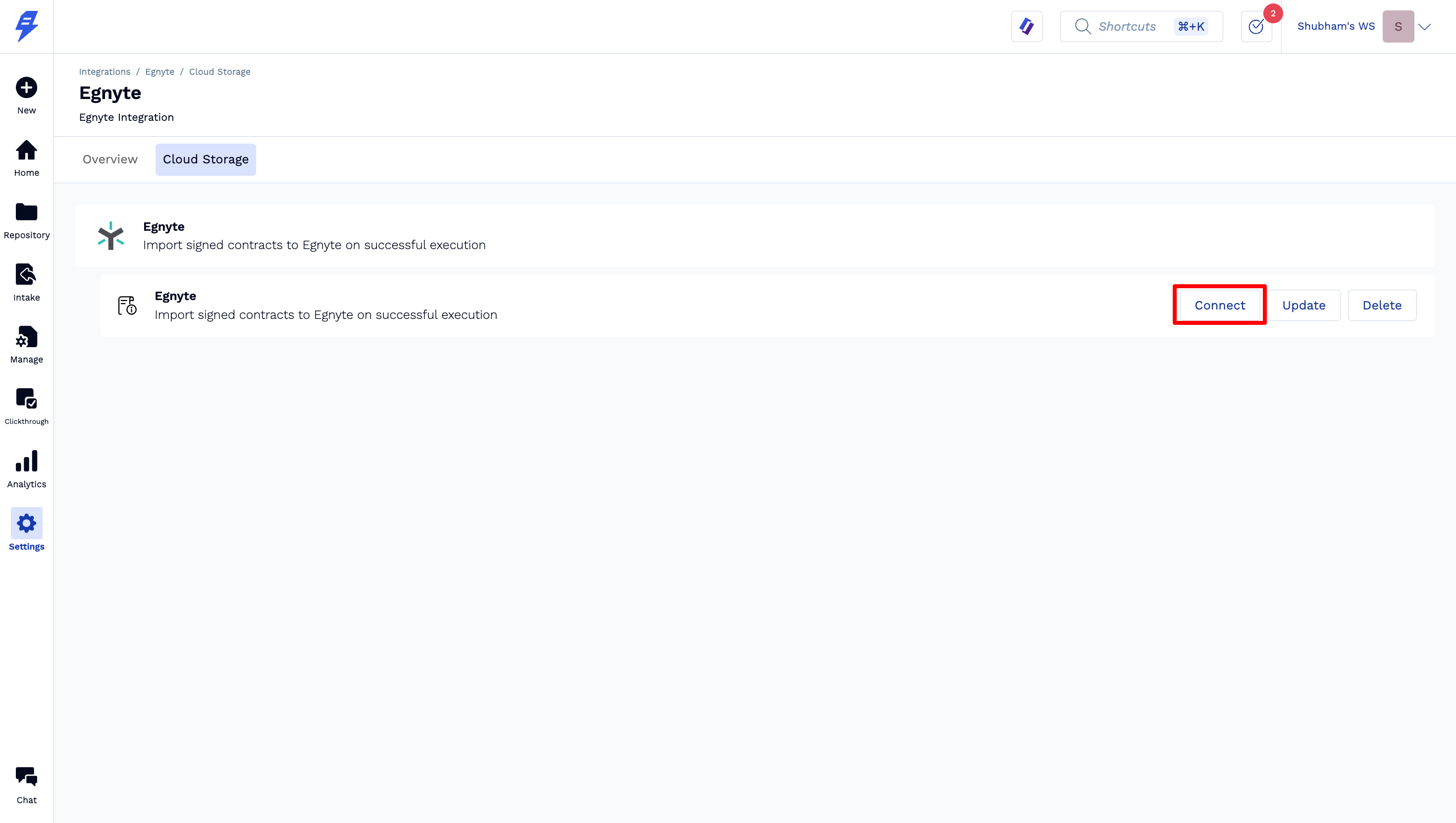
Go to Settings -> Integrations -> Egnyte and click on Connect
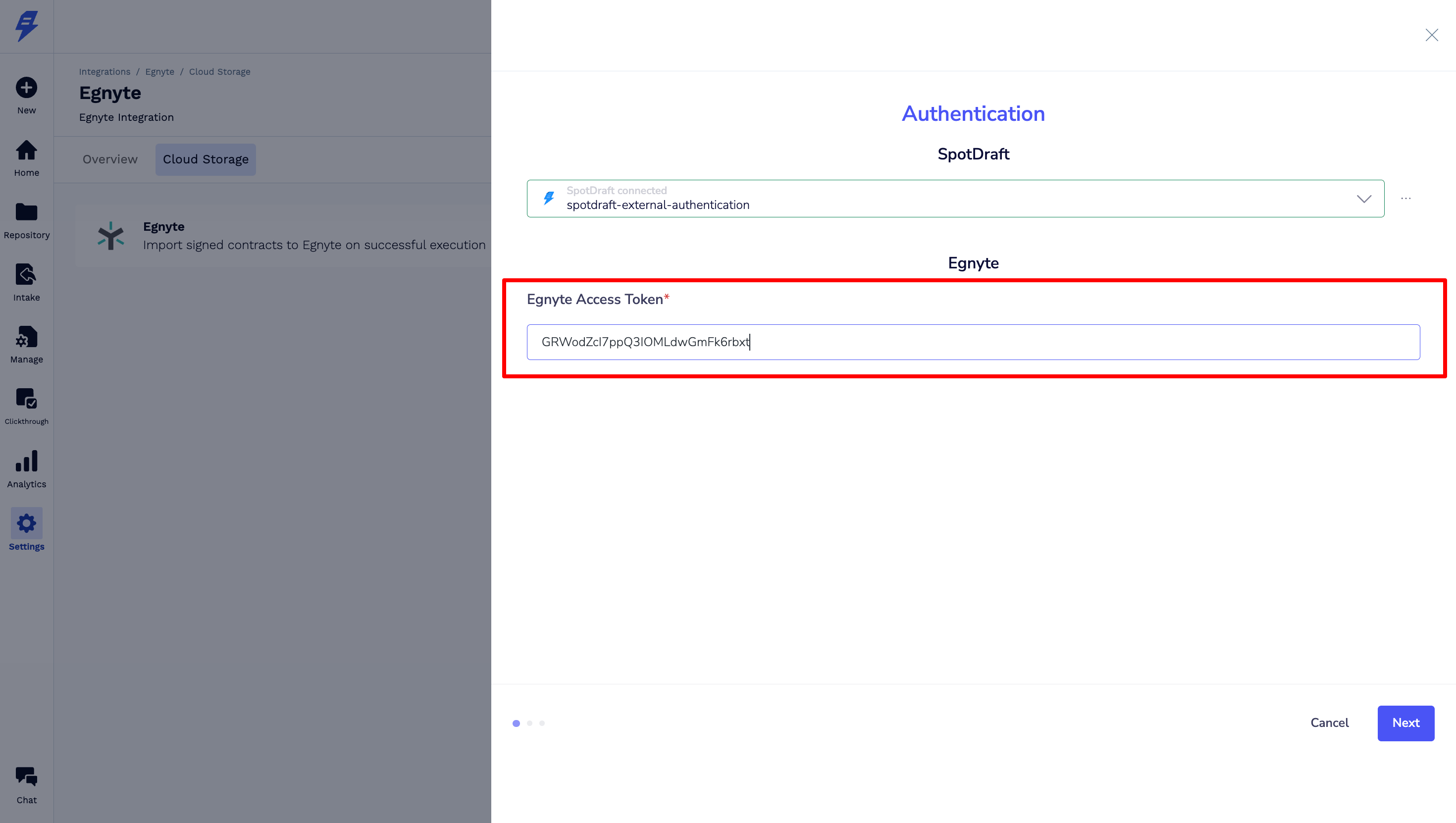
Enter the access token copied from Step 11 above & click Next
Enter your Egnyte domain and folder path
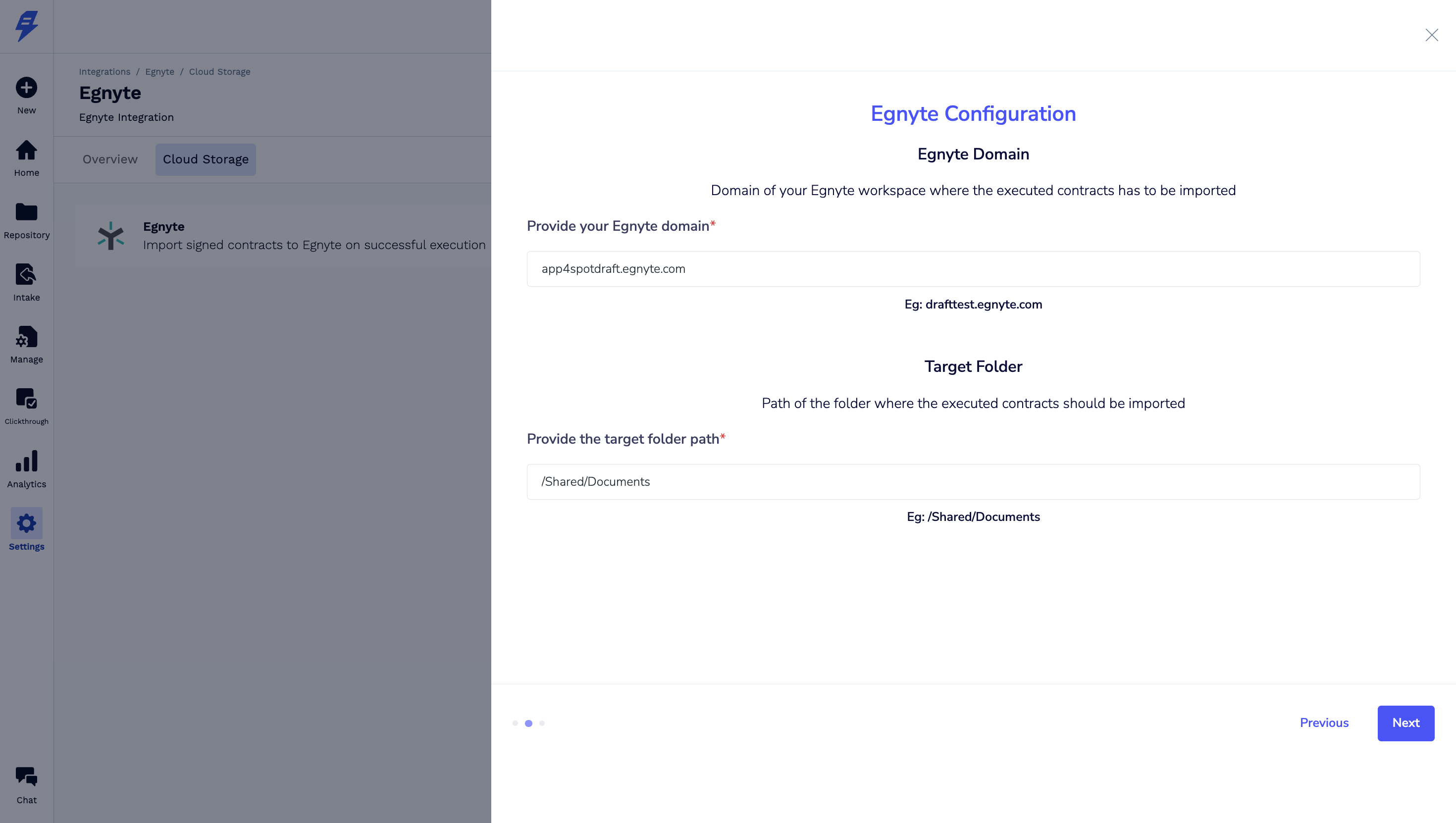
Egnyte domain - like app4spotdraft.egnyte.com
Parent Folder path - like /Shared/Documents
This is where all contracts will be uploaded
Copy the webhook URL & click Finish
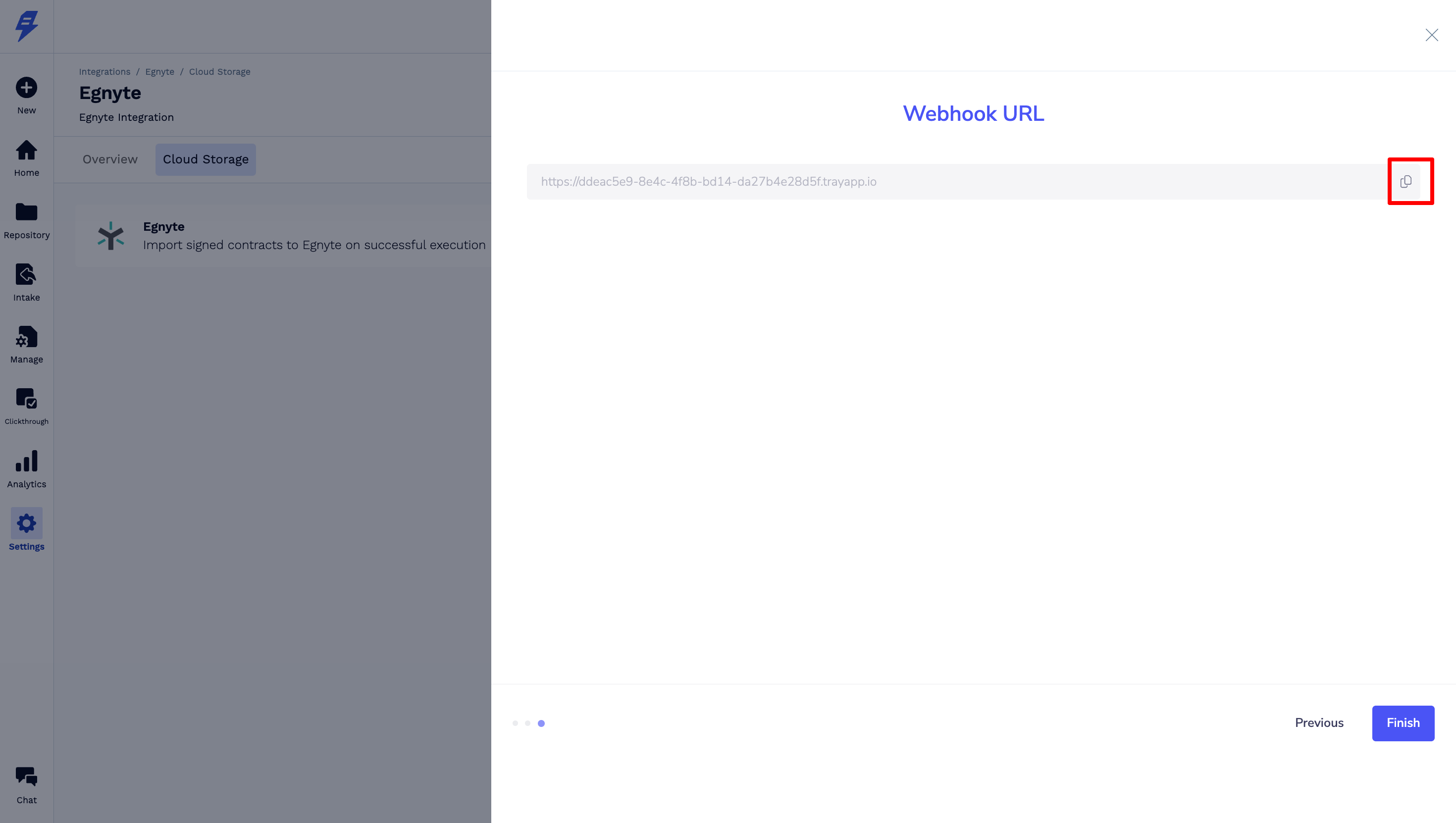
Now click on Connect
Go to Settings -> Developer Settings -> Webhook -> Create a New Webhook
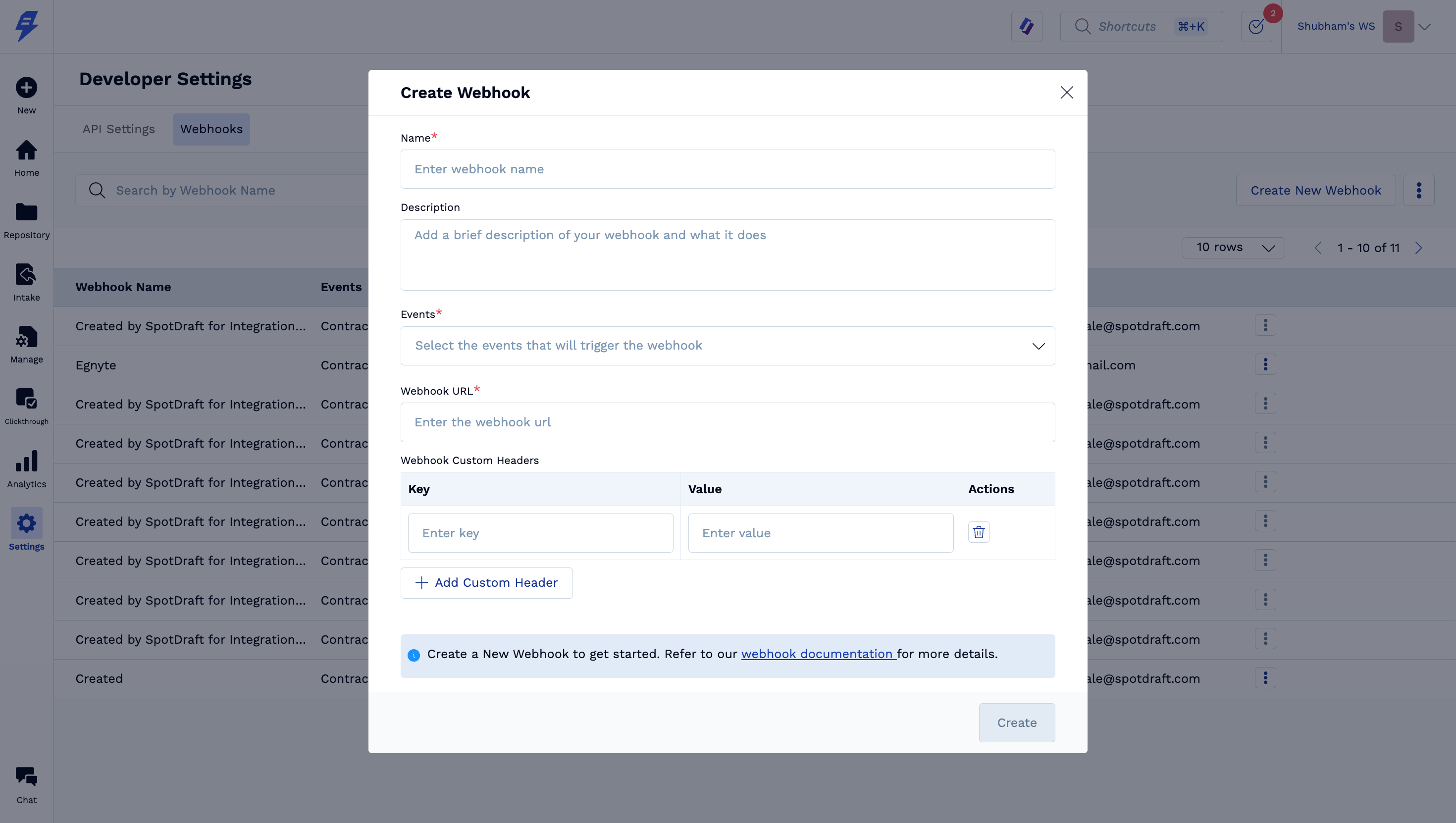
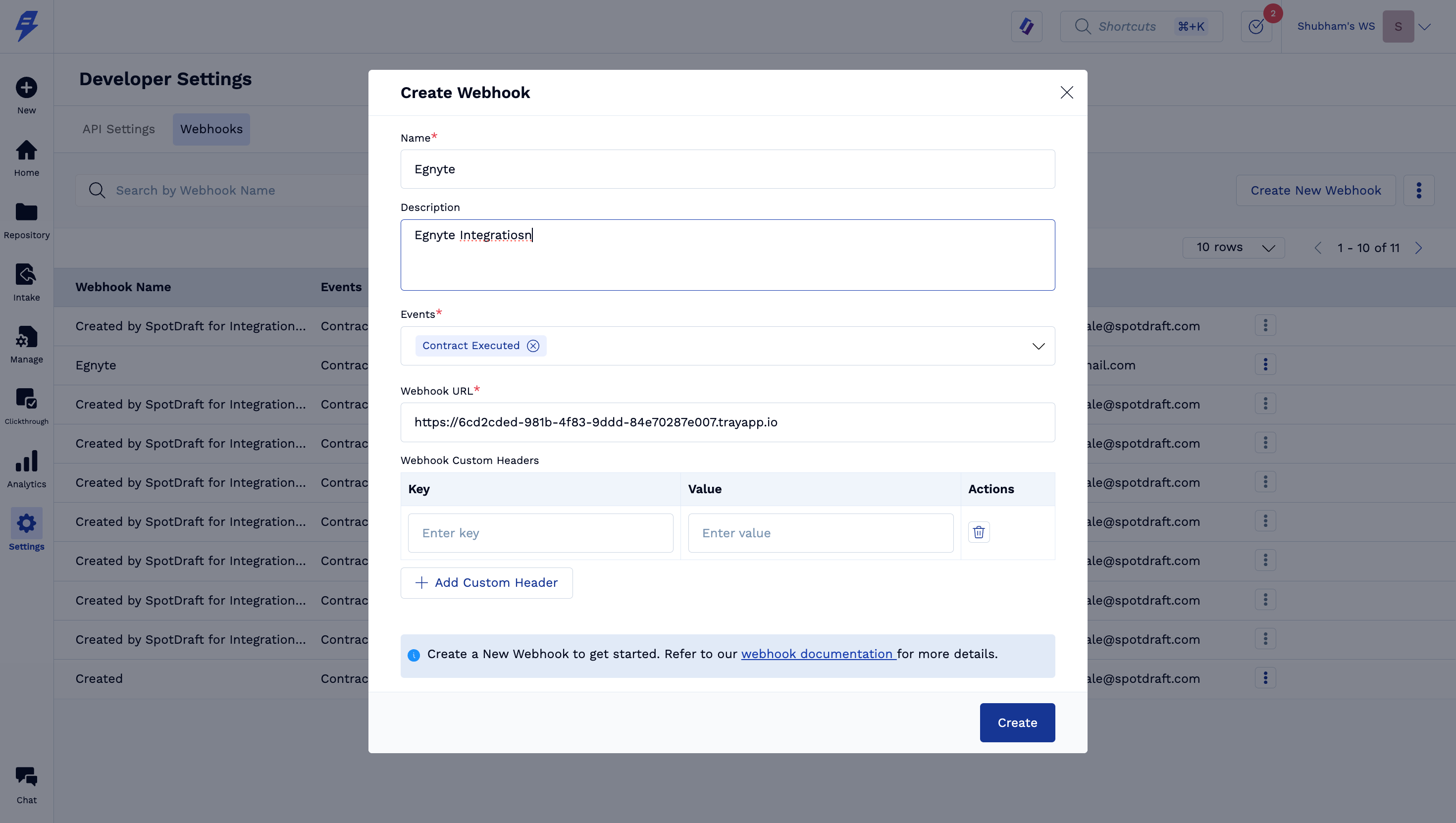
Enter webhook details like
Name - Egnyte
Description - Cloud Storage
Event - Select contract executed
Webhook URL - paste the URL copied from step B. 4 above
Click on create
💡 🎉 Congratulations. The integration is now complete and all of your executed contracts will automatically synchronize to your Egnyte folder.
✅ Verification
Once you have completed the setup, verifying it is straightforward:
1 - Execute a test contract within your SpotDraft workspace, completing all required fields and signatures.
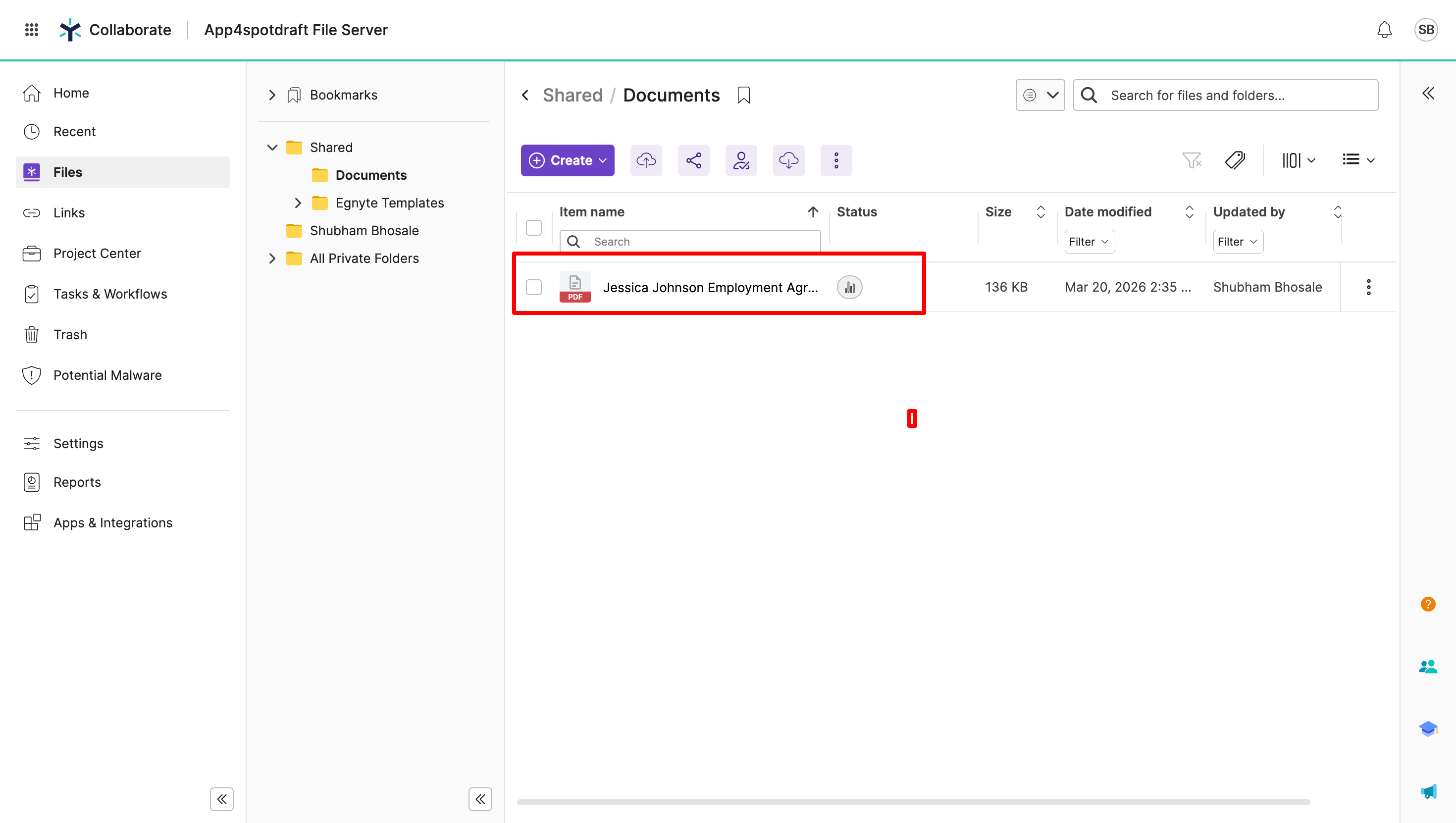
2 - In your Egnyte account, navigate to the parent folder you designated for SpotDraft contracts e.g. /Shared/Documents
3 - Within 5 minutes you should find a PDF file for the executed test contract.
You should see a PDF version of the executed test contract you completed.
Additional options will be visible post integration setup is completed:
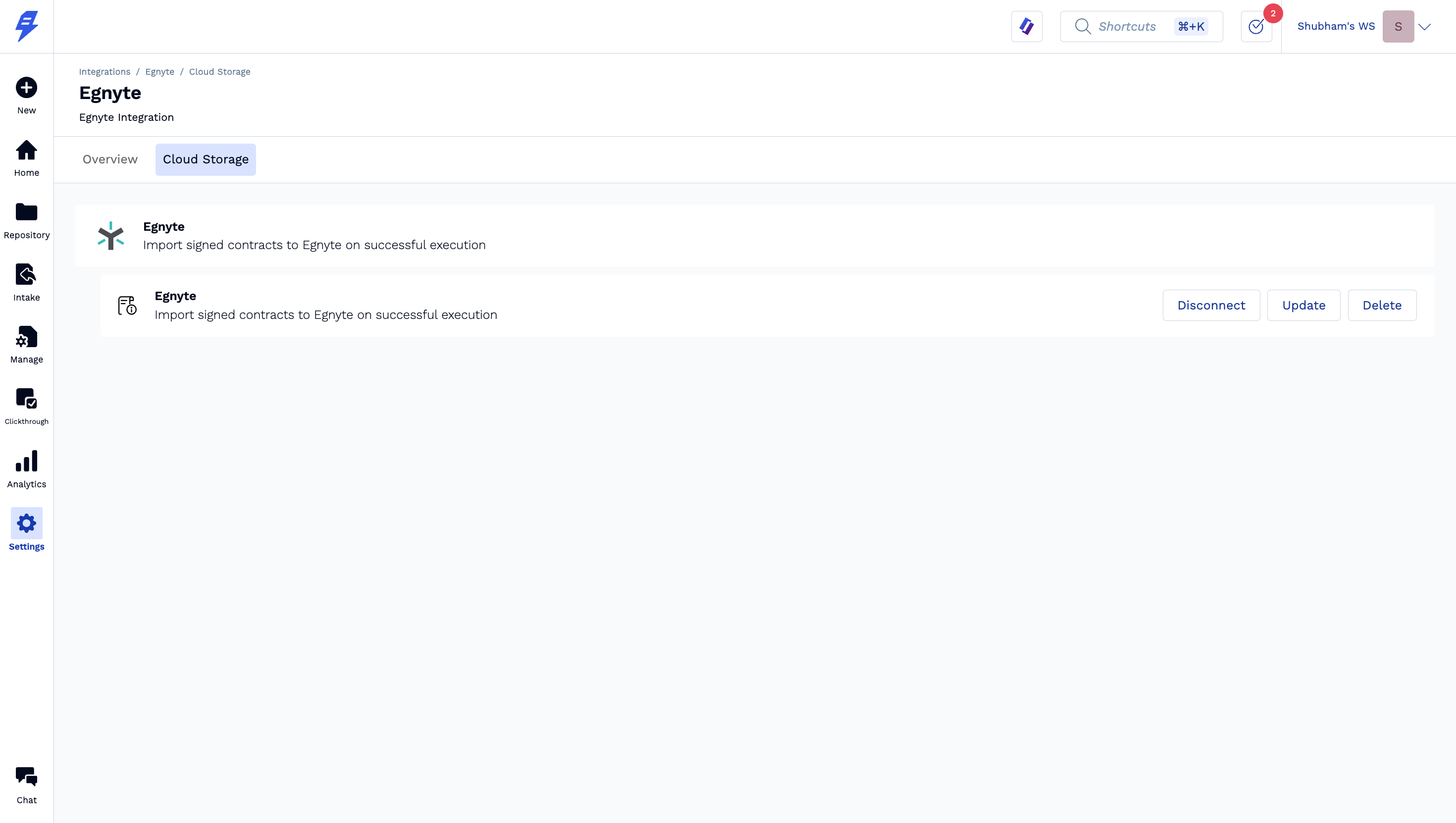
Update - Make changes in any of the integration setup steps.
Disconnect - Temporarily stop sending files from SpotDraft to Egnyte.
Delete - Permanently delete the integration from SpotDraft.
Limitations
One Egnyte Integration is supported per SpotDraft workspace.
Only PDF file format can be sent from SpotDraft to Egnyte.
This is one way integration where only SpotDraft can send files to Egnyte. Any changes made in the uploaded file on Egnyte will not reflect back in SpotDraft.
🛠Security and Compliance Considerations:
SpotDraft uses OAuth 2.0 for secure authentication with Egnyte. No sensitive credentials are stored
All files are stored within your Egnyte account, adhering to Egnyte's security and compliance standards.
Ensure compliance with organizational data policies and relevant regulations (e.g., GDPR) when storing contracts on Egnyte.
🏁 Conclusion
With Egnyte integration set up, you can now enjoy a smoother and more organized contract management process. Your team will save time spent on administrative tasks, and have confidence that executed agreements are safely stored and accessible.
👋 Remember, should you encounter any challenges or require further assistance, our team is always ready to support you. We're committed to ensuring your continued success with this powerful integration.
📚 Additional Resources
Engaging Your Customer Success Manager for Maximum Value: Discover how to leverage your CSM's expertise to get the most out of your SpotDraft subscription.
Integration Guides for Cloud Storage: Explore our guides for integrating SpotDraft with Google Drive, SharePoint, Dropbox, Box and OneDrive, providing insights into other cloud storage integrations available.