Google Drive
Last updated: August 21, 2026
💡 In this article: You’ll discover a comprehensive guide for seamless integration of SpotDraft with Google Drive, enabling automated saving of executed contracts for enhanced organization and collaboration.
🛠 Integrating SpotDraft with Google Drive
Seamlessly save executed contracts to Google Drive for better organization and collaboration.
🚀 Introduction
In the intricate world of contract management, efficiency and organization are key. SpotDraft’s integration with Google Drive revolutionizes this aspect by offering a cohesive solution for contract storage and management. This integration harmonizes SpotDraft's contract execution capabilities with Google Drive's reliable storage, bringing forth a streamlined and automated process for handling contracts.
As soon as a contract is executed in SpotDraft, an automated system kicks in. A PDF version of the contract is immediately generated and synchronized to your designated Google Drive folder. This process is not just about saving the document; it's about creating an organized, logical structure that is easy to navigate and manage.
Key Features of the Integration:
Centralized Contract Repository: Securely store all your contracts in Google Drive, providing a single, accessible location for your contract portfolio.
Automated File Organization: During integration setup, a file format is defined which SpotDraft adheres to for every contract. This results in an automatic folder structure, typically organized as Parent > Contract Type > Counterparty. Additionally, filenames are preset in a consistent, logical format like -, ensuring ease of search and consistency.
Efficient Sharing and Collaboration: Utilize Google Drive's capabilities for easy sharing and collaboration, enhancing teamwork and external communication while maintaining control over access.
Automated Backups for Security: Google Drive’s inherent security features are complemented by SpotDraft’s automated backup system, ensuring your contracts are not only stored safely but also backed up regularly.
This guide aims to walk you through the steps of setting up this integration, enabling you to harness these features effectively for a more organized and efficient contract management experience.
📝 Prerequisites
Before installing the Google Drive integration:
Takes 15-20 minutes to complete the integration
Have an organizational Google Drive account ready (e.g. integrations@company.com).
Have SpotDraft - Admin or Manage Integrations access enabled
Create a parent folder in your Drive root folder
Ensure "Google Drive" integration is enabled in your SpotDraft workspace.
Make sure to have sufficient space on Google Drive to auto upload executed contracts.
Decide on the subfolder structure and file naming format (details below).
Folder Structure and File Naming
When configuring the integration, you will define:Subfolder structure within the parent folder, such as:
Parent
Parent > CounterParty
Parent > ContractType
Parent > Entity
Parent > CounterParty > Entity
Parent > CounterParty > ContractType
Parent > Entity > CounterParty
Parent > Entity > ContractType
Parent > Entity > Contract Metadata Value > ContractType
Parent > Contract Metadata Value > Entity > ContractType
Parent > ContractType > CounterParty
Parent > ContractType > Entity
Parent > CounterParty > Entity > ContractType
Parent > CounterParty > ContractType > Entity
Parent > Entity > CounterParty > ContractType
Parent > Entity > ContractType > CounterParty
Parent > ContractType > CounterParty > Entity
Parent > ContractType > Entity > CounterParty
Parent > Entity > Contract Metadata Value > ContractType > CounterParty
File naming format with contract label and date format:
<contract_title>, <contract_type>, <entity_name>, <counterparty_name>, <reference_id>, <ddmmyyyy>, <mmddyyyy>, <yyyymmdd>
⚙ Installation & Configuration
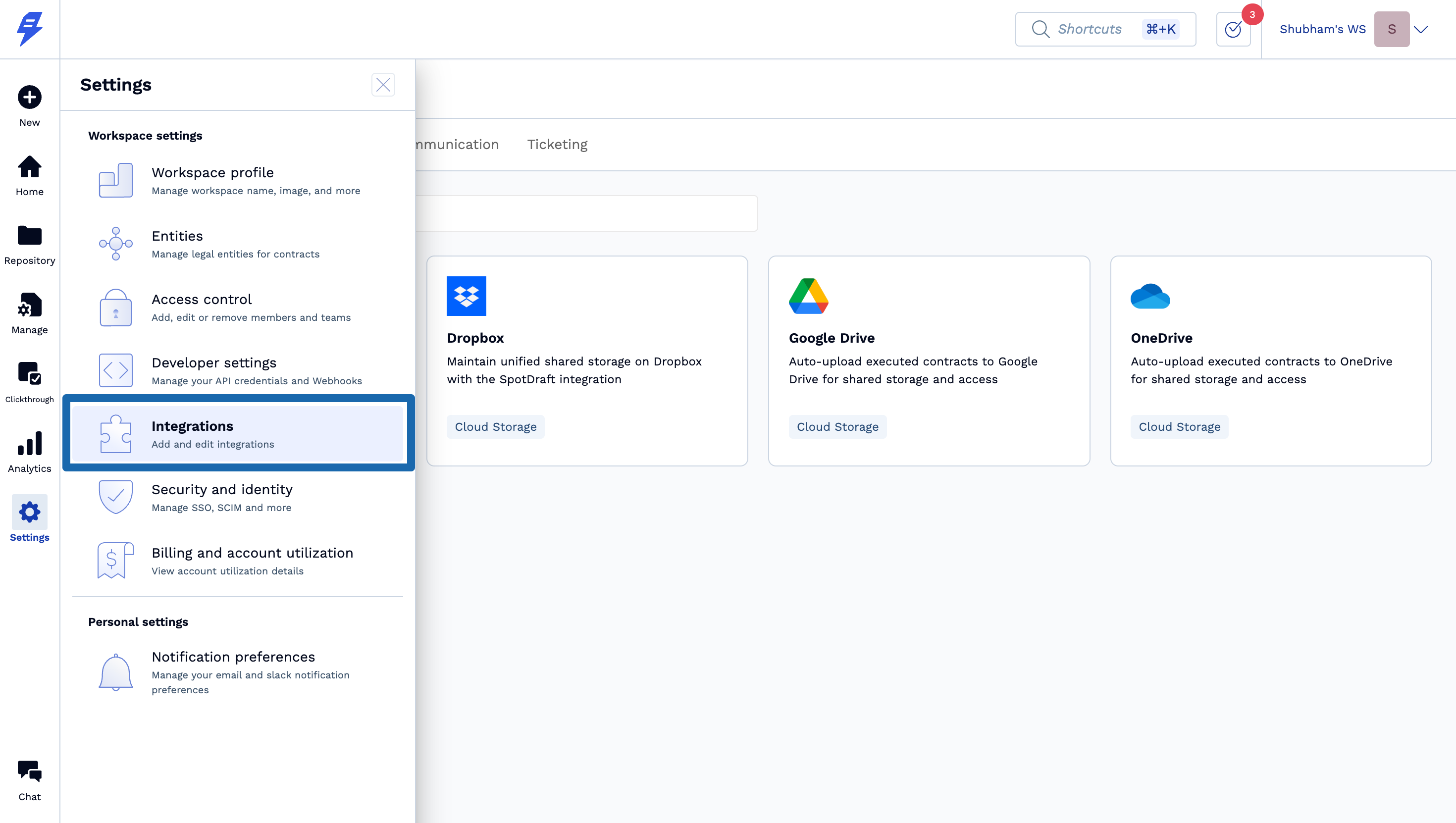
1 - Login to your SpotDraft workspace and navigate to Settings→ Integrations.
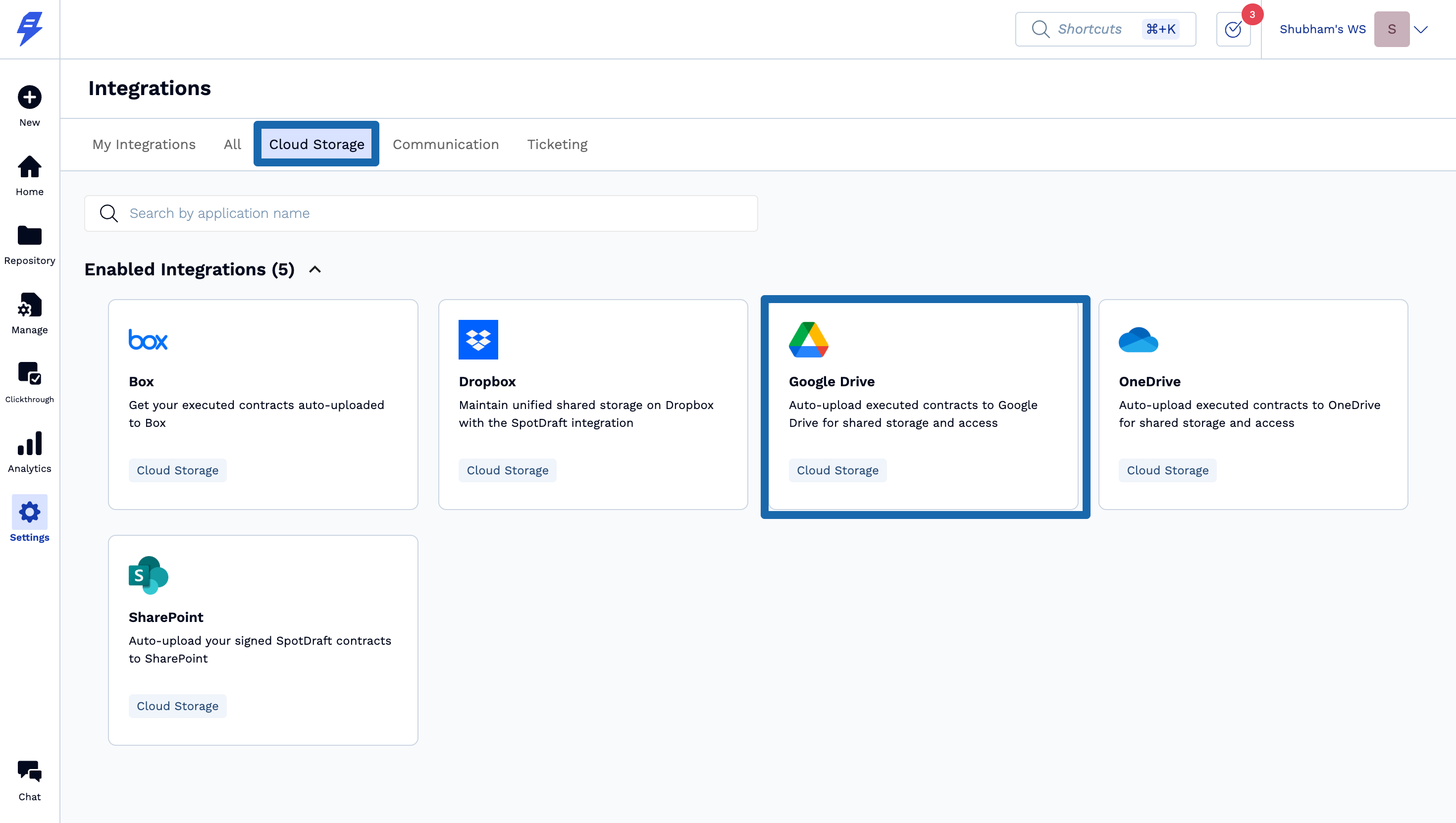
2 - Open the Cloud Storage section and select Google Drive and click on Setup.
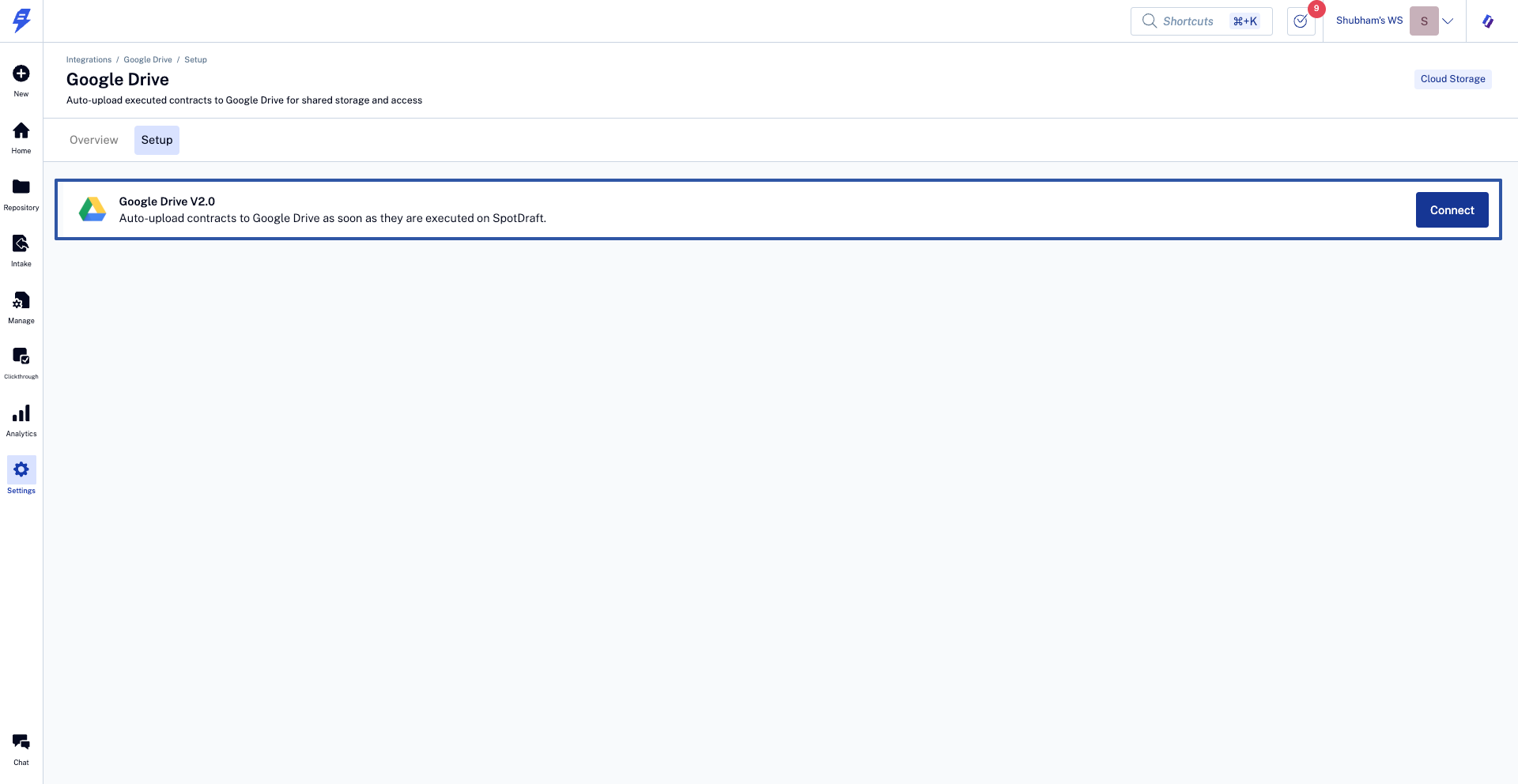
3 - Select on Google Drive V2.0 and hit Connect. (V2.0 is the latest upgraded integration version)
Follow the Setup wizard to:
1. Authenticate your Google Drive account.
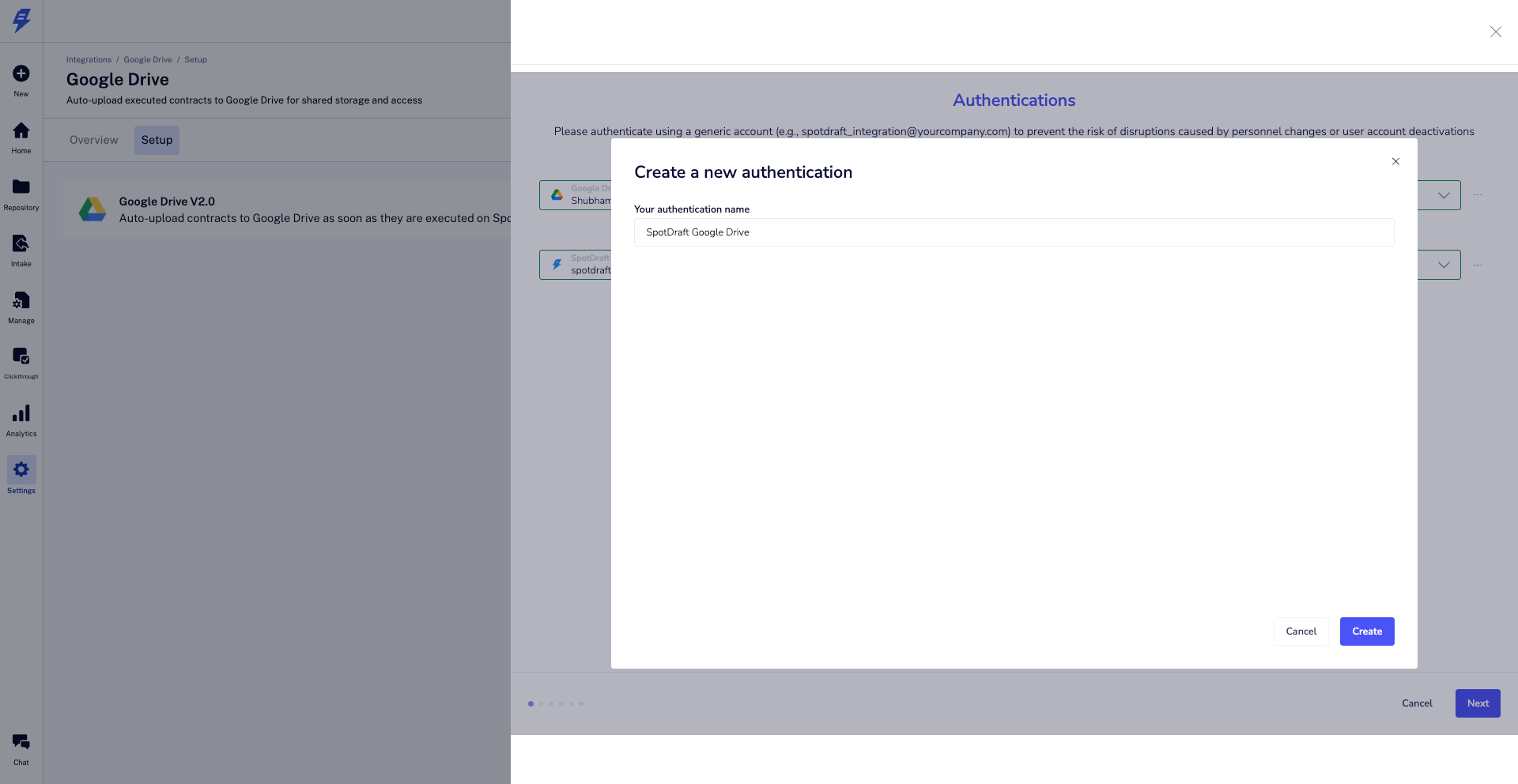
1.1 - Hit ‘New authentication’.
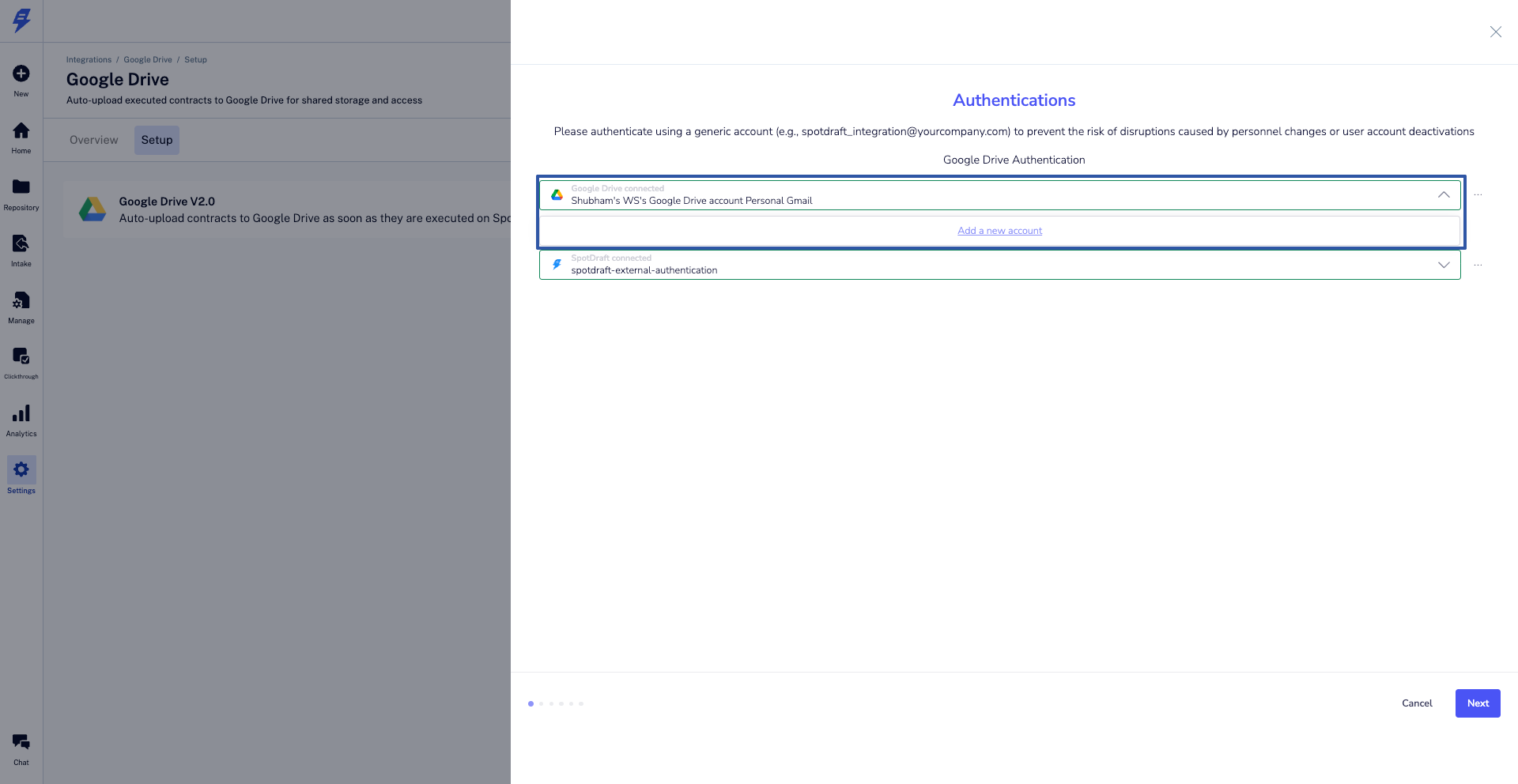
1.2 - Set the authentication name then hit the ‘Create’ button.
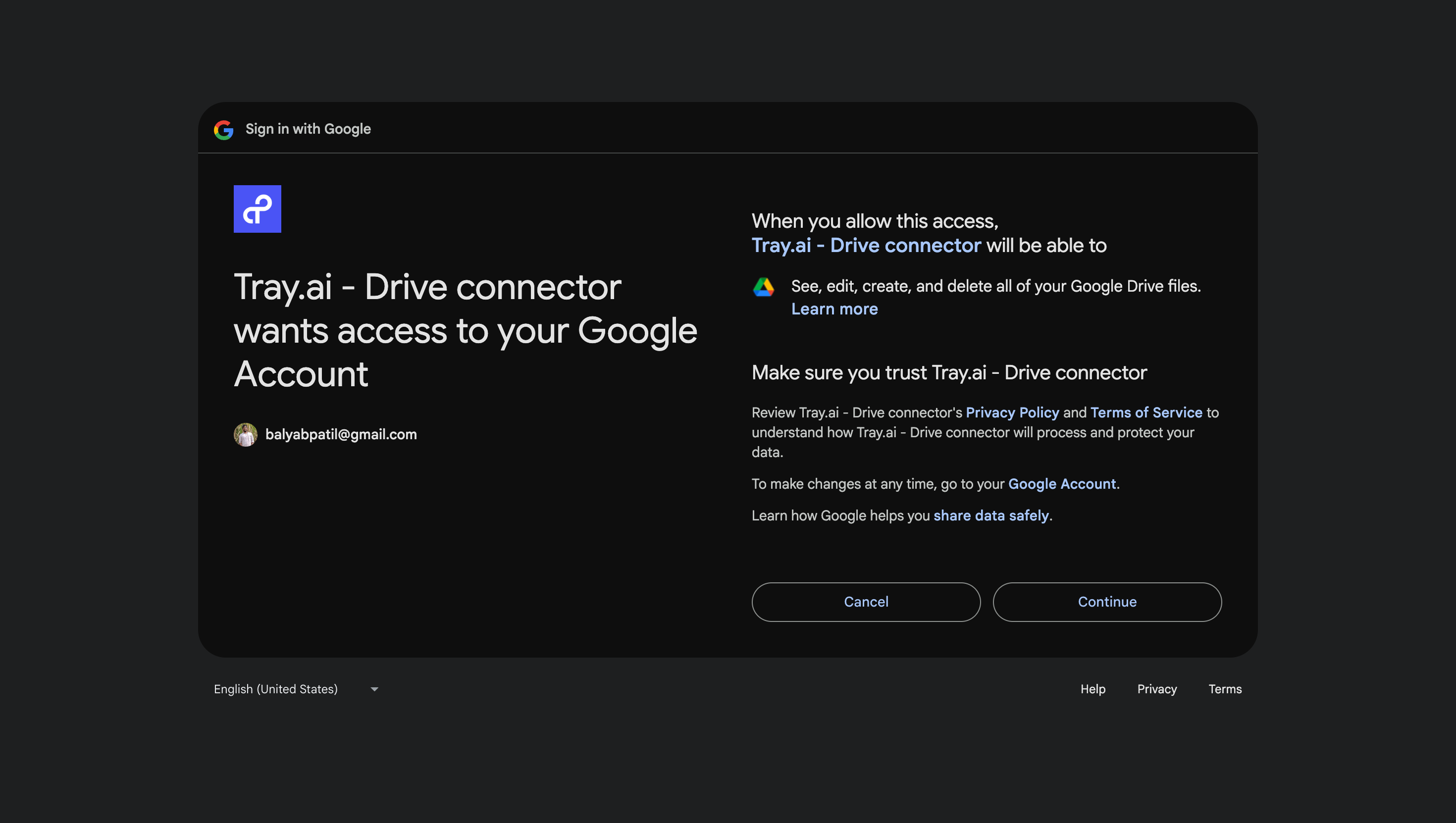
1.3 - You will be redirected to Google Authentication screen in popup or new tab. Select the Google account to use for the Integration and proceed by clicking Continue to allow access.
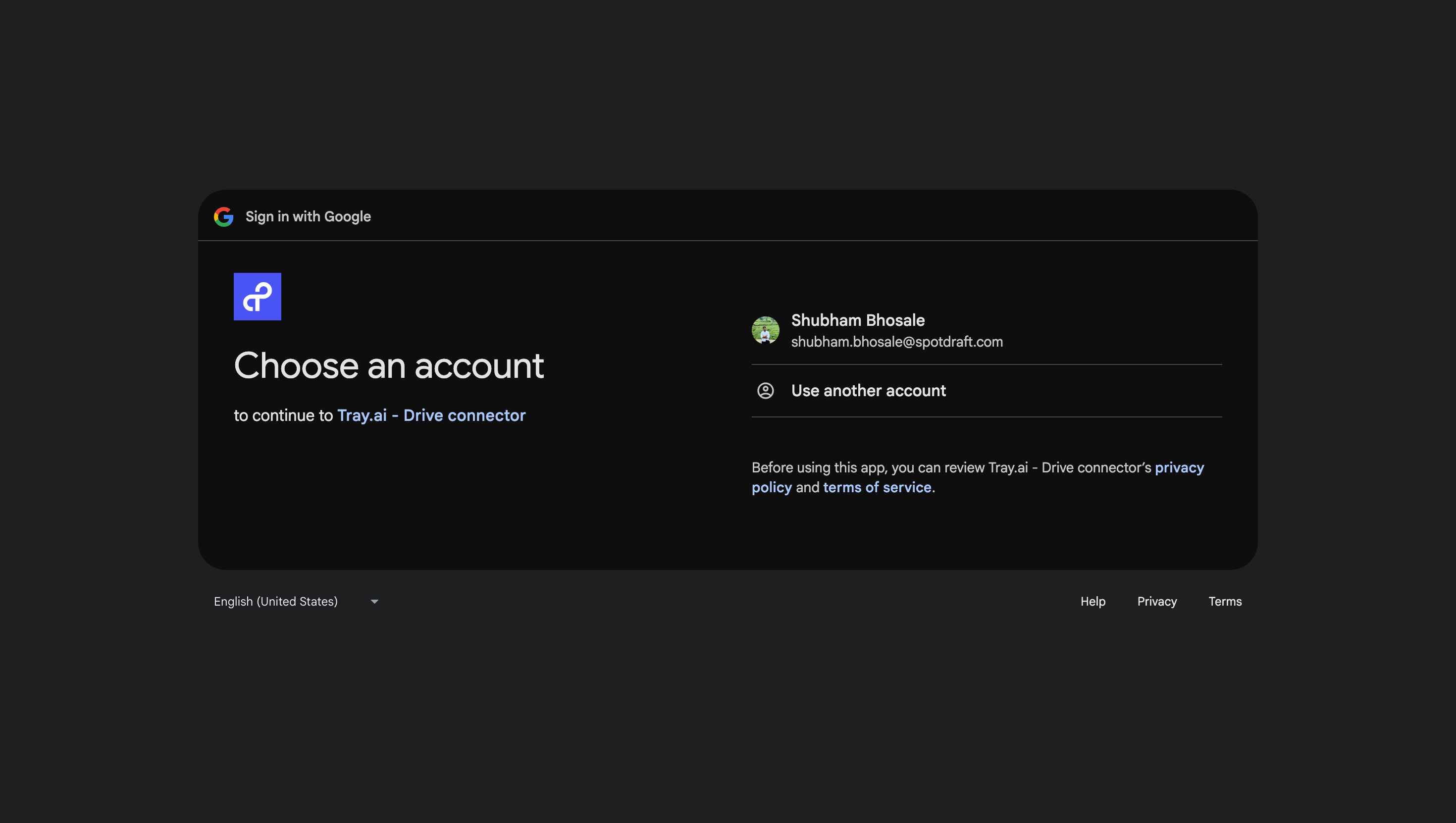
Note. - Use an organization-level account like integrations@company.com instead of an individual account. This avoids re-authentication issues if an employee leaves.
Note: Only one user needs to authenticate the Google Drive integration for the entire organization. Once authenticated, the integration will function for all SpotDraft users without requiring individual authentication.
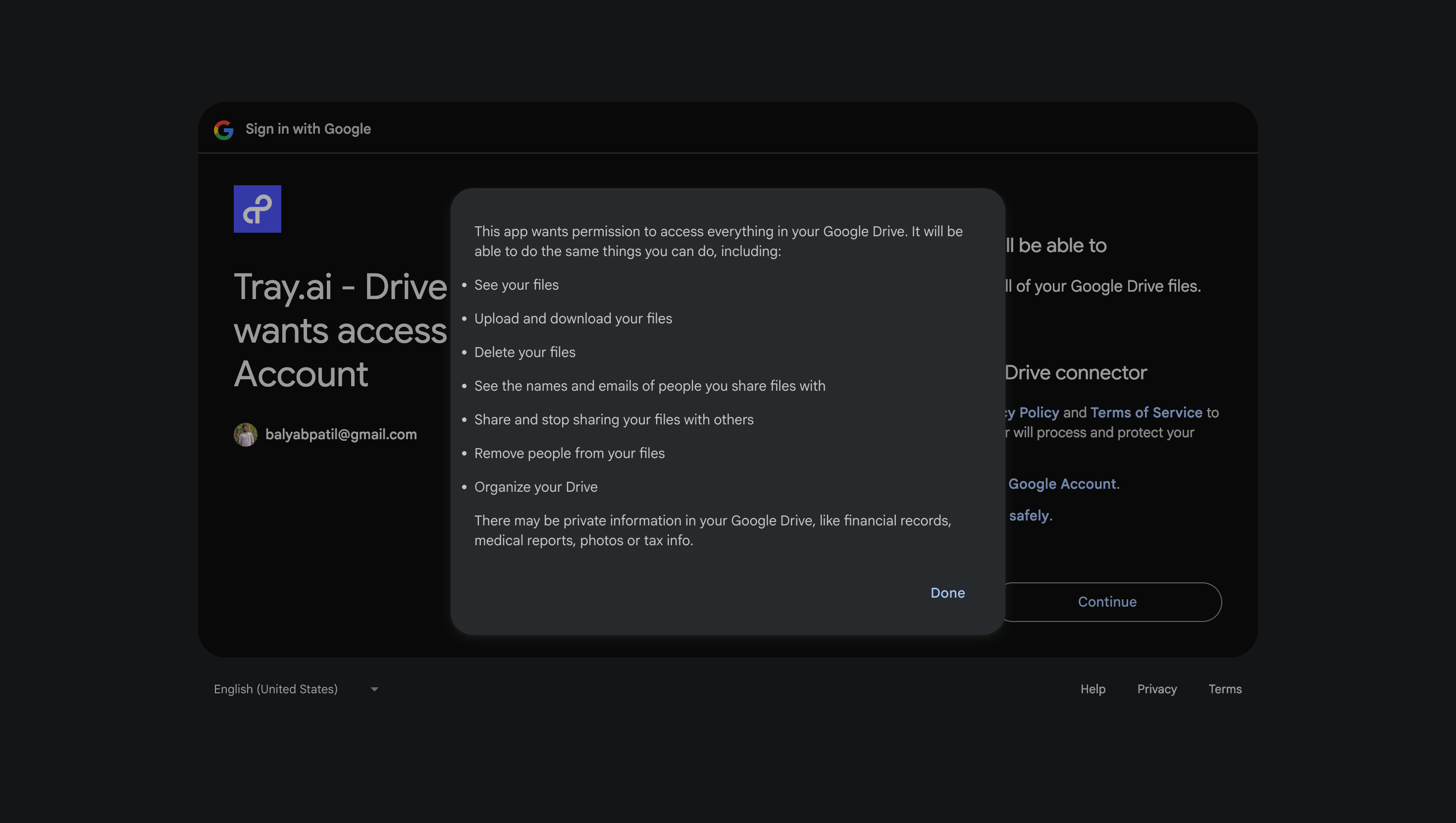
SpotDraft uses Tray.io as an Integration layer, on behalf of SpotDraft it will need access to see, upload, delete & download your files. This will allow SpotDraft to upload executed files properly into designated folders as per your preference. This is expected & secure.
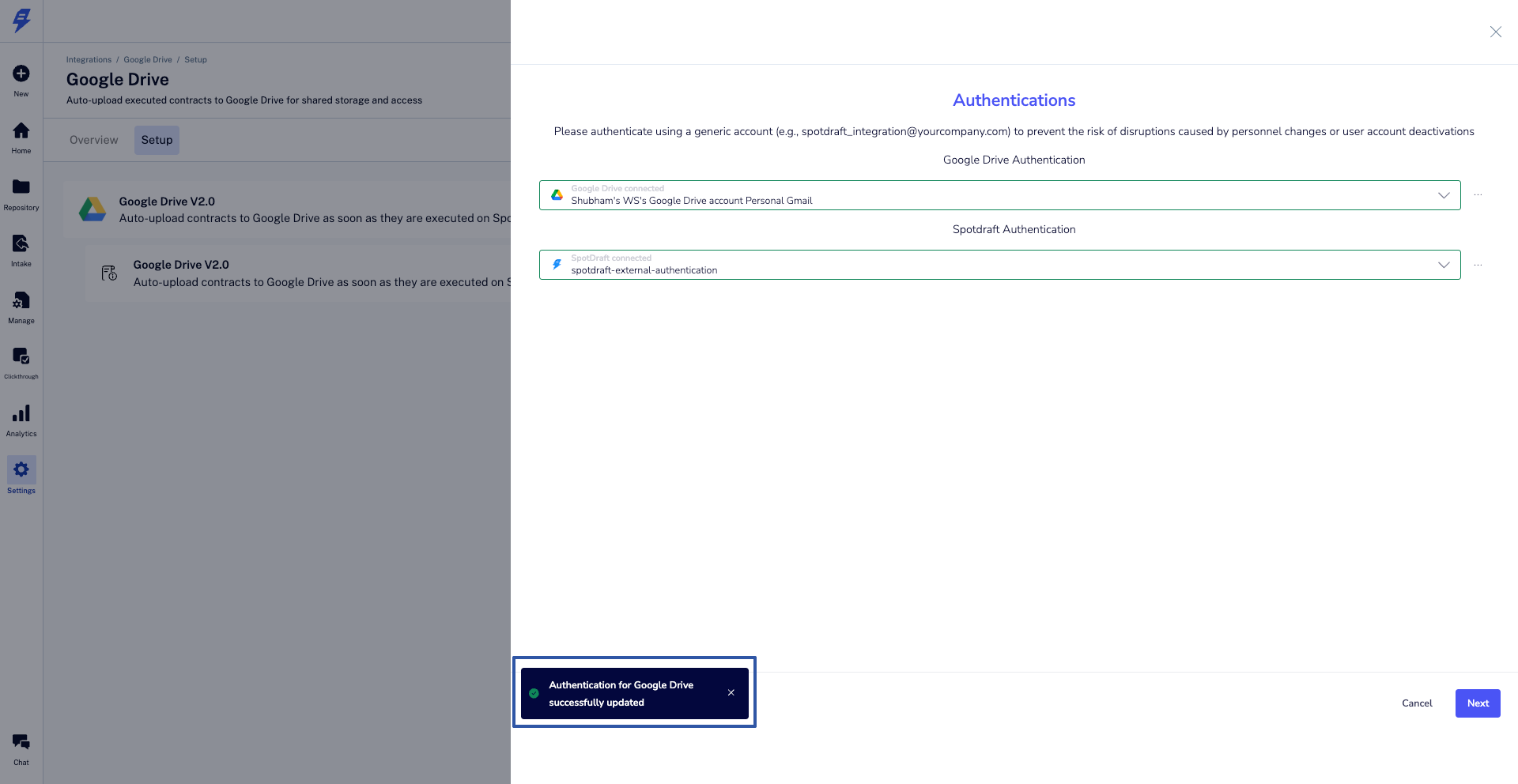
Note. A success message will appear on SpotDraft confirming authentication between SpotDraft & Google Drive is complete
1.4 - Click on Next.
2. Selecting the Parent Drive & Folder Structure where the contracts will be saved
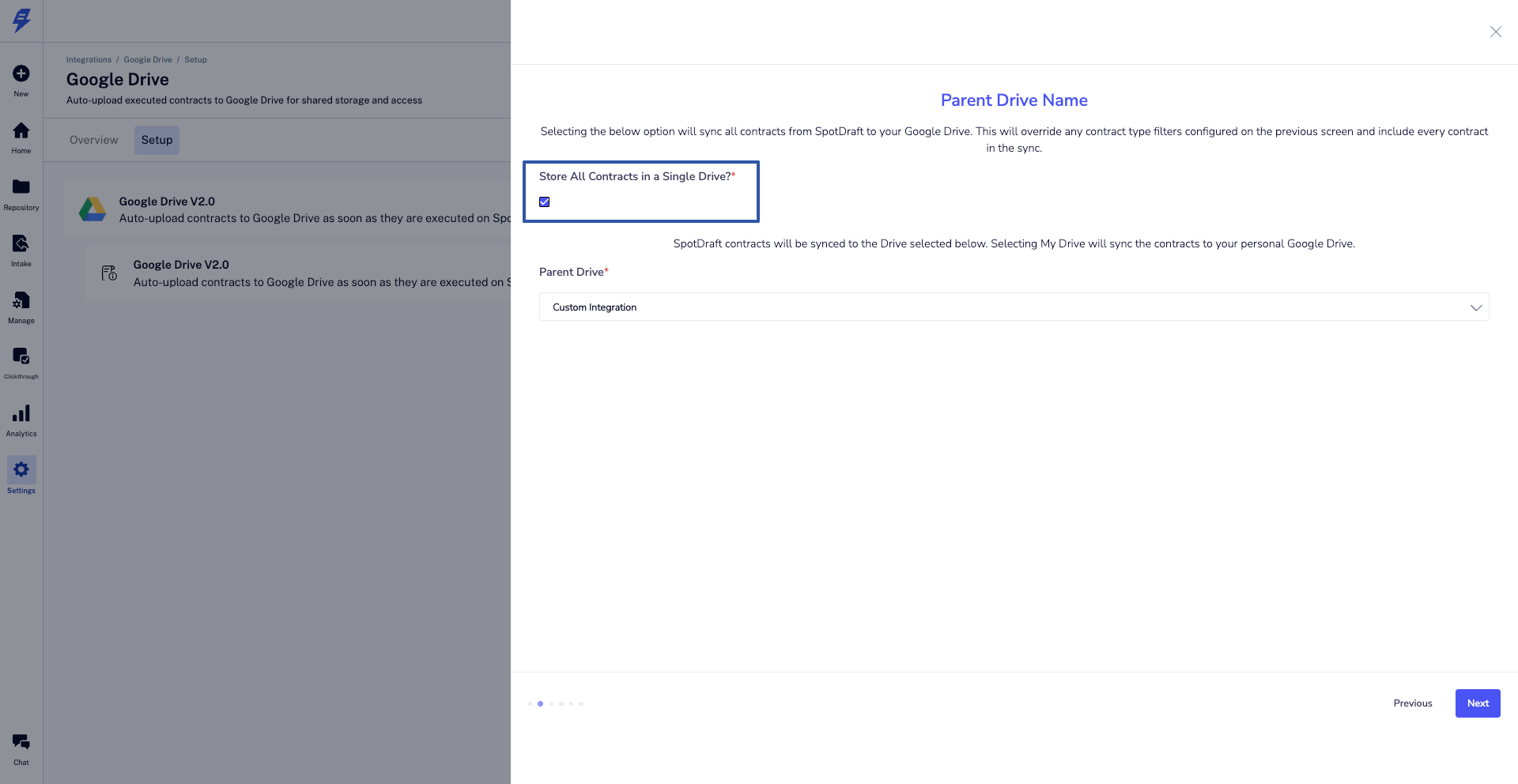
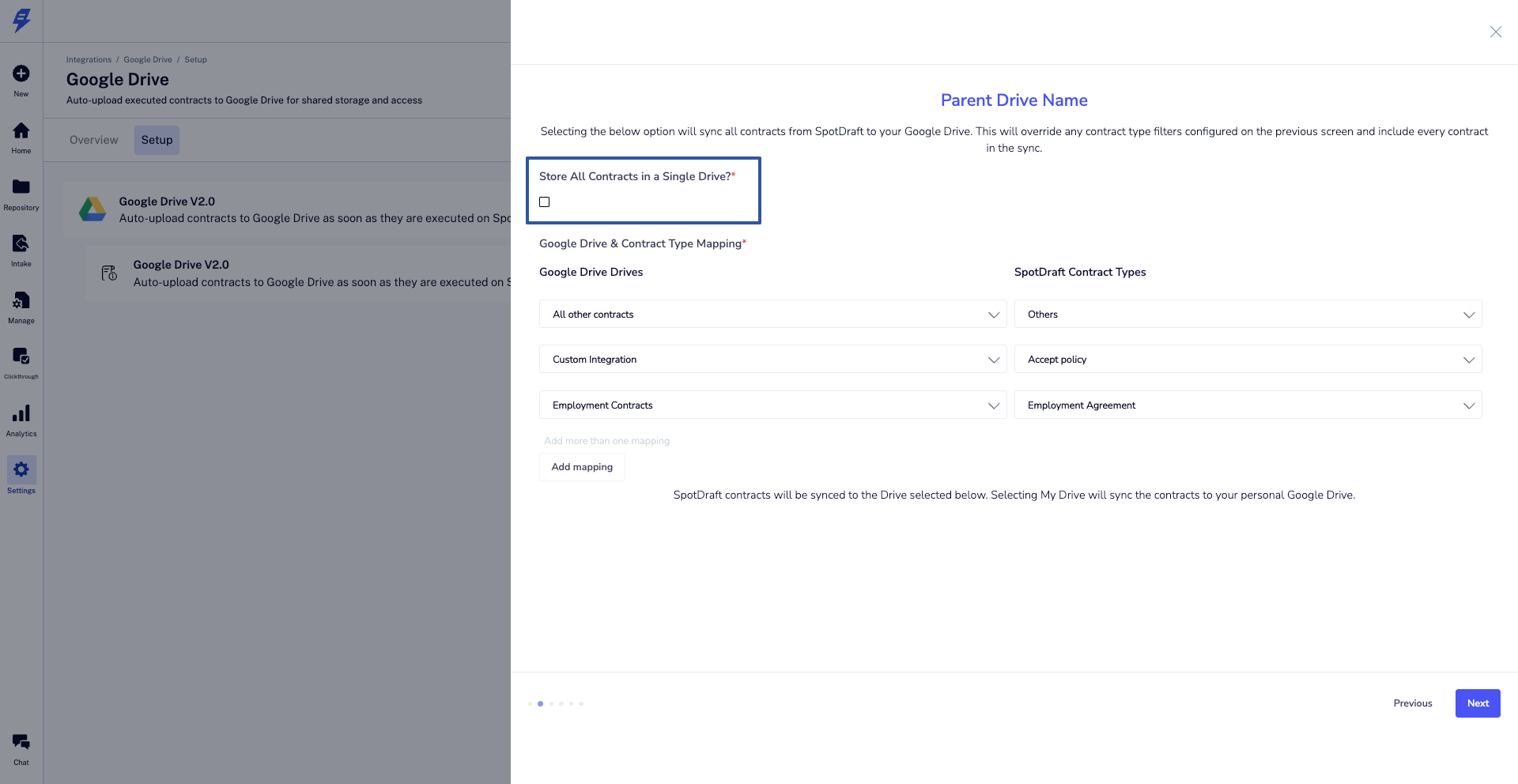
2.1- Choose how you want to store executed contracts:
If the checkbox is enabled, all contracts will be stored in a single drive (including shared drives). In the next screen, you will be able to select actual parent folder within selected drive.
If the checkbox is disabled, you can map each contract type to a specific drive (including shared drives), allowing precise control over where each contract type is stored in Google Drive. SpotDraft will automatically create a folder within each selected drives as 'SpotDraft Executed contracts'.
Note: The parent drive can also be a shared drive
2.2 - Select the Parent folder name exactly from the dropdown as you have it in your Google Drive. Make sure you have created parent folder in Google Drive.
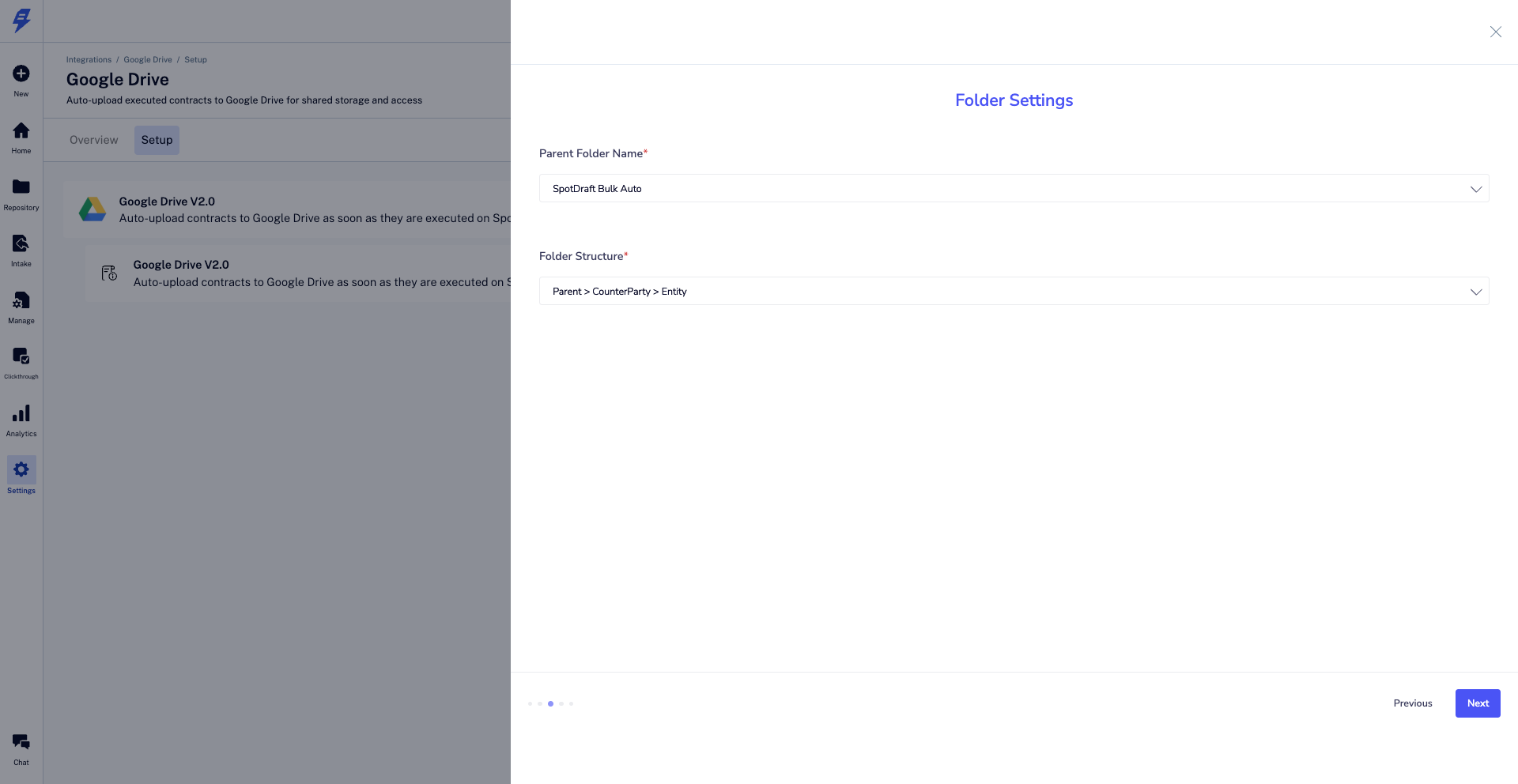
Note: The parent name can be anything e.g. ‘Signed Contracts’, but it must be in the root of your Google Drive.
2.3 - Choose the Folder Structure, from the options available
e.g. Parent folder > Contract Type > Counterparty (i.e. Signed Contracts > NDA > Acme Corp)
Note: If folder structure has Contract Metadata Value in it, then contract must have contract metadata configured in SpotDraft.
2.4 - Click Next.
2.5 - In case you select folder structure as “Parent Folder > Entity > Contract metadata value > Contract Type” then select Contract Metadata for Foldering Structure
Choose the contract metadata field that will be used to categorize contracts within Google Drive.
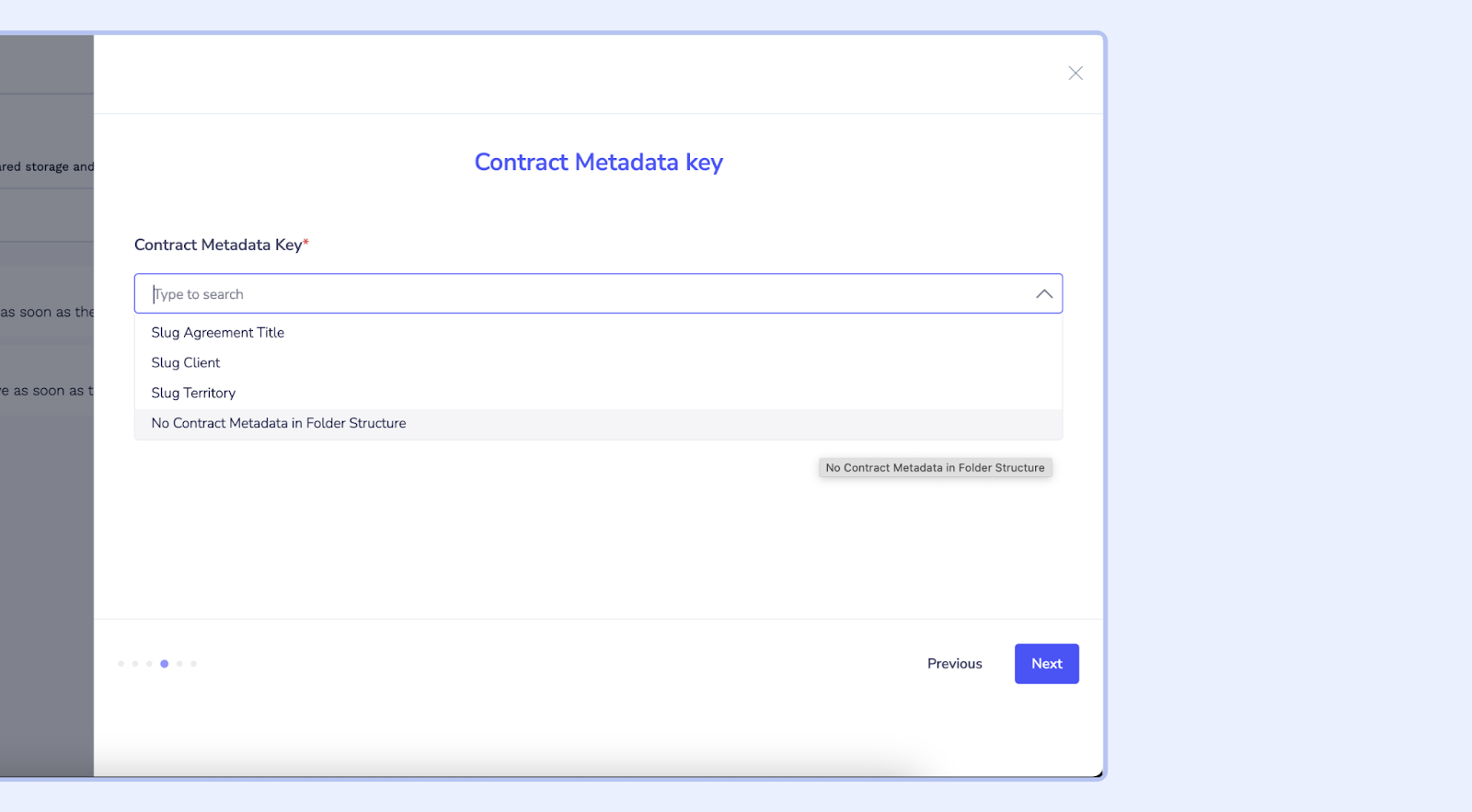
Note: Contract Metadata should be a Dropdown type value only
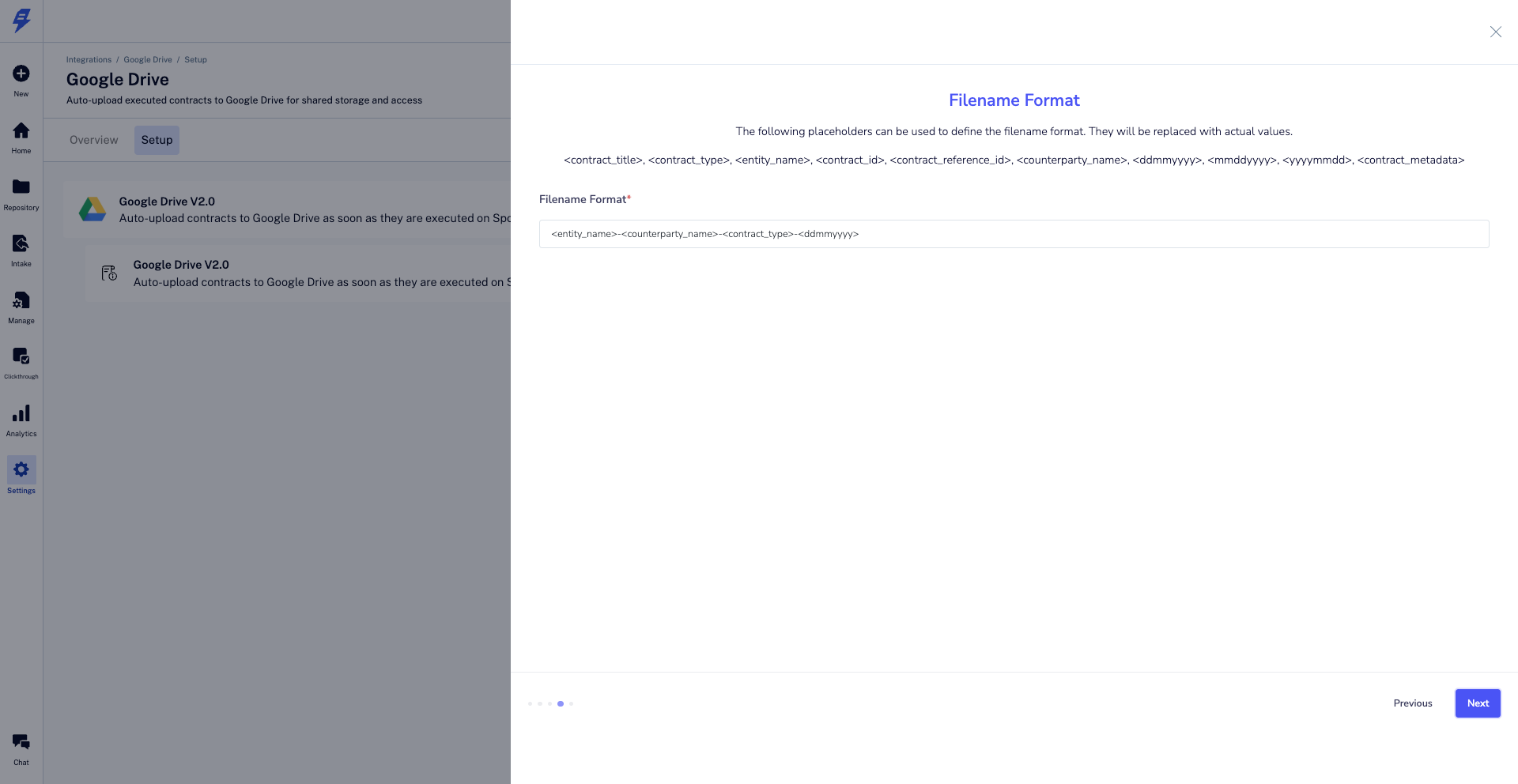
3. Define the contract filename format
Note: If filename format has <contract_metadata> then the value contract_metadata value will be fetched from previous screen where you have configured for the folder structure.
3.1 - Select the contract filename format by first choosing the contract label and then the date format using a hyphen between them.
E.g. - <entity_name>-<counterparty_name>-<contract_type>-<ddmmyyyy>
3. 2 -Click Next
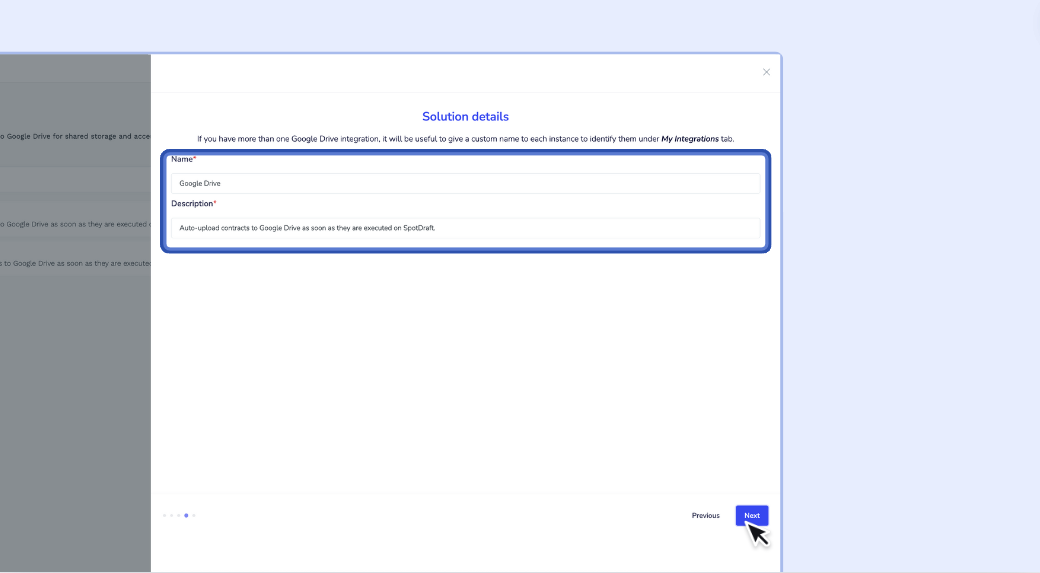
4. Set the Solution Details
4.1 - Enter the Name and Description or leave the defaults.
4.2 - Click Next and Finish
5. After finalizing the wizard by clicking Finish, you will be directed back to the Google Drive Integration page. A confirmation message stating 'Installed Successfully' will appear.
6. To complete the process, simply hit the Connect button.
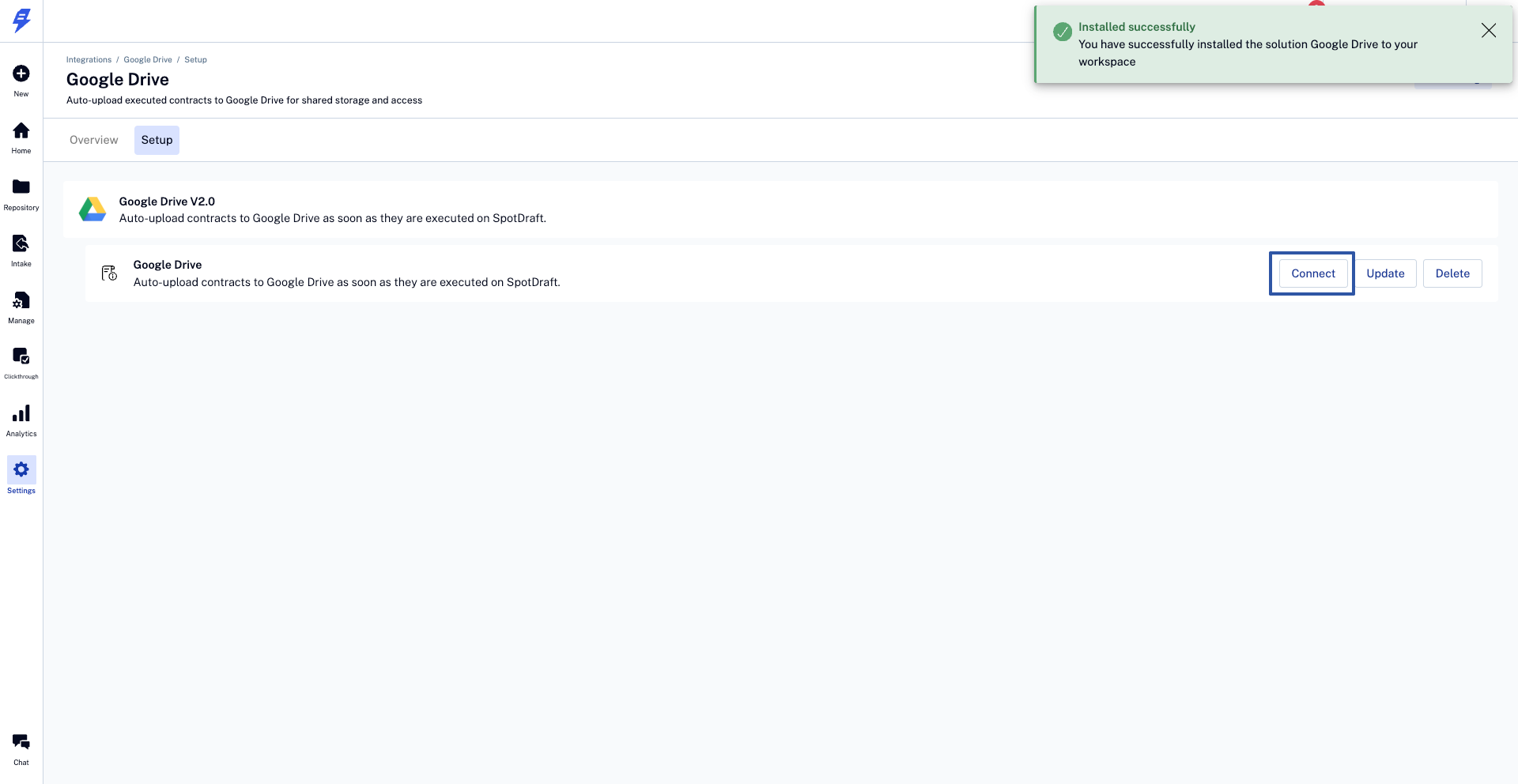
💡 🎉 Congratulations. The integration is now complete and all of your executed contracts will automatically synchronize to your Google Drive.
✅ Verification
Once you have installed the Google Drive integration, verifying it is straightforward:
1 - Execute a test contract within your SpotDraft workspace, completing all required fields and signatures.
2 - In your Google Drive account, navigate to the parent folder you designated for SpotDraft contracts e.g. Signed Contracts.
3 - Within 5 minutes you should see a new subfolder created with the naming you specified during setup
e.g.
Parent > Counterparty > Contract Type
Signed Contracts > Supplier ABC > NDA
4 - Navigate into the subfolders. You will find a PDF file for the executed test contract.
You should see a PDF version of the executed test contract you completed.
"Note: Change in file name format - It is now configured without underscores."
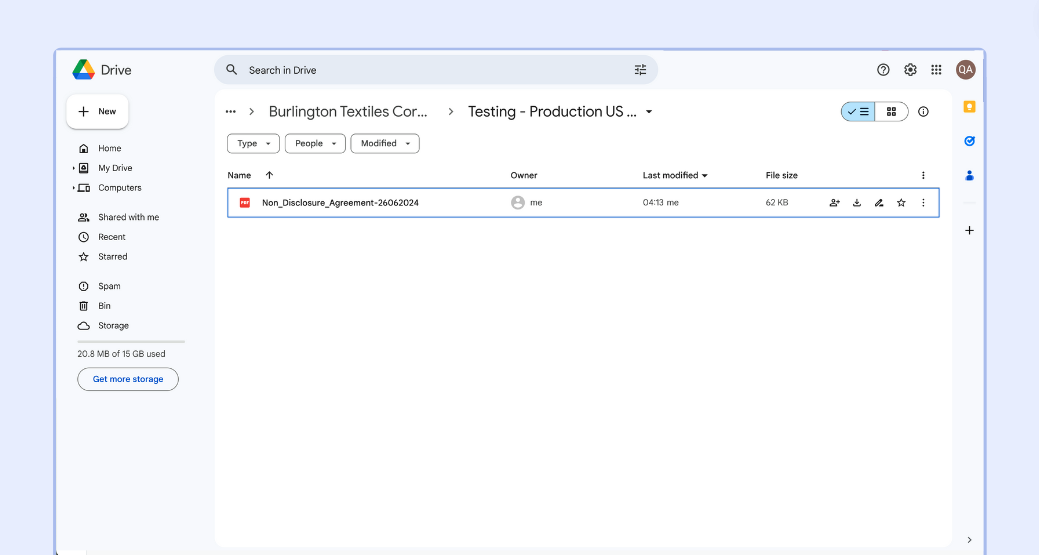
5 - Verify that:
The contract PDF is saved in the subfolder structure you configured.
The file is named according to the naming format you specified during setup.
Opening the PDF displays the fully executed test contract.
This validation process will confirm that your integration has been properly set up and contracts are automatically saved to your Google Drive in line with the configuration set.
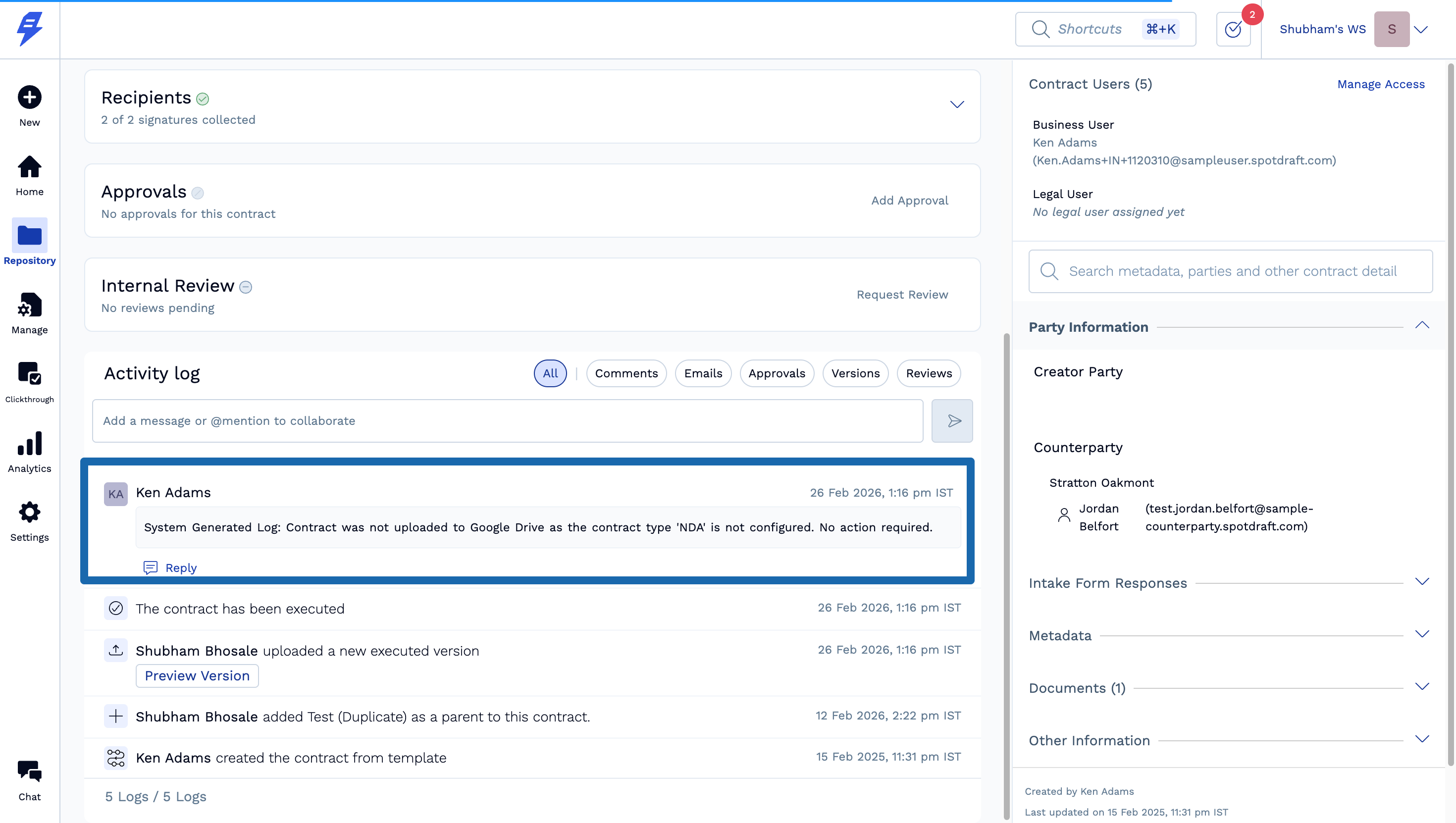
In case of failure a System Log will be generated in Activity Log for a contract with reason. There is no activity log for contracts uploaded successfully.
Additional options will be visible post integration setup is completed:
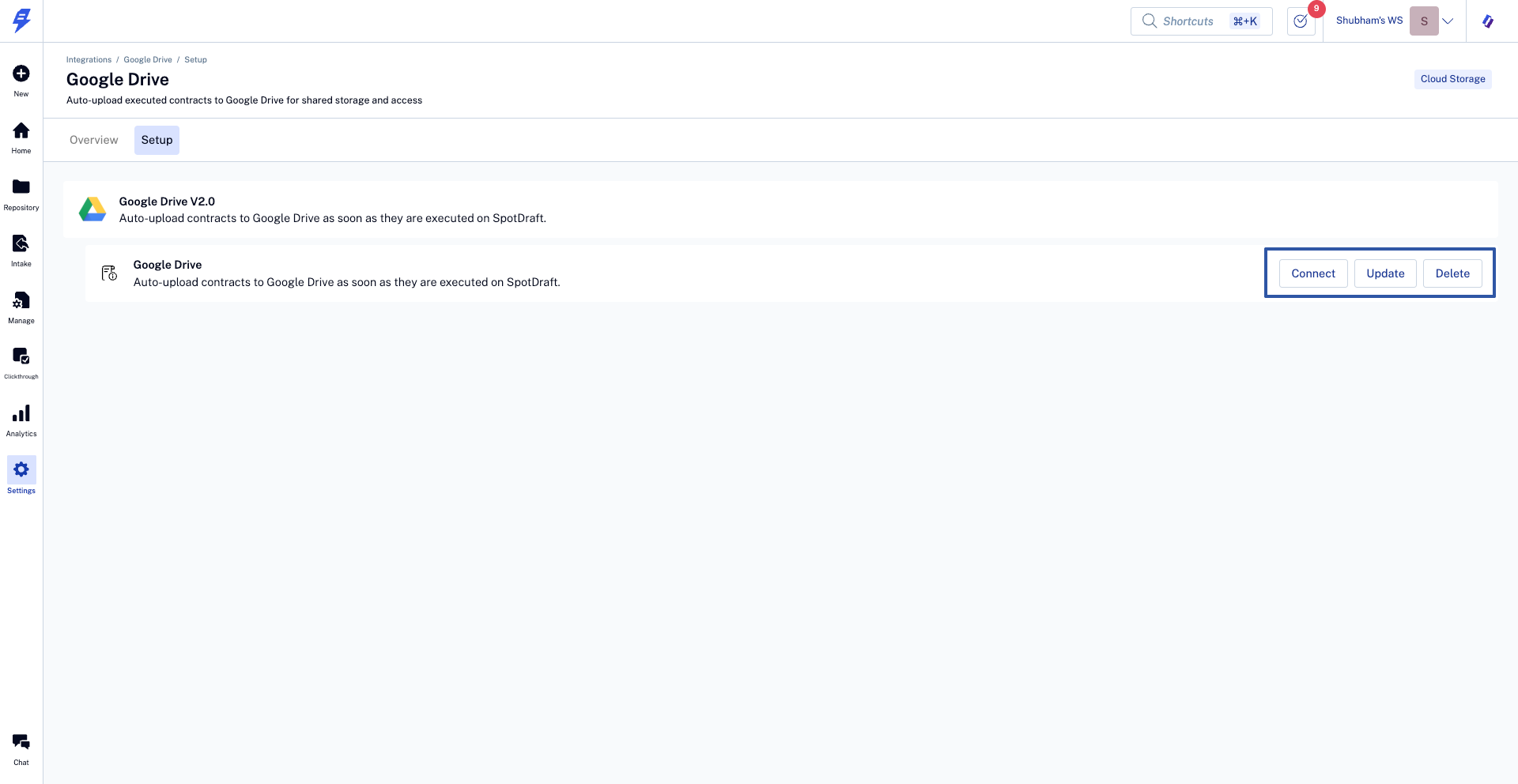
Update - Make changes in any of the integration setup steps.
Disconnect - Temporarily stop sending files from SpotDraft to Google Drive.
Delete - Permanently delete the integration from SpotDraft.
Limitations
One Google Drive Integration is supported per SpotDraft workspace.
Only PDF file format can be sent from SpotDraft to Google Drive.
This is one way integration where only SpotDraft can send files to Google Drive. Any changes made in the uploaded file on Google Drive will not reflect back in SpotDraft.
💬 FAQs
Q. I have successfully installed the “Google Drive” Integration but I can’t find the executed contracts getting pushed to my Drive Folder.
A. There can be several reasons for this issue and the following points highlight the troubleshooting steps:
Incorrect authentication with your Google Drive Account where you want to store the executed contracts
The parent folder is not present or deleted in the root directory of Google Drive.
Enough space is not available in Google Drive.
Q. How do I re-authenticate the Google Drive integration if contracts stop syncing?
A. If contracts are not being pushed to Google Drive due to authentication issues, follow these steps to re-authenticate:
Navigate to Settings → Integrations
Select the Google Drive tile
Click on the Setup tab
Under Google Drive V2.0, click the Update button
In the Google Drive Authentication section, click the three‑dot icon (⋯) and select Update
In the Edit Authentication modal, click Save
You will be redirected to the Google Drive authentication page
Provide the credentials that need to be authenticated
Once saved, you will see: “Authentication for Google Drive successfully updated”
Click Next on the setup page, then click Finish
Q. What if contracts were missed during a period when the integration wasn’t authenticated?
A. If contracts were executed while the Google Drive integration was not authenticated, contact the SpotDraft support team. They can perform a backfill operation to sync the missed contracts to your Google Drive.
Q. Can I use a folder in my “Shared With Me” and “Shared Drive” sections in Drive as a parent directory?
A. Yes, you can only use Shared Drive.
Q. Will special characters in the file name get included in the executed contract file name?
A. No, The integration removes all the special characters present in the file name in compliance with Google Drive’s standards of file naming convention
Q. How can I modify the folder structure or file naming convention after setup?
A: “Go to ‘Integrations’ > ‘Google Drive Integration’ > ‘Update’. Make the necessary changes and click ‘Save’. The new structure will apply to all contracts executed after the change.”
Q. What happens if a required metadata field is empty during contract execution?
A: “If a chosen metadata field is empty, the integration will skip that folder level or placeholder in the file name. Ensure mandatory metadata fields are always populated.”
🛠Security and Compliance Considerations:
SpotDraft uses OAuth 2.0 for secure authentication with Google Drive. No sensitive credentials are stored
All files are stored within your Google Drive account, adhering to Google’s security and compliance standards.
Ensure compliance with organizational data policies and relevant regulations (e.g., GDPR) when storing contracts on Google Drive.
🏁Best Practices for Organizing Contracts
Use consistent naming conventions for easier search and retrieval.
Limit special characters in folder names for better compatibility and compliance with Google Drive’s standards.
Regularly review and archive outdated contracts to maintain an organized and efficient file system.
🏁 Conclusion
With Google Drive integration set up, you can now enjoy a smoother and more organized contract management process. Your team will save time spent on administrative tasks, and have confidence that executed agreements are safely stored and accessible.
👋 Remember, should you encounter any challenges or require further assistance, our team is always ready to support you. We're committed to ensuring your continued success with this powerful integration.
📚 Additional Resources
Engaging Your Customer Success Manager for Maximum Value: Discover how to leverage your CSM's expertise to get the most out of your SpotDraft subscription.
Integration Guides for Cloud Storage: Explore our guides for integrating SpotDraft with SharePoint, Dropbox, Box and OneDrive, providing insights into other cloud storage integrations available.