Custom Analytics Dashboards
Last updated: March 24, 2026
While SpotDraft’s Contract Analytics provides a comprehensive overview of your legal operations through default dashboards, we understand that every legal team has unique KPIs and reporting needs.
Custom Dashboards allow you to slice and dice your contract data to build personalized reports. You can create specific views for different stakeholders (e.g., a "Sales View" or a "Procurement View") using the same underlying data that powers SpotDraft’s standard reporting.
Tailored Reporting: Build dashboards specific to departments, contract types, or regions.
Granular Analysis: Dig deeper into specific metadata fields that may not be present in the default high-level overview.
Identify Specific Bottlenecks: Create visualizations that focus exclusively on Approval or Review lag times to pinpoint exactly where deals are stalling.
Accessing Custom Dashboards
Access to create and edit Custom Dashboards is permission-based to ensure data governance. Admins must grant access to specific roles.
To grant access to Custom Dashboards:
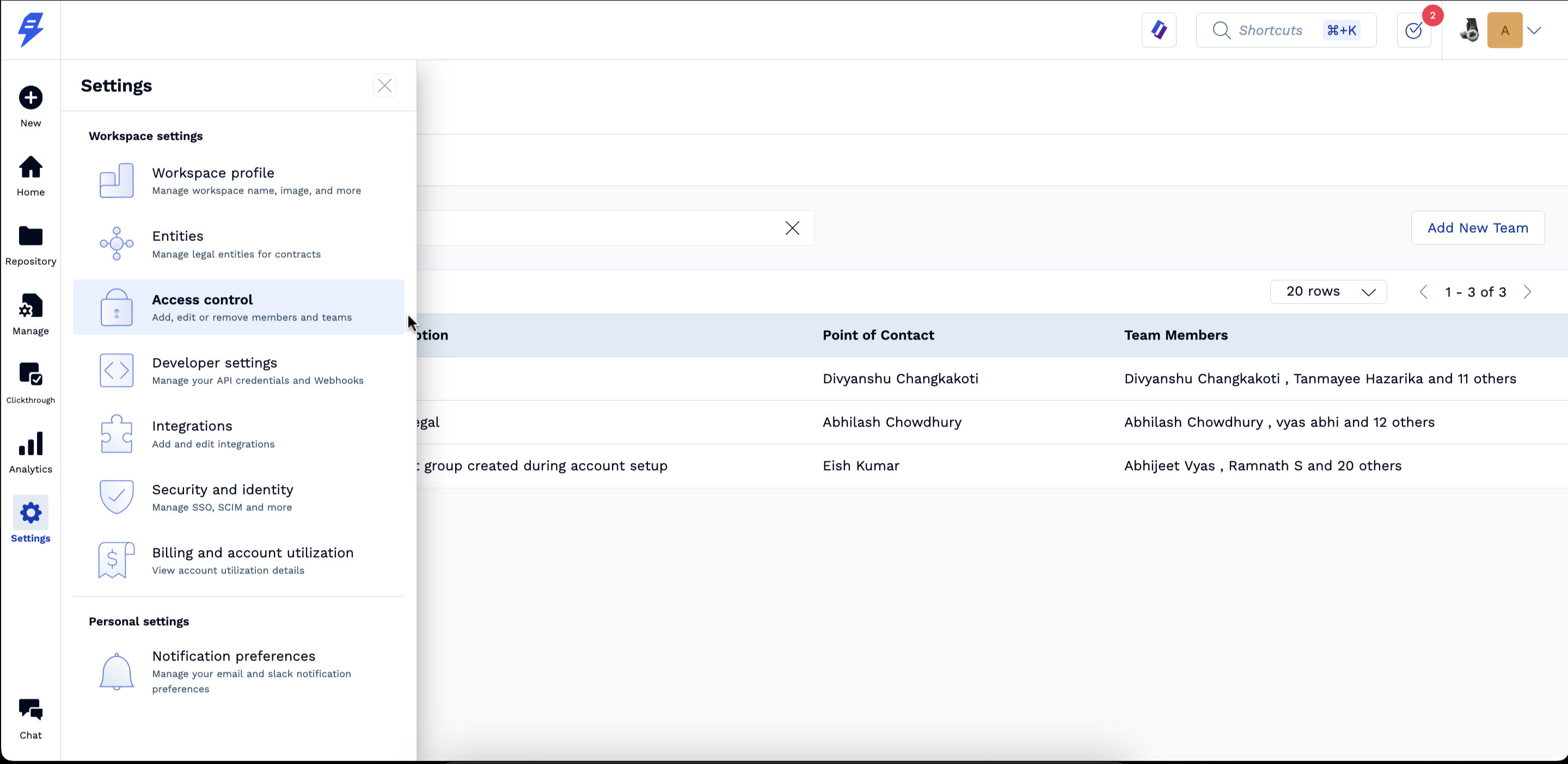
Navigate to Settings > Access control.
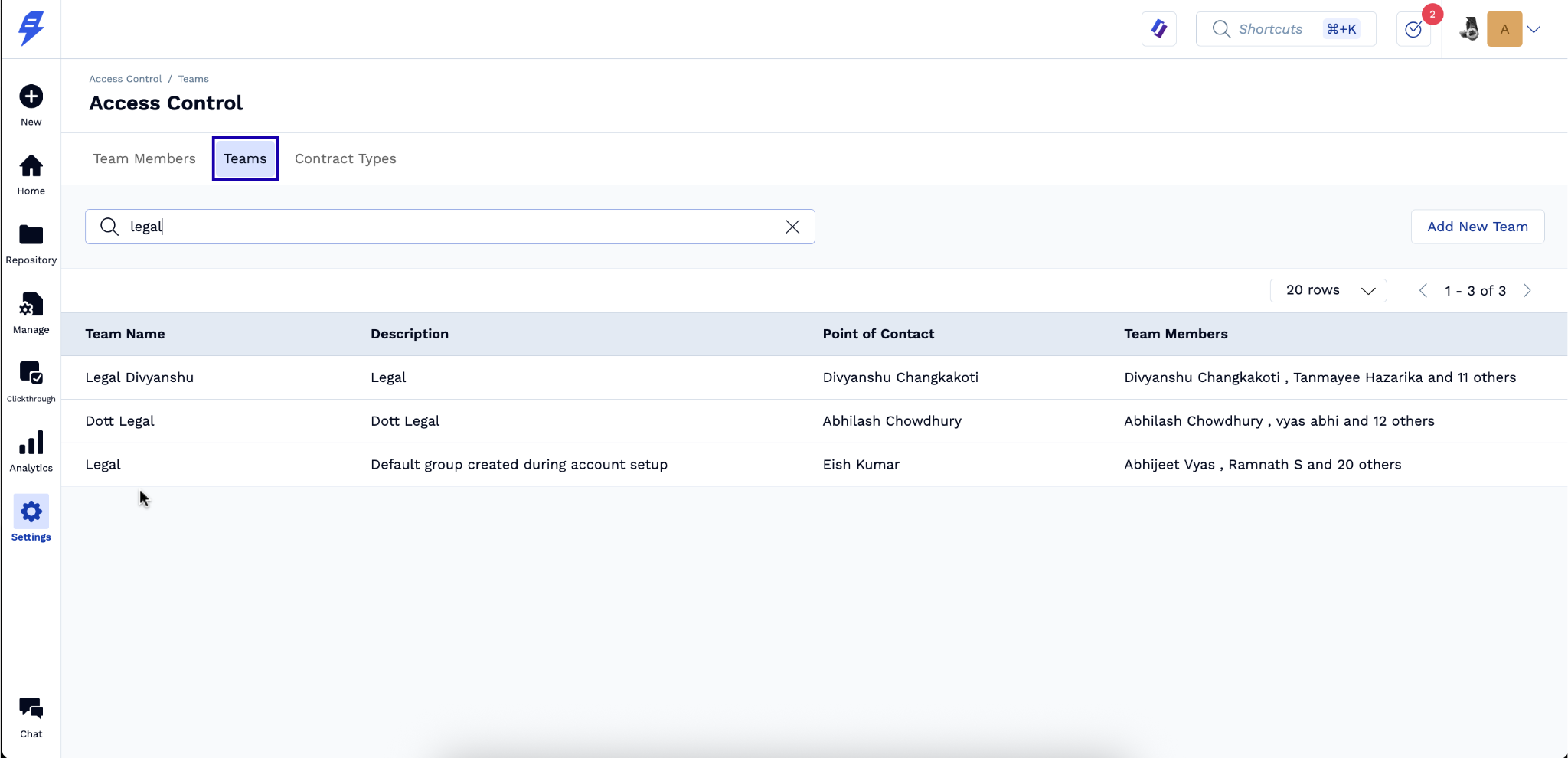
Select the Teams you wish to give access.
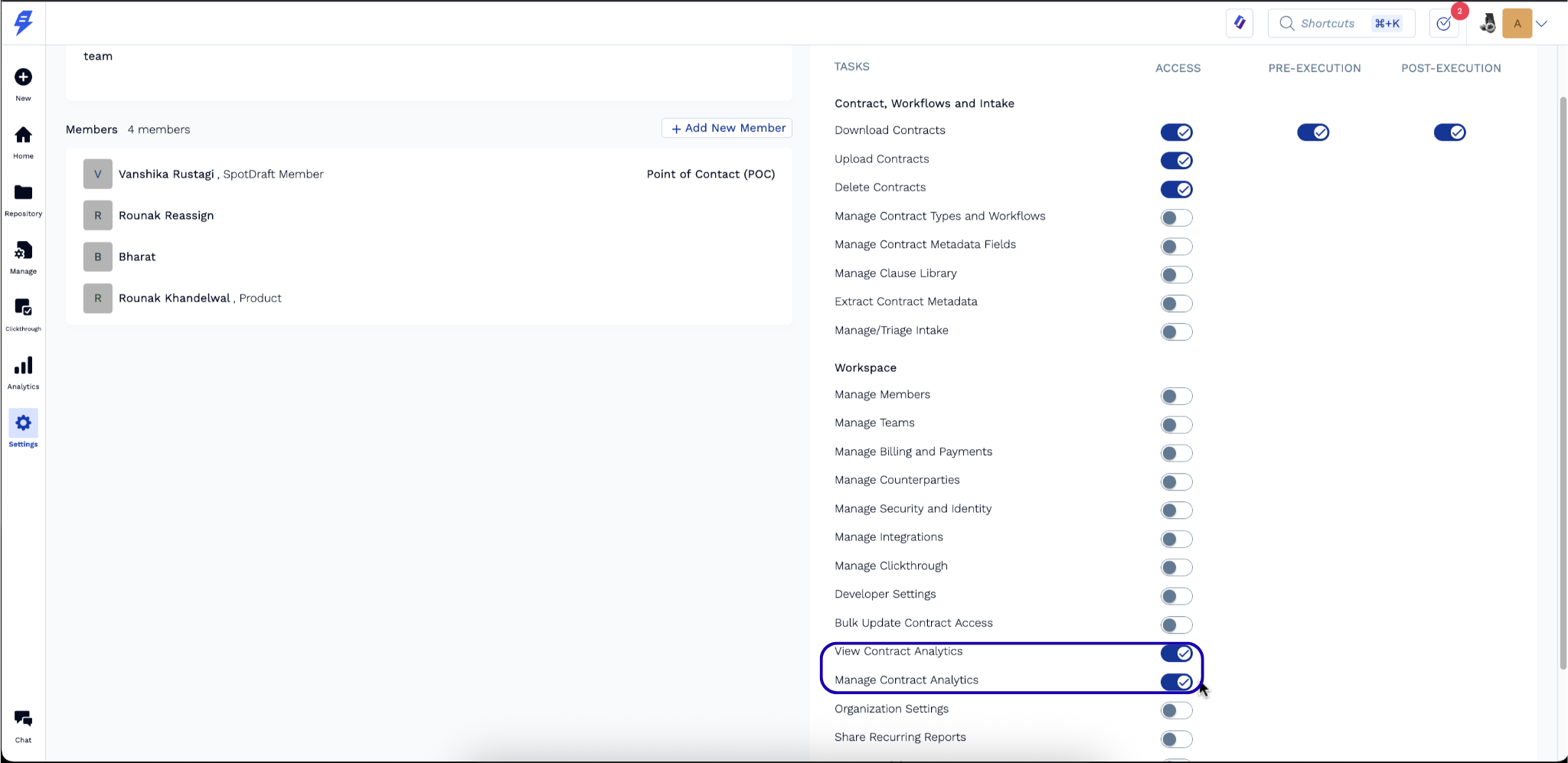
Toggle the permissions for Custom Dashboards:
View Contract Analytics: Allows the user to see dashboards shared in the Analytics tab.
Manage Contract Analytics: Allows the user to build new and modify existing custom dashboards.
Click Save.
Note: Users will only be able to see data in the dashboards based on their existing contract access permissions. They cannot build graphs to see data for contracts they do not have access to.
How to Create Dashboards and Graphs
Building a custom dashboard involves creating "Widgets"—individual graphs or charts—that are powered by specific data tables.
To create a new Custom Dashboard:
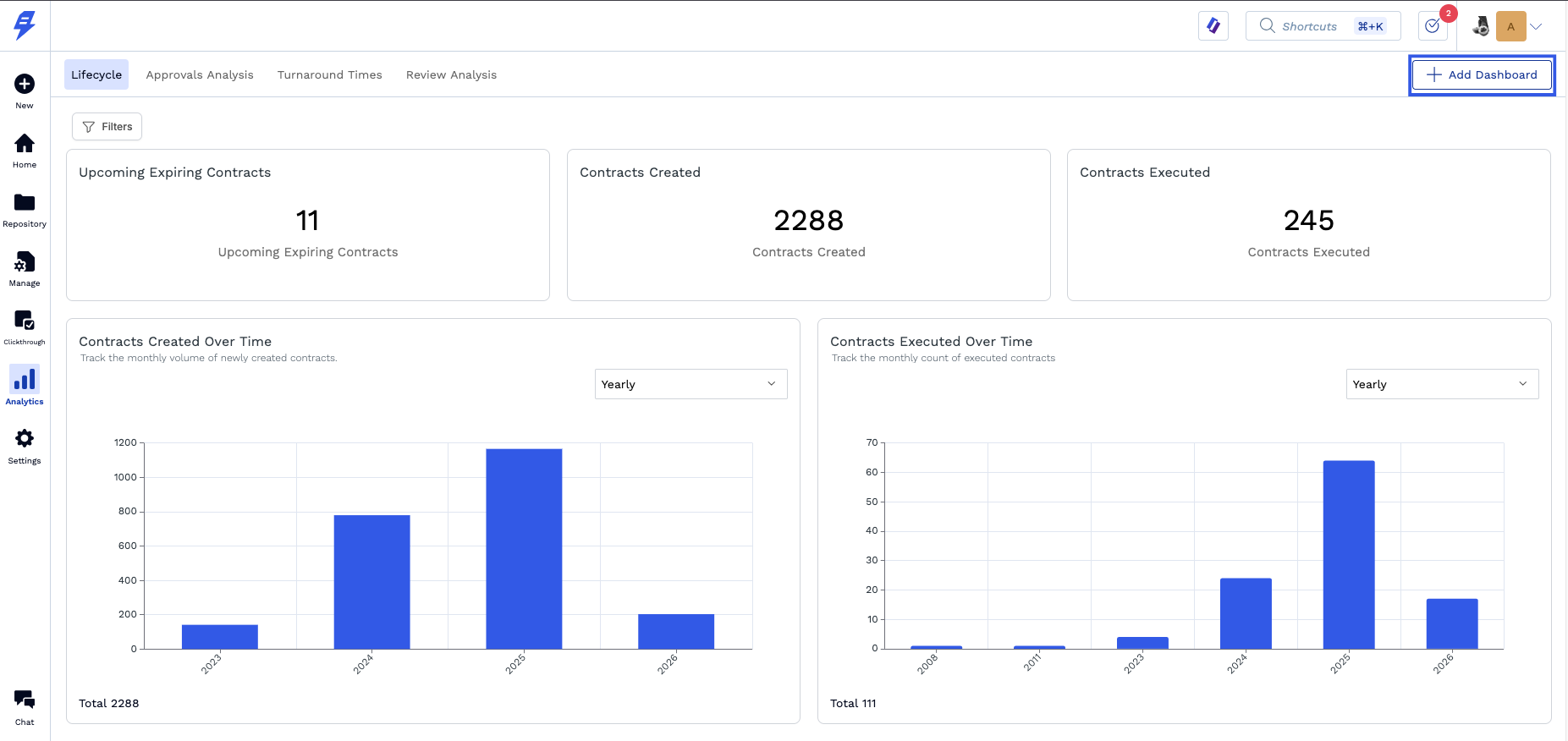
Go to the Analytics tab in the sidebar.
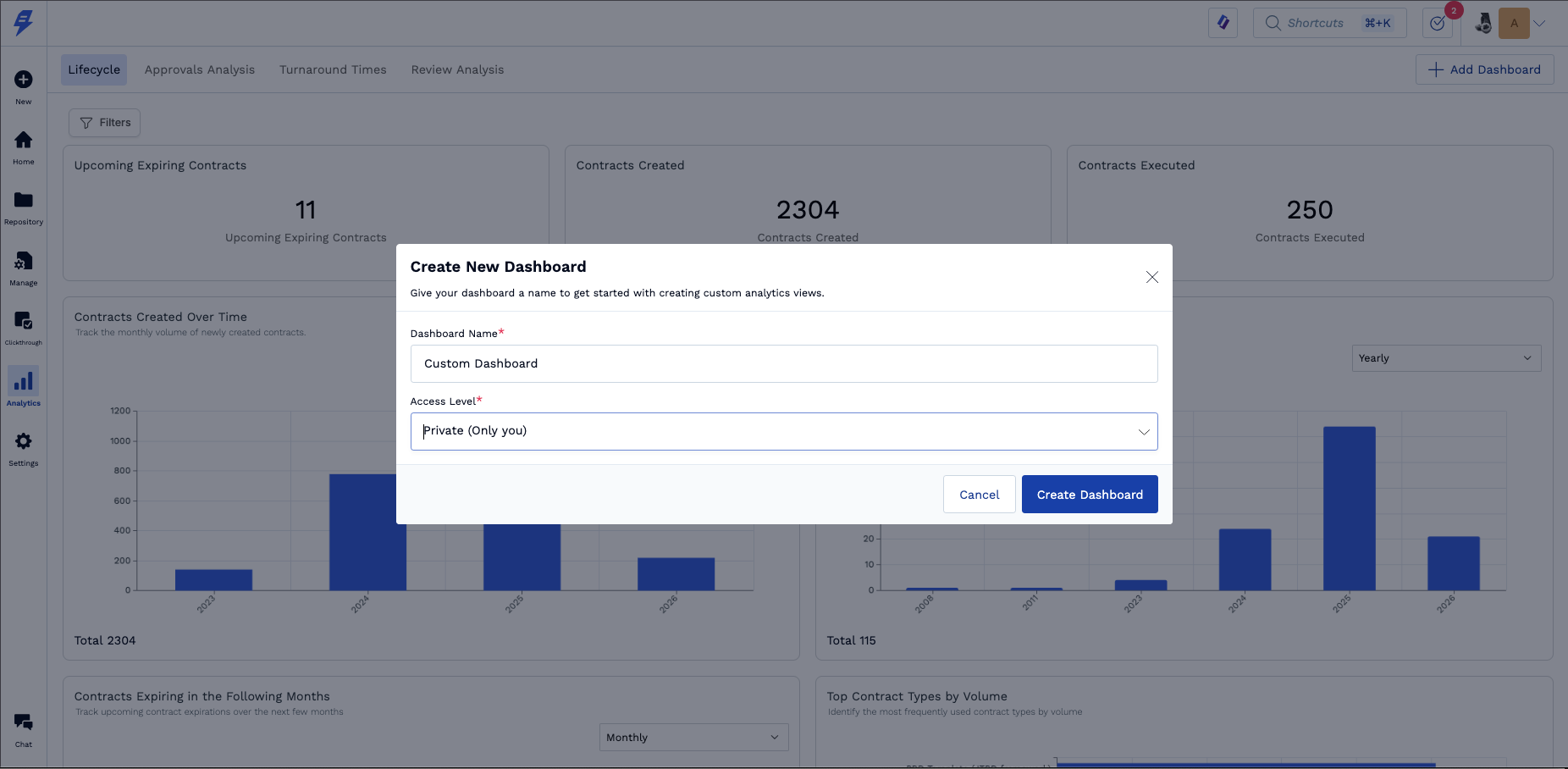
Click on + Add Dashboard.
Select name and access level (private or visible to everyone)
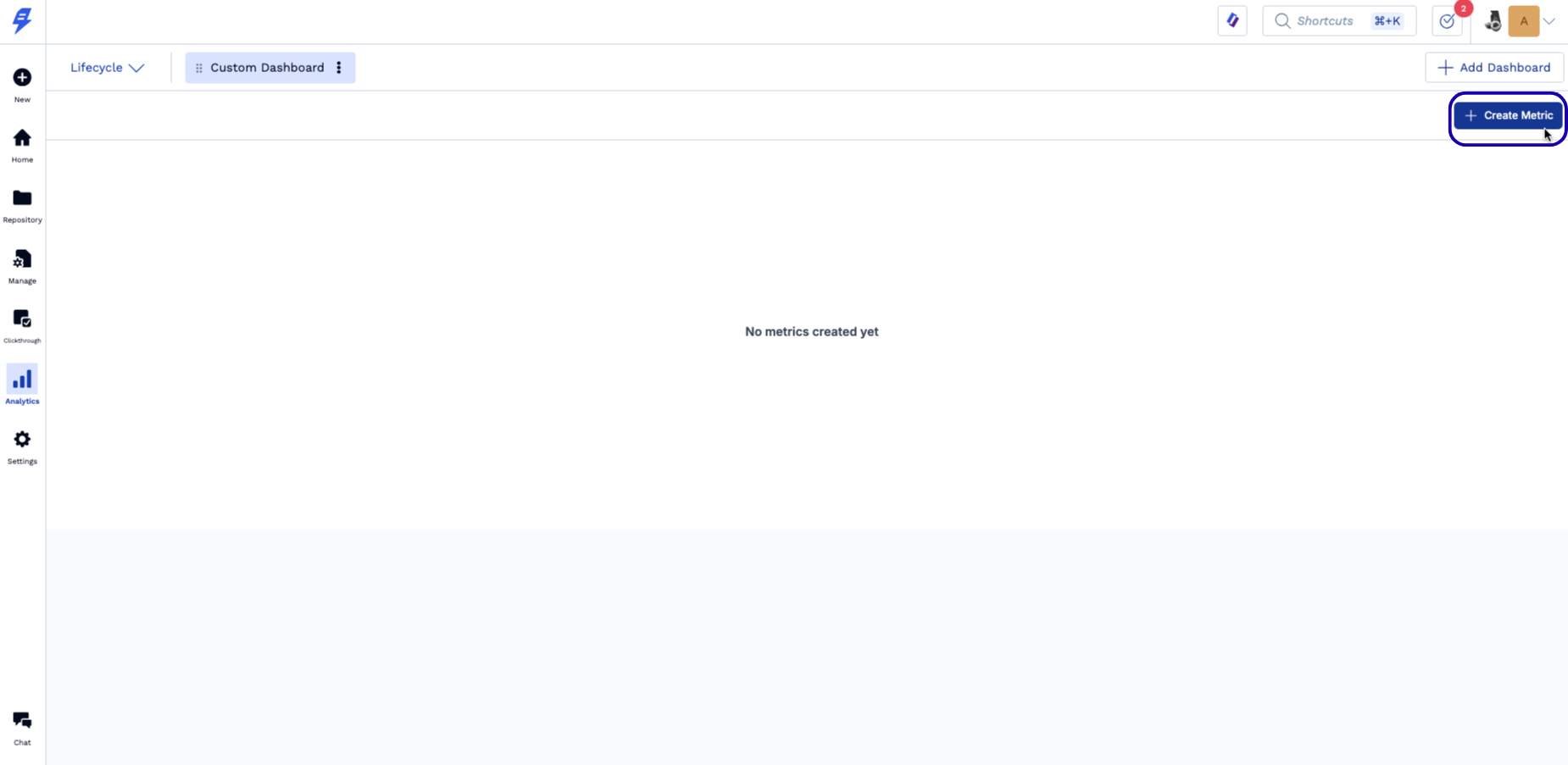
Click Create Metric to start creating a graph.
Selecting your Data Source
When creating a graph, you must first select the data source. SpotDraft provides four distinct tables to help you visualize different aspects of your contract lifecycle:
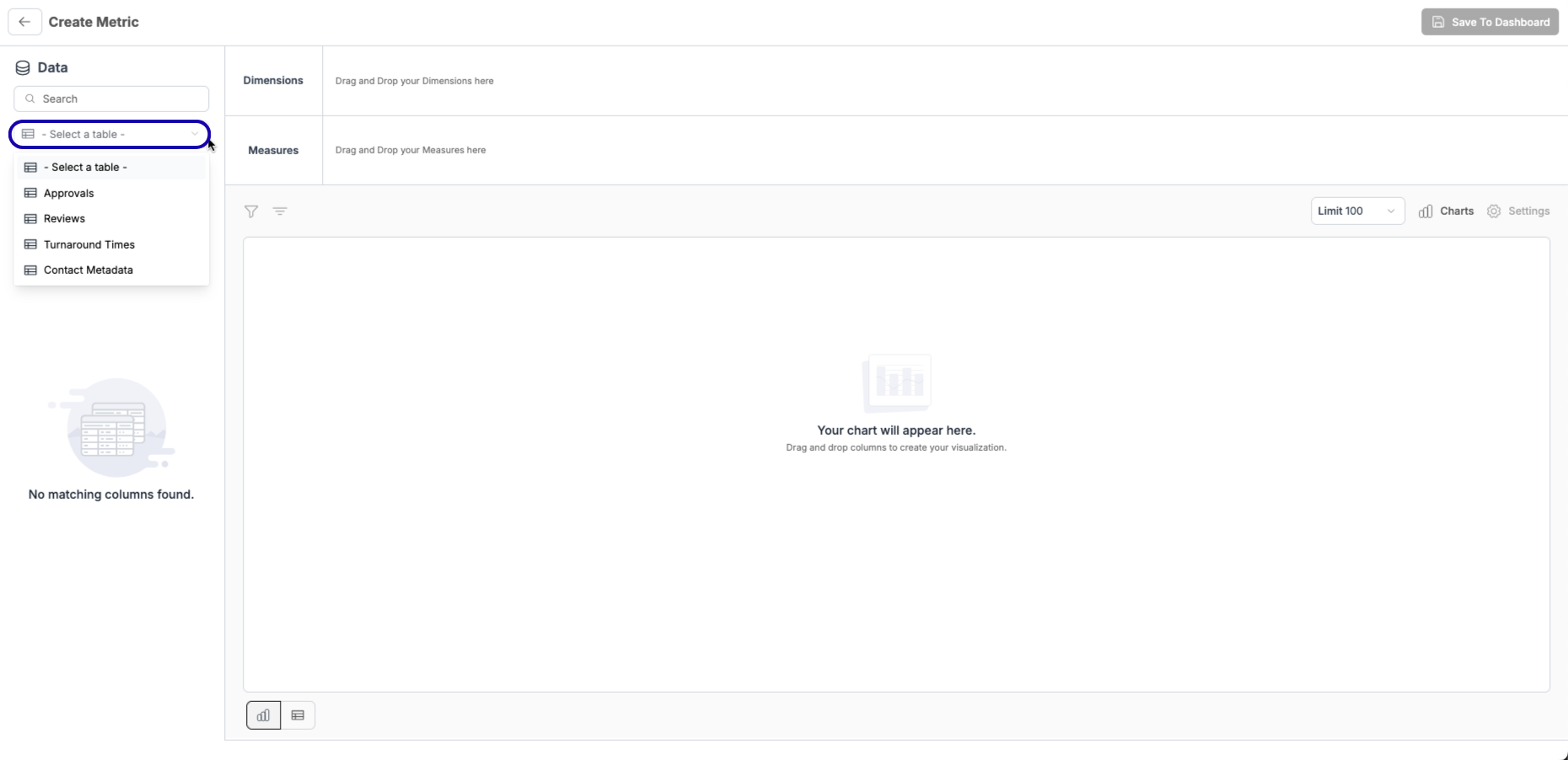
1. Contract Metadata
This table contains the core details of your contracts. Use this to analyze volumes and portfolio distribution.
What's inside: Contract Types, Counterparty Names, Contract Value (TCV), Effective Dates, Expiration Dates, and custom metadata fields.
Example Use Case: A pie chart showing Contracts by Region or a bar chart showing Total Contract Value by Quarter.
2. Approvals
This table focuses on the approvals at a contract level across your workspace.
What's inside: Approver Names, Approval Status, Time taken to Approve, and Approval Step names.
Example Use Case: A leaderboard of Average Time to Approve by Approval name to identify which teams/individuals are fastest (or slowest) to approve terms.
3. Reviews
This table tracks the internal review process at a contract level.
What's inside: Reviewer Names, Review Status, and Review Duration, Time for first response.
Example Use Case: A line graph tracking Review Volume over Time to plan for headcount or resource allocation.
4. Turnaround Times
This table provides data strictly regarding the time spent in various lifecycle stages.
What's inside: Time spent in Drafting, Time spent in Negotiation, Time spent in Sign, and Total Turnaround Time.
Example Use Case: A bar graph showing the average redlining time to identify which contracts are getting stuck in the negotiation stage and taking longer than expected to finalize changes.
Creating your Graph
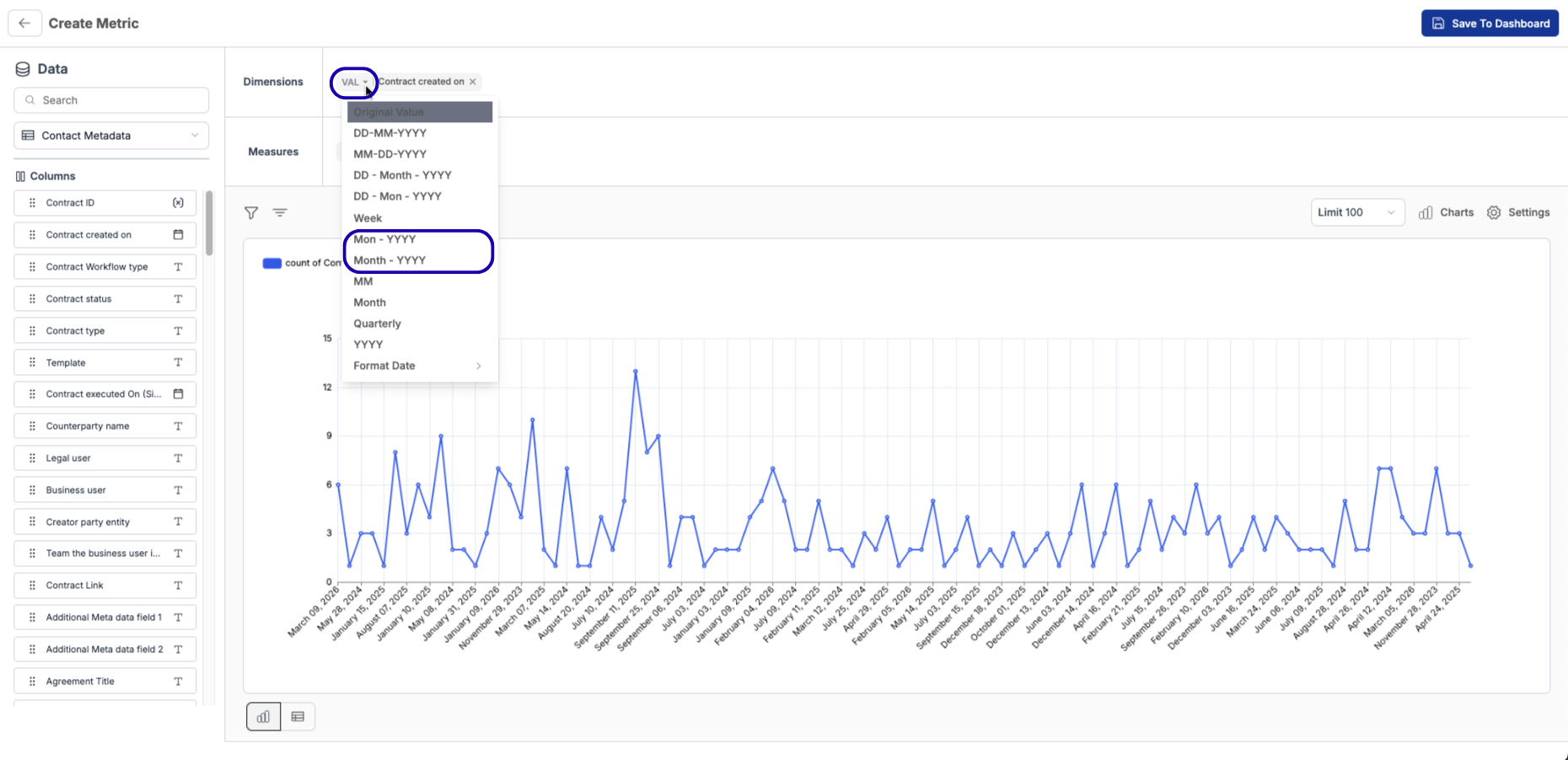
Choose Dimensions (X axis) and Measures (Y Axis): Drag and drop the fields you want to measure (e.g., If we want to measure how many contracts get created Monthly X-Axis: Contract Created on, Y-Axis: Contract ID).
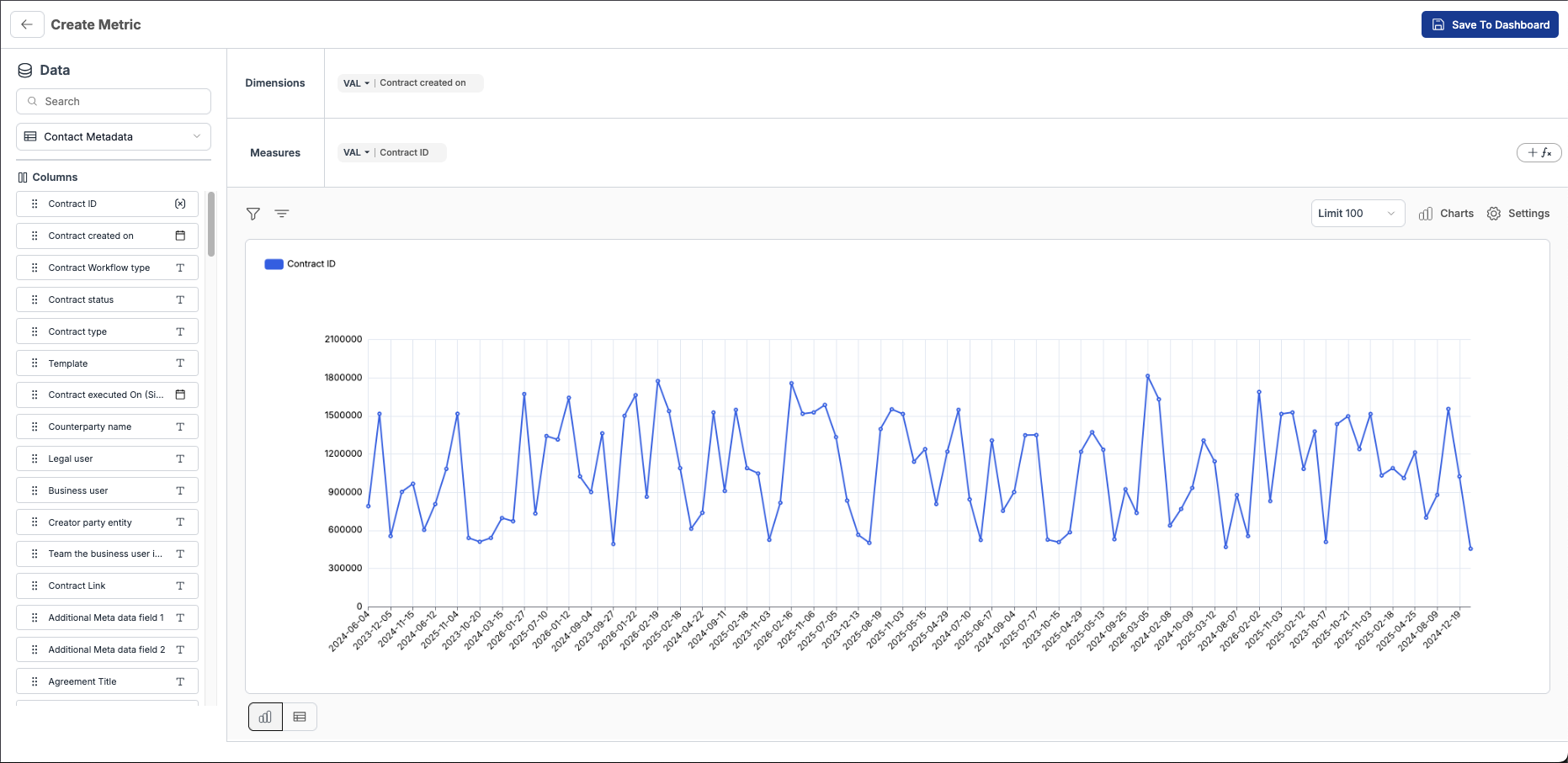
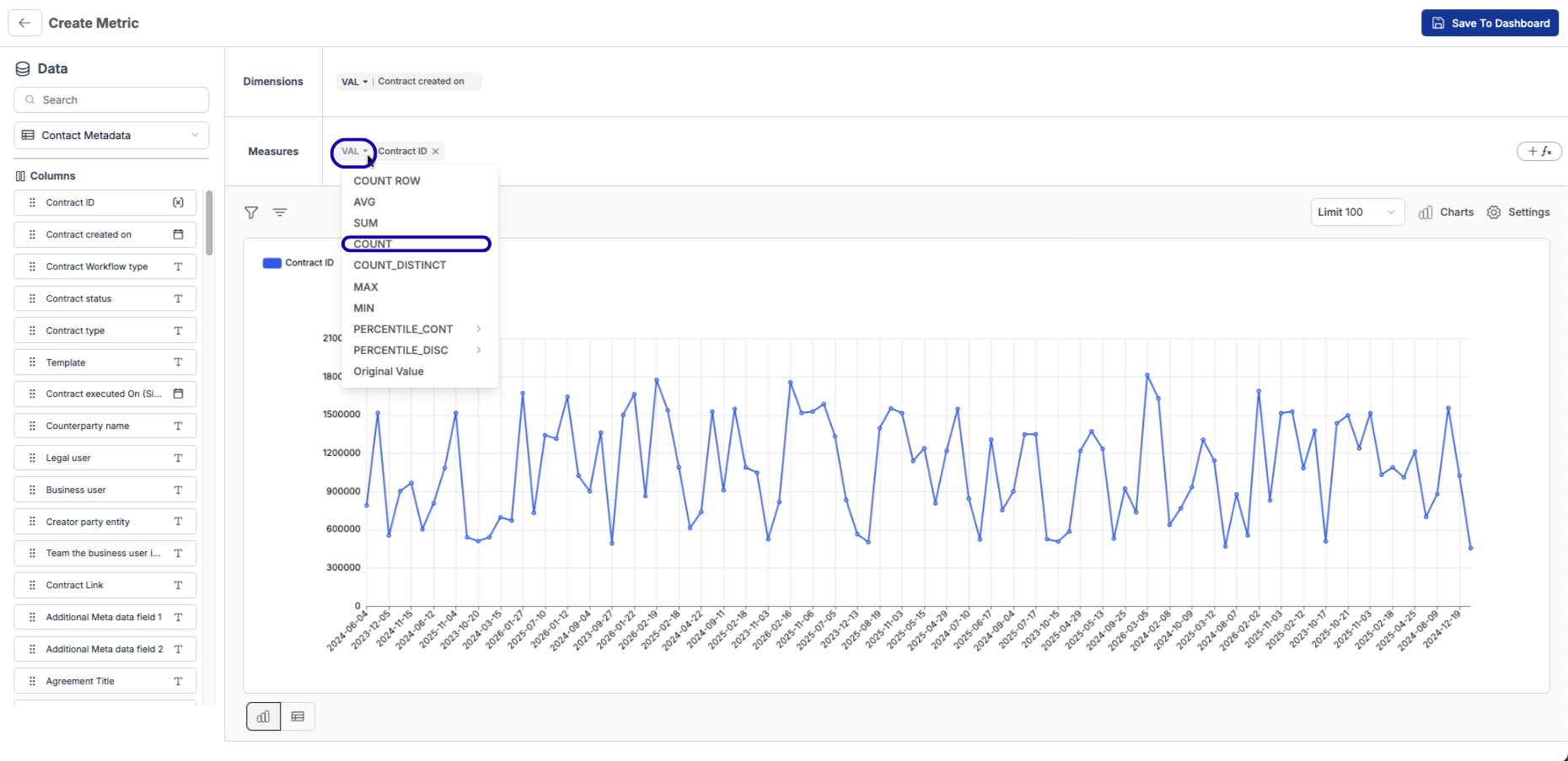
Select Aggregate function: Select the aggregate button (VAL) for the dimension and measure (Y axis) and change it to the one that fits your graphs (e.g., for contracts created monthly we want count of Contract ID and )
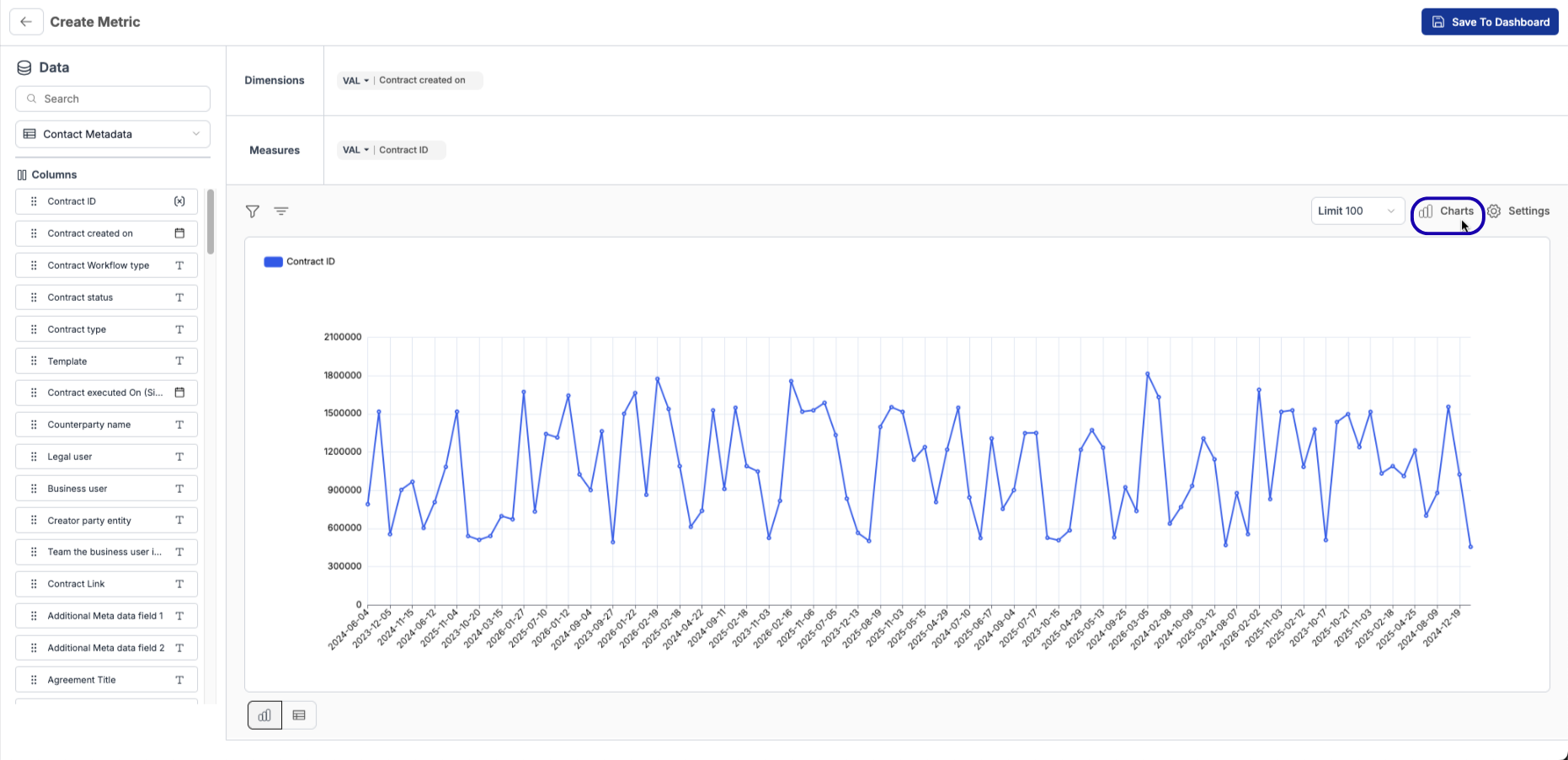
Select your Chart Type: Choose from Time series, Bar, Line, Pie, Number (Scorecard), or Table views (e.g., for contracts created monthly we can choose a bar graph).
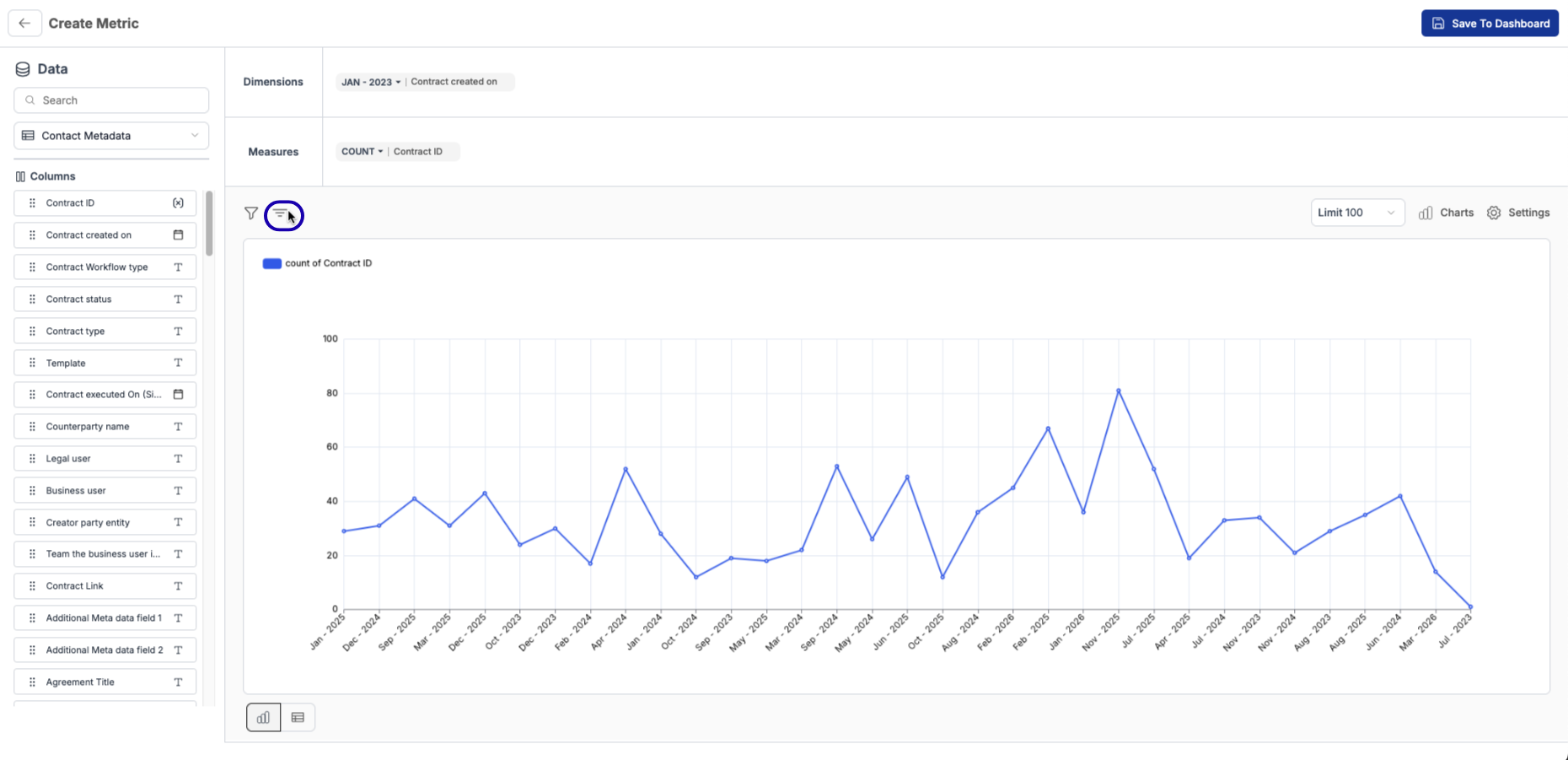
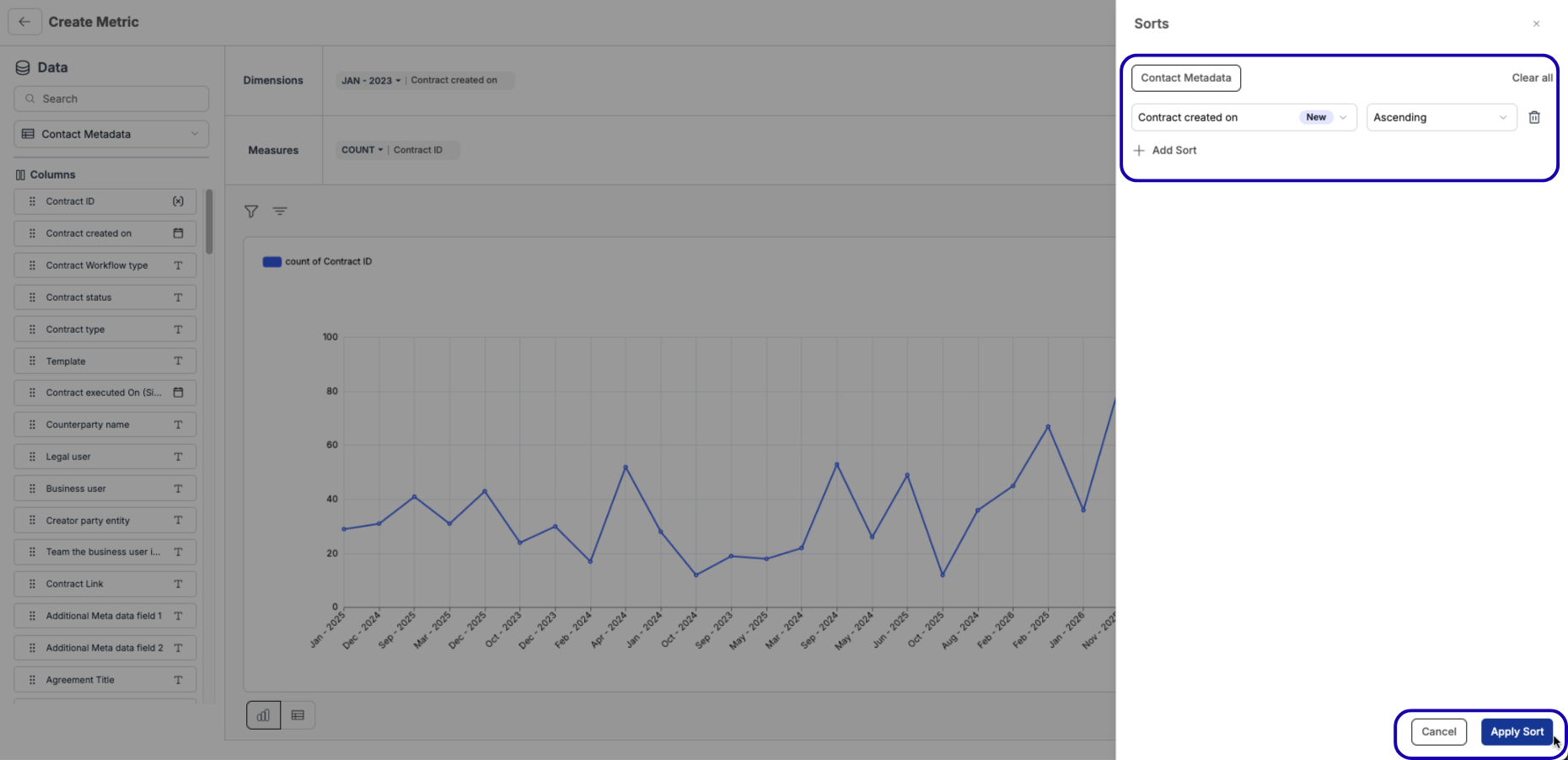
Sort Data: Add a sorting order to order your data by either Dimension or Measures (e.g., Sorting by Contract Created on in Ascending order).
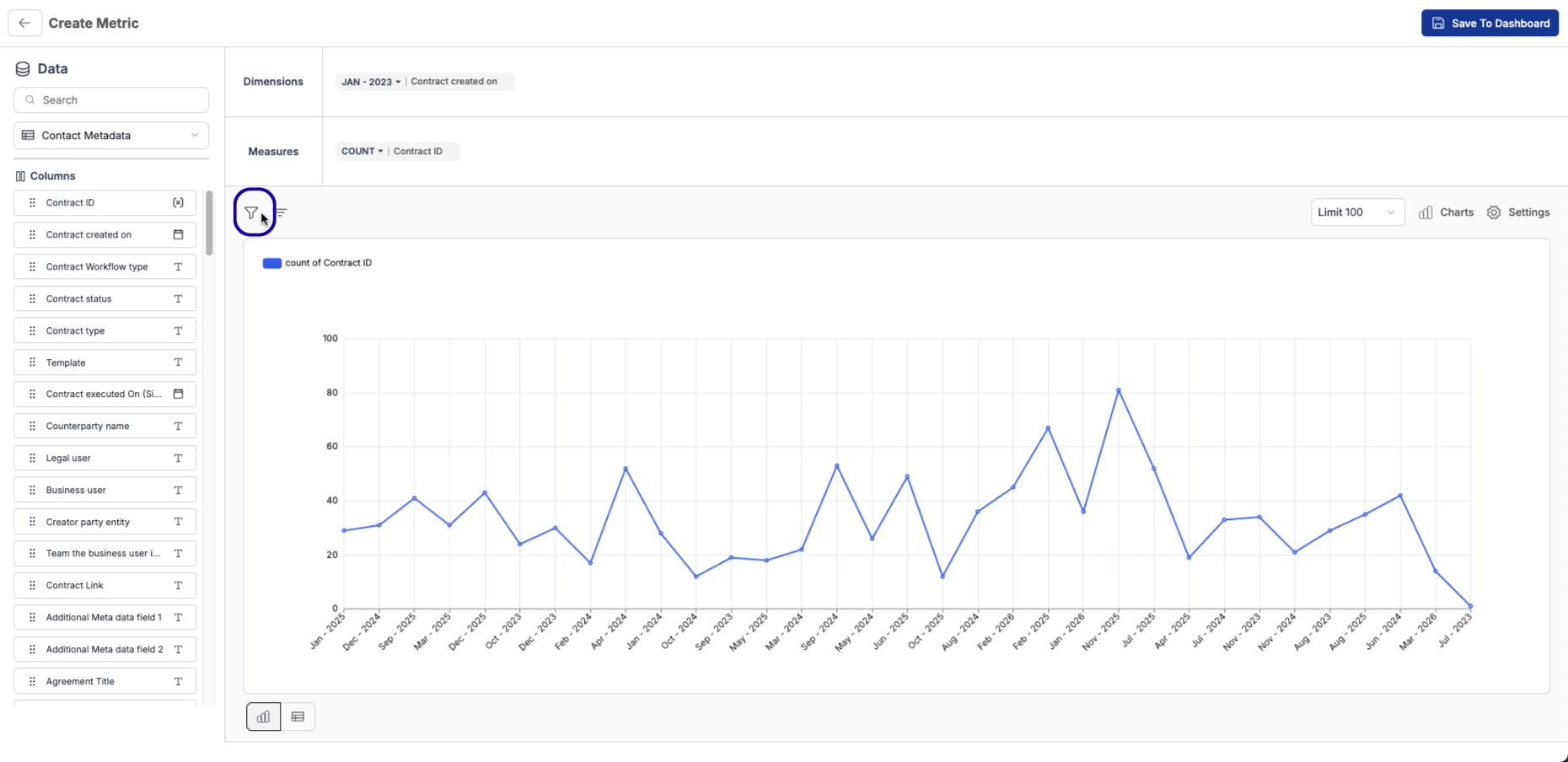
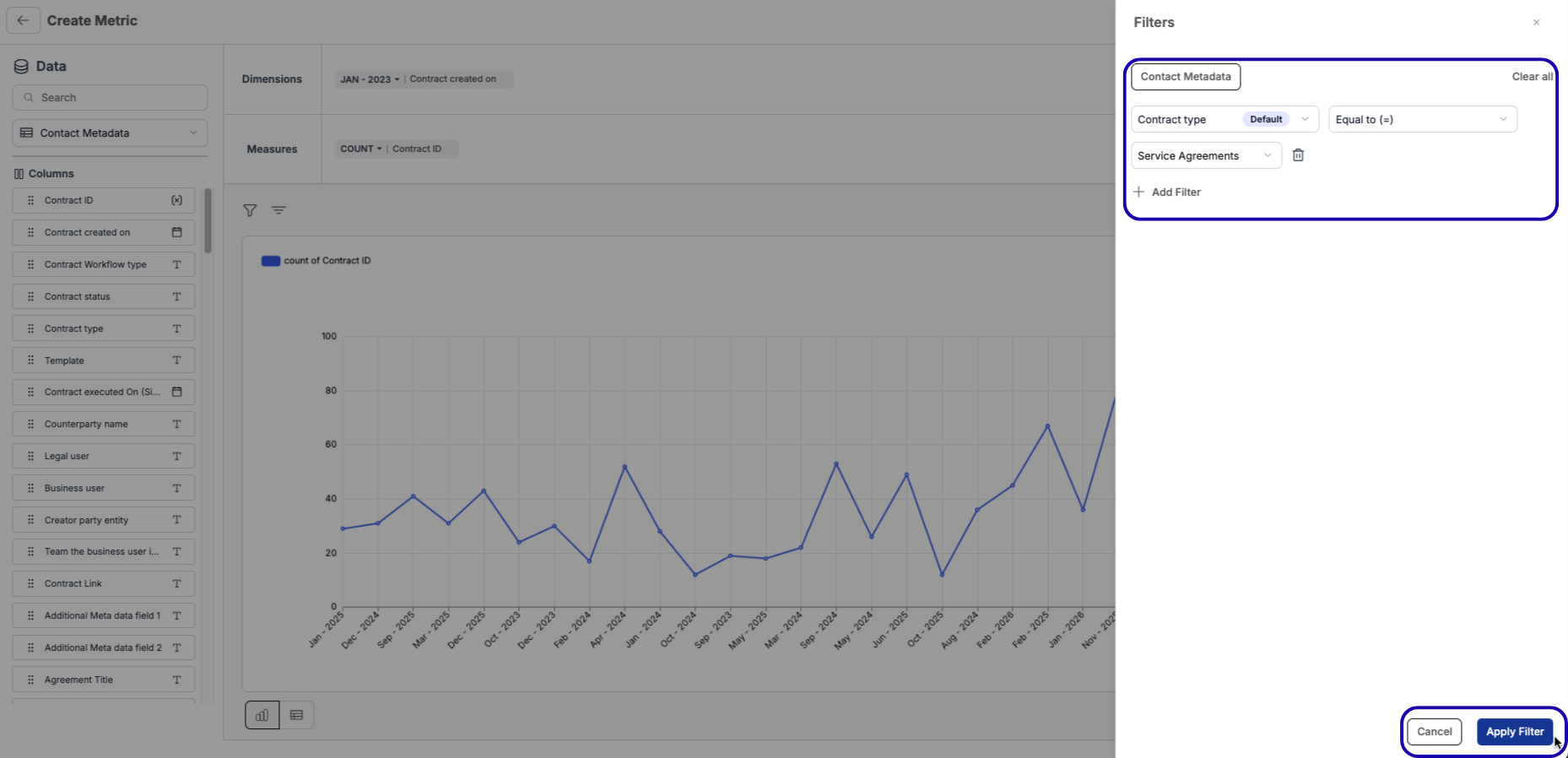
Filtering Data: (Optional) Add filters to exclude certain data (e.g., "Filter by Contract Type = Active").
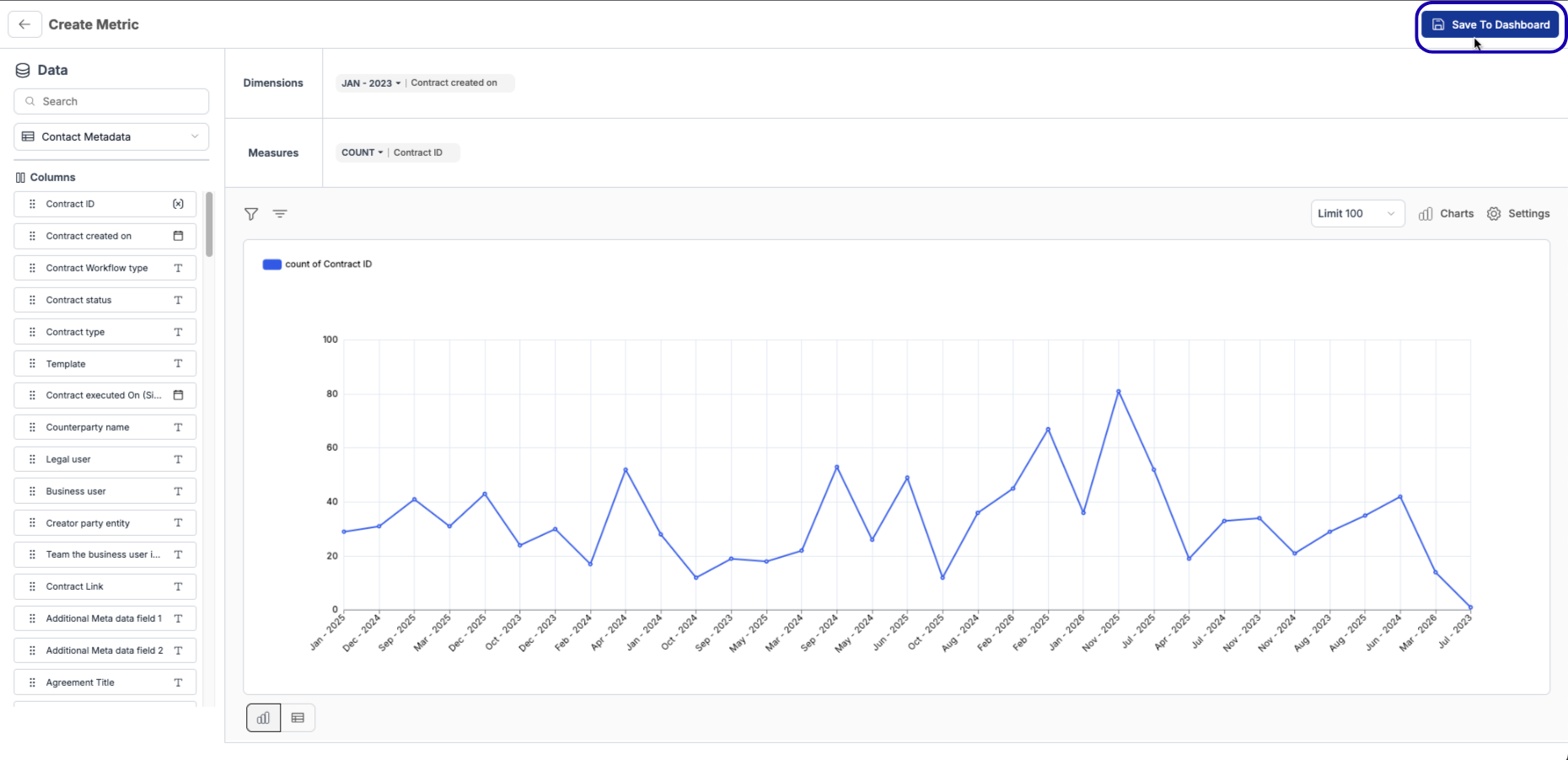
Save Metric: Give your graph a name and description add it to the dashboard.
Frequently asked questions
Q: How many dashboards can i create?
A: You can create up to 50 Public dashboards across the workspace.
Q: Can I use data from two different tables?
A: Yes! You can use the Contract Metadata table alongside the Approvals, Reviews, or Turnaround Times tables. Just keep in mind that the Approvals, Reviews, and Turnaround Times tables can't be used with each other.
Q: What data do users have access to when creating graphs?
A: You will only see data for the contracts you have permission to view. All tables automatically filter out any information you do not have access to in the platform.
Q: What data do users see for Public dashboards?
A: The dashboard will be filtered to only the data the viewer has access to. Ex: if an Admin user sets up a graph using data from 1000 contracts, and a user who has access to only 500 contracts opens the dashboard, the data will be filtered for the 500 contracts the view has access to.
Q: Can I set up dashboards that shows the same data as when i set it up ?
A: Right now its not possible, but this is part of our roadmap for Custom Analytics
Q: Can i share dashboards to only certain users and teams ?
A: Right now its not possible, but this is part of our roadmap for Custom Analytics.