Billing and Account Utilization Dashboard
Last updated: May 8, 2026
Overview
The Billing and Account Utilization dashboard provides comprehensive visibility into your workspace's usage metrics across contracts, users, workflows, and additional features. This dashboard enables billing administrators to monitor usage against committed limits and download user-level audit reports for compliance purposes.
Accessing the Dashboard
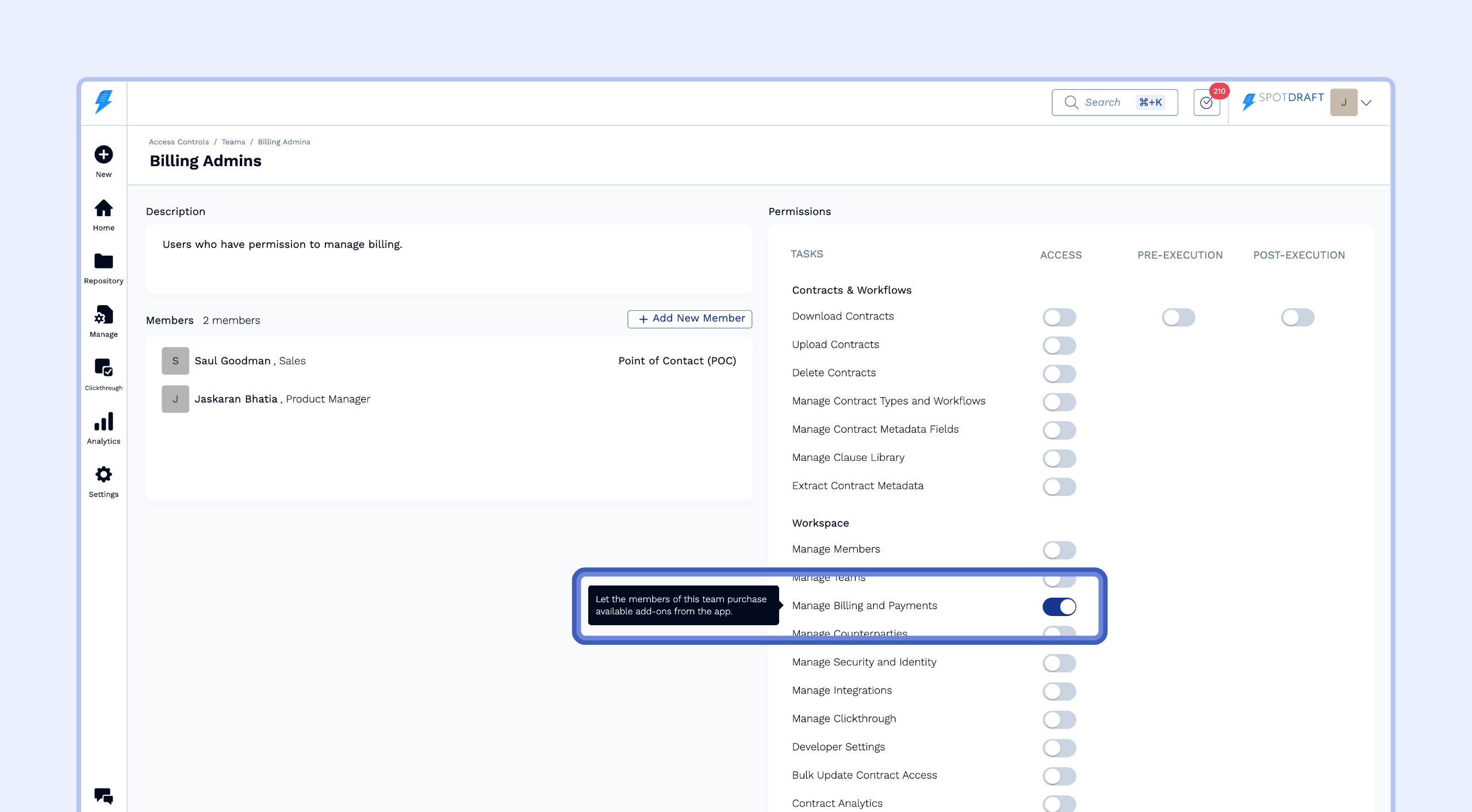
Prerequisite: Billing Permission
To access the dashboard, users need to be part of a team that has the "Manage Billing and Payments" permission.
(Read: Permission Levels and Access Control)
Navigating to the dashboard
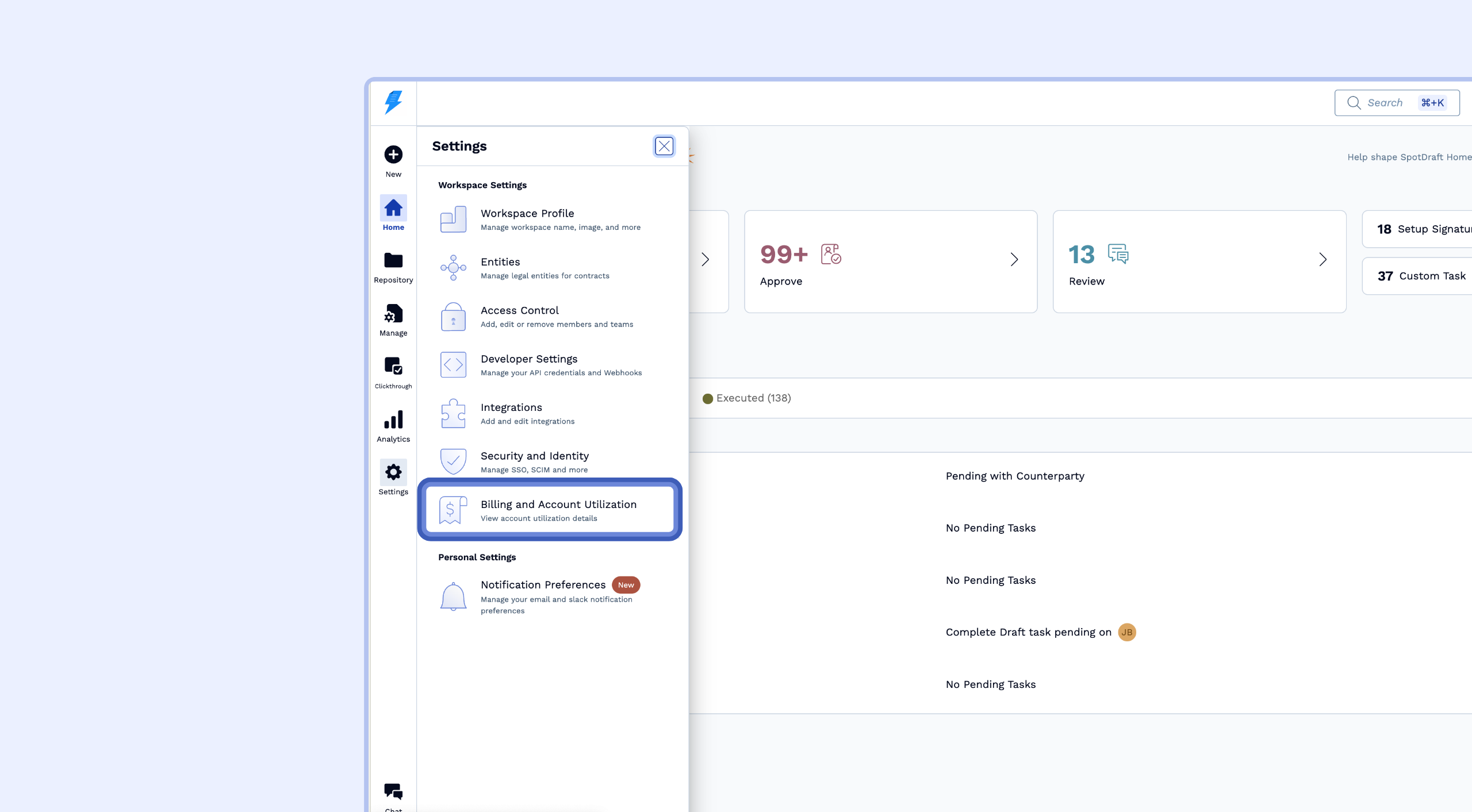
Billing administrators can access this dashboard by navigating to Settings > Billing and Account Utilization in the workspace settings menu.
General Usage
Contract Usage Data
This section displays information about contract usage against your committed limits. Note that data may not reflect real-time usage if you are on a different subscription plan.
Cumulative Contracts Created
Description: A line graph showing the total number of contracts created over time. Shows both cumulative contracts created and paid contract limits.
Contracts Usage Overview
Description: Displays current contract usage against the limit. Indicates the count includes both active contracts and deleted contracts
Contract Limit Summary
Description: A horizontal bar chart showing contract usage as a percentage.
Licensed Usage Data
This section provides insights into user licensing and seat utilization.
Licensed User Utilization
Description: A bar chart comparing licensed users against paid user seats over time
Active Licensed Users Table
Description: Detailed list of all users currently consuming licenses
Columns:
User Name: Display name of the licensed user
User Email: Email address associated with the user account
Licensed User From: Date when the user was first assigned a license
Last Activity Date: Most recent login or activity timestamp
Workflow Usage Data
This section tracks workflow creation and utilization metrics.
Workflow Utilization
Description: Bar chart showing the growth of published workflows over time
Active Workflows Table
Description: List of all currently active workflows in the workspace
Columns:
Workflow Name: Display name of the workflow
Workflow Link: Direct URL to access the workflow in the workflow manager
Other Usage Data
This section contains metrics for additional purchased modules. Data may not display if you are not subscribed to these features.
Clickthrough Contract Activity
Description: Bar chart tracking cumulative count of contracts created using Clickthrough
Smart Data Capture Usage
Description: Bar chart displaying data extraction credits consumed
Smart Data Capture Credits Summary
Description: Horizontal bar showing total SDC credits used
Add-on Features
This section lists all features and integrations enabled for your workspace.
Features and Integrations List
Description: Shows a list of additional features and integrations enabled on your workspace.
Users and Permissions
User Audit Report
You can download an audit report of all the users added in the workspace by clicking on the Download Audit Logs button in the top right. Note that this is limited to the last 20,000 rows.
Audit Report Contents
The downloaded CSV file includes:
User who performed: Email of the administrator who made changes
Action Name: Type of action performed (Add permission, Remove permission, etc.)
User (email) or team: Target user or team affected by the action
Permission added: Specific permission or role assigned
Asset type: Type of asset (Contract, Contract Type, etc.)
Asset: Specific asset name or identifier
Asset ID: Unique system identifier for the asset
IP Address: IP address from which the action was performed
Time when action was done: Timestamp of the action
Users and Permissions
The Users and Permissions dashboard provides a centralized, comprehensive overview of your workspace access structure. Using the four detailed tables outlined below, you can quickly determine a user's permissions to different contract types.
Workspace Members Table
Description: A comprehensive list of all users within the workspace, providing insights into their licensing status and overall contract activity.
Columns:
User Name: Display name of the user
User Email: Email address associated with the user account
Last Active On: Most recent login or activity timestamp for the user
Invitation status: Indicates whether the user has accepted their invite to the workspace
Licensed User: Displays whether the individual is a licensed user
Teams: The specific teams the user is currently assigned to
Contracts Created: The total number of contracts generated by the user
Contracts Edited: The total number of contracts edited by the user
Teams and Users Table
Description: A breakdown of all teams within the workspace and the individual users belonging to each team.
Columns:
Team name: The name of the team
User Email: Email address associated with the team member
Invitation status: Indicates whether the user has accepted their invite to the workspace
User Name: Display name of the user
Last Active On: Most recent login or activity timestamp for the user
Permission Level: Classifies the user's access level within the team as either a Licensed user (Creator/Editor) or a Collaborator (View only)
Teams and Permissions Table
Description: A detailed view mapping out the specific contract type permissions granted to each team across the workspace.
Columns:
Team: The name of the team
Contract type: The contract type the team has access to
Permissions: The actions the team is allowed to perform on the contract type (e.g., creator, editor, signatory, suggester, viewer)
Permission Level: Classifies the granted permissions as either requiring a Licensed user (Creator/Editor) or a Collaborator (View only)
Users and Permissions Table
Description: A granular breakdown of the exact access rights every individual user holds for different contract types, including the origin of those permissions.
Columns:
User Name: Display name of the user
Permission from: Indicates the source of the user's access, specifying whether it was inherited by being part of a specific team or granted to them individually
Contract type: The contract type the user has access to
Permissions: The actions the user is allowed to perform on the contract type (e.g., Creator, Editor, Signatory, Suggester, Viewer)
Troubleshooting Access Issues
The Users and Permissions dashboard can help diagnose why a user cannot access expected contracts:
Check the Users and Permissions Dashboard to verify the user has the correct permissions (Creator, Editor, Viewer, etc.) for the specific contract type.
Review the Permission from column to identify whether access is granted individually or through team membership.
If permissions appear correct but access issues persist, verify in Settings → Access Control → Contract Types that:
The user's team is added as a Viewer (in addition to any Creator/Editor role).
The “Automatically grant viewer access to creator's team members” setting aligns with your visibility requirements.
Note: Users with only Creator or Editor permissions (without Viewer access) may only see contracts they're directly involved in, not all contracts of that type.
Usage Notifications
The system automatically sends email notifications to billing administrators when contract usage or user allocation reaches 100% of committed limits.
Please reach out to your CSM if you have any questions about this data.