What is Multi-List Numbering?
Multi-list numbering is a method of organizing and numbering lists that contain multiple levels or tiers. This is often used in hierarchical list formats where nested lists are included under broader categories.
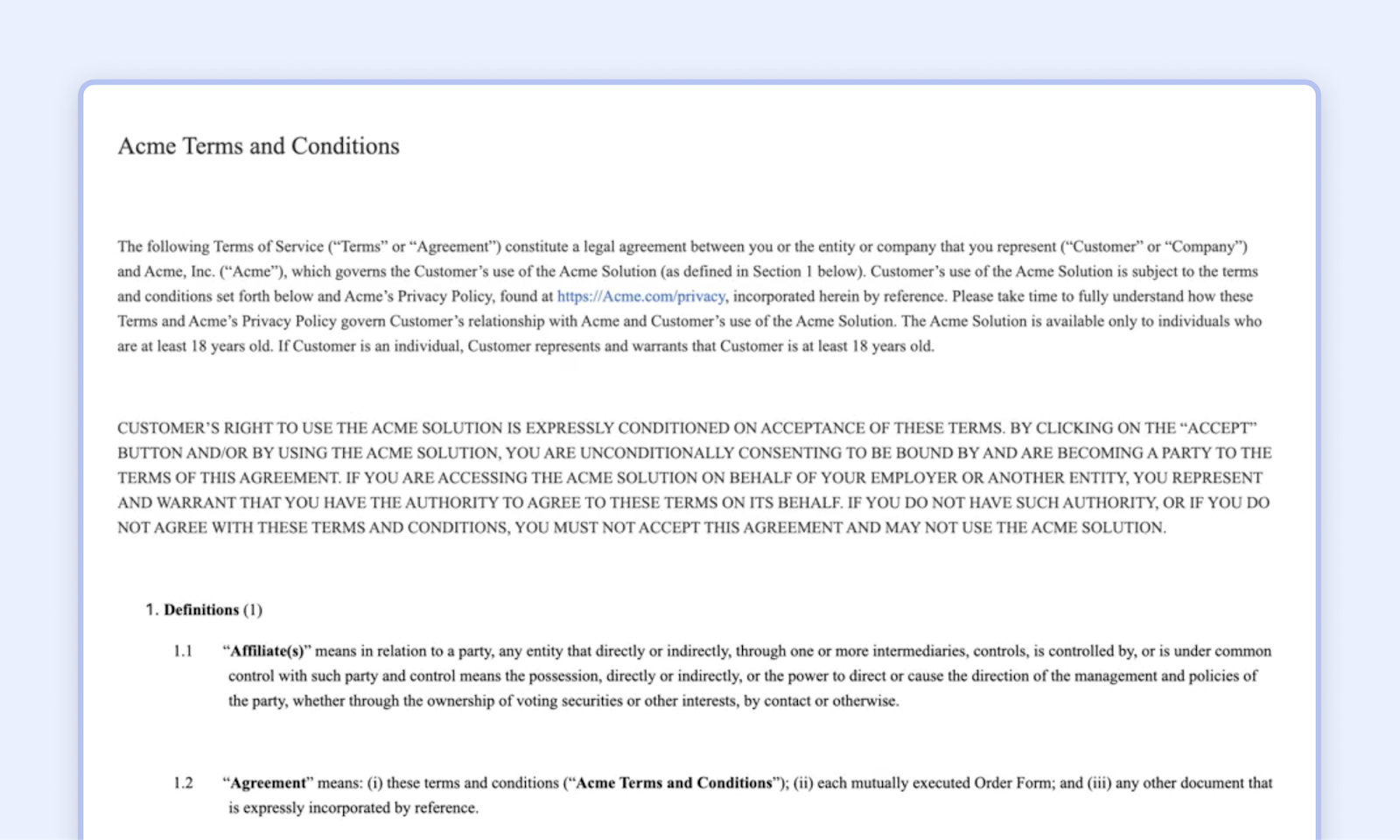
Single-Level List: A basic list where each item is numbered sequentially. For example:
- Item One
- Item Two
- Item Three
Multi-Level List (or Multi-Tiered List): This involves lists within lists, where each level of the list has its own set of numbers or letters. This is often used in documents or presentations to organize information hierarchically. For example:
- Item One
- Subitem One
- Subitem Two
- Item Two
- Subitem One
- Subitem Two
How to add multi-list numbering in the Editor
The Clickthrough editor supports multi-level lists out of the box. Here’s how you can add them to your agreement language:
Select the text where you want to add multi-level numbering.
From the three-dot menu, choose the Multi-level List Numbering option.
Set the starting number. For example, if you enter 2, the selected section will begin at 2 on the top level. The sub-sections will then continue as 2.1, 2.2, and so on.
Copying an agreement with multi-level list from word to editor
Copying an agreement from Word that contains multi-level lists does not always guarantee the formatting will carry over correctly into the editor. This largely depends on how the agreement was originally formatted in Word. For example, if headers or section titles were used as part of the list, the numbering may not transfer properly, and you could lose part of the sequence.
That said, you can always use the editor’s built-in multi-level list feature to quickly fix the formatting and adjust the numbering to your preference.
As an alternative, you can reformat the agreement in Google Docs before copying it into the editor. This can help reduce formatting issues, though in some cases, numbering or layout problems may still occur.
Additional workaround to retain multi-level lists:-
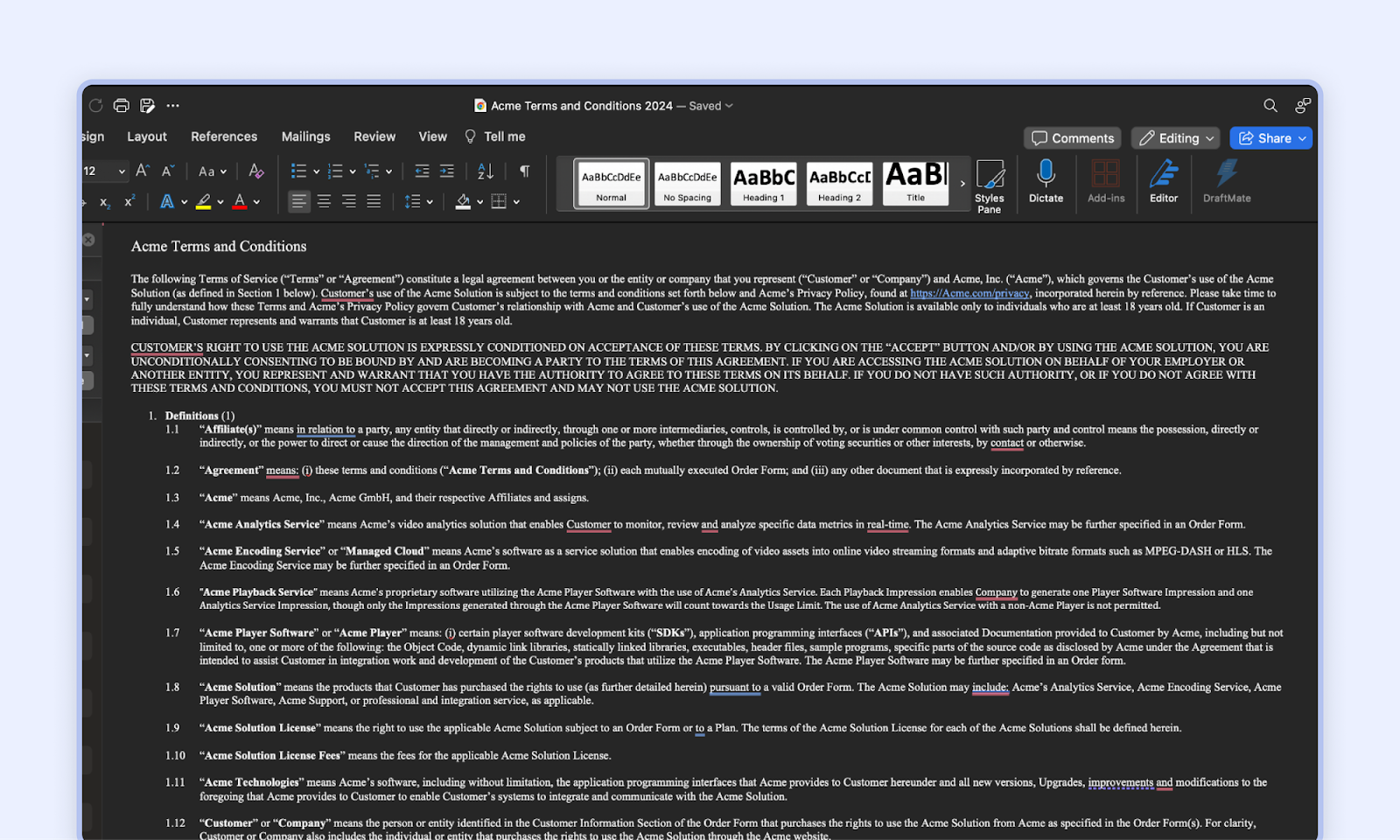
- Open your standard agreement in Word or Google Doc and ensure it's correctly formatted in your respective editor
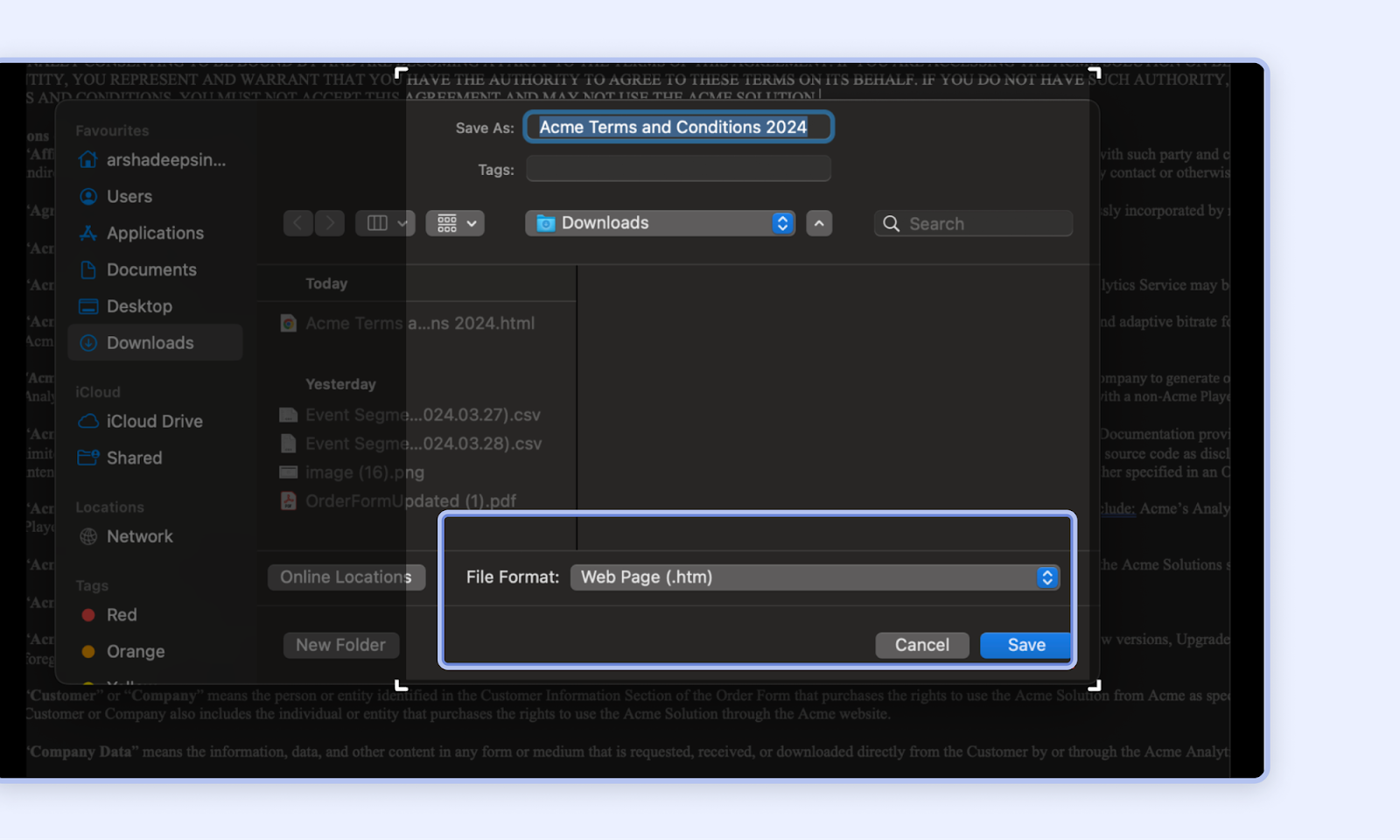
- Save the file as a webpage format
- Open the htm file in any standard html editor such as https://html.onlineviewer.net/ and import the entire htm file. Once you import, copy the html.
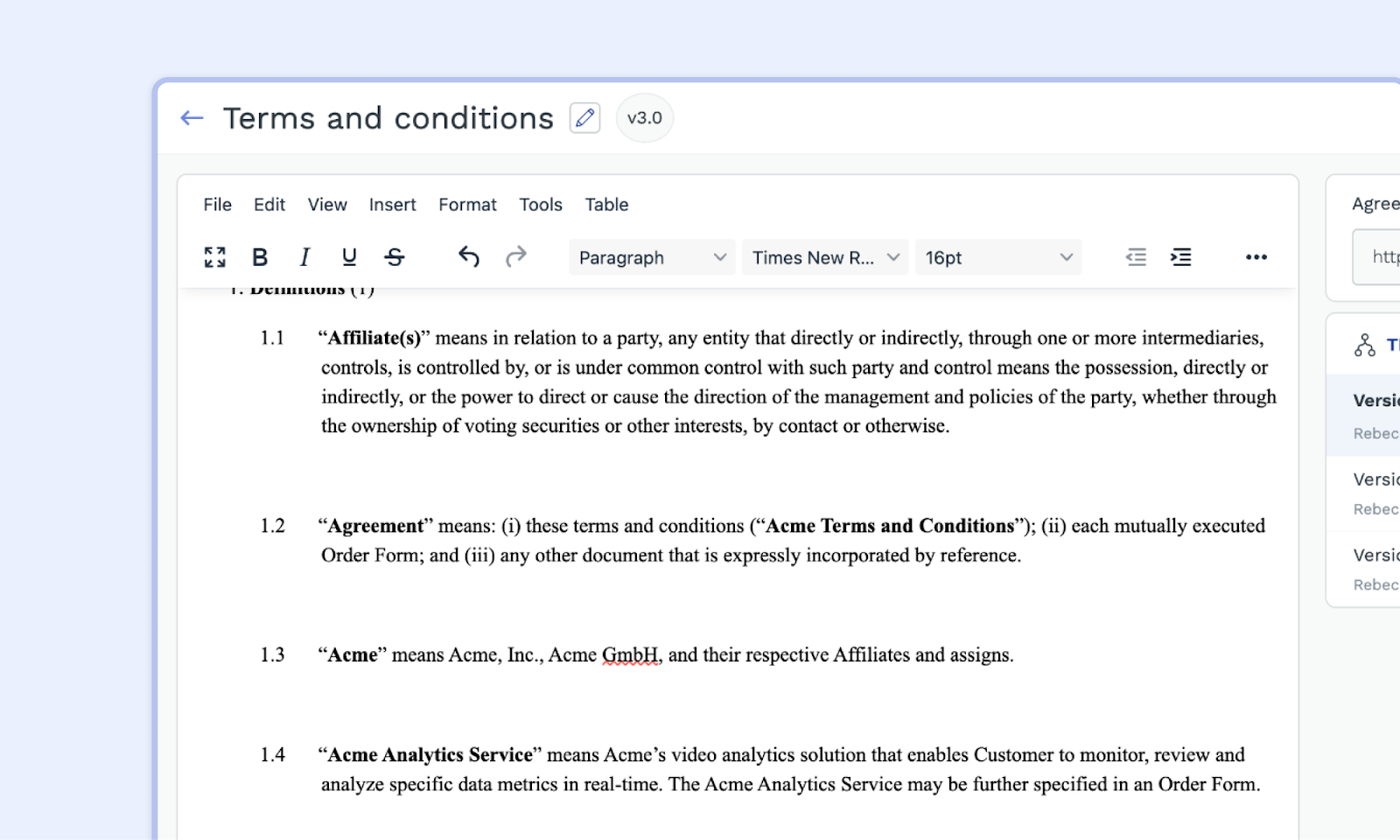
- In the editor navigate to the ‘Source Code’ option and paste the entire html content.
- You should now see the multi-level numbering displayed in the editor, publish the agreement to make it live.
FAQs
- I followed all the steps above, but I still can't maintain the multi-list numbering.
This can be solved via two ways:-- The agreement is not properly formatted in your Word Editor or Google Doc. Try correctly formatting the agreement within Word/Google Doc.
- If the above approach still doesn't work, then copy and paste the content of the Word document directly into the editor on this website. After that, copy the content from the website's editor and paste it directly into your Clickthrough editor.