Migrating Your Signature Setup to Workflows
Last updated: January 29, 2026
This guide covers the key changes and important considerations you should review before your workspace's signature setup is migrated to the Workflow Manager.
The new workflow-based system introduces powerful automation, including conditional signatories. Understanding the following changes will ensure a smooth transition and help you make the most of the new features.
Scope and Applicability of the New System
-
Applies to New Contracts Only: The new workflow-based signature settings will only apply to contracts created after the migration is complete and the relevant workflow has been published.
All of your existing, in-progress contracts will remain completely unaffected and will continue to use their original signatory setup. - Campaign and Express Contracts are Excluded: Signature settings within workflows do not apply to contracts created via Campaigns or Express Contracts. These contract setups will continue to use their own independent signatory selection process.
Prerequisites for Migration: Linking Contract Types to Workflows
- For your existing signature settings to be migrated successfully from the old system to the new one, each of your contract types must be linked to an active, published workflow. This applies to both Template workflows and Third-Party Paper (TPP) workflows.
- Before your workspace is scheduled for migration, please review your Contract Type settings to ensure each one is connected to a published workflow. You'll see a banner in the contract type settings page informing you of any unlinked contract types.
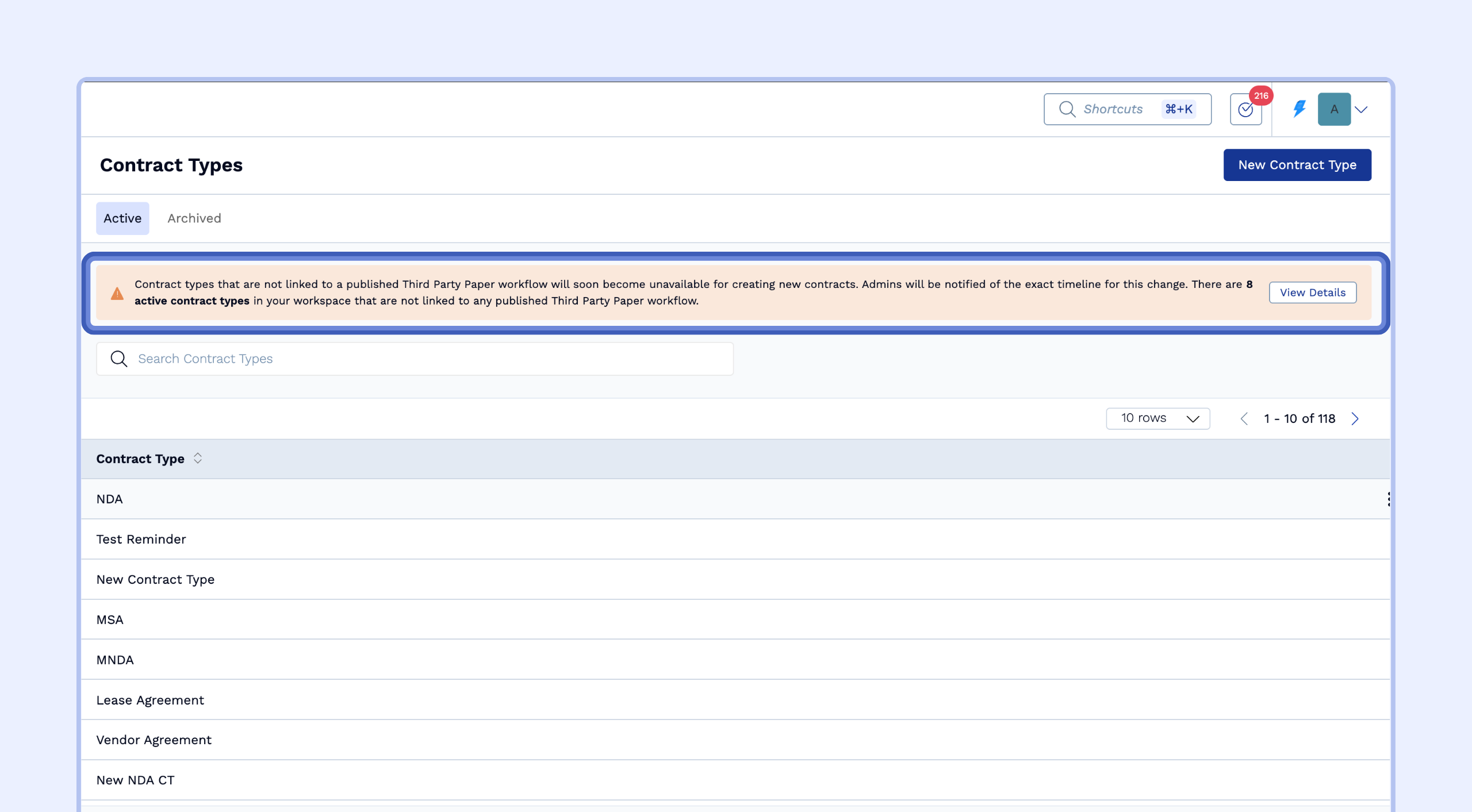
- Important Note: The migration process will only apply to active (draft and published) workflows and their linked contract types. Any archived workflows or archived contract types will be excluded from the migration.
Key Changes to the Contract Creation Process
The most significant changes you will notice will be during the initial steps of creating a new contract.
Automated Signatory Assignment
- Behavior Change: Previously, when creating a contract from a template, you would manually select the creator party signatories from a dropdown list. This step has been removed.
-
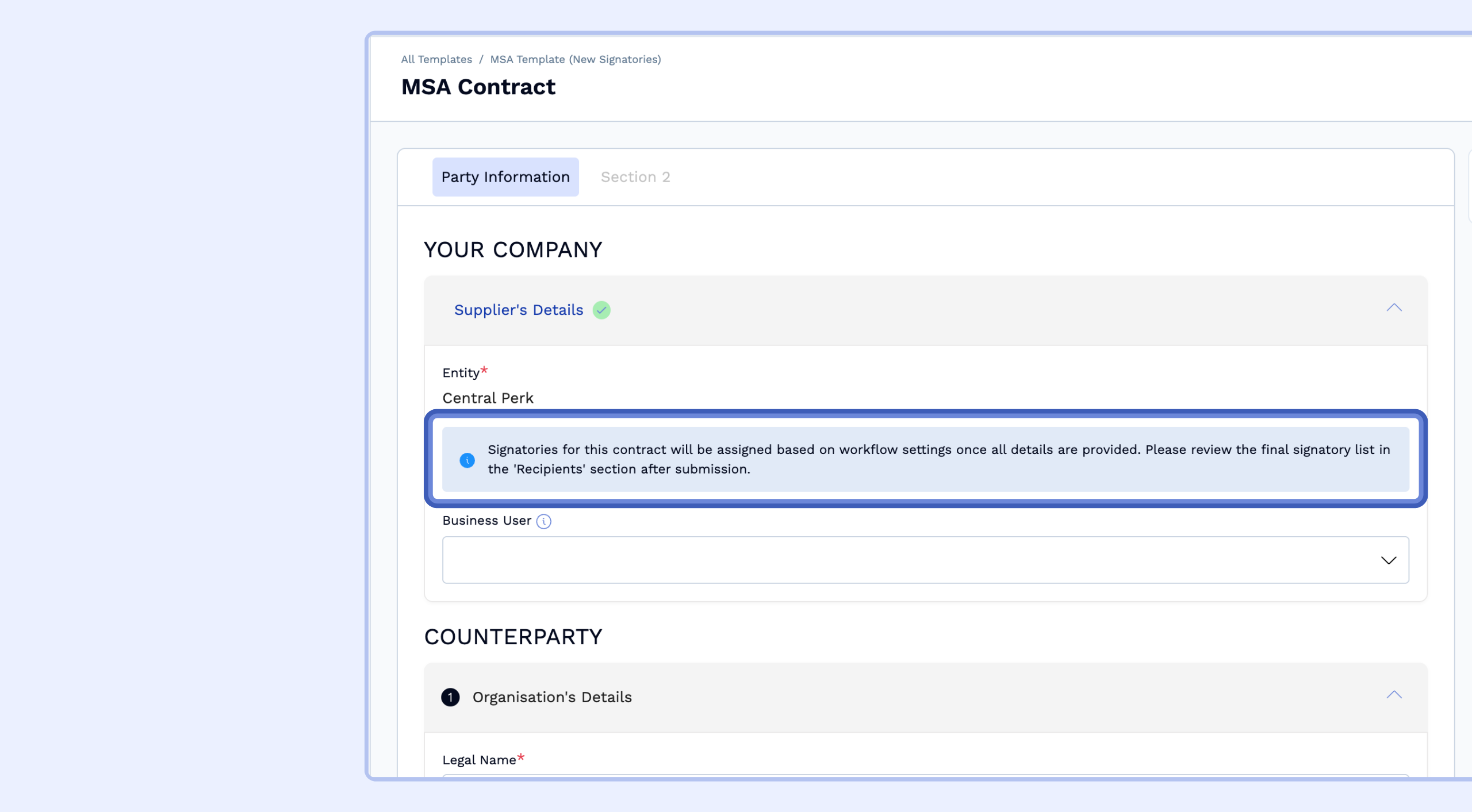
New Process: The workflow now automatically assigns signatories based on the details you provide in the intake form or questionnaire. You will see a banner notifying you of this during creation. The final list of signatories will appear in the "Recipients" section after you submit the initial details.
-
If you do not have any default signatory selected for a contract type-entity pair, then post migration of the signature setup, you'll need to add the creator party signatory for new template contracts after contract creation.
-
Removal of Placeholder Signatory Blocks
-
Behavior Change: The previous ability to use "placeholder blocks" to set a signing order (e.g., "Counterparty signs first, then Creator Party") without assigning specific people has been retired.
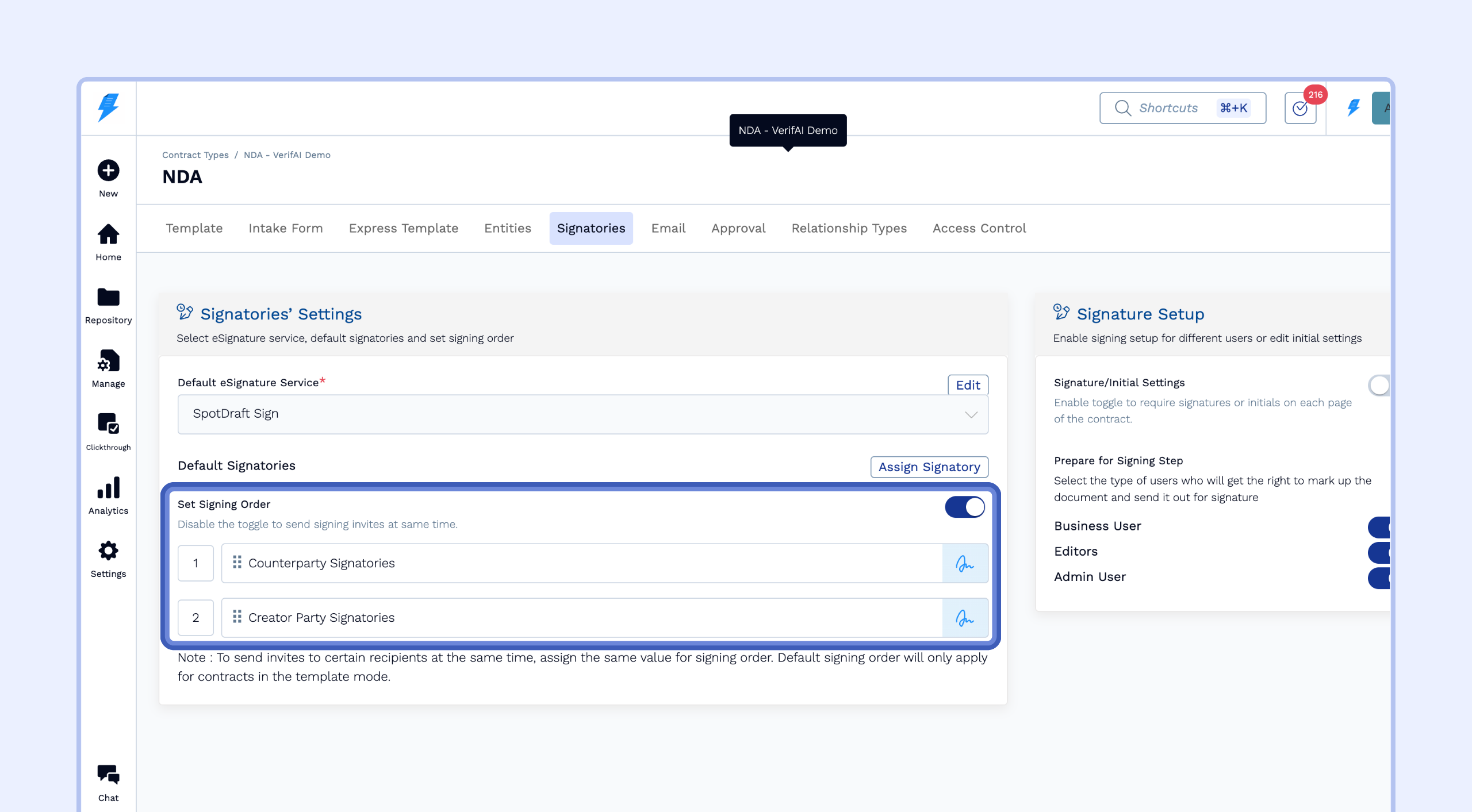
- Solution: To define a signing order in the new system, you must add specific signature steps for the Creator Party and Counterparty in the workflow's Signature Settings and arrange them in the desired sequence.
Creating Contracts with Integrations
-
Salesforce Integration:
- Behavior Change: If you create a contract from Salesforce that is linked to a workflow with no signature steps configured, you will not be able to add signatories during the creation process in Salesforce.
- Workaround: You will need to first create the contract from Salesforce, then open the contract record and manually add the required signatories. This can be permanently solved by adding a creator party signature step in the relevant workflow.
-
Public API Integration:
- Behavior Change: When creating a contract via the Public API, any signatories included in your API call will override the workflow's signatory setup. This is to prevent disruption to your existing API integrations.
- Note: This may cause the contract to show an "out of sync" status, but it will not block its creation. We recommend configuring signatories in the workflow for a more streamlined process.
Special Workflow Configurations: "Skip Redlining"
- Behavior Change: If you have a workflow configured to "skip redlining" that does not have a default creator party signatory assigned, then the contract may be sent directly to the counterparty for their signature immediately after creation.
- Solution: To prevent this, ensure you configure at least one creator party signature step in any workflow that uses the "skip redlining" feature.
Multiple Counterparty Signature Steps
- New Feature: You can now configure several different conditional signature steps for the counterparty within a single workflow.
- Use Case: This is particularly useful for managing different signing orders based on regional practices. For example, you can create a rule where the counterparty signs first if the contract's jurisdiction is in the USA, but signs last if the jurisdiction is in India.
- Important Note: Please be aware that if a contract meets the criteria for multiple counterparty signature steps, the system will only add the first valid counterparty signature step to the signing order.
Other Important Information
- Viewing Legacy Setups: For historical reference, you can still view your old signatory configurations in the Contract Type settings. Please note that this view is read-only and cannot be edited.
- Conditional Logic is for Signatories Only: The new conditional rules can only be applied to Signatories. This automation does not extend to other recipient types like Approvers or Receivers.
- Auto-Sign Configuration: The "Auto-Sign" feature, which automatically affixes signatures for designated users, is now configured at the workflow level. Previously, this was set up at the contract type and entity level. This change gives you more direct control within the workflow manager.