Welcome to VerifAI
Last updated: February 12, 2026
Introduction
SpotDraft’s VerifAI is an AI-powered contract review tool designed to help legal teams and businesses of all sizes review contracts faster, reduce risks, and ensure compliance. Whether you're evaluating SpotDraft for the first time or you're an existing user ready to leverage the power of AI, this article will provide you with a comprehensive overview of VerifAI's capabilities.
What Problems Does VerifAI Solve?
Manual contract review is often time-consuming, expensive, and prone to human error. VerifAI addresses these challenges by:
Reducing Review Time: AI automates the initial review process, allowing your legal team to focus on more strategic tasks.
Improving Accuracy: AI algorithms consistently apply your pre-defined standards and identify deviations, minimizing the risk of overlooking critical clauses.
Ensuring Compliance: VerifAI helps ensure that all your contracts adhere to your internal policies, legal requirements, and industry best practices.
Scaling Legal Expertise: VerifAI democratizes legal knowledge within your organization, empowering more team members to understand and manage contracts effectively.
Key Features of VerifAI:
AI-Powered Contract Review: VerifAI uses advanced artificial intelligence to automatically analyze contracts and identify key clauses, potential risks, and deviations from your defined standards.
Customizable "Guides" (Playbooks): Create custom "Guides" that act as your contract review playbooks. These Guides contain a list of guidelines (rules) specific to your business needs and contract types.
Deviation Detection: Easily identify clauses within a contract that deviate from the guidelines established in your VerifAI Guides.
Collaboration & Reporting: Share review results with your team to gain insights into your contract portfolio.
Integration with SpotDraft Workflows: Seamlessly integrate VerifAI into your existing SpotDraft workflows to automate contract review from the moment a contract is created.
Ask AI - Ask open ended questions about any contract in plain language and get contextual answers grounded with accurate sources without even reading the contract.
Who Can Benefit from VerifAI?
VerifAI is valuable for:
Legal Teams: Automate routine contract reviews, focus on high-value tasks, and ensure consistent compliance.
Procurement Teams: Streamline vendor contract reviews, negotiate better terms, and mitigate risks.
Sales Teams: Quickly review sales contracts, accelerate deal cycles, and ensure compliance with company policies.
Finance Teams: Review financial agreements, manage obligations, and improve financial accuracy.
Business Users: Anyone who needs to understand and manage contracts effectively can leverage VerifAI to gain deeper insights and reduce risks.
How to Run a VerifAI Guide in OnlyOffice
Open the Editor: From the Contract Details page, click Edit Contract and select Edit With OnlyOffice or Edit With Microsoft Office Desktop.
If you are using VerifAI Standalone Plugin then directly open the contract document in MS Word Editor App.
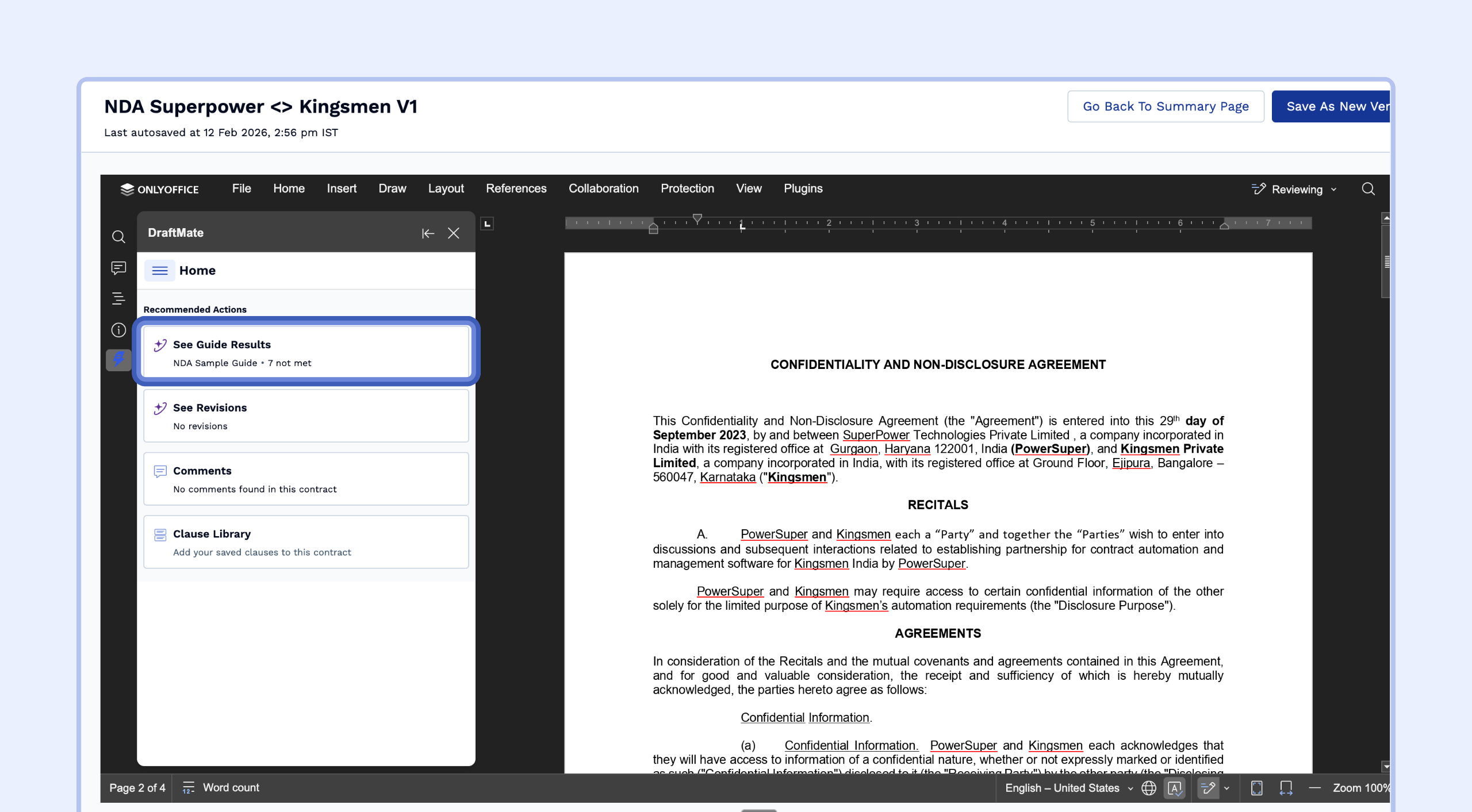
Access the DraftMate Panel: Once the editor loads, the DraftMate panel will automatically open on the left side of your screen.
Start the Review:
If you have linked a guide in your workflow setup you will see Recommended Actions under Home tab. Click See Guide Results.
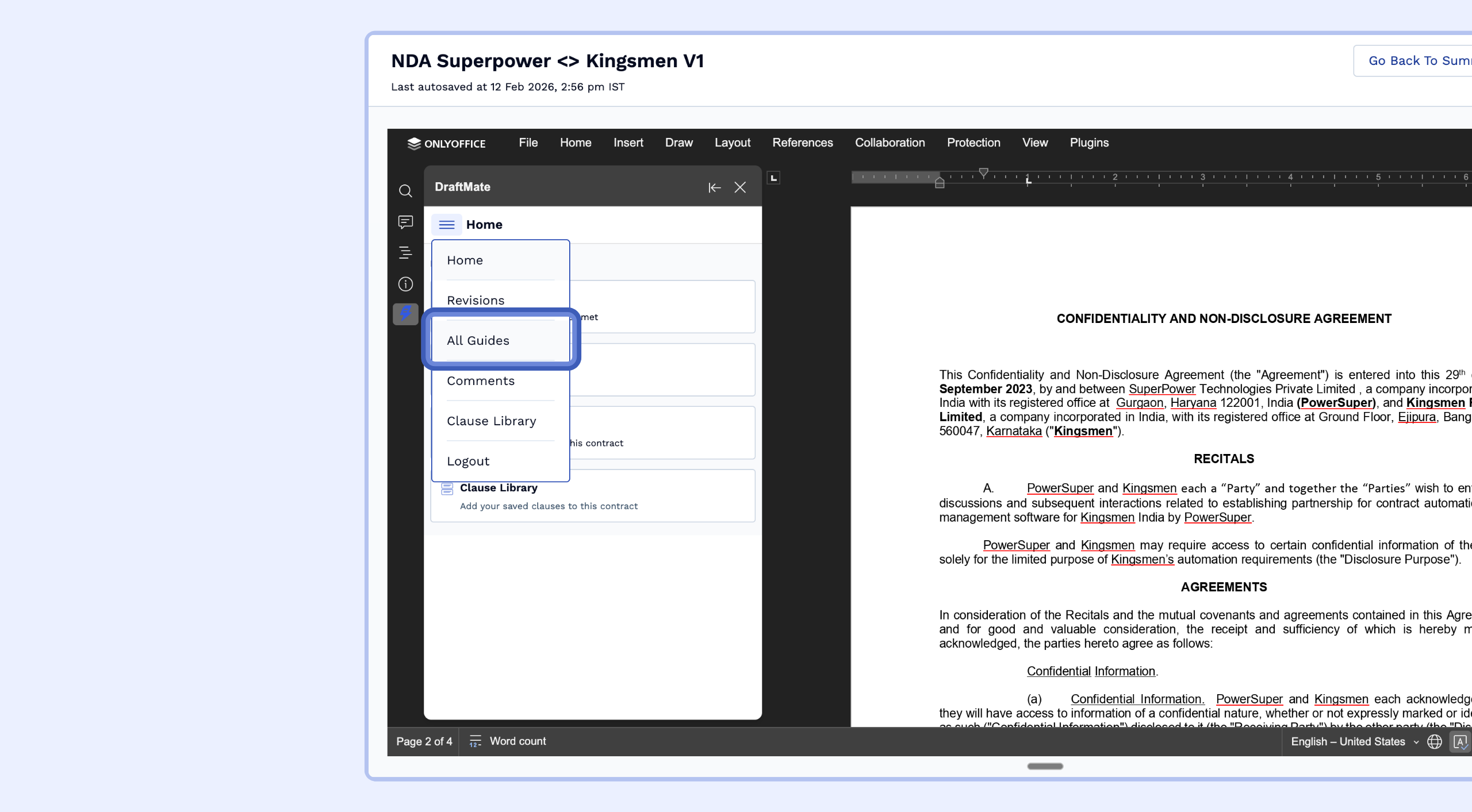
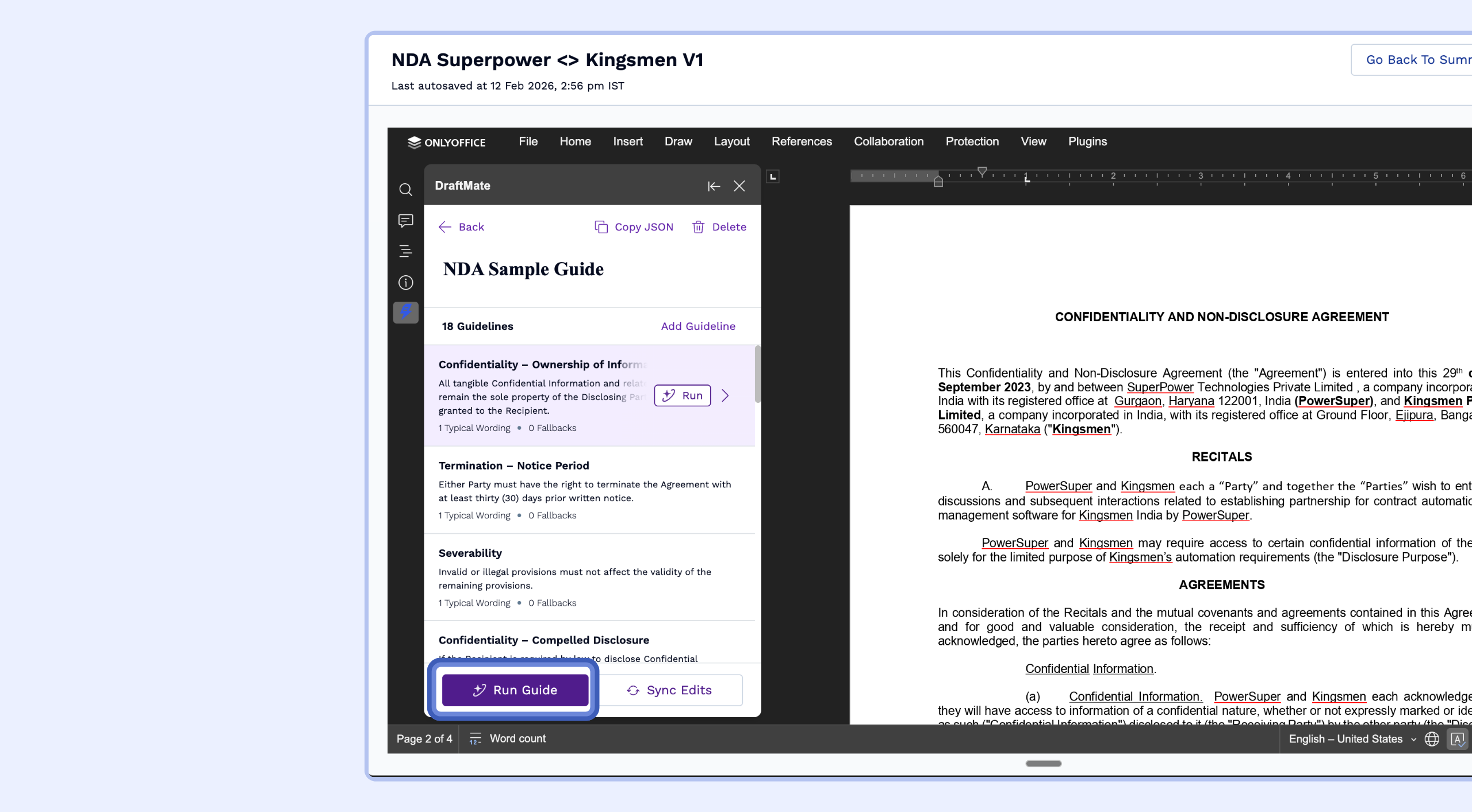
If the results don't load automatically, go to the All Guides tab, search for your desired playbook (e.g., "MNDA - Demo"), and click Run.
Navigating Your Review Results
Once the guide run is complete, the results are displayed as a list of "Guideline Cards" in the DraftMate panel.
Filter Your View: Use the filter icons at the top to toggle between guidelines that were Met (green), Not Met (red), or Not Applicable (grey).
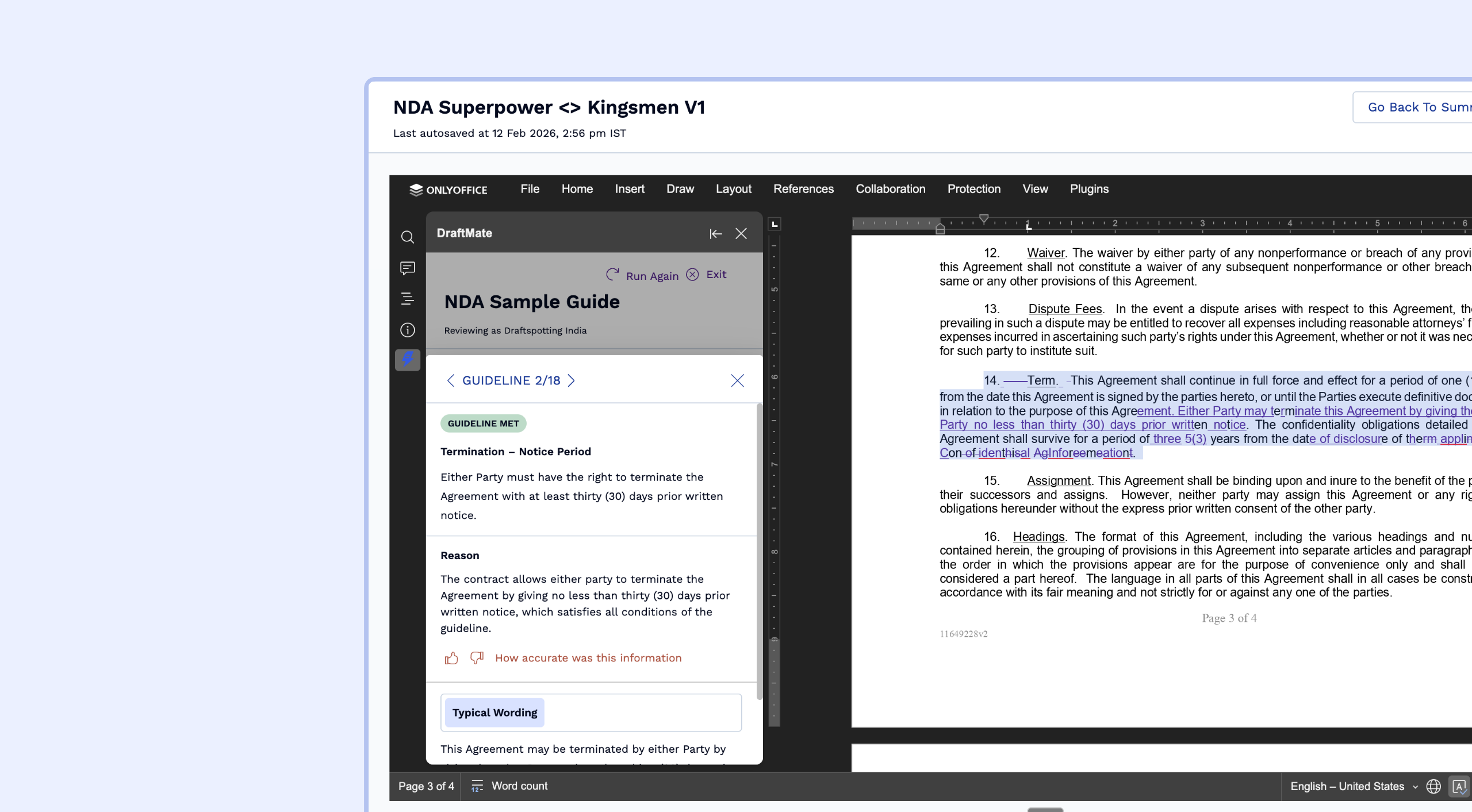
Automatic Navigation: Click on any Guideline Card. The OnlyOffice editor will automatically jump to the specific paragraph in the contract that relates to that rule, highlighting it for easy reference.
Understanding the Finding: Each card provides:
Guideline Title: A clear name for the rule (e.g., "Term & Termination").
Guideline Text: The actual guideline text
Reason: A concise explanation from the AI as to why the contract language does or does not meet your organization's standards.
Applying Playbook-Powered Edits
For guidelines that are Not Met, VerifAI provides a powerful set of tools to fix the document instantly.
Using Typical Wording and Fallbacks
You can toggle between different "playbook" positions defined in your guide:
Typical Wording: Your organization’s preferred, standard clause.
Fallback Positions: Pre-approved alternative language you are willing to accept during negotiations.
Applying AI Suggested Changes
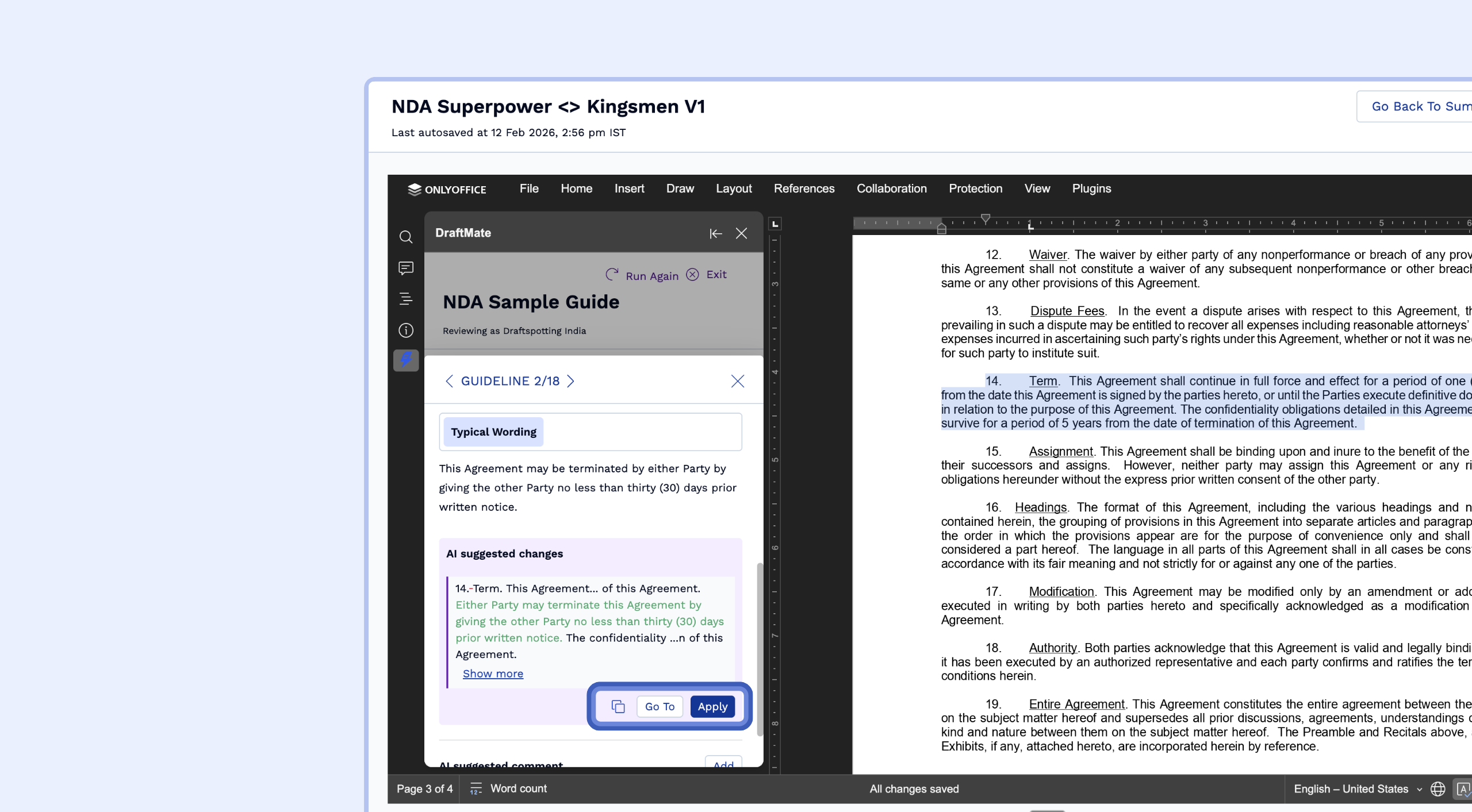
At the bottom of the card, VerifAI generates AI Suggested Changes based on the playbook tab you have selected.
Review the Edit: Additions are shown in green, and removals are shown in red.
Apply the Change: Click Apply. The AI will instantly replace the text in the OnlyOffice editor with the corrected language.
If you want to copy the updated text, you can also do that by clicking on the copy icon.
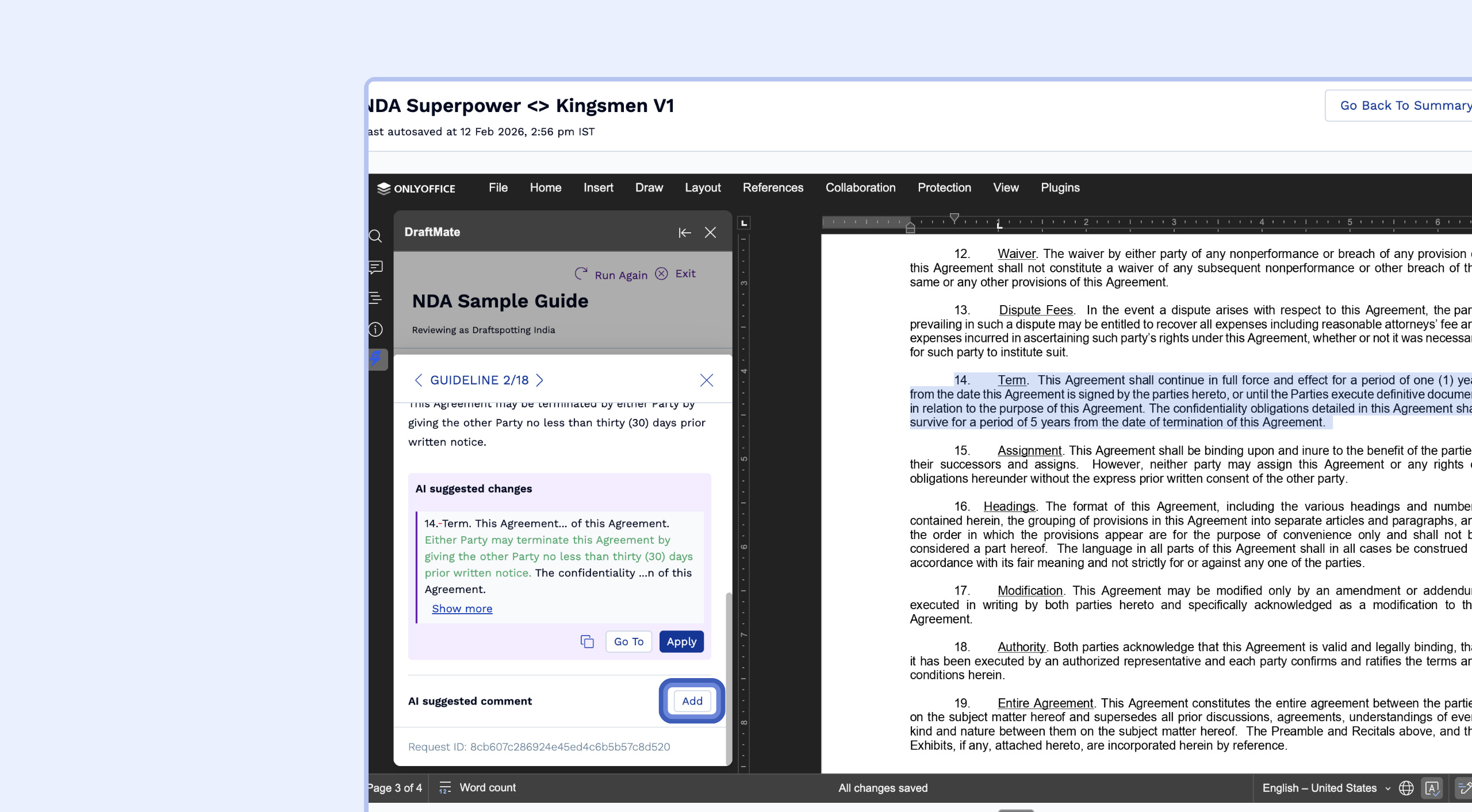
Add AI Comment: Click Add next to "AI suggested comment." This will automatically insert a comment into the document explaining the change to your counterparty or colleagues.
Troubleshooting and Best Practices
Syncing Your Edits
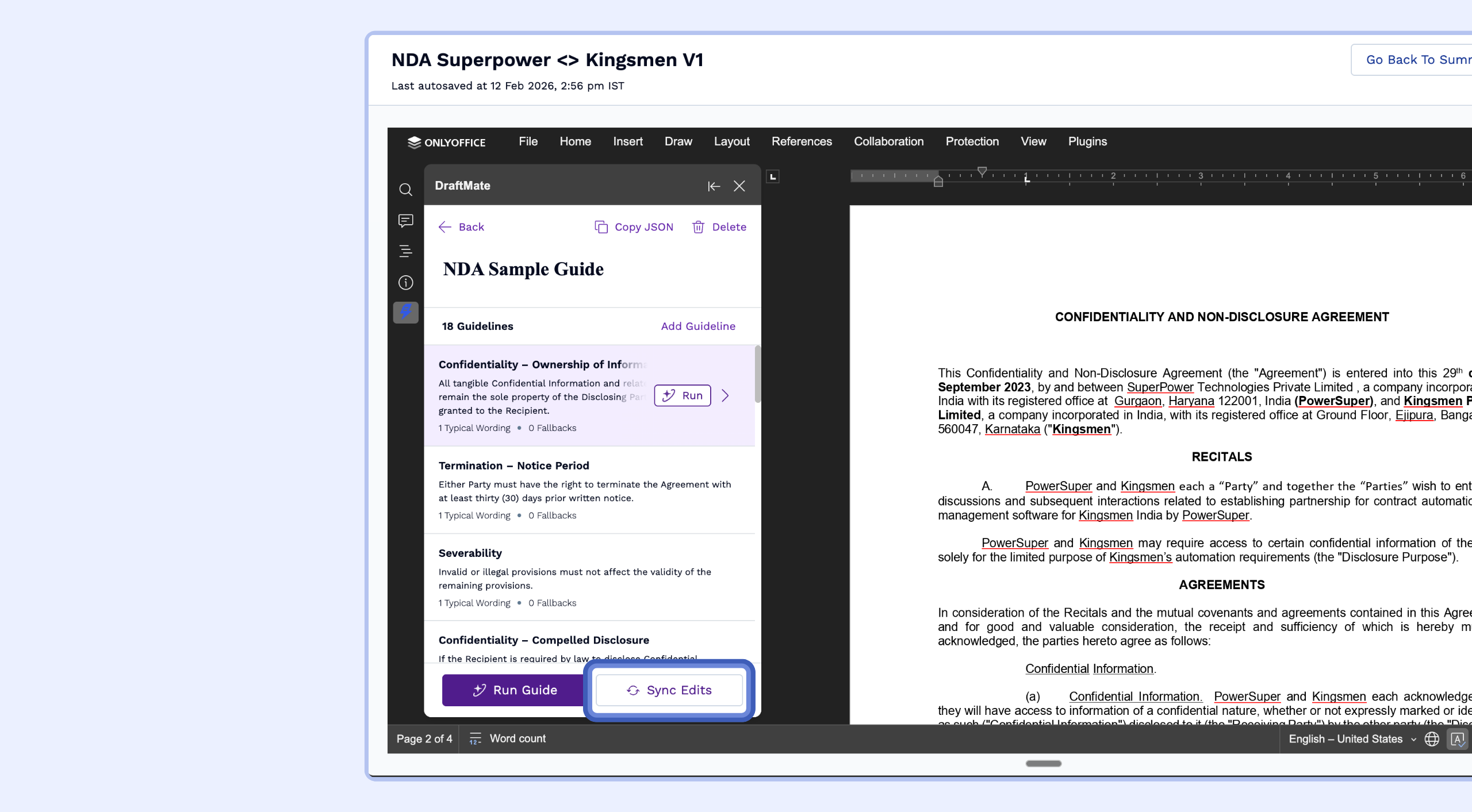
If you have made manual redlines in the document and the AI results seem outdated, click the Sync Edits button. This fetches the most recent version of the document from the editor and re-runs the AI analysis to ensure your results are current.
Using the Request ID for Support
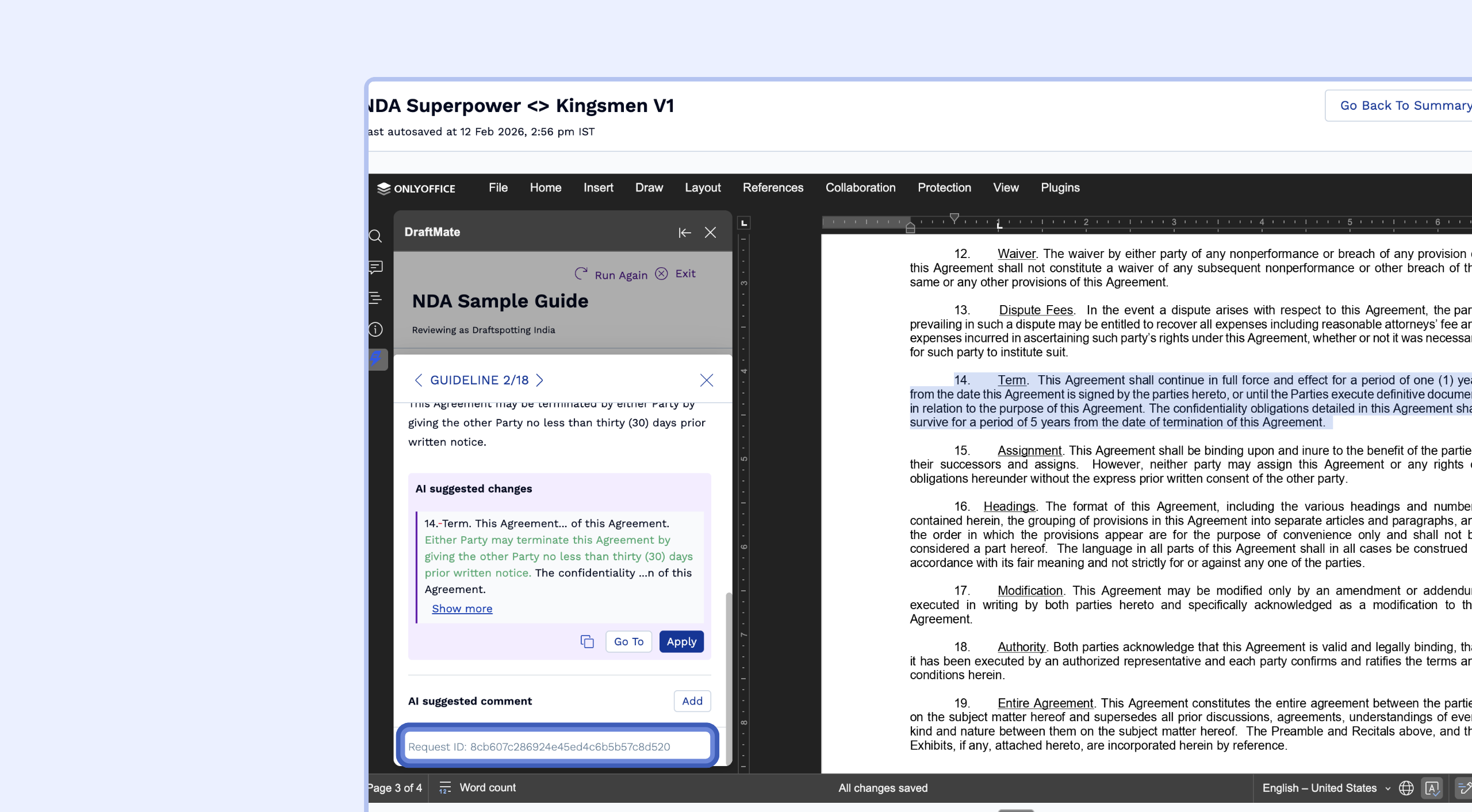
If you encounter an error or an unexpected result while running a guide, you will see a unique Request ID at the very bottom of the DraftMate panel.
How to use it: Copy the ID. Share this ID with your administrator or the SpotDraft support team. It allows us to pinpoint your exact guide run and debug the issue immediately.
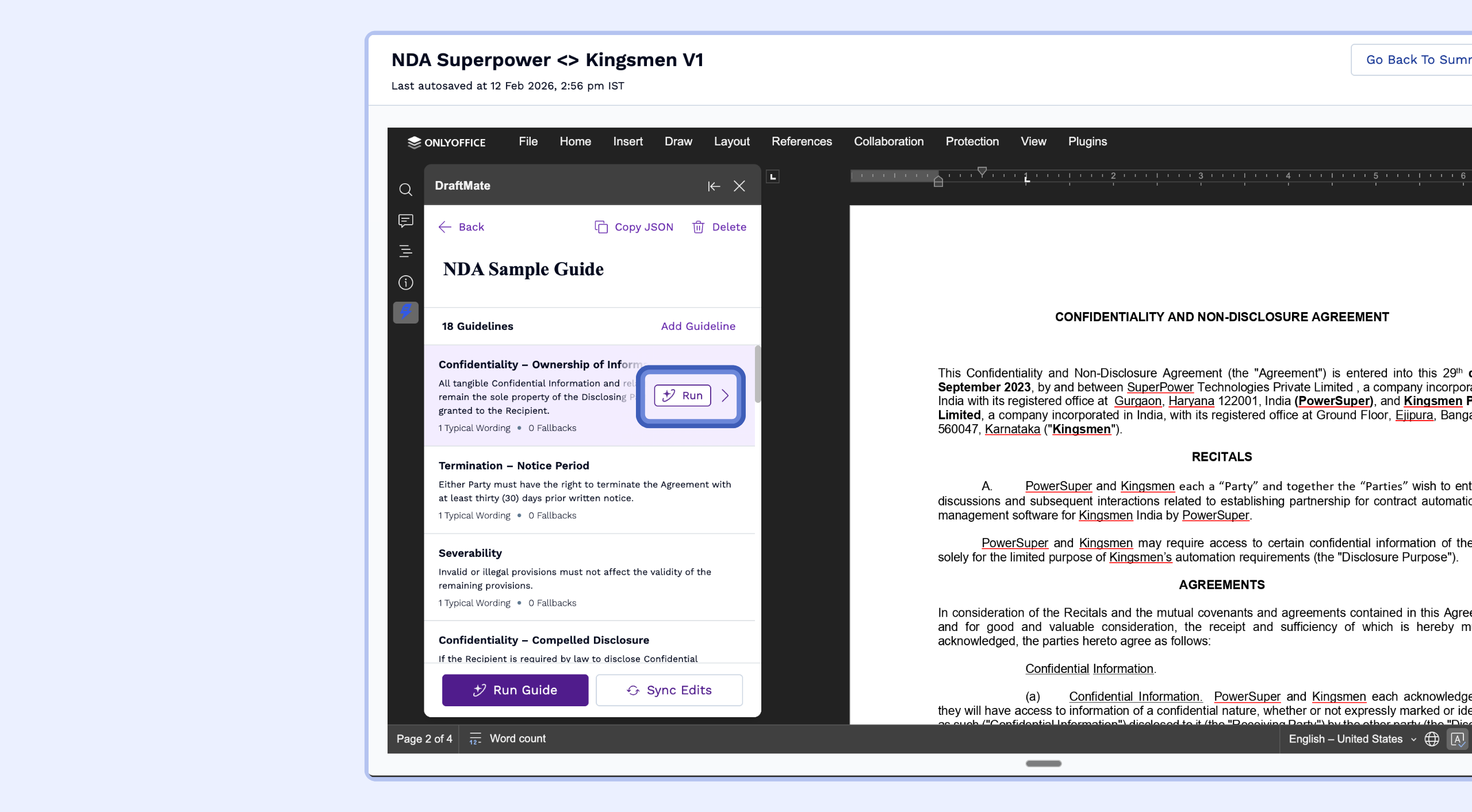
Running Individual Guidelines
If you only want to check a specific section of the contract, you can click the Run icon next to an individual guideline card instead of running the entire playbook.
Getting Started with VerifAI
If you're new to SpotDraft and interested in learning more about VerifAI, please Start your free trial here.
If you're an existing SpotDraft user and want to get access to VerifAI Teams, ask your Customer Success Manager today!