Using VerifAI Guidelines to Trigger Approvals and Reviews (Beta)
Last updated: August 6, 2026
To ensure contracts adhere to your company’s legal and business standards, you can now use VerifAI Guidelines as logic to trigger specific internal approvals or reviews. This automation ensures that the right stakeholders (like Legal or Finance) are only brought into the loop when a contract deviates from pre-defined company guidelines.
Introduction
Manual contract review often requires stakeholders to hunt through an entire document to find a single non-compliant clause. By creating conditions using VerifAI Guidelines in your Condition Library, you can automate this process. If VerifAI evaluates a guideline as "Not Met," SpotDraft can automatically trigger an approval or review task and navigate the reviewer directly to the relevant section.
Prerequisites
VerifAI Guide: You must have a pre-built VerifAI Guide.
Linked Workflow: The Guide must be linked to your Template Workflow (See Linking VerifAI Guides to Workflows).
Condition Library Access: You must have permissions to manage the Condition Library.
How it Works
Whenever a new contract is created or a new version is uploaded/drafted, SpotDraft automatically runs the linked VerifAI Guide. If a specific guideline is evaluated as "Not Met," the condition evaluates to TRUE, triggering the assigned Approval or Review.
Create a Guideline-based Condition
Navigate to the Workflow Manager and select your workflow.
On the left-hand menu, under Additional Options, click Condition Library.
Click Create New Condition.
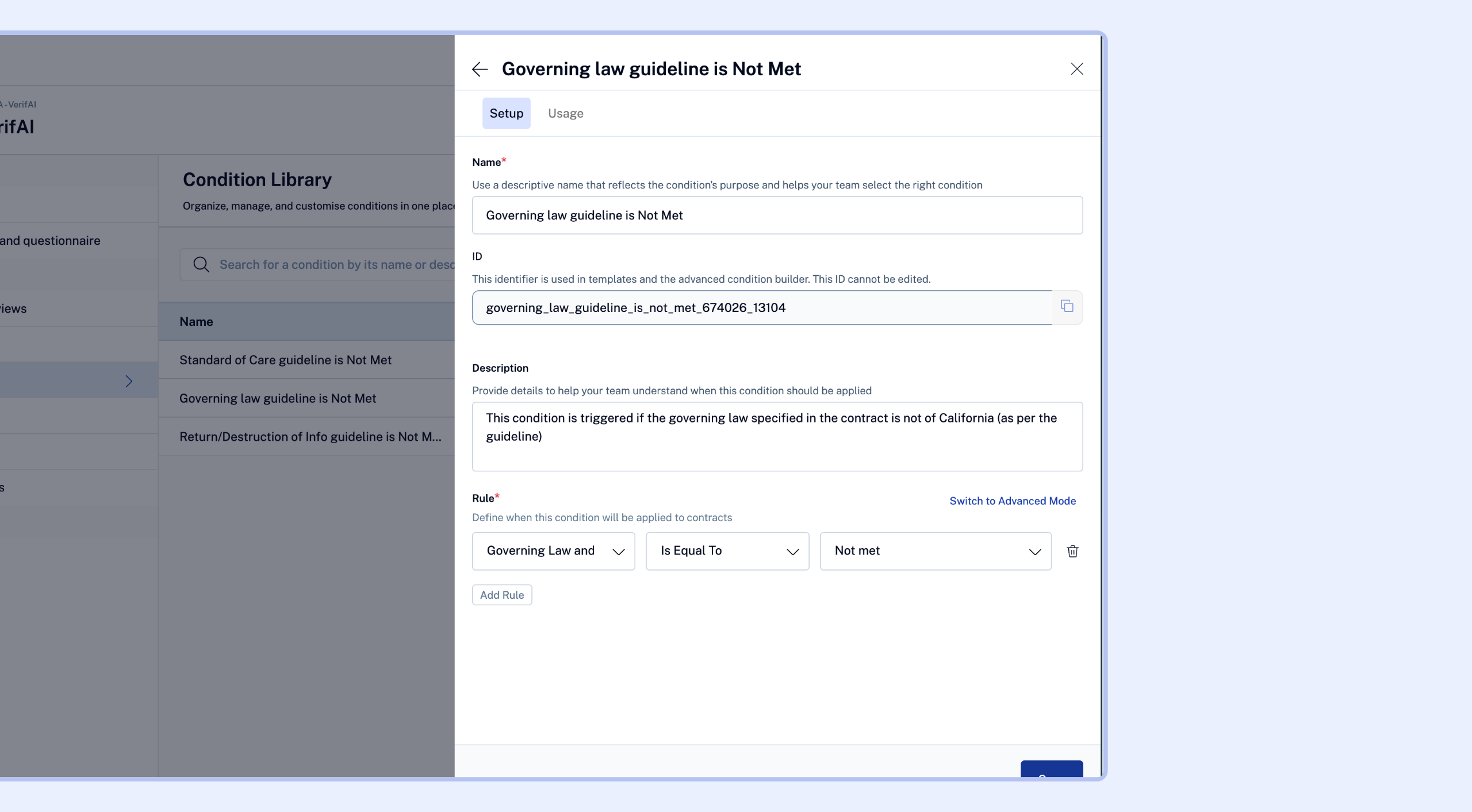
In the Rule section, select Guideline from the variable dropdown.
Select the specific Guideline you want to monitor (e.g., "Governing Law must be California").
Set the operator to Is Not Met.
Save the condition with a clear name (e.g., "Non-compliant Governing Law").
Apply the Condition to an Approval or Review
Go to the Approvals or Reviews section of your workflow.
Select Add Approval (or Edit an existing one).
Under "When is this approval required?", choose Conditions based on contract variables are met.
Select the Guideline-based condition you created in Step 1.
Save and Publish your workflow.
The Reviewer Experience (DraftMate)
One of the key benefits of this feature is targeted review. When an approver is notified:
They can open the contract in any editor and access DraftMate.
By selecting the specific guideline from the guide run results, DraftMate will automatically navigate them to the exact section of the contract that caused the deviation.
This allows the reviewer to focus only on the non-compliant text rather than reading the entire document.
Important Limitations & Logic
To ensure your workflows run smoothly, please keep the following logic in mind:
Scope of Use: Guideline-based conditions can only be used to trigger Approvals and Reviews. They cannot be used for intake questionnaires, conditional signatories, or other workflow entities.
One Guideline per Condition: Currently, you can only reference one guideline within a single condition. You cannot combine multiple guidelines using AND/OR logic at this time.
Manual Reset Logic: There is currently no automatic "reset" for approvals based on content changes.
Example: If a guideline requires "California Law" and the contract says "Massachusetts," an approval is triggered. If the user manually approves this deviation and then uploads a new version that says "New York," the guideline is still "Not Met." However, the approval will not automatically reset. It must be manually reset by a user if a new review of that specific deviation is required.
Evaluation on Every Version: Guidelines are re-evaluated every time a new version is uploaded or created, ensuring the most recent content is always checked against your standards.
Outcome
By automating approvals based on VerifAI Guidelines, legal and procurement teams can significantly reduce their workload. Instead of reviewing every contract, they are only alerted when a deviation exists, allowing for a faster, more targeted "exception-based" review process.