Connecting SpotDraft's MCP Server to Claude.ai
Last updated: October 15, 2026
Connect SpotDraft to Claude.ai from the Claude connector directory for read-only access, or add a custom connector with write mode turned on so Claude can take actions in SpotDraft.
SpotDraft Claude Directory Listing: claude.ai/directory/spotdraft
Choose how to connect
Option | What Claude can do | How you set it up |
|---|---|---|
Claude directory | Read-only tools. Claude can look up contracts, counterparties, templates, legal intakes, and approval statuses, but cannot change anything in SpotDraft. | Add SpotDraft from the connector directory and sign in. |
Custom connector | Read and write tools. Claude can also upload contract versions, send contracts to counterparties, create approval requests, add comments, and manage legal intakes. Read about Write tools: 📄 SpotDraft MCP Server | Add a custom connector with your regional server URL and |
Option 1: Connect from the Claude directory (read-only)
Log in to claude.ai.
Open the SpotDraft listing at claude.ai/directory/spotdraft, or search for SpotDraft in the Claude connector directory.
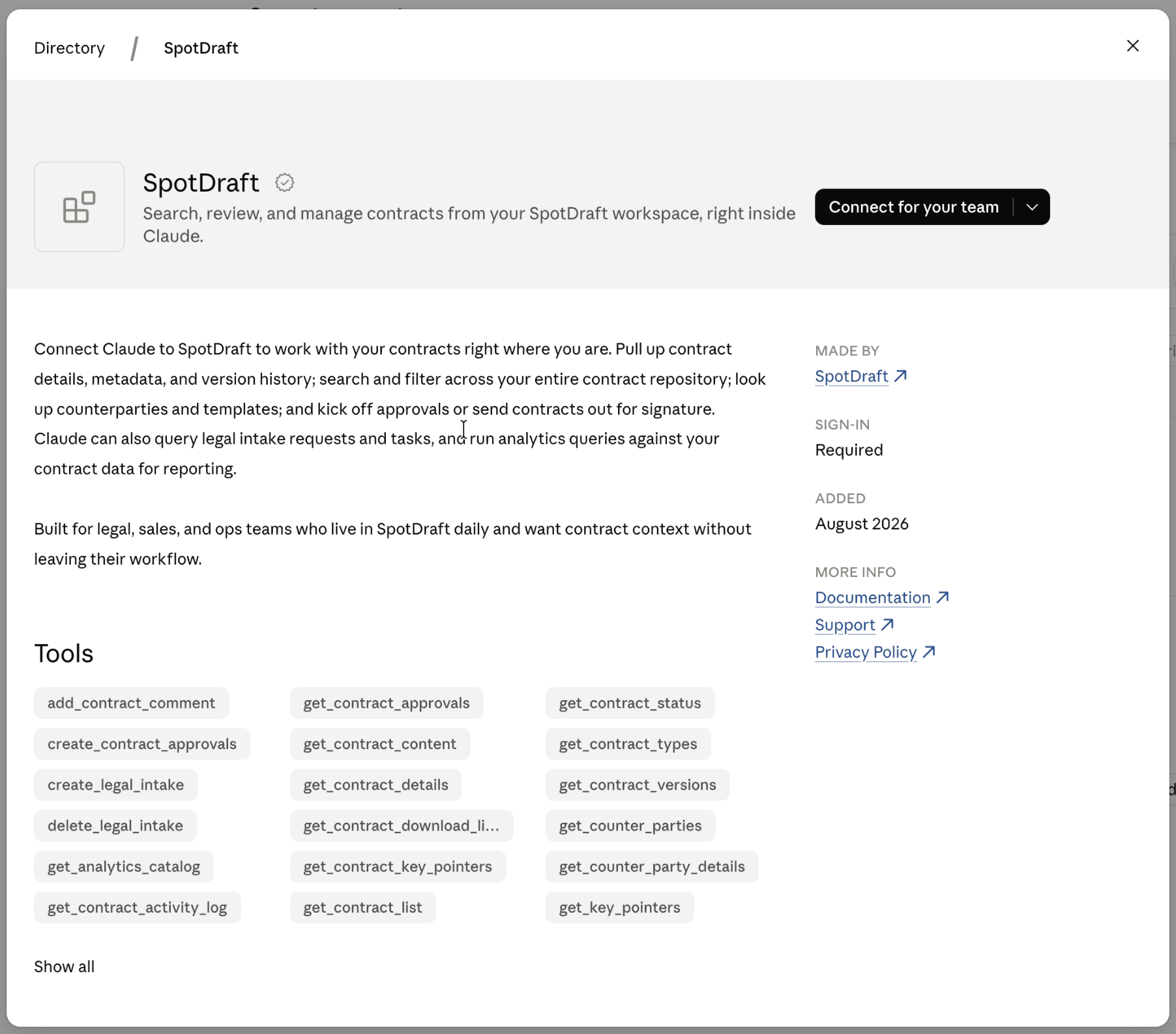
Click Connect for your team
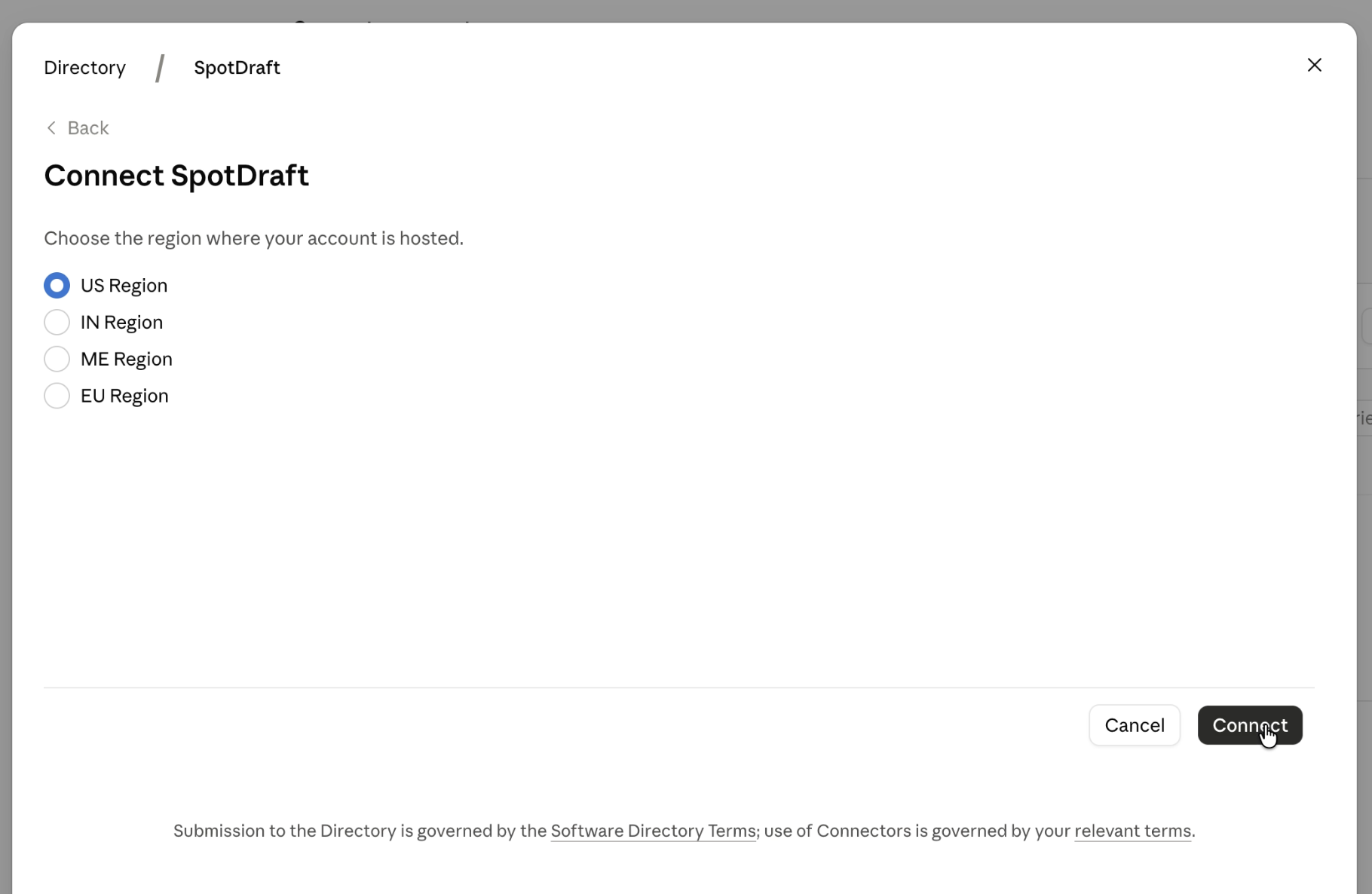
Select the right region based on where your workspace data is hosted. If you're unsure, reach out to your SpotDraft account team/Customer Success Manager.
Sign in on the SpotDraft login page and authorize access.
After you authorize, Claude brings you back to your conversation.
This directory connector is read-only. To let Claude take actions in SpotDraft, use Option 2.
Option 2: Add a custom connector (read and write)
Step 1: Admin setup (once per organization)
Log in to claude.ai as an admin. If you are not one, ask an admin to complete this step.
Click your name in the bottom-left corner.
Go to Organization Settings → Connectors.
Click Add New → Custom.
Enter the server URL for your SpotDraft region, with
?enable_write=trueadded at the end. If you're unsure, reach out to your SpotDraft account team/Customer Success Manager.
India |
|
United States |
|
Europe |
|
Middle East |
|
Leave Client ID and Client Secret blank. OAuth handles authentication.
Click Save. The connector is now available to all members of your organization.
Step 2: Personal authorization (each user, once)
Log in to claude.ai.
Go to Settings → Integrations (or Connected Apps).
Find SpotDraft in the list and click Connect.
Sign in on the SpotDraft login page and authorize access.
After you authorize, Claude brings you back to your conversation.
Use SpotDraft in a conversation
These steps are the same for both options.
Start a new chat in Claude.
Turn on SpotDraft from the tools icon in the chat composer.
Ask Claude about your contracts, counterparties, legal intakes, approval statuses, and more.
Things to know
Permissions carry over. Claude can only see the contracts and data that you can access in SpotDraft.
Write mode is opt-in. It adds tools to upload a contract version, send a contract to counterparties, create approval requests, add contract comments, and create, update, or delete legal intakes. Claude runs these only when you ask it to. Legal intake tools need access to the Legal Intake module.
Write mode applies to everyone using the custom connector. The connector is added once for the organization, so turn on write mode only if the people using it need it. To go back to read-only, remove
?enable_write=truefrom the server URL or use the directory connector.
FAQs
Which option should I use?
Use the Claude directory if you only need Claude to find and read information in SpotDraft. Use a custom connector with write mode if you want Claude to act, such as sending a contract or adding a comment.
Claude says it cannot complete an action in SpotDraft. What should I do?
Check that you are using a custom connector with ?enable_write=true in the server URL. Without write mode, the SpotDraft server rejects write actions with a 403 error that explains how to turn write mode on.
Where can I learn what the SpotDraft MCP Server can do?
See SpotDraft MCP Server for the full list of tools, regional endpoints, and authentication methods.