How guided navigation works while signing
Last updated: June 18, 2026
The on-screen guide finds each field for you and says what to do. Here's how it behaves.
About guided navigation
When you sign a contract on SpotDraft, you don't go hunting for the fields. The page finds them and walks you through one at a time, telling you what each one needs. This article explains how the guide behaves, so nothing on the page catches you off guard.
The guide tag
After you select Start signing, a blue tag appears next to the first field that needs you. It names the action — Add signature, Enter initials, Enter name, Confirm, and so on. Fill the field and the tag changes to Next, which moves you to the following field.
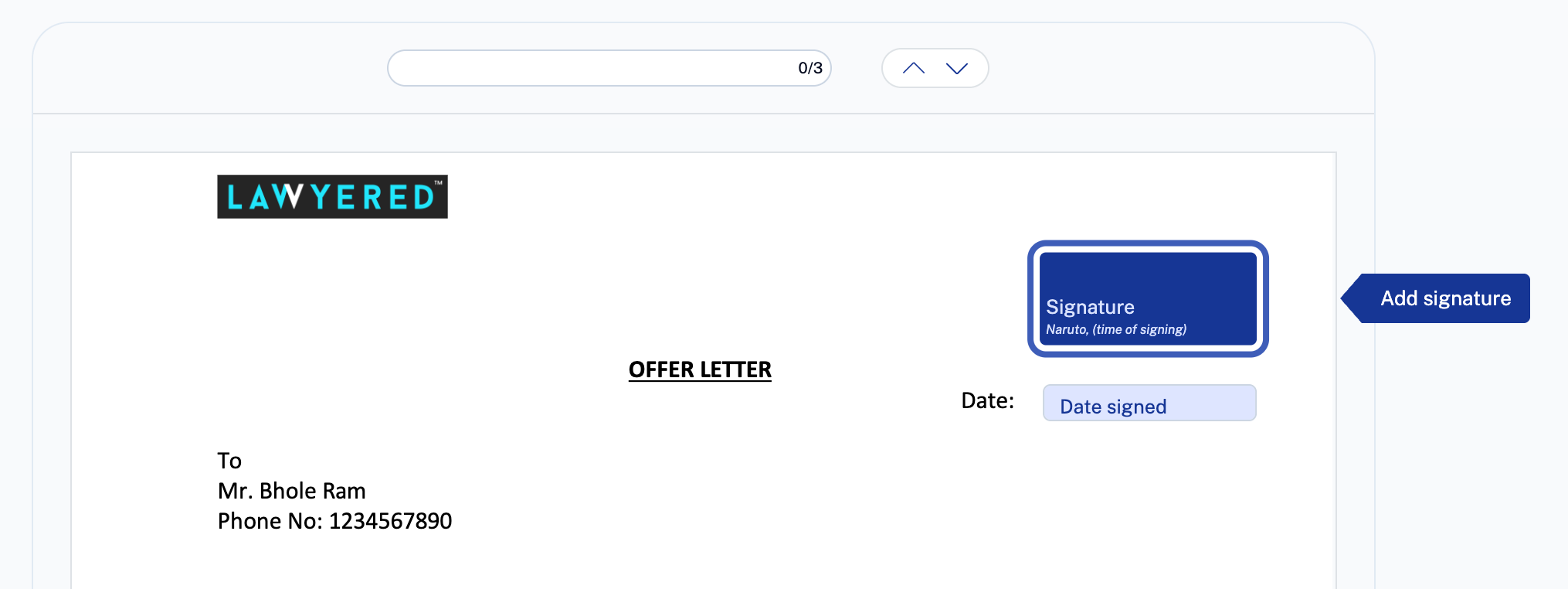
Fields that fill themselves
Some fields already have an answer. If a detail like your name is saved to your SpotDraft profile, the field fills in on its own and the guide shows the tag without asking you to type. Check it looks right and carry on.
Moving between fields
The guide works through fields in order, top to bottom.
Select Next, or press Ctrl + Enter (Command + Enter on a Mac), to go to the next field.
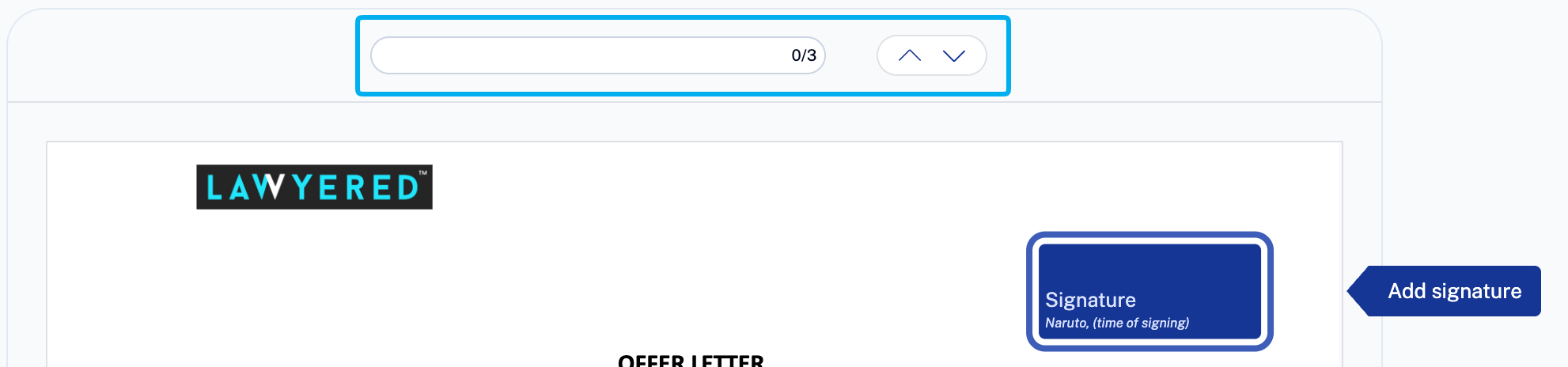
To move around yourself, use the up and down arrows near the top of the page.
A counter beside those arrows shows your progress, like 6/12. Once every required field has a value, the guide takes you to Finish Signing.
Frequently asked questions
Can I fill the fields out of order?
Yes. Select any field directly and the guide picks up from there.
A field filled in by itself. Is that a problem?
No. That detail was already on your profile. Review it, and edit it if it's wrong.
I've filled everything but I don't see Finish Signing.
The guide only offers Finish Signing option once every required field has a value. Use the counter at the top to check none are still empty, then the option appears.