Signing a contract on SpotDraft
Last updated: June 22, 2026
Sign the contract right in your browser. If you're a counterparty, there's no account creation and nothing to download.
About signing a contract on SpotDraft
Someone sent you a contract to sign through SpotDraft. If you're the counterparty, there's nothing to set up: no account creation, no software download.
You open the link in your browser, on desktop or mobile. This guide takes you from the email in your inbox to your signed copy.
Open the contract from your email
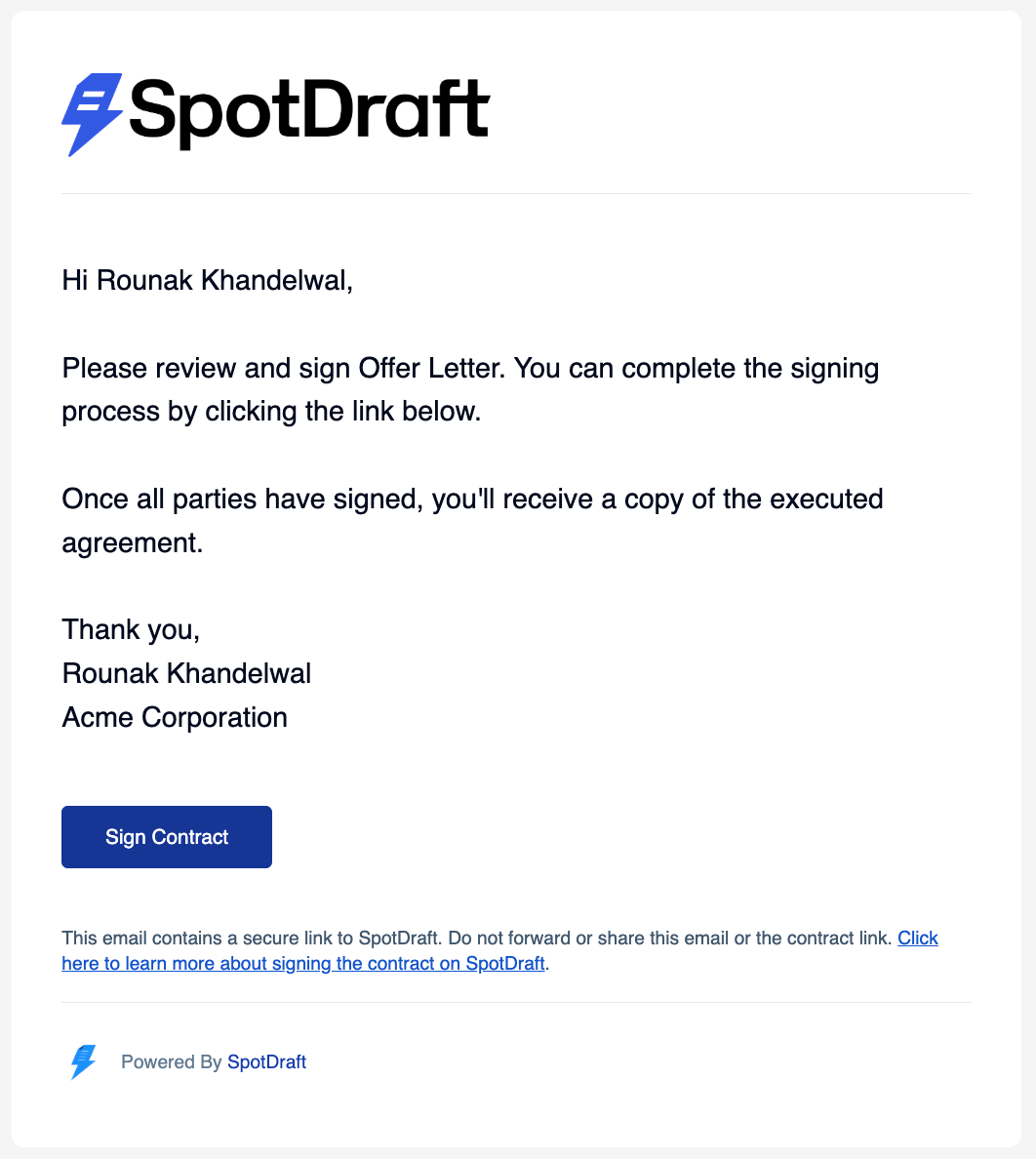
When a contract is ready for you, you'll get an email. Select 'Sign agreement' to open it in your browser. Reminder emails use 'View contract', which does the same thing.
Search: 'Signature requested for {contract_name}' in your inbox to find the email.
If the sender turned on extra security, you'll enter a one-time password (OTP) before the contract opens. The steps are in Verifying your identity with a one-time password (OTP).
Review before you sign
The contract opens full-page so you can read it properly. The top shows the contract title, the parties, and an avatar for everyone on the contract. Hover an avatar to see who it is.
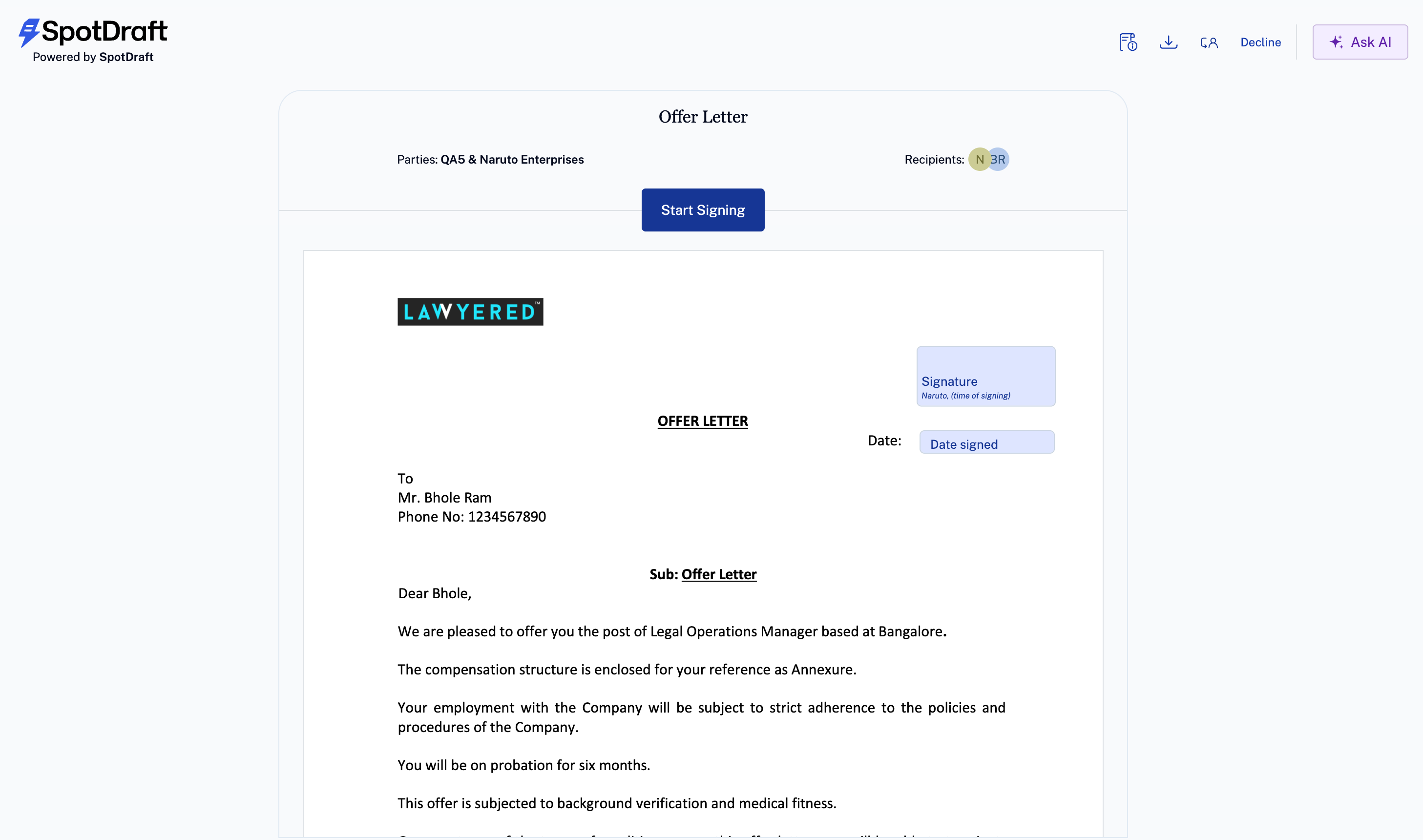
Take your time to read the whole thing first. Nothing is signed until you choose to start. Anything you need while reviewing (download a copy, check the recipients, ask a question) lives in the toolbar at the top right; see Actions available while you sign.
When you're ready, select Start signing.
Let the page guide you to each field
Select Start signing and SpotDraft takes you to the first field that needs you. A guide tag sits beside it and names the action: Add signature, Enter initials, Enter name, or Confirm.
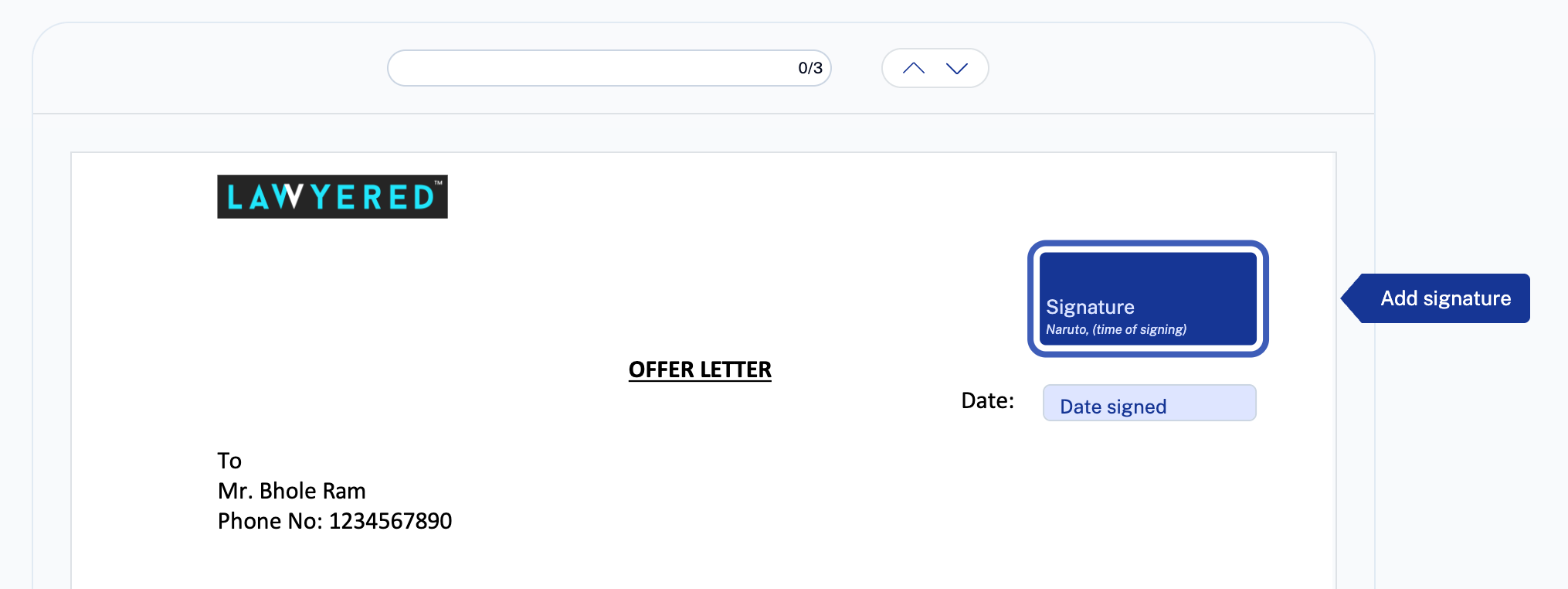
How it works:
On finishing the task, the tag becomes Next, which moves you to the next field to be filled.
Fields that can fill from your profile, like your name, are filled on their own. You just review them and confirm.
To move by keyboard to next field, press Ctrl + Enter / Command + Enter when prompted.
A counter near the top of the page (for example, 6/12) shows how far along you are.
Adopt your signature
The first signature field opens the Adopt your Signature window. Enter your full name and initials, then choose how your signature looks:
Type — a handwriting-style font applied to your typed name.
Draw — draw it yourself with your mouse or trackpad.
Upload — upload an image of your signature.
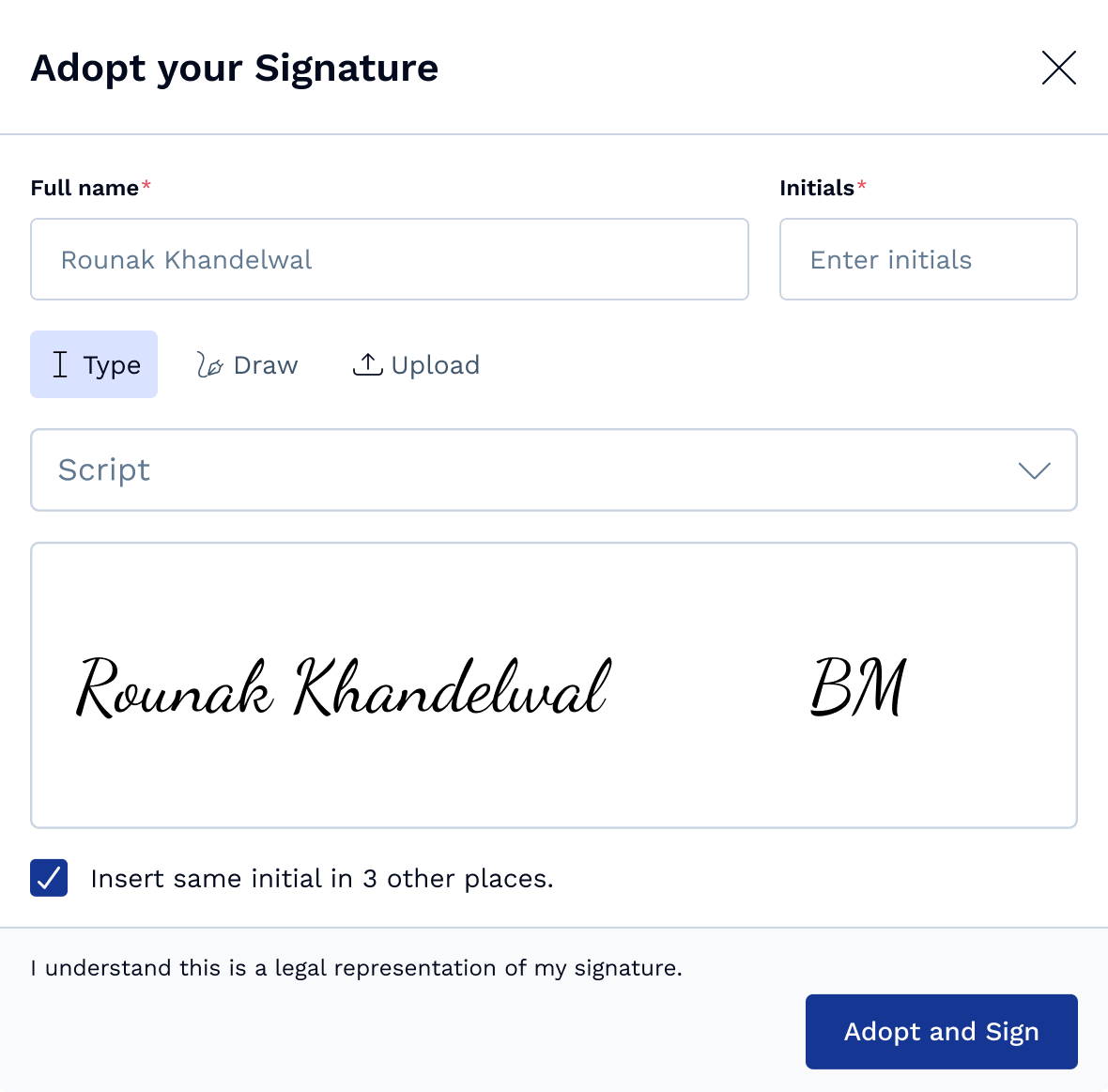
If the contract needs your initials in several places, tick Insert same initial in [N] other places and SpotDraft adds them everywhere in the contract for you. Click 'Adopt and Sign' to confirm your choice.
You can reopen and edit your signature from any signature field later, by clicking on Edit | Clear, on hover of the field.
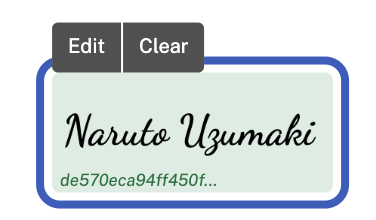
Note: Adopting a signature is a legal action. The window says so: "I understand this is a legal representation of my signature."
Finish signing
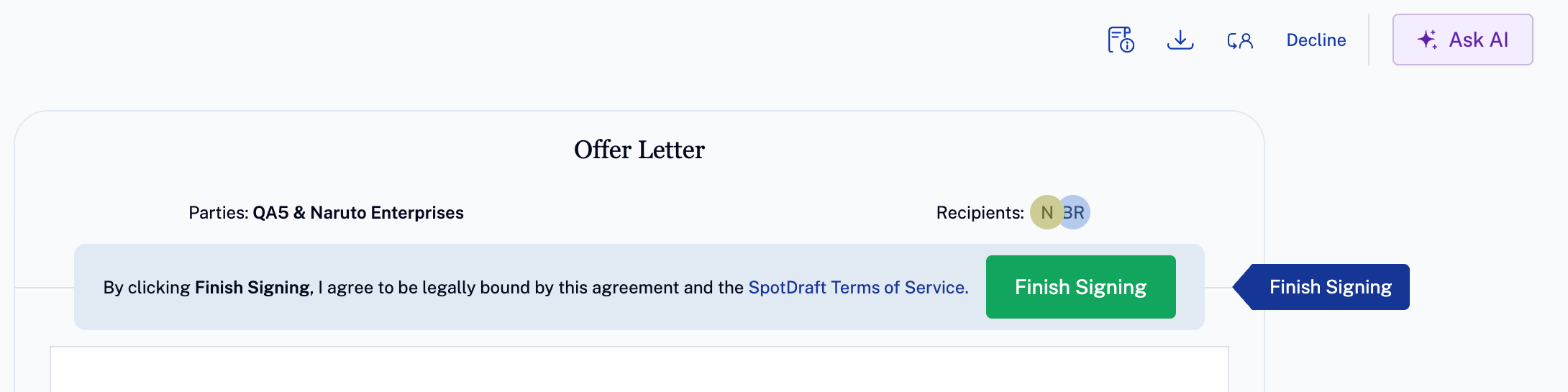
After all the fields are filled by the signatory, a banner appears at the top of the page:
By clicking Finish Signing, I agree to be legally bound by this agreement and the SpotDraft Terms of Service.
Click the green Finish Signing button to confirm.
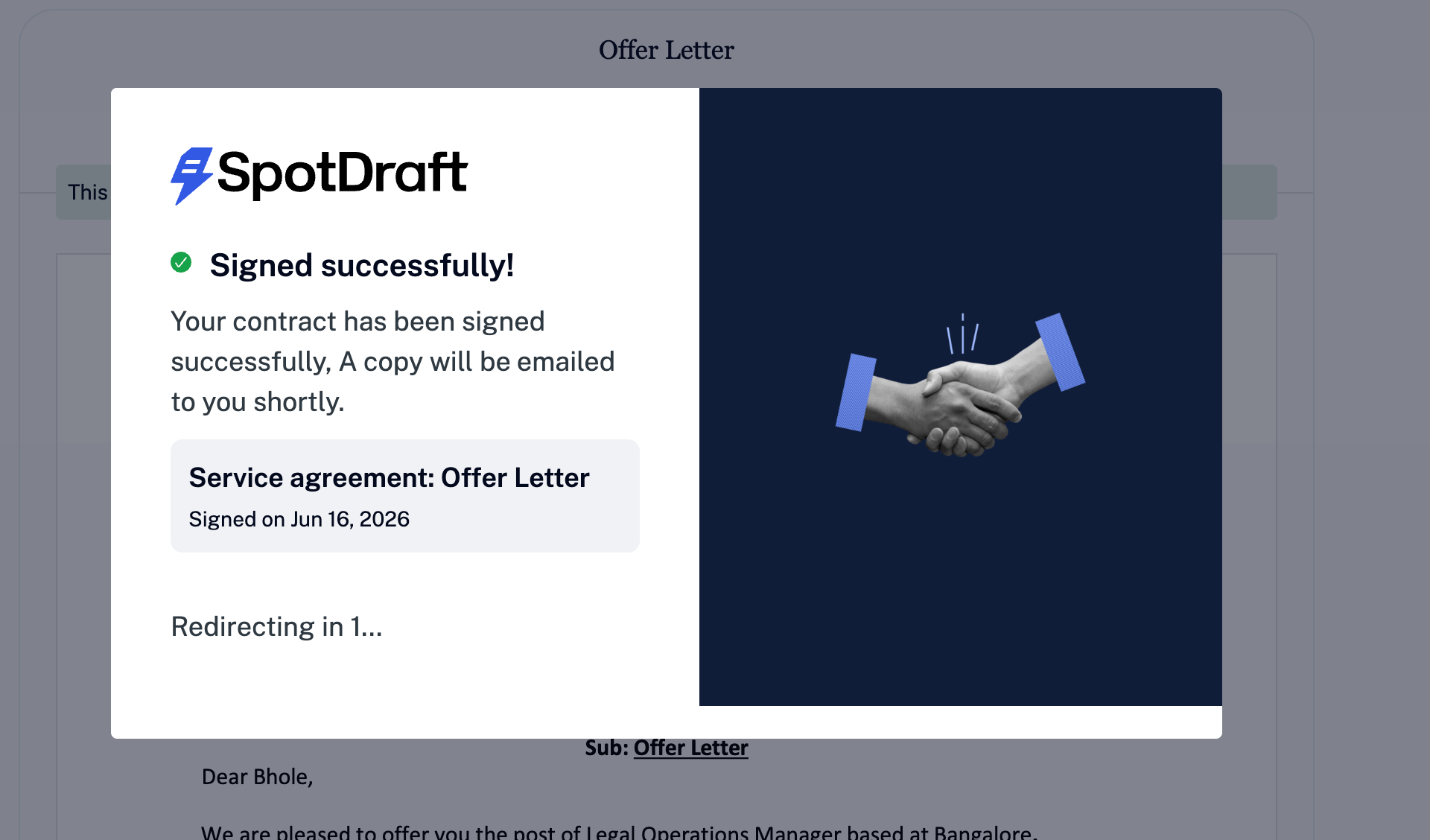
You'll see a Signed successfully! message, and your signed copy arrives by email shortly. If other people still need to sign, SpotDraft sends it to them automatically.
If you have more than one contract to sign
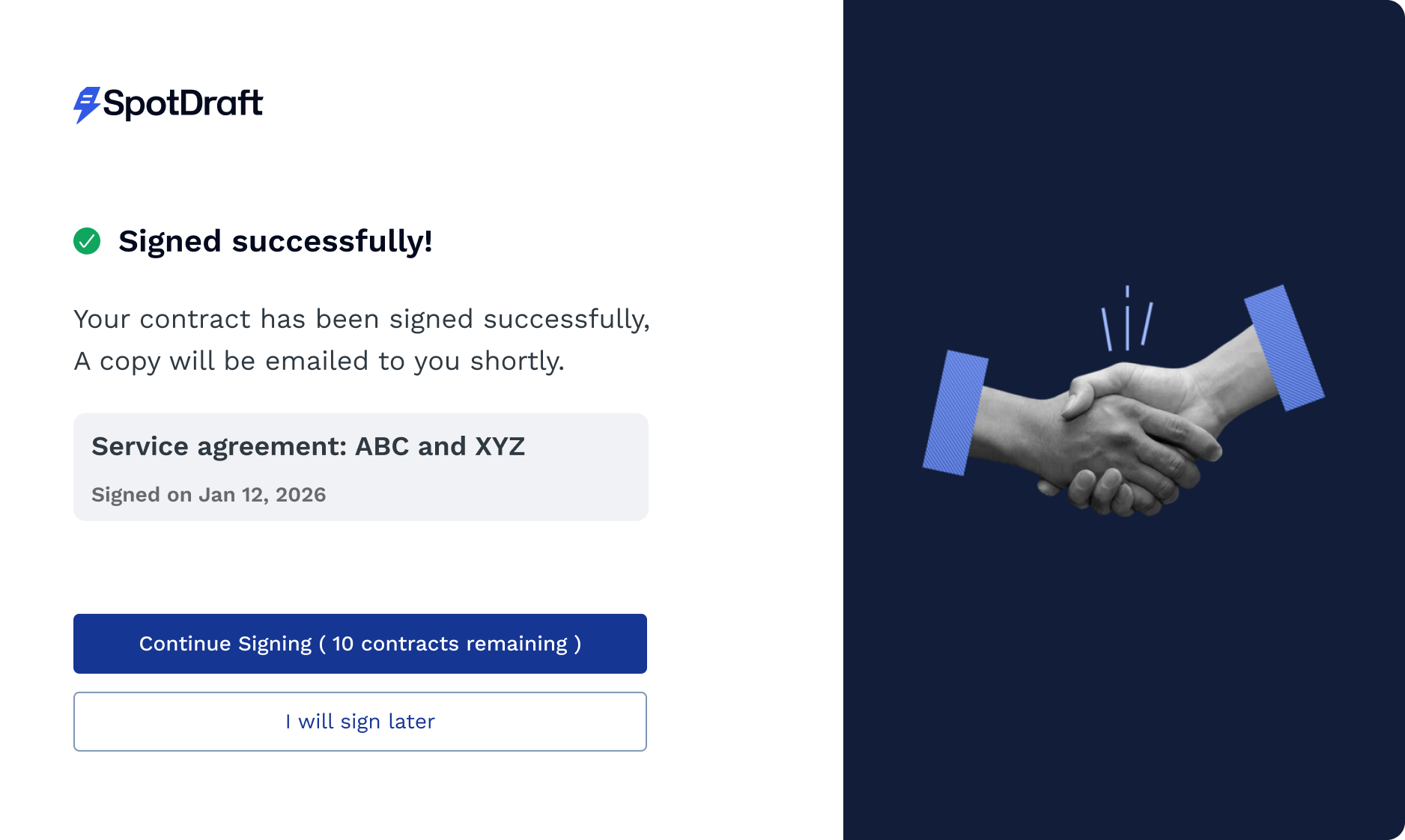
After you finish one, the confirmation screen gives you two options:
Continue Signing ([N] contracts remaining) to go straight to the next
I will sign later to stop right here and come back later.
Actions available while you sign
Everything you might need sits in the top-right toolbar, and it stays there the whole time you're on the page.

Table 1: What each signing toolbar action does.
Action | What it does |
|---|---|
View contract info | Opens a panel with the recipients and their roles (approver, signatory, viewer), party details, and other contract information. |
Download | Saves a copy of the contract to your device. |
Reassign signatory | Hands the signing request to someone else, such as a colleague who should sign instead of you. |
Decline to sign | Declines the contract and asks for a reason. |
Ask AI | Answers questions about the contract, based on the exact version in front of you. See Using Ask AI before you sign. |
Note: The new experience is being rolled out gradually for all customers. Reach out to your CSM for early access.