Saved views on the Legal Intake list
Last updated: October 15, 2026
Overview
Most legal teams work from the same few slices of their intake list every day, active requests only, my queue, a specific workflow, sorted by due date. Saved views let you set up a list the way you like it once, name it, and come back to it in a click - no rebuilding filters each time you open Intake.
Creating a saved view
Open Intake and switch to List view.
Set the list up the way you want it - apply filters (assignee, priority, workflow, status, due date) and choose how to sort.
Click Save view and give it a clear name, like "My open requests" or "Due with me."
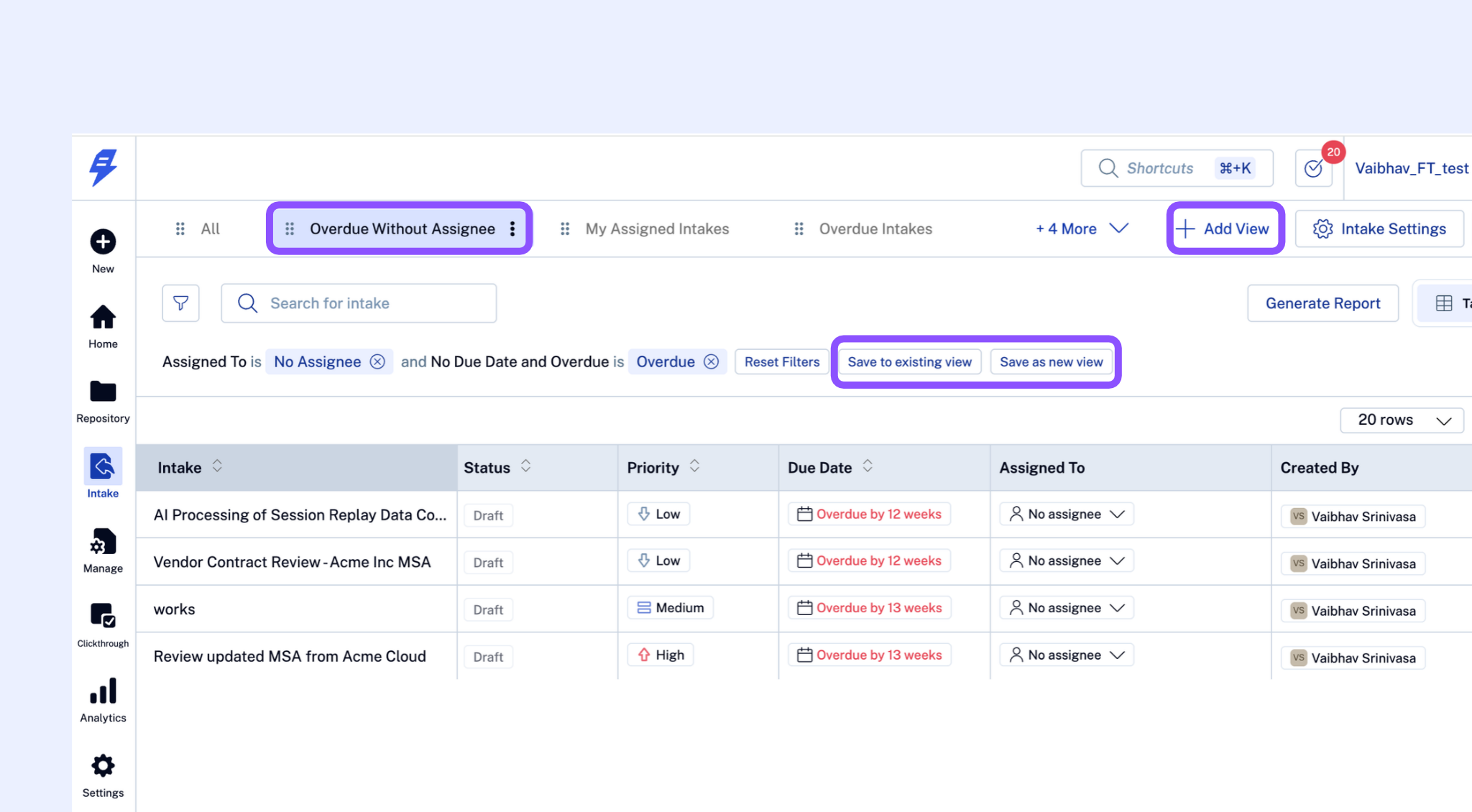
Your saved view now appears in the views list, ready to reuse.
Switching between saved views
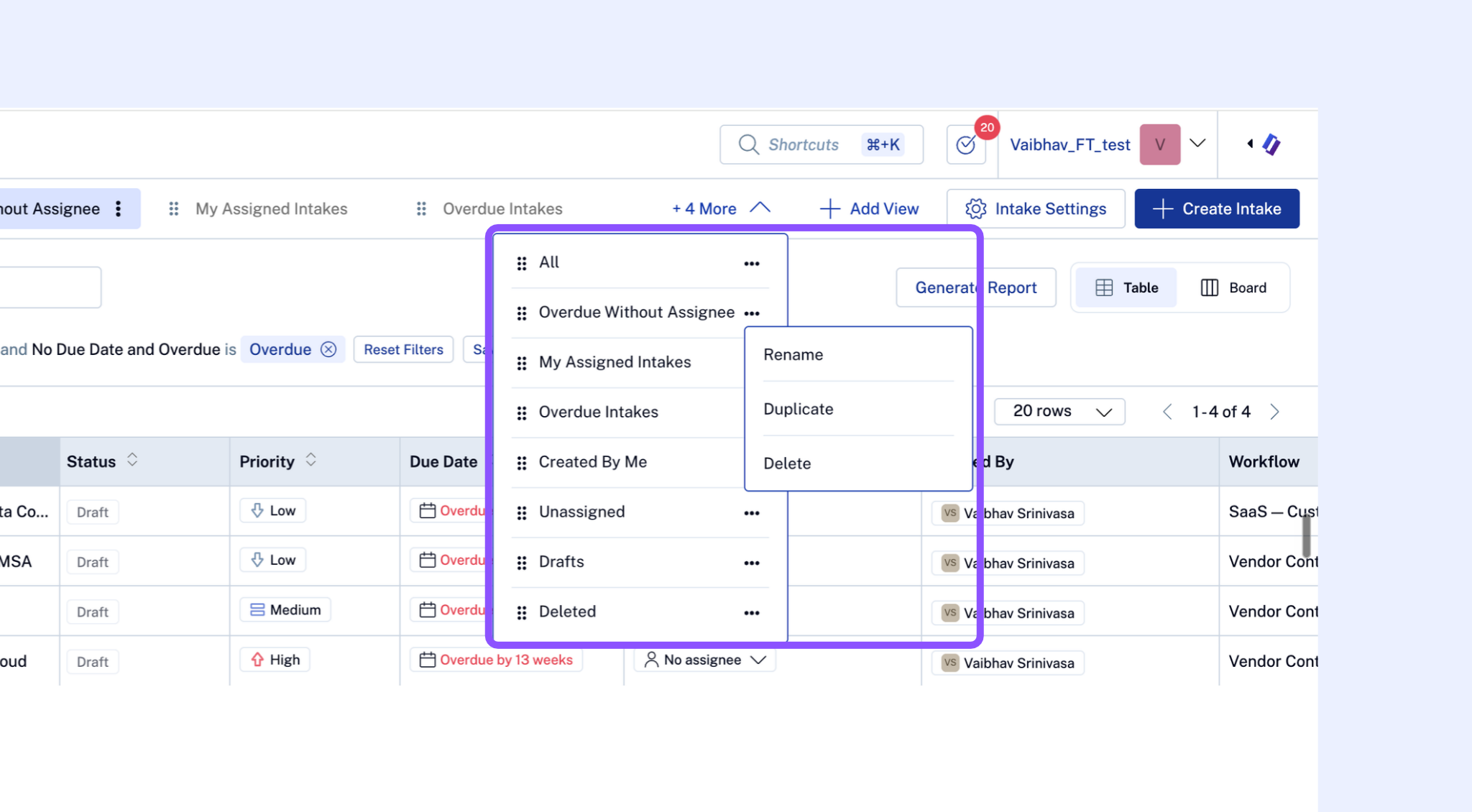
Select any saved view to load it instantly - its filters and sorting are applied for you. Your views persist across sessions, so they're waiting for you the next time you log in.
[SCREENSHOT: Views list showing several saved views, one selected]
Managing your views
Rename a view to keep your list tidy as your work changes.
Update a view by adjusting its filters or sorting and saving over it.
Delete a view you no longer use.
Tips
Start with the views you build most often. "Active only," "My queue," and "Due this week" cover most daily triage.
Name views for what they show, not how they're built - "Marketing reviews" reads better than "workflow = marketing, status ≠ done."