Managing your Legal Intake notification preferences
Last updated: October 15, 2026
Overview
Legal Intake keeps everyone in the loop as requests move — but not everyone needs every update. A lawyer working across dozens of intakes wants to know the moment one is assigned to them; a business requestor mostly cares that their own request is done. Notification preferences let you choose exactly which Legal Intake events reach you, and on which channel.
Use Case:
Meet Priya. Priya is a Legal Operations Manager handling a busy intake queue. She wants a Slack ping the moment a request is assigned to her, but she doesn't need an email every time an attachment is added to a ticket she's watching. Now she sets that up once and her inbox goes quiet without her missing anything that matters.
Where to find your preferences
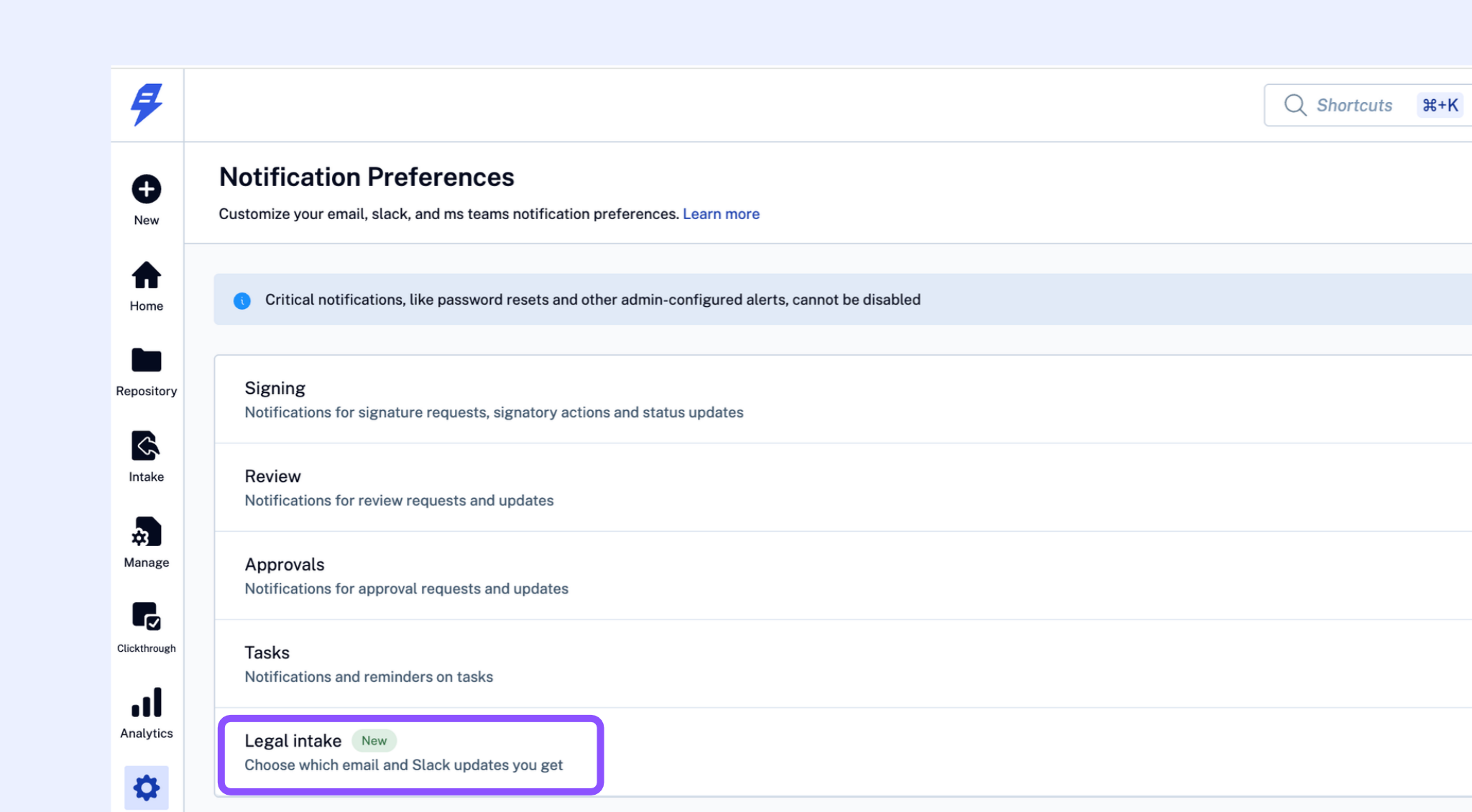
Go to Settings → Notification Preferences. If your workspace has Legal Intake enabled, you'll see a Legal Intake category alongside Signing, Review, Approvals, and Tasks.
Click Legal Intake to open the preference panel.
How preferences are organised
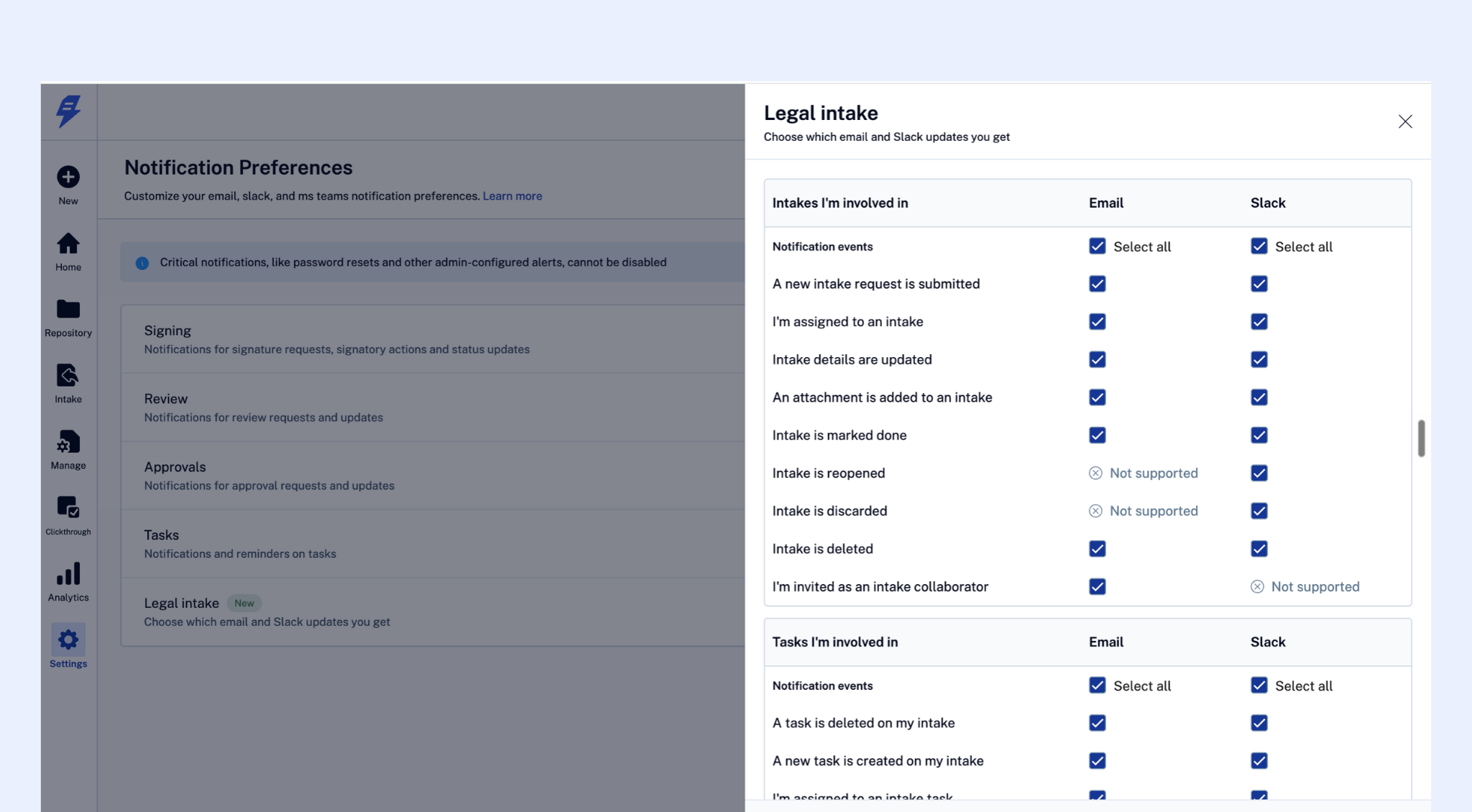
Legal Intake events are grouped into four sections. Each event can be turned on or off independently for Email and Slack.
Section | Covers |
|---|---|
Intakes I'm involved in | A new intake is submitted, assigned to you, details updated, an attachment is added, marked done, reopened, discarded, deleted, and being invited as a collaborator |
Tasks on my intakes and tasks I'm part of | A task is created or deleted, assigned to you, details updated, an attachment is added, marked done, reopened, discarded, and being invited as a task collaborator |
Intake reminders | An intake is overdue or due today |
Intake task reminders | An intake task is overdue or due today |
Setting your preferences
Toggle an event - click the checkbox in the Email or Slack column for any event to turn it on or off.
Set a whole section at once - use the select-all control at the top of a section to switch every event in that section on or off for a channel in one click.
Save - click Save Changes when you're done.
Things to know
Some events send on one channel only. For example, reopened and discarded notifications are available on Slack, and invited as a collaborator is available on email. Where an event isn't available on a channel, you'll see "Not supported" instead of a toggle.
Editing an intake's questionnaire answers doesn't send an update. The intake details updated notification fires for changes to the title, description, due date, or priority — not for edits to form answers.
Critical alerts always send. Password resets and other admin-configured alerts can't be turned off. You'll see a note about this at the top of the screen.
The Legal Intake category only appears if your workspace has Legal Intake enabled.