Auto-triaging your Legal Intake requests
Last updated: October 21, 2026
Overview
Creating an intake is only the start of the work. Someone still has to decide who owns it, how urgent it is, when it's due, and what sub-tasks it needs. The auto-triaging agent handles all of that the moment an intake is created, on any channel - from instructions you write in plain language.
Use case
Meet Sarah. Sarah is a Legal Operations Manager at a 400-person SaaS company. Overnight, requests pile up from email, Slack and the web form, and she used to spend her first hour each morning deciding who takes what. Now she's written a few plain-language instructions — route NDAs to a dedicated owner, balance everything else by workload, create the standard sub-tasks for vendor onboarding — and new requests arrive already assigned, prioritized and dated.
How it works
When a new intake is created from email, Slack, or the web form, the auto-triaging agent runs in the background and can:
Set the assignee
Set the priority
Set the due date
Create sub-tasks for the workflow
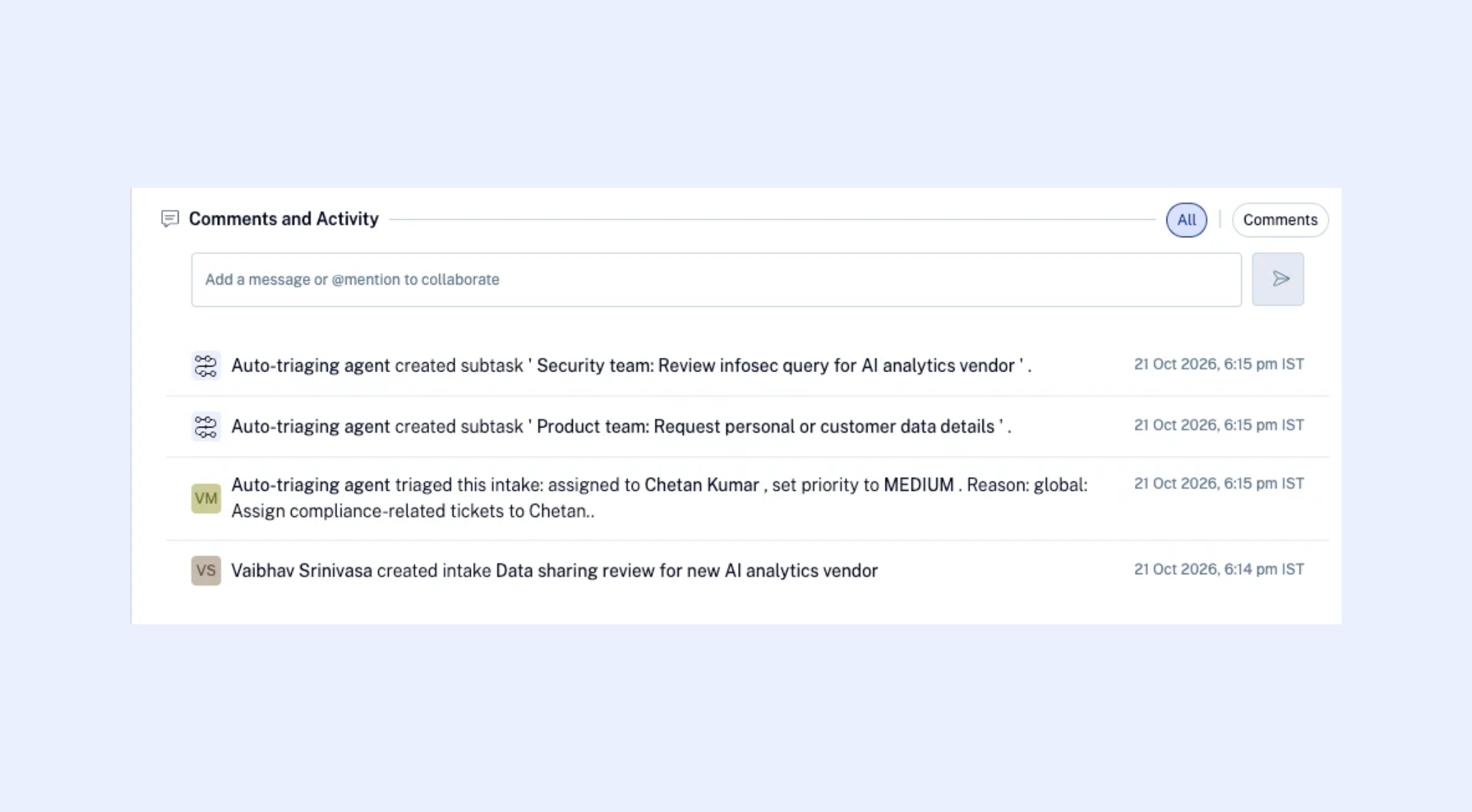
It applies your instructions and records what it did (and why) in the intake's activity log. Intakes it has handled show an Auto-triaged badge.
Writing your instructions
Instructions live in Legal Intake Settings → Auto-triaging. Write them in plain language - the same way you'd brief a new team member. There are two kinds:
Global instructions apply to every intake. For example: "If the requestor has submitted before, assign to whoever handled their last request."
Workflow-specific instructions apply to a single workflow type. For example: "Route all NDA requests to Emma. If no one is eligible, leave the intake unassigned and notify the admin."
Both run on every matching intake. Where they conflict, the workflow-specific instruction wins.
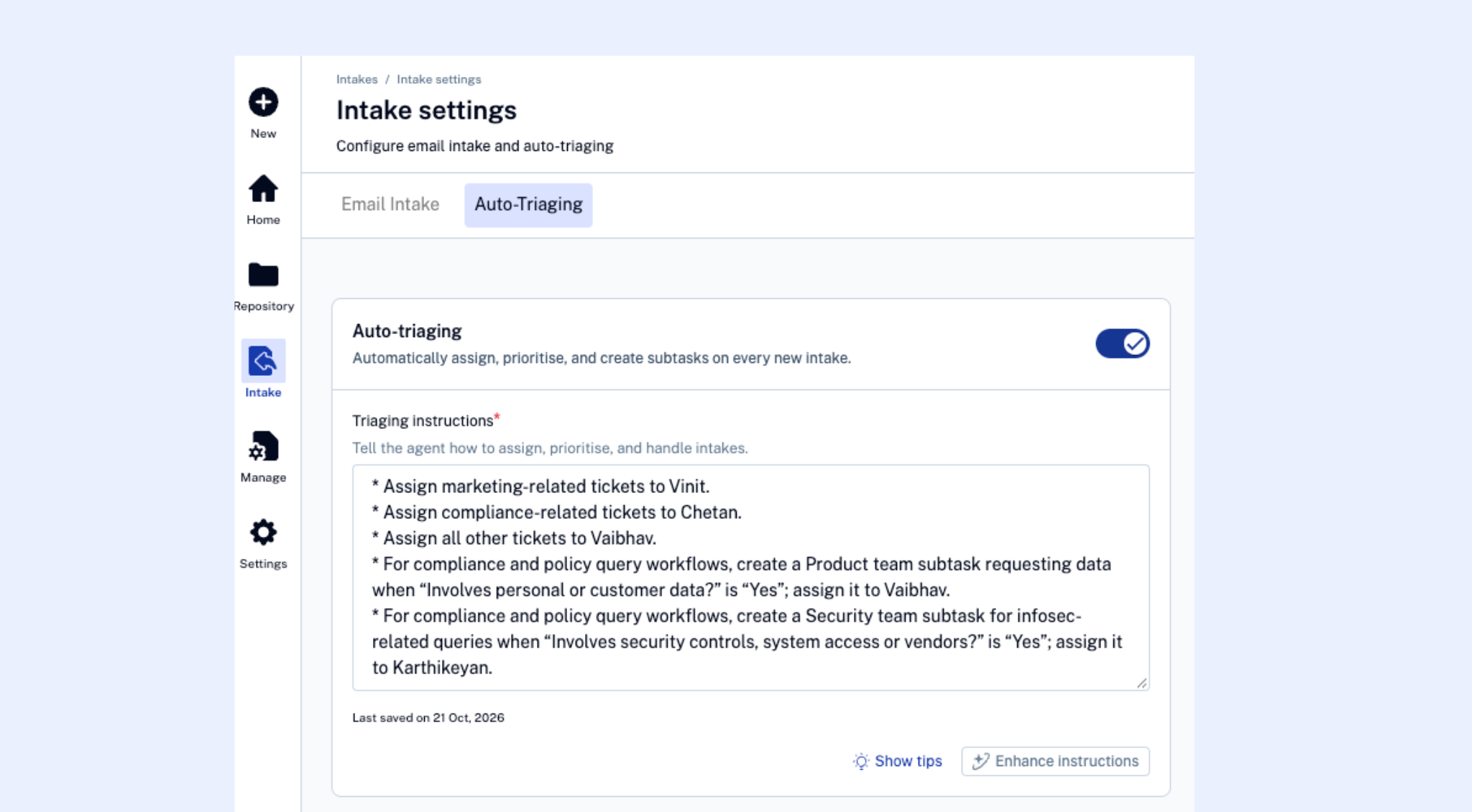
Tips for good instructions
Be specific about fallbacks. Say what should happen when your first choice can't take the intake.
Name the sub-tasks you want created, and who they go to.
Start simple. Add instructions as you see how the agent handles real intakes.
Example instructions you can adapt
Here are some common triaging instructions. Each one shows a template with the parts you'll change in [brackets], followed by a filled-in example. Replace the bracketed parts with your own workflow types, team members, and question names.
Before you start
These examples assume a workspace with workflow types named NDA and Vendor onboarding; team members named Emma, David, Sophie, Lena and Mark; and an intake question named Jurisdiction. Your workspace will have different names — replace them with your own.
Use-case | Instruction template | Example |
Balance work across the team Use this when you want new intakes spread evenly instead of assigned by hand. | Assign every new intake to the | Assign every new intake to the Legal team member with the fewest open intakes. |
Route a request type to a specific owner Use this when a workflow type should always go to the same person, with a sensible fallback. | Route all | Route all NDA requests to Emma, all compliance requests to David and everything else to Lena |
Route by what the request is about Use this when the right owner depends on the subject of the request rather than the workflow type. | Read the request. If it mentions | Read the request. If it mentions security or infosec, assign to David. If it mentions privacy or data protection, assign to Sophie. Otherwise assign to the general Legal queue. |
Create the standard sub-tasks for a workflow Use this when a workflow always needs the same set of sub-tasks on every request. | For | For Vendor onboarding requests, create these sub-tasks: Initial review, Redlines, Final sign-off. Assign them to the intake owner. |
You can combine several of these in one instruction set - for example, route by answer, set a due date, and create sub-tasks on the same workflow.
Seeing what the agent did
Every run adds a single entry to the intake's activity log — for example: "Auto-triaging agent triaged this intake: assigned to Emma Clarke, set priority to High, set due date to May 20. Reason: NDA workflow rule." Sub-tasks it creates are logged individually.
If you change the assignee, priority, or due date afterwards, your change is logged under your name and the Auto-triaged badge is removed - the triage is now yours, not the agent's.
Things to know
Instructions are written in plain language today.
The agent assigns to an individual, not a whole team.
The agent runs once per intake, when it's created. It doesn't re-run on edits or on status changes.