Creating and Using Skills in Sidebar
Last updated: November 18, 2026
Skills are saved sets of instructions that Sidebar follows when you attach them to a chat. Create a skill by asking Sidebar, then reuse it in any later chat.
Use case:
Meet Anika. Anika is a commercial counsel at a 300-person software company in Toronto. Each time she asked Sidebar to review a vendor agreement, she retyped the same checklist of what to look for. She asked Sidebar to turn that checklist into a skill. Now she types a slash in the message box, picks the skill and asks Sidebar to review the agreement, and Sidebar follows her checklist.
Why use skills
Sidebar gives better results when you tell it how your team does a task: what to check, what format to use, what to leave out. Without a skill, you type those instructions again in every chat. A skill saves them once. Attach the skill to a chat, and Sidebar follows the saved instructions from the first message.
Before you start
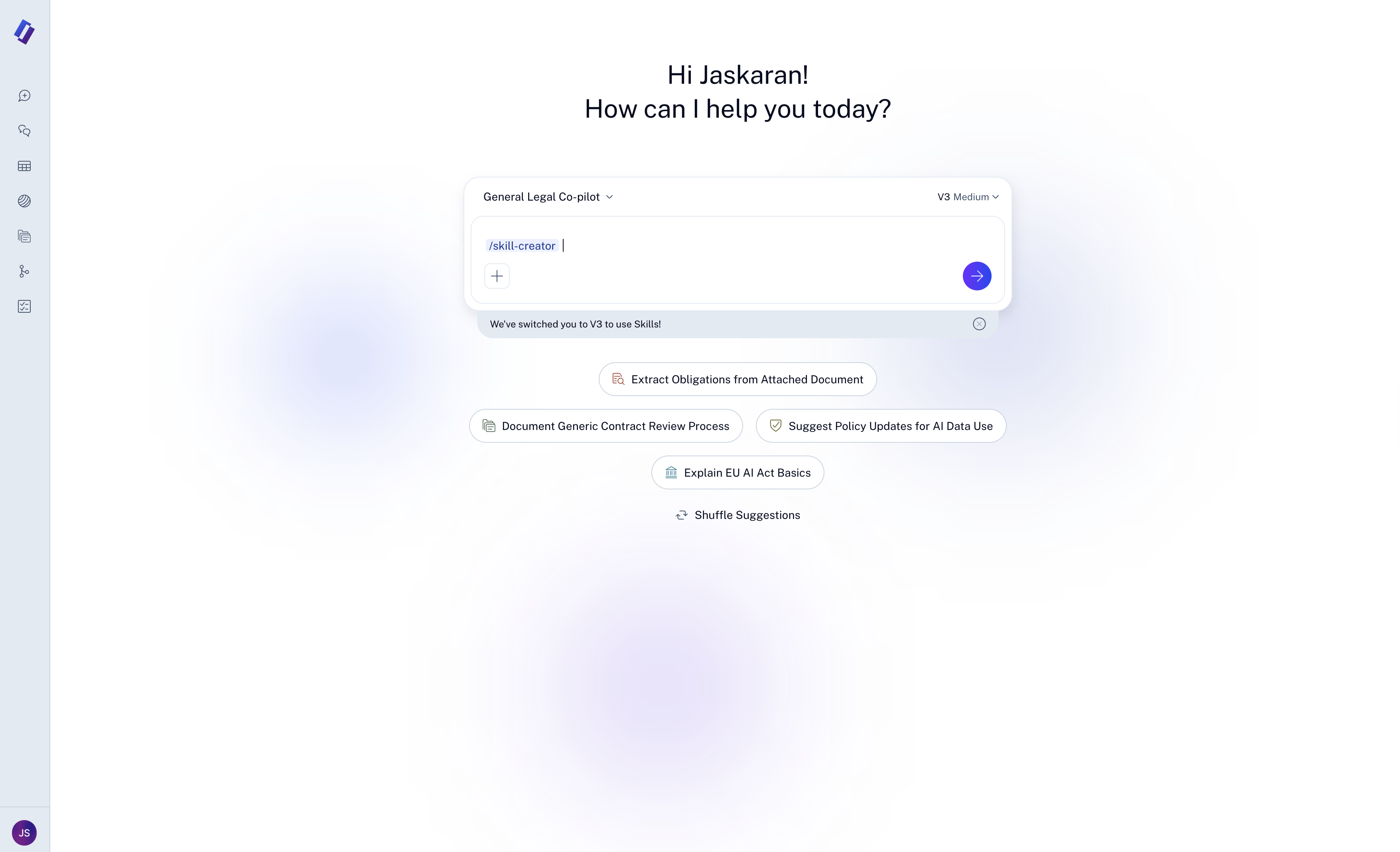
Skills work in Sidebar V3. If you pick a skill in a V2 chat, Sidebar switches you to V3 and shows the message We've switched you to V3 to use Skills! For details on V3, see Sidebar V3 (Beta): What's New and How to Switch.
Every workspace starts with one skill, skill-creator. You use it to create all your other skills.
Where to find skills
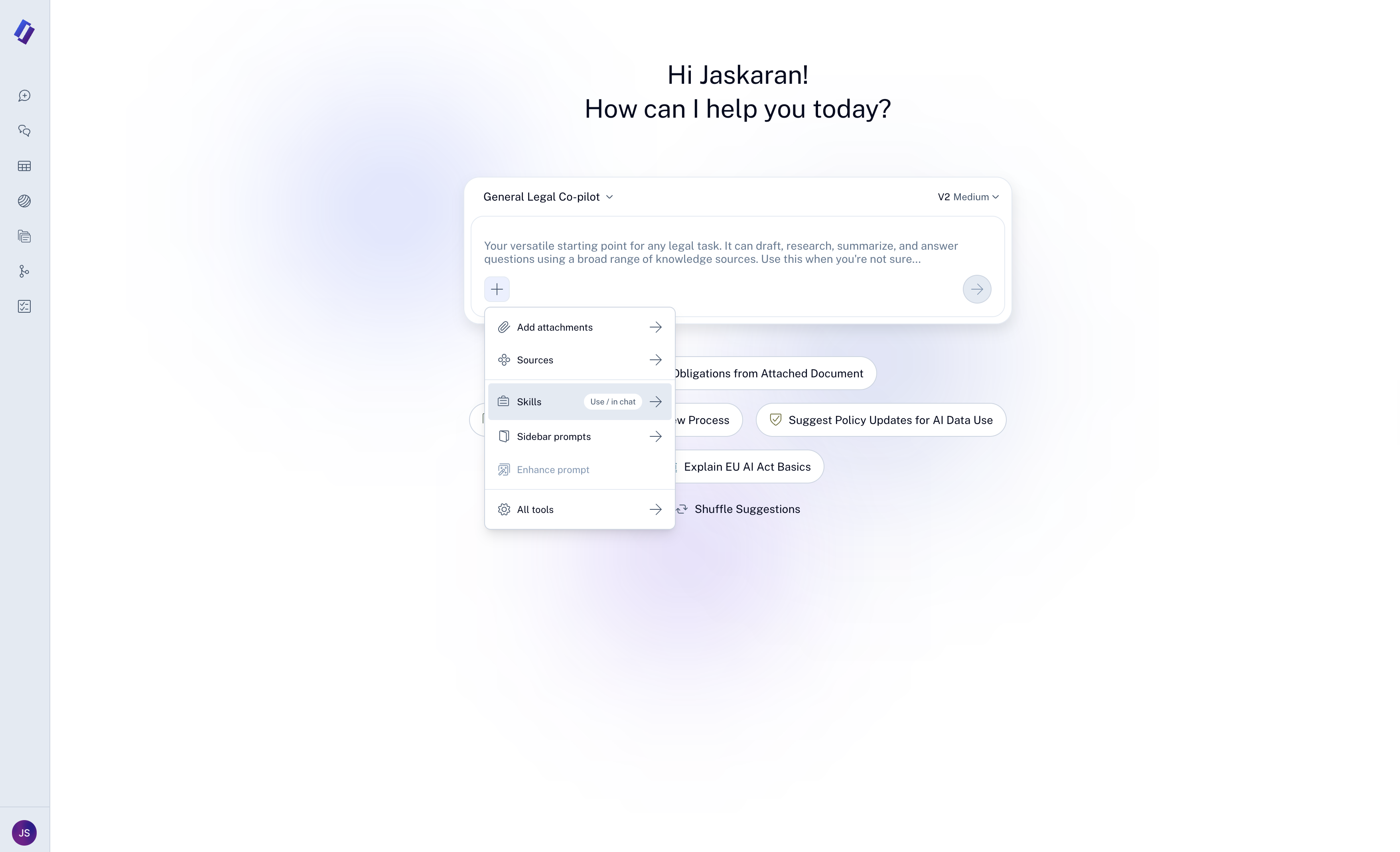
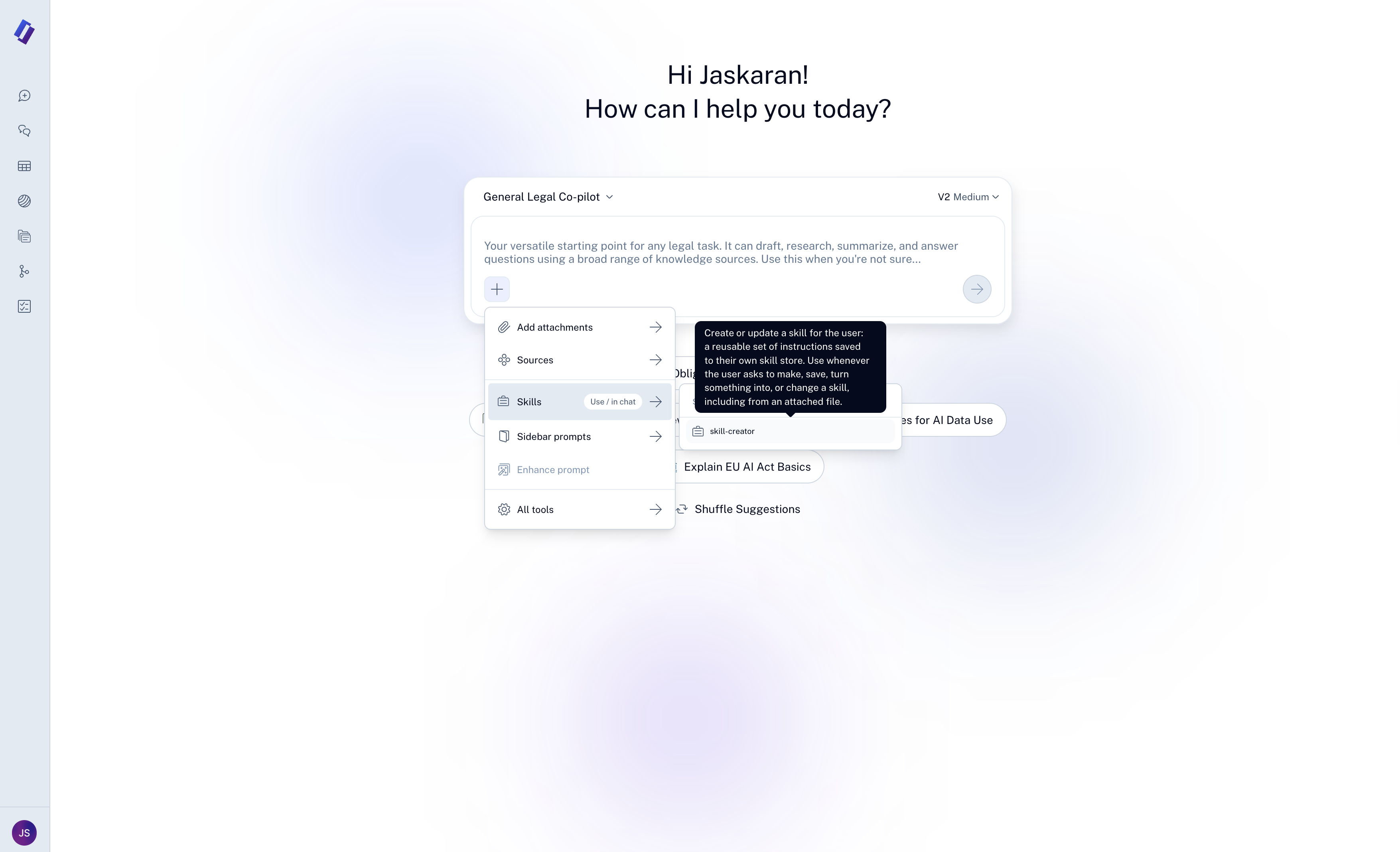
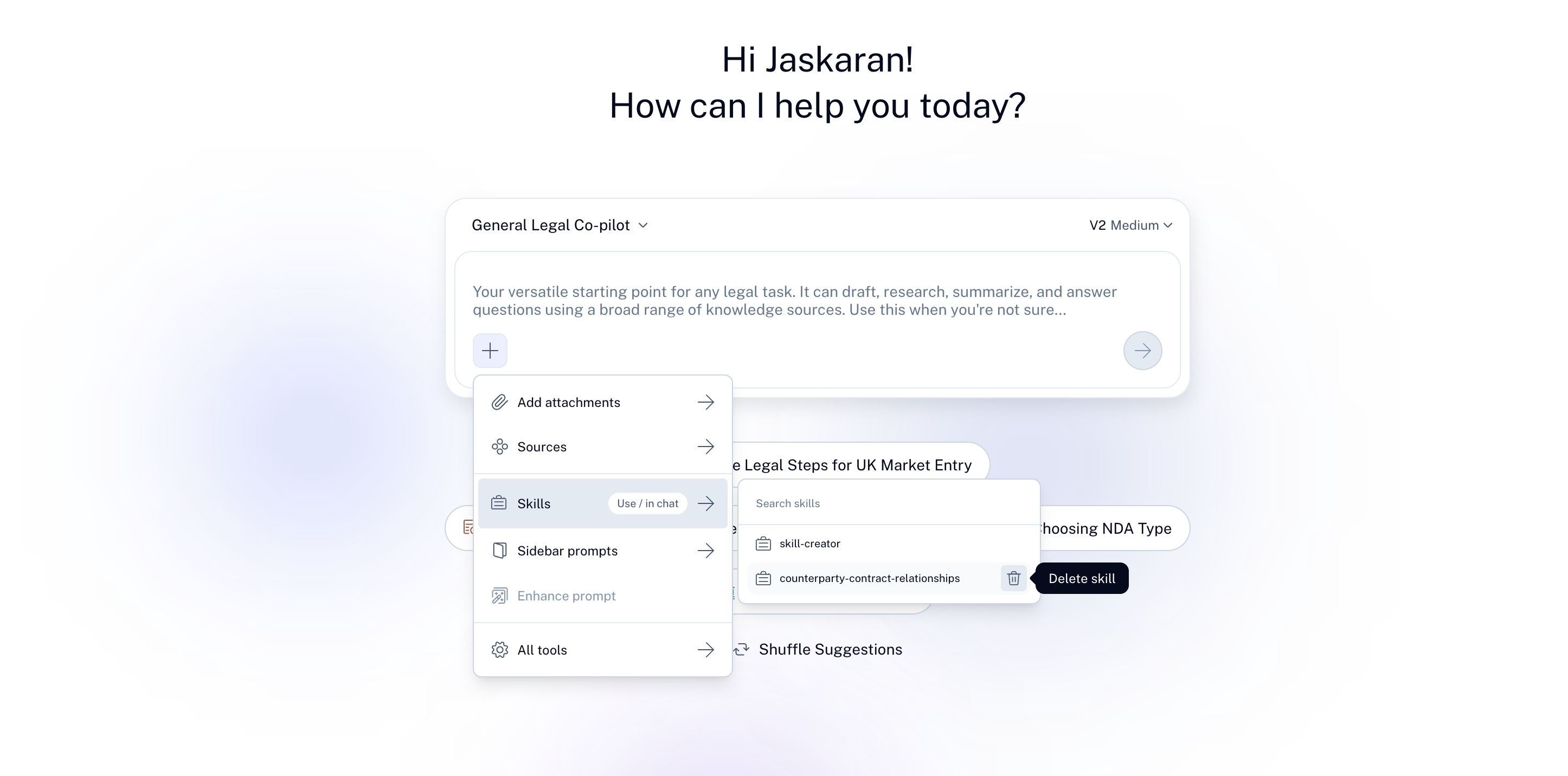
In the message box, click the plus button and choose Skills. The list shows skill-creator and every skill you have saved, with a Search skills field at the top. Hover over a skill to read its description. You can also type a slash (/) in the message box to find a skill by name.
Create a skill
Sidebar writes the skill for you and asks you to confirm it. Nothing is saved until you say yes.
Step 1: Start skill-creator
Click the plus button, choose Skills, then select skill-creator. You can also type a slash and pick skill-creator. The message box tags your message with /skill-creator.
Step 2: Describe the skill
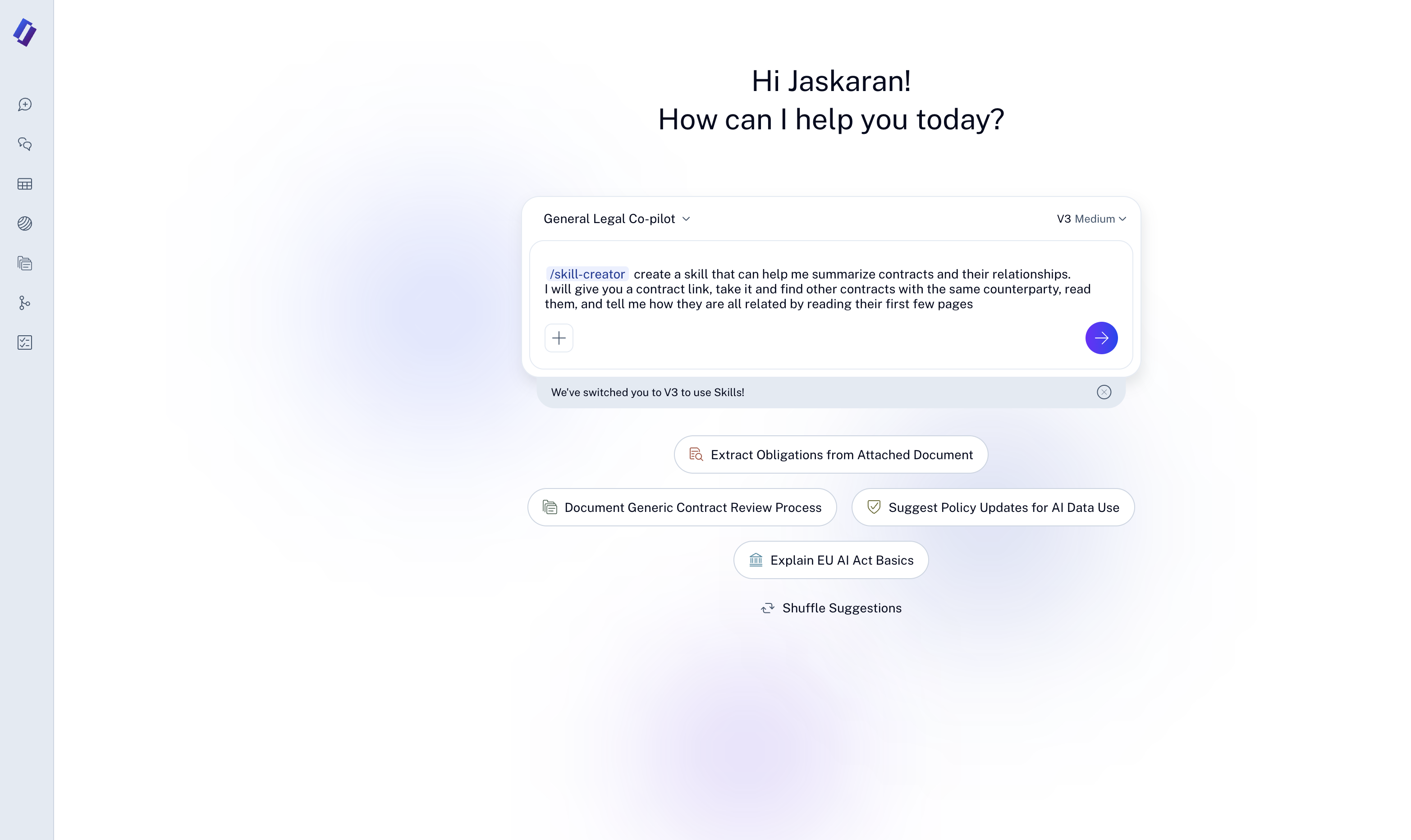
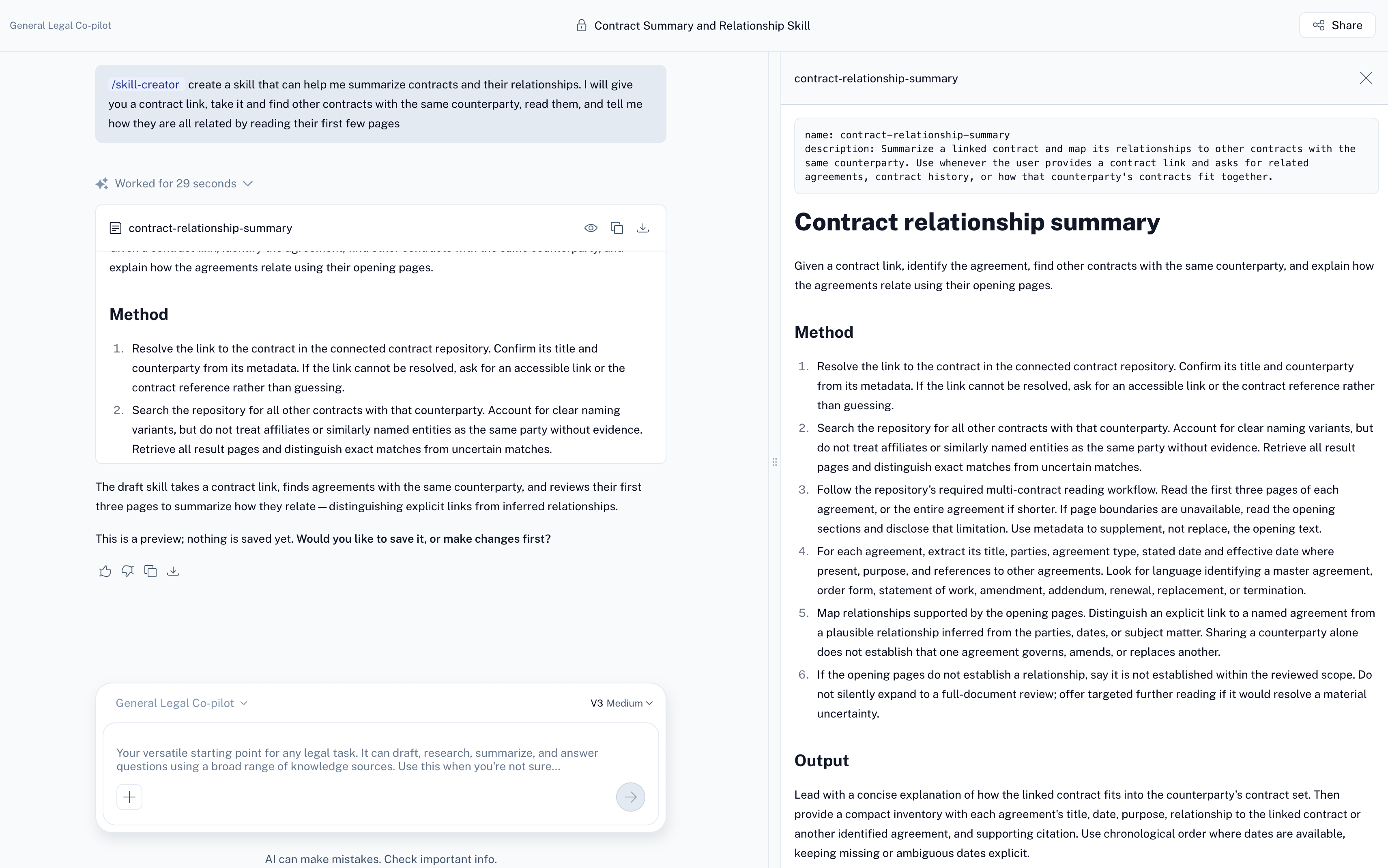
Write what the skill should do, in plain language. For example: "Create a skill that can help me summarize contracts and their relationships. I will give you a contract link, and you find other contracts with the same counterparty, read them, and tell me how they are all related by reading their first few pages." If Sidebar needs more detail, it asks you.
Step 3: Review the draft
Sidebar shows the draft as a file with a name, a description and the instructions. Click the eye icon to open the full skill on the right side of the screen. Use the copy and download icons to take the skill to other tools. Sidebar asks whether you want to save it or make changes first.
Step 4: Confirm or ask for changes
Reply in the chat with a yes, for example "Yes create the skill". Sidebar saves the skill and tells you it was created. If you want something different, describe the change instead. Sidebar revises the draft and shows it again, and nothing is saved until you confirm.
Once saved, the skill appears in the Skills list in new chats, on any device.
Turn a finished chat into a skill
Run a task in a chat first. Then tag skill-creator and ask it to turn the chat into a skill. Sidebar writes the technique it just used into a draft for you to review.
Save a file you already have as a skill
Attach one markdown (.md) file in chat and ask Sidebar to save it as a skill. You can also attach one supported document, such as a Word or PDF playbook, and ask Sidebar to turn it into a skill. In both cases Sidebar shows you the result and waits for your yes before saving. If Sidebar cannot turn the file into a usable skill, it tells you why.
Use a skill
Open a chat. Click the plus button, choose Skills and select the skill, or type a slash and the skill name.
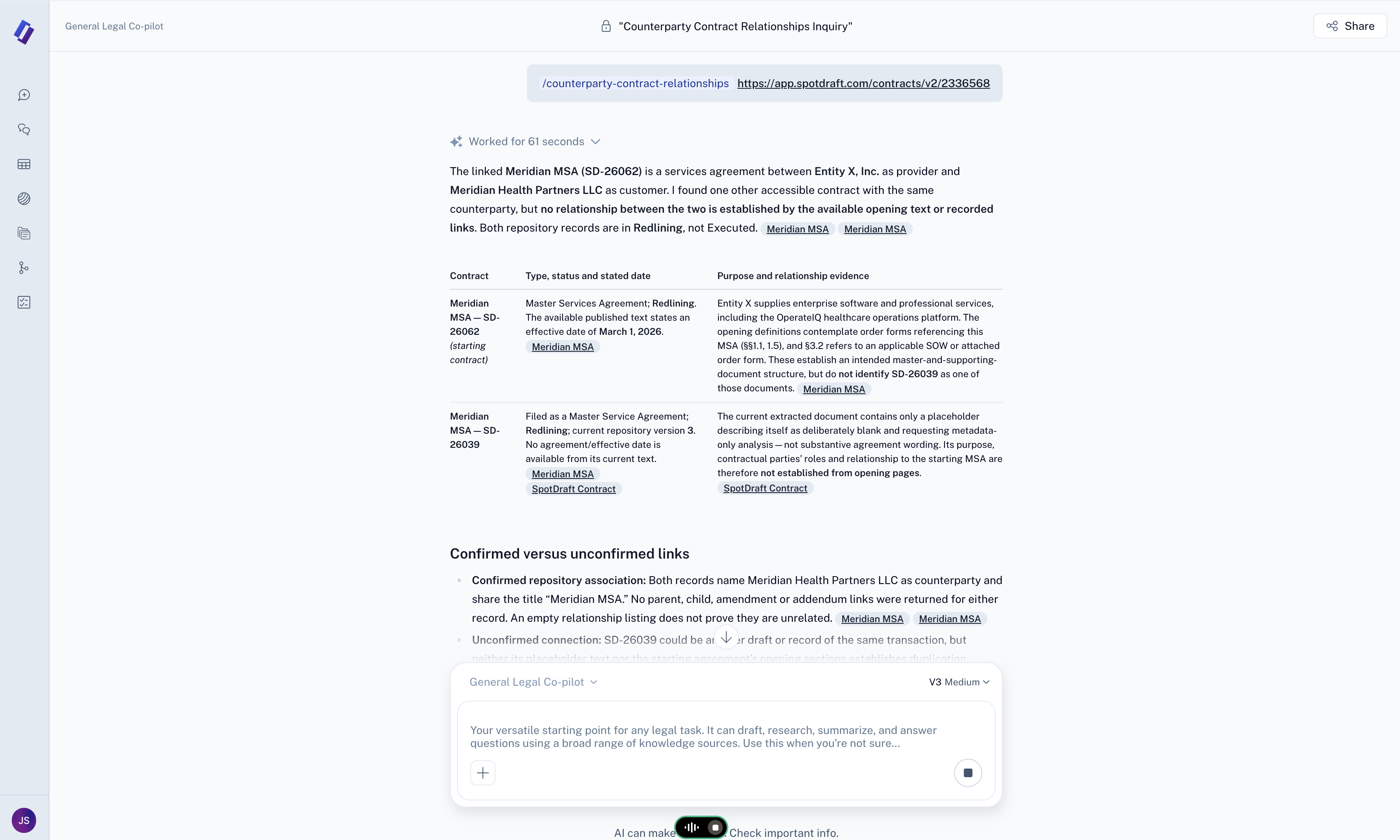
Write your request, or paste a contract link if the skill expects one, and send it.
Sidebar loads the skill and follows it. In the thinking block you see Reading skill followed by the skill name. The skill stays in effect for the rest of that conversation, so you do not attach it again on each turn.
Manage your skills
Ask Sidebar in chat to list your skills, show you one, or change one. Changes follow the same draft and confirm steps as creating a skill. Skills are read-only wherever you view them, and Sidebar does not keep version history.
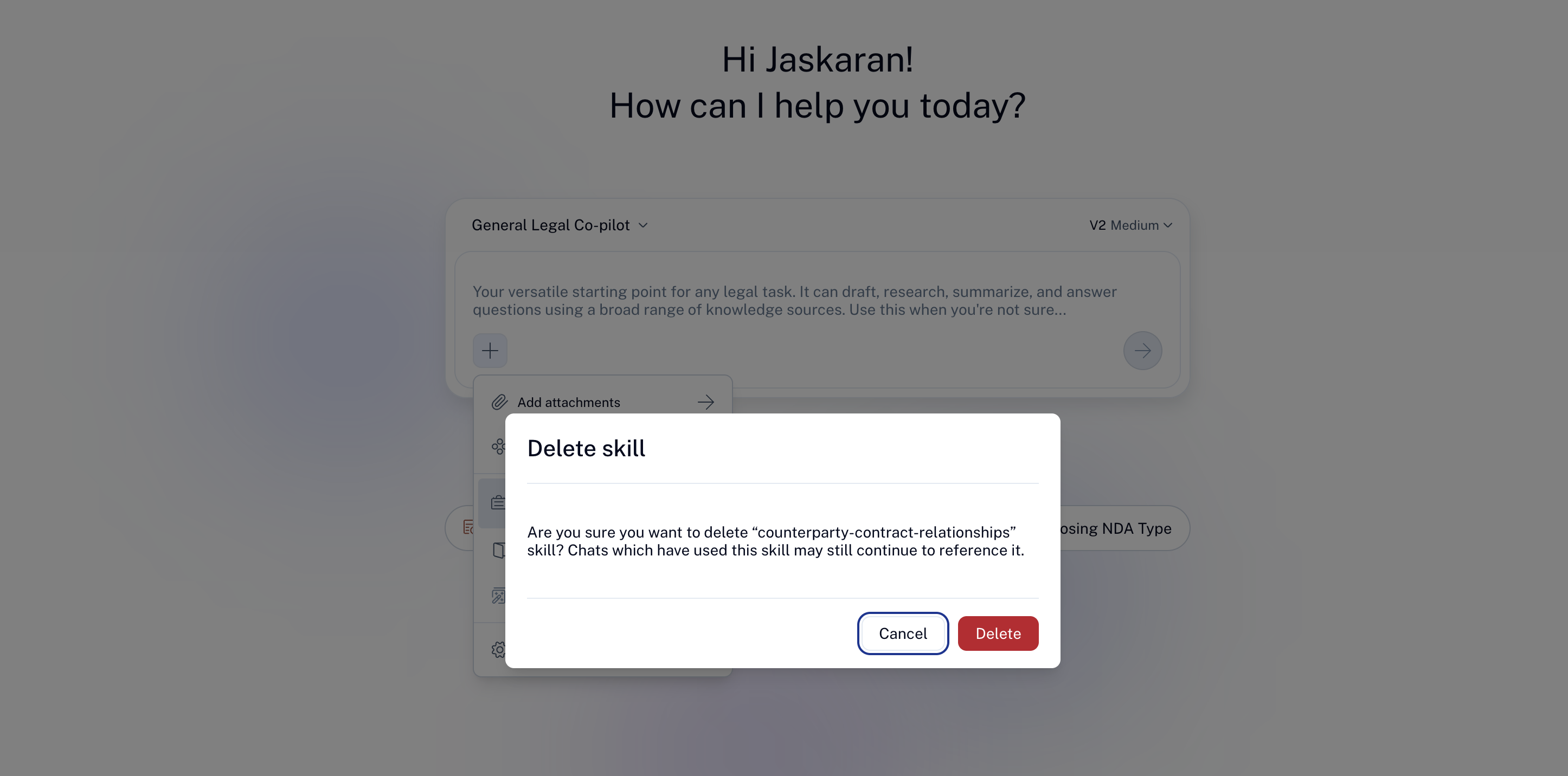
To delete a skill, open the skill list and hover over one of your skills. A trash button appears, and hovering over it shows Delete skill. Select it, then choose Delete in the window that opens, or Go back to keep the skill. System skills such as skill-creator have no trash button and cannot be deleted. Chats that used a deleted skill show Deleted skill in place of its name.
Sample skills you can create
Each example gives the request to send to skill-creator. Replace the details with your own standards. Sidebar follows the instructions you give it, so the more specific they are, the closer the results match how your team works.
Map contracts with the same counterparty
Who it helps: Legal operations and in-house counsel who need the full picture of a relationship before a renewal or dispute.
Ask skill-creator: "Create a skill that takes a contract link, finds other contracts with the same counterparty, reads the first three pages of each, and explains how they relate. Separate relationships the opening pages state outright from ones you are inferring."
Then: Type a slash, pick the skill and paste a contract link. Sidebar explains how the linked contract fits with the counterparty's other agreements and lists each agreement with its type, status and date.
Turn your review playbook into a skill
Who it helps: In-house counsel who want every NDA or vendor agreement checked against the same standards.
Ask skill-creator: "Turn the attached playbook into a skill that reviews an NDA against it and lists each place the contract departs from our standard position."
Then: Attach your playbook (a Word or PDF file) in the same message. After you confirm, attach the skill to any chat where you review an agreement.
Summarize agreements in your house format
Who it helps: Legal teams that need summaries to look the same for every reader.
Ask skill-creator: "Create a skill that summarizes any agreement under these headings: parties, term, renewal, termination, payment, liability cap and governing law. If a heading is not covered, say so instead of guessing."
Then: Attach the skill and ask for a summary of the contract you are working on.
Check renewal and notice terms
Who it helps: Contract managers and legal operations preparing for upcoming renewals.
Ask skill-creator: "Create a skill that finds the term, any automatic renewal and the notice period in a contract, then states the last date to give notice. If the contract does not say, state that."
Then: Attach the skill and ask about a specific contract, then check the dates against the contract text before you act on them.
Explain clauses to business teams
Who it helps: Sales, procurement and finance colleagues who ask legal what a clause means.
Ask skill-creator: "Create a skill that explains a contract clause in plain language for someone who is not a lawyer, then lists up to three questions they should ask legal."
Then: Paste the clause and send it with the skill attached.
Suggest fallback positions in negotiation
Who it helps: Commercial counsel who negotiate the same clauses repeatedly.
Ask skill-creator: "Create a skill that, for a clause I paste, proposes wording for each of these positions: preferred, acceptable fallback and walk away. Use the positions I list below for limitation of liability, indemnity and payment terms."
Then: Include your positions in the request so they become part of the skill, then attach it whenever you review a counterparty's draft.
Things to know
Sidebar uses a skill only when you attach it or type its name after a slash. It does not choose skills for you.
A skill is one markdown file. Sidebar tells you if you attach a zip file or any other file type that is not a single markdown file.
A skill name uses lowercase letters, numbers and hyphens, up to 64 characters. The description is 1 to 1,024 characters and says what the skill does and when to use it. If a draft breaks these rules, Sidebar tells you what failed and corrects it before saving.
Sidebar lets you save a skill with a name close to an existing one, so check your list before creating a similar skill.
If a skill names a tool that is not available where you are using it, Sidebar shows that tool's error when it tries to call it.
FAQs
Can my teammates use a skill I create?
No. Skills are personal, and only you see the skills you create. Sharing skills with your workspace is in development.
Can I use a skill I wrote for another AI tool?
Yes, if it is a single markdown file. Attach it in chat and ask Sidebar to save it as a skill. Importing skills that include extra files is in development.
Can I edit a skill directly?
No. Skills open as read-only. Ask Sidebar to change the skill, review the draft and confirm.
Do I have to use V3?
Yes. Skills need V3, and Sidebar switches you when you pick one.
What is coming next for skills?
These additions are in development:
Automatic use: Sidebar finds and uses a relevant skill without you attaching it, and asks you to confirm when more than one skill could fit.
Skills with files and code: a skill can hold templates, reference files and code that Sidebar reads and runs, and Sidebar shows what a skill contains as a folder tree in the chat.
Sharing: share a skill with your workspace so teammates can use it and make their own copy.
Import from Claude: attach a skill exported from Claude, with its files, and have Sidebar save it.
Save skill button: save a drafted skill from the preview with one click instead of typing a reply.
These plans can change. This article will be updated as each one becomes available.