Advanced Chat: Managing Sources, Sharing, and History
Last updated: June 16, 2026
Once you've mastered the basics of chatting with Sidebar, you can use its advanced features to gain more control over your conversations, collaborate with colleagues, and manage your work more effectively. This guide covers how to precisely control Sidebar's knowledge sources, share your findings, and navigate your chat history.
Controlling Your Sources
By default, Sidebar uses a broad range of knowledge to answer your questions. The Sources Selector gives you granular control, allowing you to narrow the AI's focus for more precise and relevant results.
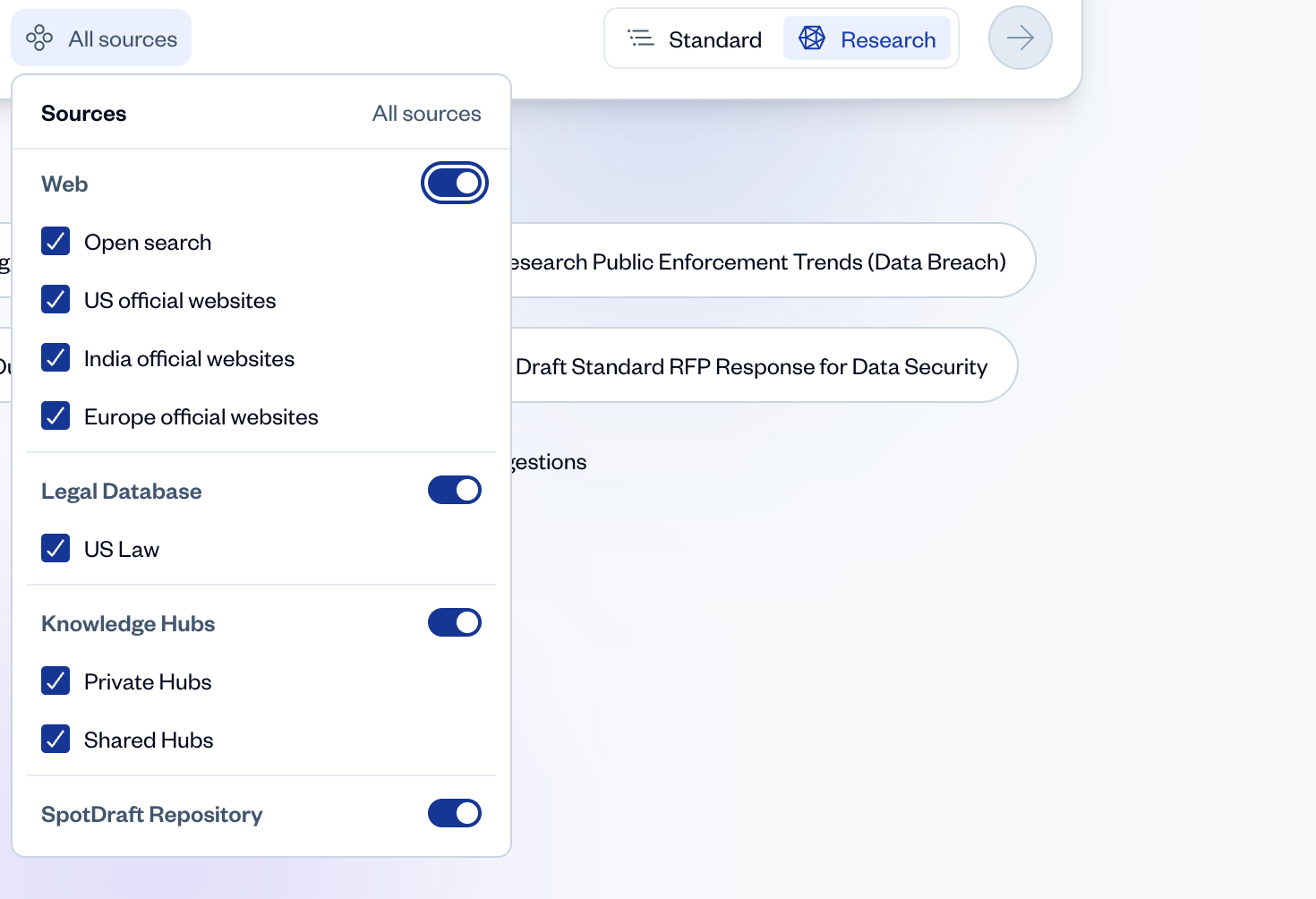
Before sending a prompt, click the All sources button in the chat toolbar.
A menu will appear, listing all available knowledge sources.
Use the toggles to enable or disable sources as needed. For example:
To perform a search using only your internal documents, you could disable Web and Legal Database and enable only your specific Knowledge Hubs.
To research only official US government legal code, you could disable all other sources and enable only US Law.
This ensures that Sidebar's responses are grounded only in the information you deem relevant for that specific task.
Note: The list of trusted sources for the US, India, and the EU are in the Appendix below
Sharing Your Conversations
When you've generated a particularly insightful analysis or a useful draft, you can easily share it with colleagues, even if they aren't in your Sidebar workspace.
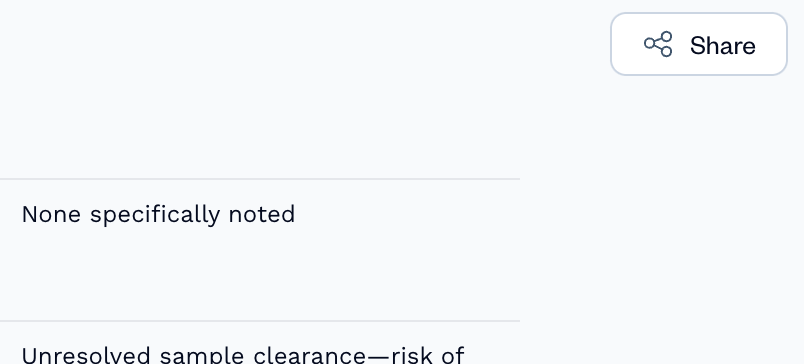
In the top-right corner of the chat you wish to share, click the Share button.
A "Share" window will appear. By default, the chat is Private (Only you).
Click the dropdown menu and select Public (Anyone with the chat link).
A unique, unguessable URL will be generated. Click Copy Link.
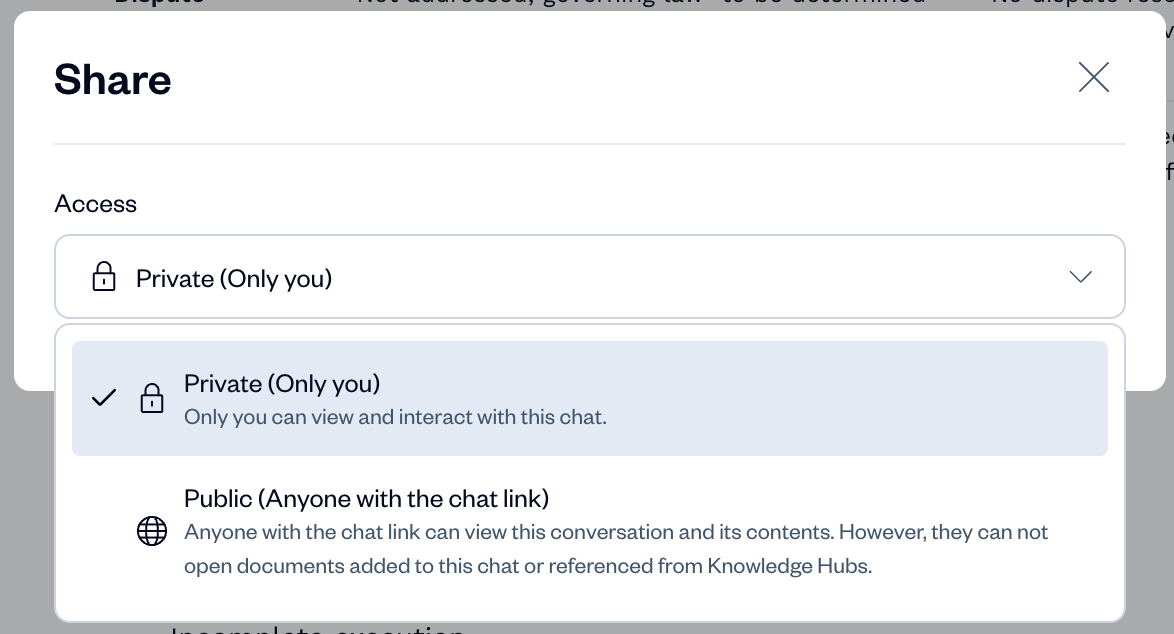
You can now paste this link into an email, Slack message, or any other communication channel. Anyone with the link can view a read-only version of the conversation.
Pro Tip: Sharing a chat is a great way to provide context to a business stakeholder. Instead of just sending a final clause, you can share the chat link to show the reasoning, research, and iterations that led to the final result.
Managing Your Chat History
Sidebar automatically saves every conversation, creating a searchable history of your work.
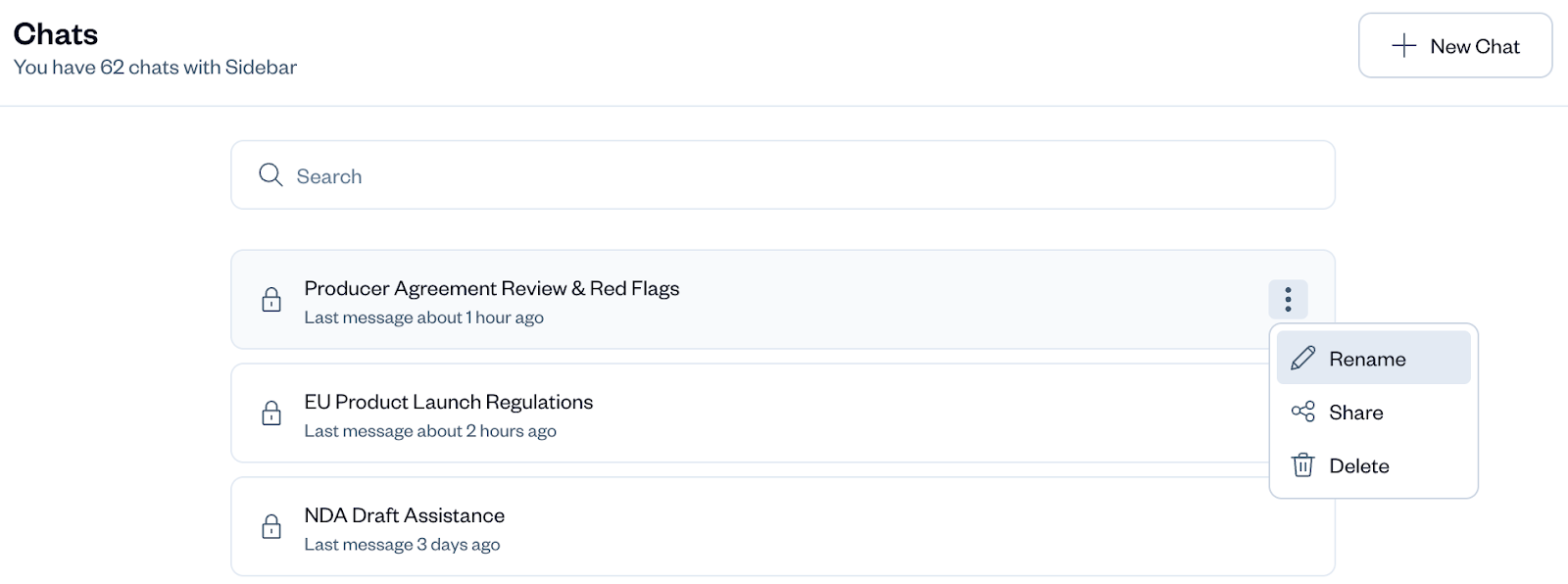
Click the Chats icon in the left navigation panel.
You will see a list of all your past conversations, with the most recent at the top.
Click on any chat to reopen it and continue the conversation or review its contents.
To manage a chat, hover over it and click the three-dot menu on the right. From here, you can:
Rename: Give the chat a more descriptive title.
Share: Open the sharing options described above.
Delete: Permanently remove the chat from your history.
Troubleshooting & Common Questions
If I share a chat, can the other person continue the conversation?
No. The shared link provides a read-only view of the chat as it existed when you shared it. They cannot add new prompts or see any subsequent messages you add after sharing.
What happens if I make a chat public and then change it back to private?
Once you change the access back to Private (Only you), the public link will immediately become invalid. Anyone trying to access it will no longer be able to see the content.
How does the search in the "Chats" page work?
The search bar on the "Chats" page allows you to search by the title of your conversations. This is why renaming your chats with clear, descriptive titles (e.g., "NDA Review for Acme Corp," "Research on GDPR Fines") is a best practice.
Appendix: List of sources
This is the list of sources Sidebar looks at by default when the US, EU, or IN official sources toggles are selected from the Sources dropdown list. You can always add more by turning on "Web" and adding the url/source to look at in natural language.