Your First Chat: Asking Questions & Reviewing Documents
Last updated: February 10, 2026
This is where Sidebar becomes your co-pilot. The chat interface is designed to handle everything from quick legal questions to in-depth document analysis. This guide will show you how to conduct your first two fundamental tasks: getting an answer to a legal question and getting a first-pass review of a document.
How to Ask a Question
Use Sidebar to get a head start on legal research. Instead of starting with a blank search engine, you can ask a direct question and get a synthesized, cited answer.
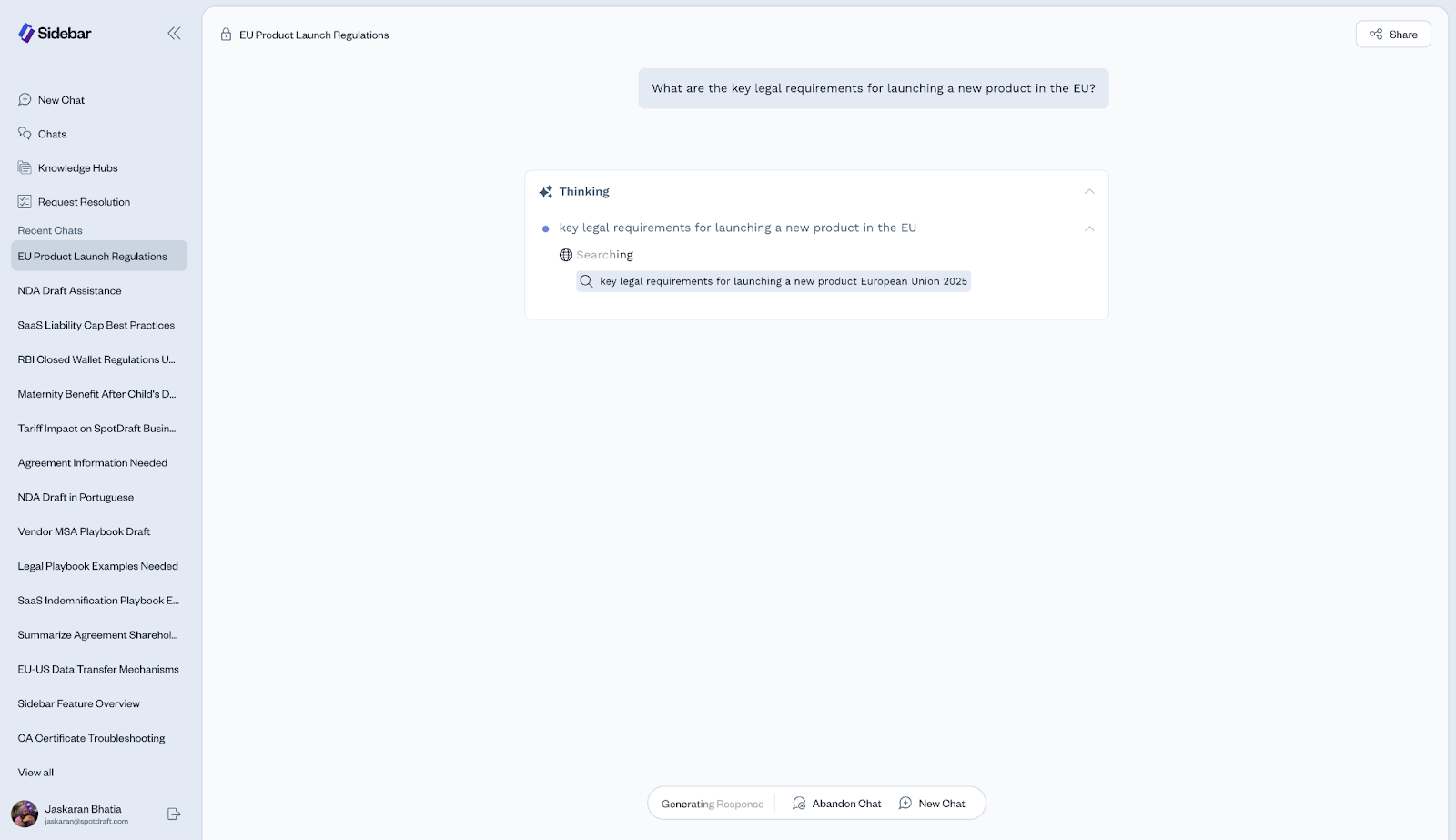
In the main chat area, type your question into the Message Sidebar box. Be as specific as you can. For example: "What are the key legal requirements for launching a new product in the EU?"
Ensure you are in Standard mode for a quick response.
Click the Send button (the arrow icon).
Sidebar will now process your request. You will see a "Thinking" box appear, which shows you the steps the AI is taking to formulate its answer, such as searching the web or its legal databases.
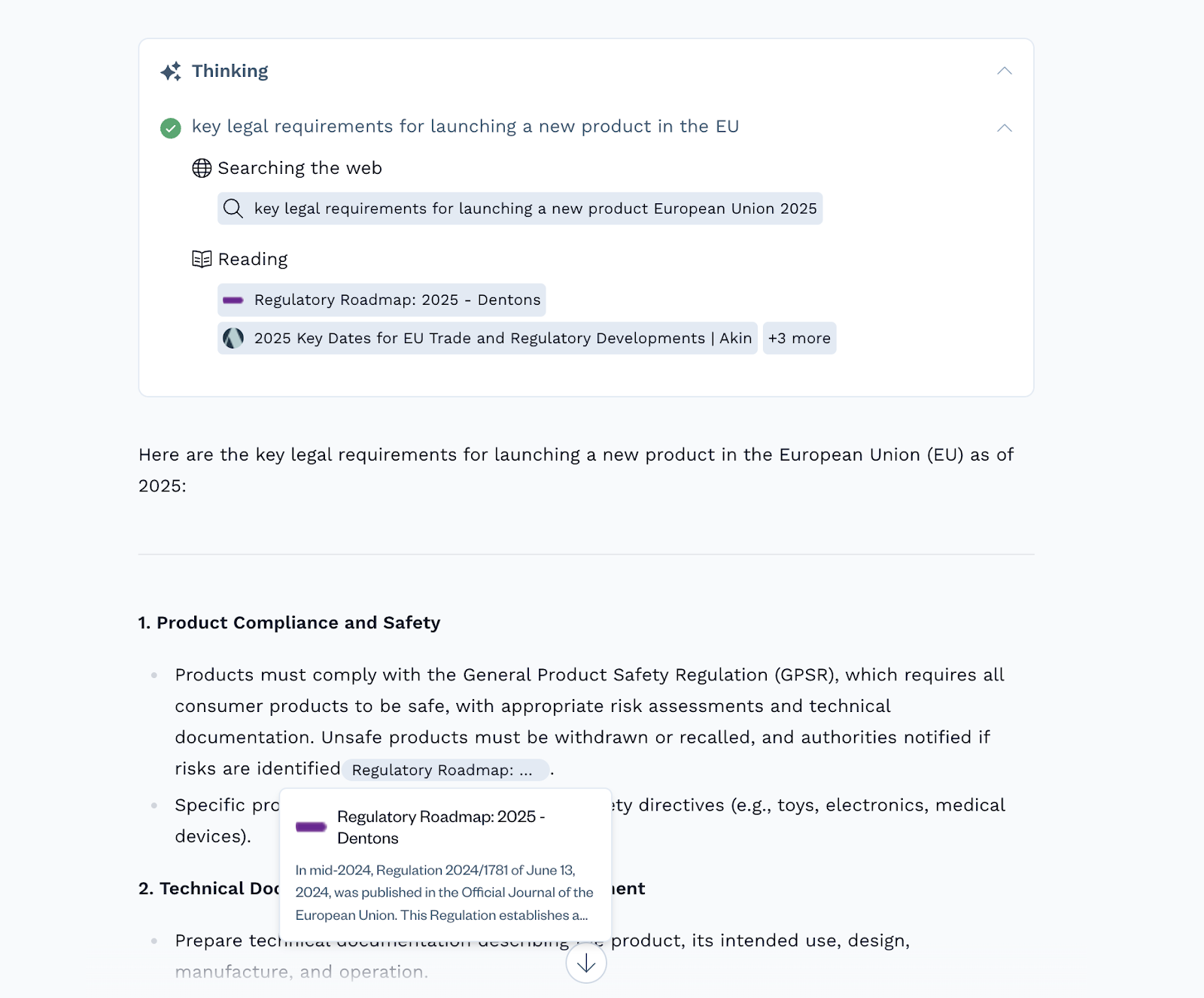
The final response will provide a direct answer to your question, often broken down into key sections for clarity. Notice that the information is backed by sources, which you can review for verification.
How to Review a Document
Accelerate your document review process by having Sidebar provide an initial analysis and summary.
Start a New Chat to ensure your conversation is focused on the document.
Click the Attach File icon (the paperclip) in the chat toolbar. Select a DOCX or PDF file from your computer. The file will appear above your message box.
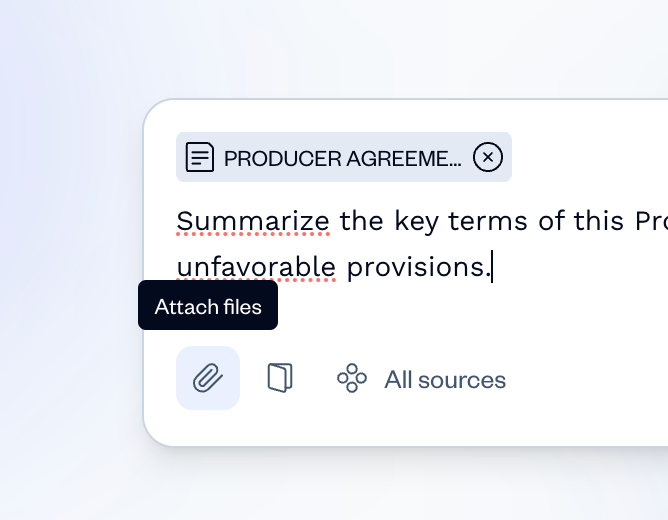
In the Message Sidebar box, give Sidebar a clear instruction. For example: "Summarize the key terms of this Producer Agreement and identify any red flags or potentially unfavorable provisions."
Click the Send button.
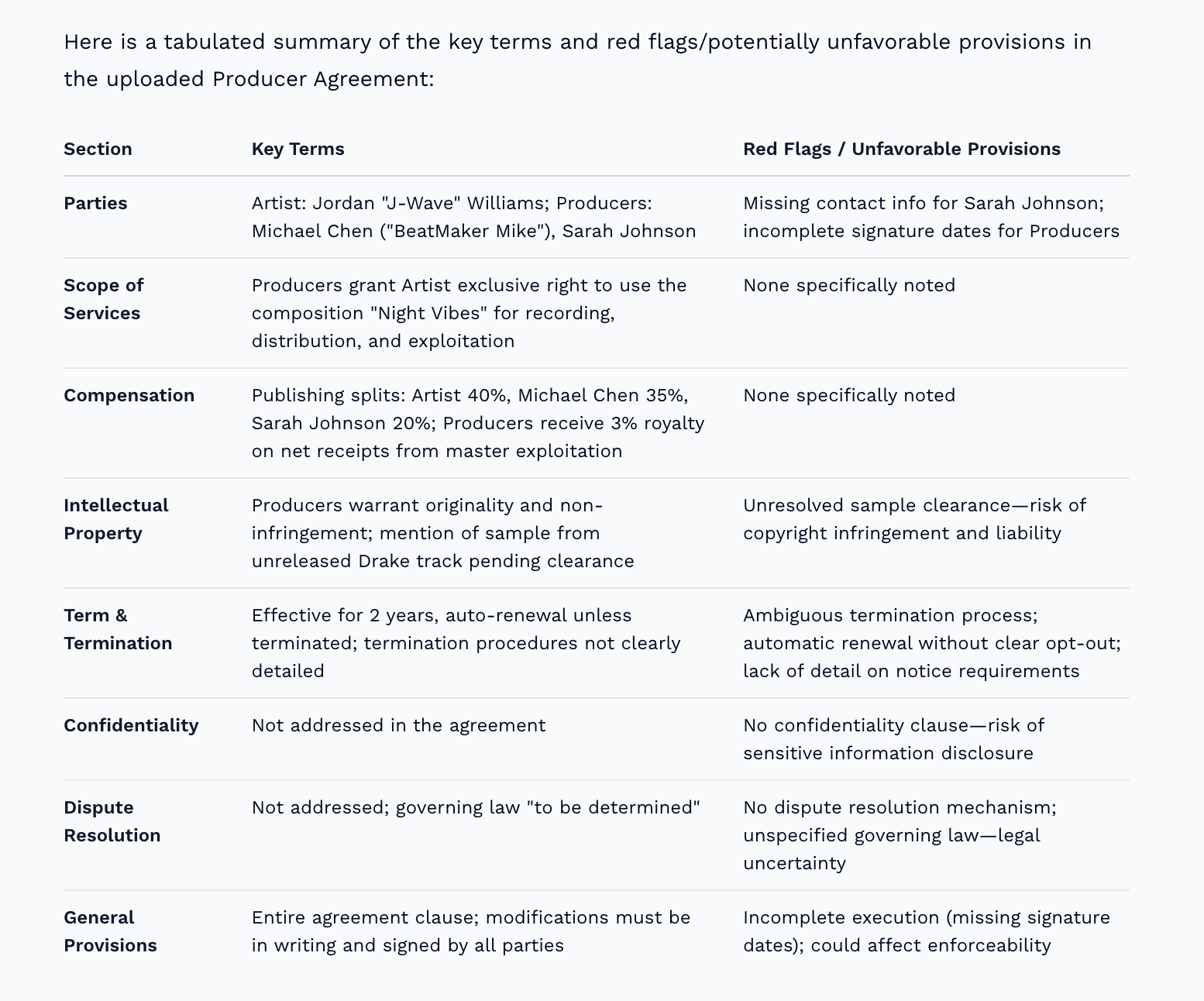
Sidebar will read the document and provide a structured analysis based on your prompt. This can include a summary of key terms (like Grant of Rights, Term, and Royalties) and a separate section for potential issues or red flags it has identified.
Diving Deeper with Research Mode
When you have a complex question that requires a comprehensive, memo-like answer with multiple sources, Research mode is the right tool for the job. It's ideal for tasks like understanding a new regulatory landscape or comparing laws across different jurisdictions.
Frame your complex question in the message box. For example: "Provide a summary of the legal and regulatory framework for returning subscription cancellations in Canada, covering both federal and key provincial levels."
In the chat toolbar, click the Research toggle to activate the mode.
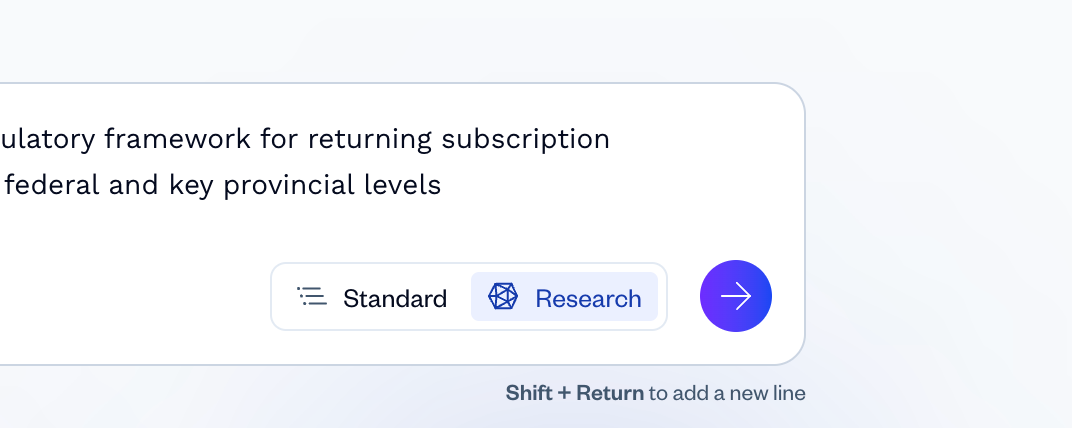
Click the Send button.
Unlike Standard mode, Research mode takes more time because it performs a multi-step investigation. The "Thinking" box is your window into this process. It will show you the detailed plan, including the multiple, recursive searches it's conducting (e.g., searching for federal laws, then searching for Ontario laws, then Quebec, etc.) and the sources it's reading.
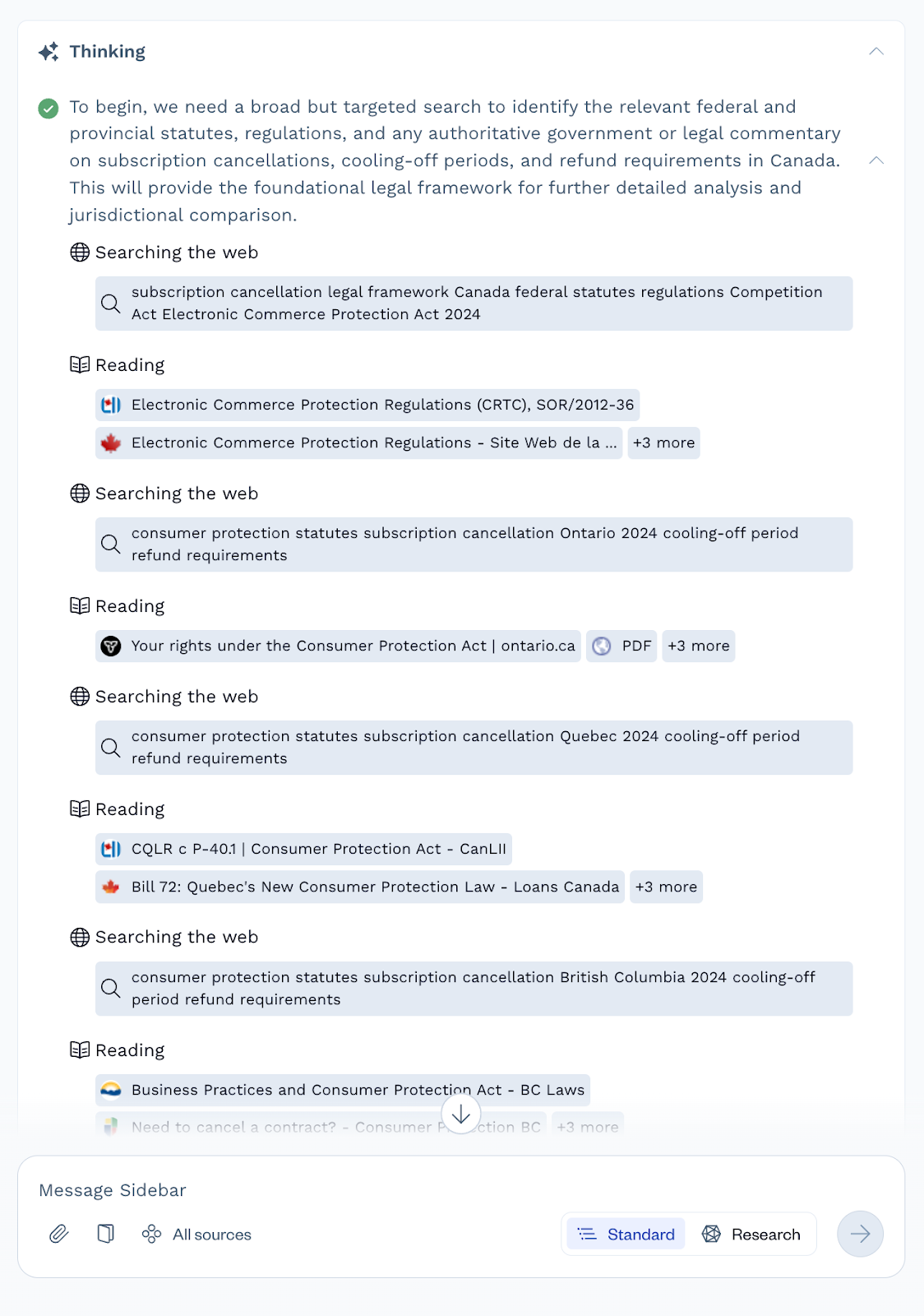
The final output will be a detailed, well-structured document, complete with citations, that synthesizes all the information it gathered.
Interacting with Your Results
Once Sidebar has responded, you have several options:
Ask a Follow-up: The conversation doesn't have to end. You can ask follow-up questions in the same chat. Sidebar remembers the context of the conversation, including any documents you've uploaded.
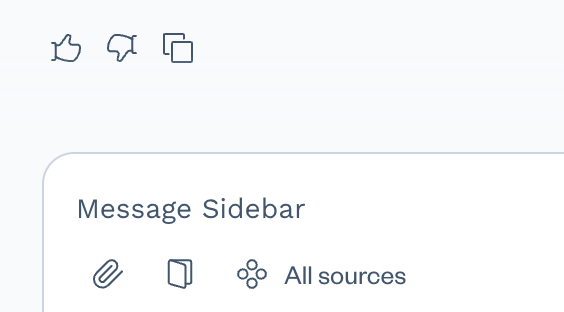
Copy Response: Hover over the response and click the copy icon to easily paste the text into an email, memo, or other document.
Provide Feedback: Use the thumbs-up or thumbs-down icons to let us know if the response was helpful. This feedback is crucial for improving the system.
Pro Tip: Treat Sidebar like a junior associate. After it identifies a red flag in a contract, ask it to fix it. For example, you could ask a follow-up like: "Based on the 'unclear sample' issue you identified, please draft a new clause that clarifies the process and assigns the risk to the producer."
Troubleshooting & Common Questions
What file types can I upload for review?
Sidebar currently supports PDF (.pdf) and Microsoft Word (.docx) documents.
How do I know the legal information is reliable?
Sidebar's responses, especially in Research mode, are designed to include citations and links to the original sources (e.g., government websites, legal databases). We always recommend you use these sources to verify the information, treating Sidebar as a highly efficient starting point for your own expert analysis.
Can I upload more than one document to a single chat?
Yes. You can attach multiple documents. This is useful when you need to compare two versions of an agreement or reference a master service agreement while reviewing a statement of work.