Getting Started: Signing Up & Logging In
Last updated: February 10, 2026
This guide walks you through creating your account and accessing the Sidebar web application, so you can immediately start leveraging your new AI legal assistant.
Creating Your Account (For New Users)
If you are creating a Sidebar account for the first time, follow these steps.
Navigate to the Sidebar web application at sidebar.spotdraft.com
On the welcome screen, click the Sign up button.
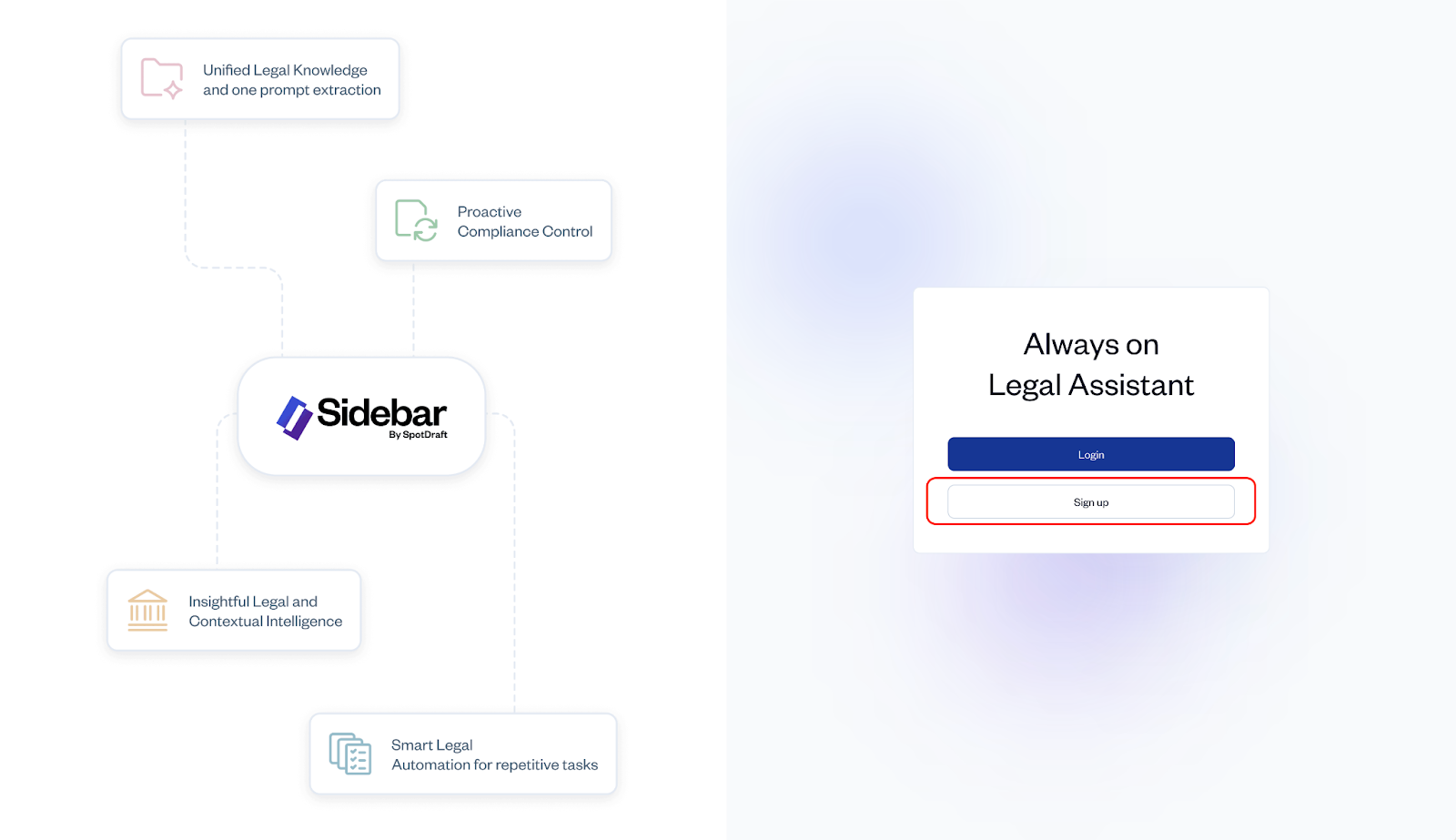
You will be taken to the "Create your account" page. You have two options:
Option A (Recommended): Click Continue with Google to use your existing Google Workspace account. This is the fastest method.
Option B: Fill in your First name, Last name, Email address, and create a secure Password.
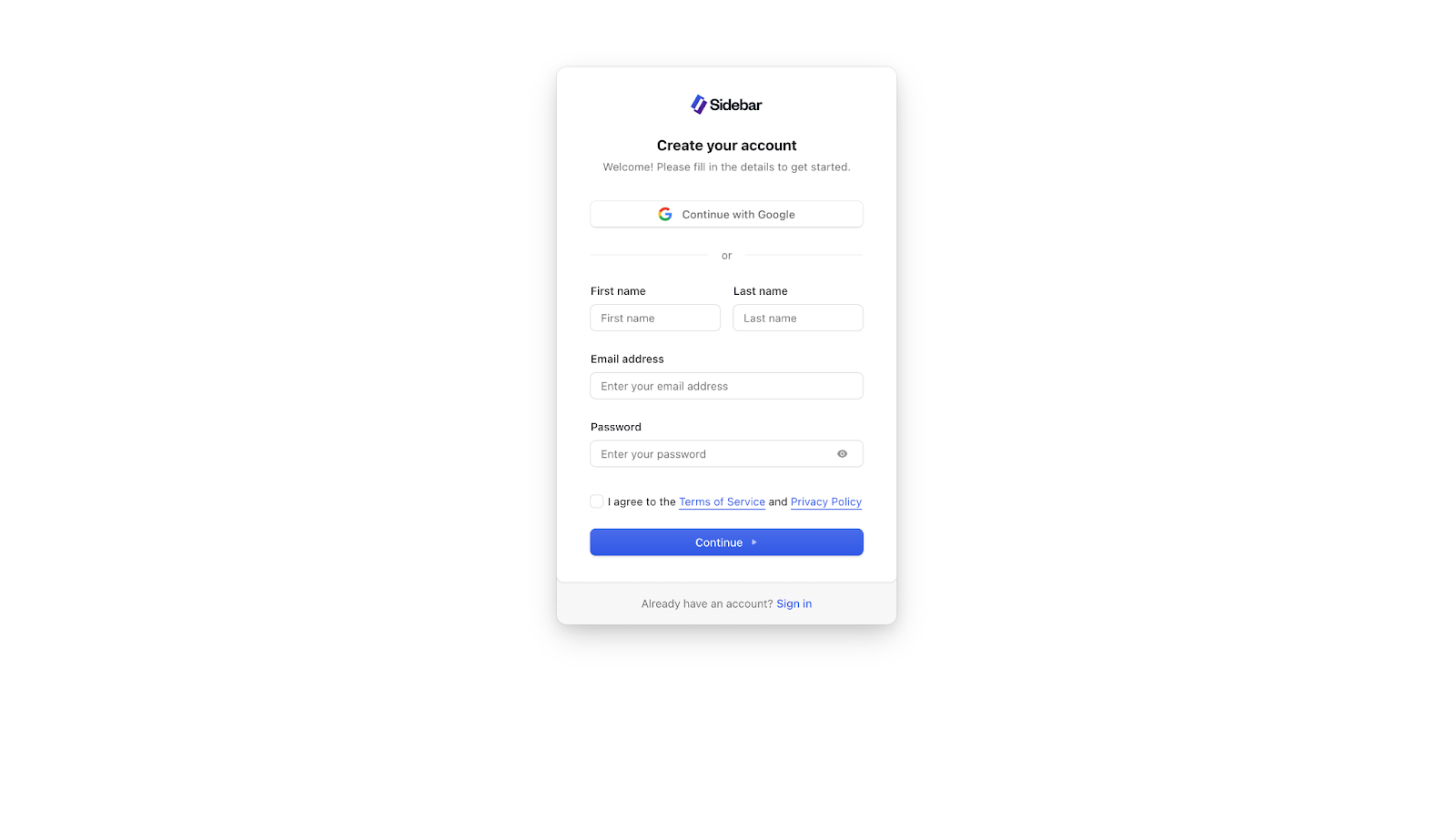
If you chose Option B, check the box to agree to the Terms of Service and Privacy Policy, then click the Continue button.
Sidebar will send a verification code to the email address you provided. Check your inbox, enter the 6-digit code on the "Verify your email" screen, and click Continue.
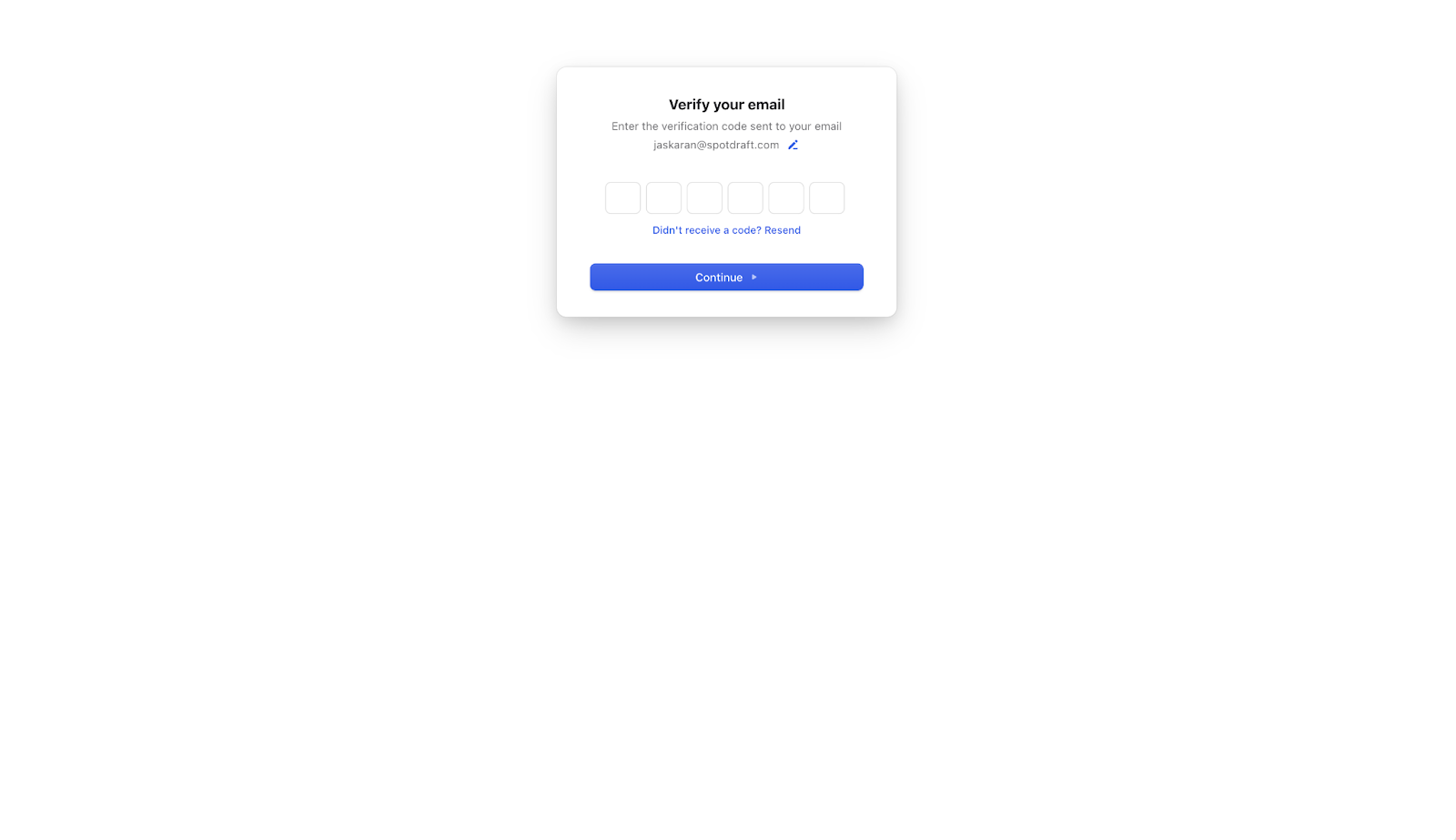
That's it! Your account is created, and you will be logged in and redirected to the main Sidebar chat interface.
Logging In (For Existing Users)
If you already have a Sidebar account, follow these steps to sign back in.
Navigate to the Sidebar web application at sidebar.spotdraft.com
On the welcome screen, click the Login button.
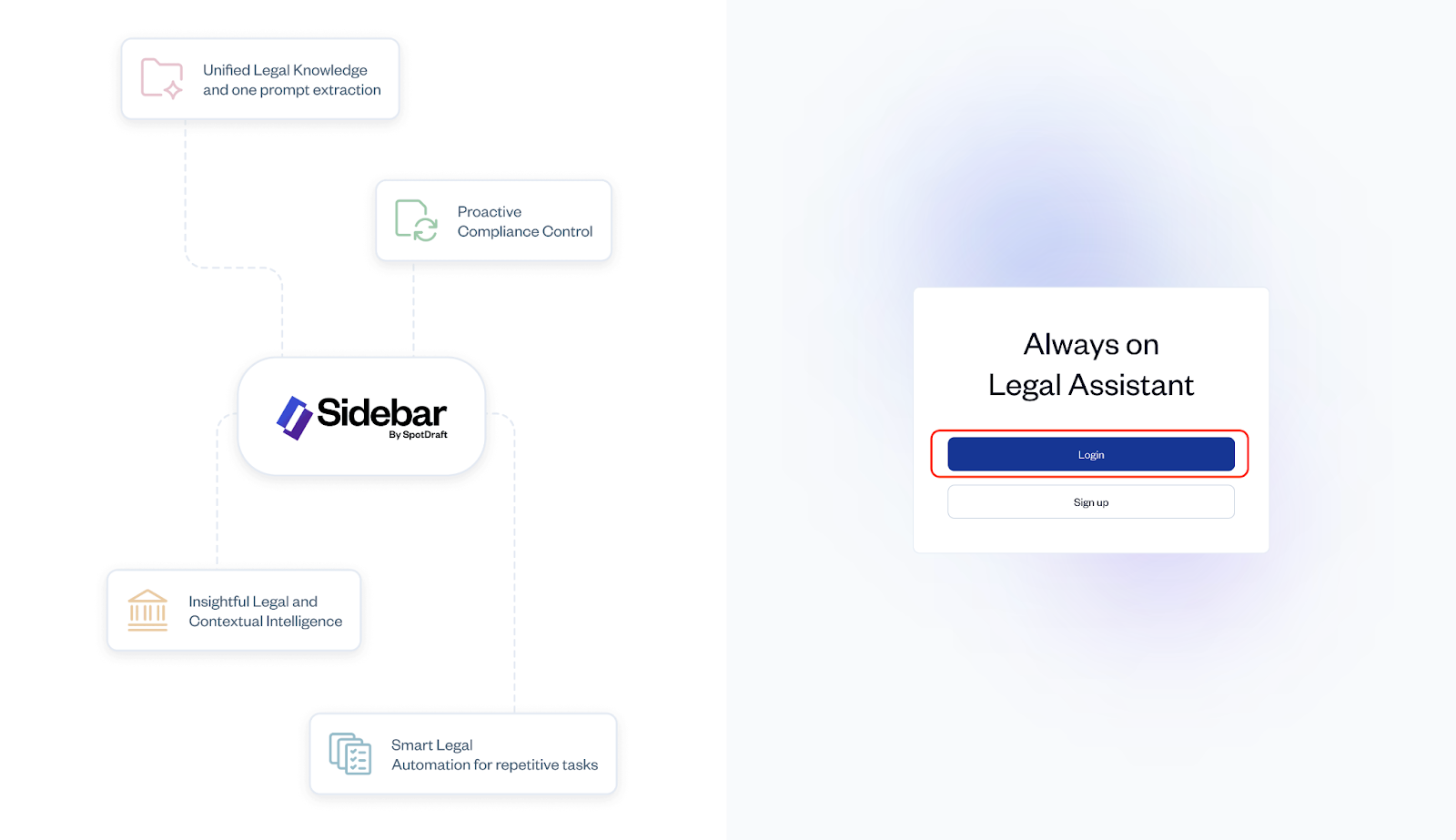
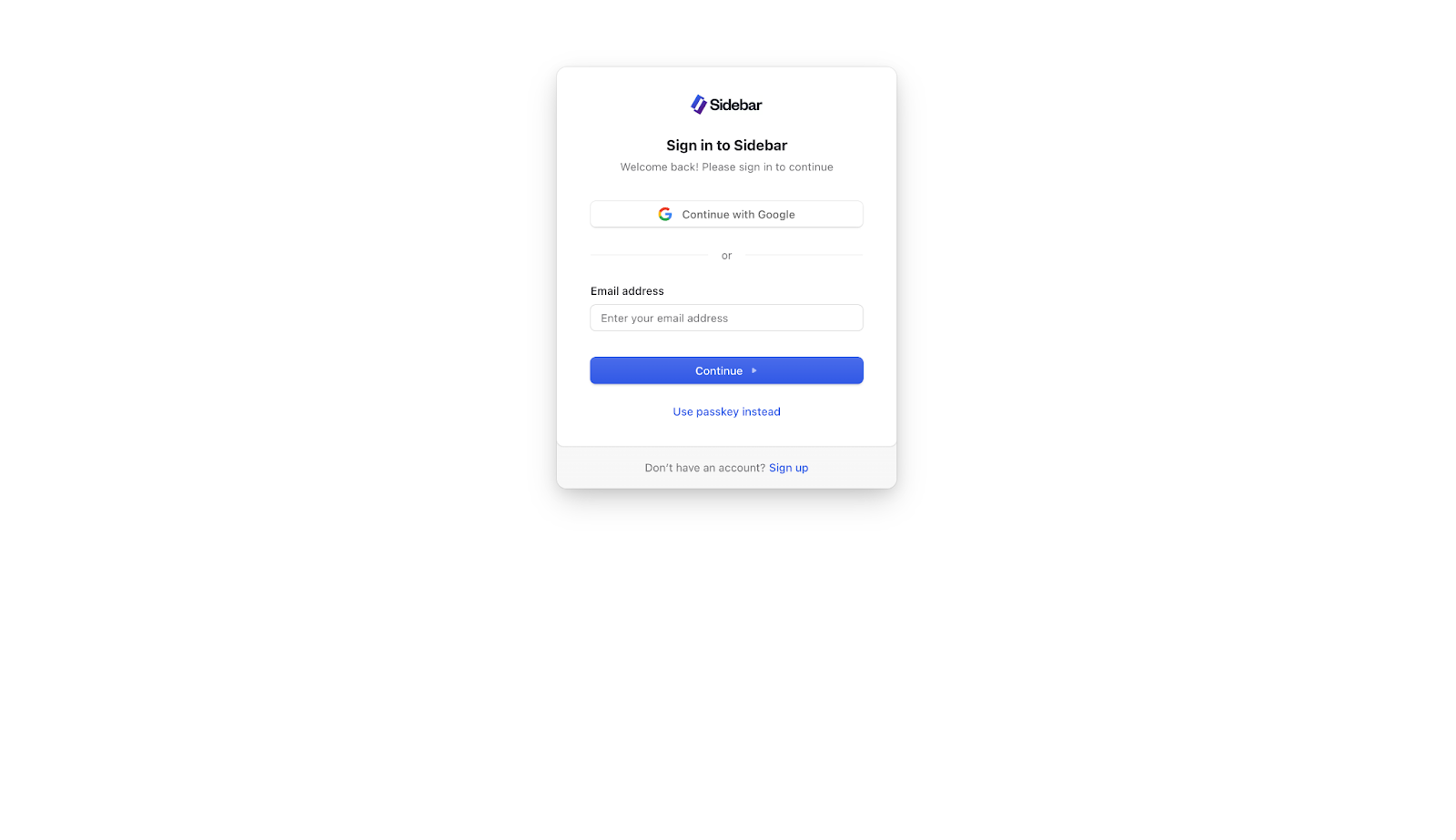
On the "Sign in to Sidebar" page, either:
Click Continue with Google if you originally signed up using that method.
Or, enter the Email address and Password associated with your account and click Continue.
Pro Tip: We highly recommend using your work email address (e.g., your Google Workspace) when signing up.
Troubleshooting & Common Questions
What if I don't receive my verification email when signing up?
First, please check your spam or junk folder. If you still can't find it after a minute or two, click the Resend link on the verification screen to have a new code sent to you.
I forgot my password. How can I reset it?
On the login screen, after entering your email address, you will see an option for "Forgot Password?". Follow the password reset instructions from there.
Can multiple people in my organization use the same login?
No. Each user on your legal team should have their own individual Sidebar account. This ensures security, maintains a personal chat history, and allows for features tailored to each user's needs.